
You can now use Pinegrow Online to edit projects that are stored on your computer.
DocsPinegrow OnlineDocsPinegrow Online2024-07-18
Working with local projects
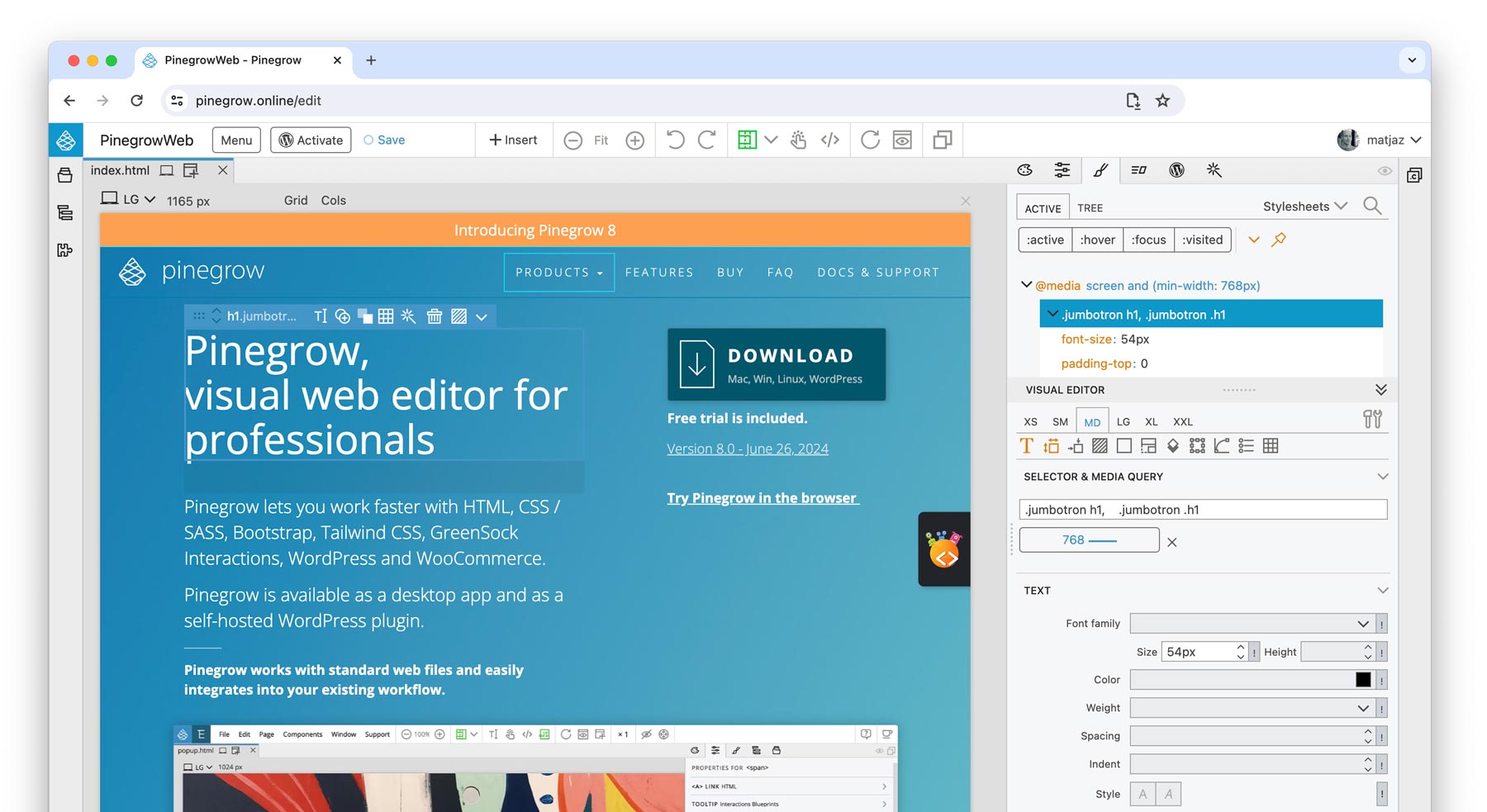
If you are not familiar with it, Pinegrow Online is a browser based edition of Pinegrow editor hosted on our server.
You can now use it to work with local projects:
- No need to upload files to the cloud.
- No need to install the Pinegrow desktop app.
Open a local project
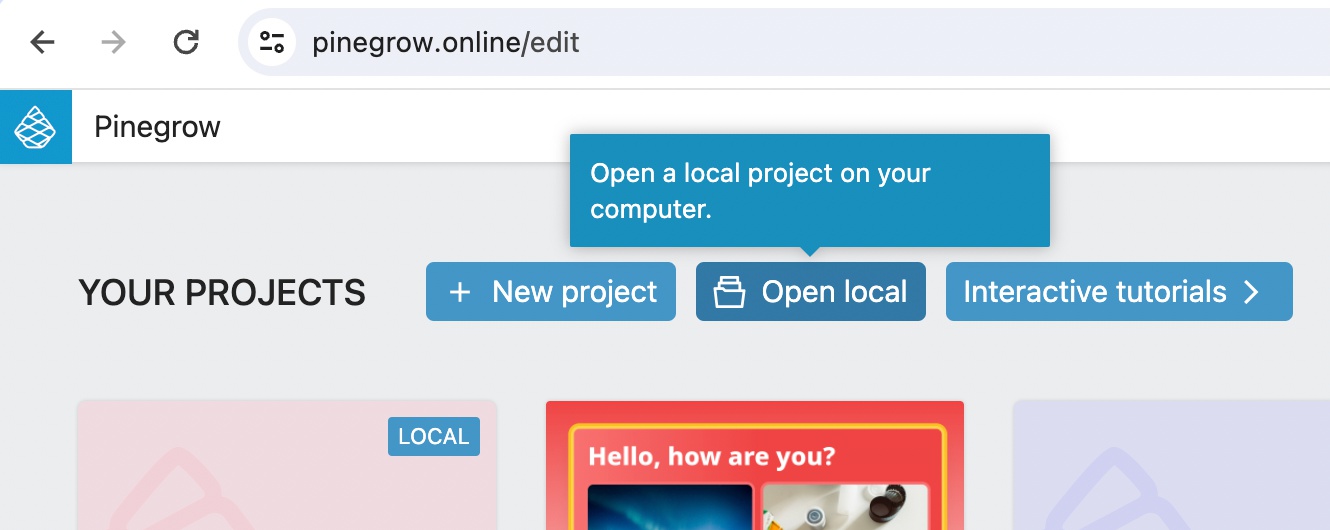
To open a local project, go to https://pinegrow.online/edit and click on the Open local button to select a folder:
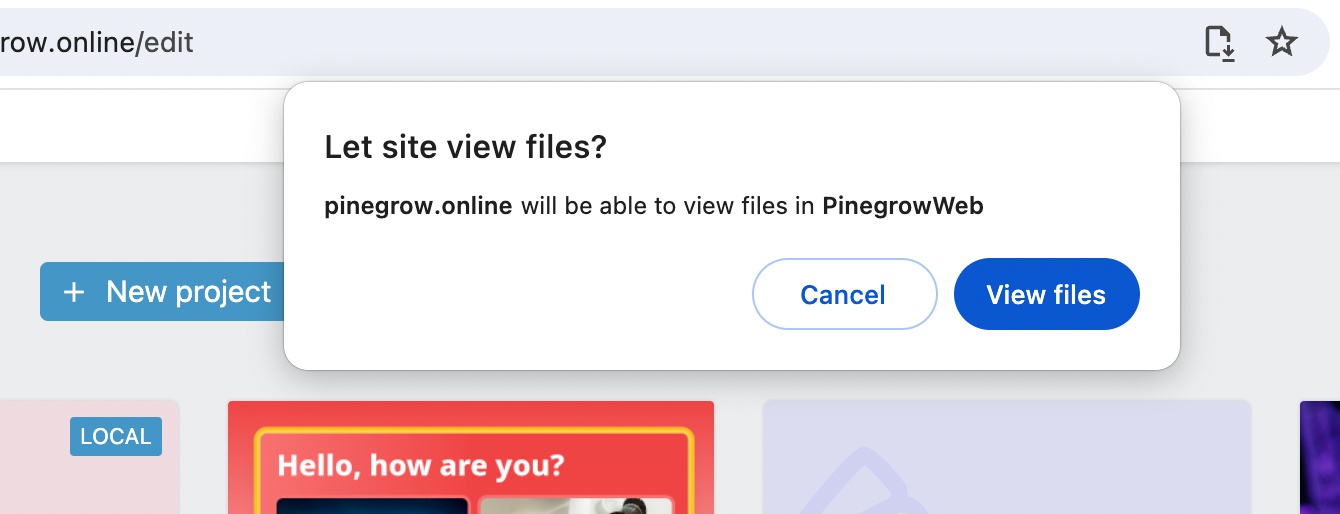
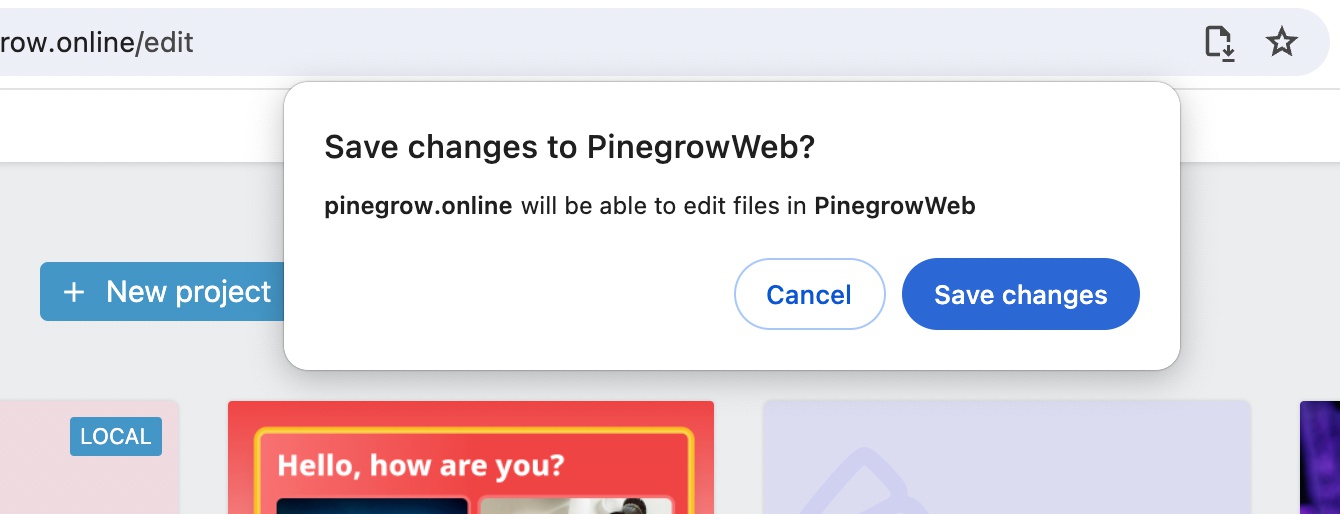
When asked by the browser, grant both viewing and editing permissions for the selected folder:
Almost all Pinegrow features are working in the browser. Bootstrap, Tailwind editor, CSS styling, Interactions, WordPress builder, AI Assistant, Components…
Limitations
There are a couple of limitations:
- Working with local files requires File System API that is currently only implemented in Chrome and Edge.
- SASS styling is not supported
- Flowbite Blocks for Tailwind are not available (but we added Flowbite Components)
- Pinegrow Online is best suited for smaller static HTML projects
- Always use source control such as Git to keep track of changes and prevent data loss in case anything goes wrong (this is a good advice in general).
Free access for users of Pinegrow Web Editor
And the best news is that we are giving all users of the desktop Pinegrow Web Editor free access to editing local projects on Pinegrow Online.
Activate with your Pinegrow Web Editor license
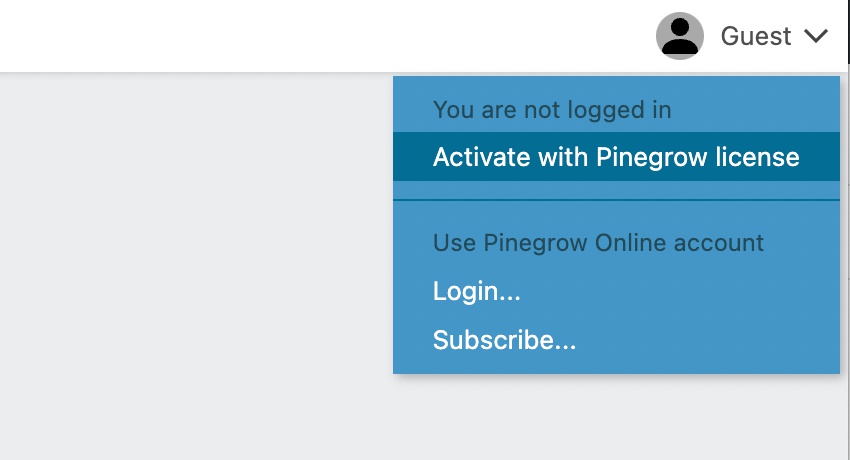
Simply activate Pinegrow Online with your valid Pinegrow license and you can start editing your local projects:
Enter your Pinegrow Web Editor license email and serial code, and click on Activate:
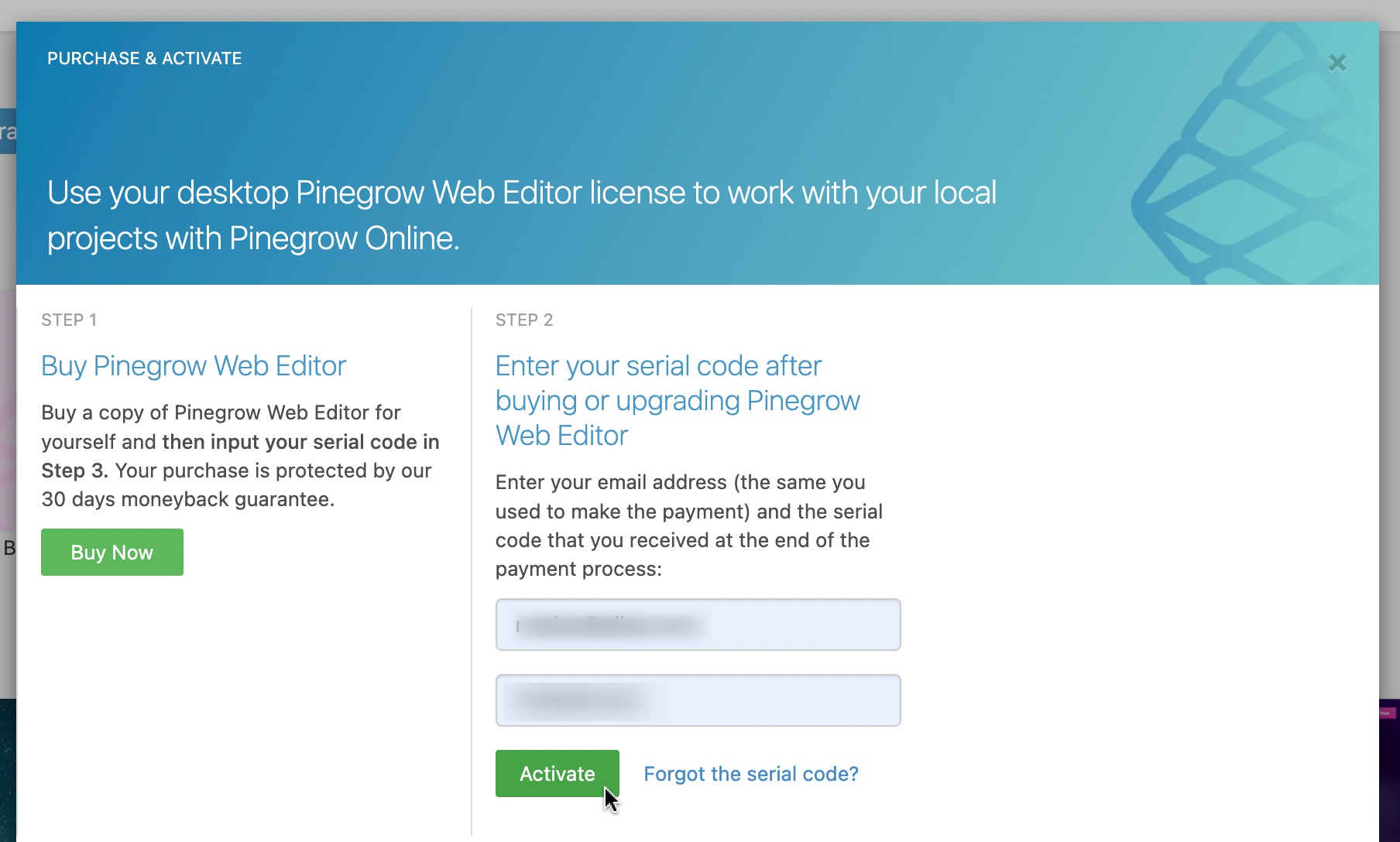
All add-ons that are present on your license will be activated as well.
If your Pinegrow license is no longer valid for updates, you can renew it to get access to Pinegrow Online.
Full access to Pinegrow Online
A separate paid Pinegrow Online plan is still needed to work with projects that are stored on the server. These plans include all Pinegrow features, add-ons, page thumbnails, project sharing… Of course, working with local projects is there as well.
Benefits
What are the benefits of using Pinegrow Online to edit your local projects?
First of all, it is very cool to have such powerful editor running in the browser.
And it is very convenient. Pinegrow is now always here for you, whenever you need it, wherever you work.
Our vision behind this update is to bring Pinegrow’s powerful web editing tools closer to you. If you are working in a browser, Pinegrow is now there for you.
And, this move is a step towards another cool way to access Pinegrow. But more about that later.
For now, enjoy how amazing Pinegrow runs in the browser. Take it for a spin and see for yourself.