
Connect OpenAI Codex as an AI Assistant provider in Pinegrow Desktop with your Codex sign-in, choose its models and reasoning levels, and let it edit pages through Pinegrow.
DocsAI AssistantDocsAI Assistant2026-09-28
Using OpenAI Codex in Pinegrow
Requires Pinegrow 10
Use OpenAI Codex as the AI Assistant in Pinegrow Desktop. Pinegrow uses your own Codex sign-in, so you can work with the Codex access in your ChatGPT plan instead of setting up a separate OpenAI API key. Codex plans the work, and Pinegrow applies the edits: each change appears in the page right away and can be undone.
Are you using Claude Code? Read Using Claude Code in Pinegrow instead.
Before you start
- Pinegrow Desktop. The Codex provider is not available in Pinegrow Online.
- Codex CLI 0.122.0 or newer. Follow the official Codex documentation to install it.
- A Codex sign-in. Sign in with the Codex CLI before you connect it to Pinegrow. Pinegrow uses that sign-in and doesn't ask for an OpenAI API key.
- The full path to the Codex program. In Terminal, run
which codexand copy the path it shows.
How Codex works with your project
Codex runs with read-only access to your project files. It looks at the live page and reads stylesheets through Pinegrow. To change a page, it sends editing commands to Pinegrow's built-in MCP server. Pinegrow validates each change, shows it in the page and adds it to the undo history.
Codex can't write your files directly. If it asks for permission to run a command or change a file, Pinegrow declines the request.
This is a change from earlier versions, where Codex ran with permission to run commands and edit files without asking.
Add the Codex provider
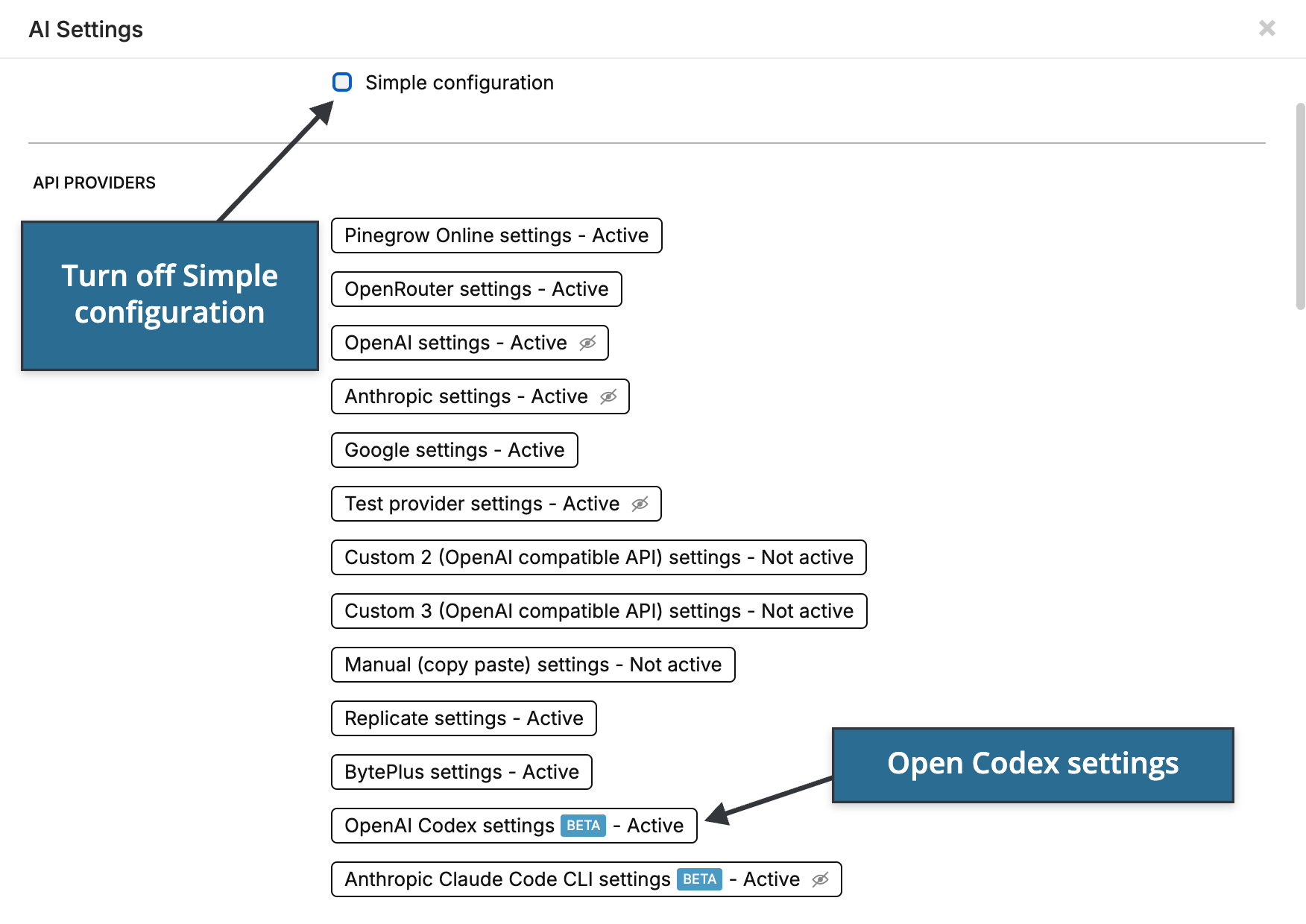
- In the AI Assistant panel, click the AI Settings button in the row with Send. You can also choose Support & Settings › AI Settings….
- Uncheck Simple configuration. Codex is listed only when Simple configuration is off.
- Under API providers, click OpenAI Codex settings. The provider is marked Beta.
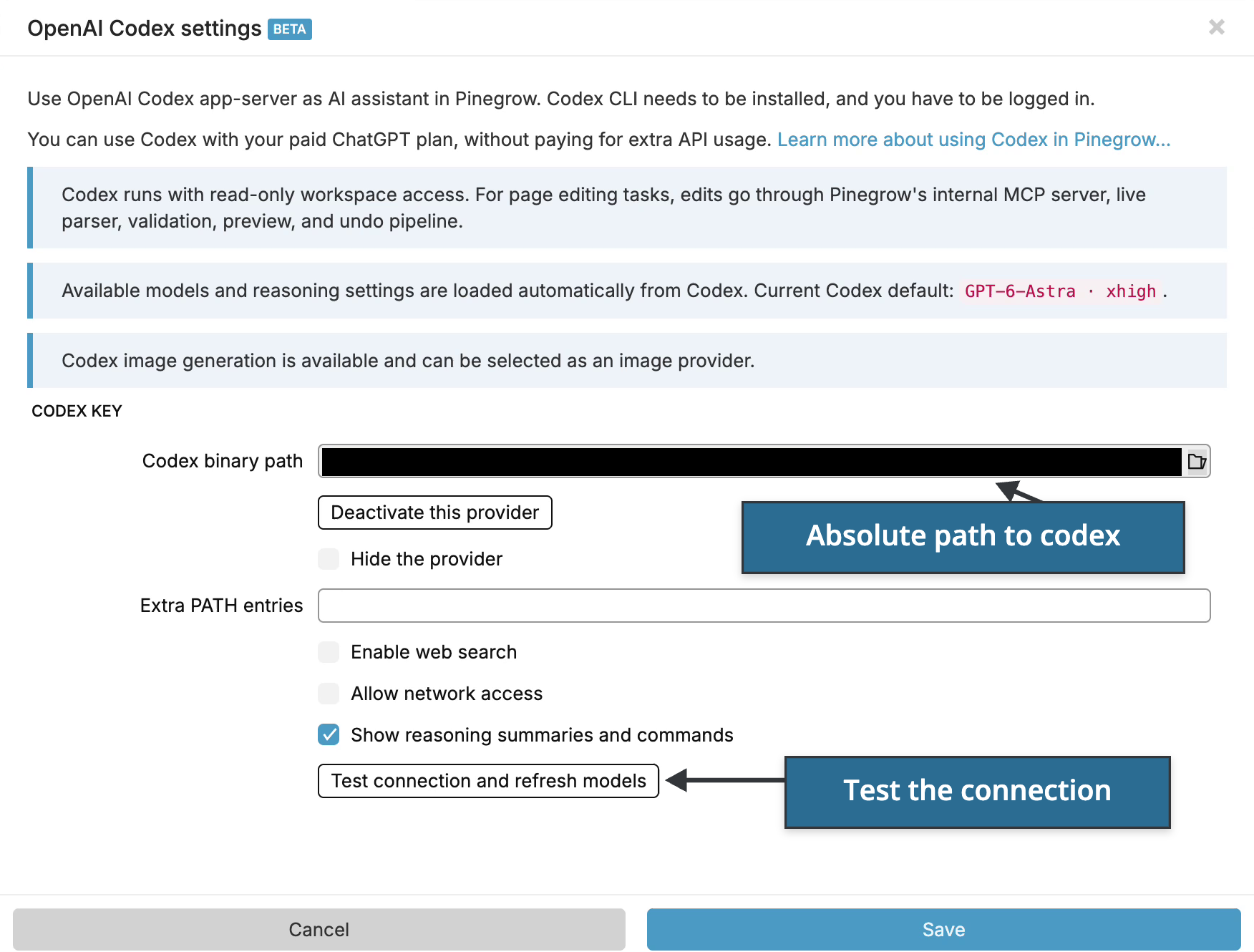
- In Codex binary path, enter the absolute path to the Codex program, for example
/opt/homebrew/bin/codex, or click the folder icon to choose it. - Click Test connection and refresh models and wait for the result.
- Click Save in the Codex settings, then Save in AI Settings.
Test the connection
The test checks the Codex CLI version and your sign-in, loads the models and reasoning levels your account offers, and sends a short test request to your default Codex model. When it works, Pinegrow shows a message such as Codex connection succeeded. 5 models available., followed by your default model and whether image generation is available.
If the test fails, the message starts with Codex app-server test failed: and gives the reason:
- Codex CLI 0.122.0+ required means your Codex CLI is too old. Update it and test again.
- If Codex can't be started, check the Codex binary path. If the path is correct, add the folder that contains Node.js to Extra PATH entries.
- If the reason mentions your sign-in, sign in again with the Codex CLI, then test again.
Codex settings
- Codex binary path: required. The absolute path to the Codex program.
- Extra PATH entries: optional folders that Pinegrow adds to the PATH of the Codex process, such as your Node.js
binfolder. In most cases you don't need this. - Enable web search: lets Codex search the web. Off by default.
- Allow network access: lets the tools Codex runs access the network. Off by default.
- Show reasoning summaries and commands: shows Codex's reasoning summaries and the commands it runs in the conversation.
- Hide the provider: hides Codex models from the model menu without deactivating the provider.
- Deactivate this provider: deletes the Codex provider settings.
The Codex CLI command and Extra arguments fields from earlier versions are gone. Codex's own configuration still sets its default model and reasoning level.
Choose Codex models
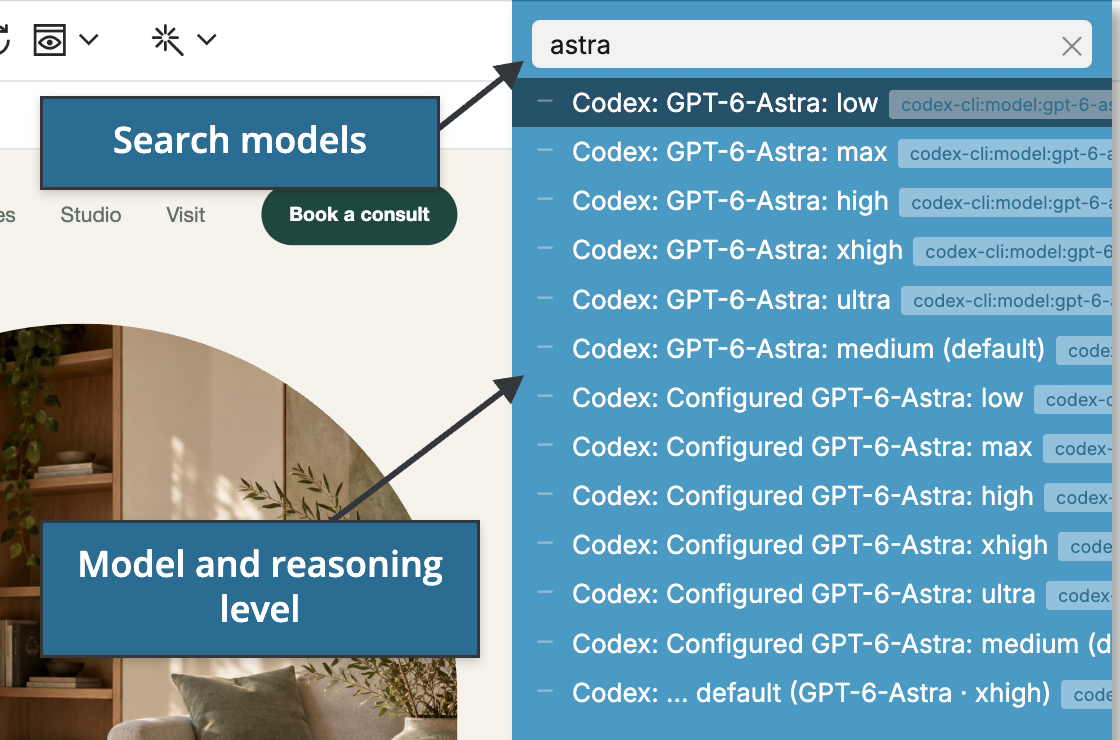
Pinegrow loads the models and reasoning levels that your Codex account offers, and adds them to the model menu:
- Codex default uses the model and reasoning level set in your Codex configuration.
- Configured entries use your configured model with the reasoning level you choose.
- The other entries name a model and a reasoning level. (default) marks the model's default level.
To use Codex, right-click the Smart or Quick toggle below the prompt, type to search, and choose a Codex model. Click the toggle to switch between the two. A lower reasoning level suits Quick and a higher level suits Smart.
You can't change the model in the middle of a task. Start a new task to use a different model.
If Pinegrow can't load the model list, the Codex settings say so. Pinegrow keeps the last list it loaded and the Codex default option.
Ask Codex to edit a page
- Open the page and type your request in the AI Assistant prompt. Describe what you need the way you'd brief a designer.
- Click Send. The conversation shows each step Codex takes. Click Cancel to stop the task.
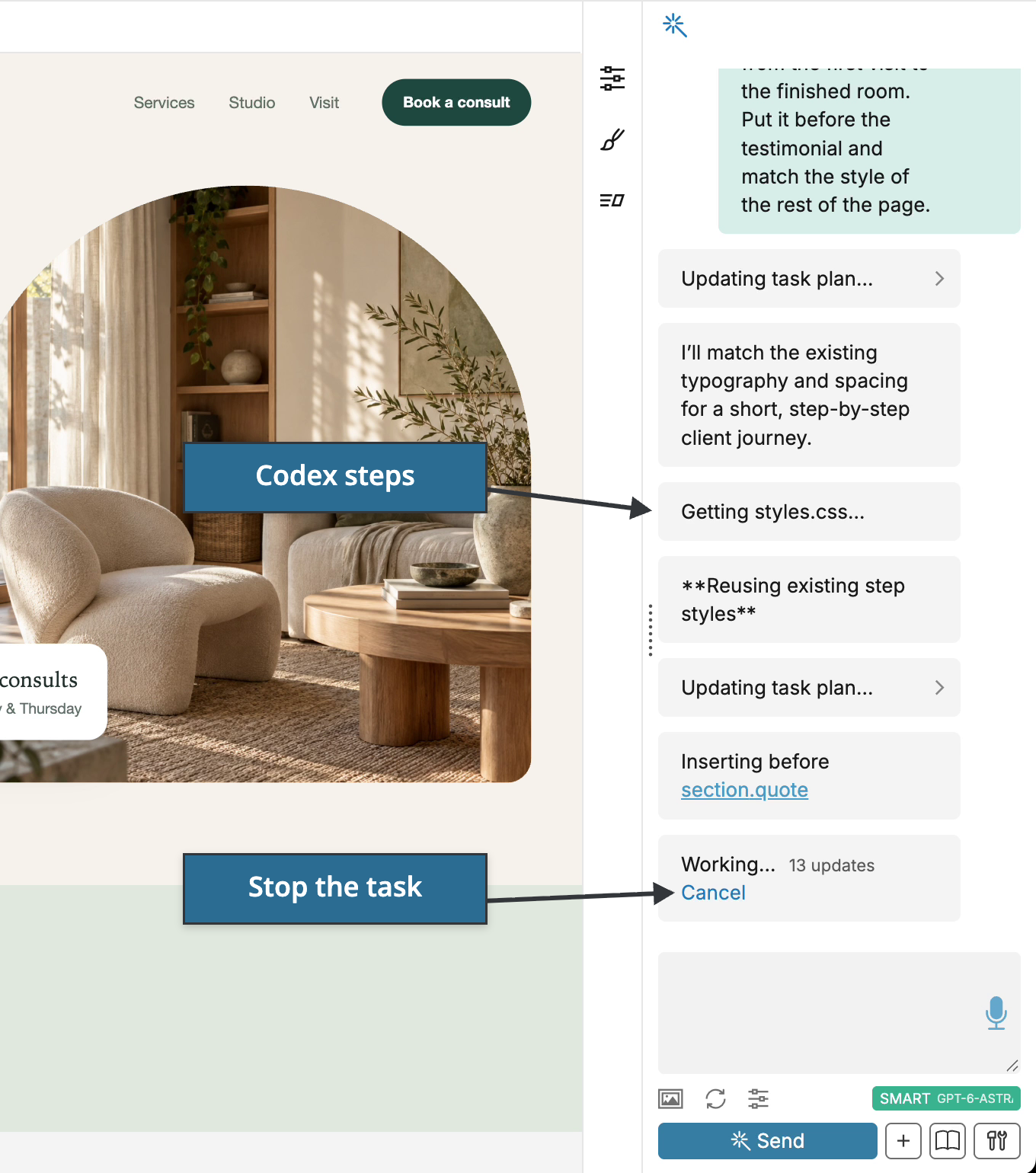
- When the task finishes, the change is already in the page, and Codex summarizes what it did.
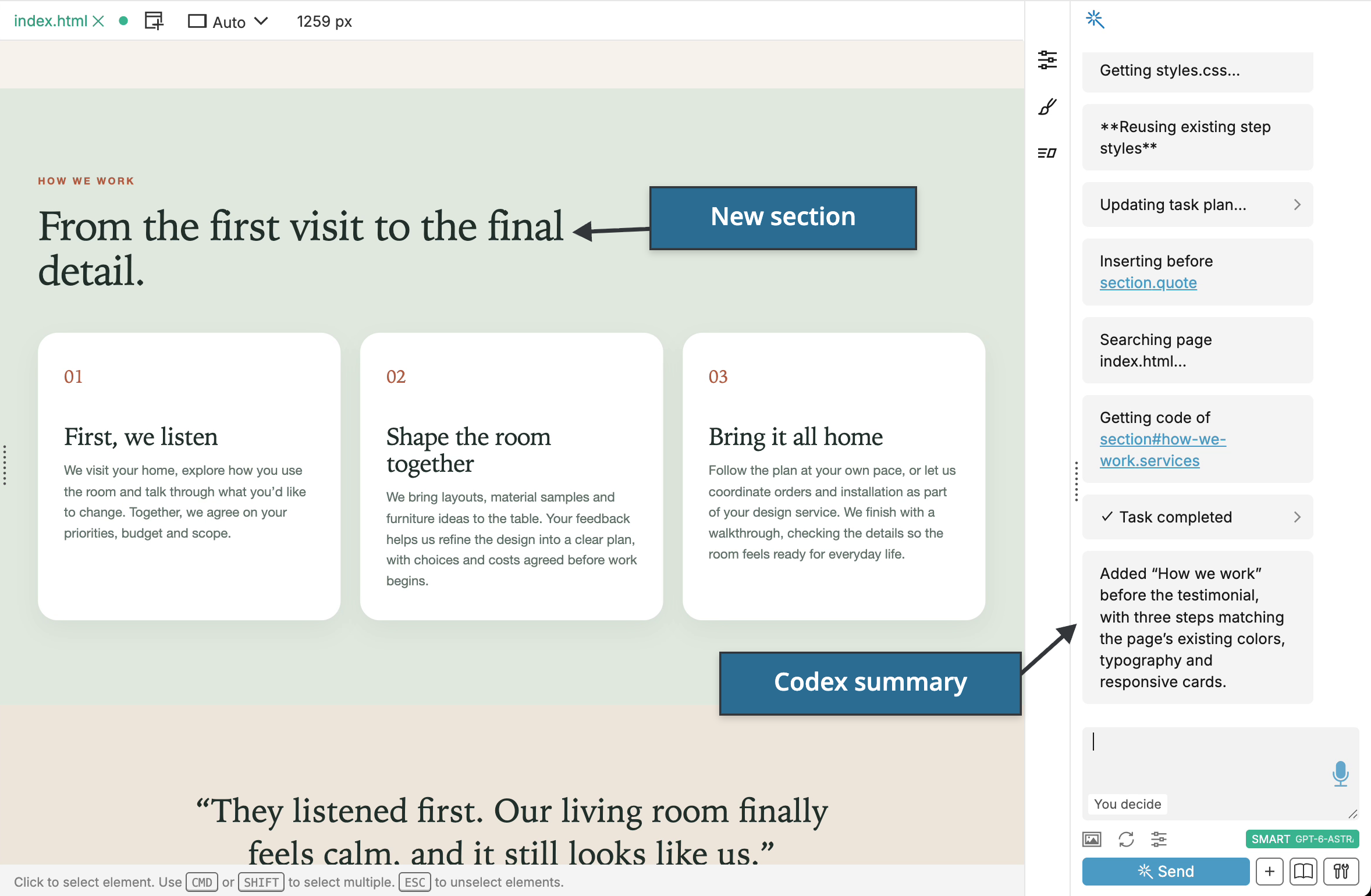
Codex's edits are normal Pinegrow edits. Undo them like any other change, and save the page with File › Save. To compare the page before and after the task, turn on Review AI changes.
Follow up and steer
To refine the result, send another request in the same conversation. Codex continues the same session, so it keeps the context of the task. A request like "add a fitting photo to that section" is enough.
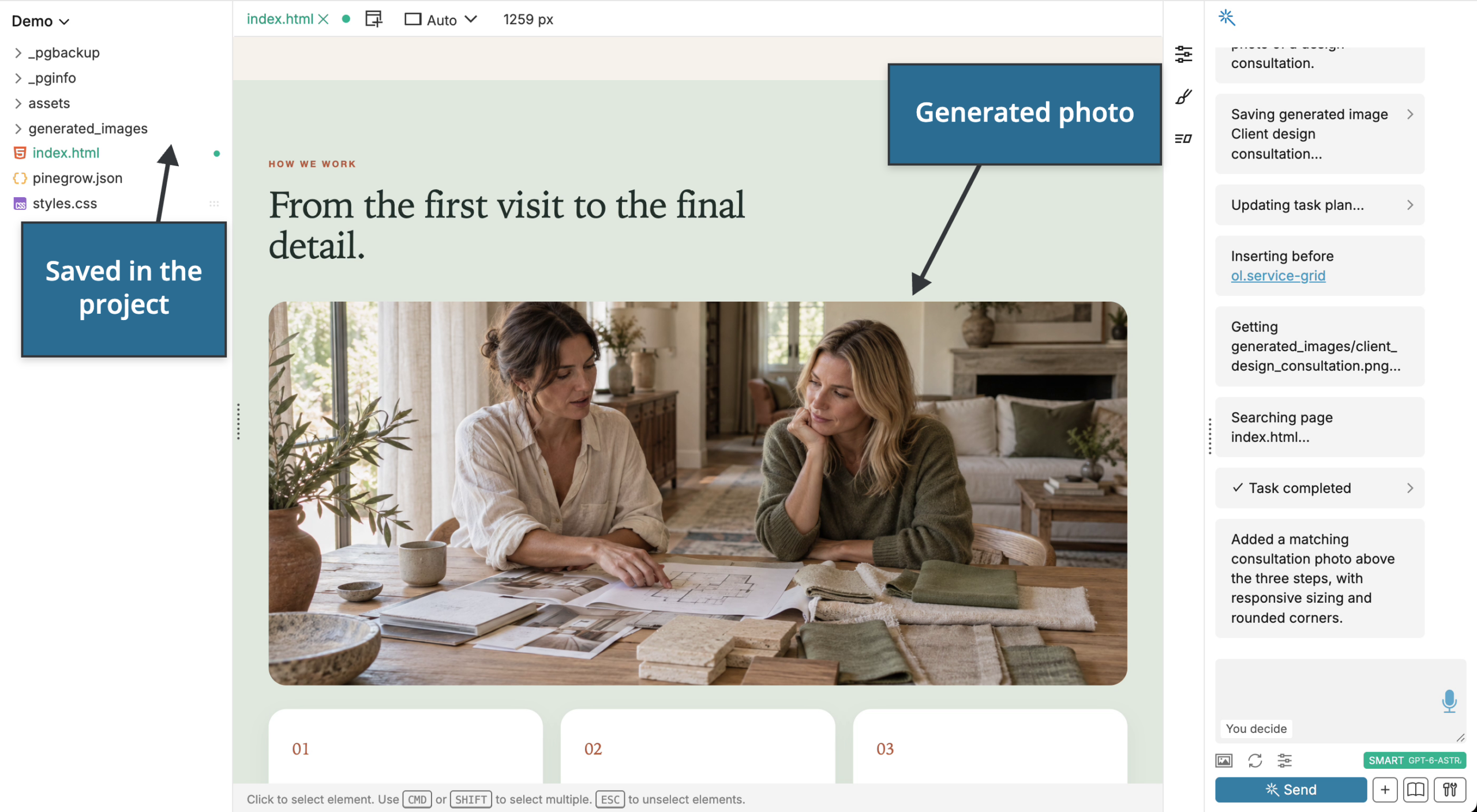
To add guidance while Codex is still working, type your message, click Send and choose Steer. Codex takes the new guidance into account without starting over. If you see The active request is still starting. Try steering again., wait a moment and steer again.
Generate images with Codex
When the connection test reports that image generation is available, Codex can also create images:
- During an editing task, as in the example above. Pinegrow saves the generated image in the project.
- As the image provider for AI Assistant. In AI Settings, under Generating images with AI, check Generate images (works with Smart HTML Editing), set Provider to Codex, and keep the model Automatic (managed by Codex).
Generating an image takes a while.