
Use the Interactions panel to add interactions, scroll scenes and other interactions actions to the selected element.
DocsInteractionsDocsInteractions2019-12-10
Interactions panel
Interactions panel is only visible if Pinegrow Interactions are enabled on your Pinegrow Web Editor license. You can check that in Support › Purchase & Activate screen. There you can also get Interactions if you don’t have them already
The Interactions Panel is used to add interactions actions to elements on the page.
Here, we’ll first take a look at the available actions. Instructions on using the panel itself follow after that.
Interactions actions
Check out the guides for interactions actions to learn how to use them:
Interactions
Use the Interactions action to add one or more interactions to the selected element.
Scroll Scene
Use Scroll Scene action to animate the element as it scrolls in and out of view.
Hide at Start
Add Hide at start to elements that need to be hidden when page loads so that you can reveal them with interactions.
Show at Start
Place Show at start on elements that need to be displayed when page loads so that you can hide them with interactions.
Smooth Scroll
Use the Smooth Scroll action to smooth the scroll wheel scrolling. That makes the Scroll scene animations appear more natural.
Apply to Many
Use this action to copy all interactions actions from this element to other elements on the page.
Using the Interactions Panel
By default, Interactions panel is located next to the Style panel:
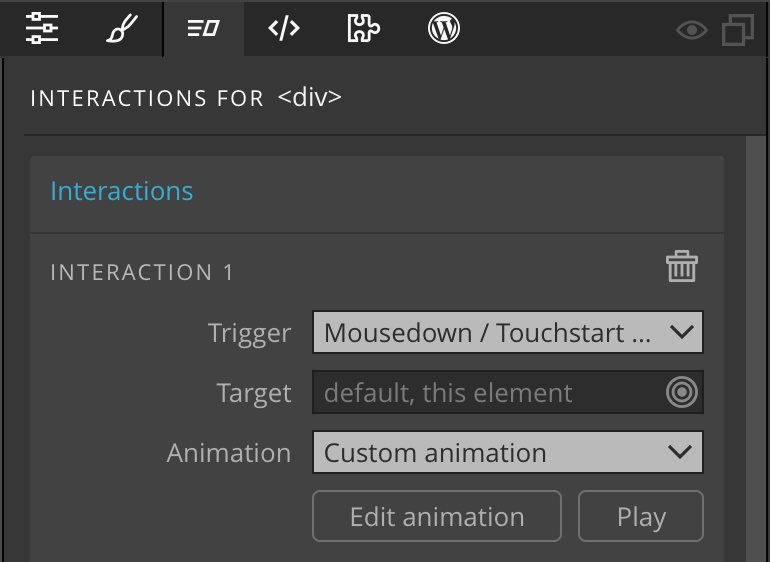
Activating interactions on the page
Before you can start using interactions, you have to activate them on the current page:
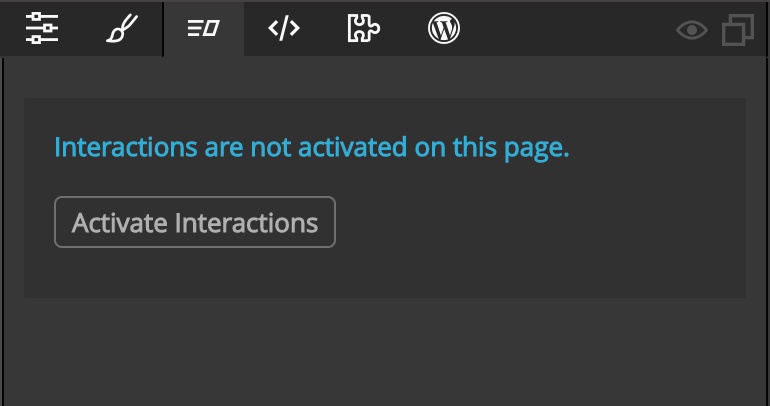
That will add Interactions Javascript library to your project and insert the script reference to the footer of the page.
A short snippet of dynamic inline styles will be added to the head of the page. They are used to hide and show elements in an accessible way.
Adding interaction actions to elements
To add a new interaction to an element on the page, select that element and then click on one of the interactions actions:
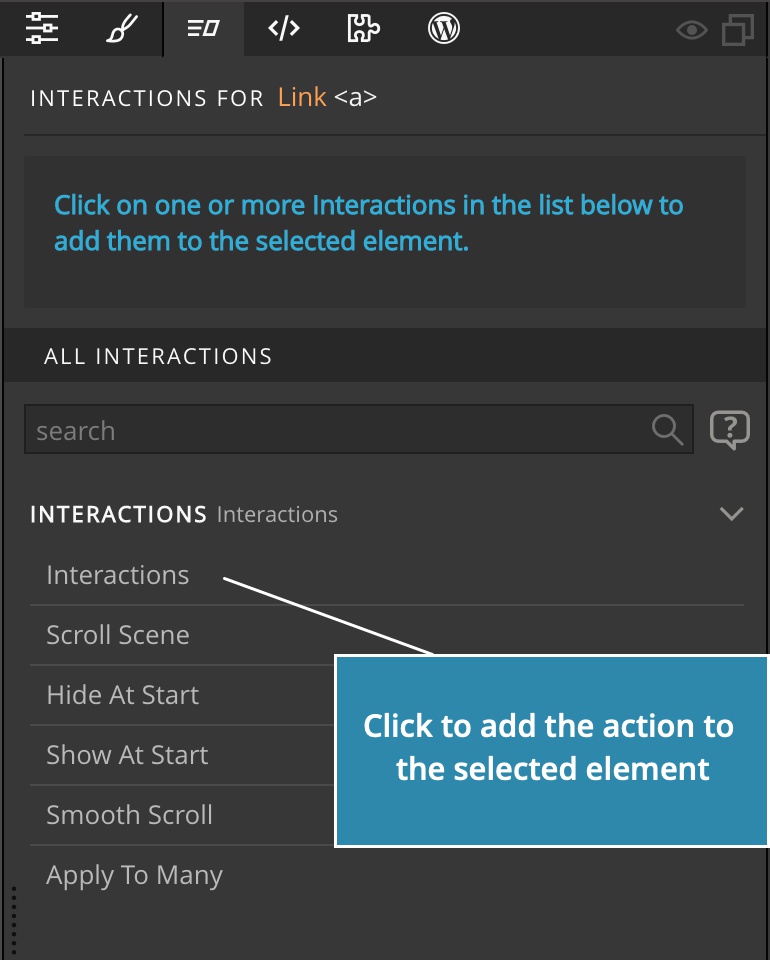
Multiple actions can be added to the same element, for example Interactions, Hide at Start and Apply to Many.
Once the action is added, you can set how it works by tweaking its settings:
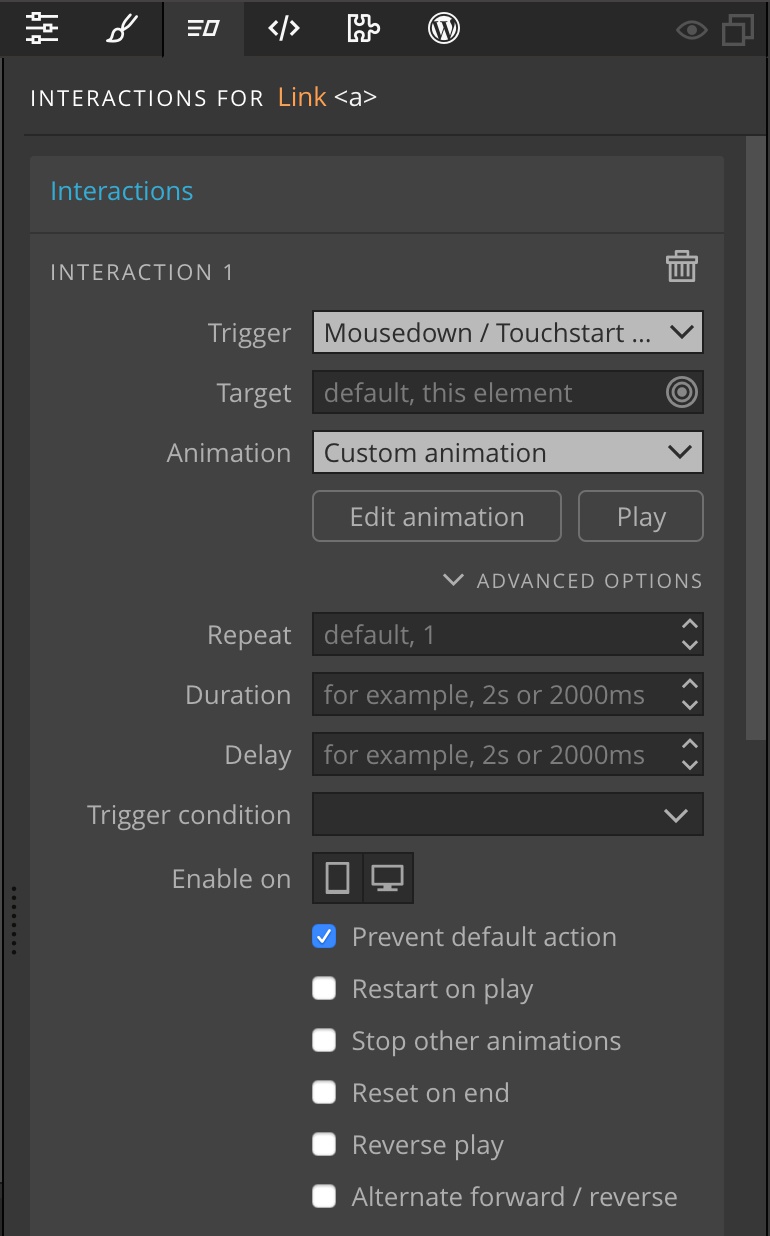
Removing the action
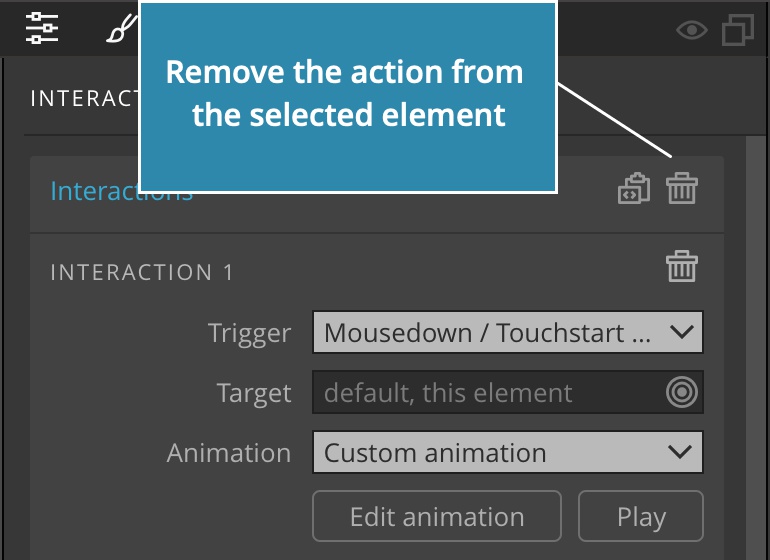
Click on the bin icon to remove the action from the selected element:
Copy-paste actions
You can copy and paste actions, either one by one, or all at once:
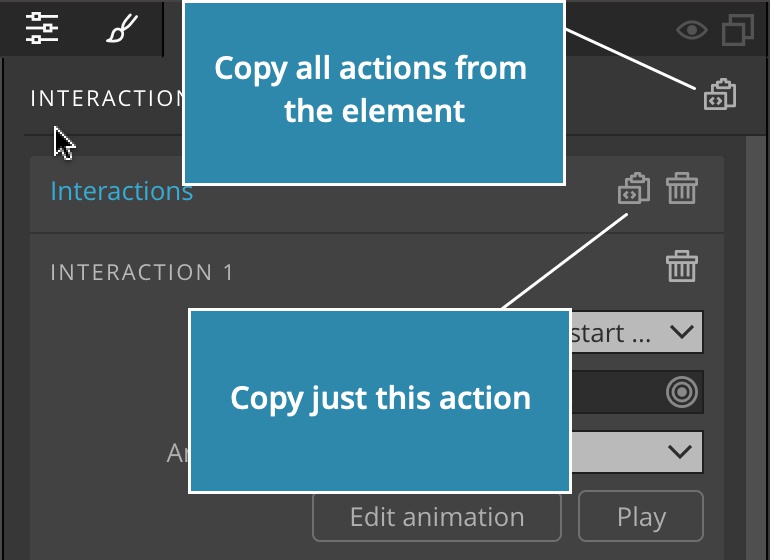
Then, use CTRL (CMD on Mac) + V or the Clipboard to paste actions to another element.