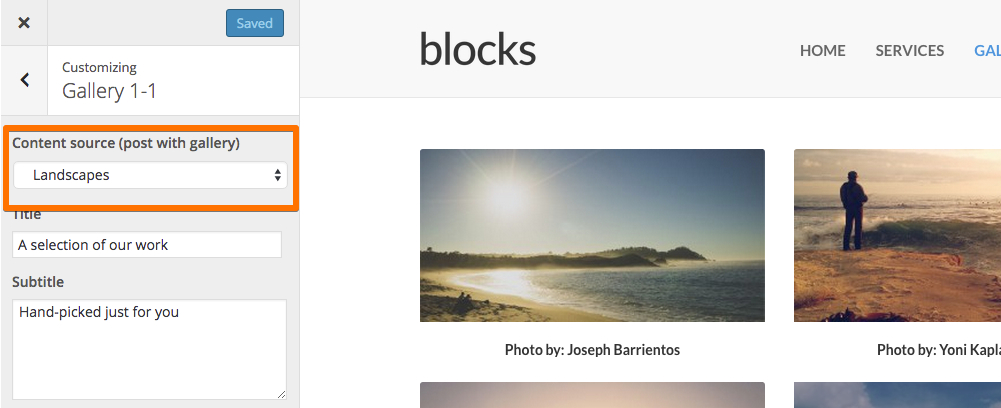
In order to help you understand how WordPress themes created with Pinegrow and using Bootstrap Blocks works, we have created a sample content file for your upcoming experimentations.
ArchiveArchiveArchiveArchive2020-12-19
Sample content for WordPress themes using Bootstrap 3 Blocks
This page describes Bootstrap 3. It may not match current Pinegrow. Go to Archive
The sample content will add numerous posts with pictures and meta data in your WordPress setup in order for you to quickly understand how to configure your new theme from the customizer.
IMPORTANT: Please, IMPORT the Sample content ONLY AFTER you have created, exported and activated your first WordPress theme using Bootstrap Blocks. Otherwise, it will not work.
Step 1
Download the file pinegrowwpwebeditor.wordpress.2015-07-22-1.xml and save it to your desktop. (unzip the file)
Step 2
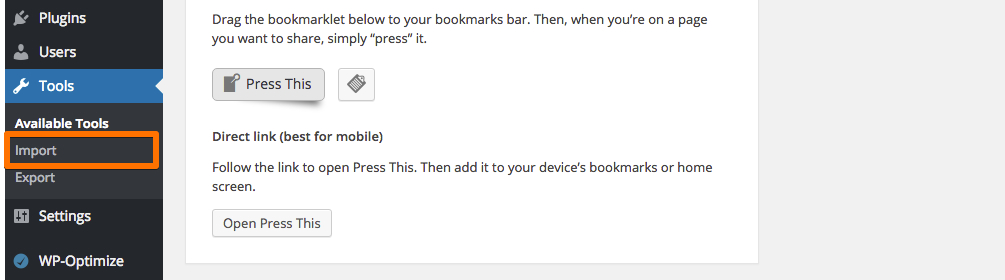
Log in to your WordPress installation. Move the mouse pointer to the “Tools” heading on the left side and select “Import” on the menu.
Step 3
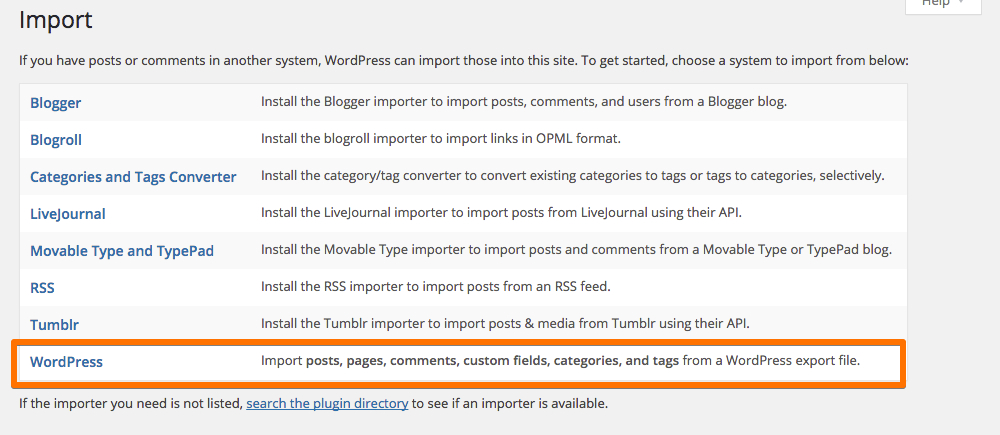
Click the “WordPress” link. A prompt appears to ask if you would like to download the WordPress Importer tool.
Step 4
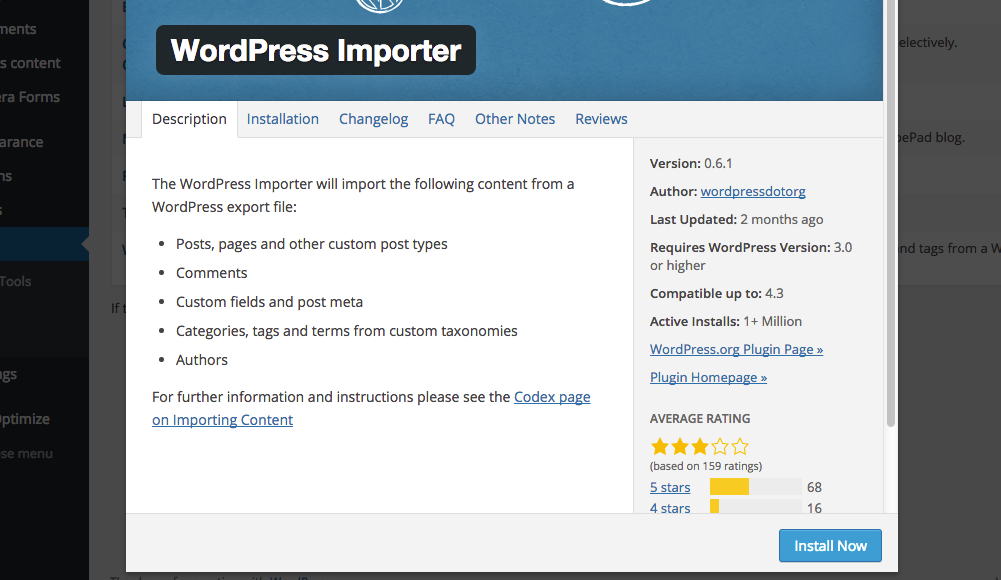
Click “Install Now.”
Step 5
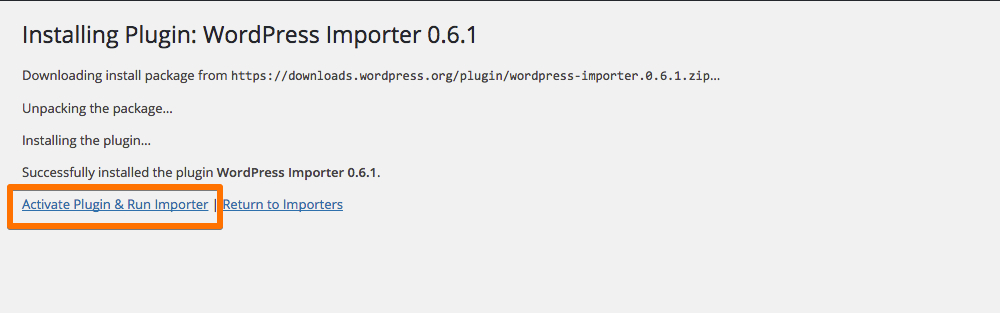
Click the “Activate Plugin & Run Importer” link. This activates the WordPress Importer tool and brings you to a screen titled “Import WordPress.”
Step 6
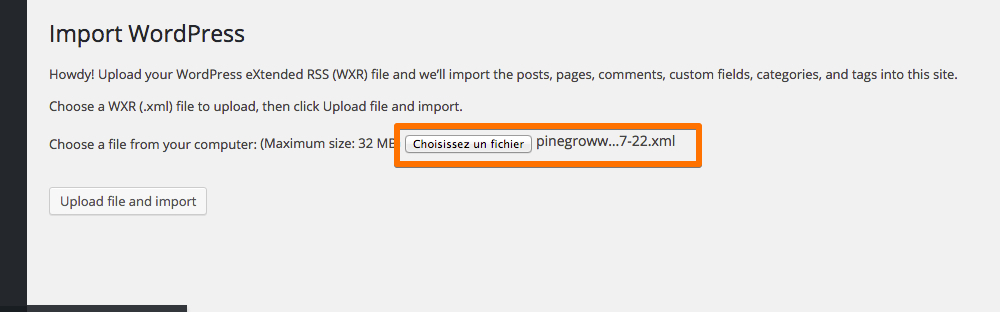
Click the “Choose File” button and double-click the WordPress sample data file on the desktop.
Step 7
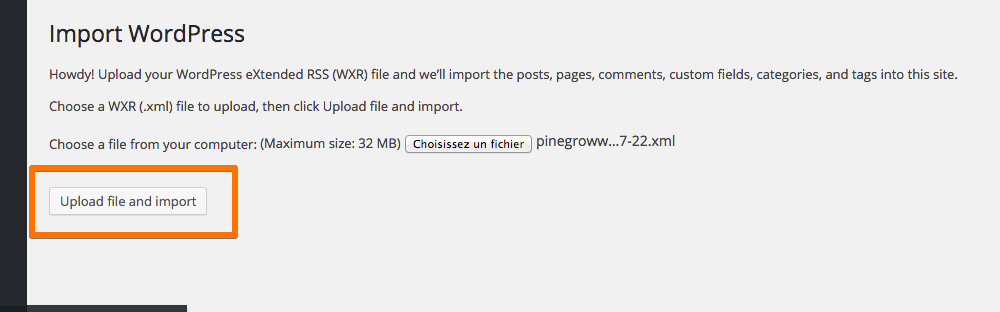
Click the “Upload File and Import” button.
Step 8
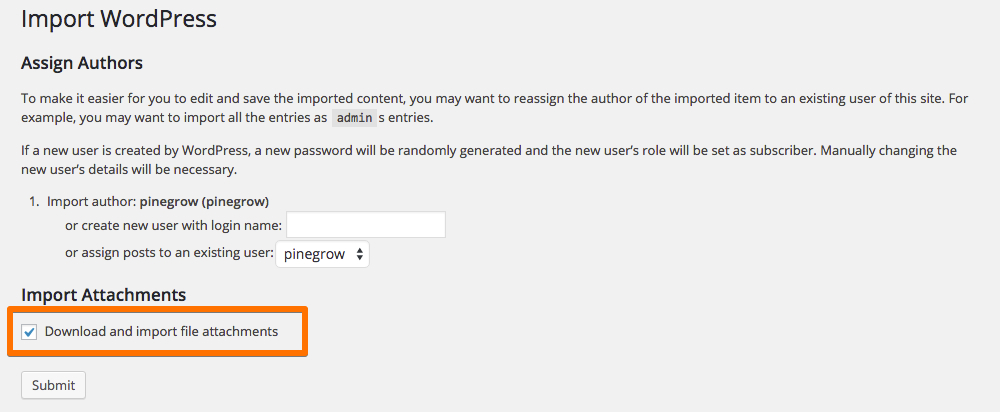
Click the “Download and import file attachments” check box to download the images attached to the sample posts.
Step 9
Click the “Submit” button to import the sample data into your website. Be patient, the process can take a few minutes until completion.
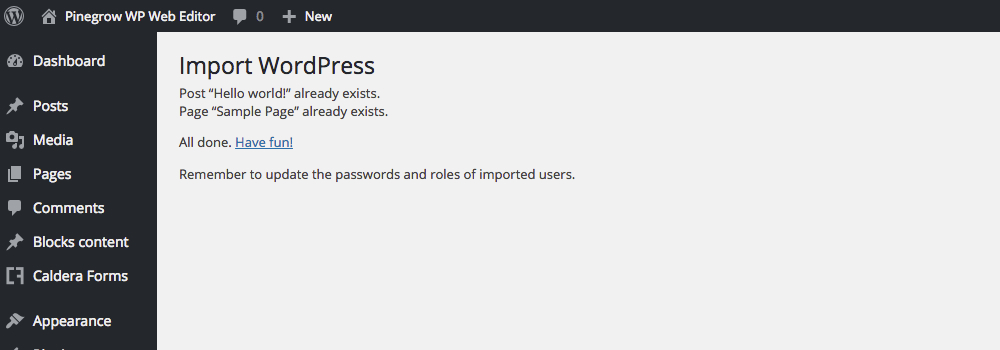
Now, you have all the Content “sources” (posts, images, meta content) that you need for testing your WordPress theme!