Learn how to easily update projects to the latest Bootstrap version (Bootstrap 3.x to the latest Bootstrap 3 and Bootstrap 4.x to the latest Bootstrap 4).
ArchiveBootstrapArchiveBootstrap2019-01-24
Upgrade Bootstrap projects to the latest Bootstrap version
This page describes Bootstrap 3 and 4. It may not match current Pinegrow. Go to Bootstrap
Note: The process described here works for upgrading an existing Bootstrap 4.x project to the latest version of Bootstrap 4. The same for Bootstrap 3. It will not correctly upgrade Bootstrap 3 projects to Bootstrap 4. Bootstrap 3 and 4 are not compatible.
Note: if you did any modifications directly to Bootstrap CSS files, you should not use this feature because it will overwrite those files. The best practice is to always override framework styles in a separate custom CSS file.
Note: It’s always a good idea to create backup copies of projects before doing such automated operations.
Bootstrap 4
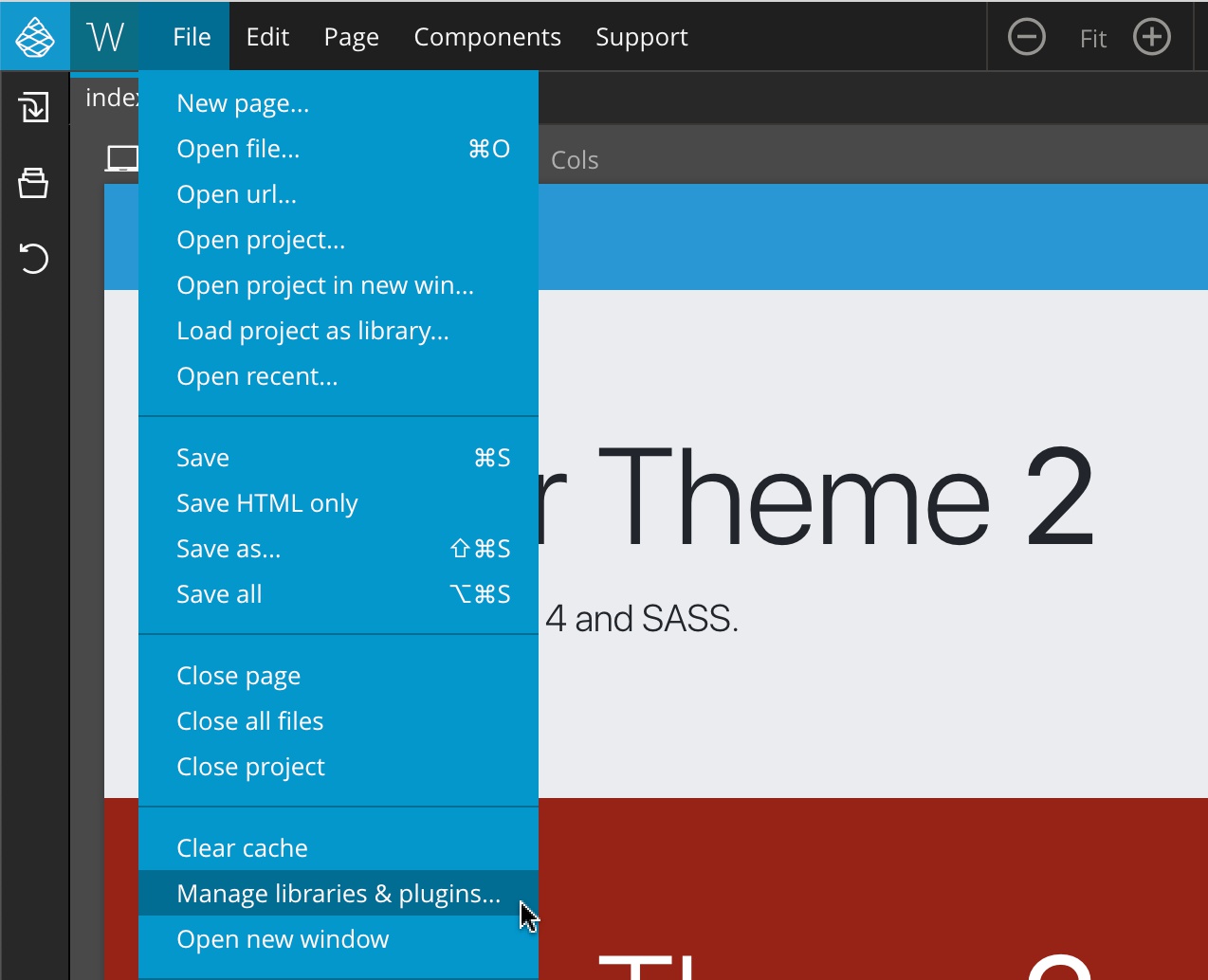
To update your existing 4.x projects to the latest version of Bootstrap 4 open File › Manage libraries and plugins.
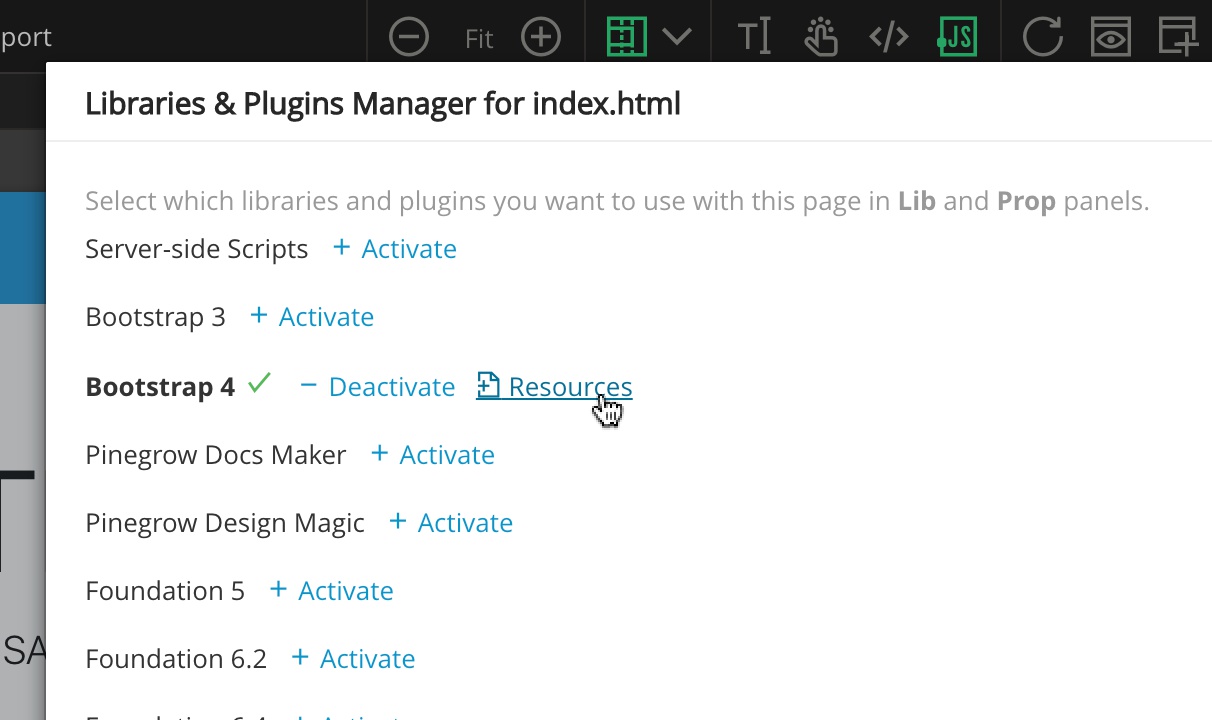
There select Bootstrap 4 › Resources.
There check the “Overwrite files if they exist” checkbox and click on either “Add to page” or “Add to all pages in project” button.
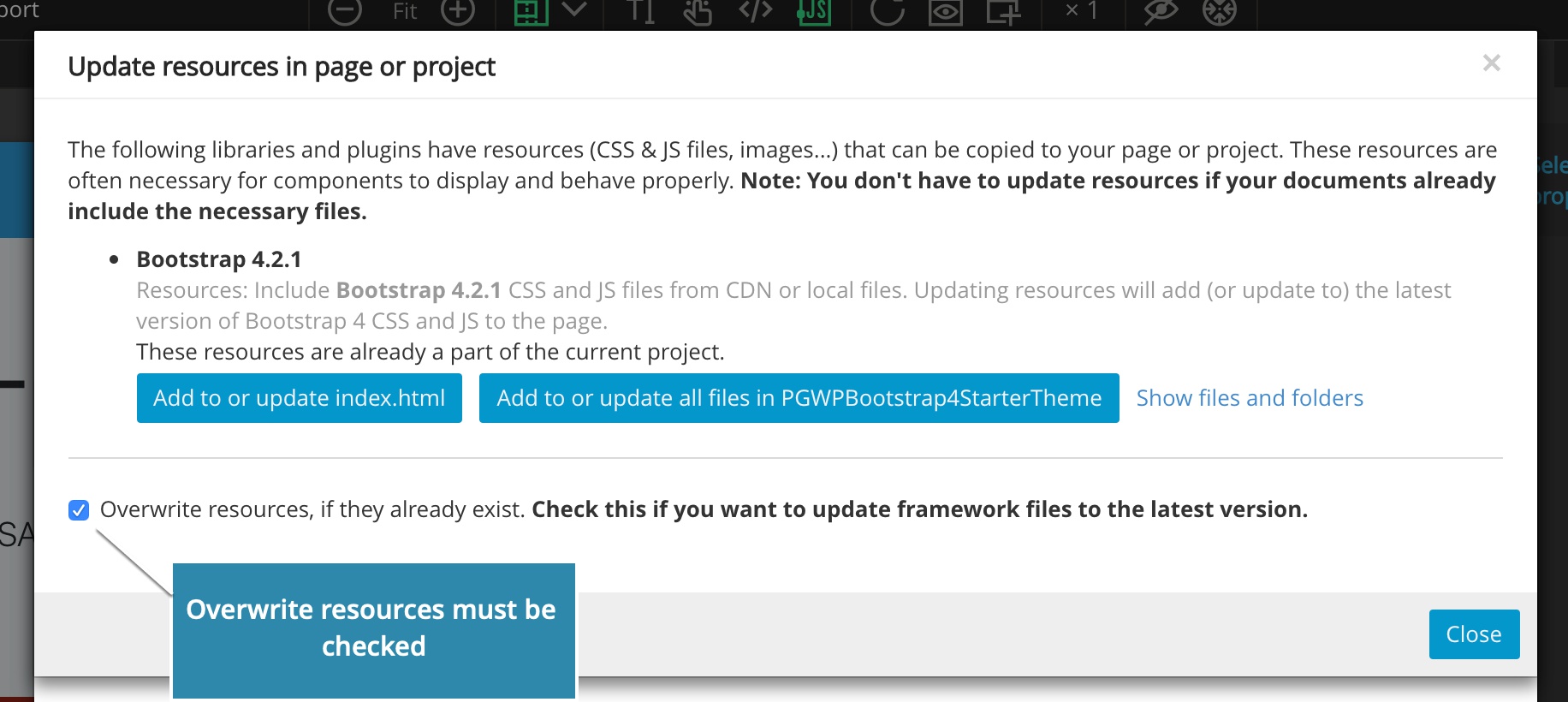
Pinegrow will then give you a choice of CND hosted files or local files.
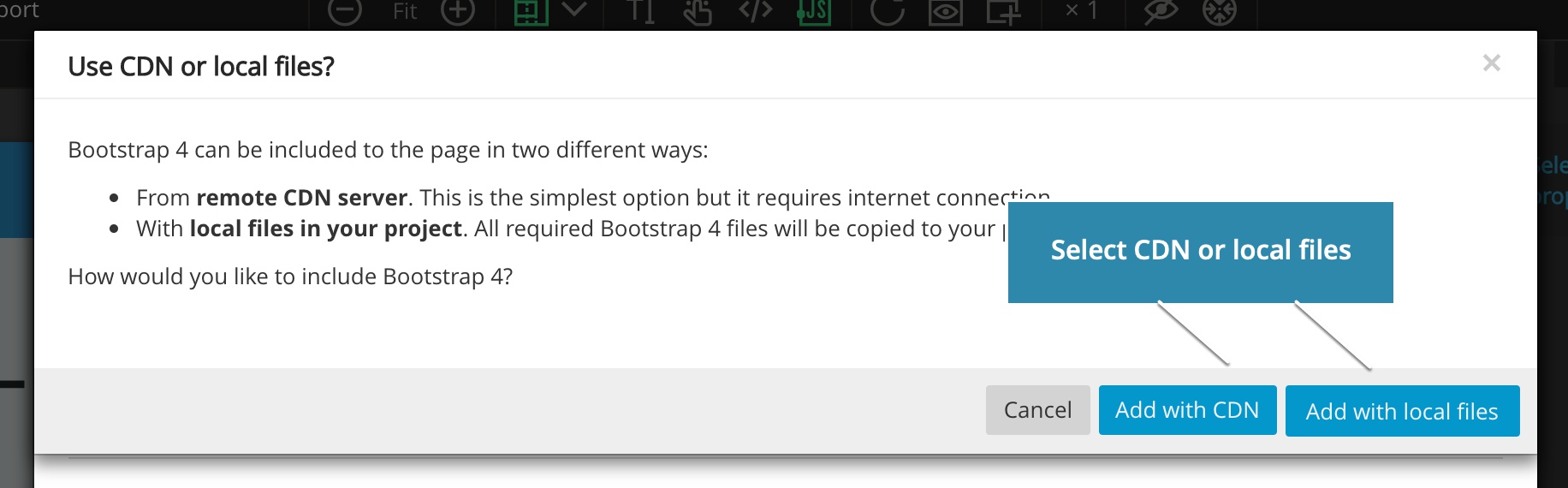
Select the one you want and that’s it.
Bootstrap 3
For Bootstrap 3, choose Bootstrap 3 in “Manage libraries and plugins”, the rest of the process is the same.
Updating SASS Bootstrap 4 Theme
In case you’re also using Pinegrow’s Bootstrap theming feature that works with Bootstrap SASS files and lets you customize Bootstrap by using SASS variables, go to Page › “Customize & Bootstrap theme” to update those files.
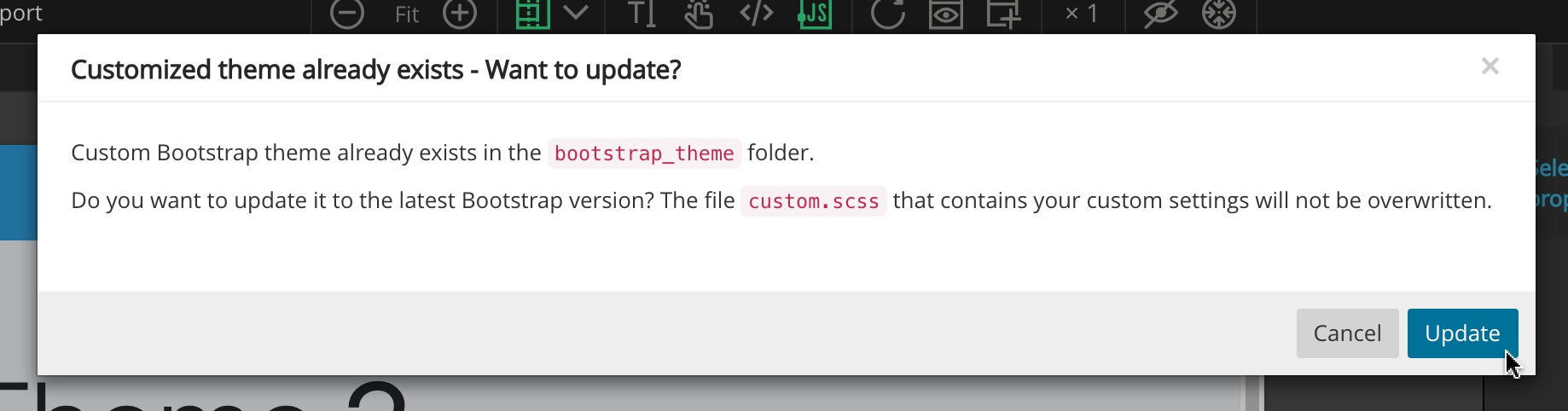
The file custom.scss that contains your custom modifications will not be overwritten in the process.
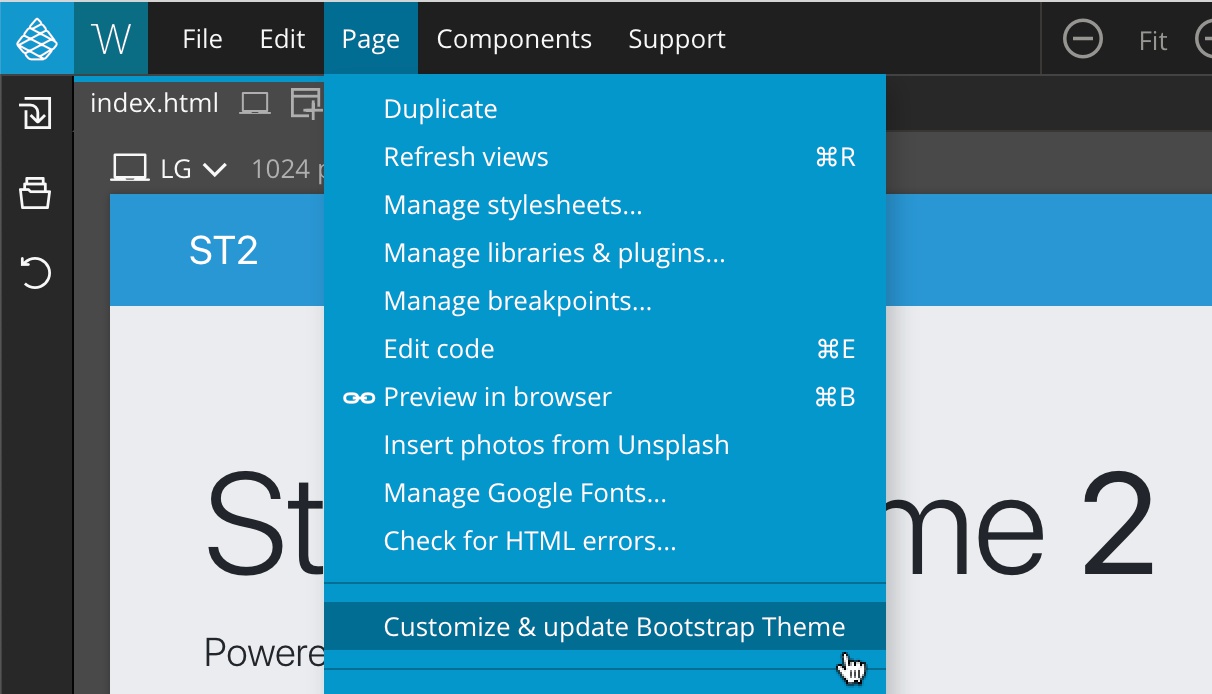
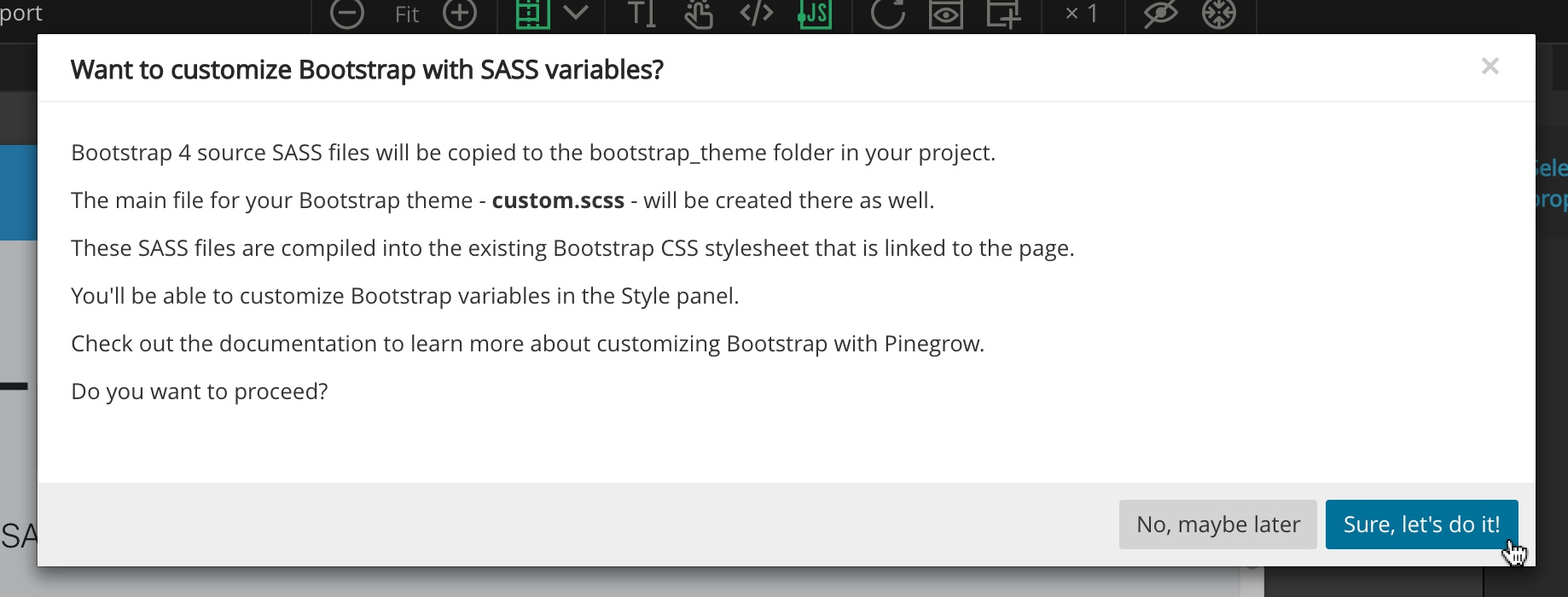
Confirm the dialog:
Confirm update:
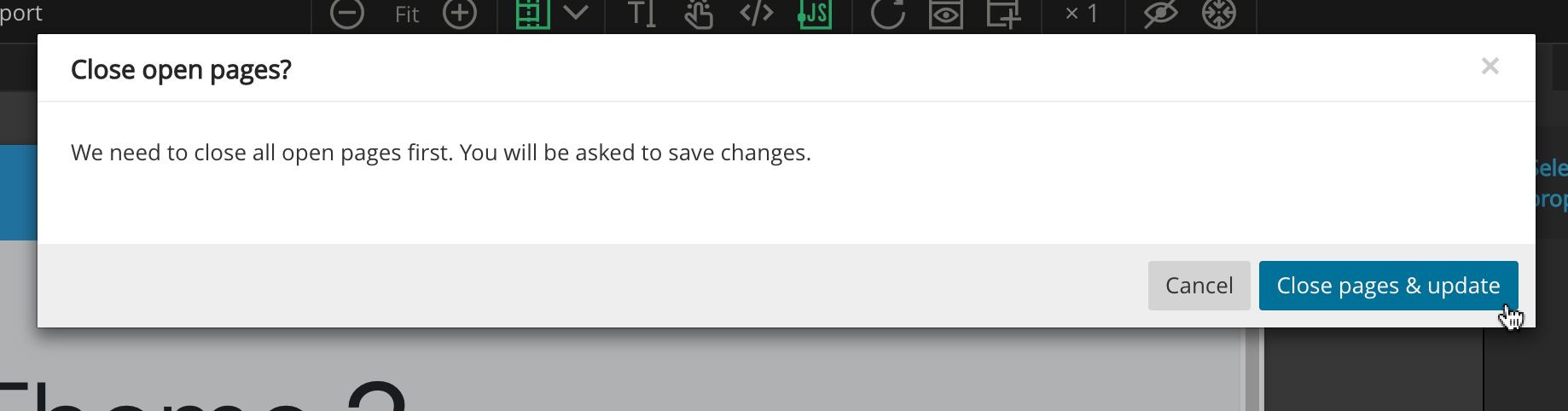
Confirm to close opened documents first and do the update: