
Drag & drop in Pinegrow has a bunch of useful tricks up its sleeve.
DocsPanels & ToolsDocsPanels & Tools2017-11-22
Drag and drop
Let’s take look at the basics first:
What can I drag? Where I can drop?
You can drag elements from:
- the Library panel
- the page view,
- the tree.
You can drop the dragged elements on:
- the page view or
- the tree.
When dragging the element over the page view the orange line will show where in relation to the target element (highlighted with green border) will the element be placed.
Press ESC to abort a drag & drop operation.
Moving and cloning
When you grab an existing element and drag it somewhere else the default behaviour is to move the element.
Hold down the ALT to clone the element instead.
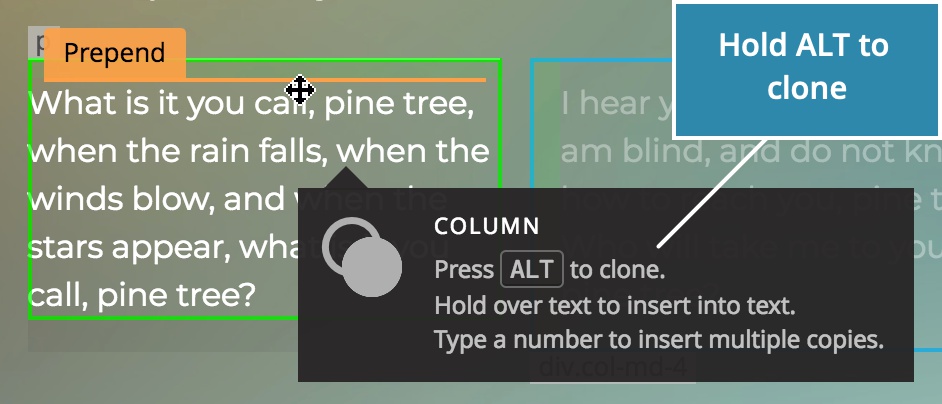
Grab & move
You don’t have to select the element before grabbing and moving it.
Hold down the mouse when the element is highlighted with the green border. Wait for about half second without releasing the mouse button and the drag & drop operation will begin.
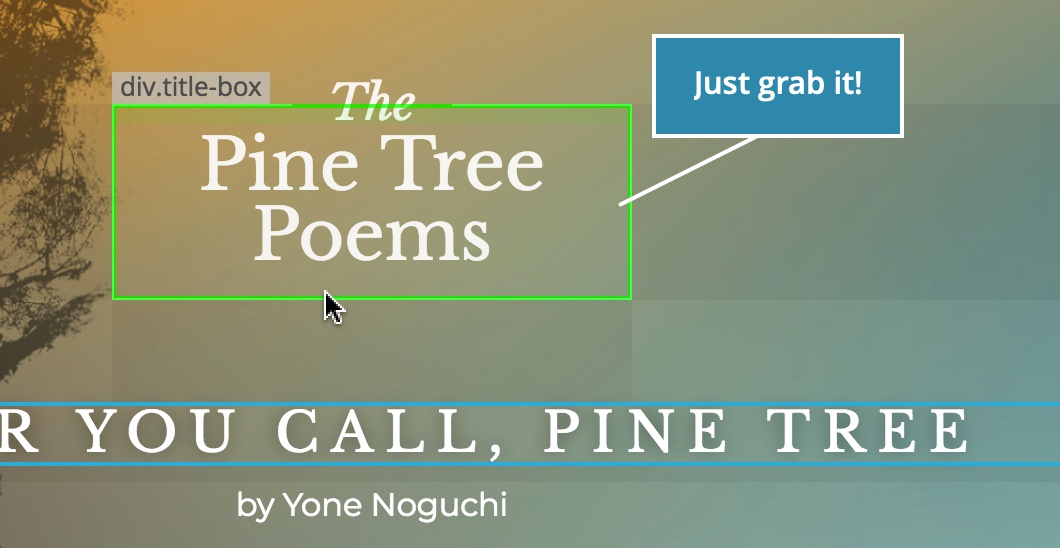
Use ALT to clone the element instead of moving it.
Press ESC to abort a drag & drop operation.
A pro tip: you can begin the move without waiting for half a second. Just hold down the mouse button, start the move and drag & drop will start half a second into the move.
Inserting N elements with Repeater
All drag & drop operations work with Repeater. If you wish to insert 12 copies of the dragged element, type “1” and “2” before or during the drag operation.
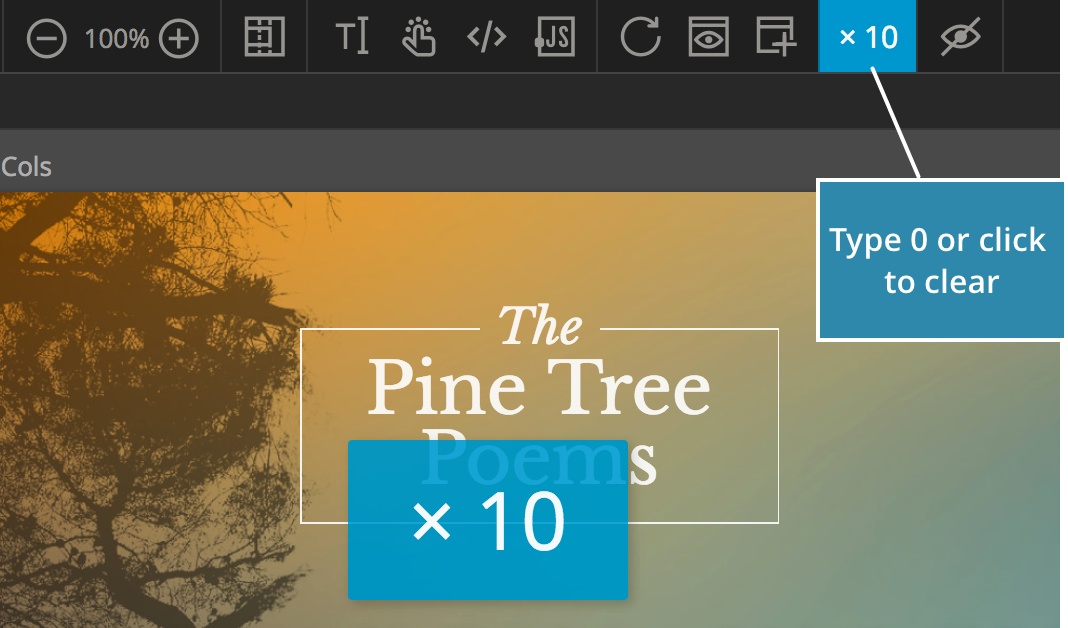
Dragging multiple elements
When multiple elements are selected on the page, and you drag one of them, all of the selected elements will follow and be inserted right after the moved element, regardless of how they were positioned before the move.
Inserting element into multiple selected elements
When you drop an element into or next to one of the multiple selected elements, Pinegrow will try to repeat the same operation on all other selected elements.
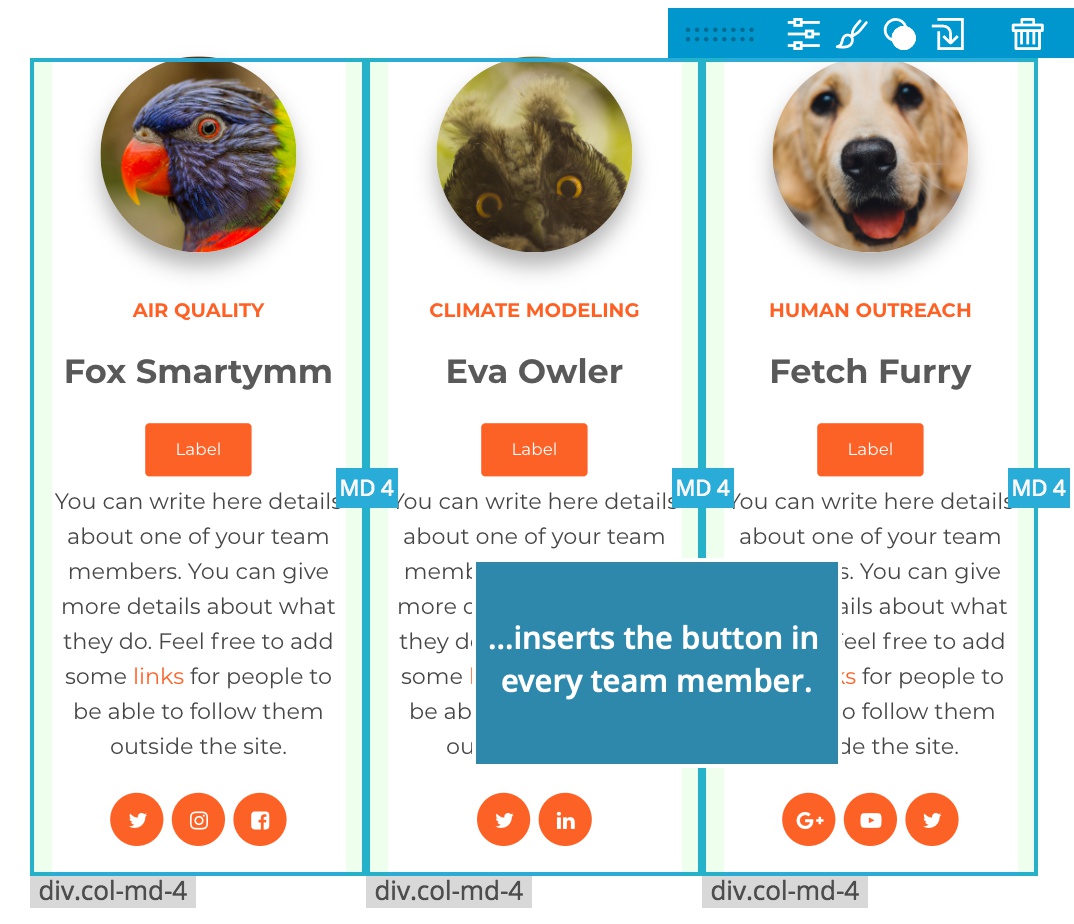
For example, if you have three Team members selected and drop a button into the first one…
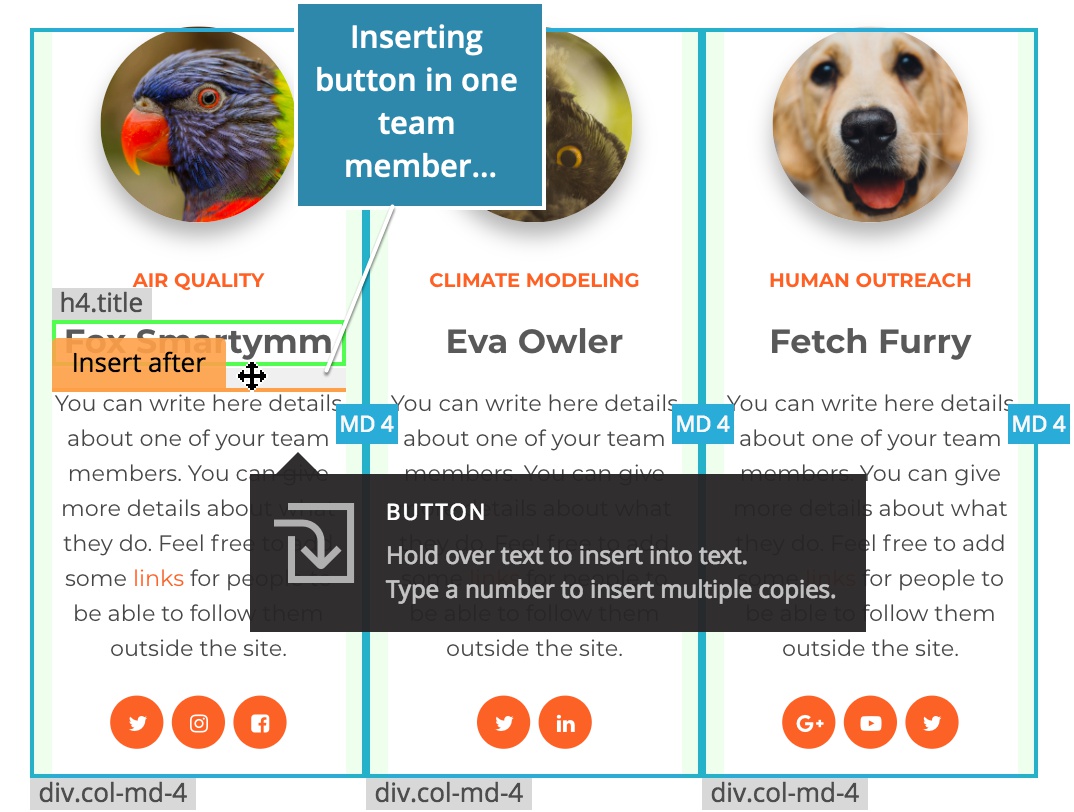
…Pinegrow will insert buttons in the other two Team members, at the same position.
Rearranging the layout of multiple selected elements
When you move an element within one of the multiple selected elements, Pinegrow will try to repeat the same move on all other selected elements.
So, continuing with our Team members example, if we select all Team members and then move the name before the image in the first Team member:
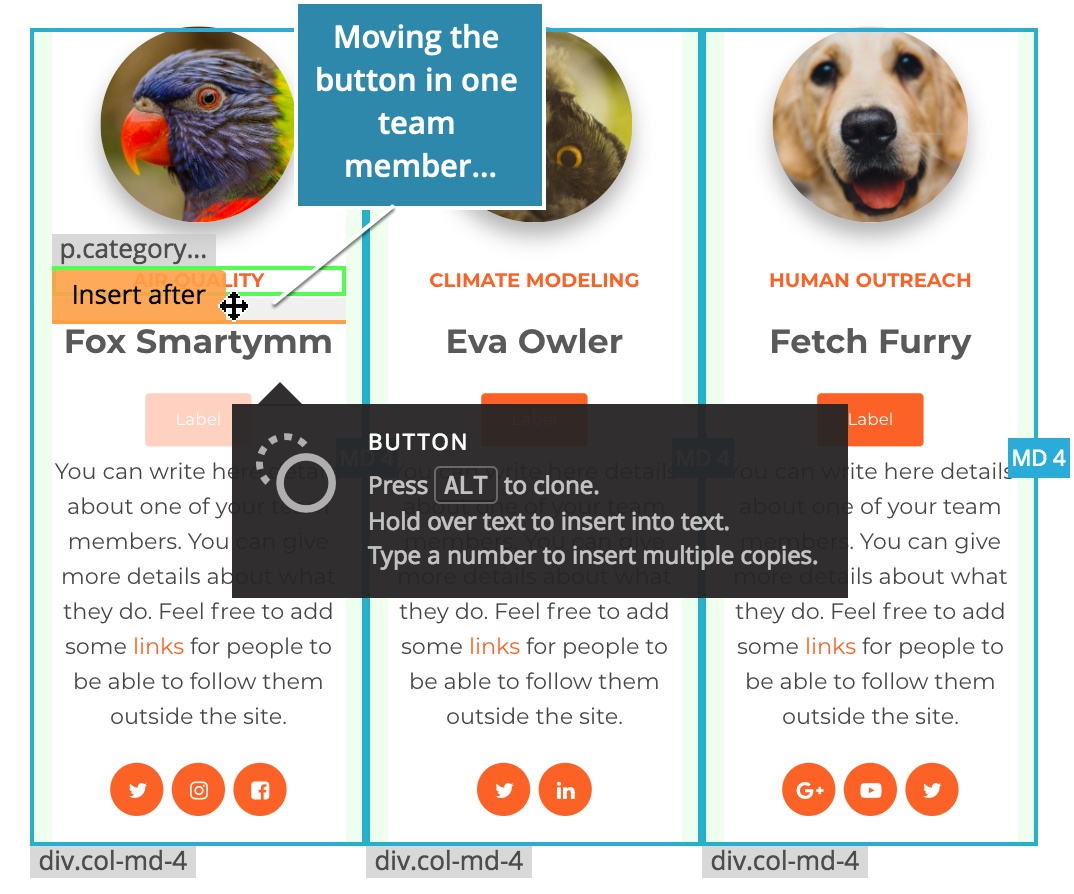
Pinegrow will make the same move on other Team members - if possible.
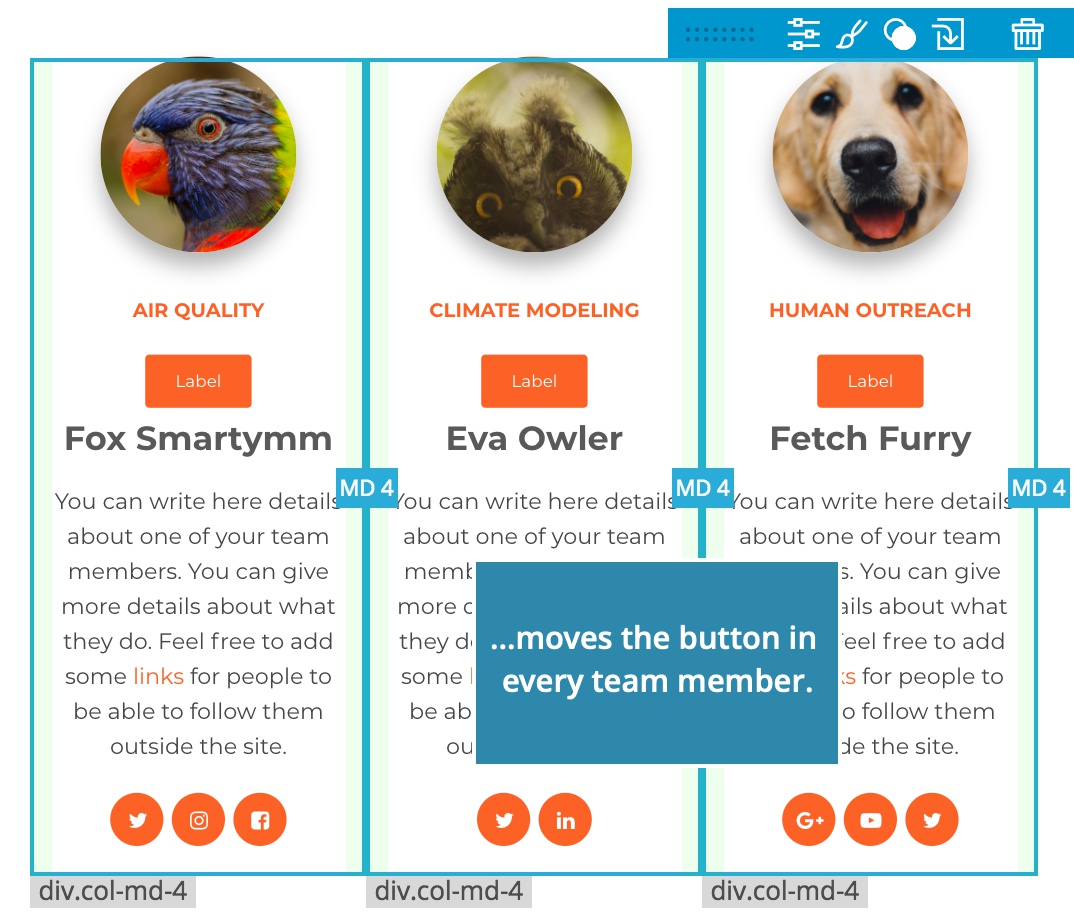
For this to work you have to move the element without selecting it first. This can be done with grab & move or using the tree.