
Pinegrow comes with a powerful and flexible user interface that gets out of your way when you don’t need it.
DocsPanels & ToolsDocsPanels & Tools2019-01-24
Get the most out of the Pinegrow interface
Let’s get familiar with the user interface.
This topic is also available as a video:
Watch the video about the User Interface
In addition, watch the video explaining how the floating panels can be used on multiple screens:
Watch the video about Floating Panels
Collapsing and expanding panels
Double click on any tab to collapse its panel. This is useful for putting away the panels that you don’t need for the task at hand.
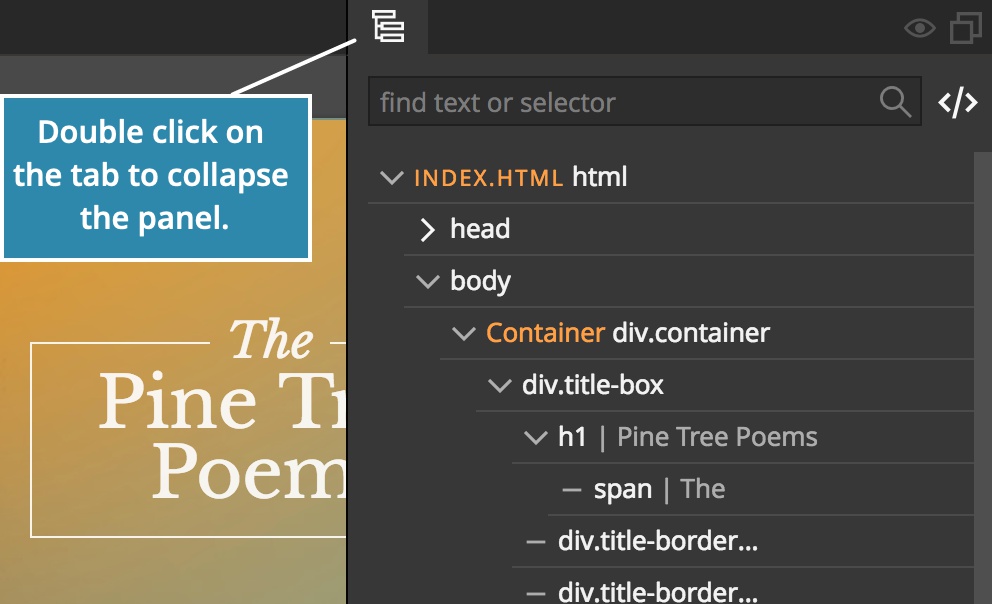
Click on any tab in the collapse panel to expand it back to its original size.

Rearanging panels
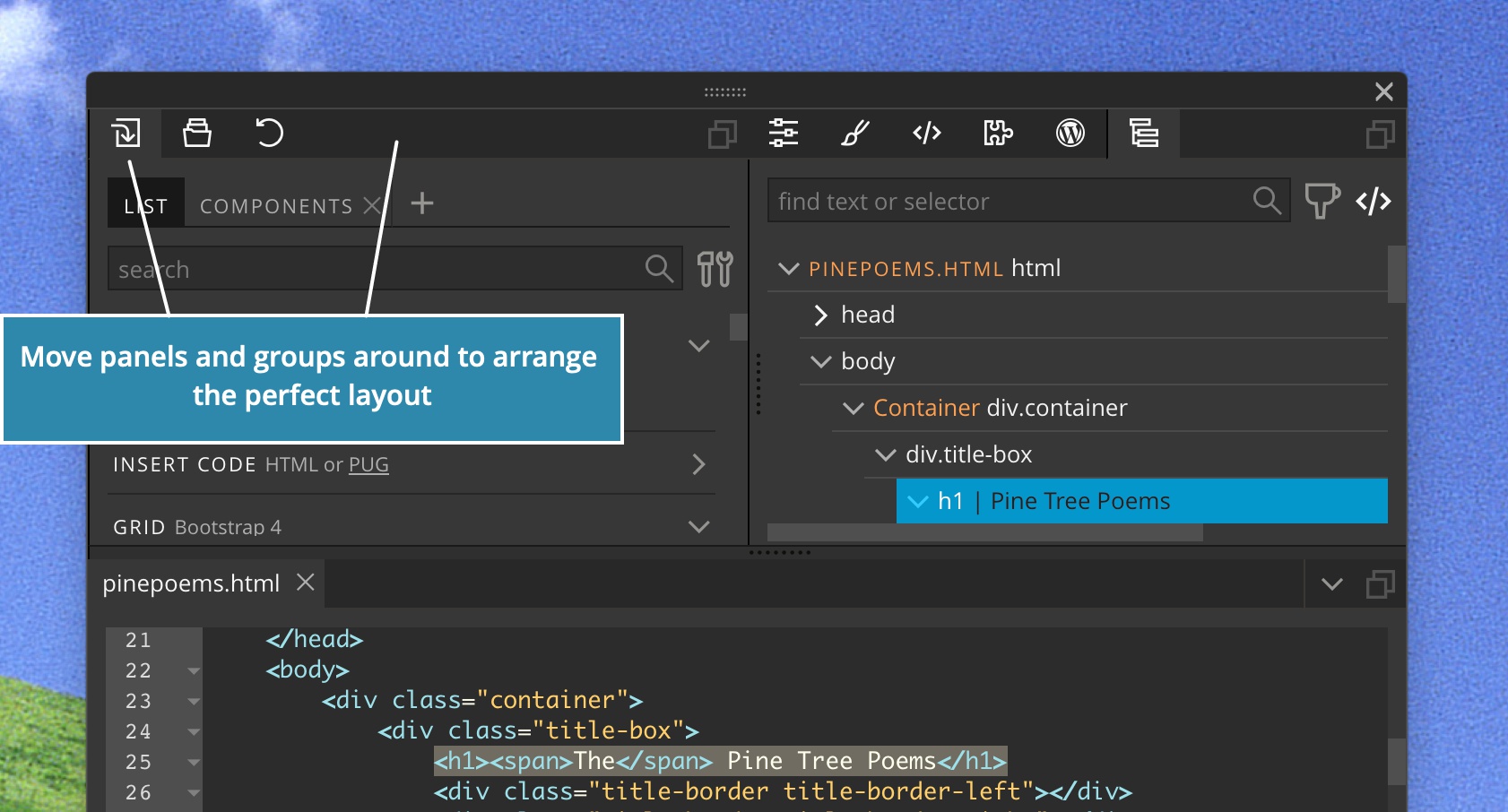
Drag tabs from panel to panel, or drag them to a border between the existing panels to open them as separate panels.
Drag the empty area of the panel header (on the right side of its tabs) to drag the whole panel to the new position.
The page area with page views is not draggable. But its tabs can be rearanged and dragged to the side in order to split the page area.
Floating panels and using multiple screens
Click on in the panel header to open the panel group in a floating window.
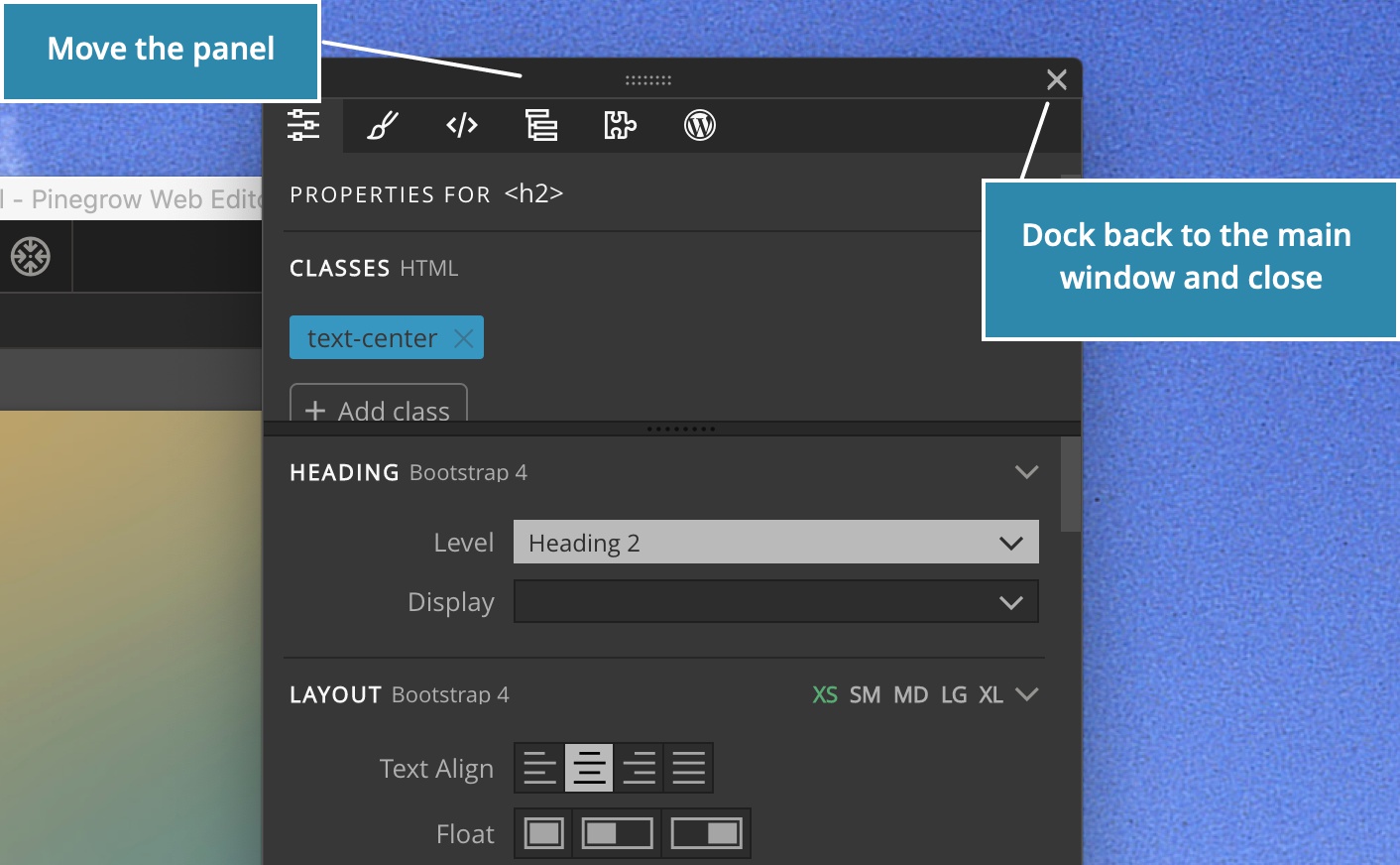
Floating panels can be freely moved around the screen(s) and resized like normal windows.
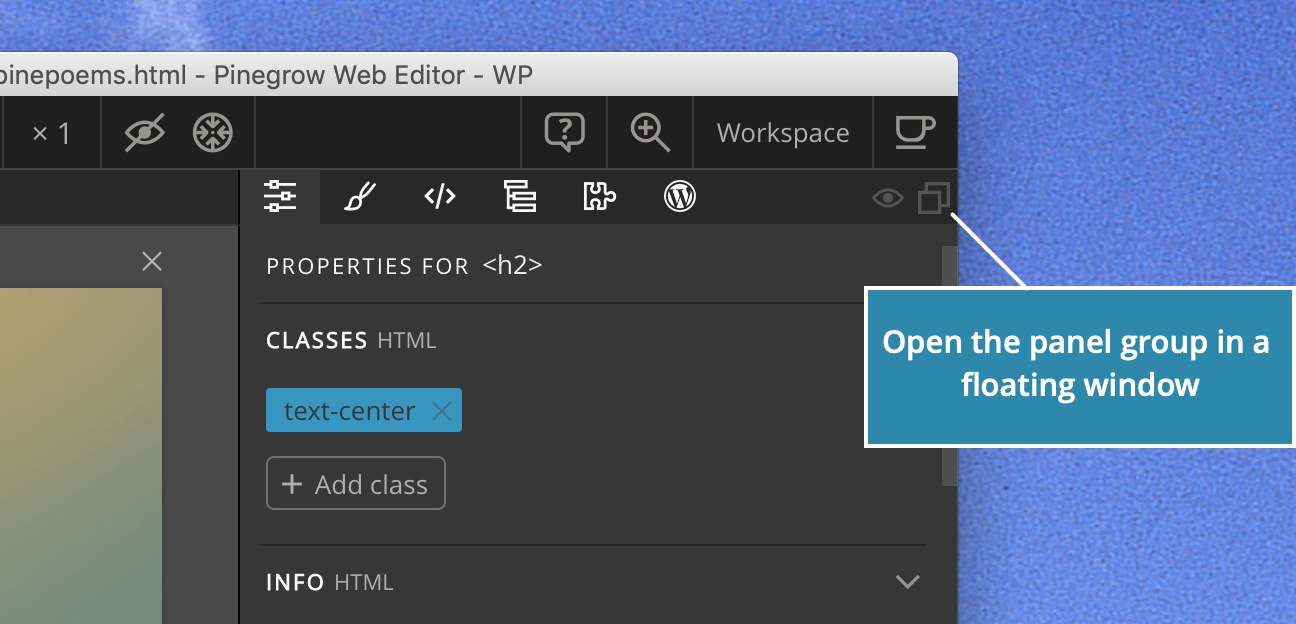
Individual panels or panel groups can be dragged between windows.
Close the window to dock its panels back to the main window.
In this way you can come up with a workspace layout that works best for your screen configuration.
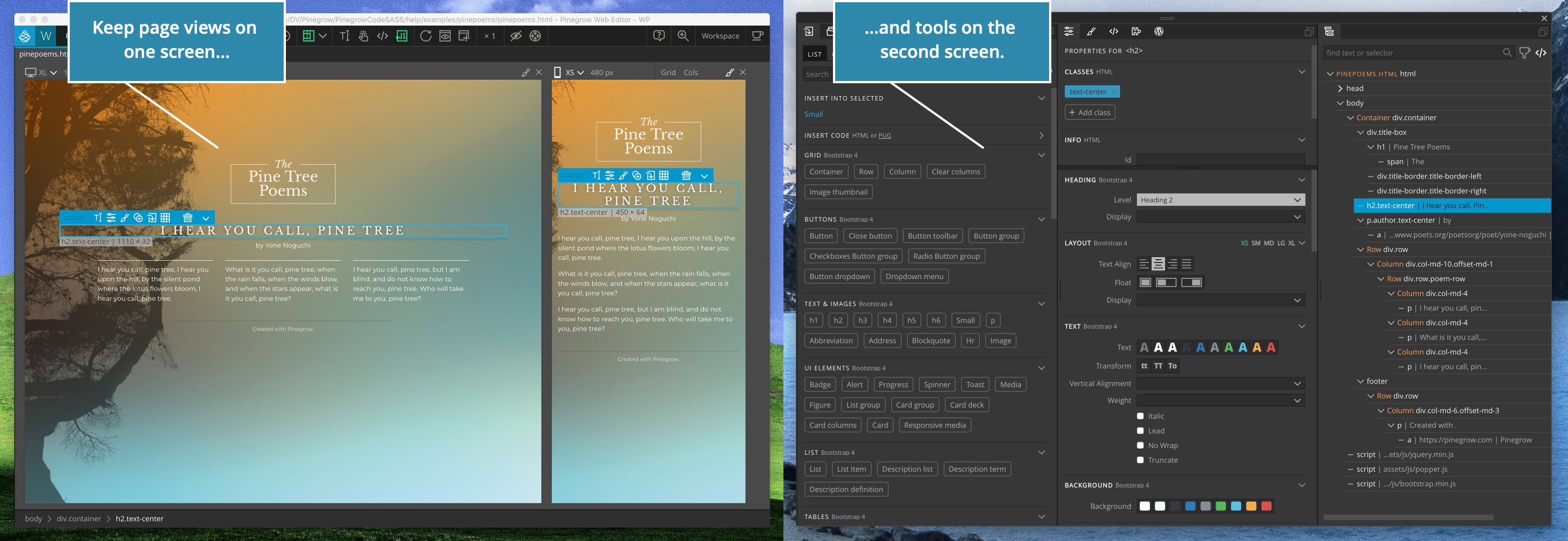
Some examples:
- Keep everything organized in one window.
- Float panels in separate windows to have more flexibility with arranging them.
- Put a second window on another desktop (for example, on Mac) even if you have just one screen.
- Have page views on the first screen and put groups of panels in floating windows on the second or third screen.
These are just few ideas. The Pinegrow UI is very flexible and if you spend a bit of time fiddling around with it, you will be able to find the best layout for you.
The only limitation is that page views themselves can’t be moved outside of the main Pinegrow window.
Use the Workspace menu to save and restore layouts.
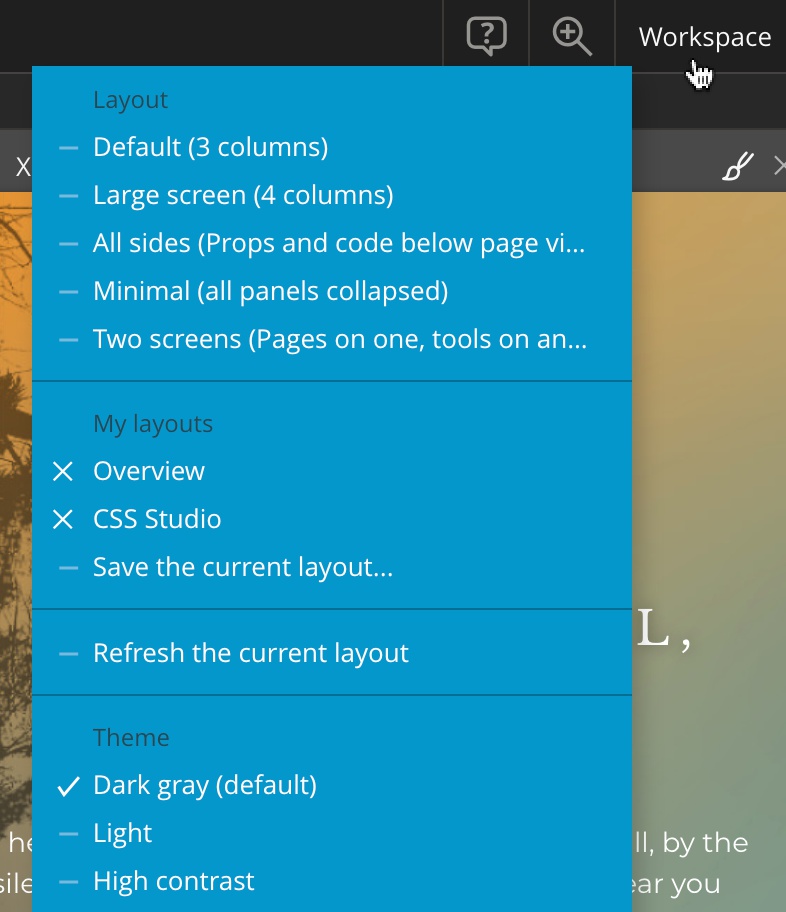
There, we also added a predefined layout for two screens, with page views in one window and all the tools in another.
Hidding and showing the UI
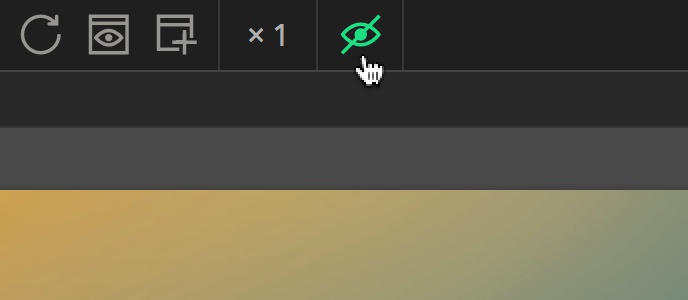
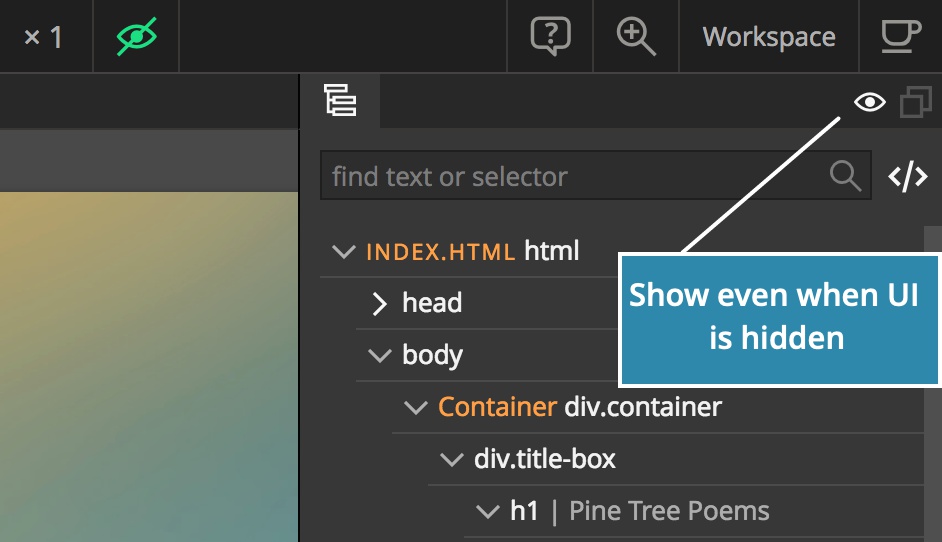
Use icon in the top toolbar or press TAB (when not in code editor or in field input) to hide the UI.
All panels will be collapsed.
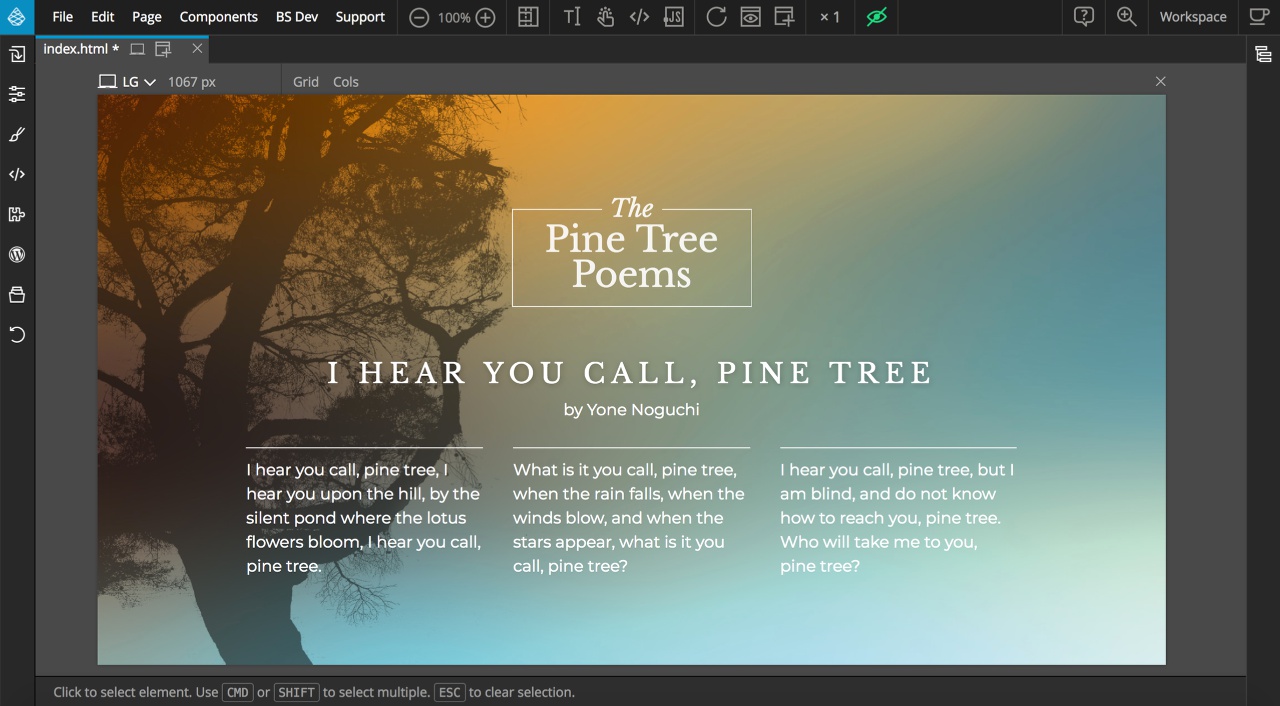
Repeat the operation to show the panels again.
Toggle icon in panel headers to make that panel always visible, even when the UI is hidden.
Quick windows
Some tools open in quick windows. Quick windows are meant to be open for a short time, just for a specific task. You can move them around, resize them and double click the header to reposition them on screen.
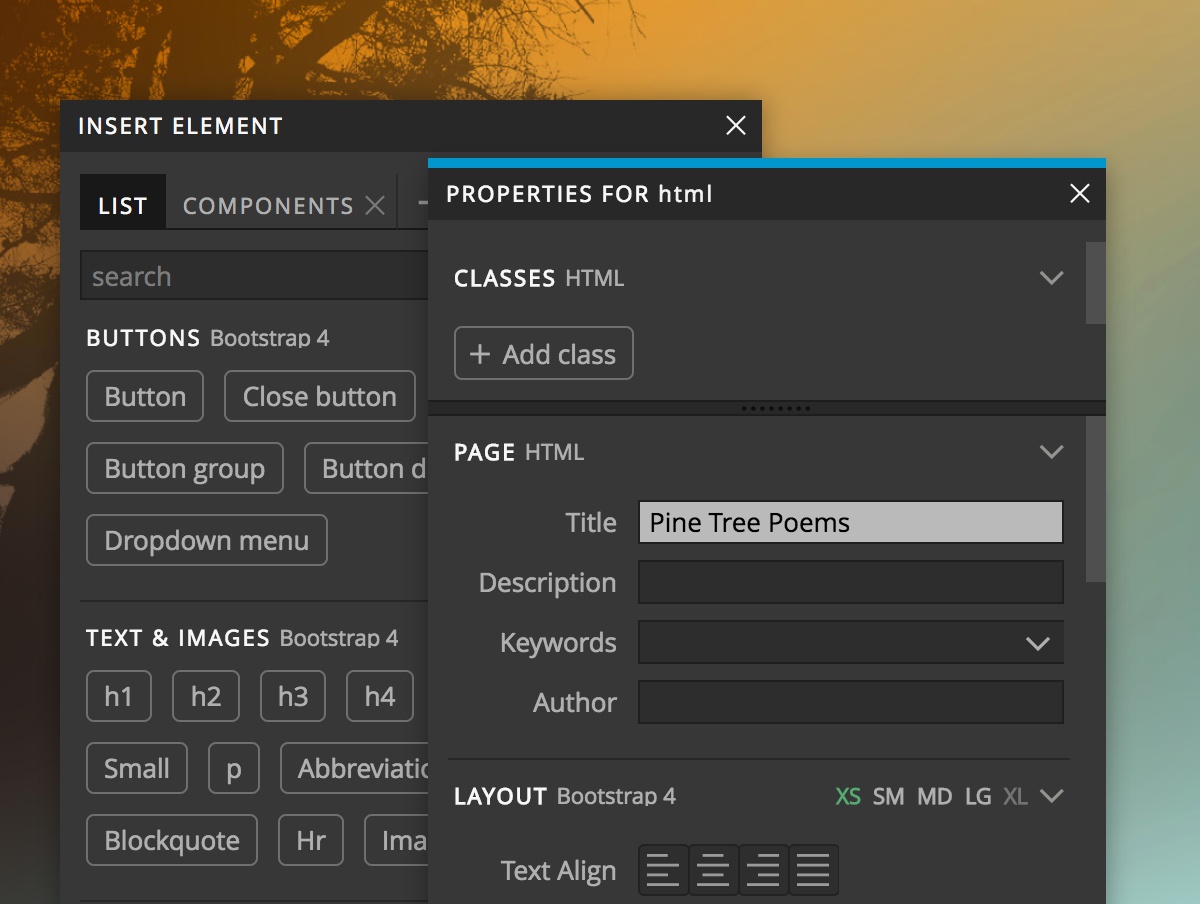
The most useful quick window are:
- + opens the quick insert Library window.
- P opens quick Element properties.
- CMD +
H or
C brings up the quick Element code editor. - CMD +
L opens the Assign classes quick window.
Quick windows are handy for getting access to important features while the relevant panels are collapsed or if the whole UI is hidden.
Make the UI smaller or larger
Use setting to make the whole Pinegrow user interface smaller or larger. Making it larger helps with accessibility issues, while making it smaller lets you fit more panels and page views on the screen. That’s especially handy on small screens and on retina screens.
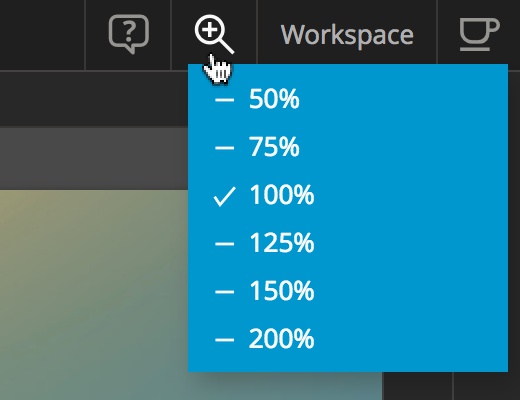
Zooming the user interface affects everything in the app window, including page views.
Workspaces
A workspace is a certain arrangement of panels in the UI.
Use Workspace menu on the top right side to switch between the predefined layouts and your own saved workspace layouts.
If things get messed up
With great power also comes the possibility that something goes wrong and the layout becomes an unusable mess. If that happens do the following, in this order:
- Use the Workspace › “Refresh current layout” feature. This will clear any temporary issues with the layout.
- Restart Pinegrow. Pinegrow only remembers valid workspaces, so there is a good chance this will restore the last good workspace.
- Restore a saved or predefined layout using the Workspace menu, if everything else fails.
The point is, don’t worry about messing things up. Any problems are easy to fix.