
Create sitemap.xml, a site map page for visitors and the robots.txt Sitemap line for a Pinegrow project. Choose which pages are listed, fix search engine titles and descriptions, and update the site map every time you publish.
DocsPanels & ToolsDocsPanels & Tools2026-10-08
Site map for search engines
Requires Pinegrow 10.1 - Not released yet
Pinegrow can create the site map of your website: the sitemap.xml file that tells Google, Bing and other search engines which pages your site has. The Site map view decides which pages belong in it and shows why, checks the search engine title and description of every page, and writes sitemap.xml, a site map page for visitors and the Sitemap: line in robots.txt. Turn on one option and every publish updates the site map, so it always lists the pages that are on your live site.
The Site map view is part of Pinegrow Desktop. WordPress projects don’t need it, because WordPress creates its own site map at /wp-sitemap.xml.
Open the site map
Open a project and choose File › Site map…. You can also click the project name in the Project panel and choose Site map….
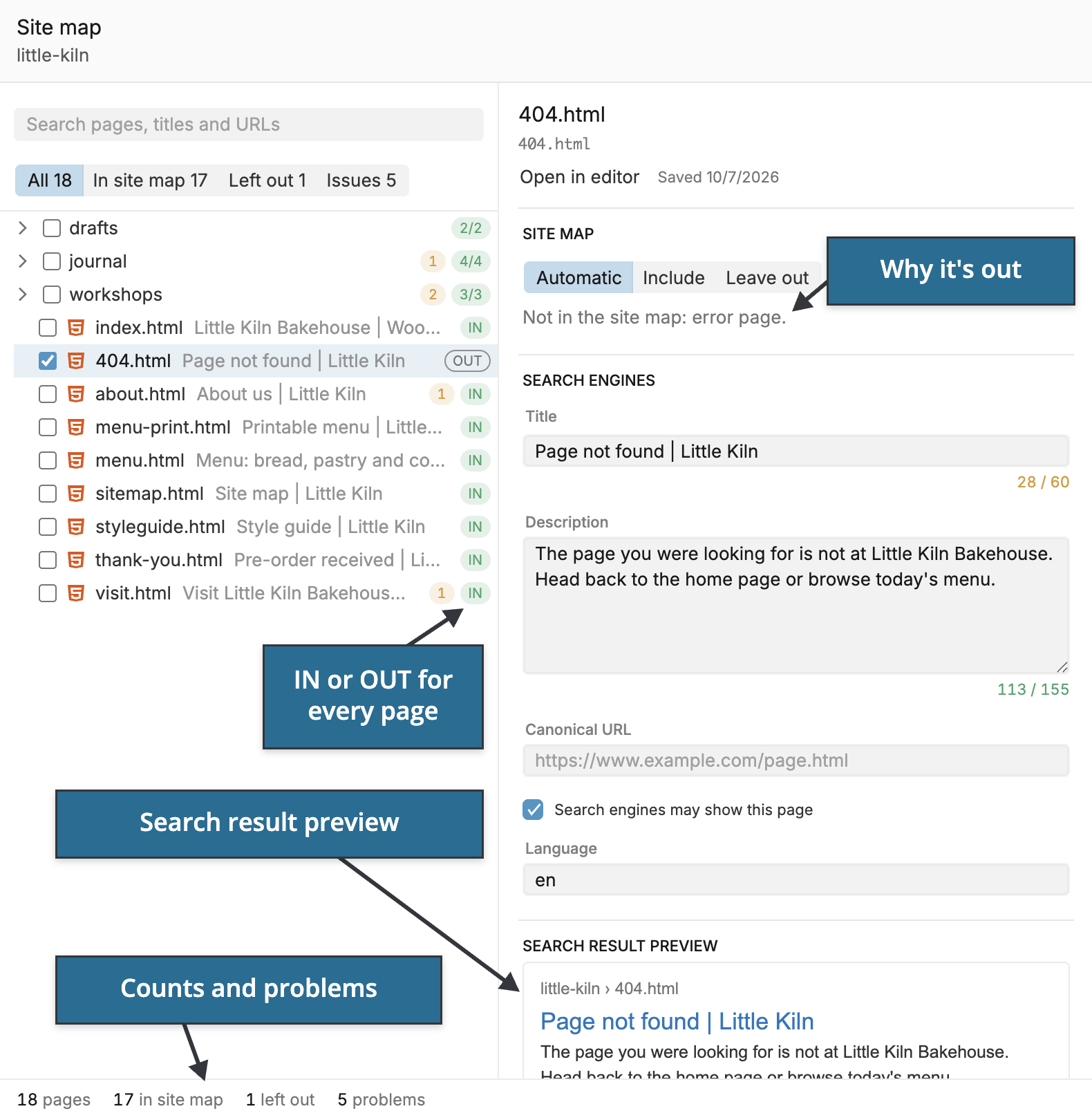
The Site map view lists every HTML page of the project in its folders:
- IN or OUT next to a page shows whether the site map lists it. Select the page to see why.
- The buttons above the list filter it: All, In site map, Left out and Issues.
- On the right are the selected page’s site map choice, its search engine fields and a preview of how it could look in search results.
- The status bar counts the pages, how many are in the site map and left out, and the problems Pinegrow found.
Click Close to return to the editor.
Pages that are left out automatically
You don’t have to sort the pages by hand. Pinegrow lists every HTML page except:
- error pages:
400,401,403,404,410,500and503, for example404.html; - master pages;
- pages marked noindex (see Keep a page out of search results below);
- pages whose canonical URL points to another address. Pinegrow checks this once the site URL is set;
- files you excluded from publishing with Exclude… in Publish;
- the site map page
sitemap.htmlitself, when the site map page is on; - PHP pages, unless Include PHP pages is on in the settings.
The page details say why a page is left out, for example Not in the site map: error page.
Set up the site map
Click Settings in the Site map view. You set this up once; the settings are saved with the project.
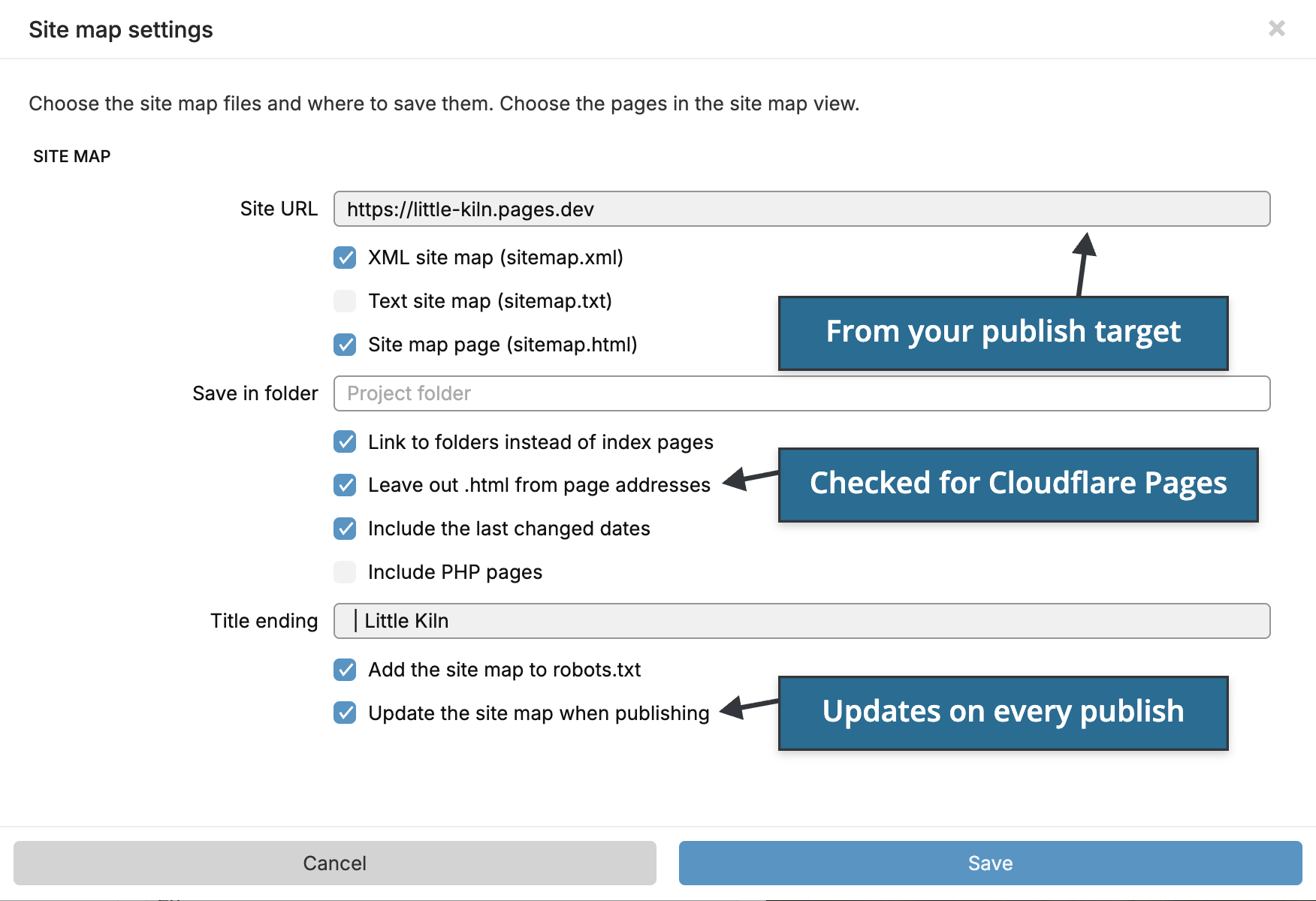
- Site URL: the public address of the site, for example
https://little-kiln.pages.dev. Site maps list complete addresses, so the XML and text site maps need it. If the project has a Netlify, Cloudflare Pages or SFTP publish target, Pinegrow fills it in from the target. - XML site map (sitemap.xml): the file search engines read.
- Text site map (sitemap.txt): a plain list of the addresses, one per line.
- Site map page (sitemap.html): a page for visitors with links to every listed page, grouped by folder.
- Save in folder: the folder for the site map files. Leave it empty to use the project folder.
- Link to folders instead of index pages: lists
journal/instead ofjournal/index.html. - Leave out .html from page addresses: lists
aboutinstead ofabout.html, for hosts that serve pages without.html. Cloudflare Pages redirectsabout.htmltoabout, so Pinegrow checks this option when you first set up the site map of a project that publishes to Cloudflare Pages. The site map page still links to the.htmlfiles. - Include the last changed dates: adds the date each page was last saved, so search engines know which pages to read again.
- Include PHP pages: lists
.phppages too. - Title ending: text such as
| Little Kilnthat Pinegrow can add to page titles. The site map page leaves it out of its link texts. - Add the site map to robots.txt: adds a
Sitemap:line with the address of the site map, so search engines can find it on their own. Pinegrow createsrobots.txtif the project has none. - Update the site map when publishing: updates the site map on every publish, see below.
Choose the pages yourself
Leave out or include a page
Select a page and set Site map to Leave out, Include or back to Automatic. The choice is saved right away.
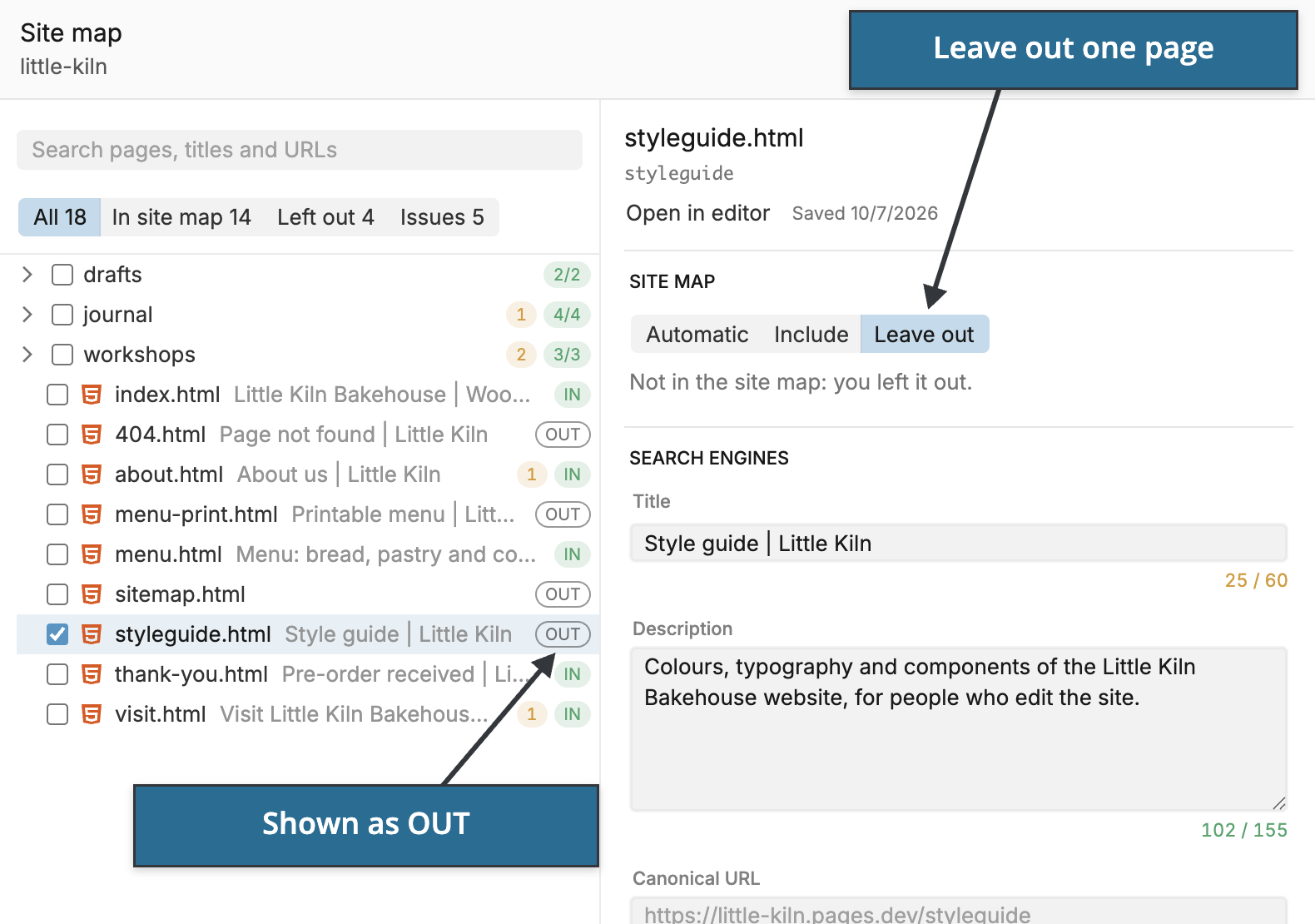
Include lists a page that Pinegrow would leave out automatically, for example an error page or a page in a left-out folder. It can’t list a page that is marked noindex, excluded from publishing or made by the site map.
Leave out a folder
Select a folder and choose Leave out the folder. The rule also covers pages you add to the folder later, so drafts stay out of the site map. A page in the folder that is set to Include is still listed.
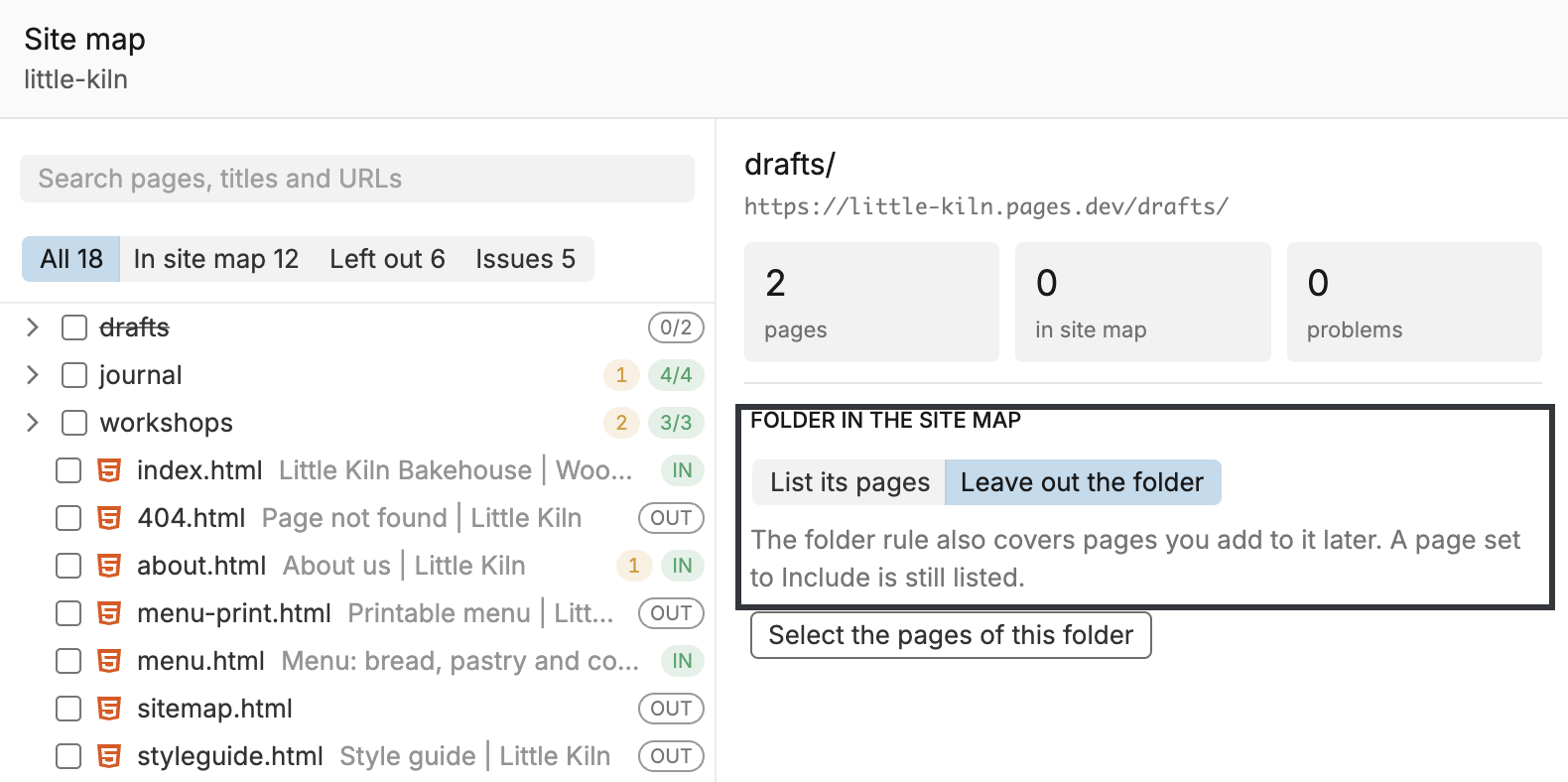
Your page and folder choices are kept with the project. They follow pages and folders you rename or move, and are forgotten when you delete them.
Keep a page out of search results
Turn off Search engines may show this page for a page that search engines should not show at all, such as a thank-you page. When you save the changes, Pinegrow adds noindex to the page’s robots meta tag, and the site map leaves the page out.
Fix search engine titles and descriptions
Click Issues to list only the pages with problems. Pinegrow checks every page it can list for:
- no title, or no title and no description;
- a title longer than 60 characters, which search results cut off;
- the same title on several pages;
- no description on a page in the site map, so search results show a piece of the page instead;
- a description longer than 155 characters;
- a page set to Include that is marked noindex.
The counters under Title and Description show their length against 60 and 155 characters.
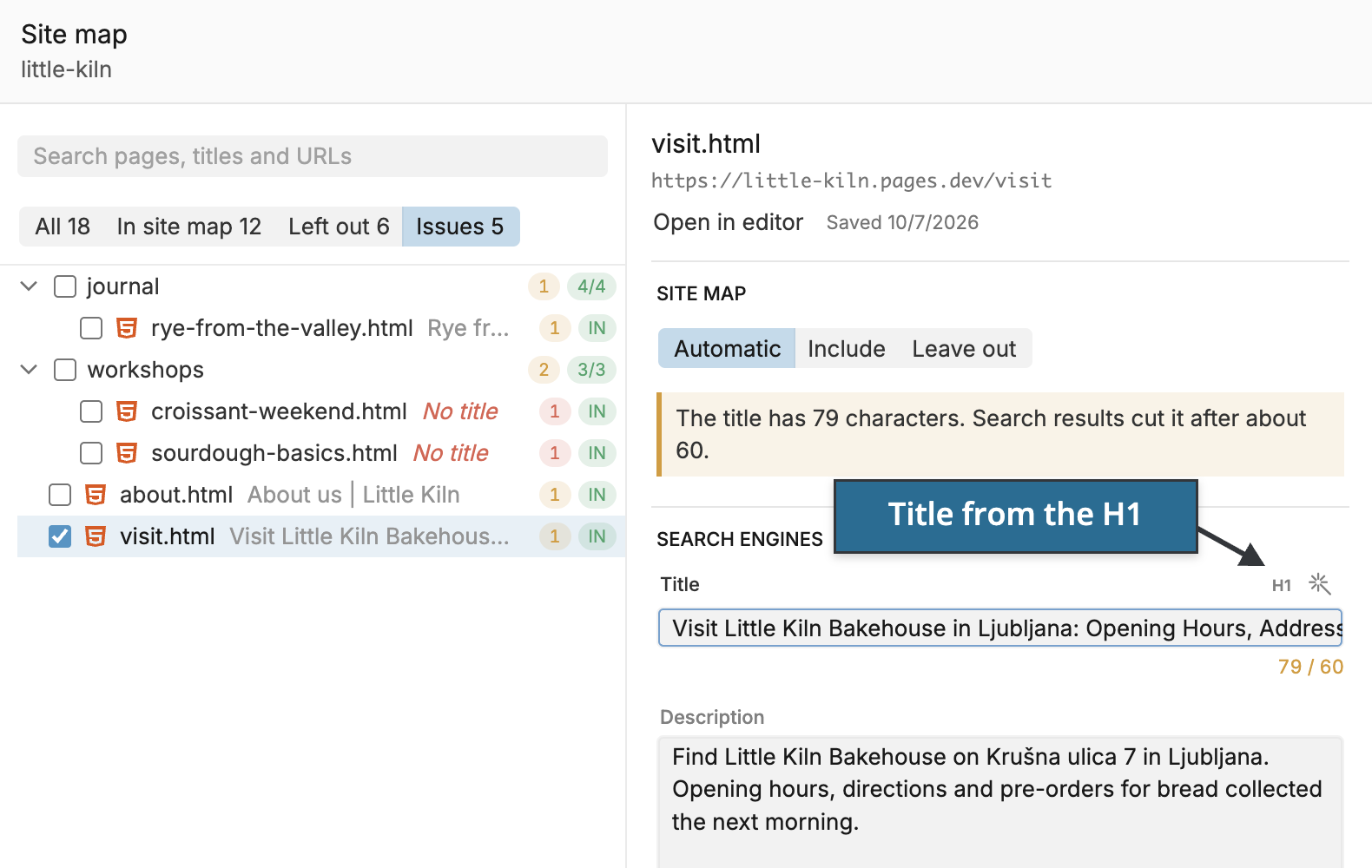
Two buttons next to Title help with one page:
- H1 makes a title from the page’s main heading and adds your title ending.
- The AI button suggests a title and a description with the AI Assistant, written from the content of the page.
The search result preview updates as you type.
Fix several pages at once
Tick the checkboxes of several pages, or click Select the pages of this folder on a folder, to change them together:
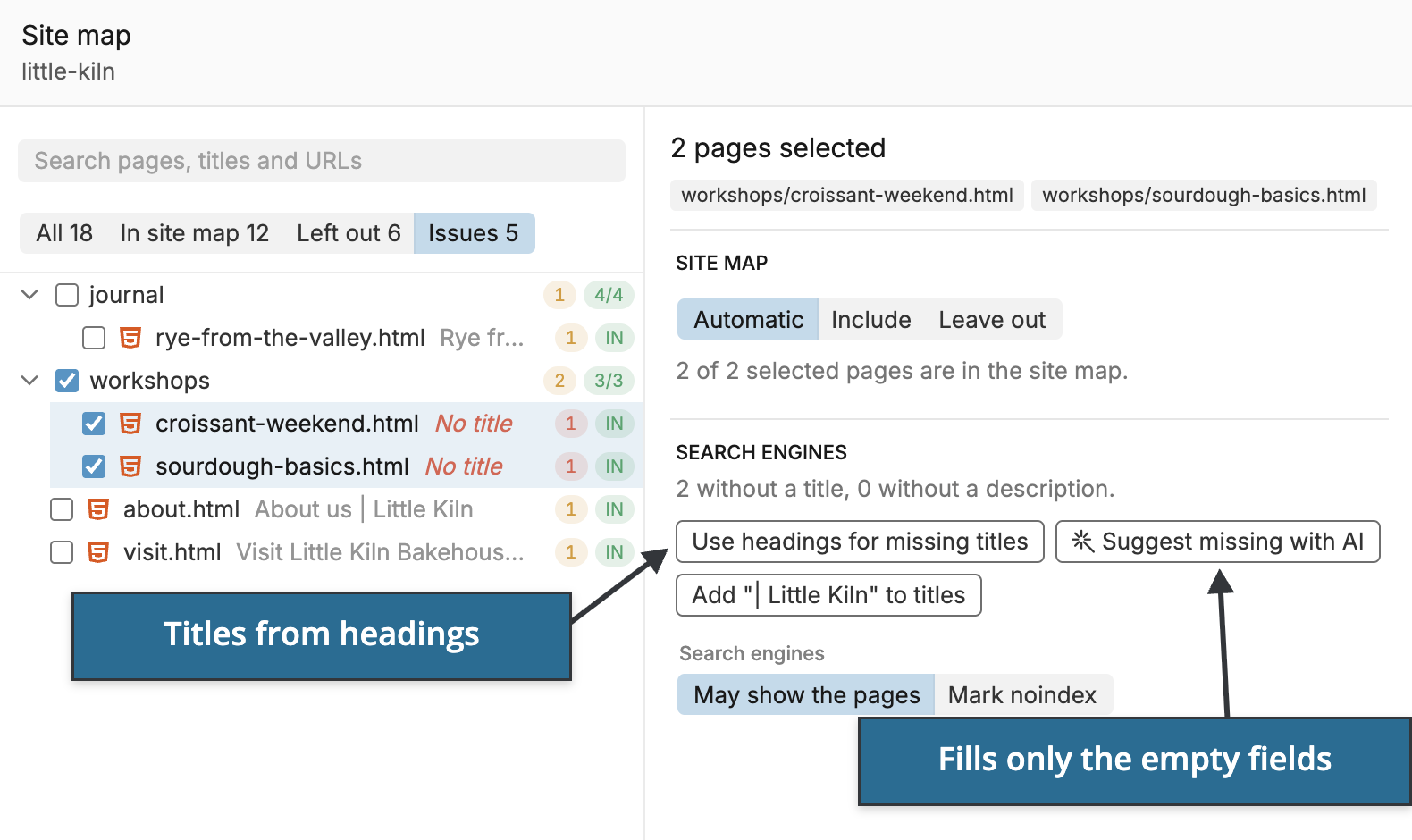
- Use headings for missing titles gives each page without a title one made from its main heading.
- Suggest missing with AI asks the AI Assistant for the missing titles and descriptions. It fills only empty fields and keeps the text you already have.
- Add “| Little Kiln” to titles adds your title ending to the titles that don’t have it yet.
- Site map and Search engines change the choice and the noindex setting of all selected pages.
Save the changes
Field changes stay unsaved, and the changed pages stay in the filtered list, until you click Save changes. Check them first, especially AI suggestions. Saving writes the titles, descriptions, canonical URLs, languages and noindex settings into the pages. You can undo it as one change, Set search engine fields.
A field is disabled when the page doesn’t allow the change, for example because of the project’s editing restrictions, or when the title is written by code in the page.
Generate the site map
Click Generate site map. Pinegrow writes:
sitemap.xmlwith the full address of every listed page and, if the option is on, the date it was last changed;sitemap.txt, if it’s on;sitemap.html, if the site map page is on;- the
Sitemap:line inrobots.txt, if it’s on.
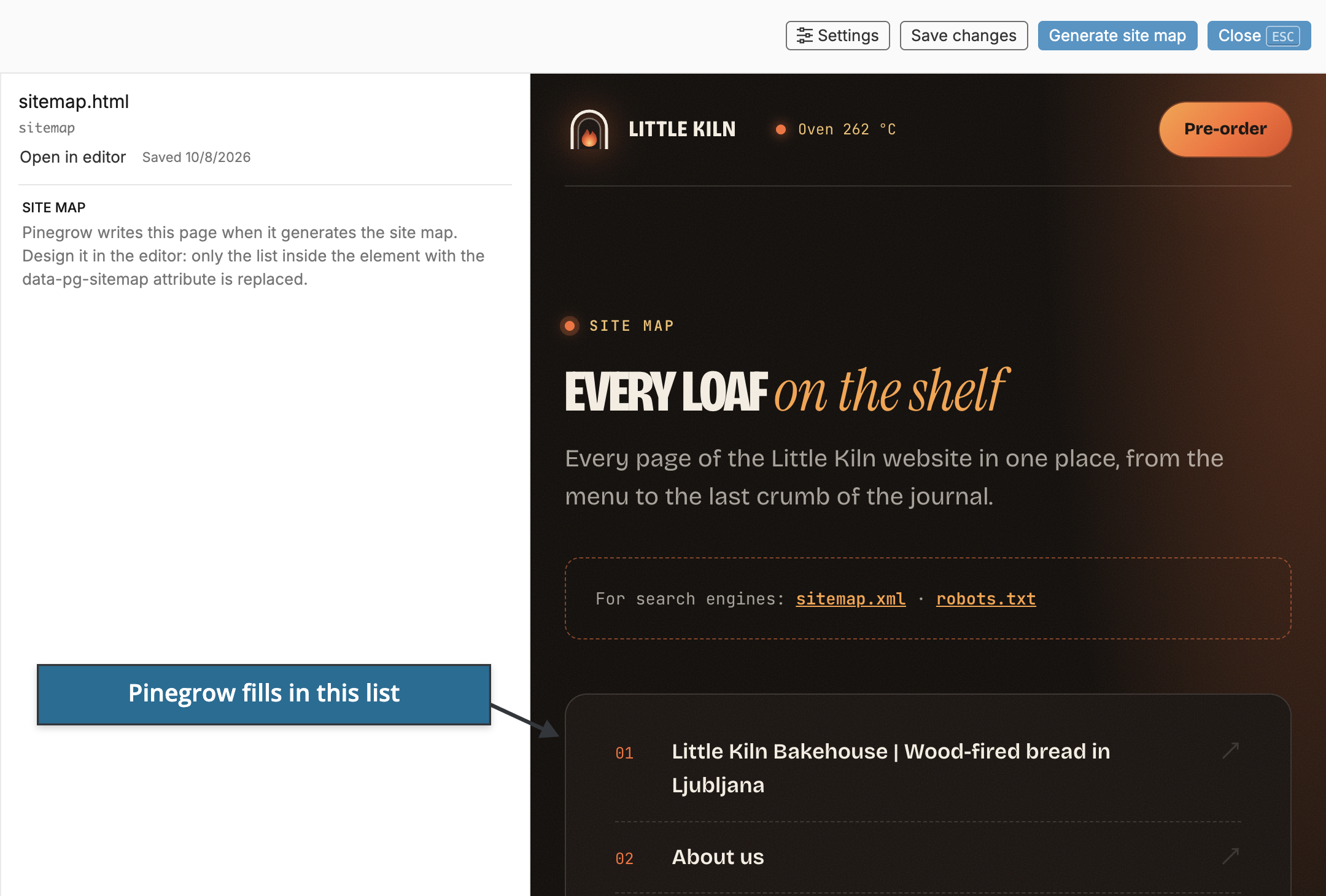
You can design the site map page like any other page. Add an element with the data-pg-sitemap attribute where the list should go, and Pinegrow replaces only the content of that element when it generates the site map. Without such a page, Pinegrow creates a simple sitemap.html.
If sitemap.xml, sitemap.txt, sitemap.html or robots.txt already exists and Pinegrow didn’t create it, Pinegrow asks before replacing it. Turning a format off later doesn’t delete the file it wrote before.
A site map can list at most 50,000 pages and be at most 50 MB, the limits search engines read.
Update the site map when you publish
Turn on Update the site map when publishing in the settings. Every publish to production then runs a Site map step after saving your pages and before the review. It updates the site map files, and the publish uploads them with the rest of the site.
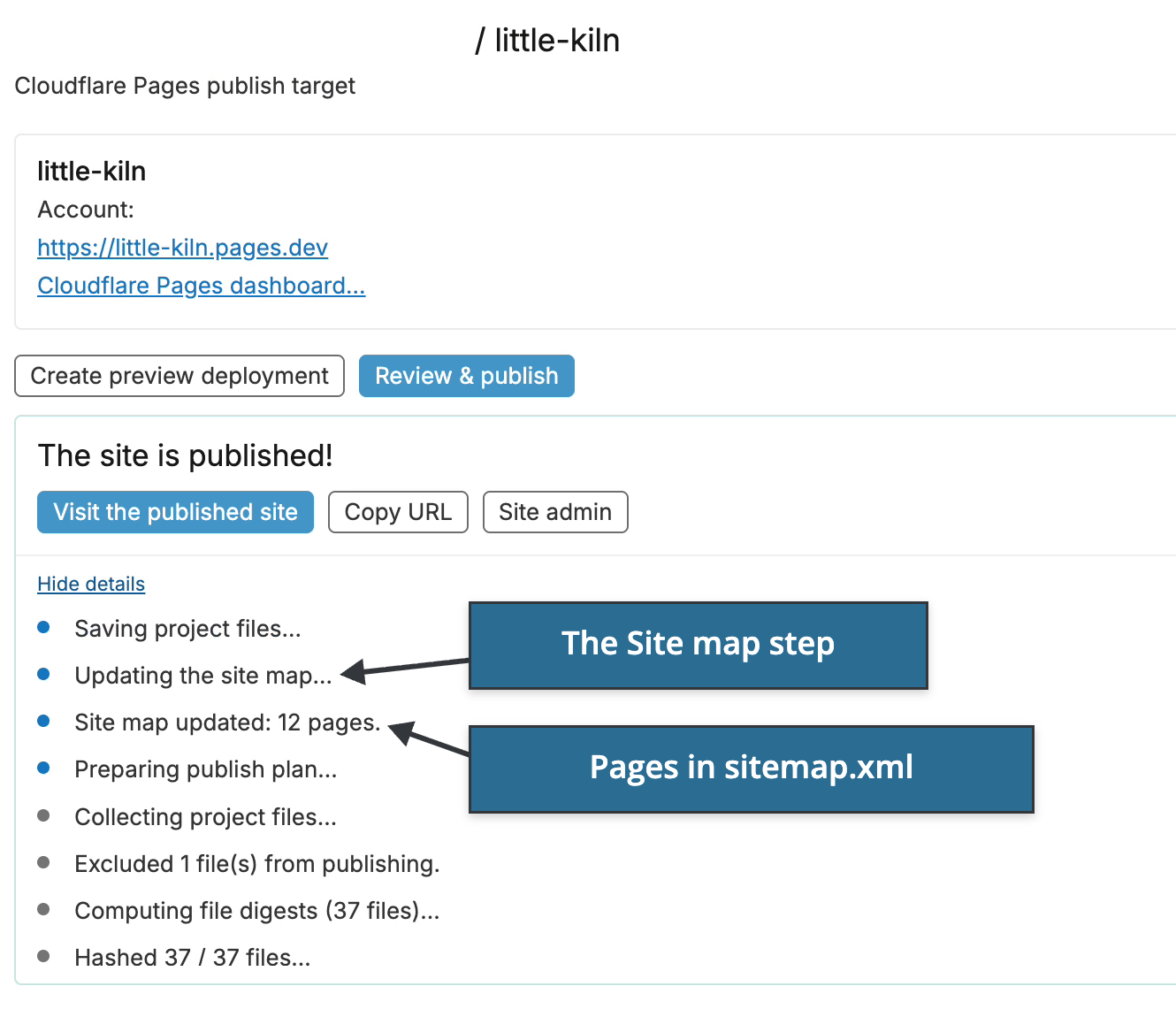
Click See details after publishing to see Site map updated: and the number of listed pages. New pages are listed and deleted pages drop out without an extra step.
- Preview deployments don’t update the site map.
- Files you excluded from publishing are left out of the site map.
- If the site map can’t be updated, the log says why and publishing continues with the files as they are.
See Publish your website for publish targets and the review.
Submit the site map to search engines
After the first publish, add the address of your site map, for example https://little-kiln.pages.dev/sitemap.xml, in Google Search Console and Bing Webmaster Tools. You do this once. When the site map changes, search engines read the new version.
When the site map is not updated
- Enter the site URL in the site map settings: the XML and text site maps need complete addresses. Open Settings and enter the Site URL.
- Choose at least one site map format in the site map settings: turn on the XML site map, the text site map or the site map page.
- Site map was not updated, because … could not be read: Pinegrow could not read a page, and a site map without it would remove the page from search engines. Check that the file exists and opens, then publish or generate again.
- … not updated, because Pinegrow did not create it: when publishing, Pinegrow doesn’t replace a site map file it didn’t write. Click Generate site map in the Site map view and confirm Replace once.
- The site map can list at most 50,000 pages: leave out folders or pages you don’t need search engines to read.