
Need to add a CSS stylesheet or Javascript file to the page? Just drag it from the Project panel.
DocsHow-to guidesDocsHow-to guides2020-04-20
Add stylesheet or script to the page
This approach requires Pinegrow Web Editor PRO 5.95
To add an existing stylesheet or script to the page, simply drag it from the Project panel to the page view:
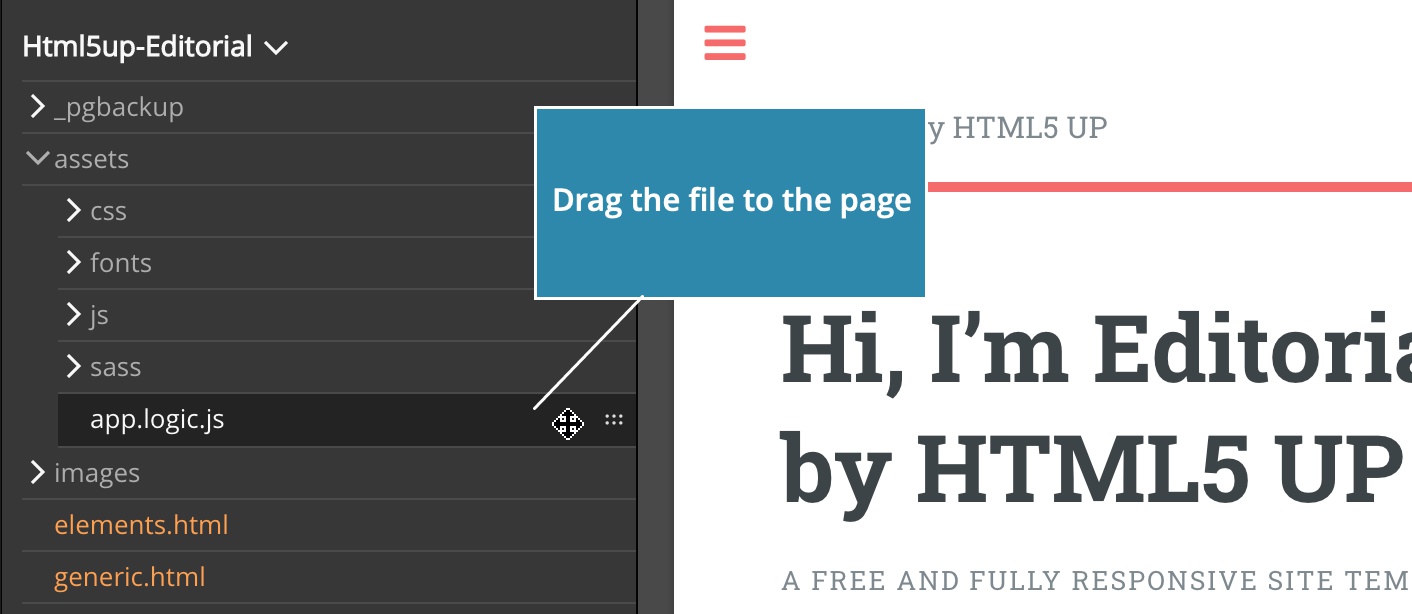
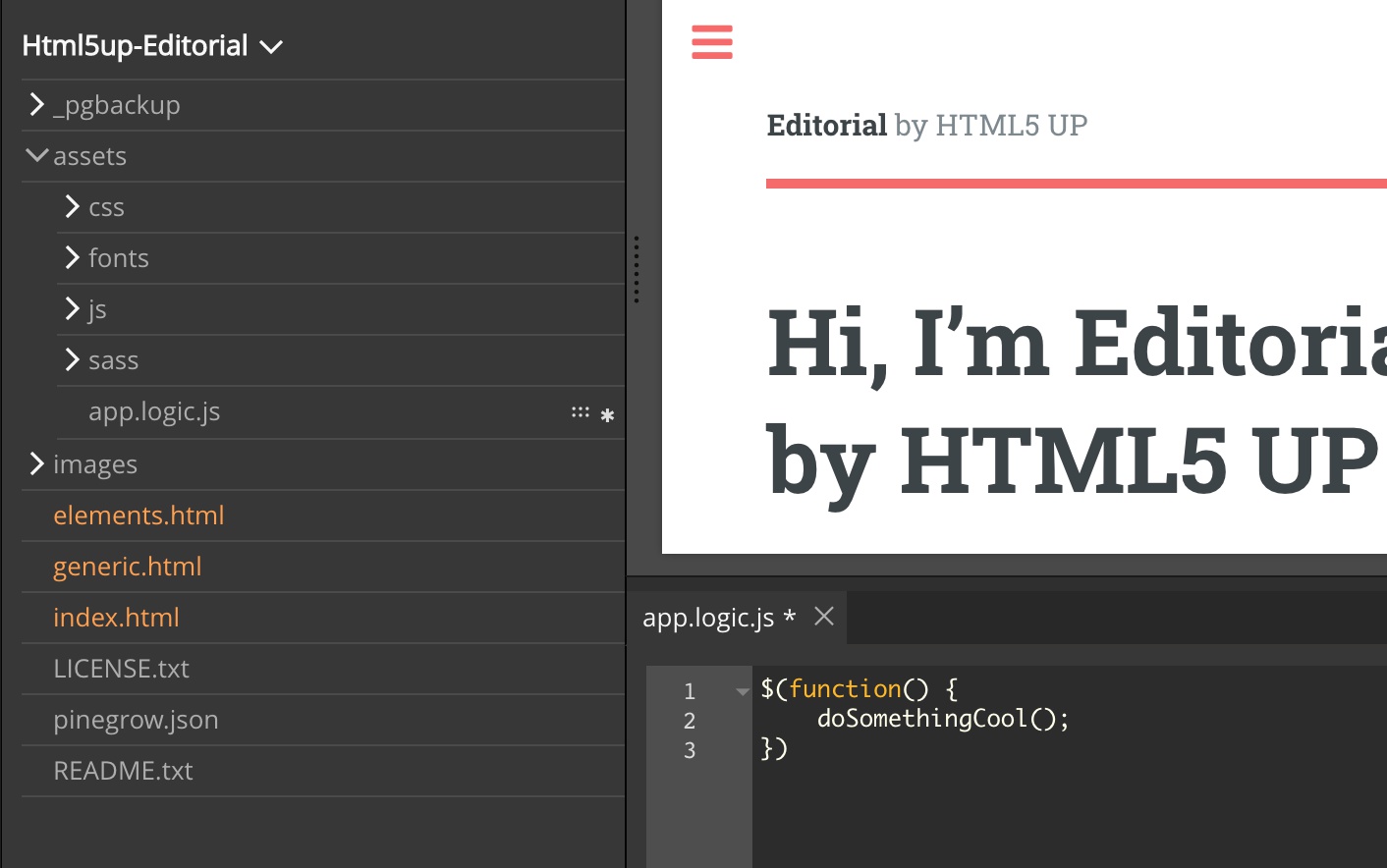
Files that can be dragged to the page have icon displayed next to their name.
Javascript files are added to the end of the <body> element by default. To change that, use the Tree panel to drag the script element to the <head> of the page.
Create a new file
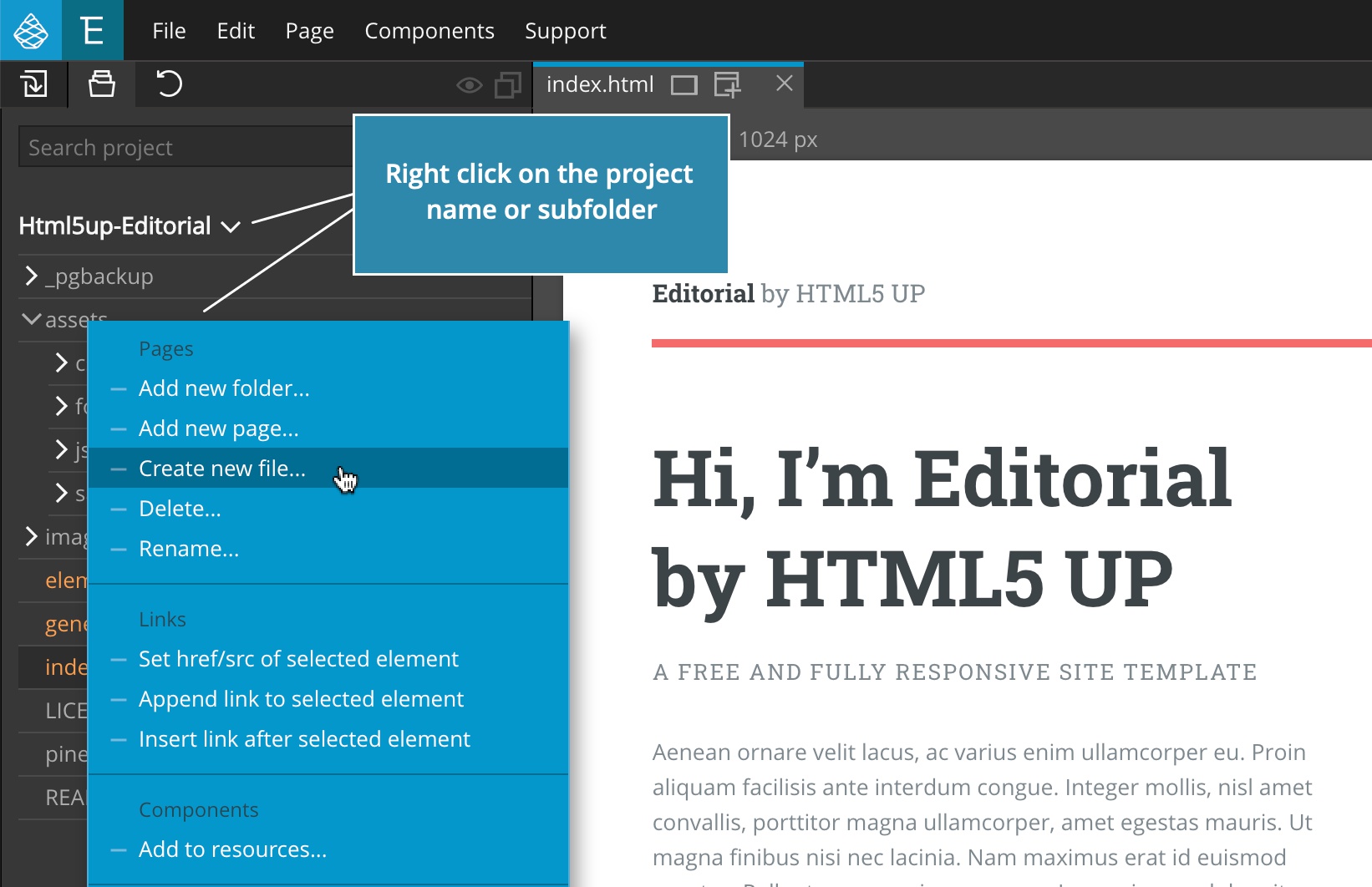
If you need to add a new file, create it by right-clicking on the project name or project subfolder and choose “Create new file” command from the menu.
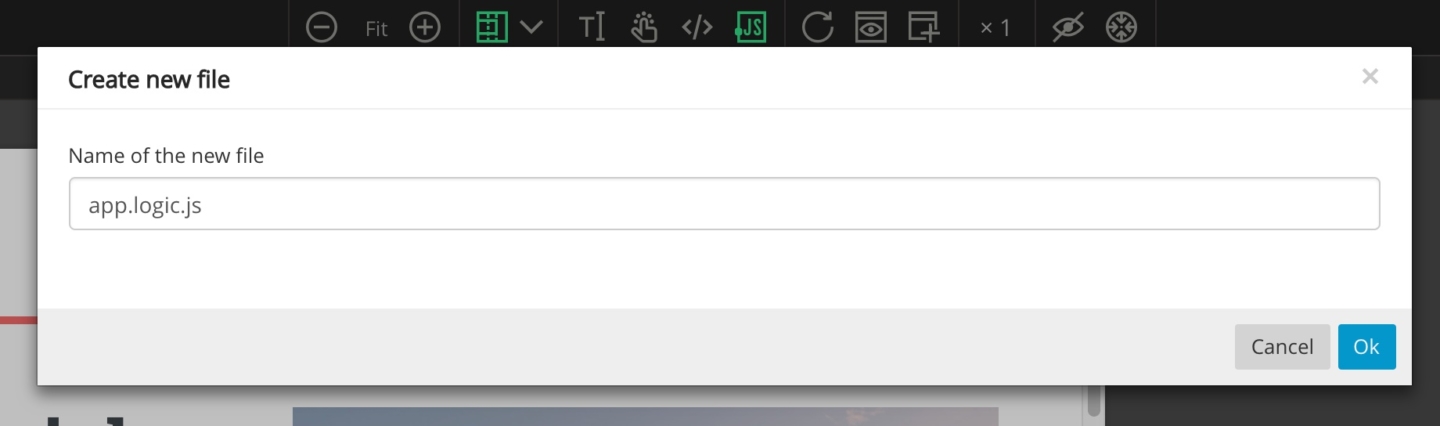
Enter and confirm the file name:
Next, drag the newly created file to the page.
Editing the file
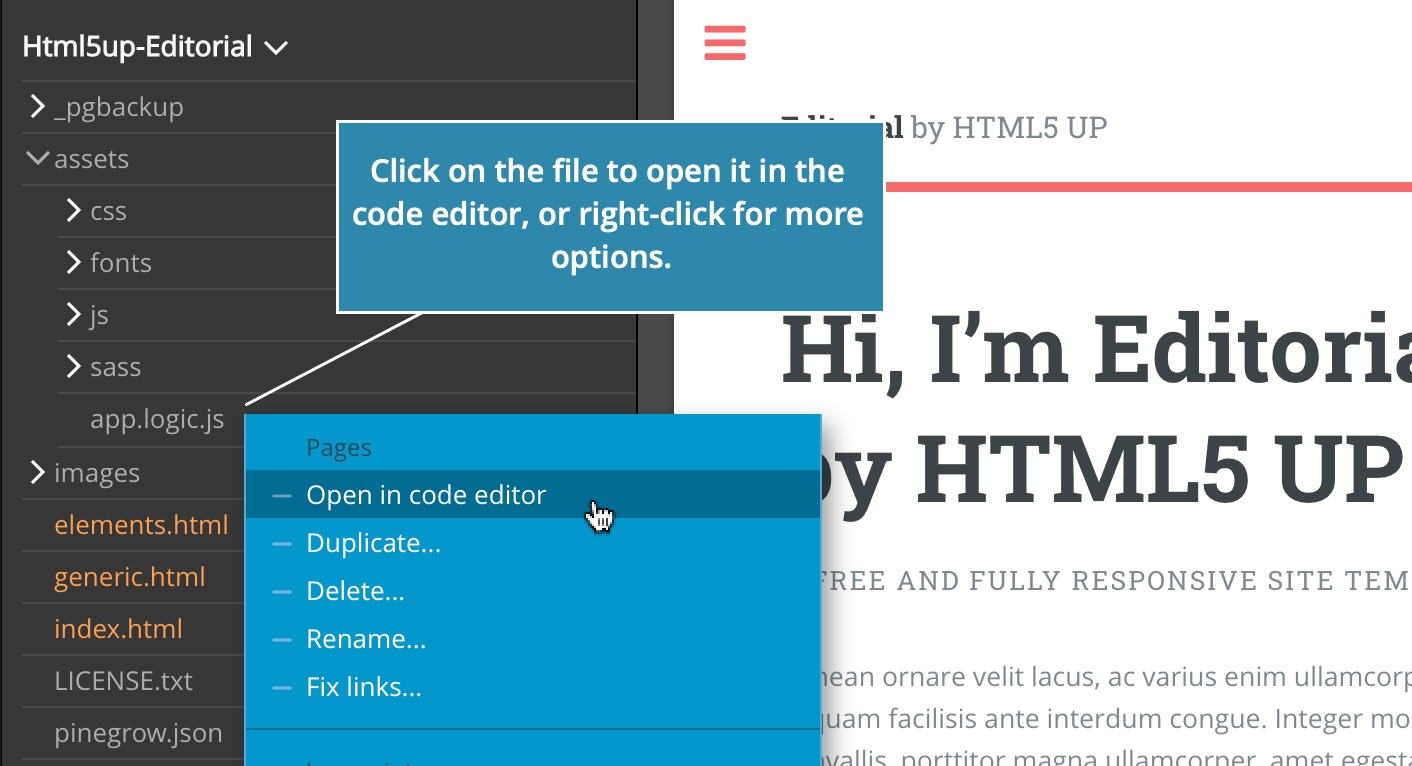
To edit the file click on the file in the Project panel to open it in the code editor:
Refresh the page view to re-run the Javascript code without having to save the code first.
Although this works for both stylesheets and scripts, we recommend that you use the Style panel to edit stylesheets.