
To visually work in Vue Designer, simply add the Pinegrow Vite plugin or integration module (for Meta-frameworks) to your project.
DocsVue DesignerDocsVue Designer2023-07-06
Config panel
Vue Designer aims to support any Vite-powered Vue project in the Vue ecosystem, regardless of the Meta-frameworks used in the application.
In this guide, we will explore everything about the Config Panel, a critical feature that assists you in getting started with Vue Designer. Feel free to read through this guide at your own pace; there is no need to implement it step-by-step.
In the next guide, we will utilize the Config Panel to scaffold a fresh Vue project following the official documentation. We will leverage its features and walk through the entire process, providing step-by-step instructions for you to follow.
You can watch our short guide, or scroll down past the video for step-by-step instructions.
The Open button from the start-screen is used to select and open your project folder in Vue Designer.
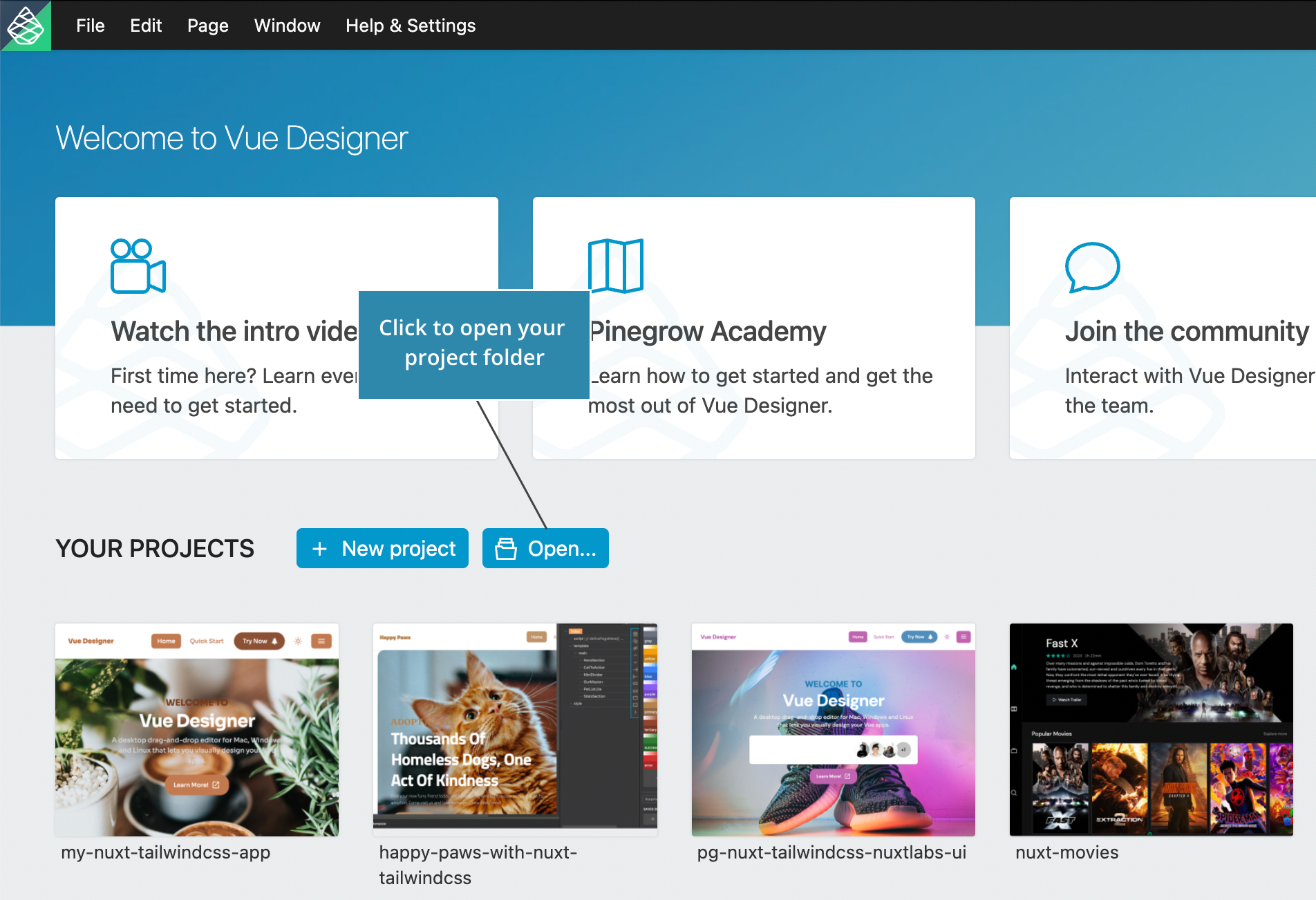
Validations
When a project folder is opened in Vue Designer, several validations are performed:
- The project must have a
package.jsonfile in the project root. - The project must have a
node_modulesfolder with installed dependencies. - The project must have a configuration file, such as
vite.config.[js,ts], nuxt.config.[js,ts], etc. - The project must be a Vue project, meaning
vuemust be installed and found in thenode_modulesfolder. - The Config Panel will display relevant validation error messages and instructions on how to fix them.
While we have made extensive efforts to support every Vite-powered Vue project, there is always a possibility that your project may require additional setup.
Please contact us, and we will do our best to help you make it work in Vue Designer and extend our support.
Setup
The Config Panel is designed to provide basic instructions to the user, supporting a wide range of Meta-frameworks, CSS frameworks, and Component Libraries in Vue Designer.
When a project is opened for the first time, the Config Panel will automatically pop-out and provide instructions to add either the Pinegrow Vite Plugin or the integration modules specific to the Meta-framework used in your project.
| Framework | Integration Module |
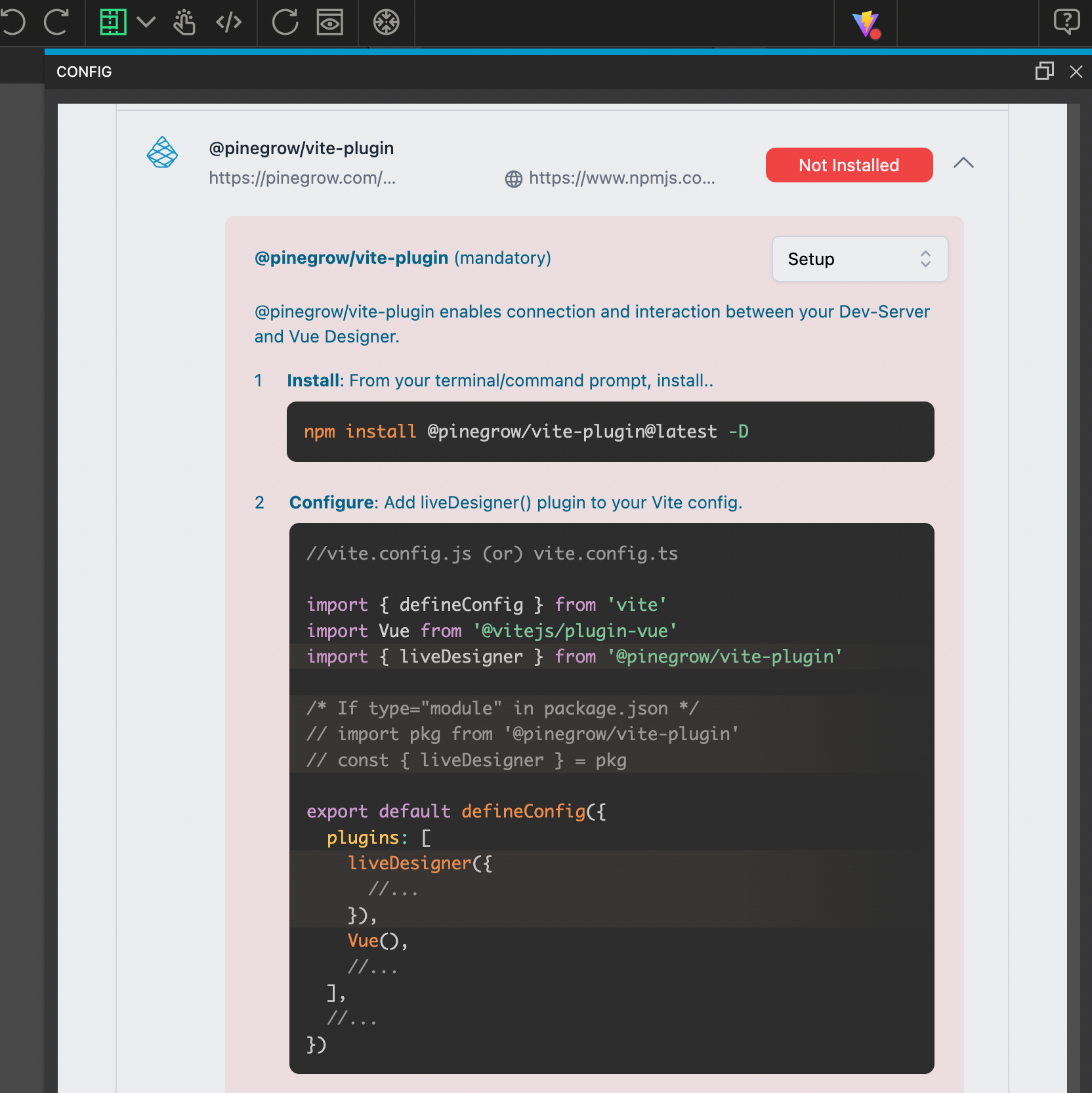
| Vite-powered Vue | @pinegrow/vite-plugin |
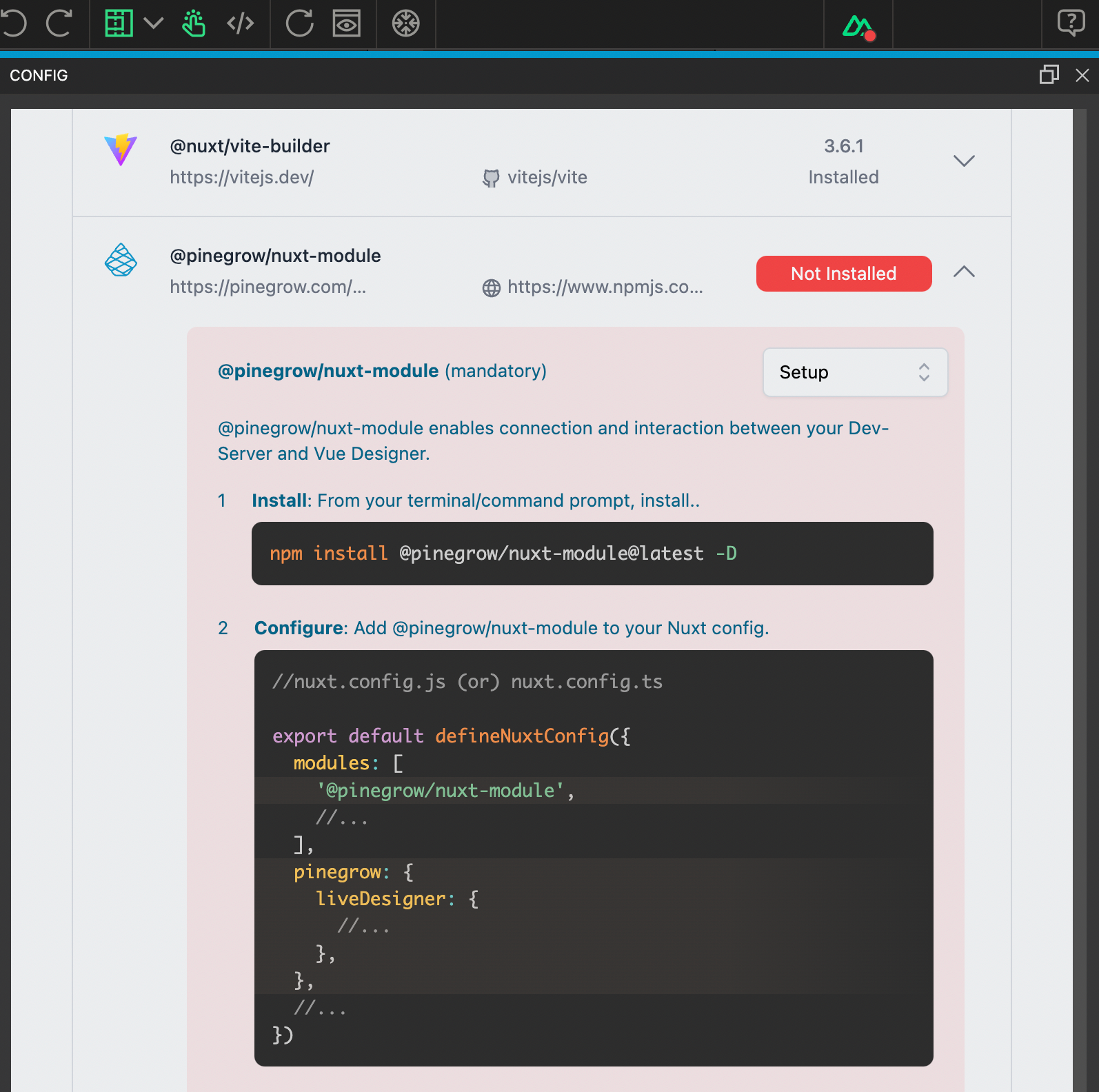
| Nuxt | @pinegrow/nuxt-module |
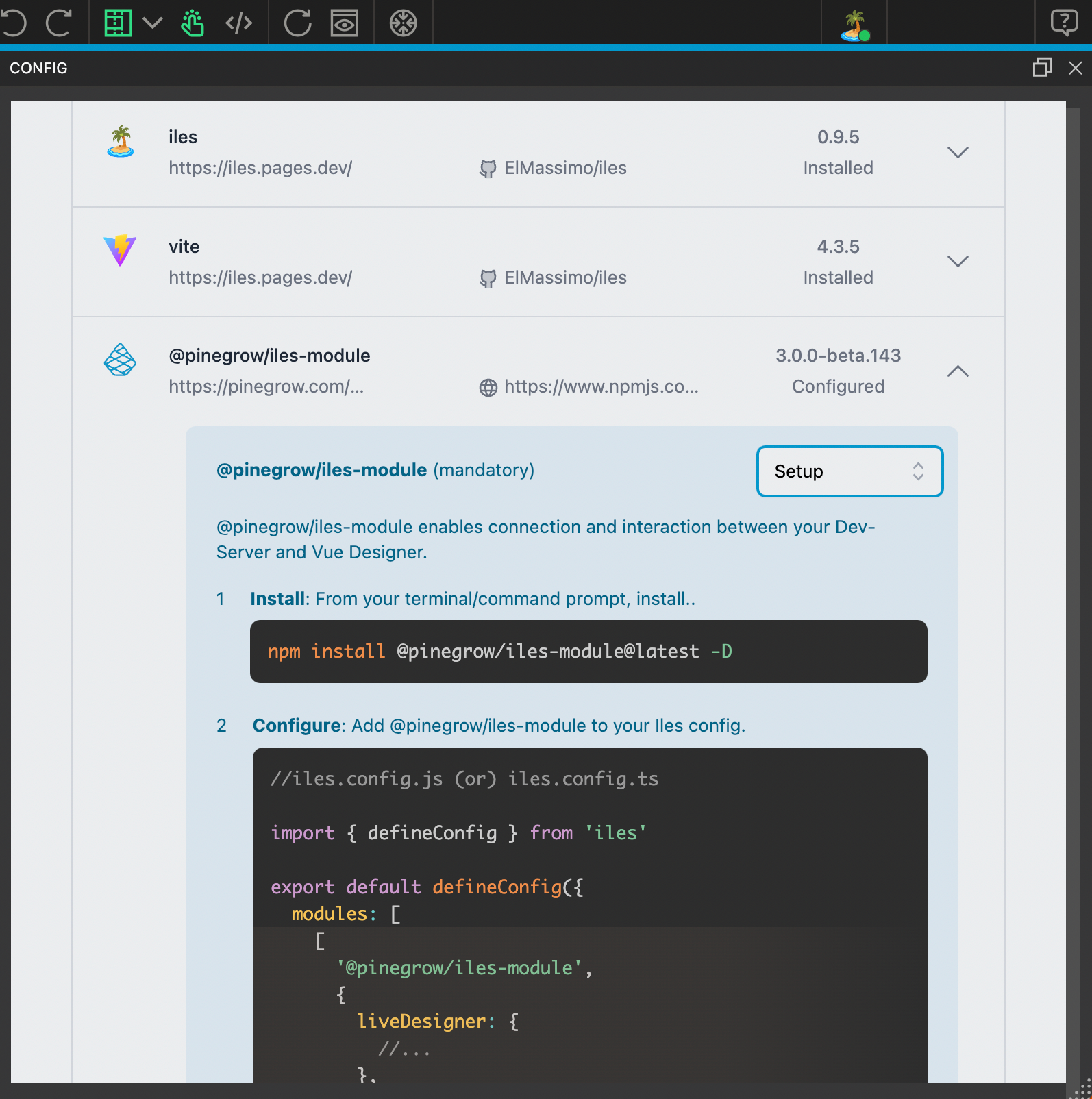
| Iles | @pinegrow/iles-module |
The framework icon in the toolbar (located towards the right end) displays the corresponding status, which is further explained under the Setup section in the Config Panel.
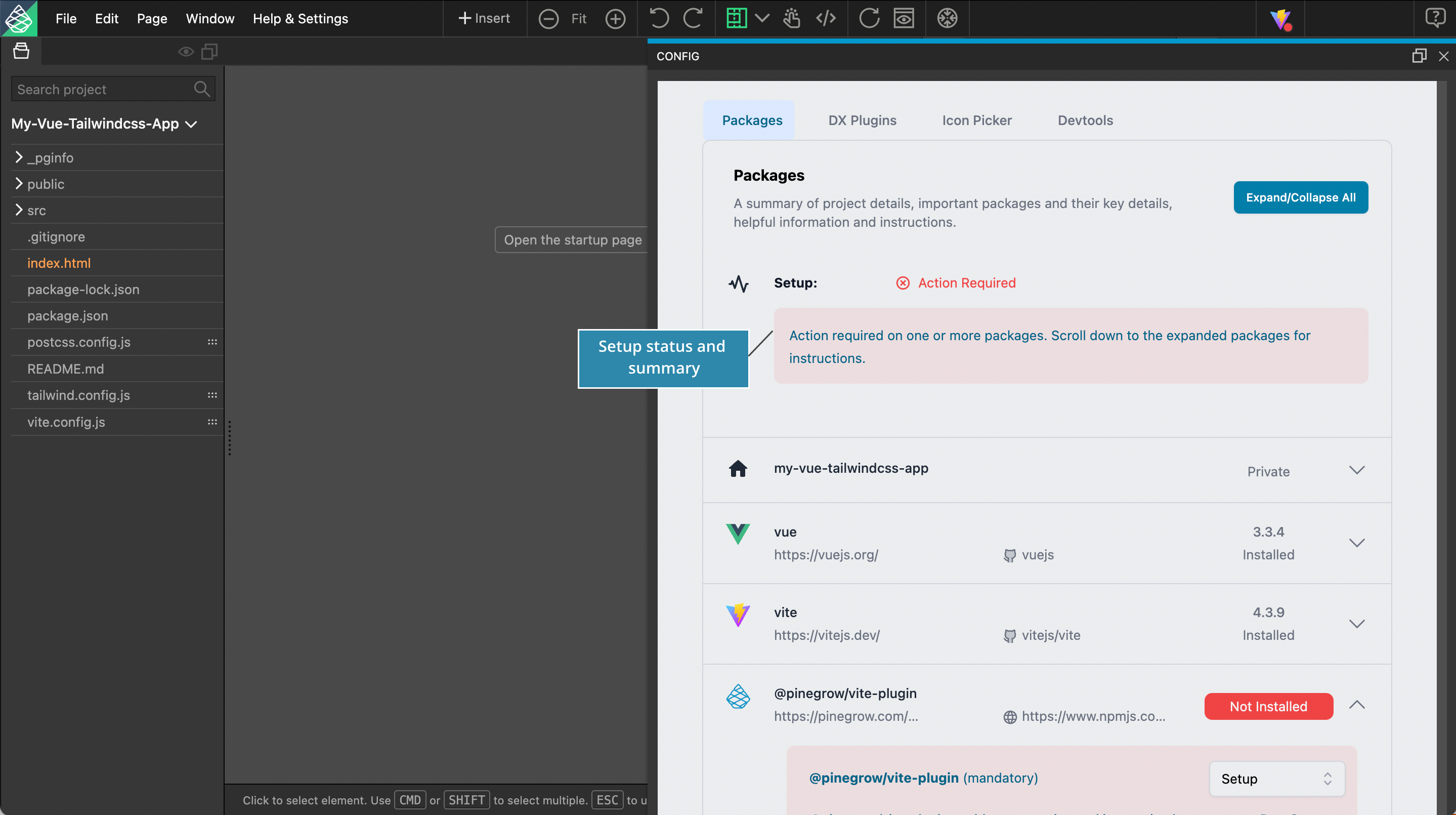
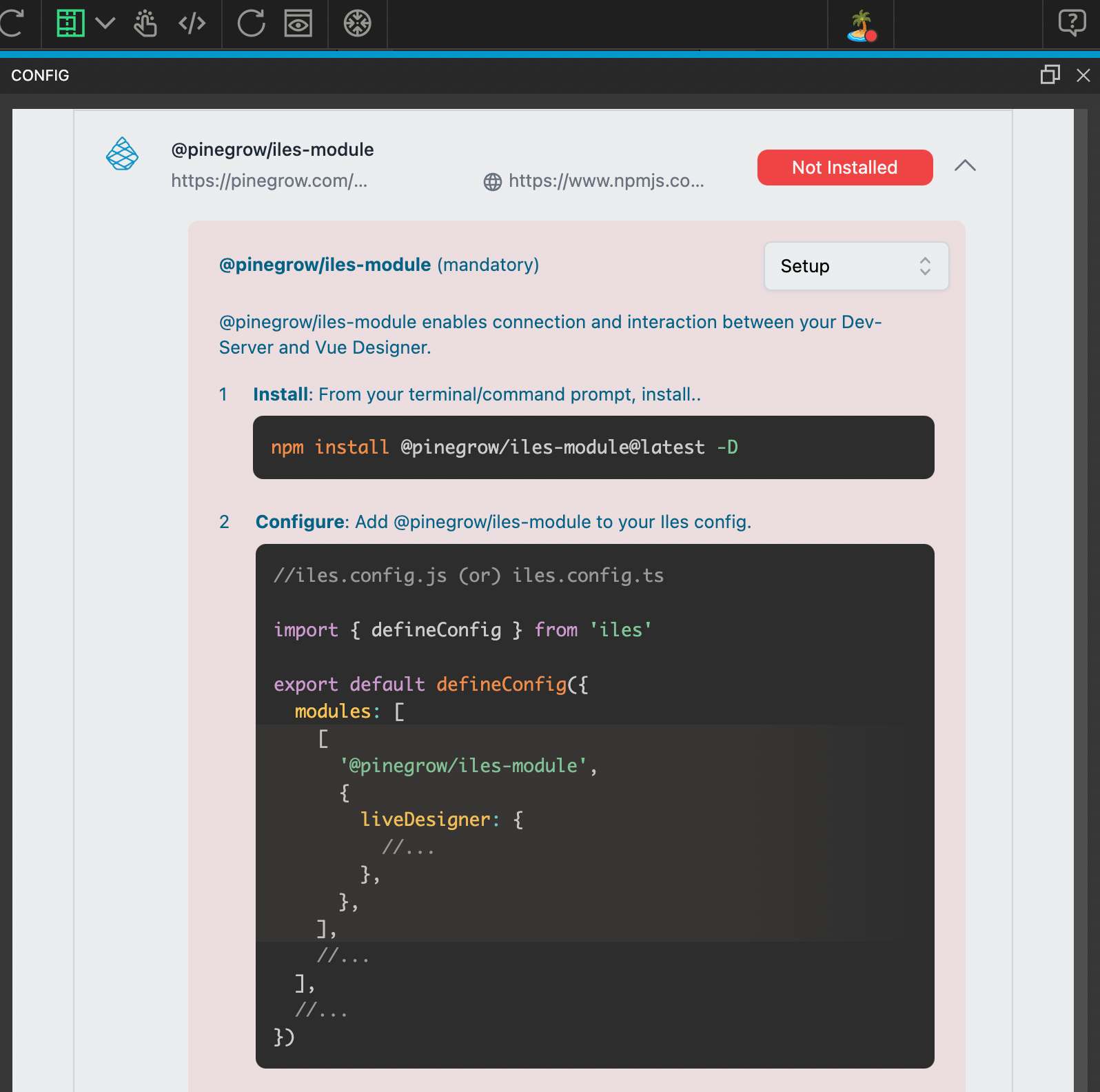
Scroll down to view the instructions for adding the required integration.
Here is an example for a fresh Vue project.
Here is an example for a fresh Nuxt project.
Here is an example for a fresh Iles project.
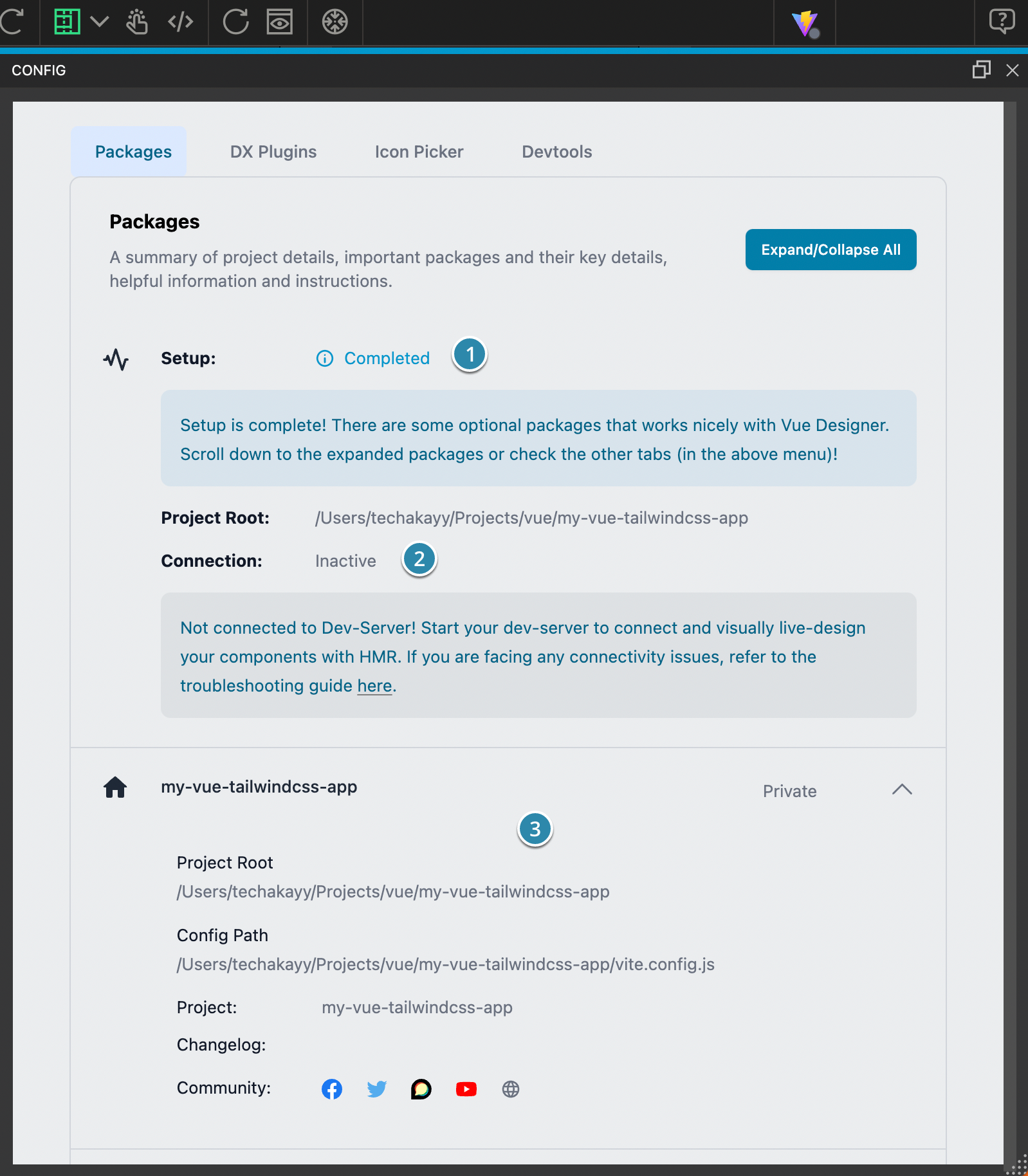
- Once the correct integration module is installed and configured, the setup status will be displayed as Completed. The blue messages can be ignored as they are only recommendations.
- The setup must be in the Completed status before the connection can be established between Vue Designer and your dev-server.
- The Config Panel will also show some additional information about your project and provide quick-links to Vue Designer community.
Connection
If the connection status is currently inactive, start the dev-server from your external terminal to establish the connection between Vue Designer and your dev-server. You can now close the Config Panel.
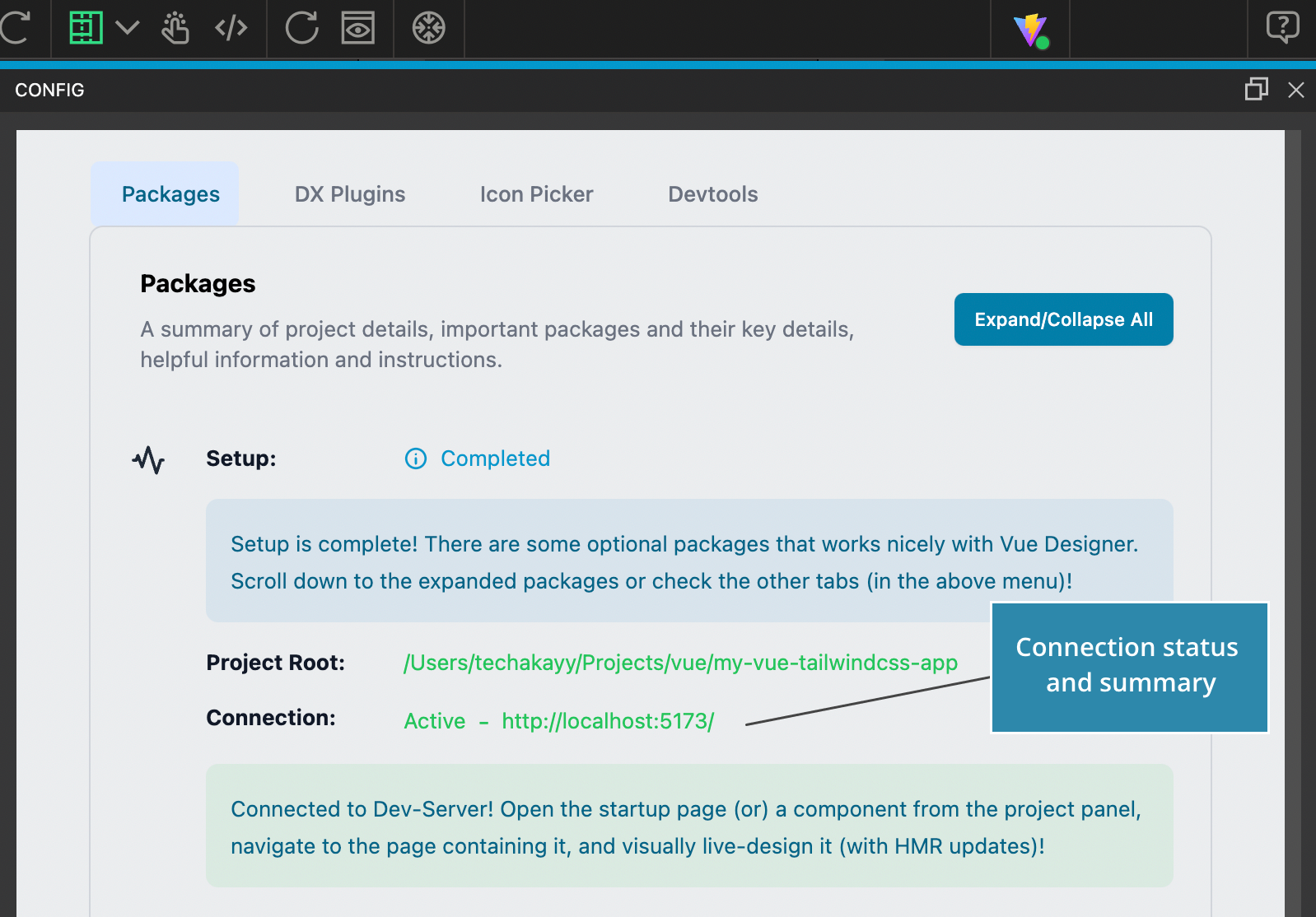
There are other connection statuses and we will cover them later.
If you have any issues with establishing the connection, please refer to the troubleshooting guide.
Open Startup Page
The Page View is the central area of the interface.
Click on the Open the startup page button. This will open your key *.vue file (pages/index.vue, pages/home.vue, app.vue or App.vue)
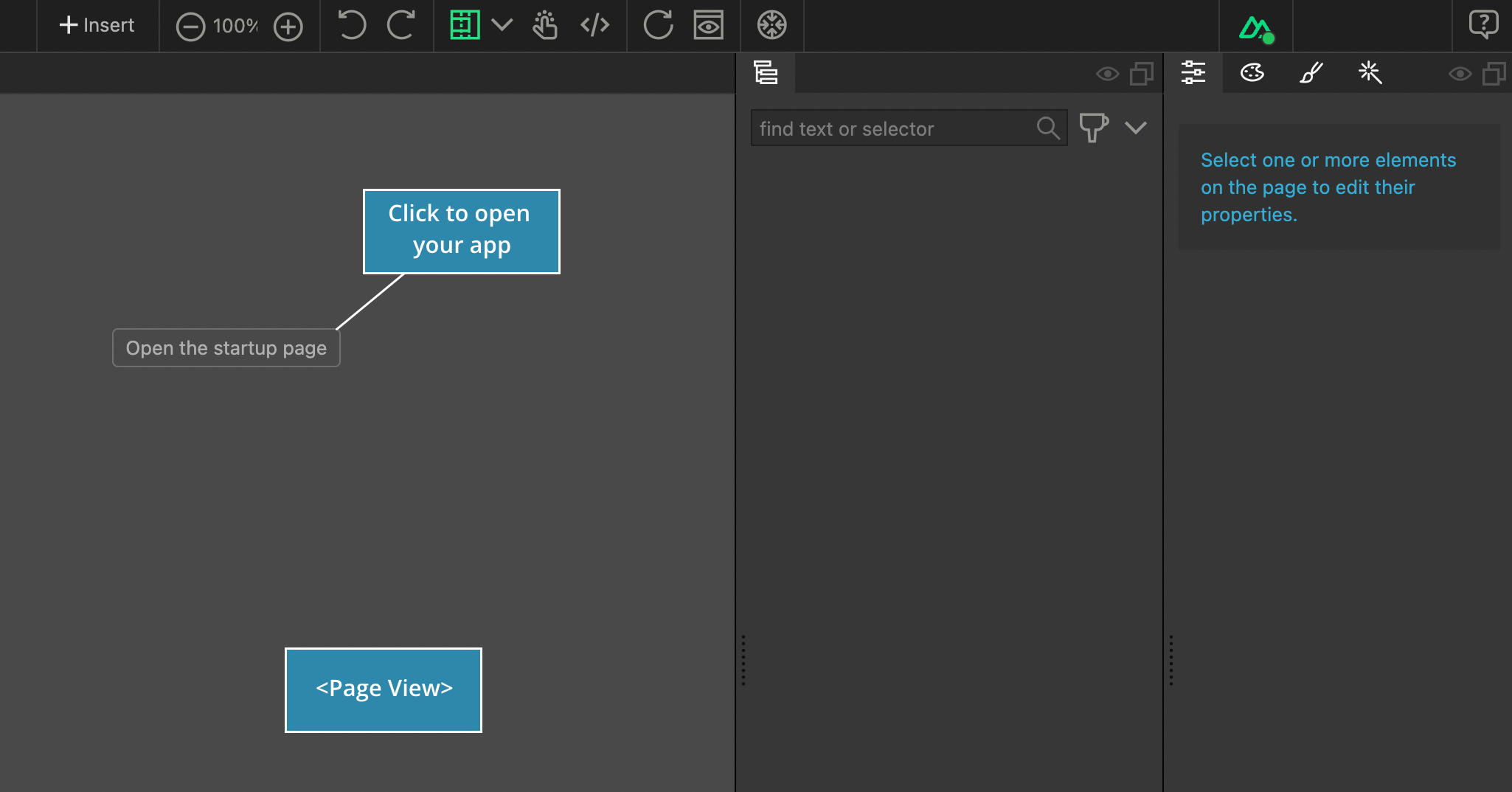
Congratulations! You have successfully added the required integration plugins/modules to your project.
If you used one of the quick-start template (or) sample apps from the start-screen, these integration modules already added, so you don’t need to go through the above process. You can quickly start working in Vue Designer.
Config Panel - Other Features
- The Config Panel is designed to not obstruct your work on your app. It is only necessary during the setup stage and won’t appear unless you manually open it or if there are any Actions Required in the setup.
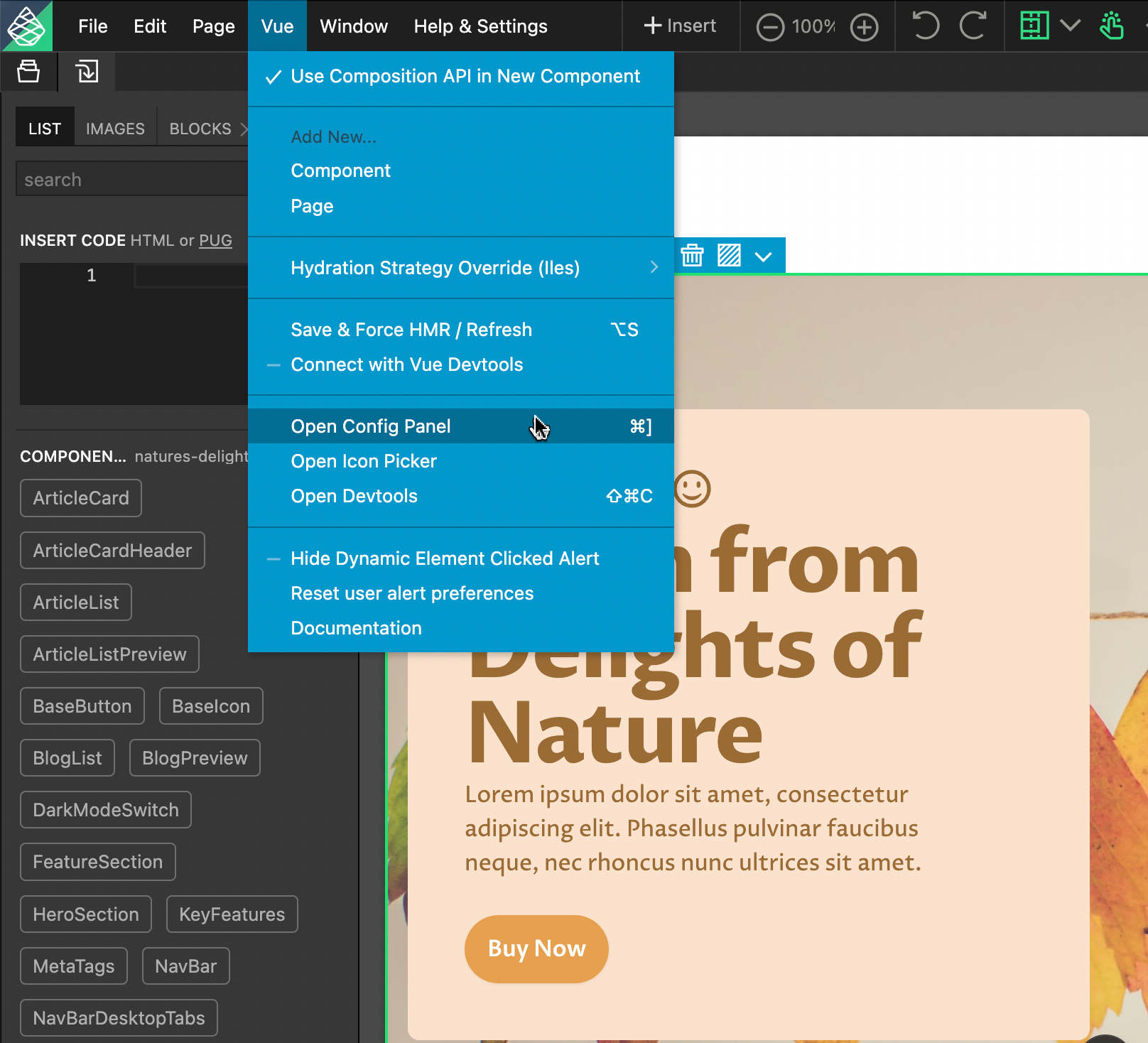
- You can also open the Config Panel via the Vue menu or by using the shortcut Cmd/Ctrl + ].
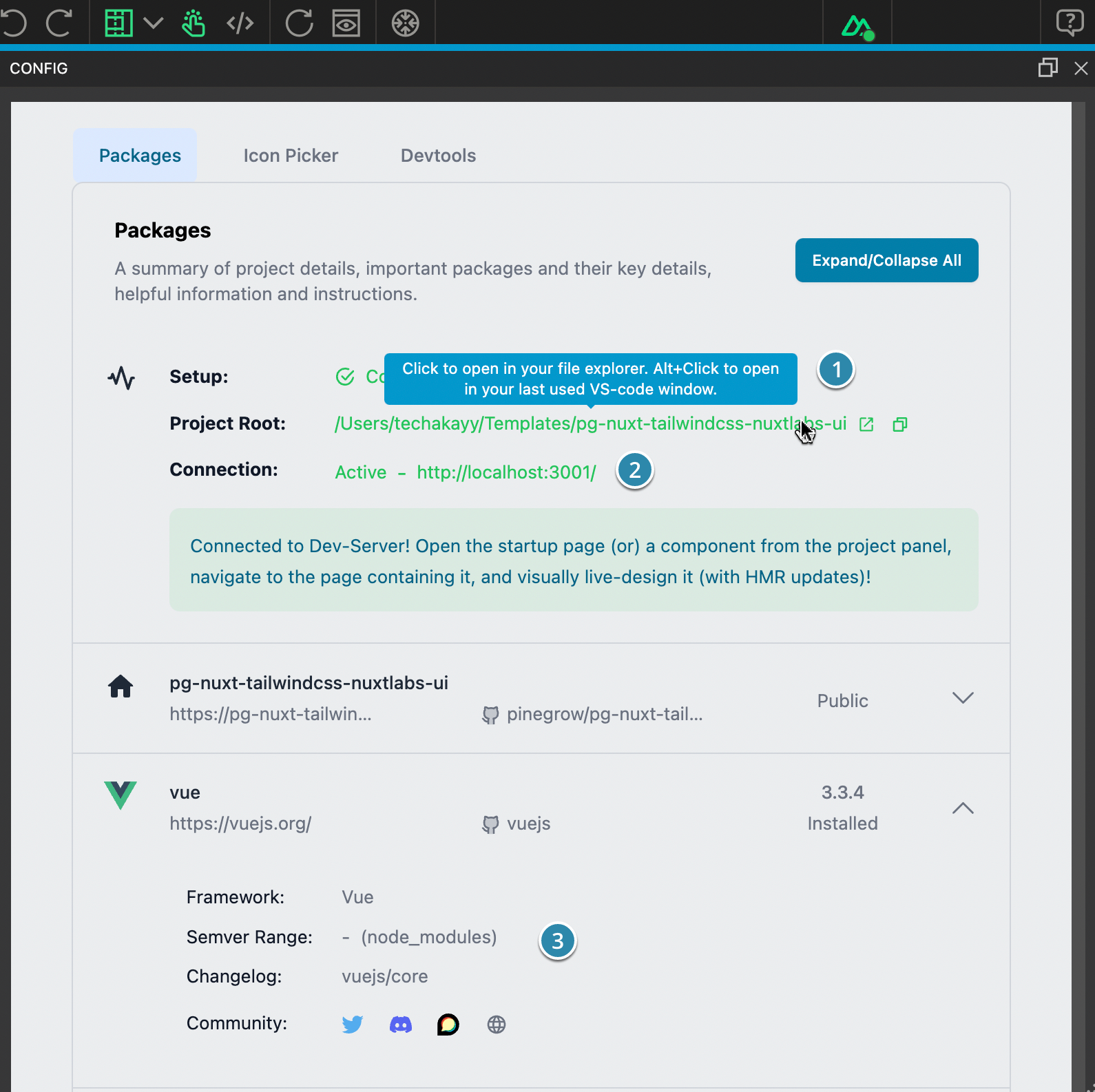
- You can open your project in your file explorer by clicking on the Project Root. Additionally, you can Alt + Click to open it in your last-used VS Code window.
- You can open your dev-server by clicking on the dev-server URL under the Connection status & summary.
- Expanding the packages will provide helpful information, and you can use the links to access the community.
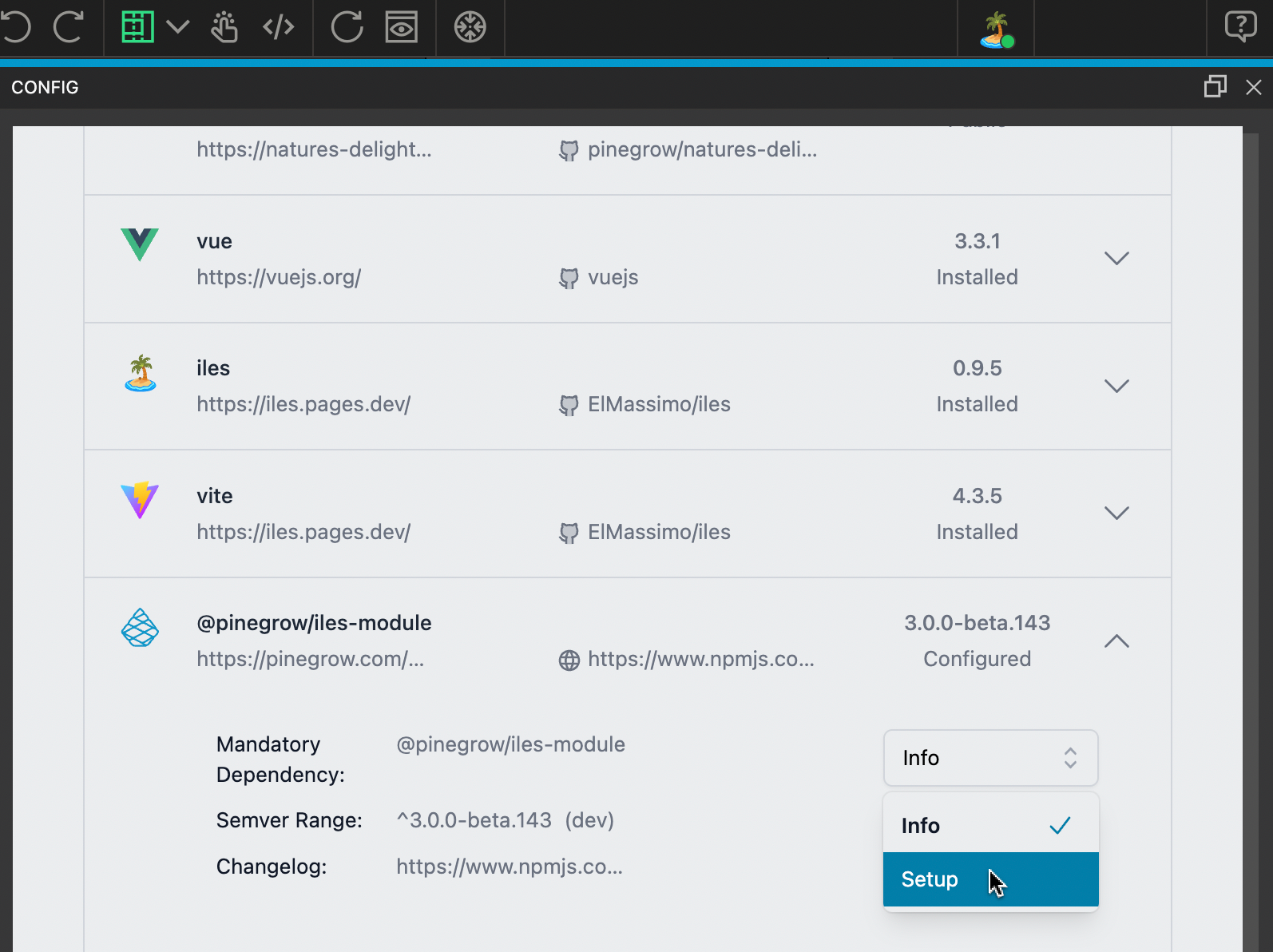
- To see the setup instructions for the integration modules, use the dropdown on the right and choose setup to view the setup instructions again.
Well done! You now understand the purpose of the Config Panel, its features, and how to best utilize it to your advantage.