
Known issues, troubleshooting and workarounds.
SupportVue DesignerSupportVue Designer2023-10-12
Vue Designer troubleshooting
While we have made extensive efforts to support every Vite-powered Vue project, there is always a possibility that your project may require additional setup.
Please contact us, and we will do our best to help you make it work in Vue Designer and extend our support.
Share Your Config Panel
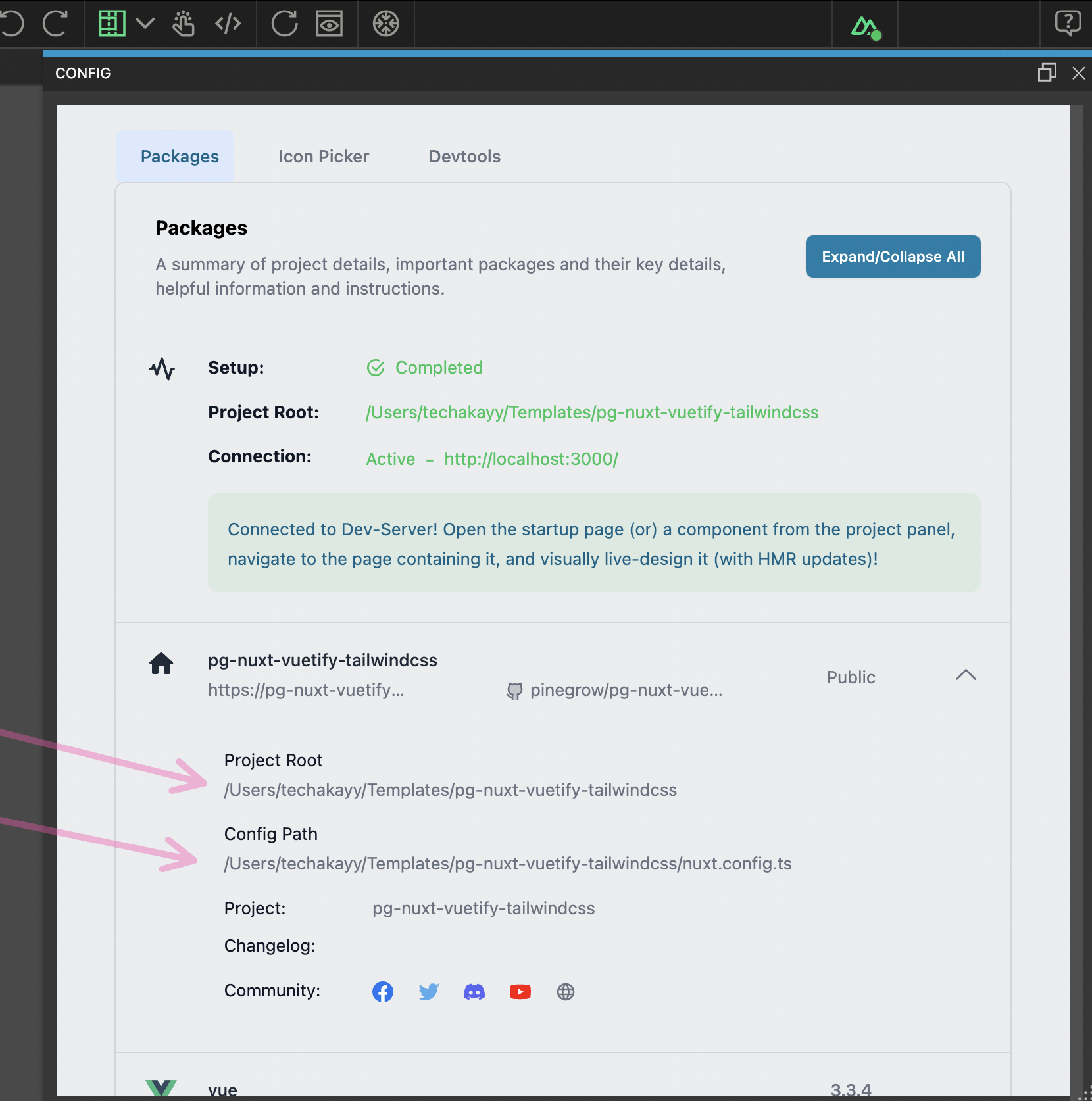
When getting in touch with our support, please include screenshots of your config panel with the first section expanded, as it contains helpful information for us to troubleshoot.
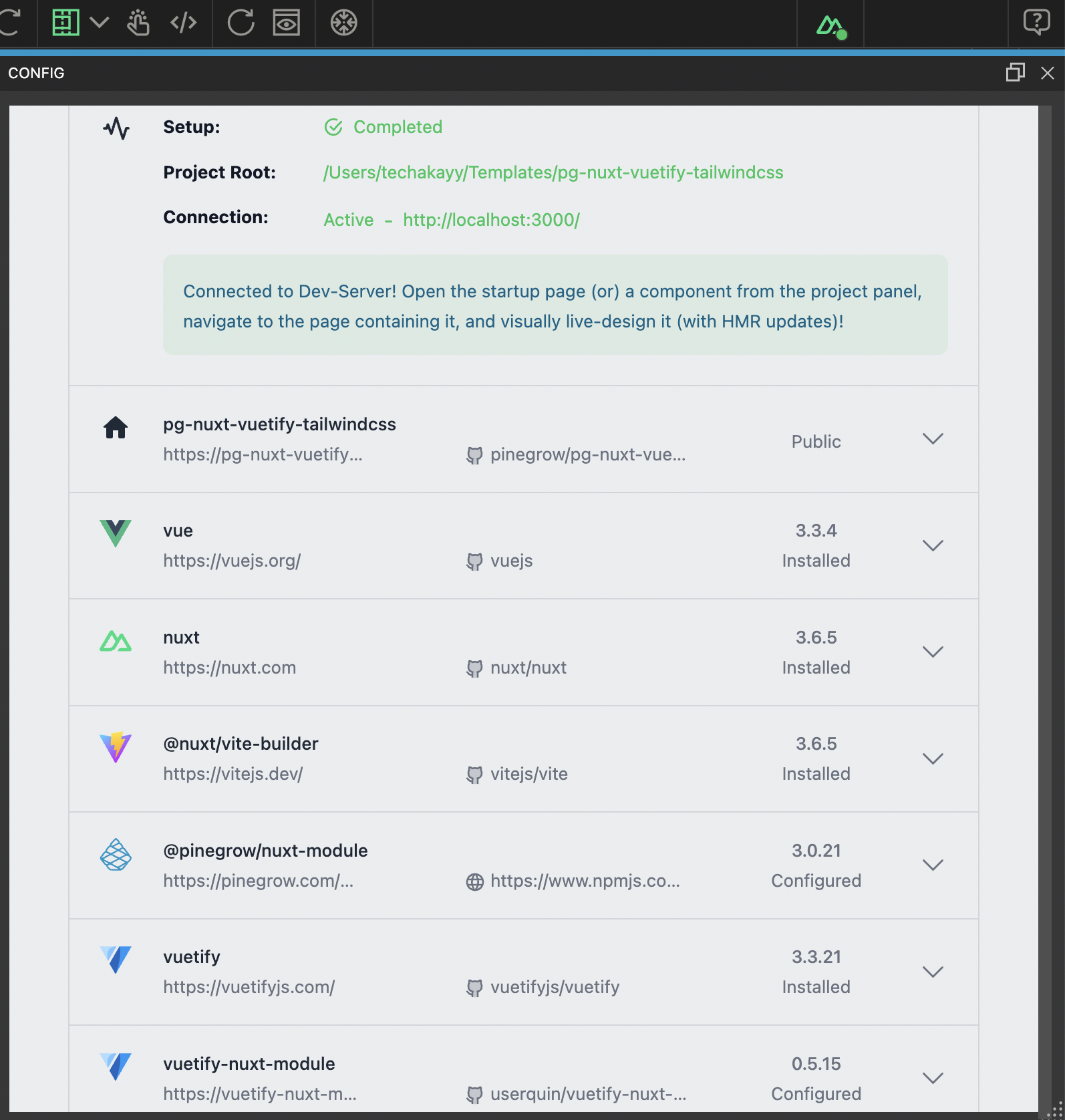
Secondly, include a screenshot of the list of key packages in your Config Panel.
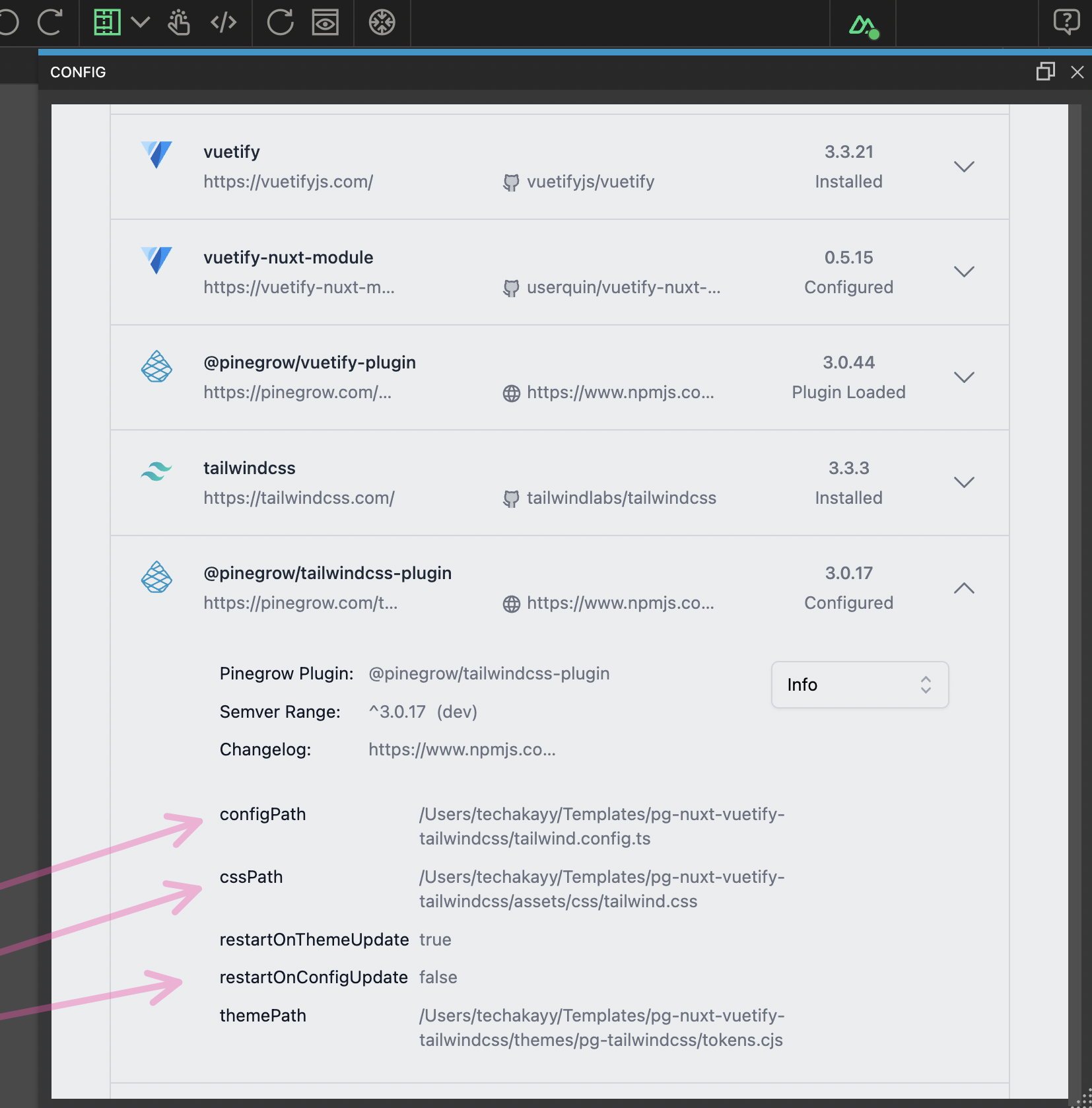
If you issue is related to one of Pinegrow’s plugin/module, expand those sections, and include a screenshot of the relevant configurations.
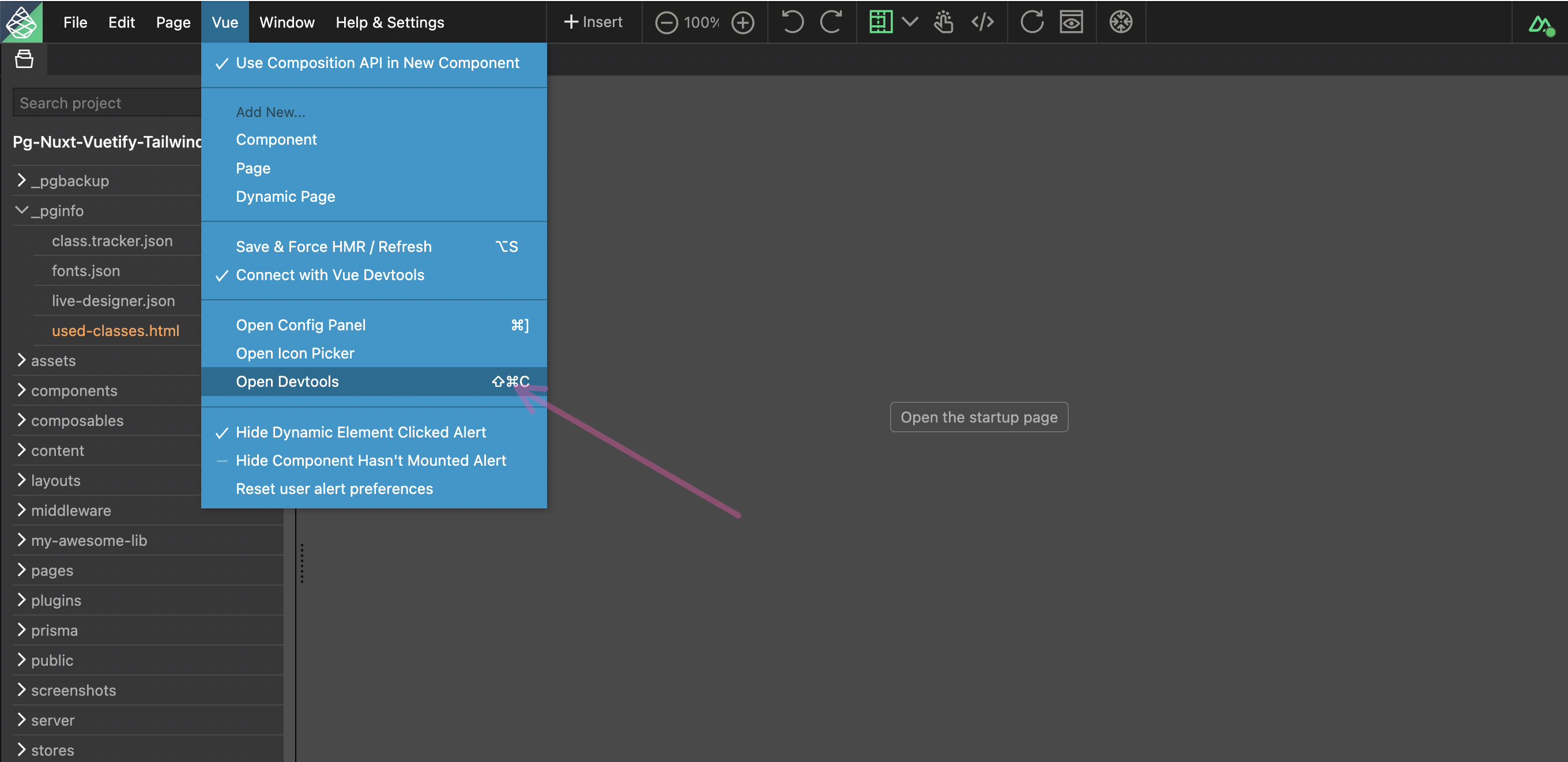
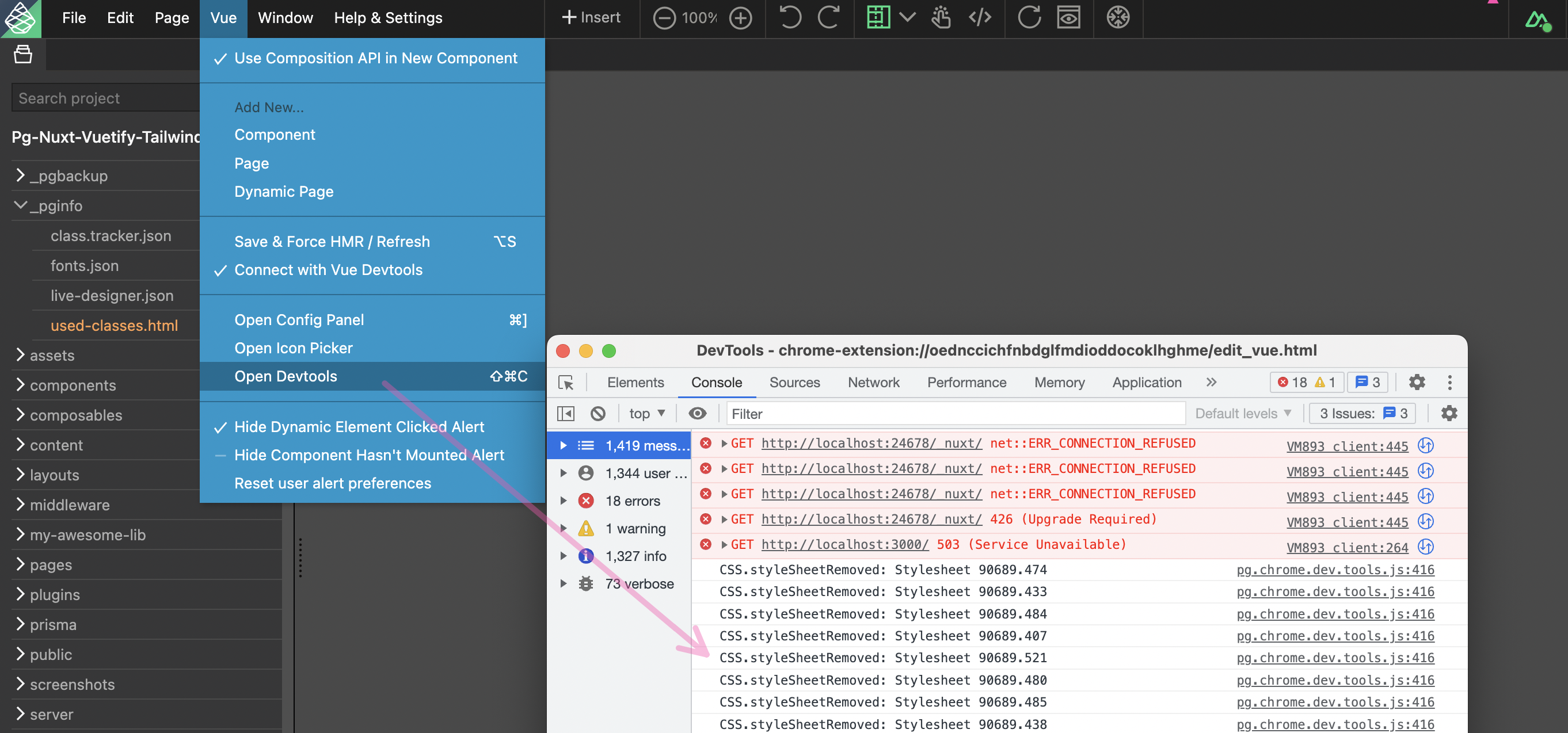
Open Devtools & Check for Errors
Vue Designer is a nw.js based application (nw.js is similar to the popular Electron) and includes the Chromium browser, so you can open the devtools via the Vue > Open Devtools menu. Now, look for any errors under the console tab.
If you were working on your page in Vue Designer, and the dev-server was stopped, your app might log some connection retry errors. So, you will have to identify and filter out those errors, and look for any Vue Designer specific errors. If in doubt, just get in touch with us, we are always here to help!
If you spotted any errors, share the details along with screenshots, and get in touch with our support. We probably have a bug to fix.
Connection Issues
Firstly, it is very helpful to understand how the connection between Vue Designer & your Dev-Server works in order to troubleshoot any connection issues.
Vue Designer is designed to smartly integrate with your Vite-powered Vue projects with the help of the Pinegrow Vite Plugin (@pinegrow/vite-plugin) or the integration modules specific to the Meta-framework used in your project (Nuxt, Iles, Astro etc). These are development-only plugin/modules and do not inject any code when you build your project for production.
_pgbackup & _pginfo folders
When a project is opened in Vue Designer, two folders _pgbackup and _pginfo are created in your project root.
- The
_pgbackupfolder saves backup files and by default maintains 20 revisions of each file saved in Vue Designer. This automatic backup can be turned off via the Help & Settings > Settings dialog. We strongly recommend you to initialize and use git in your project instead of relying on this backup feature. - The
_pginfofolder is used by Vue Designer to create temporary non-critical files that helps with the internal workflow when you are working on your files in Vue Designer. - We recommend adding these two folders to your
.gitignoreas they are not part of your project code.
live-designer.json
- Additionally, a file called
live-designer.jsonis created under the_pginfofolder that contains the socket.io server url running within Vue Designer. - This file is automatically created or deleted when you open or close your project in Vue Designer.
- When you start your dev-server,
@pinegrow/vite-pluginconnects to the socket.io server by reading thelive-designer.jsonfile. This connection is used by Vue Designer to enable visual designing capability when you open your Vue components in Vue Designer. - If the file doesn’t exist, then this means the project is not currently opened in Vue Designer, so
@pinegrow/vite-plugindoesn’t do any work when you start your dev-server, and can be ignored. You probably are simply working on your code directly with a code editor like VS-code, and not using Vue Designer at this moment.
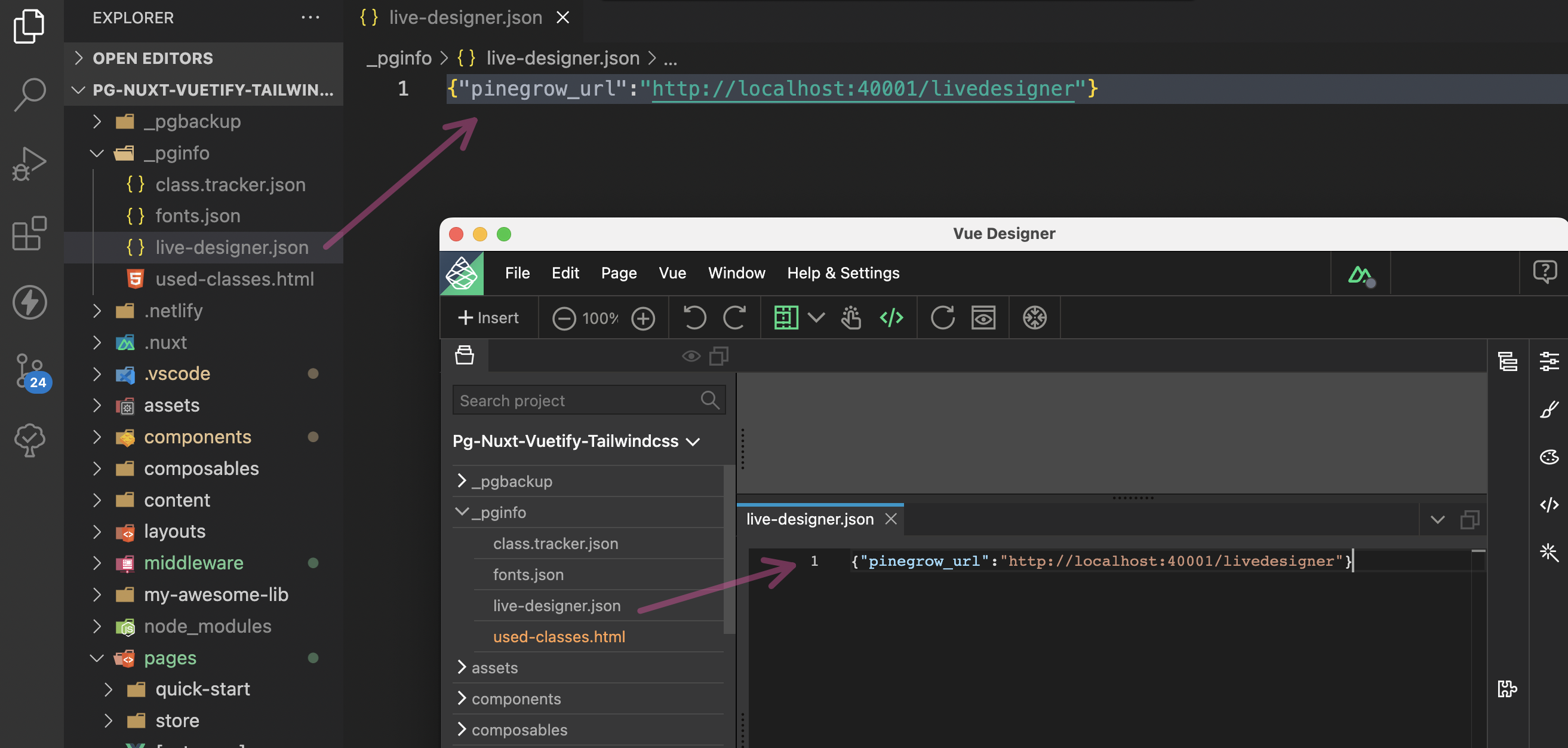
live-designer.json is created when project is currently opened in Vue Designer.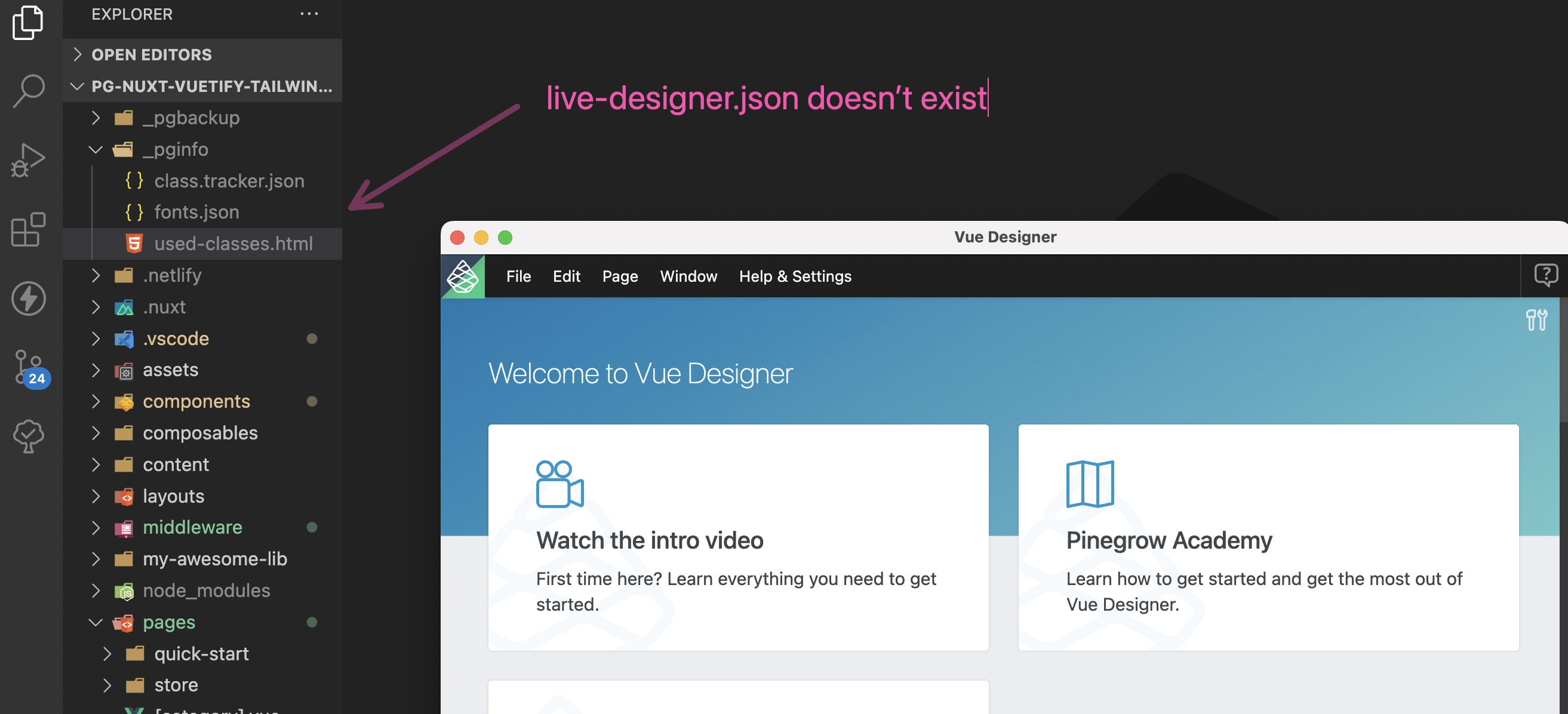
live-designer.json doesn’t exist when project is currently not opened in Vue Designer.While there other ways to establish a communication between Vue Designer and Dev-Server contexts, the live-designer.json file seems to be the simplest solution that works across all platforms, and more complex setups.
Now, validate if the live-designer.json file is getting created and deleted when you open or close your project in Vue Designer. If not, please contact us with details and screenshots / screen recordings.
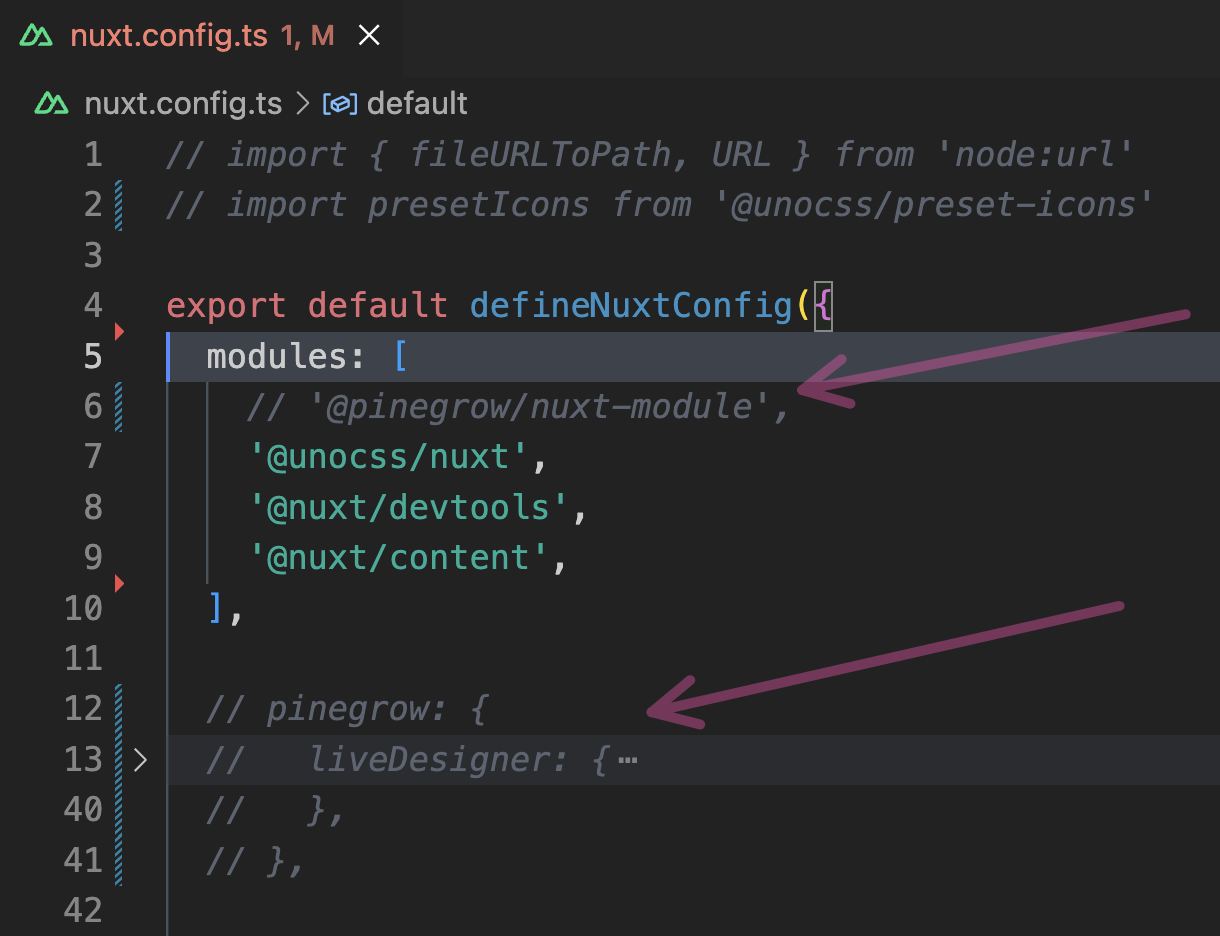
Test your projects without Pinegrow Plugins/Modules
Sometimes, the issue you are facing might not be caused by Vue Designer, rather it could be caused by other factors, for eg, another plugin/module in your project.
When your project is currently not open in Vue Designer, the Pinegrow Plugins/Modules don’t perform any work, but additonally, you can still comment them out in your config file, and test your project without them.
Opening project from a mounted drive
Your project might reside in a mounted disk (for eg, a remote Linux VM disk). These drives are generally considered as local drives, so your project doesn’t require any special setup.
We strongly recommend you to save your project in your local hard-disk which always gives the best developer experience when working with Vue Designer.
Remote Connection
When a project folder is opened in Vue Designer, several validations are performed:
- The project must have a
package.jsonfile in the project root. - The project must have a
node_modulesfolder with installed dependencies. - The project must have a configuration file, such as
vite.config.[js,ts], nuxt.config.[js,ts], etc. - The project must be a Vue project, meaning
vuemust be installed and found in thenode_modulesfolder. - The Config Panel will display relevant validation error messages and instructions on how to fix them.
If your project is residing on a remote disk along with the Vite-server running on this remote machine, and if you are trying to open your project in Vue Designer, then this setup might interfere with the validations performed by Vue Designer and cause issues.
We strongly recommend you to save your project in your local hard-disk which always gives the best developer experience when working with Vue Designer.
If your connection is still strong enough, and you prefer to work with this remote setup (for eg, in a WSL setup), Pinegrow Vite plugin (or the meta-framework specific modules) needs the additional ability to connect with the Vue Designer local instance.
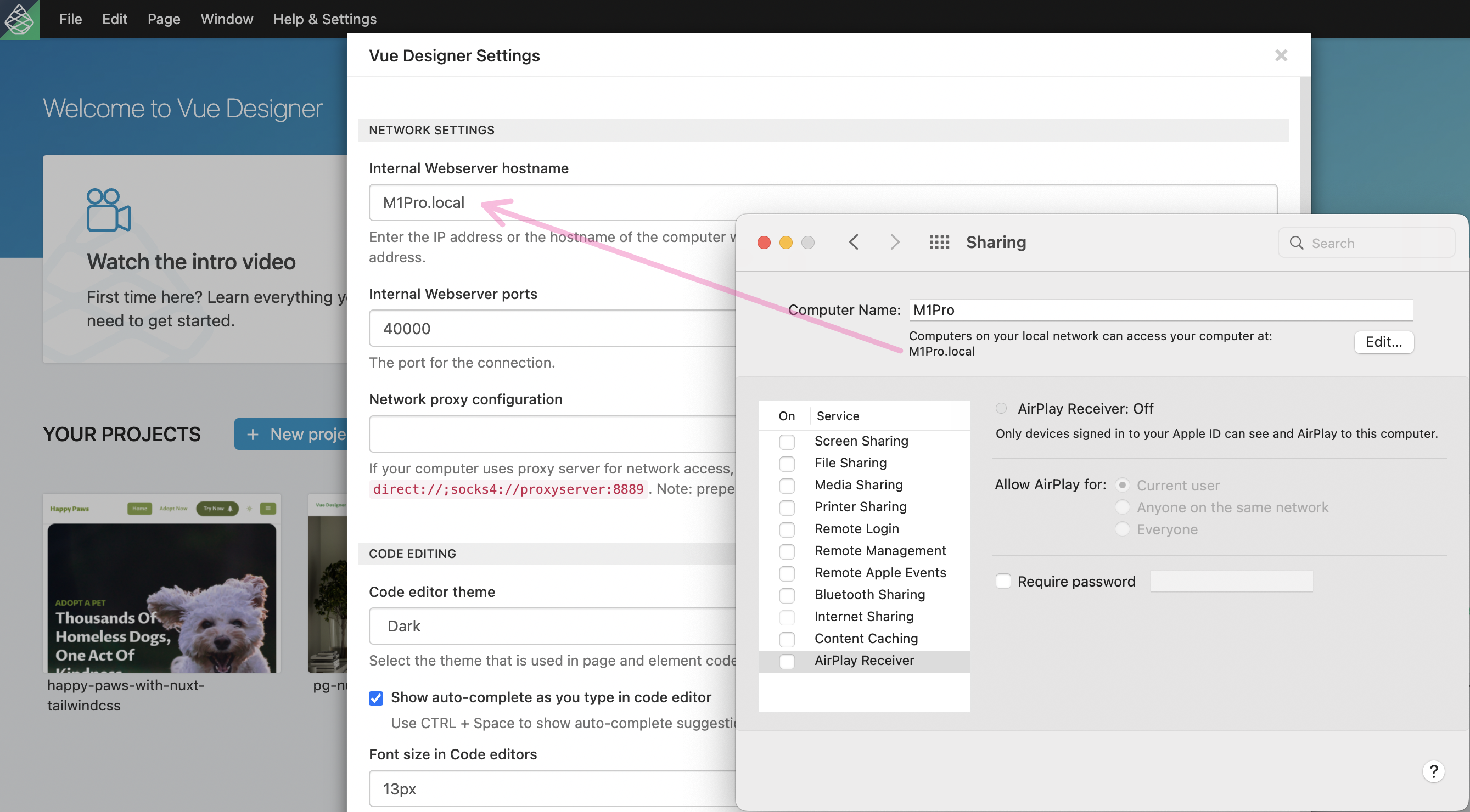
Add the ip-address or hostname of your machine in your local network via menu Help & Settings > Settings. You can optionally use a port number different to the default one (40000).
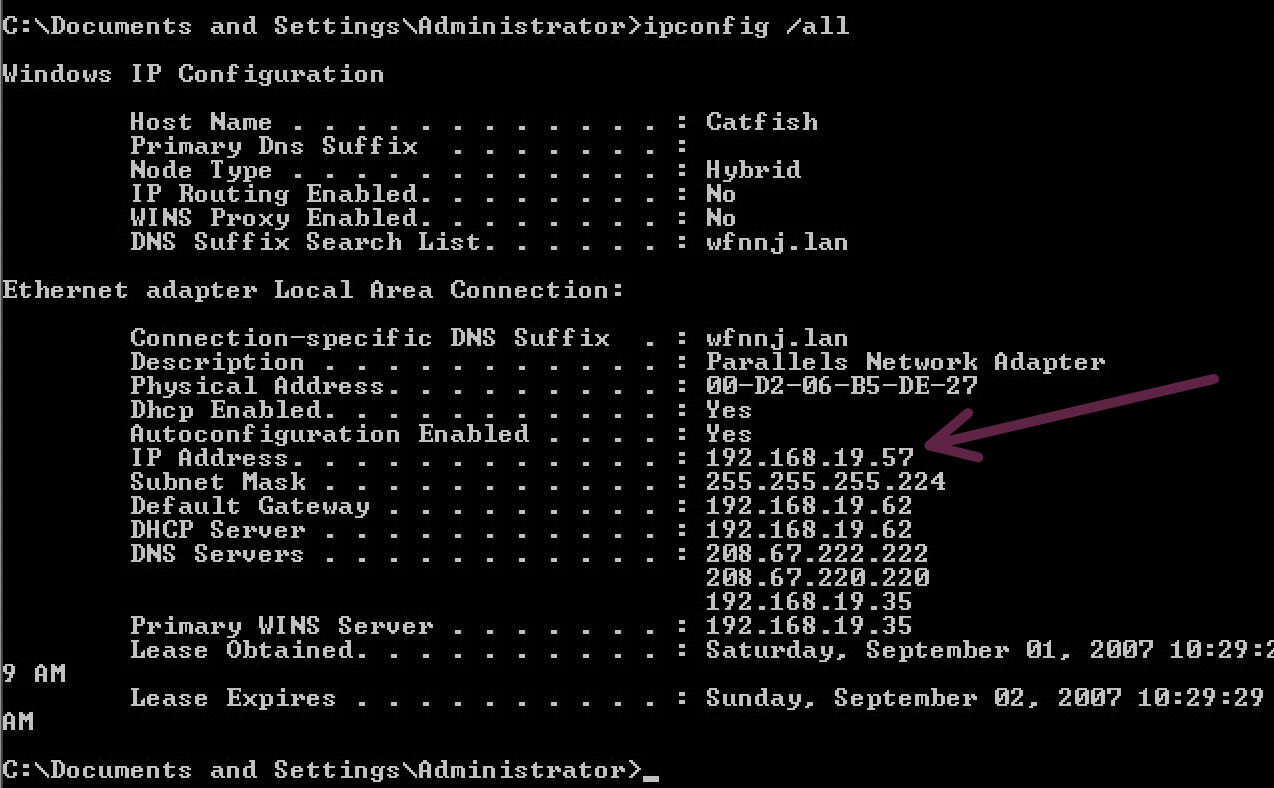
On windows, run ipconfig /all to get the local ip-address of your machine.
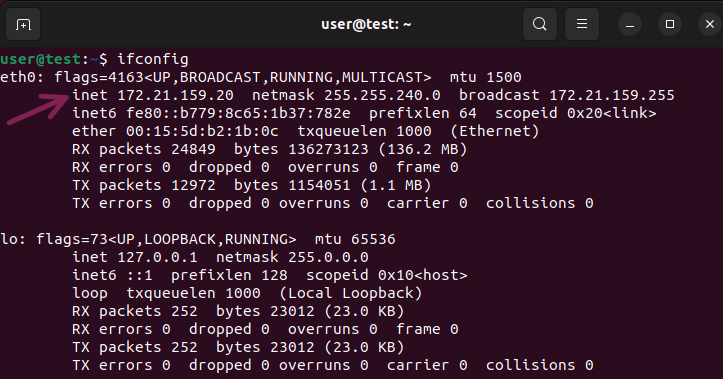
On linux, run ifconfig to get the local ip-address of your machine.
On mac, check System Preferences > Sharing.
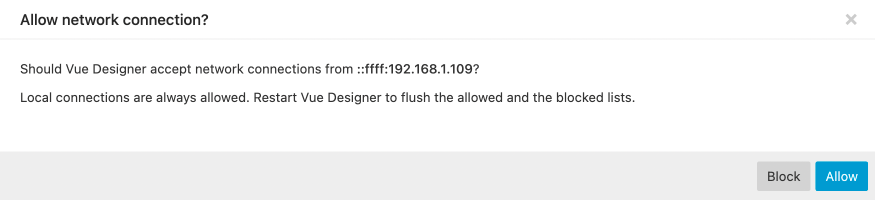
Allow the network connection attempt by Pinegrow Vite plugin (from your remote machine) to your local Vue Designer instance.
Source-DOM Mapping
As covered in the Pinegrow Vite Plugin’s liveDesigner module section, Vite’s handleHotUpdate hook is used to feed Vue Components opened in Vue Designer with tags enriched with unique IDs (generated within Vue Designer) to establish source-dom mapping which enables the visual editing capability.
Occasionally, when there are some errors either on Vite dev-server end or if the HMR update wasn’t successful, this mapping can sometimes get broken. Vite, in these cases, generally logs a message in the browser console (which can be opened via the Vue menu) that a full-reload of the app is required.
To fix this issue, try these options:
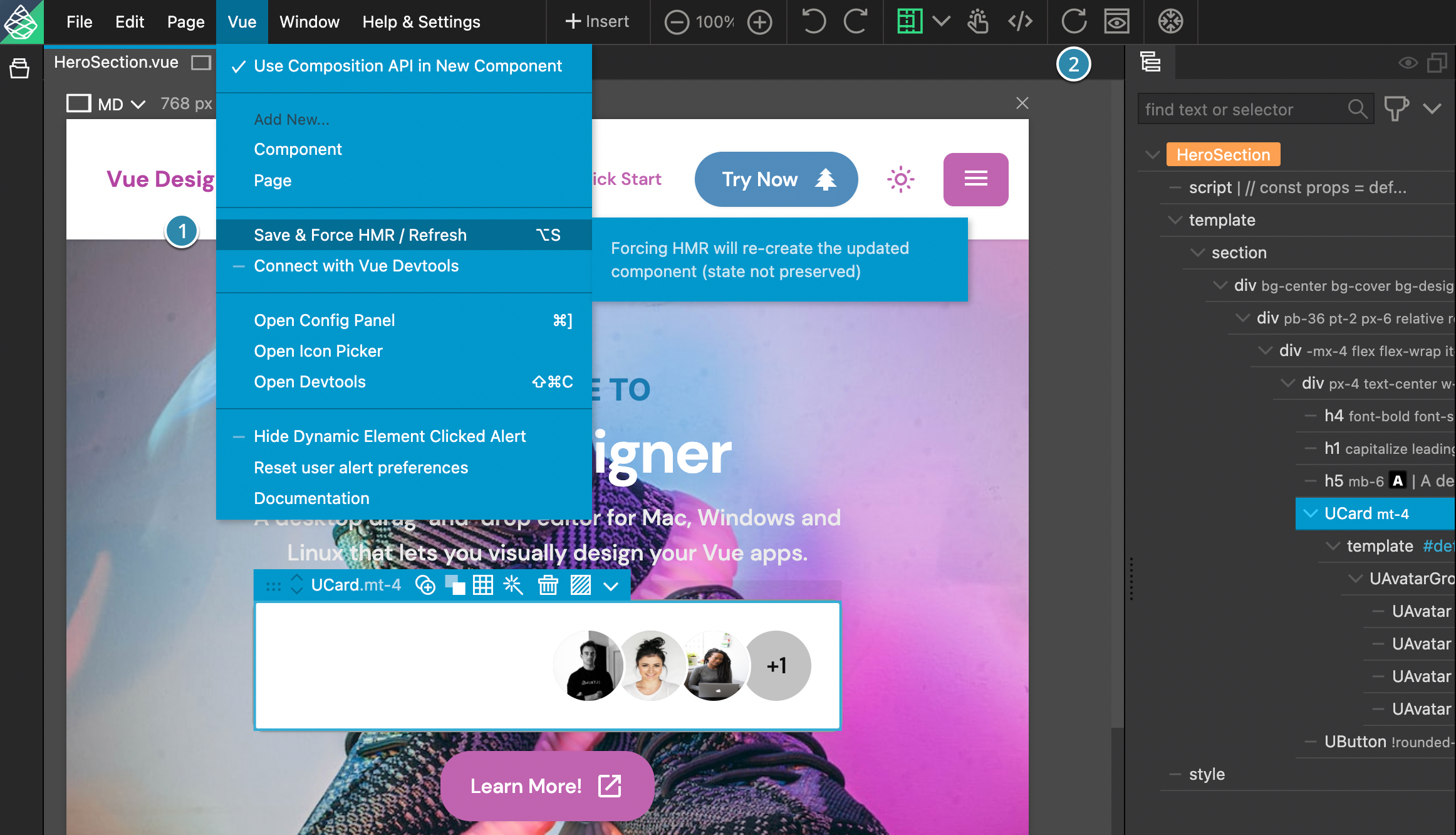
- Save & Force HMR / Refresh via the Vue menu, or use the shortcut Alt/Option+S. This essentially re-mounts your currently opened component in your app by emulating a change in it’s script tag. (or)
- Repeat step-1, and refresh your page. (or)
- Save your app, re-start your dev-server and re-open your startup page. (or)
- Repeat step-3, and re-start Vue Designer before opening your startup page.
Hung nw.js process
We are aware of the nw.js process (Pinegrow apps are nw.js based apps) not getting closed when Vue Designer app is closed and stays back in your process list.
In this rare instance, when you open Vue Designer next time, the connection with your dev-server won’t be successful unless, the redundant nw.js process from the previous session is terminated.
The current workaround until we find a better solution is:
Mac OS/Linux based systems
- Close Vue Designer app by using menu File › Quit, or shortcut Cmd/Ctrl+Q
- Open your terminal, and run this command
lsof -i -P -n | grep LISTEN - Take a note of the nwjs process ID (26258 in the below image). You can identify the process by looking for the ports used by Pinegrow apps - 40000 and 40001.
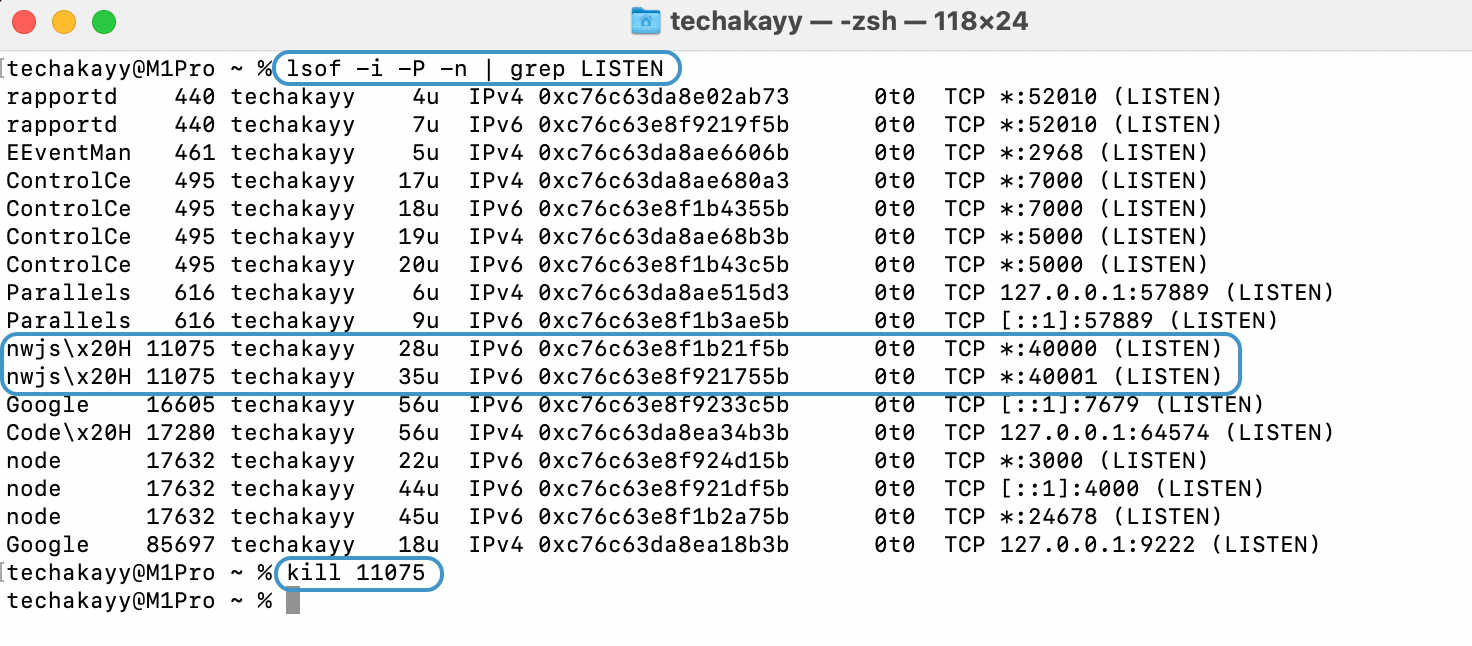
- Terminate the process using this command (use the actual process ID from your terminal)
kill 26258 - Open Vue Designer and continue with your work
Windows
- Close Vue Designer app by using menu File › Quit, or shortcut Cmd/Ctrl+Q
- Open your terminal, and run this command
netstat -aon -p tcp - Take a note of the nwjs process ID (30548 in the below image). You can identify the process by looking for the ports used by Pinegrow apps - 40000 and 40001.
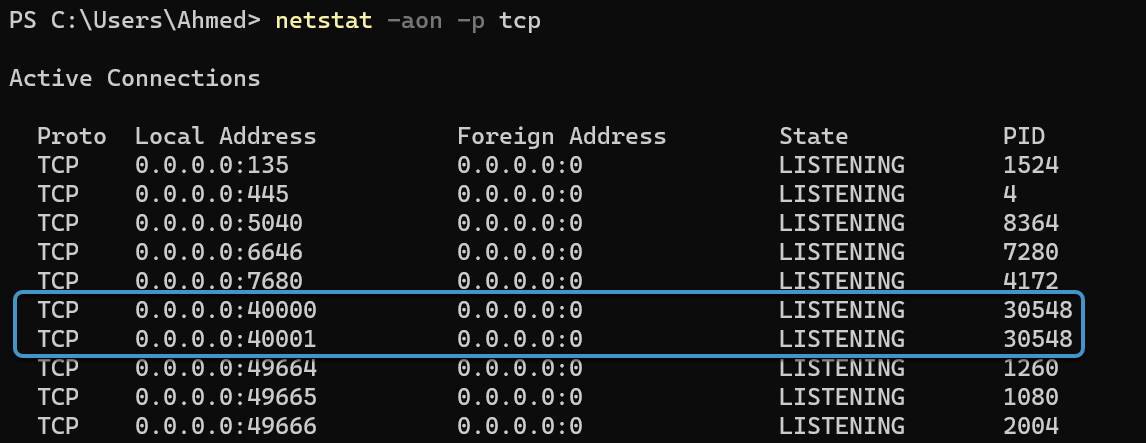
- Terminate the process using this command (use the actual process ID from your terminal)
taskkill /PID 30548 /F

- Open Vue Designer and continue with your work.