
Pinegrow activates the Tailwind Visual Editor on Tailwind pages automatically. Check that it’s active, and activate it by hand when your stylesheet has another name.
DocsTailwind CSSDocsTailwind CSS2026-10-24
Activate the Tailwind extension
The Tailwind Visual Editor shows the Tailwind controls for the pages it's active on. In most cases you don't have to do anything: Pinegrow activates it when you open a Tailwind page.
To start a Tailwind project, see Create or open a Tailwind CSS project. For the Tailwind versions Pinegrow supports and how pages get their CSS, see Tailwind CSS versions, compiling and offline use.
When it's activated automatically
The first time you open a page, Pinegrow activates the Tailwind Visual Editor if the page:
- loads the Tailwind CSS 4 browser script (
@tailwindcss/browser@4) or the Tailwind CSS 3 CDN script (cdn.tailwindcss.com), or - links a stylesheet with
tailwindin its address, for exampletailwind_theme/tailwind.css, which the built-in compiler creates.
When you save the page, Pinegrow remembers which libraries and plugins are active on it. From then on it uses that list instead of detecting them again.
Check that it's active
Select any element on the page and look at the Visual controls panel. When the Tailwind Visual Editor is active, you see the Tailwind controls and the Tailwind CSS options section. It names the Tailwind version Pinegrow uses for the page, for example Tailwind CSS 4.0 properties are shown for the current page.
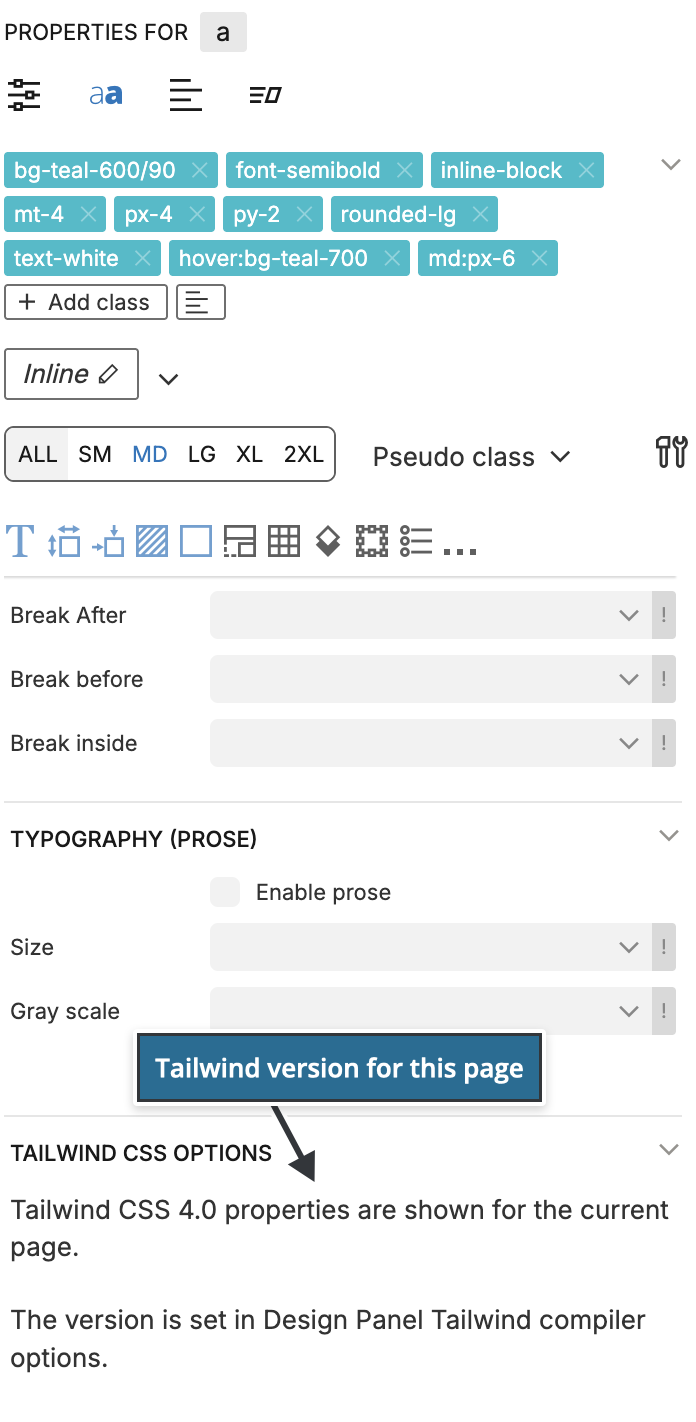
If the version is wrong, see How Pinegrow decides the Tailwind version.
Activate it by hand
Pinegrow doesn't detect Tailwind when your compiled stylesheet has a name without tailwind, such as output.css or style.css, or when the page was saved in Pinegrow before it used Tailwind. Activate it like this:
- Open the page.
- Click the Project settings icon in the left bar and choose Libraries & plugins…. In Flexible UI mode the Page menu also has Manage libraries & plugins….
- In the Libraries & Plugins Manager, find Tailwind CSS and click Activate.
- Save the page.
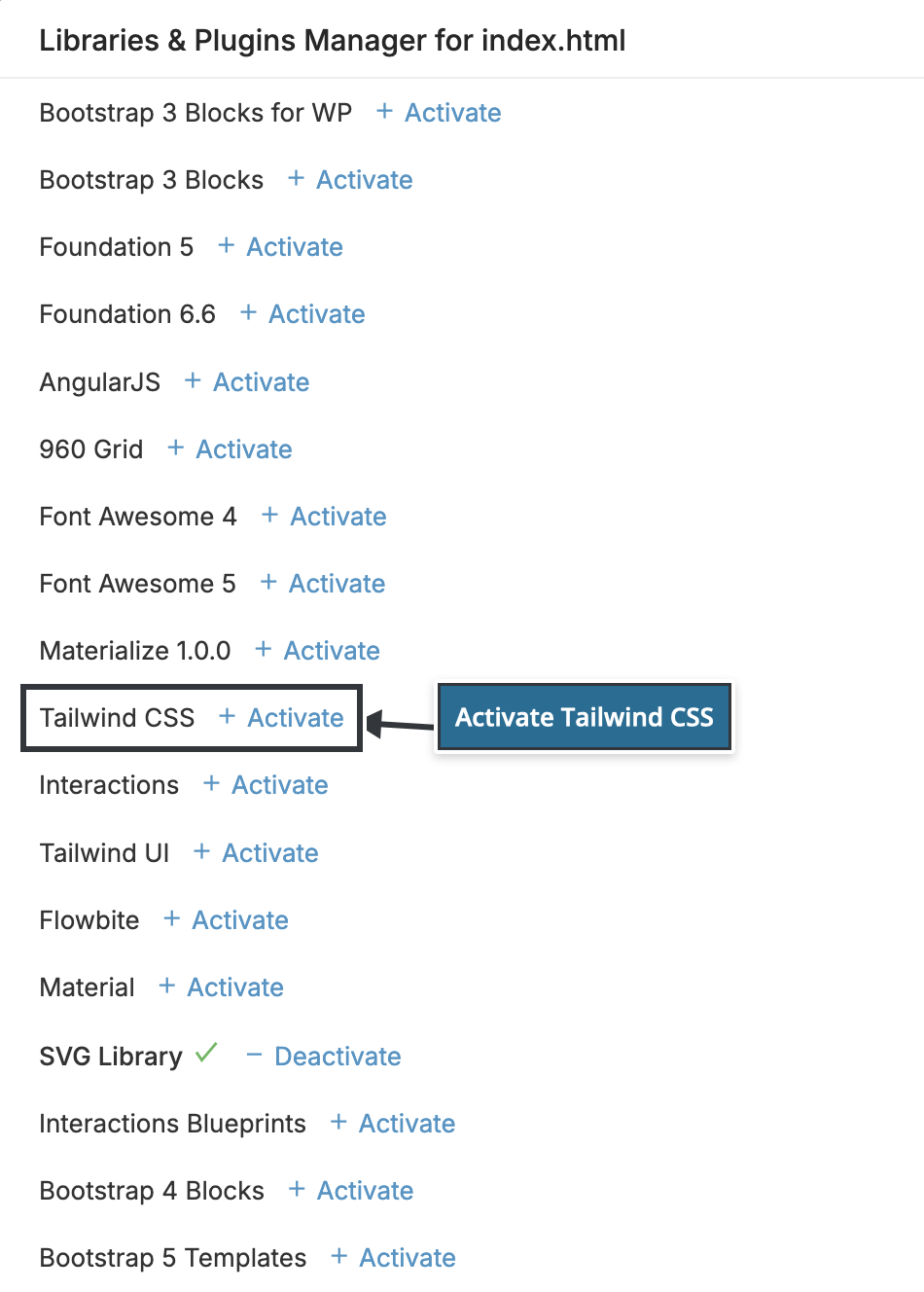
When a project is open, Pinegrow activates the extension on all open pages of the project. A page can use only one Tailwind library at a time; if another one is active, deactivate it first.
To turn the extension off for a page, click Deactivate in the same list.
If Tailwind CSS isn't in the list
The Tailwind Visual Editor is an add-on to Pinegrow Desktop. It's included in the free trial; after the trial, your license must include the Tailwind Visual Editor add-on. Without it, Pinegrow doesn't load the Tailwind controls, and Tailwind CSS isn't in the Libraries & Plugins Manager.