
Create a new Tailwind CSS 4 project in Pinegrow with a compiled local stylesheet, keep it in the folder you choose, or open an existing Tailwind project, including one that uses its own npm build.
DocsTailwind CSSDocsTailwind CSS2026-10-24
Create or open a Tailwind CSS project
Start a new Tailwind CSS 4 project from a template, or open a folder that already contains a Tailwind site. Either way, you end up with a project: a folder of pages that Pinegrow edits together. The Design panel and its built-in Tailwind compiler work only with projects.
This page describes Pinegrow Desktop and Tailwind CSS 4. For Tailwind CSS 3, see Working with Tailwind CSS 3.
Create a new Tailwind CSS 4 project
- Close any open project, so that Pinegrow creates a new one.
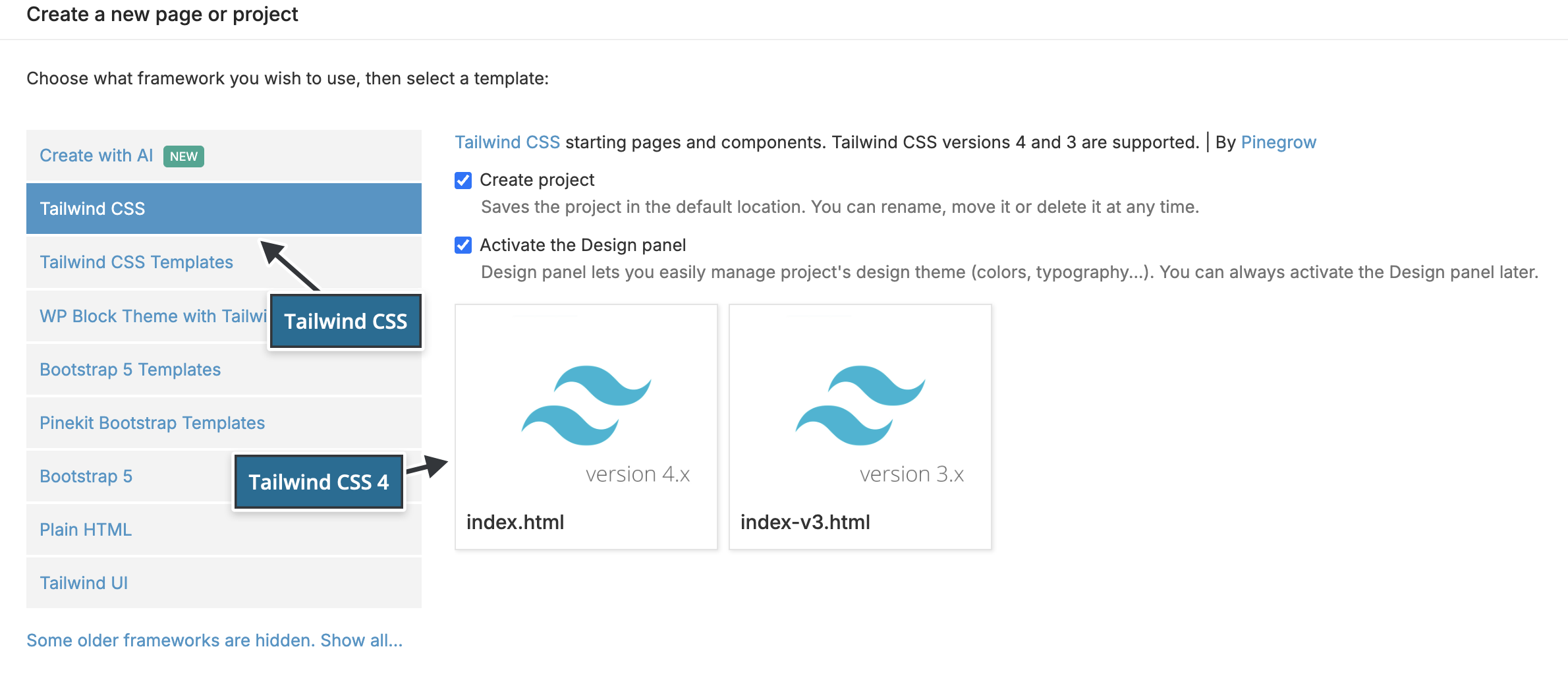
- Choose File › New page…, or click New page or project on the start screen. The Create a new page or project dialog opens.
- Select Tailwind CSS in the list on the left.
- Leave Create project and Activate the Design panel checked. You see these options only when no project is open.
- Click the template whose picture says version 4.x (
index.html). The version 3.x template (index-v3.html) starts a Tailwind CSS 3 page.
Pinegrow then:
- saves the page as
index.htmlin a new folder for the project, inside the folder for new projects; - opens the folder as a project;
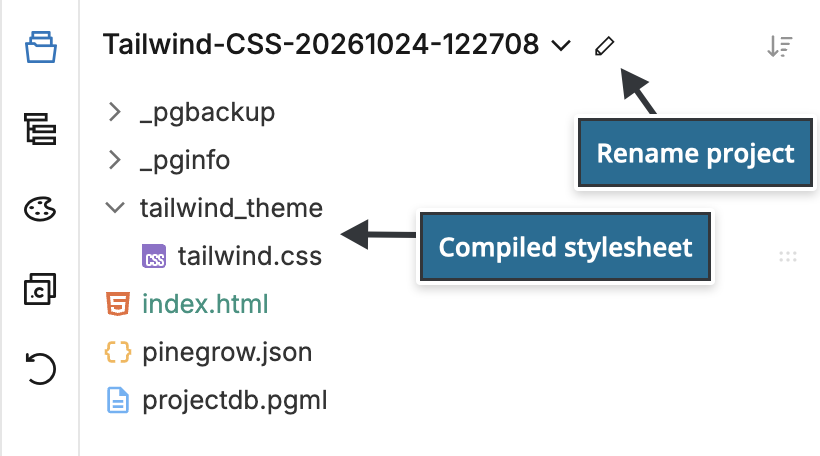
- activates the Design panel, which creates the compiled stylesheet
tailwind_theme/tailwind.css, links it on the page, removes the Tailwind CDN script and saves the project.
The page has no external Tailwind script, so you can publish it as it is. Tailwind CSS versions, compiling and offline use explains the compiled stylesheet and what else can load files from other servers.
Keep the project
The new folder is in your folder for new projects, which is Pinegrow Projects in your Documents folder unless you chose another one in Settings › Projects › Folder for new projects. Its name is the template name and the date and time it was created.
Until you keep it, the project is temporary:
- Click the rename icon next to the project name in the Project panel, or choose File › Save project as…, to give it a name. In that dialog, Move to a different location… moves it to another folder.
- When you close the project, Pinegrow asks Do you want to keep this project? Click Keep it (Rename and keep if you change the name) to keep it, or Delete it to remove it.
Start with the CDN script instead
To prototype with the Tailwind CDN script, uncheck Activate the Design panel before you click the template. The page keeps <script src="https://unpkg.com/@tailwindcss/browser@4"></script>. When you're ready to publish, activate the Design panel to compile the stylesheet, as described in Switch from the CDN script to a compiled stylesheet.
If you uncheck Create project, Pinegrow opens the template as a new, unsaved page. Save it into a new folder, then open the folder with File › Open project… before you activate the Design panel.
Open an existing Tailwind project
Choose File › Open project… (or Open project on the start screen) and select the folder that contains the site. It doesn't matter whether the site was made in Pinegrow.
When you open a page, Pinegrow activates the Tailwind Visual Editor on it if the page:
- loads the Tailwind CSS 4 browser script (
@tailwindcss/browser@4) or the Tailwind CSS 3 CDN script (cdn.tailwindcss.com), or - links a stylesheet with
tailwindin its address, for exampletailwind_theme/tailwind.cssorcss/tailwind.min.css.
If your compiled stylesheet has another name, such as output.css or style.css, activate the extension by hand: see Activate the Tailwind extension. That page also shows how to check that it's active.
Pinegrow detects the Tailwind version from the page. If it guesses wrong, set it by hand, see How Pinegrow decides the Tailwind version.
If the pages use the CDN script and you want a compiled stylesheet, follow Switch from the CDN script to a compiled stylesheet.
Open a project with its own npm build
If you compile Tailwind CSS with npm or the Tailwind CLI, open the project folder with File › Open project… and set Pinegrow up to work with your build, as described in Use an external Tailwind CSS build. External builds need Pinegrow Desktop.
Set up the external build before you activate the Design panel. Activating it with the built-in compiler writes Pinegrow's own tailwind_theme/tailwind.css and puts it in place of a linked stylesheet whose address contains tailwind. If the project has a tailwind.config.js file, Pinegrow asks Would you like to use the external build process? when you activate the Design panel: click Use the external compiler. Tailwind CSS 4 projects usually have no tailwind.config.js, so Pinegrow doesn't ask.
Pinegrow Online
In Pinegrow Online, the Design panel and its built-in compiler work as described here, and the external build process isn't available.