
Pinegrow supports Tailwind CSS 4 and 3. Prototype with the Tailwind CDN script, compile a local stylesheet with the built-in compiler so the site makes no Tailwind requests, or keep your own build process. Learn which to use and how to switch before you publish.
DocsTailwind CSSDocsTailwind CSS2026-10-24
Tailwind CSS versions, compiling and offline use
Every Tailwind page needs a stylesheet with the CSS for the classes it uses. Pinegrow can get that CSS in three ways: from the Tailwind CDN script, from its built-in compiler, or from your own build process. If your site must not load anything from other servers, compile the stylesheet into your project with the built-in compiler or your own build. Use the CDN script only for prototypes.
This page covers Tailwind CSS 4 in Pinegrow Desktop and Pinegrow Online. The external build process is available in Pinegrow Desktop only. For Tailwind CSS 3 projects, see also Working with Tailwind CSS 3.
Supported Tailwind CSS versions
Pinegrow supports Tailwind CSS 4 and Tailwind CSS 3:
- Tailwind CSS 4: the new page template loads the Tailwind CSS 4 browser script, and the built-in compiler uses Tailwind CSS 4.2.2. Pinegrow has had a built-in Tailwind CSS 4 compiler since Pinegrow 8.4.
- Tailwind CSS 3: a second template loads the Tailwind CSS 3 CDN script, and the built-in compiler uses Tailwind CSS 3.4.3.
- Built-in compilers for Tailwind CSS 2.2.6 are still there for old projects.
With an external build process you can use whatever Tailwind version your build installs.
Three ways to get the CSS
The Tailwind CDN script
The Tailwind CSS 4 new page template includes this script:
<script src="https://unpkg.com/@tailwindcss/browser@4"></script>The script downloads the Tailwind compiler and builds the CSS in the browser each time the page loads, both in Pinegrow and in the browser of every visitor. Pages made with the Tailwind CSS 3 template use https://cdn.tailwindcss.com/ in the same way.
- It needs an internet connection, in Pinegrow and on the published site.
- Every visitor's browser loads the script from
unpkg.com, and the page is styled only after the script has built the CSS. Tailwind CSS describes the browser build as meant for development, not for production sites. - In Pinegrow, the script needs JavaScript to run in the page view. If JavaScript is turned off, Pinegrow says This page uses the Tailwind browser compiler, but JavaScript is disabled in Pinegrow. Enable JavaScript to compile Tailwind CSS.
Use it to try ideas and build quick prototypes, and replace it with a compiled stylesheet before you publish.
The built-in compiler
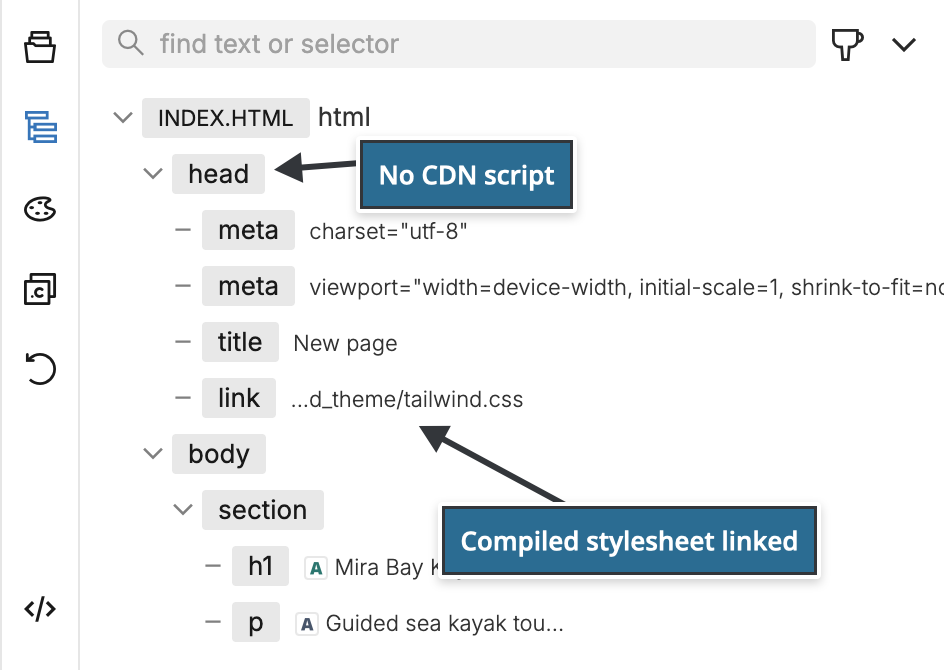
Pinegrow compiles Tailwind CSS itself and writes the result to tailwind_theme/tailwind.css in your project. Your pages link to that file, so the published site doesn't load Tailwind from any other server. The compiler is part of Pinegrow, so in Pinegrow Desktop compiling works without an internet connection too.
You turn the built-in compiler on by activating the Design panel, see the steps below. When you do, Pinegrow:
- creates
tailwind_theme/tailwind.cssand links it on the open pages of the project, and on every page you open later; - removes the Tailwind CDN script tags (
@tailwindcss/browser@4andcdn.tailwindcss.com) from those pages; - puts the new stylesheet in place of an existing stylesheet link whose address contains
tailwind, for examplecss/tailwind.min.css; - puts only the CSS for the classes used in the project into the stylesheet, and updates it while you edit.
The Tailwind CSS 4 stylesheet is compiled from Tailwind CSS with the official typography plugin (the prose classes) and forms plugin:
@import "tailwindcss" theme(static);

@plugin "@tailwindcss/typography";
@plugin "@tailwindcss/forms";
Pinegrow adds the colors and fonts from the Design panel and your custom configuration to the @theme of this code. Other plugins can't be added to the built-in compiler: it loads only these two. If the custom configuration includes another plugin, for example @plugin "daisyui";, compiling stops with a Tailwind CSS error that says The browser build does not support loading "daisyui". Use an external build process for such plugins.
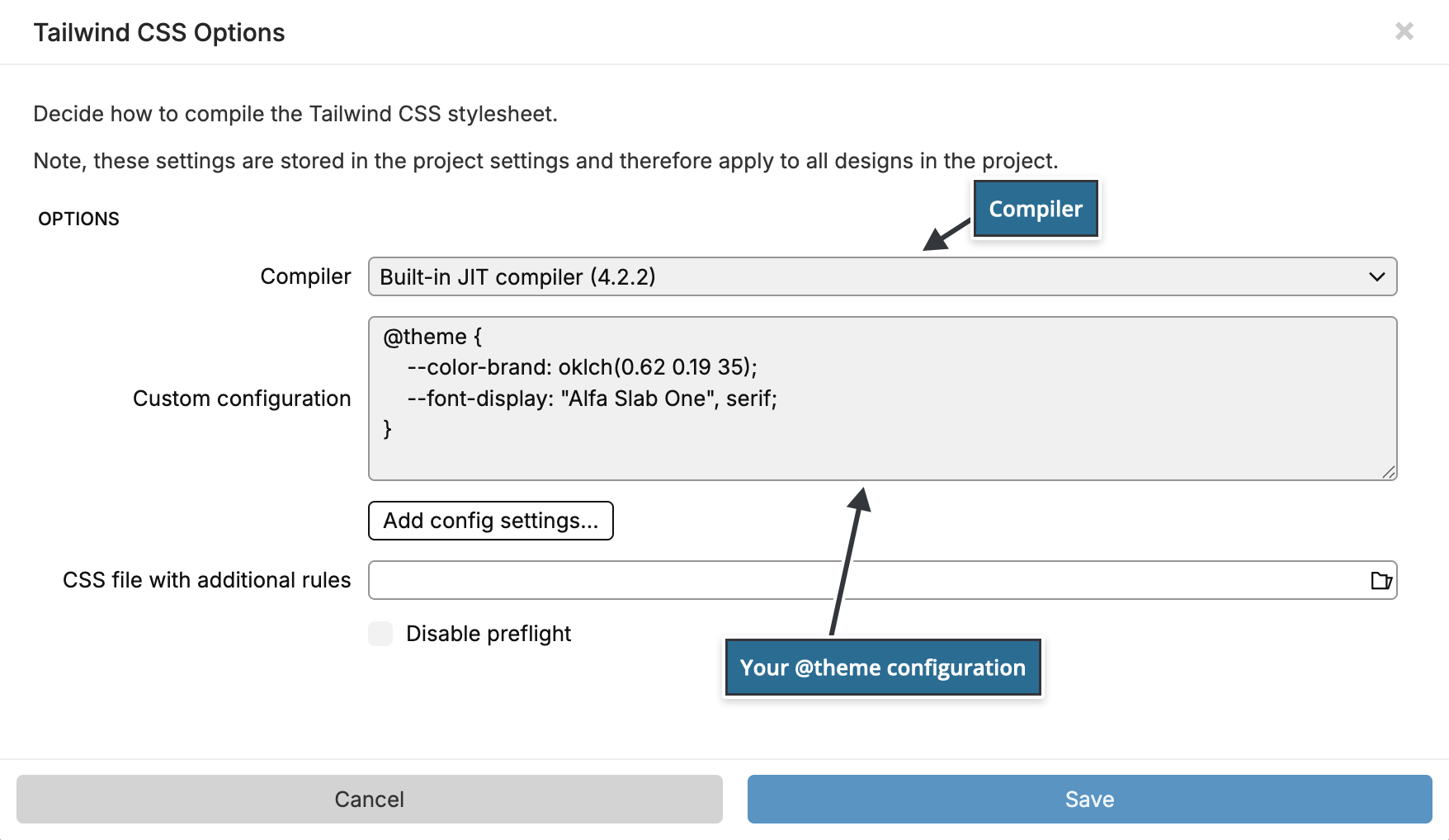
Design panel and the built-in compiler describes the compiler settings and the design controls.
Your own build process (Pinegrow Desktop)
If you already compile Tailwind CSS with npm or the Tailwind CLI, keep doing that and edit the pages in Pinegrow Desktop. Pinegrow writes the classes it sees in the project to _pginfo/used-classes.html, so your build can include them, and if you use the Design panel, it writes the panel's colors and fonts into your source CSS file. Pinegrow doesn't run your build: keep it running in watch mode while you edit.
See Use an external Tailwind CSS build for the setup.
Which one should I use?
- Prototyping, with an internet connection: the CDN script.
- A site that makes no Tailwind requests, without setting up build tools: the built-in compiler. This is what new Tailwind CSS 4 projects use when you leave Activate the Design panel checked.
- You already have an npm or CLI build, need other Tailwind plugins such as DaisyUI or Flowbite, or need a specific Tailwind version: an external build process, in Pinegrow Desktop.
- Pinegrow Online: the CDN script or the built-in compiler.
Switch from the CDN script to a compiled stylesheet
Do this before you publish a site that started from the CDN script:
- Open the site folder as a project with File › Open project…. The Design panel works only with projects. If your page isn't saved yet, save it into the site folder first.
- Open a page of the project and show the Design panel.
- The panel says Activate the design panel to create a design theme for your project. Click Activate.
- If the project contains a
tailwind.config.jsfile, Pinegrow asks Would you like to use the external build process? Click Use the built-in compiler. - In the Design panel, click Compiler & custom config… and check Compiler in the Tailwind CSS Options dialog. Pinegrow picks it from the page: Built-in JIT compiler (4.2.2) for a page with the Tailwind CSS 4 script, Built-in JIT compiler (3.4.3) for a page with the Tailwind CSS 3 script. Click Save if you change it.
- Choose File › Save all. This writes
tailwind_theme/tailwind.cssand saves the pages without the CDN script. - Open and save every other page of the project. Pinegrow updates a page when you open it, so pages you haven't opened since activating still have the CDN script.
- Check what else your pages and the stylesheet load from other servers, see the next section.
Publish the tailwind_theme folder together with your pages.
What can still load files from other servers
The compiled stylesheet doesn't load Tailwind from anywhere. These can still make requests to other servers:
- Fonts from the Design panel. Google Fonts and Adobe Fonts are loaded from their servers: Pinegrow adds an
@import url(...)line for them at the top oftailwind.css. Surprise me! picks random fonts from your font list, and the default list is mostly Google Fonts. For a site without external requests, add fonts in the font manager (Fonts › Manage… › Add font…) as Local web font…, which Pinegrow copies into the project'sfontsfolder, or as System font…. Local web font… needs Pinegrow Desktop. - The background image from the Design panel. Surprise me! can set a random background photo from Free online images, which is linked from
images.unsplash.com. Lock the image, or use an image from your project folder. - Google Fonts added to the page with Google fonts… in the Project settings menu.
- Anything else your pages link to: images, scripts, stylesheets, embedded videos and maps.
To check, open tailwind_theme/tailwind.css and look for @import url( and url(https: near the top, and look at the src and href attributes in your pages.
How Pinegrow decides the Tailwind version
The visual controls show the classes of one Tailwind version. Pinegrow decides which one in this order:
- The Tailwind CSS version you set by hand, see below.
- When the project uses an external build, the Tailwind version installed in the project.
- The Tailwind script on the page:
@tailwindcss/browser@4means Tailwind CSS 4,cdn.tailwindcss.commeans Tailwind CSS 3. - Otherwise, the version of the compiler set in the Design panel options: Tailwind CSS 4 unless you chose another compiler.
A page that links a compiled stylesheet has no Tailwind script, so Pinegrow can't read the version from the page. With the Design panel active, that's the compiler you chose. For a Tailwind CSS 3 project with its own compiled stylesheet and no Design panel, set the version to 3.0 by hand.
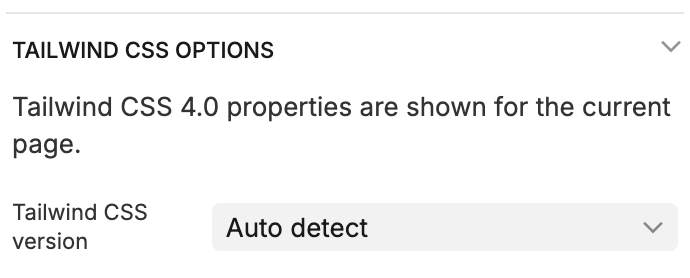
To see the version, select any element and find the Tailwind CSS options section at the end of the Visual controls panel. It says, for example, Tailwind CSS 4.0 properties are shown for the current page.
To set it by hand, choose a version in Tailwind CSS version in the same section: Auto detect, 1.9, 2.0, 2.2, 3.0 or 4.0. Pinegrow saves the choice with the project. When the Design panel is active, the field is hidden and the section says The version is set in Design Panel Tailwind compiler options.: change the Compiler there instead.
Pinegrow Online
Pinegrow Online has the same Design panel and built-in compiler. It writes tailwind_theme/tailwind.css to your project in the same way. The Compiler list has no External build process, because Pinegrow Online can't run build tools on your computer.
When compiling fails
- A Tailwind CSS error message shows the error and the Tailwind code Pinegrow tried to compile. The usual cause is a line in the custom configuration or in the CSS file with additional rules that the built-in compiler can't process, such as an unsupported
@pluginor@import. Fix or remove the line in Compiler & custom config…. - Invalid custom Tailwind CSS configuration means Pinegrow couldn't read the custom configuration. Check the
@theme { ... }block for missing braces or semicolons. - If a class has no effect, see Tailwind CSS questions and answers.