
Apply Tailwind CSS text, background and alignment classes from a palette that floats over the page. Set classes on the selected elements, or pick up a tool and paint it onto one element after another.
DocsTailwind CSSDocsTailwind CSS2026-10-24
Floating Tools
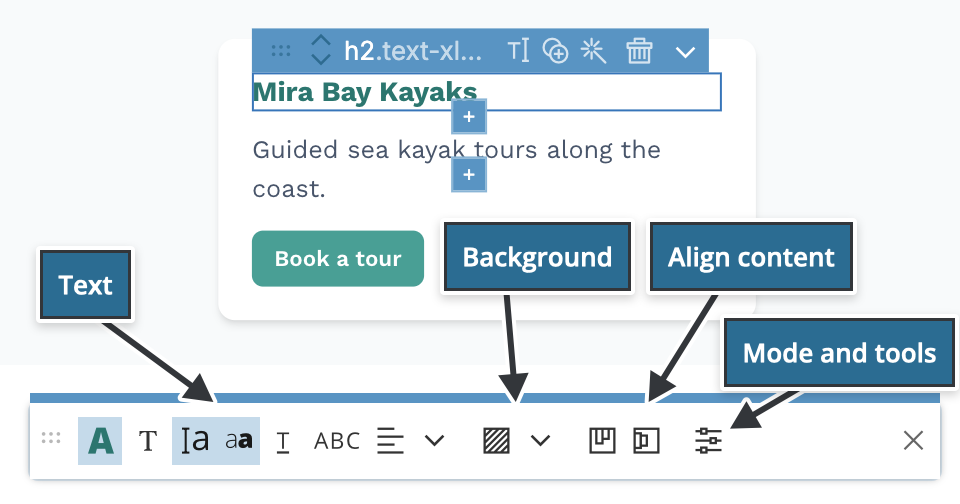
The Floating Tools are a small palette of Tailwind CSS tools that floats over the page view. Use them to set text colour, font, size, weight, background colour and flex alignment without switching to the visual controls. You can apply a tool to the selected elements, or pick it up and click one element after another to "paint" it.
This page covers Tailwind CSS 4 projects. The Floating Tools work the same in Pinegrow Desktop and Pinegrow Online.
Show the Floating Tools
- Press Shift twice. The palette moves to the mouse pointer, so press it again whenever you want the tools next to where you are working.
- Choose Window › Show / hide panels › Floating tools. Choose it again to hide the palette.
- If the project uses the Design panel, click the menu button next to Surprise me! and choose Show floating tools.
Pinegrow remembers whether the palette was open. If it was, it shows the palette again when you open a project.
The Tailwind tools appear on pages that use Tailwind CSS.
Set mode and Paint mode
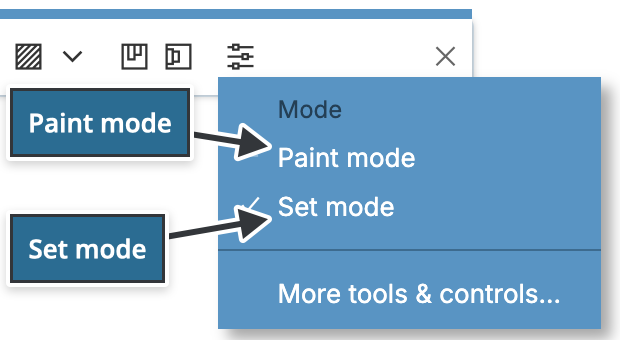
The Floating Tools work in one of two modes. Click the settings icon at the end of the palette and choose the mode under Mode:
- Set mode (the default): click a tool to apply it to the selected element or elements. If nothing is selected, Pinegrow asks you to select an element first.
- Paint mode: click a tool to pick it up. The pointer shows the tool, and every element you click on the page gets the tool's class. To stop painting, drop the tool on the bin at the end of the palette or press Esc.
In Set mode, the tools also show the current values of the selected element. The text colour tool, for example, shows the element's colour.
The same menu has More tools & controls…, which opens the visual controls for the selected element in a floating window.
Screen sizes and variants
The tools add classes for the screen size and variant selected in the visual controls. With ALL and no variant selected, the text colour tool adds a class such as text-red-600. With LG and hover selected, it adds lg:hover:text-red-600.
The tools
Text
From left to right:
- Text colour, with the colours of your theme, including colours you defined in the Design panel.
- Font family, including fonts from the Design panel.
- Font size.
- Font weight.
- Text decoration.
- Text transform (uppercase, lowercase and so on).
- Text alignment.
- More options (the arrow after text alignment): line height, text opacity, numeric variant, letter spacing, font style, white space and word break.
Background
- Background colour, with the colours of your theme.
- More options (the arrow after it): background opacity, repeat, origin, position, attachment, clip and size.
Align content
Two tools align the children of a flex container: horizontally with justify-* classes and vertically with items-* classes. Use them on the container, not on the children.
These tools also add flex (or inline-flex for an inline element) if the container isn't a flex container yet. If the container uses flex-col, they switch it to flex-row. If the element uses CSS Grid, Pinegrow shows a message and changes nothing; use the grid controls instead.
Clear a value
Most tools have a clear option (× or Clear) that removes the tool's class from the element.
Paint inline SVG elements
To style the parts of an inline SVG icon:
- In Paint mode, click any part of an inline SVG on the page to paint it, even when the SVG is collapsed in the Tree panel.
- In Set mode, first expand the SVG in the Tree panel so that you can select its parts on the page, then apply the tool.
On SVG parts, the text colour tool also sets stroke="currentColor", and the background colour tool applies the colour as a text colour class and sets fill="currentColor". If the part's stroke or fill already uses currentColor, Pinegrow leaves both attributes as they are.