
Tailwind CSS helpers in Pinegrow. Swap one colour for another across an element and its children, remove Tailwind classes, jump from a class to its visual control, and copy or move classes between elements and variants.
DocsTailwind CSSDocsTailwind CSS2026-10-24
Helpers
These helpers change many Tailwind CSS classes in one step or take you straight to the control for a class. Most of them are in the right-click menu of an element, under Tailwind CSS.
This page covers Tailwind CSS 4 projects. The helpers work the same in Pinegrow Desktop and Pinegrow Online.
Swap colors
Swap colors replaces one colour with another on an element and all elements inside it. Use it to try a different brand colour on a section, or to turn a red alert into a green one.
- Right-click the element on the page or in the Tree panel.
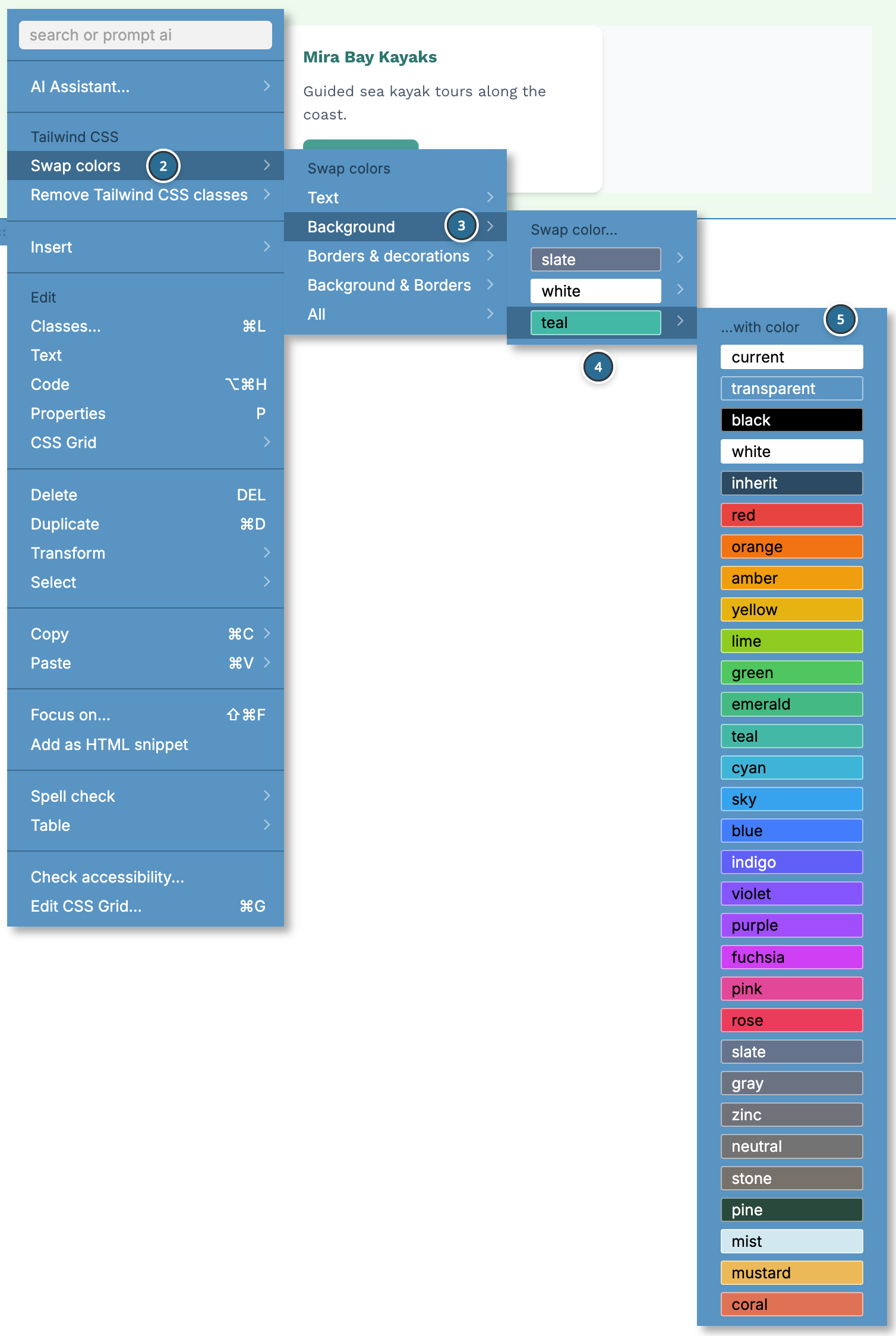
- Under Tailwind CSS, choose Swap colors.
- Choose which classes to change: Text, Background (including gradient colours), Borders & decorations (borders, text decoration and rings), Background & Borders, or All.
- Choose the colour to replace. The list shows the colours the element and its children use.
- Under …with color, choose the new colour.
Pinegrow keeps the shade, the variant and the opacity of each class, so hover:bg-red-600/50 becomes hover:bg-teal-600/50. A theme colour without shades, such as black or a custom brand colour, replaces the class without a shade. If a class had no shade, the new colour gets the 500 shade. The whole swap is one undo step.
Swap colors appears only when the element or its children use colour classes.
You can also swap colours from these places:
- In Flexible UI mode, the selected element menu on the page has a swap colours icon.
- Right-click a class in the class list or the Class Tree inspector and choose Swap colors to swap colours on the whole element. Right-click a variant label in the Class Tree to swap only the colours of that variant, for example only the
hover:colours. - In the Style manager, the swap colours button in the toolbar swaps colours in all styles of the project. See Styles.
Remove Tailwind CSS classes
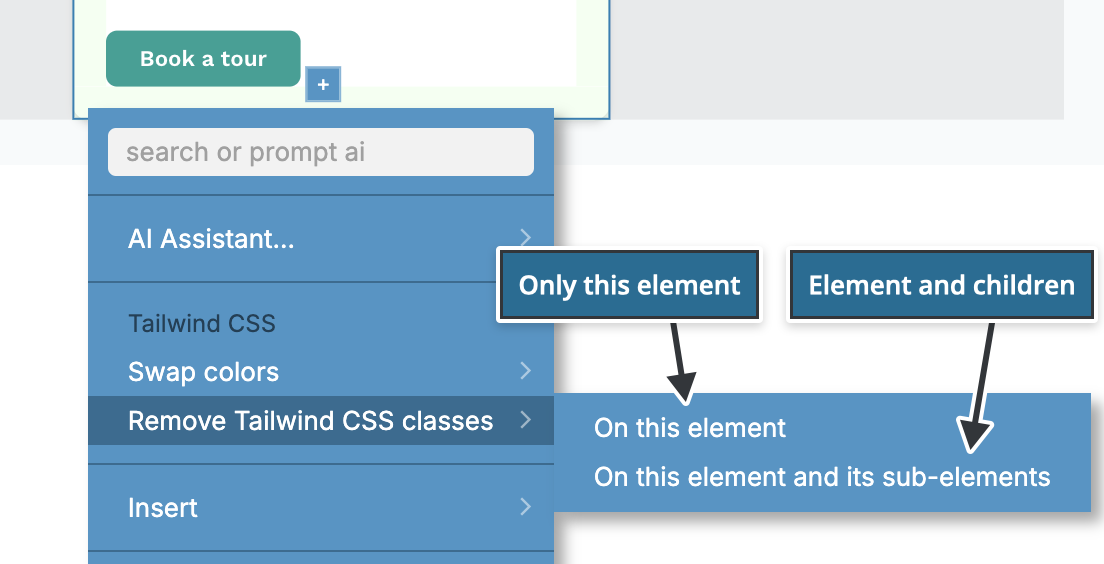
Right-click an element and, under Tailwind CSS, choose Remove Tailwind CSS classes:
- On this element removes the Tailwind classes of the element.
- On this element and its sub-elements removes them from the element and everything inside it.
Only Tailwind classes that are set directly on the elements are removed. Classes that are not part of Tailwind CSS stay, and so do the styles applied to the elements. If an element can't be edited, for example because of page restrictions, nothing is removed.
Jump to a class's visual control
To find the control that set a class, hold Alt and click the class:
- in the Tree panel, which also selects the element,
- in the class list at the top of the visual controls.
Pinegrow selects the screen size and variant of the class and scrolls to its control. For md:hover:bg-teal-700, it selects MD and hover and shows the background colour control.
Clicking a class in the class list without Alt opens the list of its values, where Go to the control does the same.
Copy and move classes
Right-click a class in the class list or in the Class Tree inspector for these actions. In the Class Tree, Cmd-click (Mac) or Ctrl-click (Windows and Linux) several classes first to act on all of them.
- Copy classes copies the classes. If they have variants, choose Without states to copy them without the prefixes, or With states to keep them.
- Paste classes adds copied classes to another element or, in the Class Tree, to a variant.
- Move to state moves the classes to another variant. Use it to turn
bg-teal-700intohover:bg-teal-700. - Duplicate to state copies the classes to another variant and keeps the originals.
- Move to parent moves the classes to a parent element or one of its styles, with a selector that keeps them targeting this element.
- Create a new style turns the classes into a reusable style.
Related
- Visual controls
- Class Tree inspector
- Styles
- Upgrade a project from Tailwind CSS 3 to 4: convert Tailwind 3 classes to Tailwind 4.