
Compile Tailwind CSS 4 with your own build, for example the Tailwind CLI, while you edit in Pinegrow Desktop. Pinegrow writes the classes you use to _pginfo/used-classes.html, your build compiles them, and Pinegrow reloads the stylesheet.
DocsTailwind CSSDocsTailwind CSS2026-10-24
Use an external Tailwind CSS build
The Design panel compiles Tailwind CSS inside Pinegrow, with no setup. Use your own build instead when you need something the built-in compiler doesn't do, for example:
- Tailwind CSS plugins other than typography and forms;
- a Tailwind CSS version that is not built into Pinegrow;
- a build that also produces the stylesheet for your deployment.
Pinegrow and your build work together. Pinegrow keeps the list of classes used in the project and saves it in _pginfo/used-classes.html as soon as you add a class, without saving your pages. Your build watches that file and compiles the stylesheet. When the stylesheet changes, Pinegrow reloads it in the page view.
This page describes Tailwind CSS 4 with the Tailwind CLI. The external build process is available in Pinegrow Desktop only. For a Tailwind CSS 3 build with tailwind.config.js, see Working with Tailwind CSS 3.
Before you start
- Install Tailwind CSS with npm in the project folder. Pinegrow reads the Tailwind CSS version from
node_modules/tailwindcssin the project folder. Without it, Pinegrow can't tell that the build uses Tailwind CSS 4, and the standalone Tailwind executable is not enough. - Keep Auto-reload files when changed outside of Pinegrow on in Settings (the Sync section). It is on by default. Pinegrow uses it to reload the compiled stylesheet.
Set up the Tailwind CLI build
Step 1. Open a terminal in the project folder and install Tailwind CSS and its CLI:
npm install tailwindcss @tailwindcss/cliStep 2. Create the source stylesheet, for example tailwind_theme/source.css:
@import "tailwindcss" theme(static);
@source "../_pginfo/used-classes.html";
The @source line adds Pinegrow's class list to the files Tailwind reads. Tailwind finds most files in the project on its own, but it skips files listed in .gitignore, so a project that ignores _pginfo needs this line. The path is relative to the source stylesheet. theme(static) keeps all theme variables in the output, as the built-in compiler does.
Step 3. Start the build from the project folder and leave it running:
npx @tailwindcss/cli -i ./tailwind_theme/source.css -o ./tailwind_theme/tailwind.css --watchTailwind looks for classes starting from the folder where the command runs, so run it in the project folder.
Step 4. Link the compiled stylesheet, here tailwind_theme/tailwind.css, on your pages. Drag it from the Project panel onto the page view, and remove the Tailwind CDN script from the pages.
Writing the output to tailwind_theme/tailwind.css, the same file the built-in compiler writes, means you don't have to change the links on your pages when you switch between the two.
Connect Pinegrow to the build
How you connect depends on whether the project uses the Design panel.
Without the Design panel
- Open the Tailwind CSS menu: the Project settings menu › Tailwind CSS, or the Settings & Tools icon in the Visual controls panel.
- Choose External build settings….
- In Tailwind CSS External Build Configuration, check Use external Tailwind CSS compiler and choose the Source CSS file, here
tailwind_theme/source.css. - Click Save.
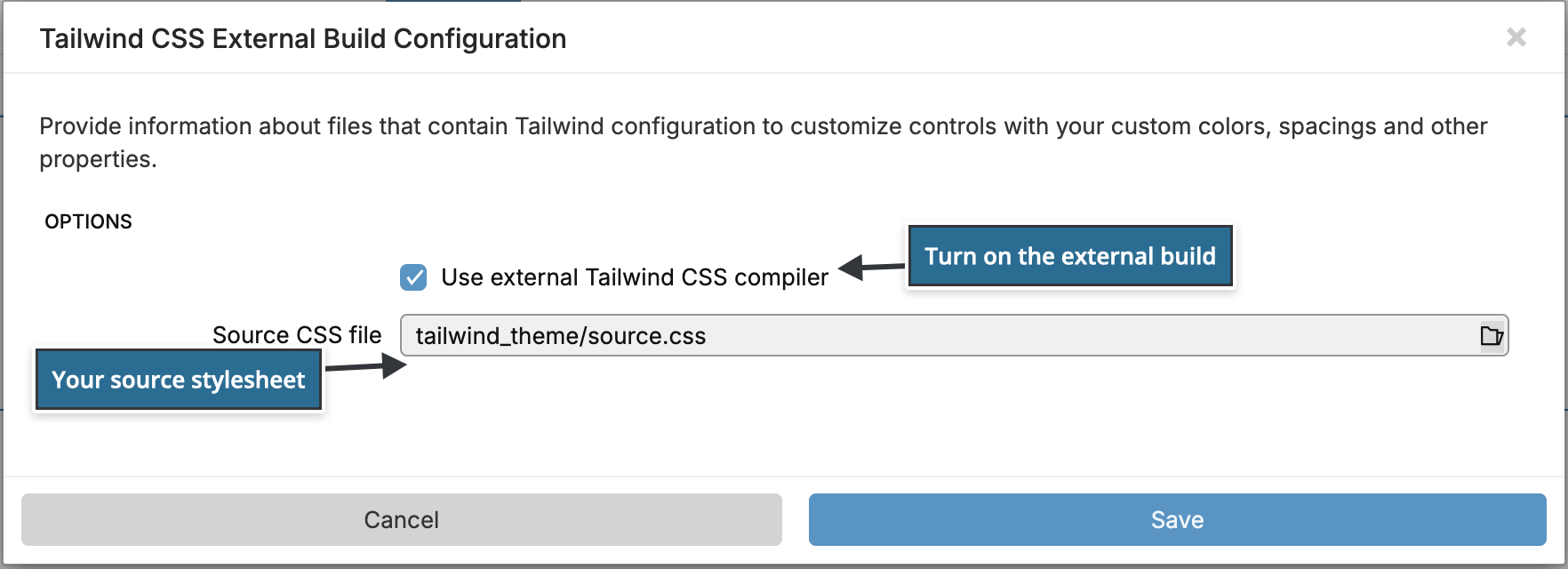
Pinegrow starts writing _pginfo/used-classes.html and adapts the visual controls to the theme in your source stylesheet, see Match visual controls to a custom theme. External build settings… shows a check mark while the external build is on.
If Pinegrow says Unable to detect the Tailwind CSS version of the project. Is Tailwind CSS installed there?, run the npm install command from step 1 in the project folder.
With the Design panel
The Design panel can keep working with your build: Pinegrow then writes your colors, fonts and other design settings into the source stylesheet, and your build compiles them. Commit the source stylesheet to version control, or make a copy, before you start.
Step 1. Add the Design panel markers inside an @theme block of the source stylesheet:
@import "tailwindcss" theme(static);
@source "../_pginfo/used-classes.html";

@theme {
    /* Pinegrow generated Design Panel Theme Begin */
    /* Pinegrow generated Design Panel Theme End */
}
Step 2. In the Design panel, click Compiler & custom config… in the Tailwind CSS options section.
Step 3. Set Compiler to External build process and choose the Source CSS file.
Step 4. Click Save.
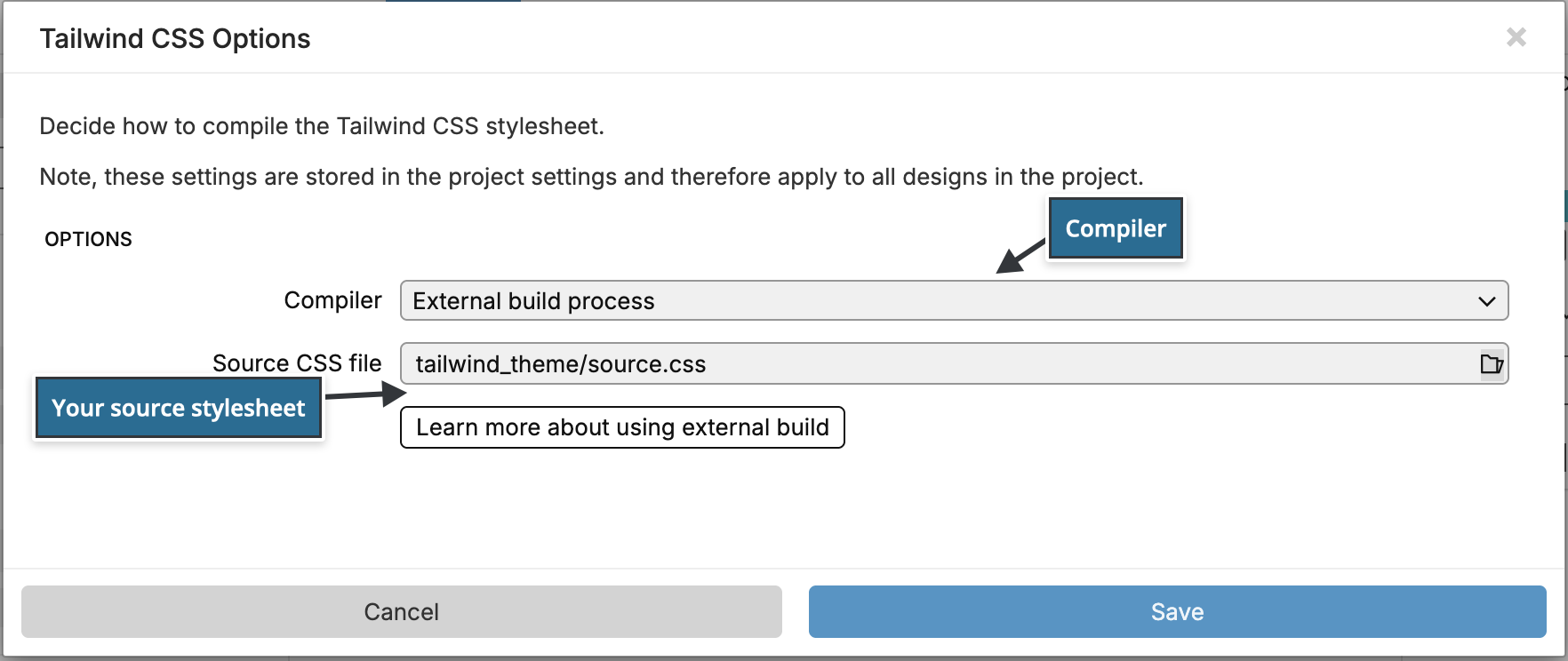
Pinegrow reminds you to link the compiled stylesheet on your pages. From now on, every design change updates the source stylesheet:
- the theme variables of your colors, fonts and background images go between the two markers;
- font imports go into a Design Panel Init section at the top of the file;
- rules such as heading fonts and the page background go into a Design Panel Extra Rules section at the end.
Pinegrow replaces the content of these marked sections on every change, so add your own code outside them. If the markers are missing, Pinegrow shows Unable to update Tailwind CSS theme with the code to add.
With the external build, the Custom configuration and CSS file with additional rules fields of the dialog are hidden. Write that configuration and those rules in the source stylesheet itself.
If the project contains a tailwind.config.js file when you first activate the Design panel, Pinegrow asks which compiler to use. Use the external compiler chooses the external build process.
Write the complete class list once
Pinegrow saves _pginfo/used-classes.html when the list of classes grows. After you connect the build, choose Refresh used classes in the Tailwind CSS menu once, so the file lists every class the project already uses.
Switch between the built-in compiler and the external build
Change Compiler in the Tailwind CSS Options of the Design panel.
- From built-in to external: Pinegrow asks you to link the compiled stylesheet and to remove links to
tailwind_theme/tailwind.css. If your build writes totailwind_theme/tailwind.css, the pages are already linked correctly. - From external to built-in: Pinegrow links
tailwind_theme/tailwind.csson the open pages again and writes it itself. Stop your build first if it writes to the same file, so the two don't overwrite each other.
Refresh the list of used classes
Pinegrow adds new classes to _pginfo/used-classes.html, but it doesn't remove classes you no longer use. To rebuild the list from the project's HTML and script files, choose Refresh used classes in the Tailwind CSS menu. Your build then compiles a stylesheet without the unused rules.
When the stylesheet doesn't update
- New classes have no styles: check that the build is running and that the source stylesheet has the
@source "../_pginfo/used-classes.html";line with the right path. Look at the terminal for build errors. - The page view shows the old styles: check that Auto-reload files is on in Settings and that the page links the file your build writes.
- The build compiles, but design changes don't appear: check the Design panel markers in the source stylesheet and that Source CSS file points to the stylesheet your build reads.