
What is different for projects that stay on Tailwind CSS 3 – the starting page, the built-in 3.4.3 compiler and its JSON configuration, an external build with tailwind.config.js, and customized visual controls.
DocsTailwind CSSDocsTailwind CSS2026-10-24
Working with Tailwind CSS 3
The Tailwind Visual Editor documentation describes Tailwind CSS 4. Pinegrow also supports Tailwind CSS 3, and this page collects what is different for a project that stays on it, for example because the site must work in browsers older than Safari 16.4, Chrome 111 or Firefox 128. To move a project to Tailwind CSS 4, see Upgrade a project from Tailwind CSS 3 to 4.
Start a Tailwind CSS 3 page
The Tailwind CSS template includes a Tailwind CSS 3 starting page, index-v3.html, next to the Tailwind CSS 4 page index.html. It loads the Tailwind CSS 3 CDN script https://cdn.tailwindcss.com/. When you open it, Pinegrow may ask Convert the page to Tailwind 4?. Click No to keep Tailwind CSS 3.
Pinegrow treats a page that loads cdn.tailwindcss.com as Tailwind CSS 3, and shows the Tailwind CSS 3 visual controls.
The built-in compiler for Tailwind CSS 3
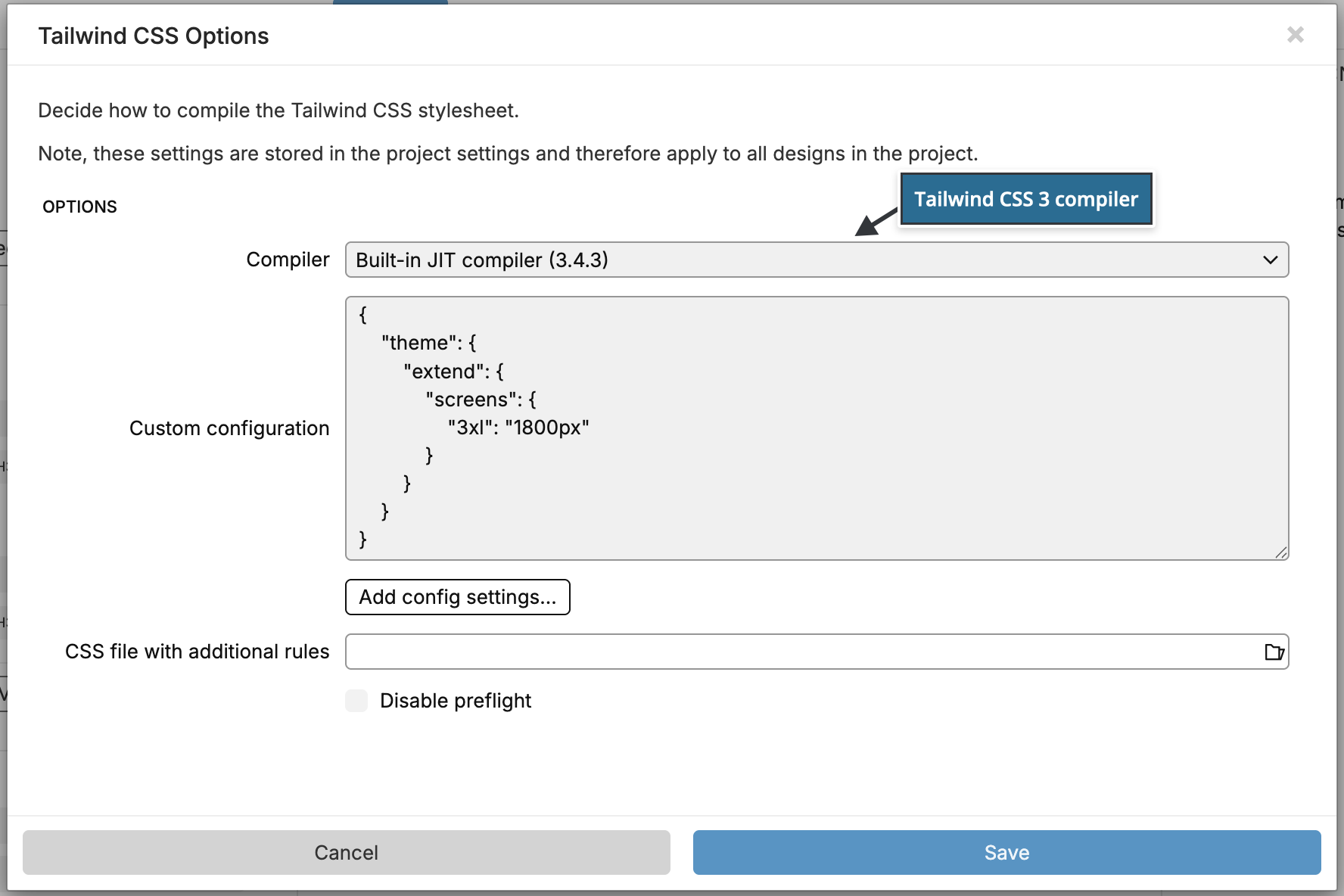
When you activate the Design panel on a page that loads the Tailwind CSS 3 CDN script, Pinegrow chooses Built-in JIT compiler (3.4.3). Everything else works as described on the Design panel page, with these differences:
- The default colors are gray, red, yellow, green, blue, indigo, purple and pink.
- The Custom configuration in the Tailwind CSS Options is JSON, in the form of a Tailwind CSS 3 configuration object. If the JSON is not valid, the dialog says This is not a valid JSON. Check brackets and quotes.
- Add config settings… inserts JSON examples. Define has Screen sizes and Dark mode, and Extend has screen sizes, spacing, border radius, inset, z-index, grid template columns and rows, font size and letter spacing.
- The CSS file with additional rules can use
@layerand@applythe Tailwind CSS 3 way.
For example, this custom configuration adds a 3xl breakpoint:
{
    "theme": {
        "extend": {
            "screens": {
                "3xl": "1800px"
            }
        }
    }
}
External build with tailwind.config.js
An external build is available in Pinegrow Desktop. Install Tailwind CSS 3 with npm in the project folder, so that Pinegrow detects the version from node_modules/tailwindcss.
Step 1. Add Pinegrow's class list to the content of tailwind.config.js:
module.exports = {
  content: ["./*.html", "./_pginfo/used-classes.html"],
  theme: {
    extend: {}
  }
}
Step 2. Create the source stylesheet, for example tailwind_theme/source.css:
@tailwind base;
@tailwind components;
@tailwind utilities;
Step 3. Start the build from the project folder:
npx tailwindcss -i ./tailwind_theme/source.css -o ./tailwind_theme/tailwind.css --watchStep 4. Connect Pinegrow with Tailwind CSS › External build settings…: check Use external Tailwind CSS compiler, and choose the Config file (tailwind.config.js) and the Source CSS file. With the Design panel, set Compiler to External build process in the Tailwind CSS Options and choose the same two files.
The rest works as described in Use an external Tailwind CSS build: Pinegrow writes _pginfo/used-classes.html, your build compiles, and Pinegrow reloads the stylesheet.
The Design panel with a Tailwind CSS 3 build
With the Design panel and the external build process, Pinegrow writes the design into two files:
- At the top of
tailwind.config.jsin the project folder, it definespg_colors,pg_fontsandpg_backgroundsin a section marked Pinegrow generated Design Panel. - In the source stylesheet, it adds font imports in a Design Panel Init section at the top and other rules in a Design Panel Extra Rules section at the end.
Use the three values in your configuration yourself, otherwise the design has no effect:
module.exports = {
  content: ["./*.html", "./_pginfo/used-classes.html"],
  theme: {
    extend: {
      colors: pg_colors,
      fontFamily: pg_fonts,
      backgroundImage: pg_backgrounds
    }
  }
}
Make a backup of tailwind.config.js before you connect the Design panel.
Customize visual controls with tailwind.config.js
To make the visual controls offer the colors, spacing and other values of your tailwind.config.js, Pinegrow needs an npm-based Tailwind CSS 3 build in the project folder with the Pinegrow Tailwind CSS plugin:
npm install @pinegrow/tailwindcss-plugin@latest -DIf the plugin is missing, Pinegrow shows this command. Connect the build as described above, then choose Customize visual controls in the Tailwind CSS menu. The standalone Tailwind executable is not supported. With the built-in compiler of the Design panel, the controls follow your configuration automatically.