Edit all Tailwind CSS classes of the selected element and its parents in a tree grouped by variant. Add classes by typing, preview values on hover, type arbitrary values, manage variants and edit the classes of styles.
DocsTailwind CSSDocsTailwind CSS2026-10-24
Class Tree inspector
The Class Tree inspector lists the Tailwind CSS classes of the selected element in a tree, grouped by variant, followed by the classes of its parent elements. You see every class that affects the element in one place, and you can change, add and remove classes without scrolling through the visual controls. It is also the place to type arbitrary values such as mt-[13px].
This page covers Tailwind CSS 4 projects. The Class Tree inspector works the same in Pinegrow Desktop and Pinegrow Online.
Open the Class Tree
There are three ways to show it:
- Class inspector panel. In Smart UI mode, Pinegrow shows the Class inspector panel next to the Visual controls when you open a Tailwind page and Auto toggle panels is on. You can also show it from Window › Show / hide panels, under Tailwind CSS.
- Floating window. Press S to open the Class Tree in a floating window, next to the visual controls. You can also Alt-click the tree icon next to Add class in the class list, or choose Open popup class tree in the visual controls' settings menu.
- Instead of the visual controls. In Flexible UI mode, open the settings menu next to the device size tabs in the Element properties panel and choose Editing mode › Class tree. To switch back, open the settings menu (tools icon) in the Class Tree toolbar and choose Editing mode › Visual controls, or click the visual controls icon next to it.
Read the tree
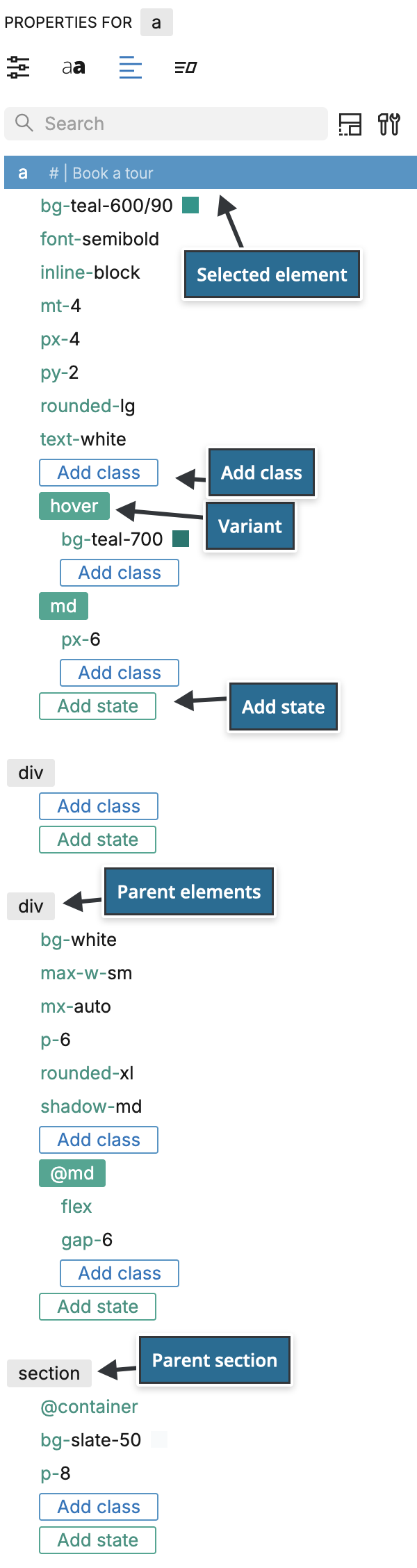
- Each element has a row with its name. The selected element comes first, followed by its parents. Click a parent's row to select it, and point at a row to highlight the element on the page.
- Classes without a variant are listed directly under the element.
- Each variant, such as
hover,mdormd:hover, has a green label with its classes below it. - Add class adds a class to the element or variant above it. Add state adds a new variant.
Classes that contain a colour show a colour swatch. Use Search at the top to filter the tree.
Add a class
- Click Add class in the element's group or in a variant.
- Pick a section and a property from the menu, then a value. Point at a value to preview it on the page.
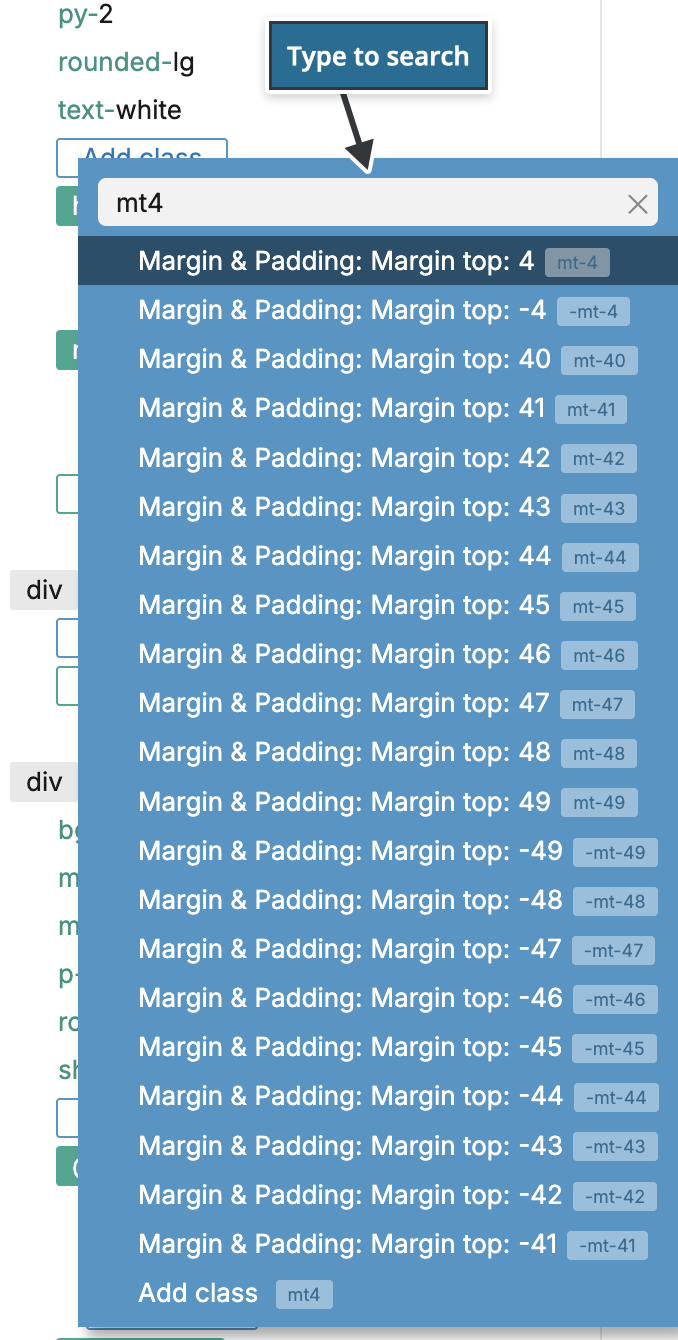
- Or start typing to find a class. Type the start of the class or property name, for example
mt4to findmt-4, then use the up and down arrow keys and press Enter.
If what you typed is not a known class, the menu offers Add class followed by your text. Use it for arbitrary values such as mt-[13px] or bg-[#0f766e], and for any class that is not part of Tailwind CSS.
Turn on Keep the menu open at the end of the menu to add several classes in a row. Press Esc to close the menu.
Change a class
Click a class to open the list of its values. Point at a value to preview it on the page and click to set it.
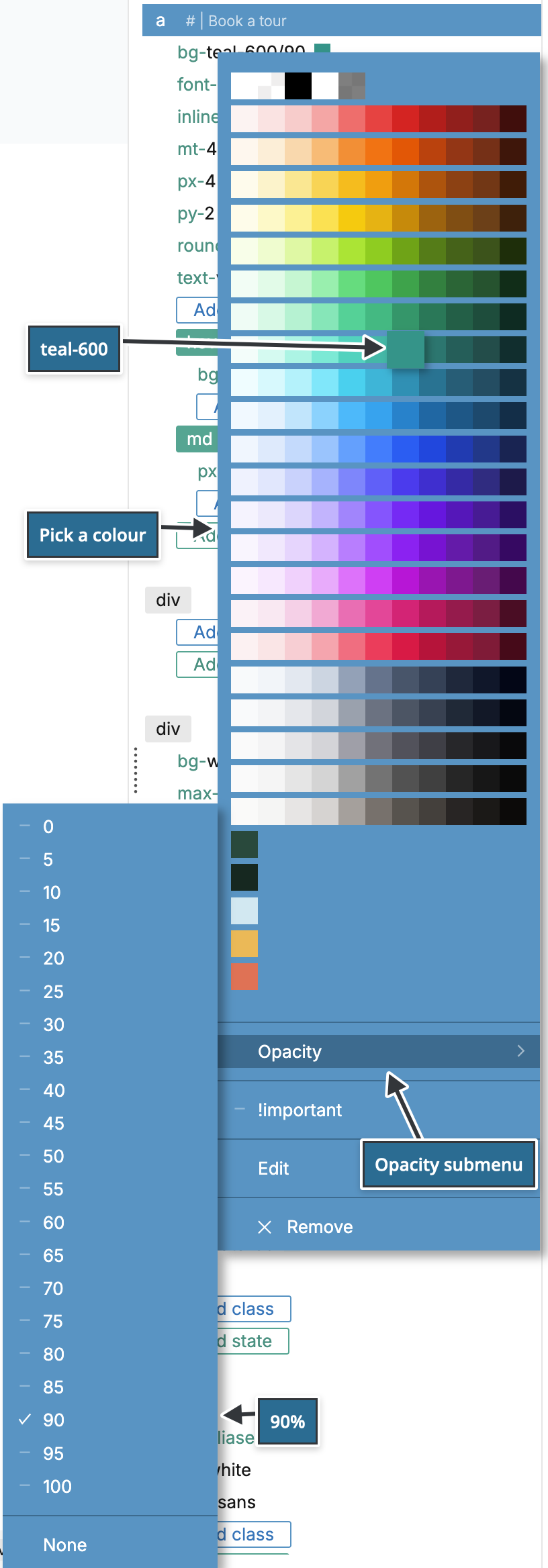
- Colour classes show a colour picker. In Tailwind CSS 4, colour classes also have an Opacity submenu that writes the opacity after a slash, for example
bg-teal-600/90. - Font size classes have a Line height submenu that writes it after a slash, for example
text-lg/7. - !important adds or removes the
!marker. - Edit lets you type the class as text.
- Remove deletes the class.
To edit the class text directly, point at the class and click the edit icon after its name. Press Enter to apply or Esc to cancel. For classes that start with grid, a grid icon opens the CSS Grid editor.
Arbitrary values
Arbitrary values are shown with their numbers and colours highlighted. Drag a number up or down to change it while the page updates, or click a colour to pick a new one. To type a completely new value, use Edit.
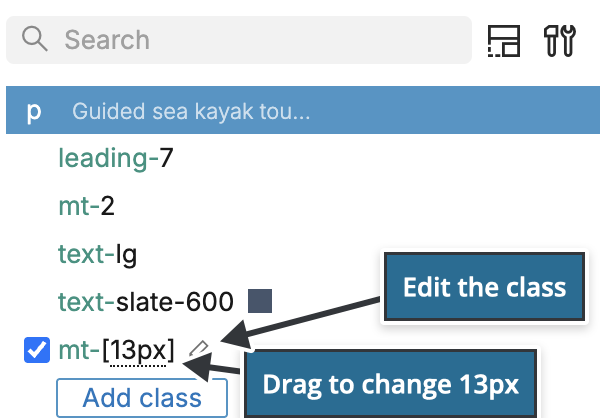
Turn a class off and on
Hover over a class and clear its checkbox to remove the class from the element. The class stays in the tree, unchecked, so you can check it again to restore it. When you select another element, removed classes are no longer listed.
Work with variants
- Add a variant. Click Add state and choose a variant, such as
hover, or a screen size such asmd. Then use the new variant's Add class. For a combination such asmd:hover, add one part, then click the variant's label and choose the other, or choose Edit… and type it. - Change a variant. Click its green label and change the selection. Pinegrow updates the prefix of every class in the variant, so
hover:bg-teal-700can becomemd:hover:bg-teal-700. Choose Edit… in the menu to type the variant as text, which is the only way to edit complex custom variants. - Remove a variant. Remove all its classes.
The variant menu is the same as in the visual controls, including container query variants under @… and custom states that target sub-elements. See Variants on the Visual controls page.
Select several classes
Hold Cmd (Mac) or Ctrl (Windows and Linux) and click classes to select them. Right-click a class, a variant label or an element row for actions on the selected classes:
- Move to state and Duplicate to state move or copy the classes to another variant.
- Move to parent moves the classes to a parent element or one of its styles, scoped with a sub-element selector.
- Swap colors replaces one colour with another.
- Copy classes and Paste classes copy classes between elements and variants.
- Create a new style creates a style from the classes.
Classes from styles
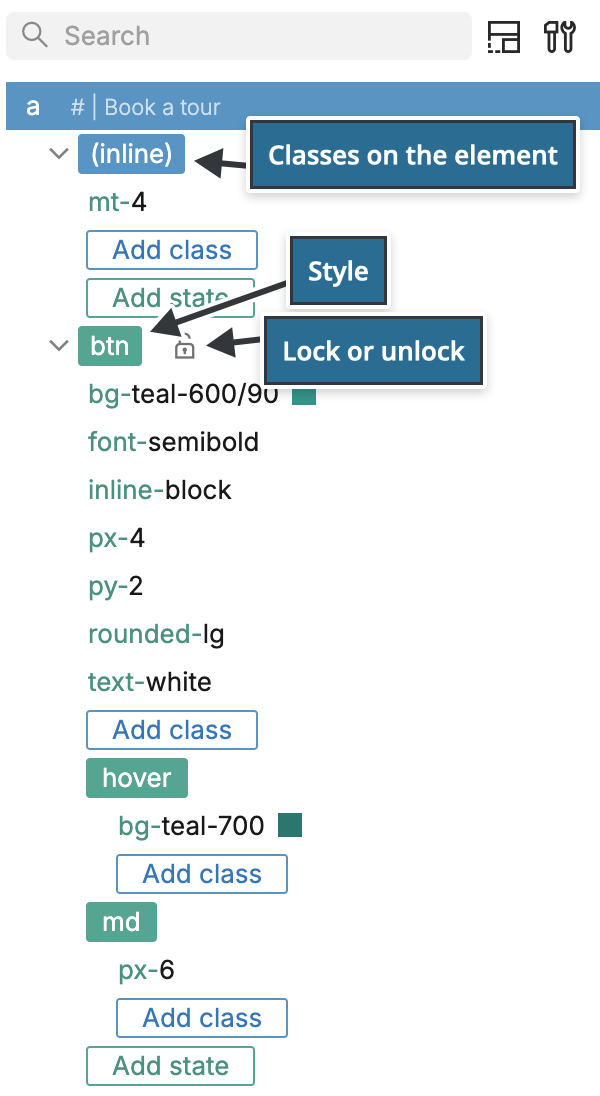
If the element uses Styles, the tree groups the classes by where they come from: (inline) for the classes set directly on the element, and one group for each style.
You can edit a style's classes in the tree in the same way as inline classes. The change applies to every element that uses the style. A locked style can't be edited: Pinegrow shows The style is locked. Click the lock icon next to the style name to unlock it, or lock it again.
How many times a style is used in the project is shown next to its name in the Style manager; the Class Tree doesn't show this number. Click the style name for the style's menu.