
Build Tailwind CSS pages from hundreds of ready-made blocks and start projects from website templates. The blocks work in Tailwind CSS 4 and 3 projects and are converted to Tailwind CSS 4 when you insert them into a Tailwind CSS 4 page.
DocsTailwind CSSDocsTailwind CSS2026-10-24
Tailwind Blocks
Tailwind Blocks is Pinegrow's library of ready-made Tailwind CSS sections, such as headers, hero sections, pricing tables and footers, and of complete website templates. Drag a block onto your page, then edit its content and design with Pinegrow's visual tools.
The blocks work in Tailwind CSS 4 and Tailwind CSS 3 projects. They were written for an earlier Tailwind CSS version, and Pinegrow converts them to Tailwind CSS 4 when you insert them into a Tailwind CSS 4 page (see Blocks in Tailwind CSS 4 projects below). Tailwind Blocks are available in Pinegrow Desktop and Pinegrow Online.
Open Tailwind Blocks
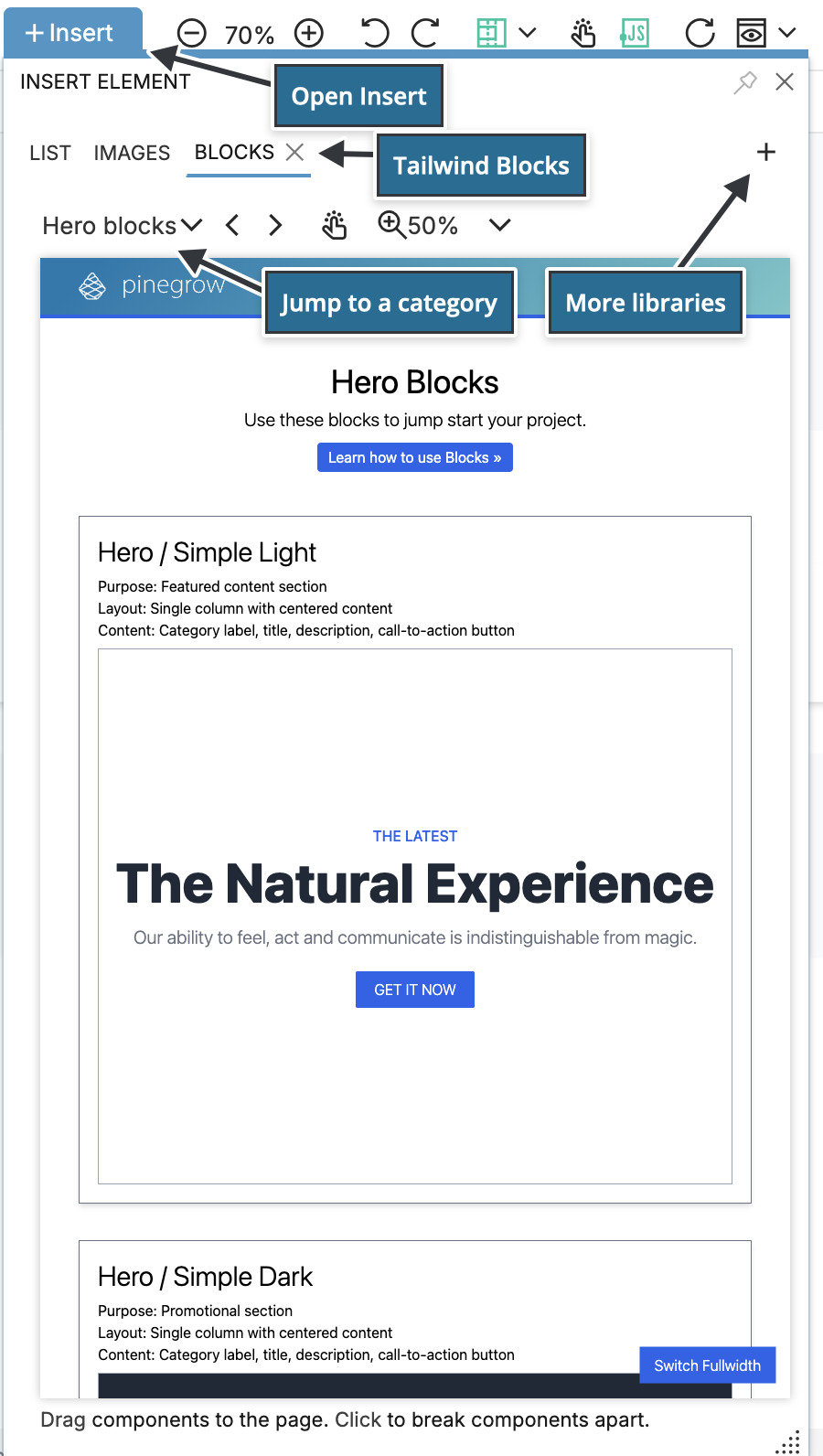
Click + Insert in the toolbar, or press the + key. The Insert element window opens below the button. On a page that uses Tailwind CSS, Pinegrow activates Tailwind Blocks automatically, and the window has a Blocks tab next to List and Images.
- If the Blocks tab is closed, click the + icon at the right end of the window's tab bar and choose Blocks under Tailwind CSS Templates.
- Click the pin icon to keep the window open while you work, and drag its bottom-right corner to make it larger.
- The same tabs are also available in the Library panel, if you prefer a docked panel.
- Tailwind Blocks appear as Tailwind CSS Templates in the Libraries & Plugins Manager (the Project settings icon › Libraries & plugins…).
Find a block
The dropdown at the top of the Blocks tab jumps to a category:
- Headers
- Hero blocks
- Call to action
- Features & Services
- Content
- Blog posts
- Counters
- Pricing
- Team
- Testimonials
- Contacts
- Footers
- Columns
- Social
- Partners
- Forms
- Shop
- Dividers
- Bootstrap Icons
- Remix Icons
Home returns to the start page of the library. You can also browse all blocks online.
Add a block to the page
- Save the page. Pinegrow asks you to save a new page before you insert a block.
- Click + Insert and open the Blocks tab.
- Drag the block onto the page or into the Tree panel. The window steps aside while you drag, and a green line with the element's name and size shows where the block will go.
- Edit the text, images and styling with Pinegrow's visual tools.
To swap an existing element for a block, select the element, point to the block in the Blocks tab and choose Actions › Replace. Replace (keep attributes) keeps the attributes of the old element that the block doesn't set.
Inserted blocks come with plain Tailwind CSS classes and no Pinegrow styles, so they don't depend on styles from the library project.
Blocks in Tailwind CSS 4 projects
When you insert a block into a page that uses Tailwind CSS 4, Pinegrow converts the block's older Tailwind CSS classes to their Tailwind CSS 4 equivalents and shows Tailwind 3 code was converted to Tailwind 4. Blocks that need no change are inserted as they are.
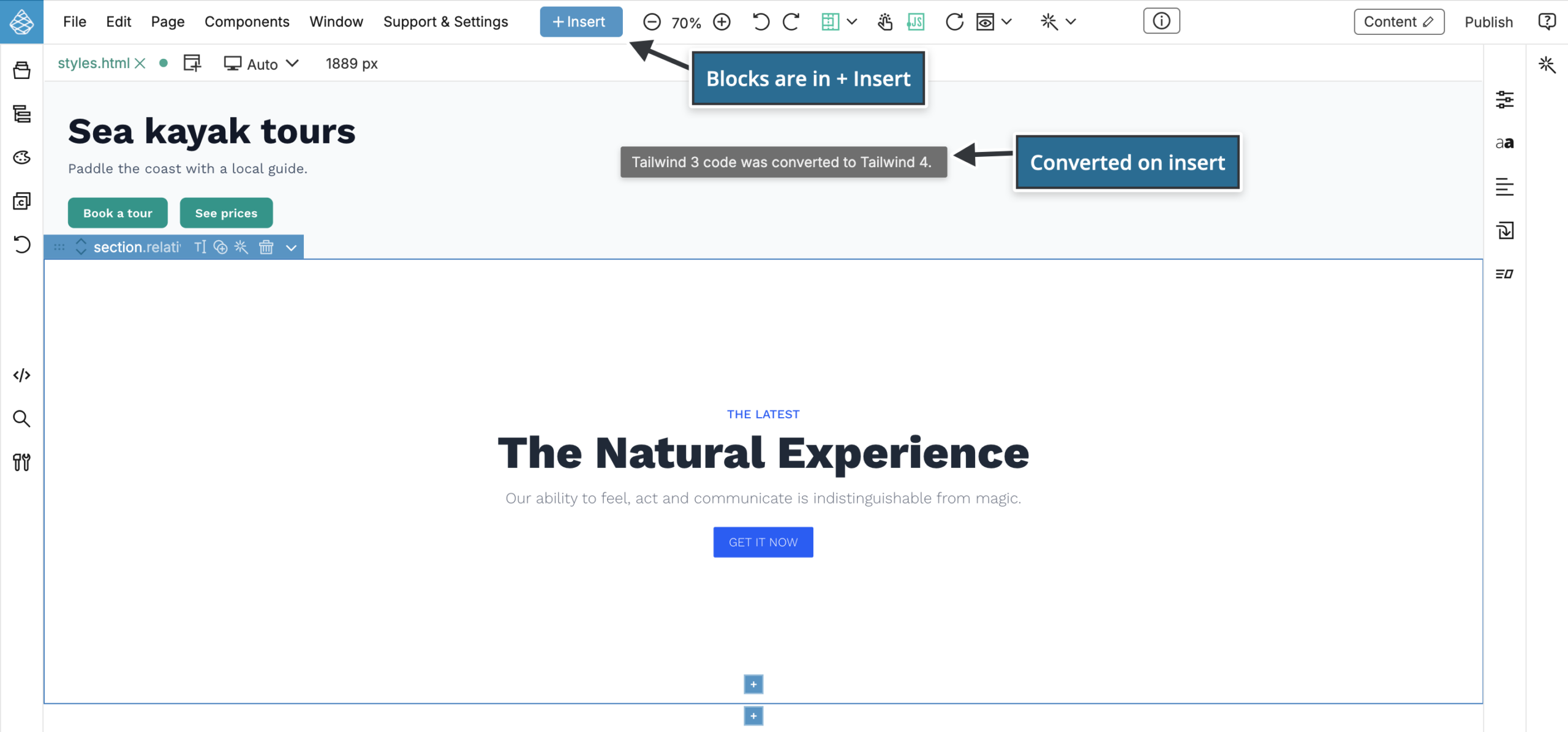
The conversion is controlled by Auto convert inserted code: click the Project settings icon in the panel bar and choose Tailwind CSS › Convert Tailwind 3 to 4… › Auto convert inserted code. It is on by default. It applies to everything you insert into a Tailwind CSS 4 page, including blocks from other libraries and pasted code. See Upgrade a project from Tailwind CSS 3 to 4 for the menu and for converting whole pages and projects.
In a Tailwind CSS 3 project, blocks are inserted without conversion.
Hero Collection
The Hero Collection is a separate library of hero sections. In the Insert element window, click the + icon at the right end of the tab bar and choose Hero Collection under Tailwind CSS Templates. It opens in its own tab; drag sections to the page like blocks.
Templates
Tailwind Blocks also include website templates for starting a new project. Choose New page or project and select Tailwind CSS Templates:
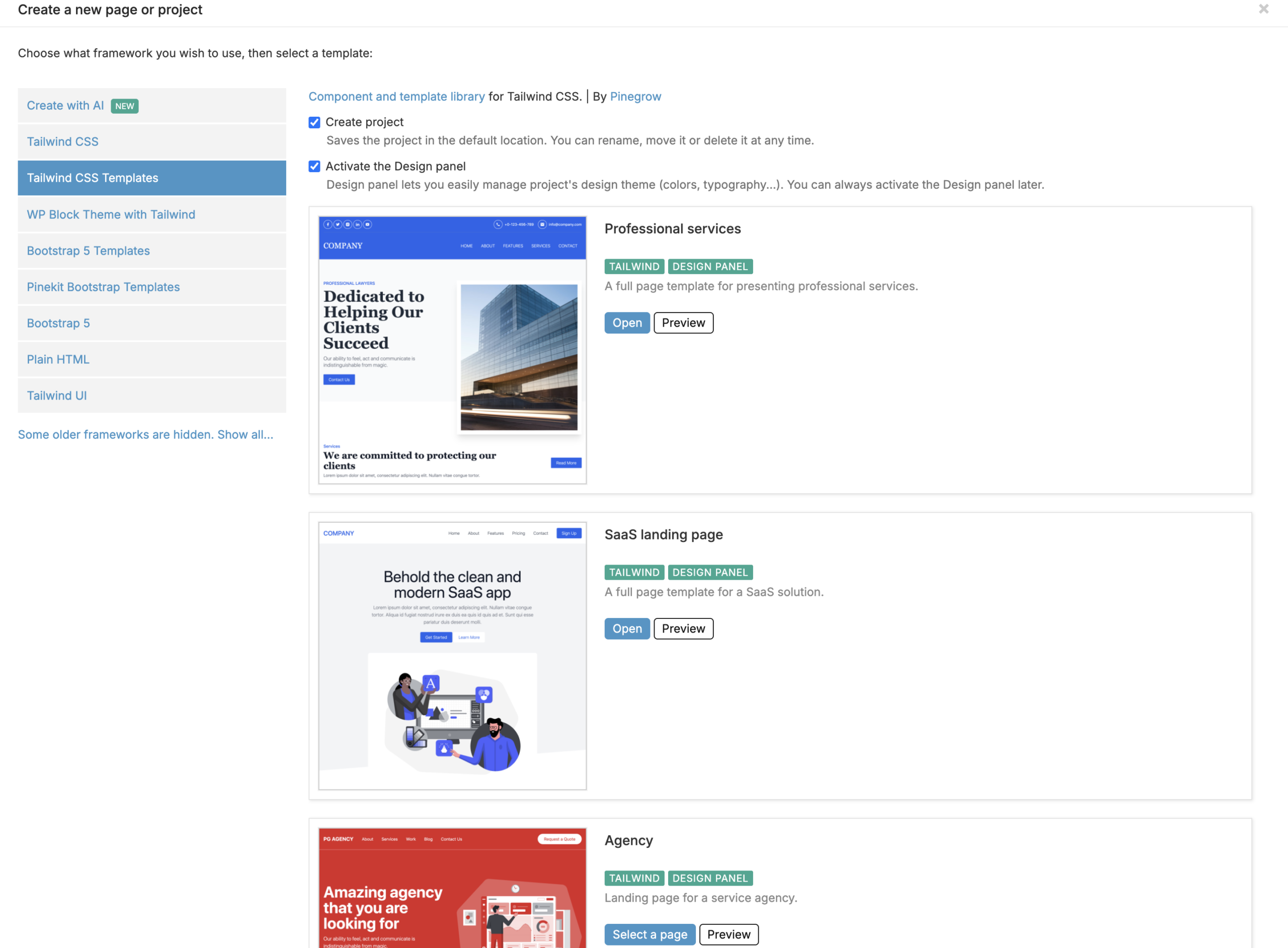
- Professional services
- SaaS landing page
- Agency (eight pages)
- Directory (ten pages)
- Shop
- The Bright Bridge
- The Spotted Kingfisher
- Happy Plants
- Metro Tower
- The Ultimate Comfort
- Sweet Memories
- Max Advisor
- Nature Delights
- Spacera
- Happy Paws
- Yummy Pizza
- Prime Drive
- We Love Code
- Cody Coolhair
- Health Hub
- Beauty Punch
Most templates come from Pinegrow's Design of the week series and link to its article from the template's help link.
The templates are complete projects made with Tailwind CSS 2 and 3. A new project keeps the template's Tailwind CSS version. To move it to Tailwind CSS 4, see Upgrade a project from Tailwind CSS 3 to 4.
You can preview some templates online:
With the WordPress Builder, Pinegrow Desktop also lists WP Block Theme with Tailwind, a starter project for a WordPress block theme. See Creating a Tailwind styled Block Theme.
Interactive blocks
Some blocks and templates include interactions, such as testimonial sliders and headers that collapse on scroll. They are made with Pinegrow Interactions. You don't need a Pinegrow Interactions license to use these blocks, only to customize their interactions.
Use Blocks with other libraries
You can combine Tailwind Blocks with other Tailwind CSS libraries on the same page, such as Flowbite. See Component libraries.
License
You can:
- Use Tailwind Blocks in personal and commercial projects.
- Create templates and give them away for free or sell them in marketplaces.
- Do anything else that is not listed under "You can't".
You can't:
- Integrate Tailwind Blocks into a website builder.
- Distribute Tailwind Blocks as a library, either as a whole or as a part of another library.