Menu action displays the navigation menu using the HTML markup of the element.
DocsWordPressDocsWordPress2019-06-04
Menu
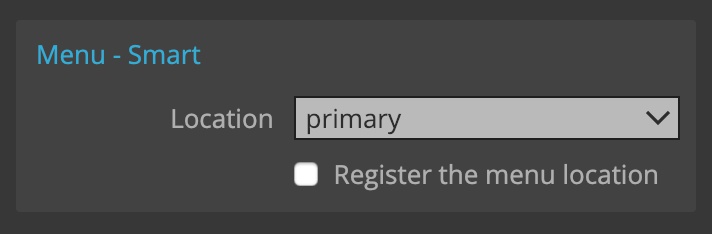
By default, WordPress outputs menus using its own HTML markup that would most likely clash with markup and styling of our page.
On the other hand, Menu Smart action adjusts the menu output so that it fits perfectly into our page.
Under the hood, it analyzes the page and the element and selects the right way to display the menu:
Bootstrap menus
On Bootstrap pages it uses the Bootstrap markup on navigation elements.
Smart menus - using element as the template
In all other situations it uses the element as the template for displaying the menu.
If the Menu action is added directly on <a> or <li> element or on element without children, that element will be used as the template for menu items.
ul.menu
    li             <— Menu action, Repeated menu item
       a Item 1
    li             <— Don't export
       a Item 2
    li             <— Don't export
       a Item 2
    ...
Otherwise the element with the Menu action will be used as a wrapper for items and its first child element will be used as the template for menu items.
One advantage of using the Menu action on the wrapper element is that it is not needed to add Don’t export action to placeholder menu items.
ul.menu            <— Menu action
    li             <— Repeated menu item
       a Item 1
    li
       a Item 2
    li
       a Item 2
    ...
Pinegrow will also figure out which class is used to denote the active menu item. You see, smart actions are not called smart for no reason 🙂
In most cases we don’t really need to know what happens under the hood - things just work as expected.
Menu locations
First we have to specify the menu location, with the option to register a new menu location.
The Menu action element is only displayed if the menu location is set.
In WordPress admin panel we then create and edit menus and associate them with menu locations.
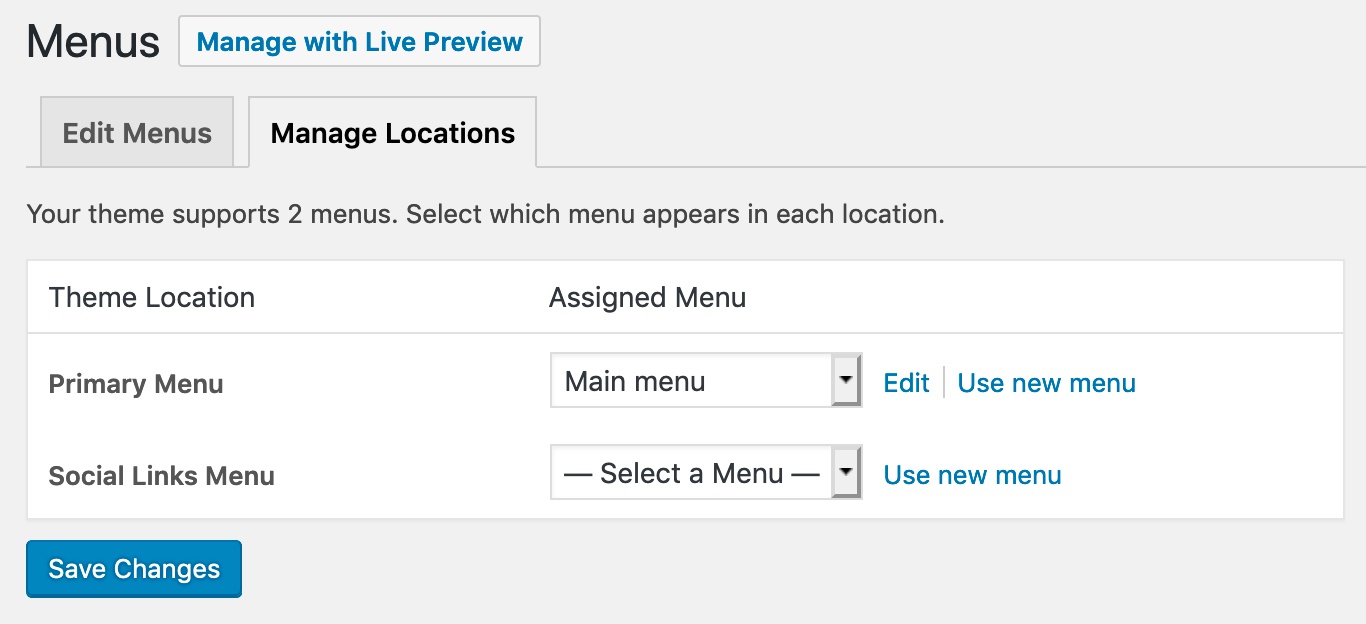
So, the menu location is not the menu itself, rather it is a place where a menu can be displayed. In WordPress admin panel we choose which menu will be displayed in a menu location.
Example
Here, we have a custom menu, consisting of <ul> list with <li> list items and <a> links.
We add Menu action to the list element and select to show the menu for the theme location “primary”.
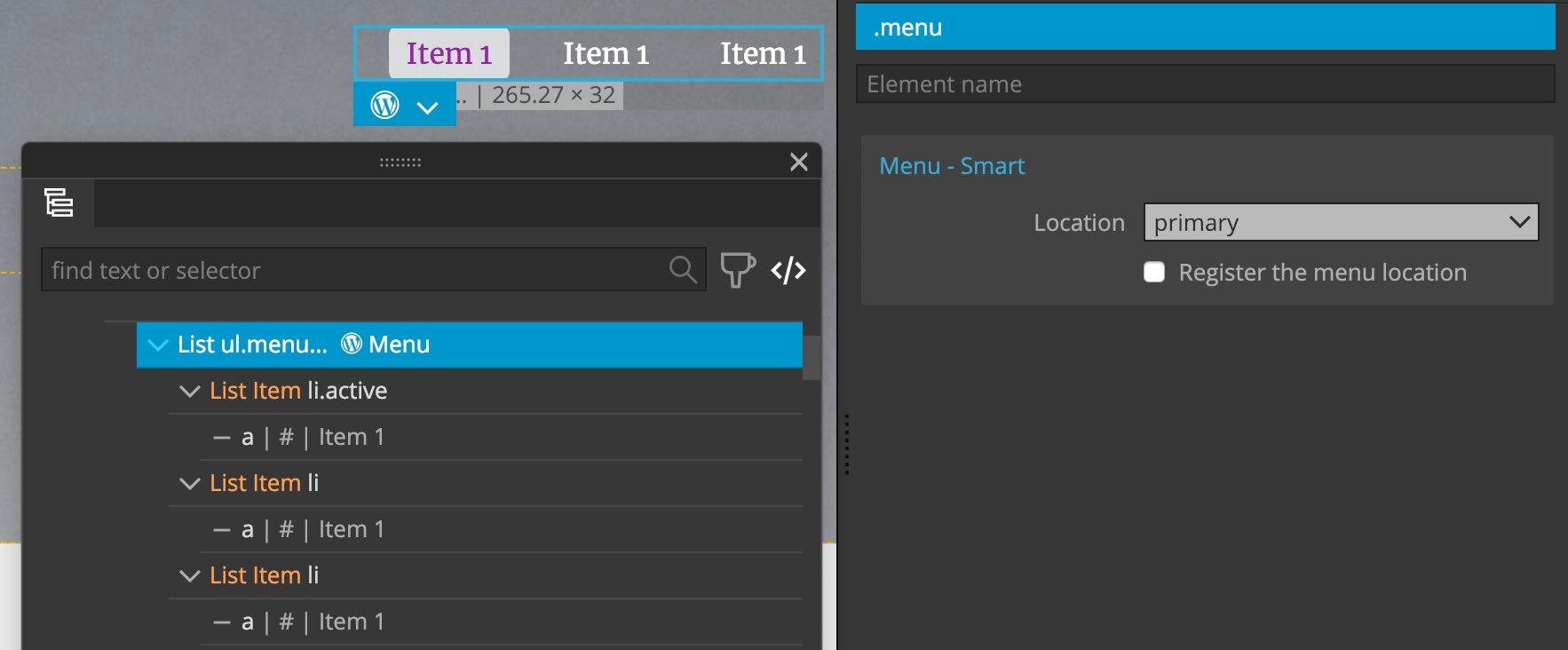
And that’s it. Our menu works and Pinegrow even figures out the name of the class that marks the active menu item.