
Create an area where sub-blocks can be inserted into the block.
DocsWordPressDocsWordPress2021-11-08
Inner blocks: blocks within blocks
Blocks can contain other blocks. In WordPress, sub-blocks are called inner blocks.
Each block can have only one inner blocks area. Multiple inner blocks areas are not supported in WordPress.
We just need to add Block Inner Content action to the element that should contain inner blocks.
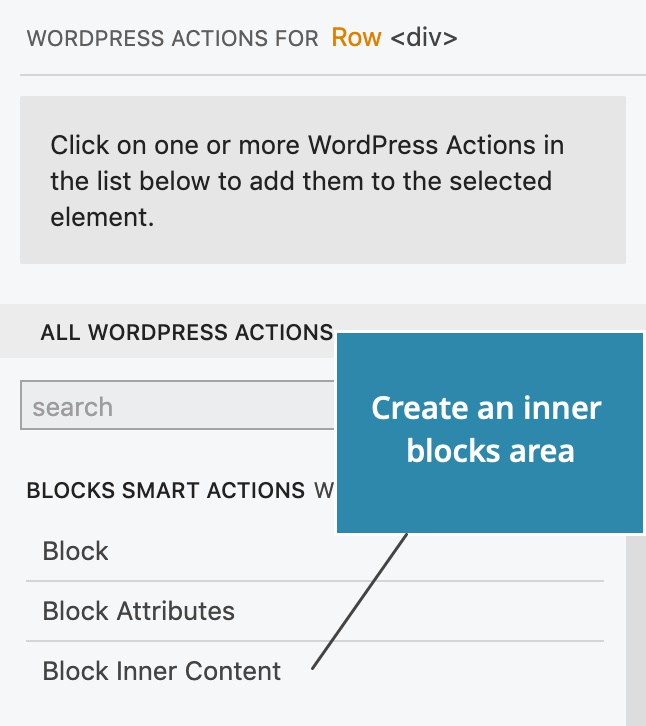
For example, our About me block could have a content area where user can freely insert one or more blocks.
But let’s do something more interesting.
Create sub-blocks
Block Inner Content action lets us limit what kind of blocks can be inserted into the area. In addition, we can also define a new block type, tailor made for the inner content area.
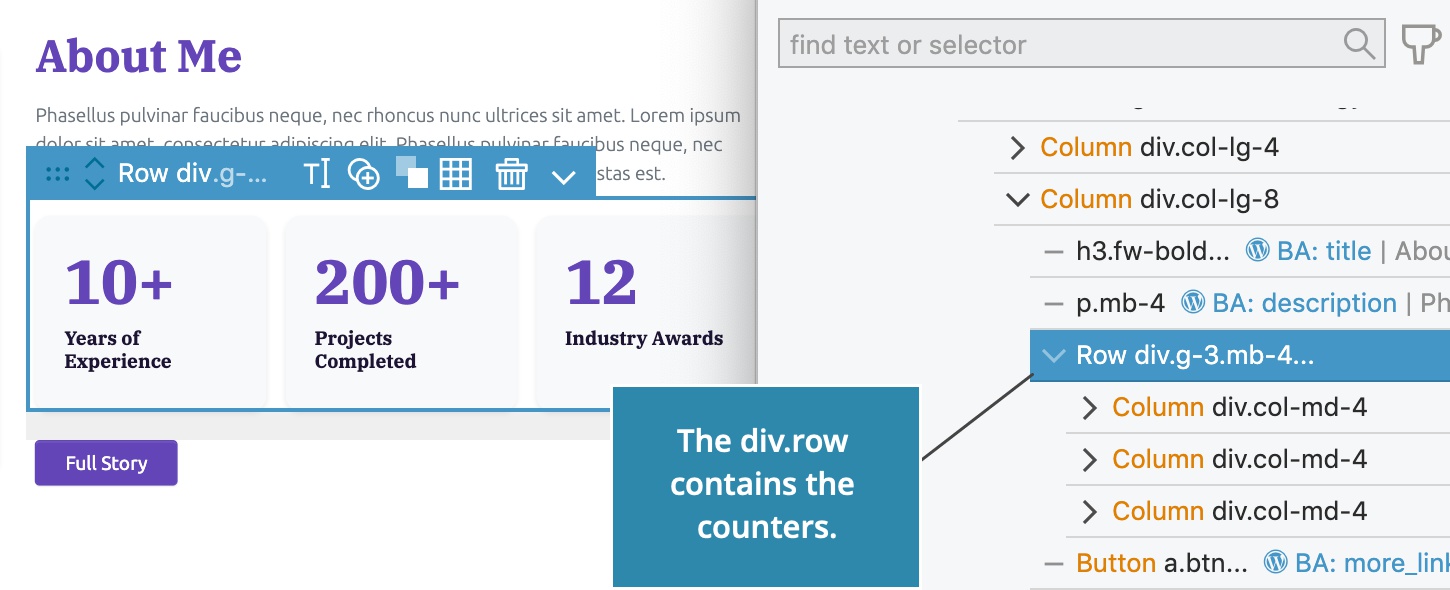
Our HTML project has a div.row that contains counters, implemented as Bootstrap columns.
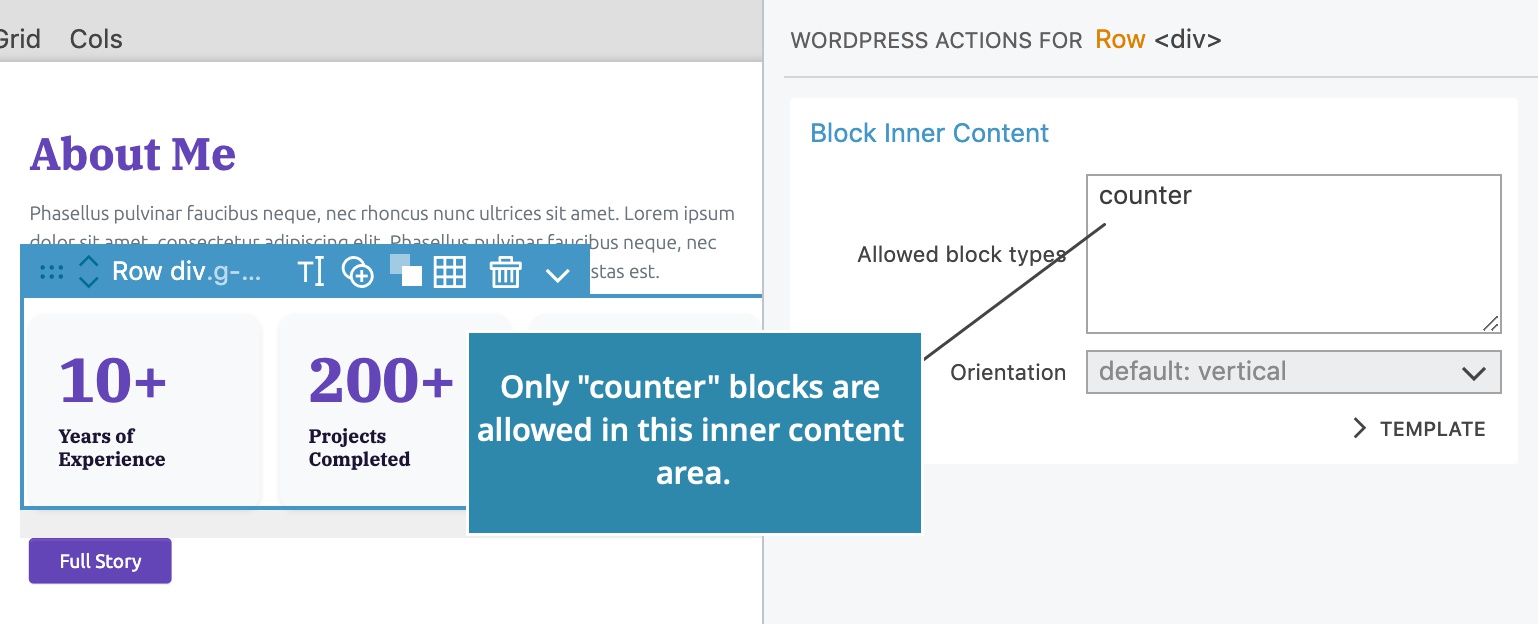
Select the div.row and add Block Inner Content action.
Here, we don’t want just any kind of block to be added here. We will only allow Counter blocks by entering counter into the Allowed Block Types field. counter is the block id of the custom block we will create below.
Counter block
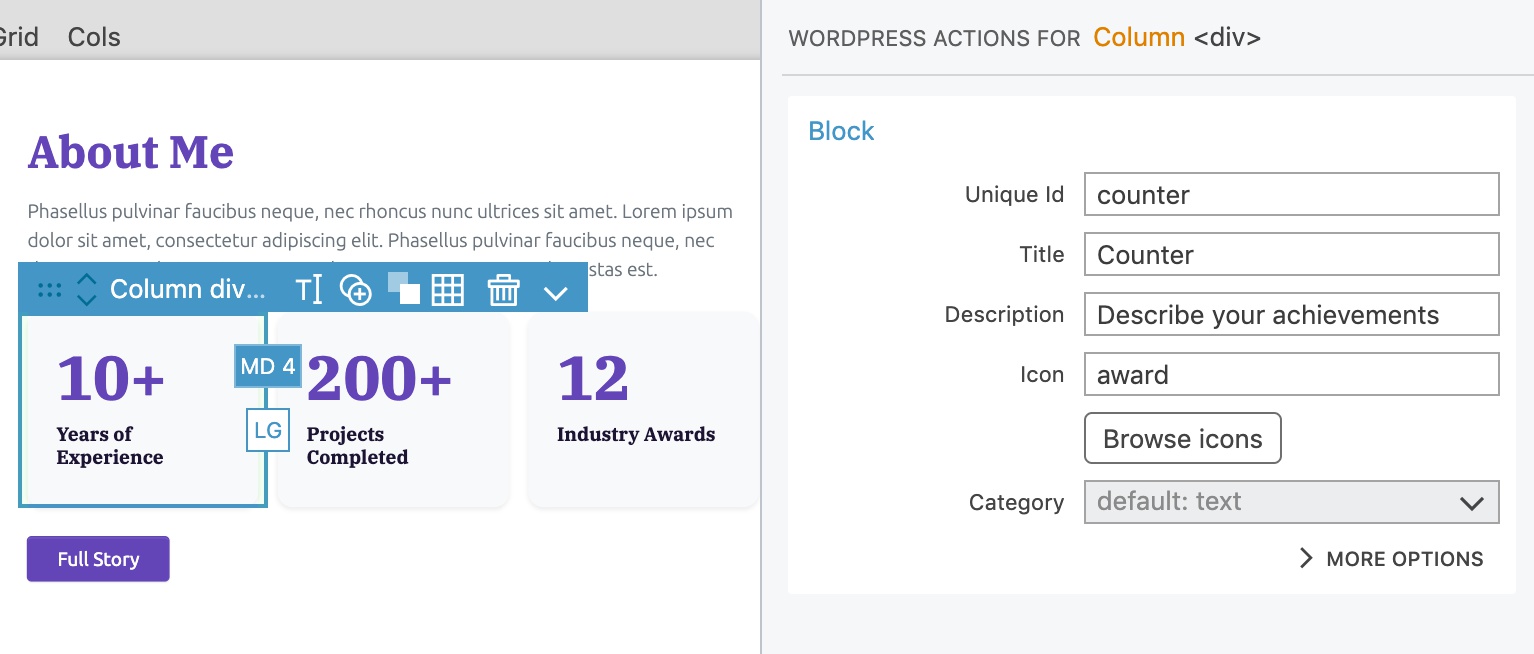
We also need to define the block type Counter.
Select the first counter element and add Block action with the id counter and title Counter.
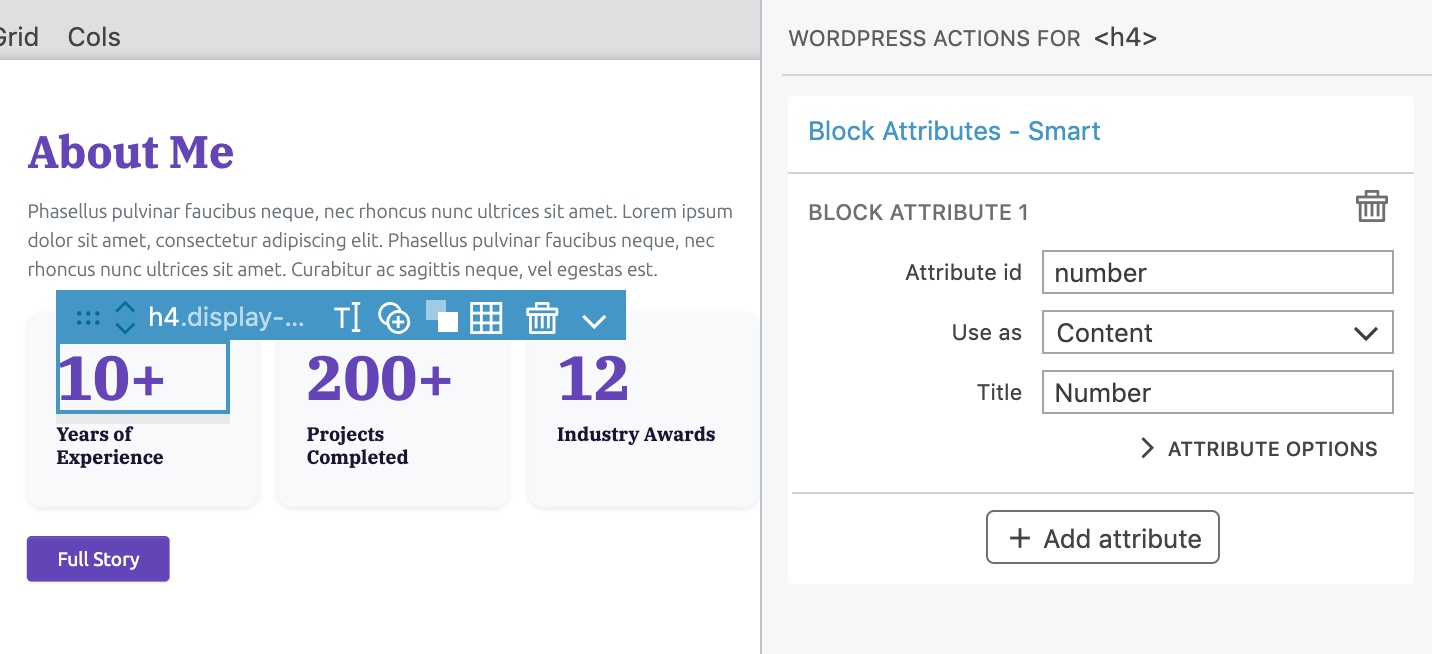
Make the number editable by selecting the <h4> element and adding Block Attributes action with the id number.
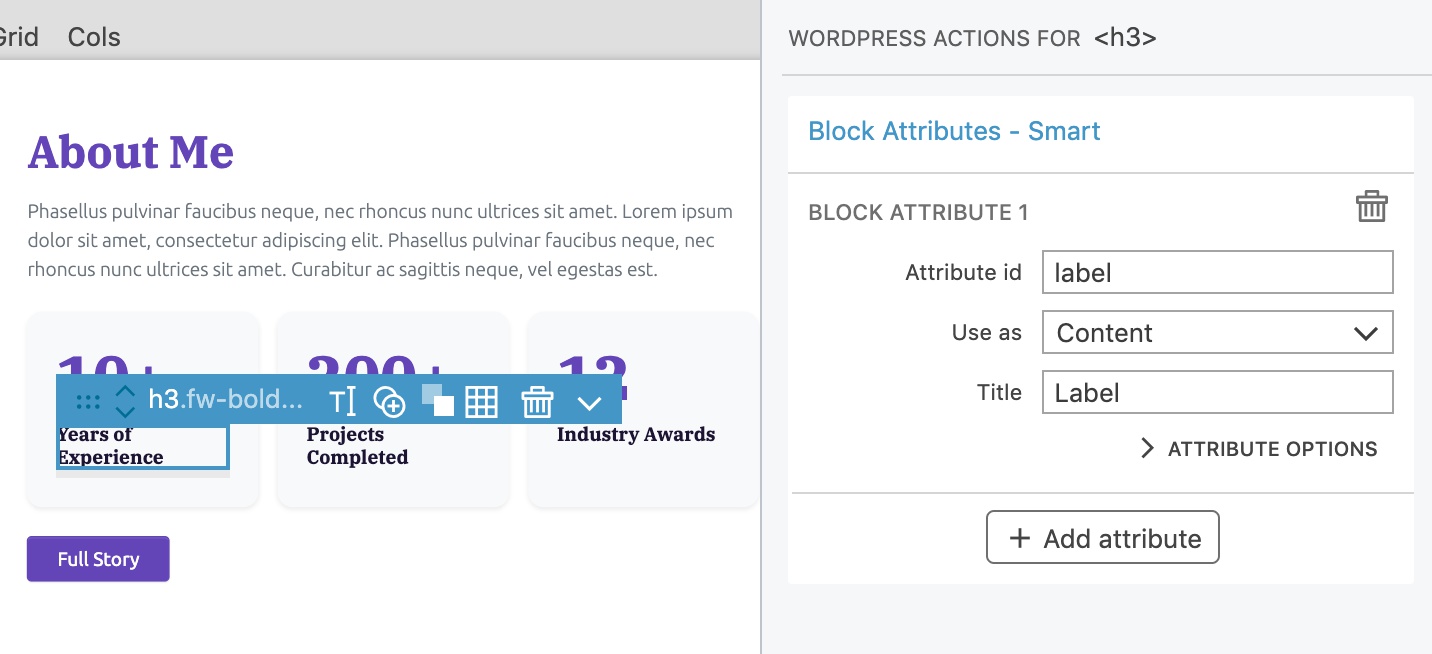
Add another Block Attributes action to the <p> and set the id to label.
Export the project and reload the Block editor.
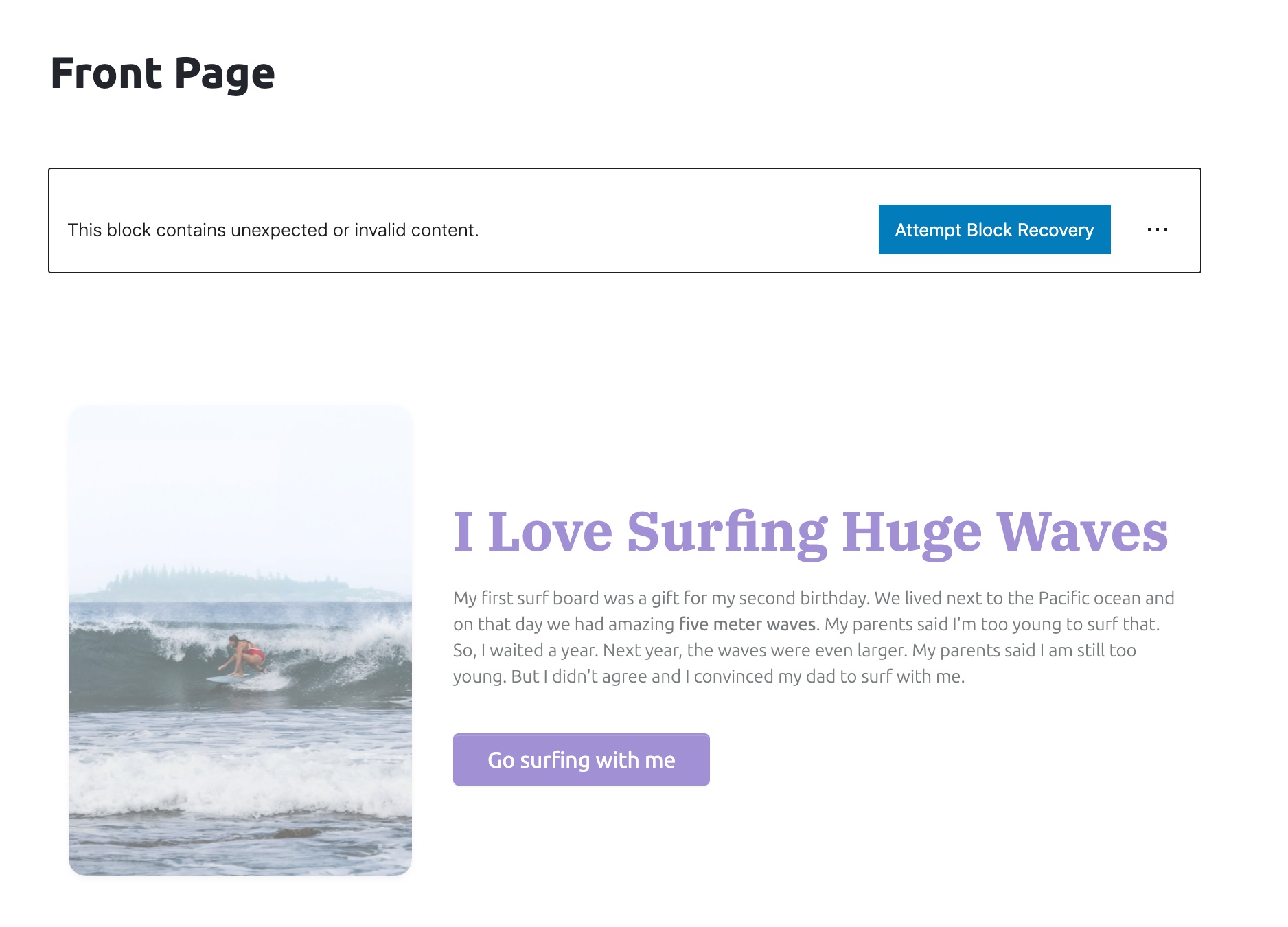
We have to recover the block because the block structure changed. Just click on the Attempt Block Recovery button and WordPress will figure it out.
Edit, add and move counters
We can edit the numbers and labels of the counters. Each counter is a block.
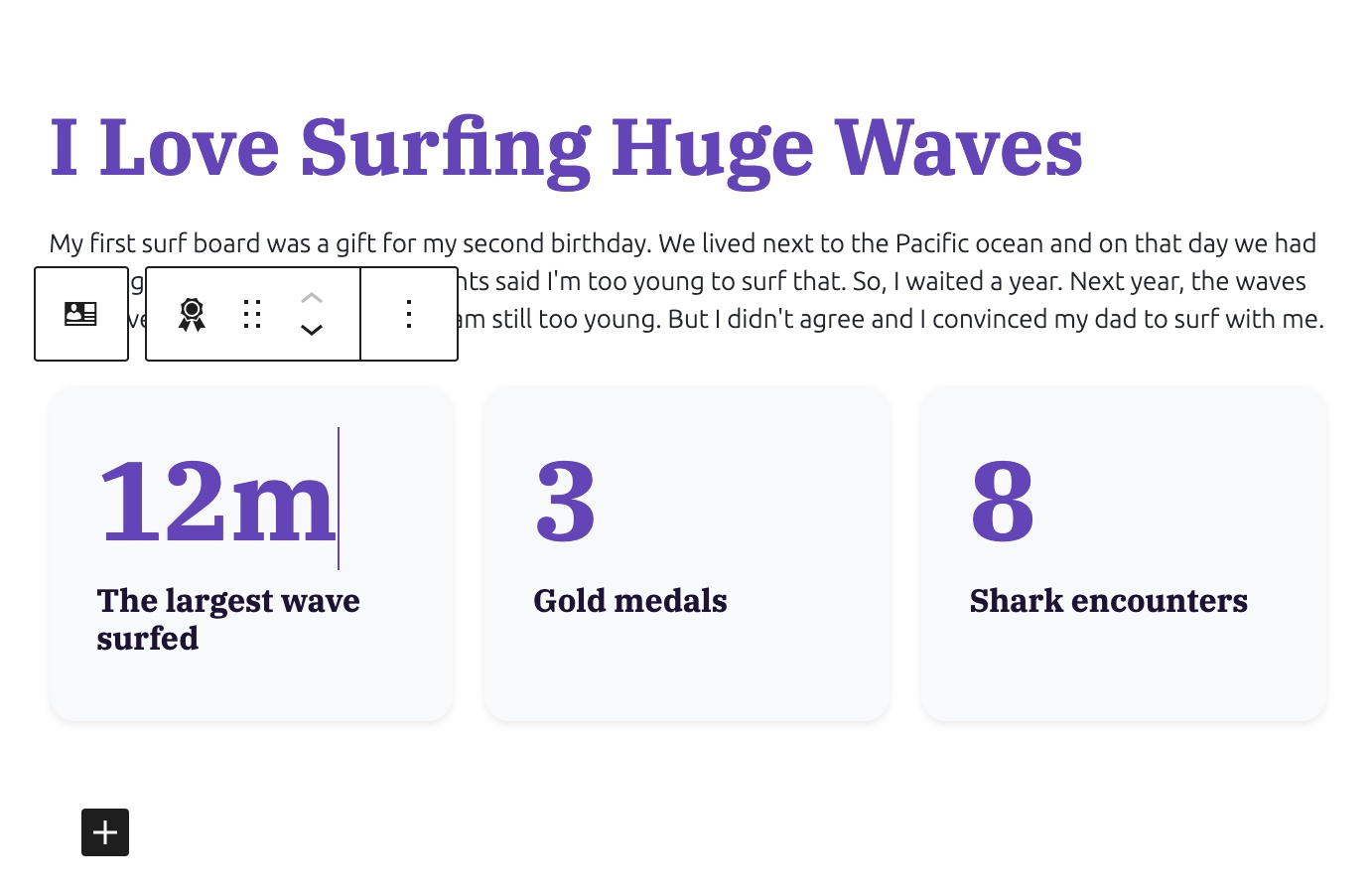
We now see an insertion point when the block is selected.

Clicking on it will insert a new Counter block. Because only one block type is allowed, WordPress doesn’t ask us about what type of block we want to insert.
We can insert as many counters as we need.
Of course we can delete counters and reorder them with up and down controls.
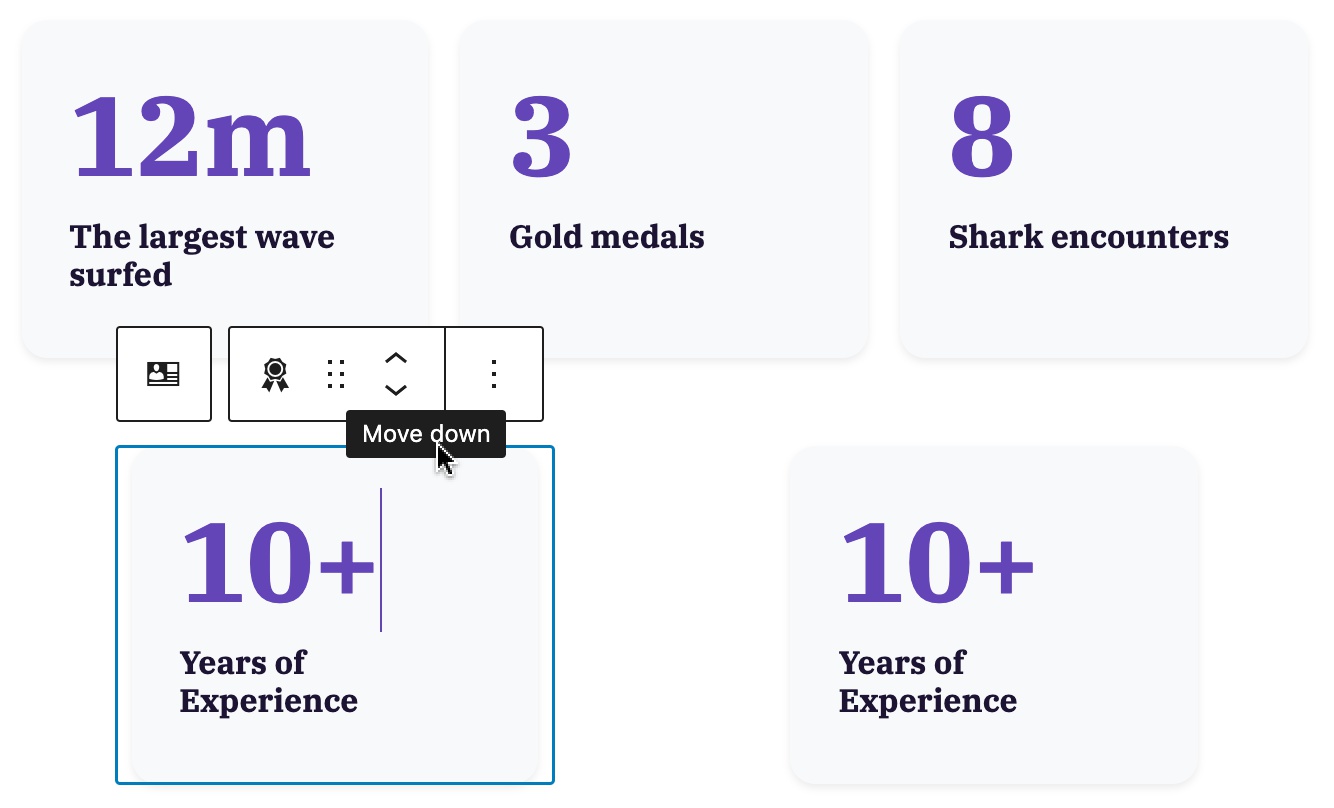
Note, as on the image above, the styling of our block in the Block editor can differ slightly from how they are styled on the front-end. In rare cases where this creates problems, we can use editor styling to fine-tune the styling in the editor.
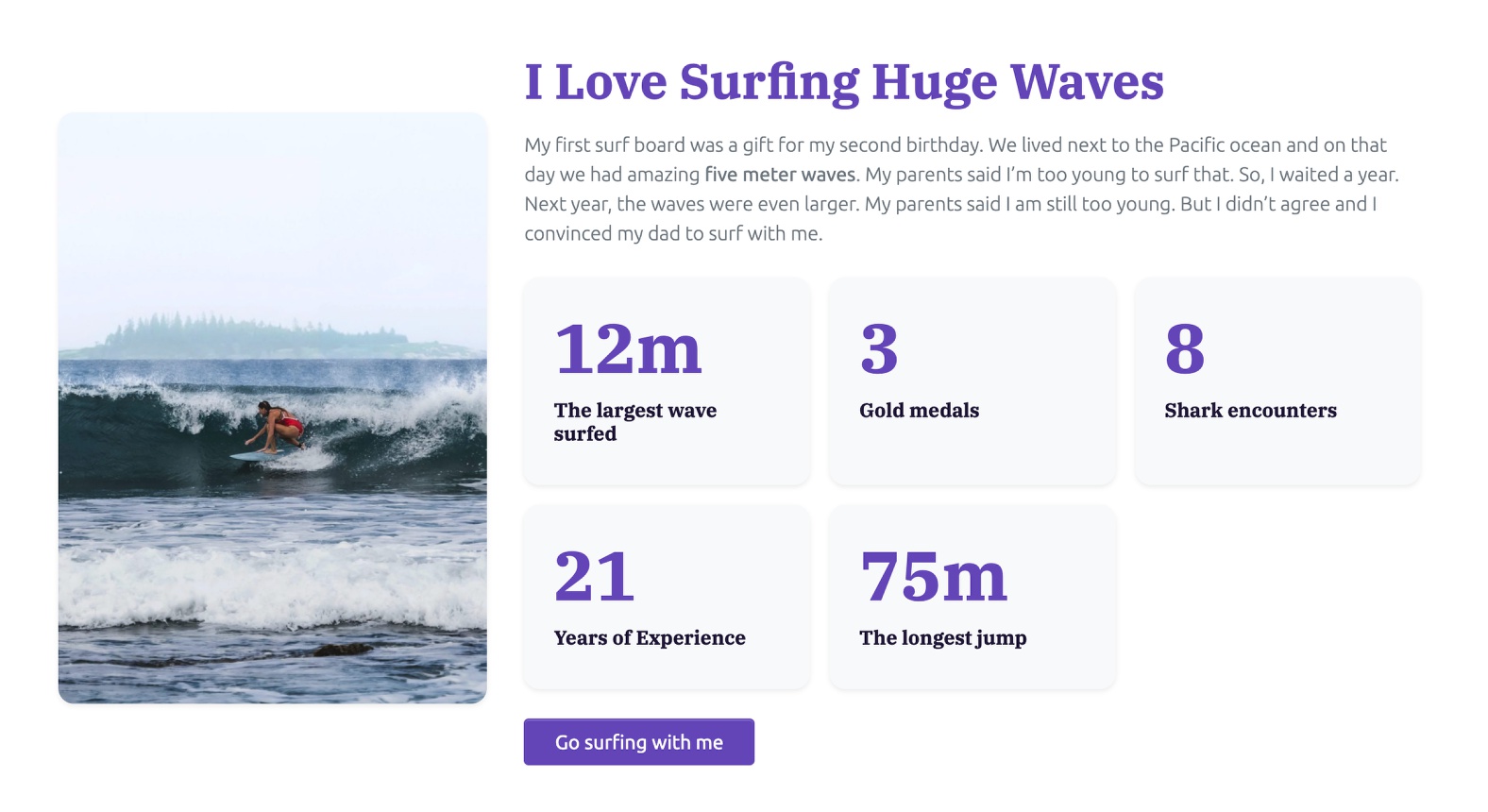
For reference, this is how our block appears on the front-end:
Recap of what we did so far
Learn more about the Block Inner Content action.
In just a few minutes we created a fully customizable block that we can reuse on this and other projects.
Our About me and Counter blocks are implemented as Regular JavaScript blocks because all their content is stored in attributes whose value is set at the time of editing the post.
Next step
Next, let’s create a dynamic PHP block that will display up-to-date information from the WordPress database.