
Follow these steps to set up the project so that you can perform the steps described in the Create Your First Block guide.
DocsWordPressDocsWordPress2021-11-10
Download and set up the demo project
Download the project
Download the ZIP with the static HTML project and unzip it on your computer.
Open the project in Pinegrow
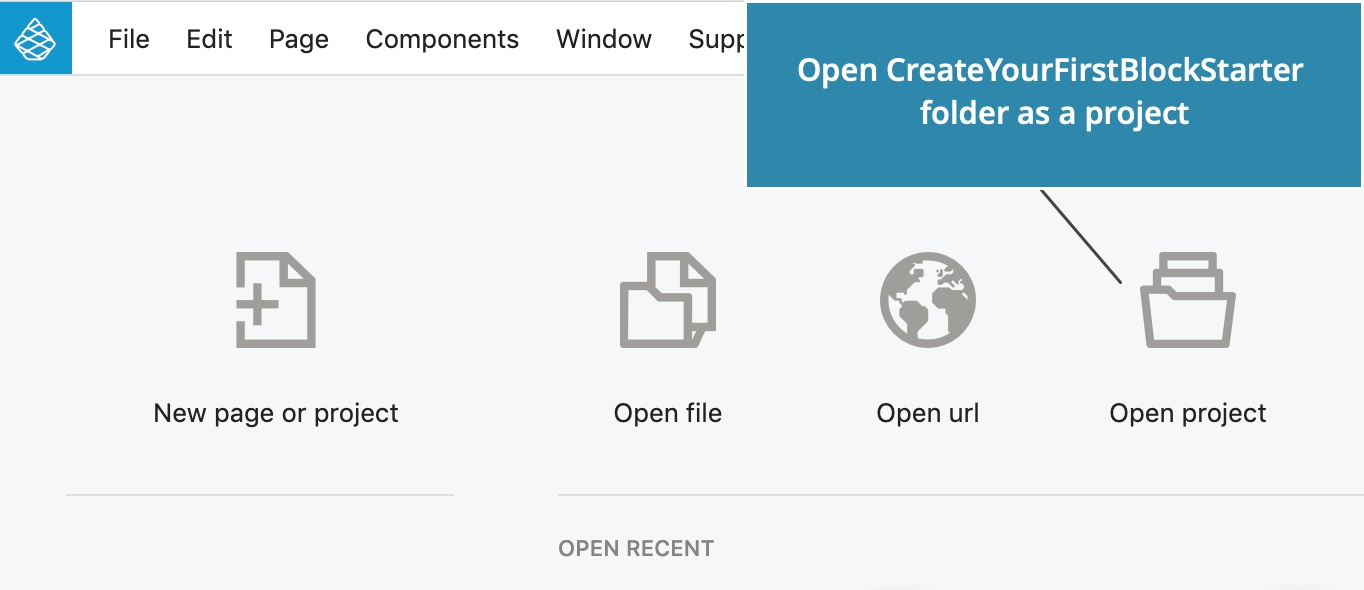
Start Pinegrow Web Editor and select Open project. Select the folder with the CreateYourFirstBlockStarter project.
Open blocks.html
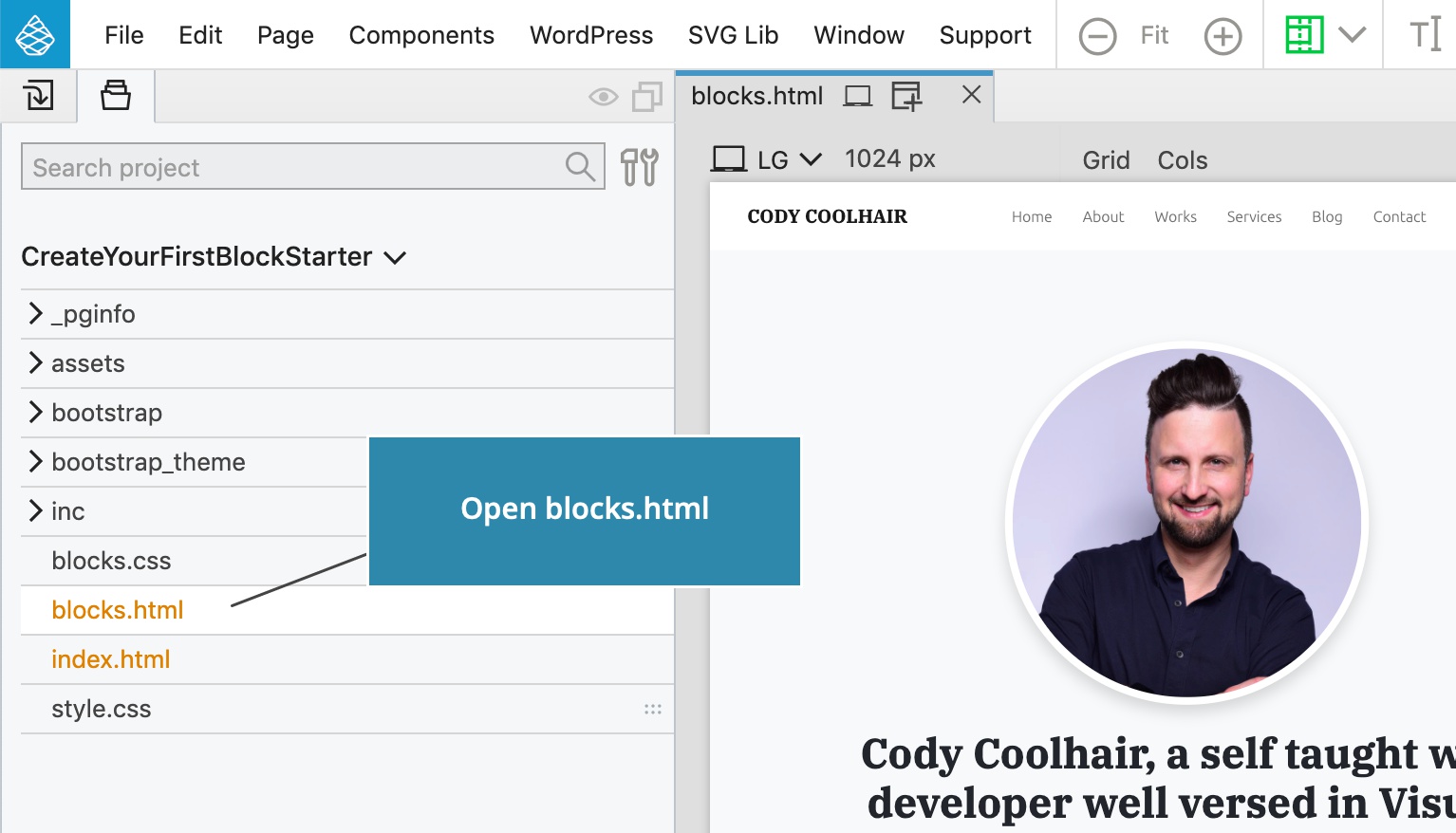
Click on blocks.html in the Project panel to open the page.
Theme settings
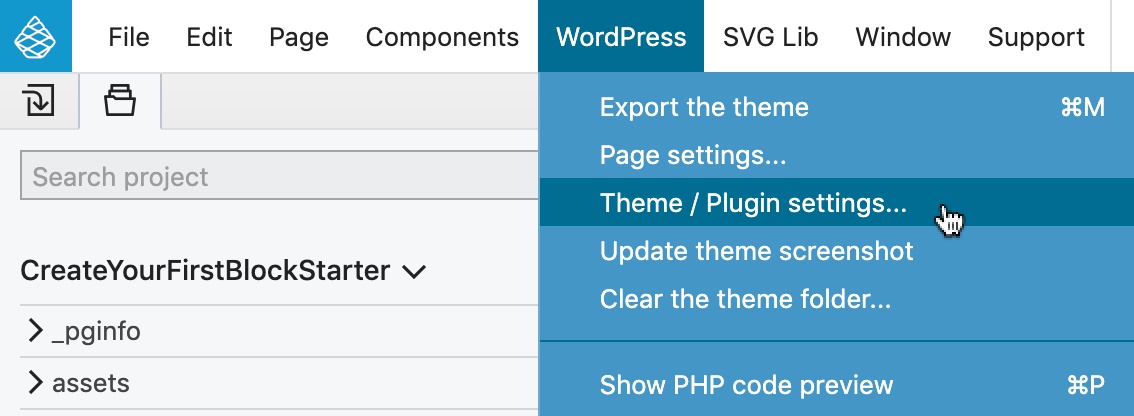
Open WordPress › Theme / Plugin settings dialog:
Give your theme a name and a slug:
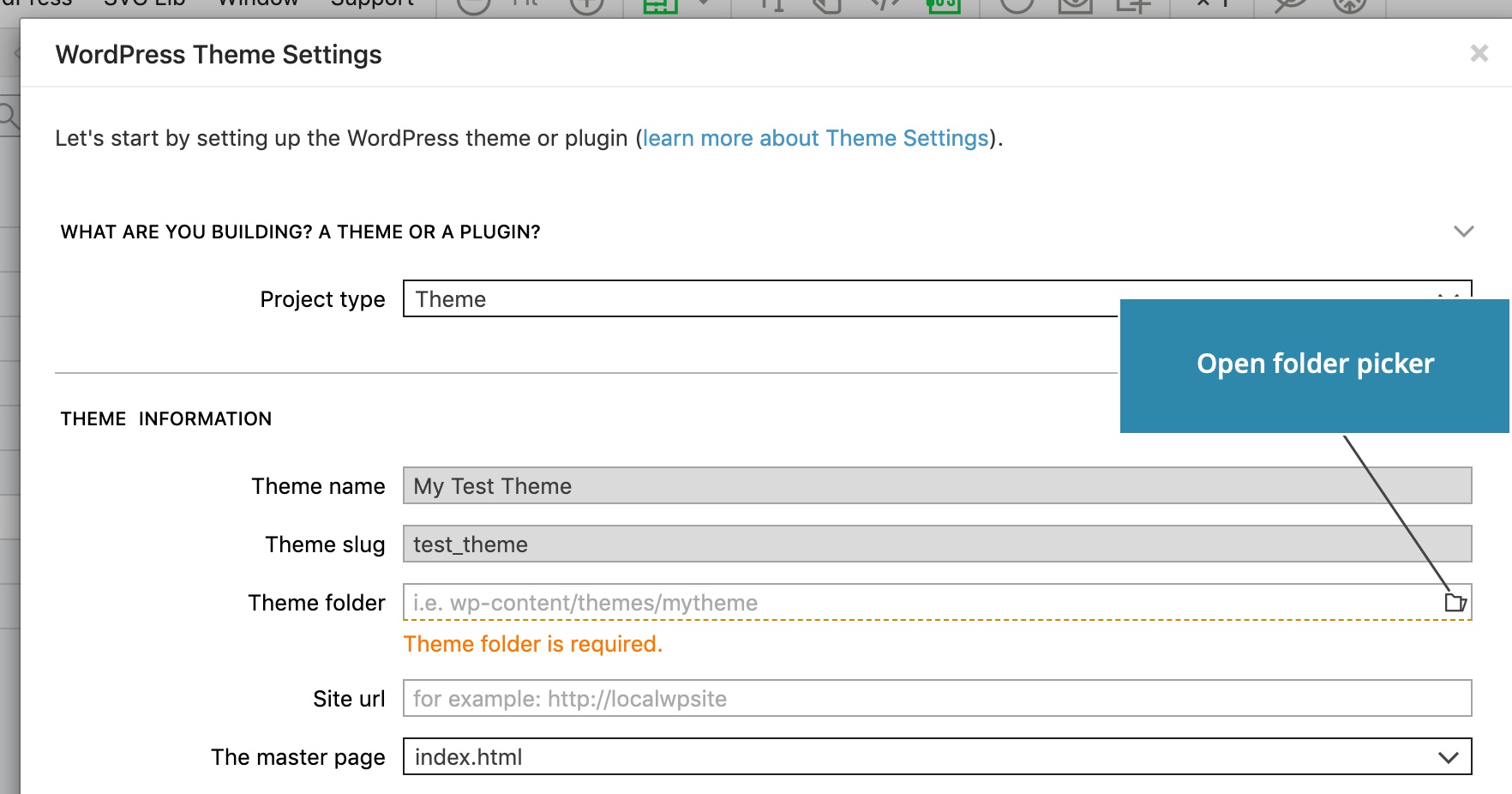
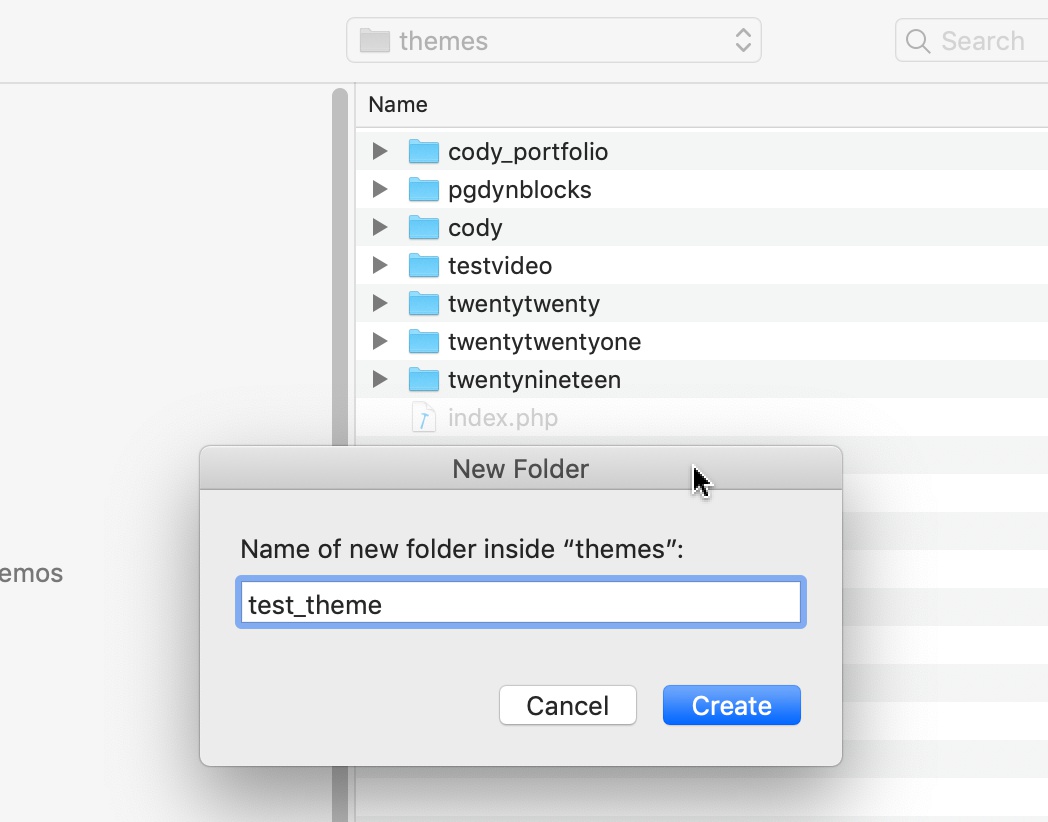
Next, select the folder where the WordPress theme will be exported. Normally, this should be a newly created folder inside wp-content/themes in your local WordPress installation.
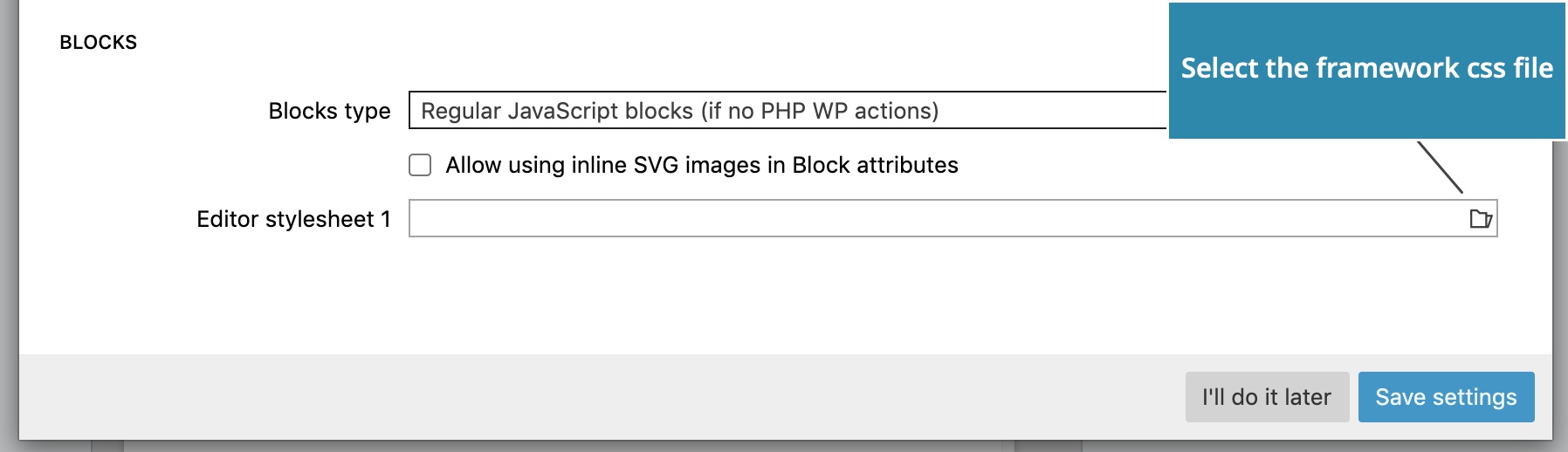
In the Blocks section of the Theme settings dialog, select the site stylesheet to load it in the block editor.
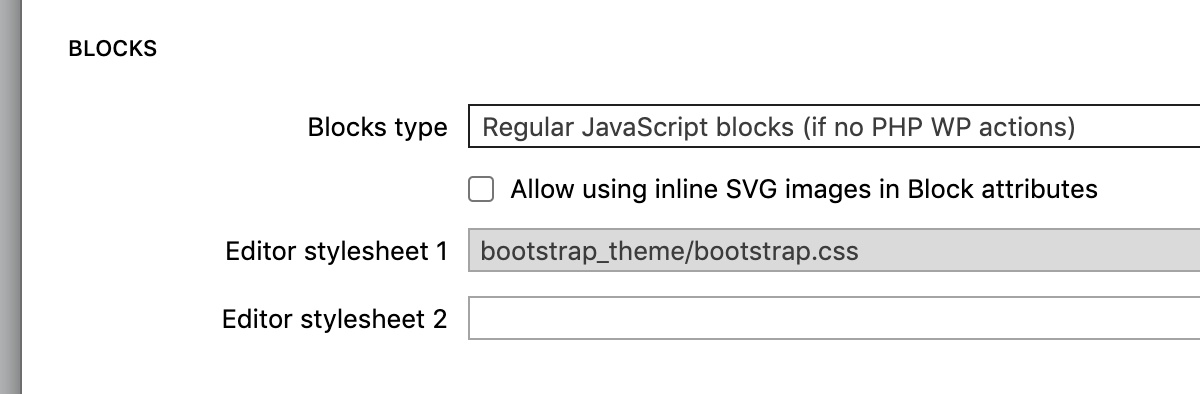
In our case this is bootatrap_theme/bootstrap.css.
Click on Save settings.
Export the theme
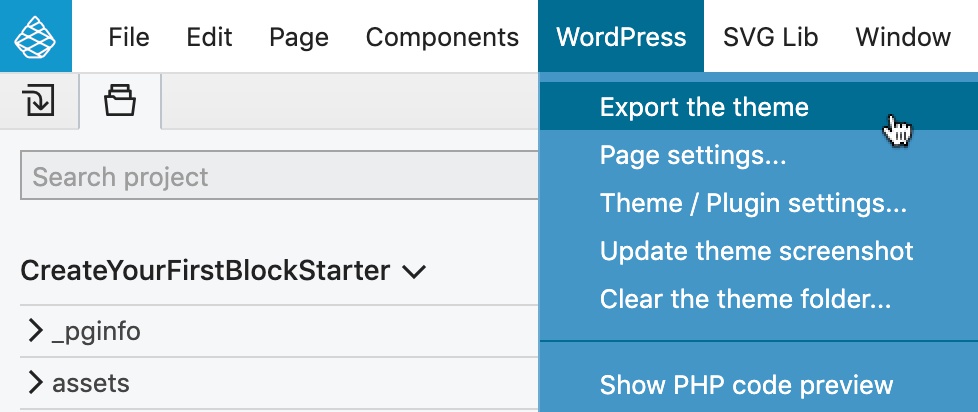
Use WordPress › Export the theme (CMD + M) to export the theme.
Set up the front page
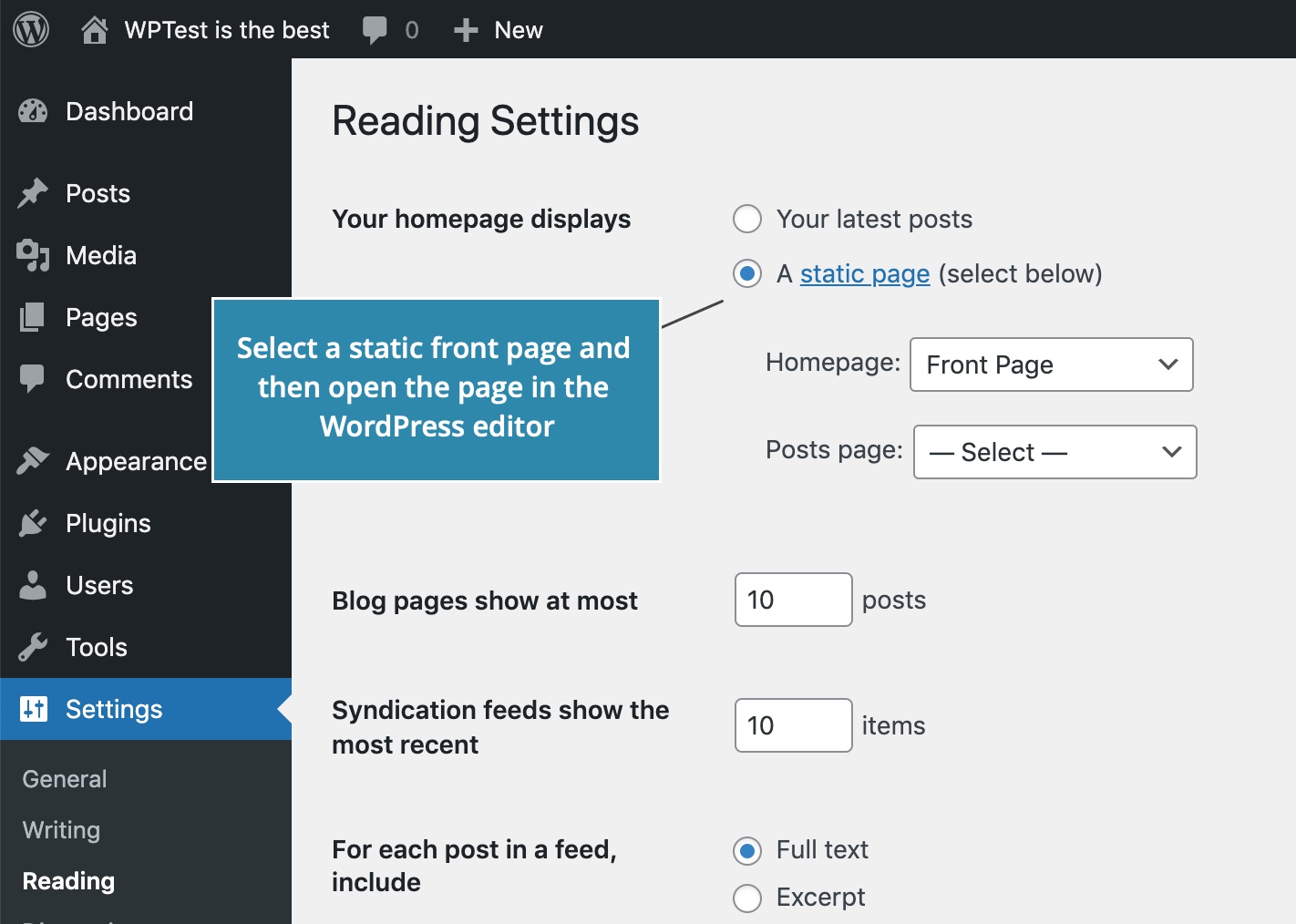
In WordPress admin, use Settings › Reading to select a static front page for the website.
Activate the theme
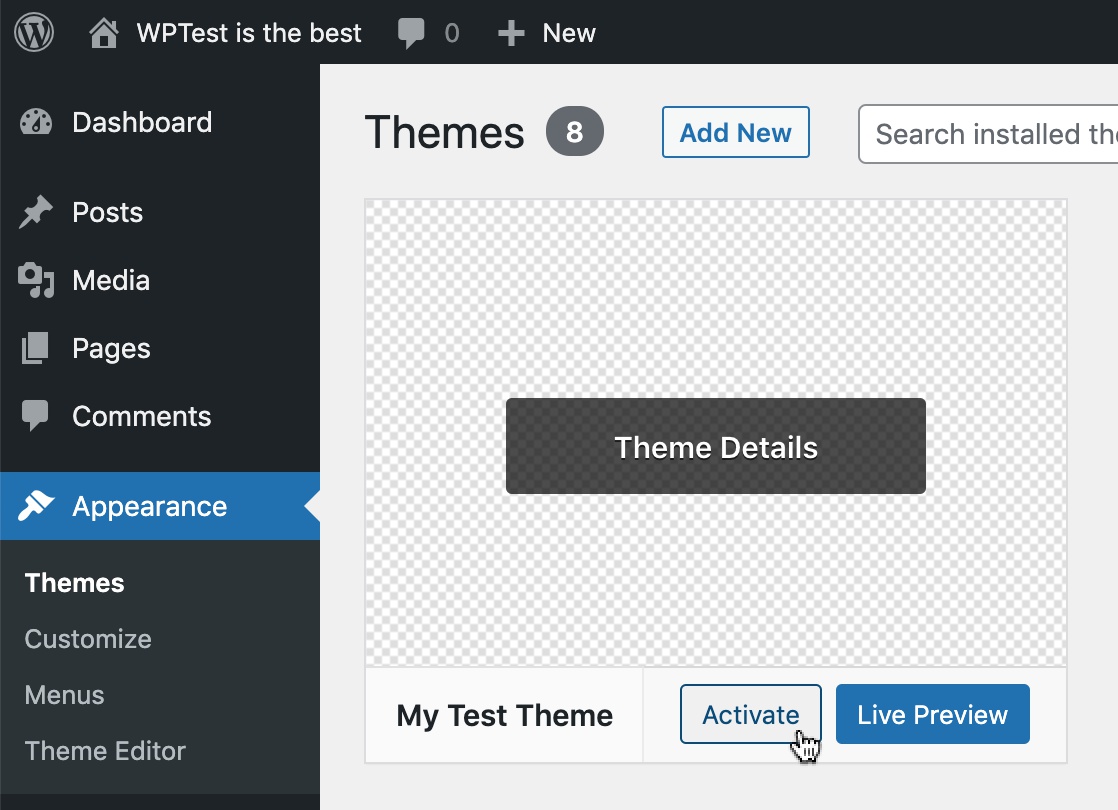
In WordPress admin, activate the theme in Appearances › Themes.
Go back to the guide
The project and the theme are now ready. Go back to the guide and follow the steps of creating your first custom block with Pinegrow.