
Use Pinegrow’s static HTML components in combination with WordPress actions to create reusable dynamic elements.
DocsWordPressDocsWordPress2024-03-06
Components with WordPress actions
This feature is available starting from Pinegrow Web Editor 7.93 and Pinegrow WordPress Plugin 1.0.18.
Pinegrow includes powerful static HTML components that let you define reusable components with editable areas.
Components can now contain Editable areas with editable WordPress actions:
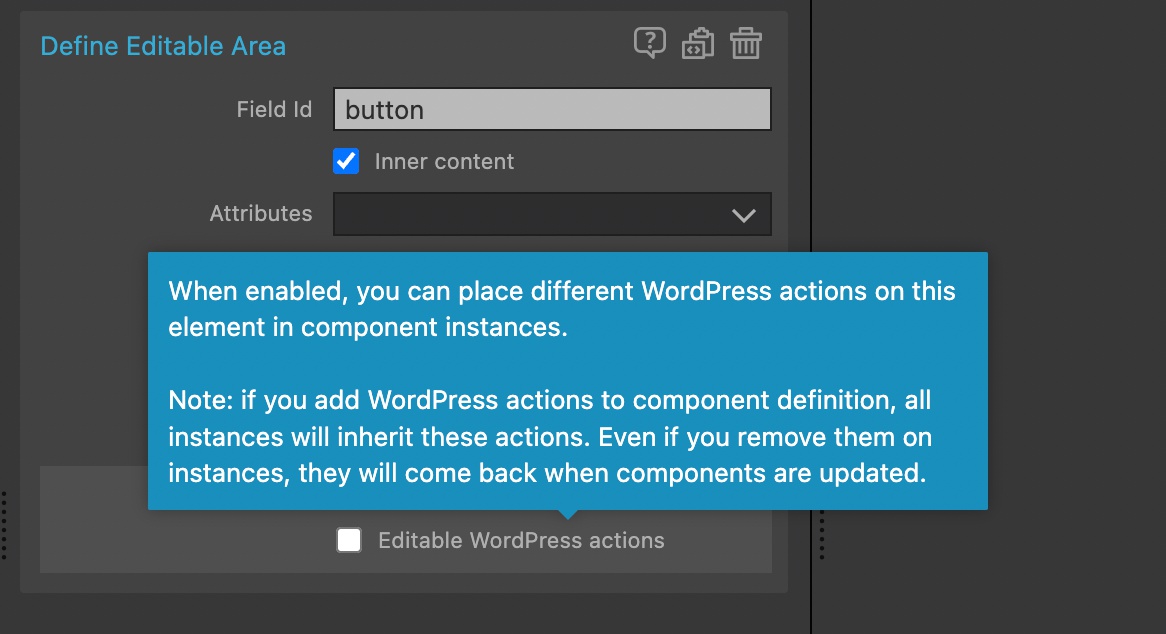
The option to make WordPress actions editable is only shown if WordPress is activated in the project.
A quick tutorial
Let’s say we design a beautiful button component that we want to use in different places of our WordPress theme: we want to use it as Go to home page link on single pages, as View portfolio button in our Team member custom block and as Contact us in the footer.
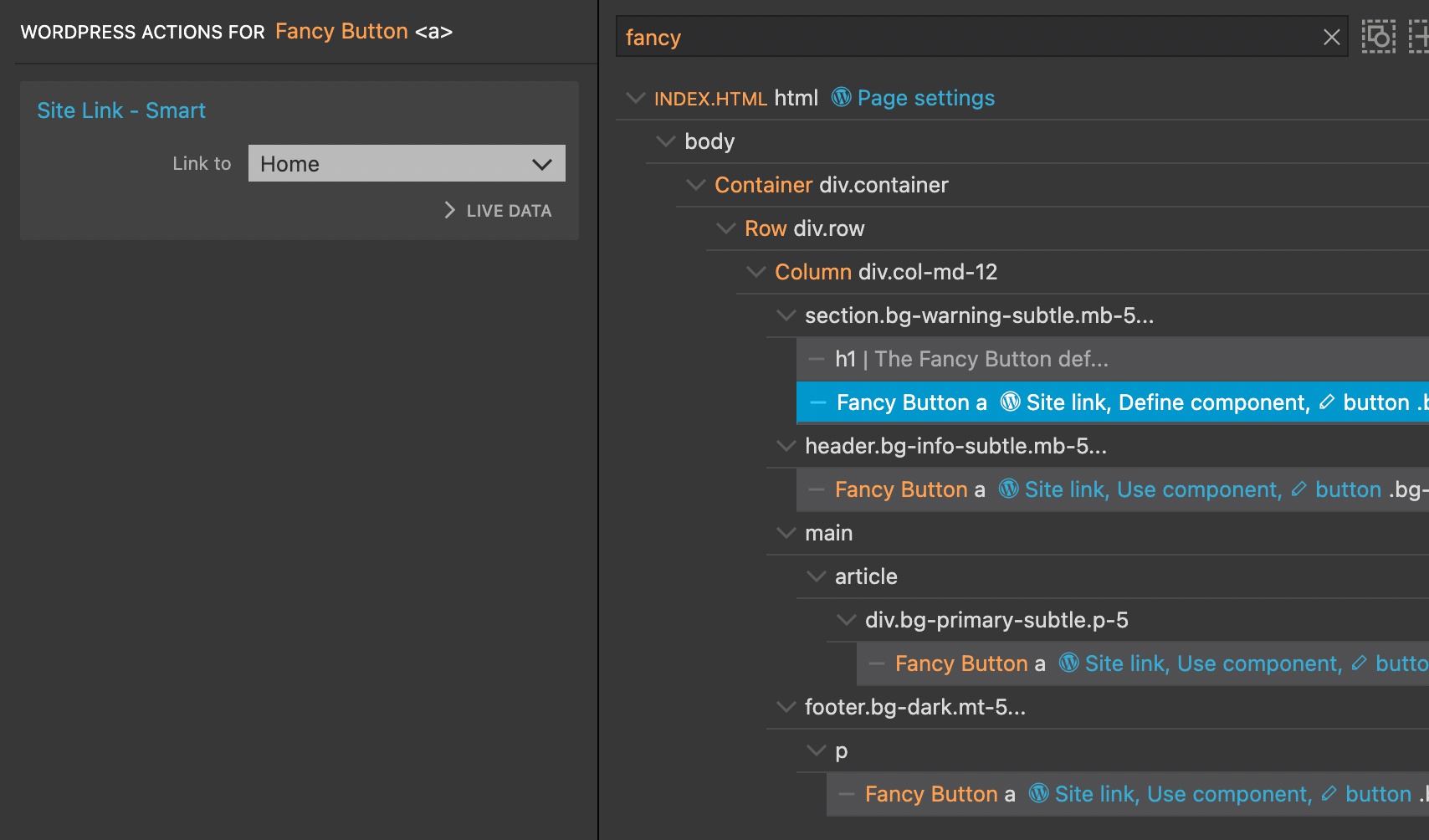
We used Define component action to create the Fancy Button component. And we used Editable area to make the content of the button editable:
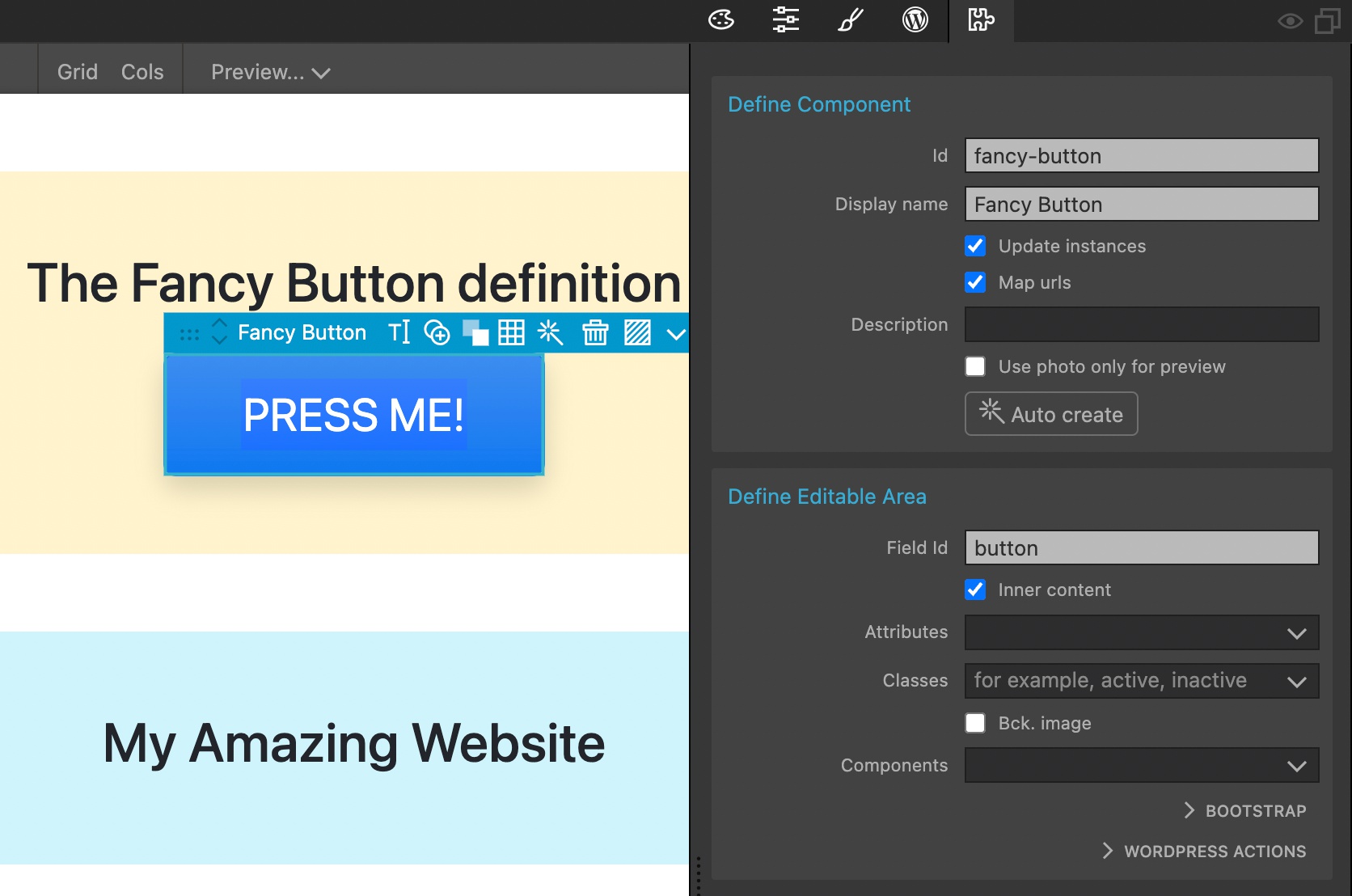
With this each instance of the button can have a different label:
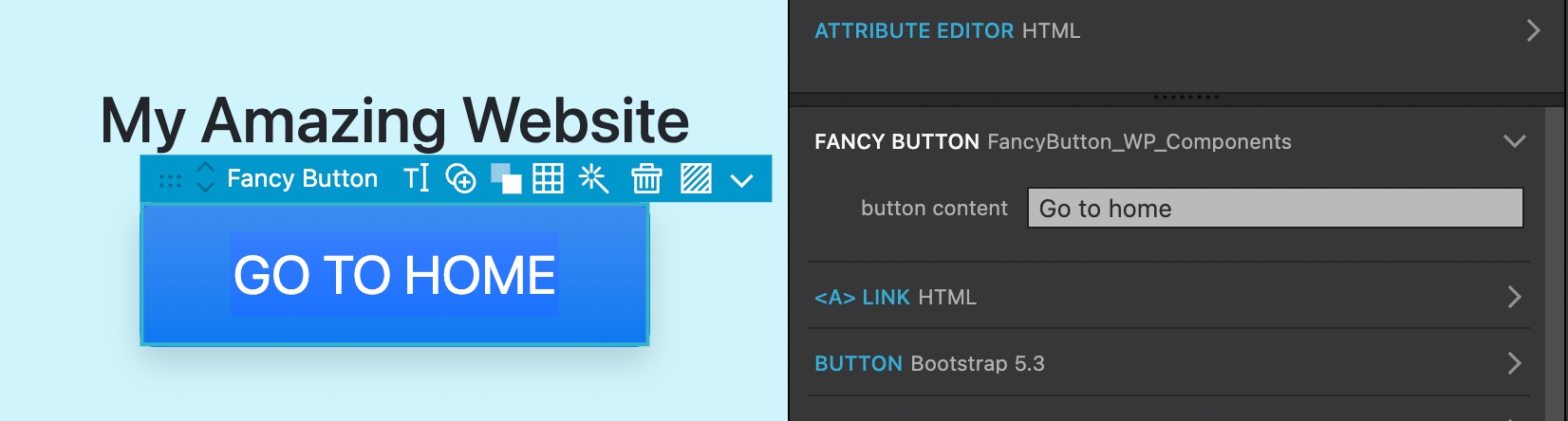
This setup is great for static sites, but here we wish to add dynamic WordPress features to the button.
If we add Site Link action to the Fancy Button component definition, all instances of the button will inherit this action and we will not be able to link the button to anything else than the site home.
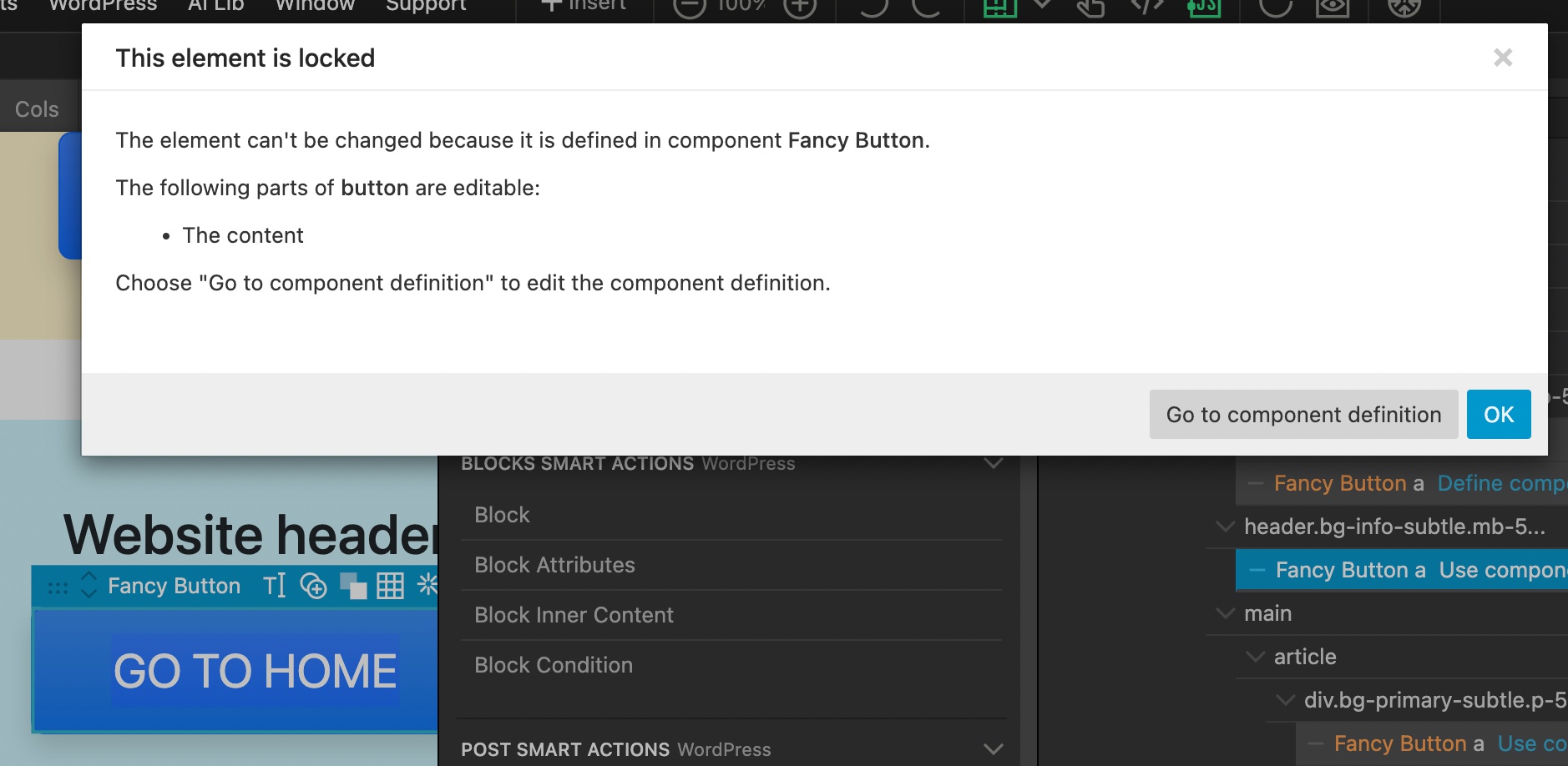
But, if we try to add the Site Link action to an instance of the Fancy Button we get the error message explaining that the instance is not editable.
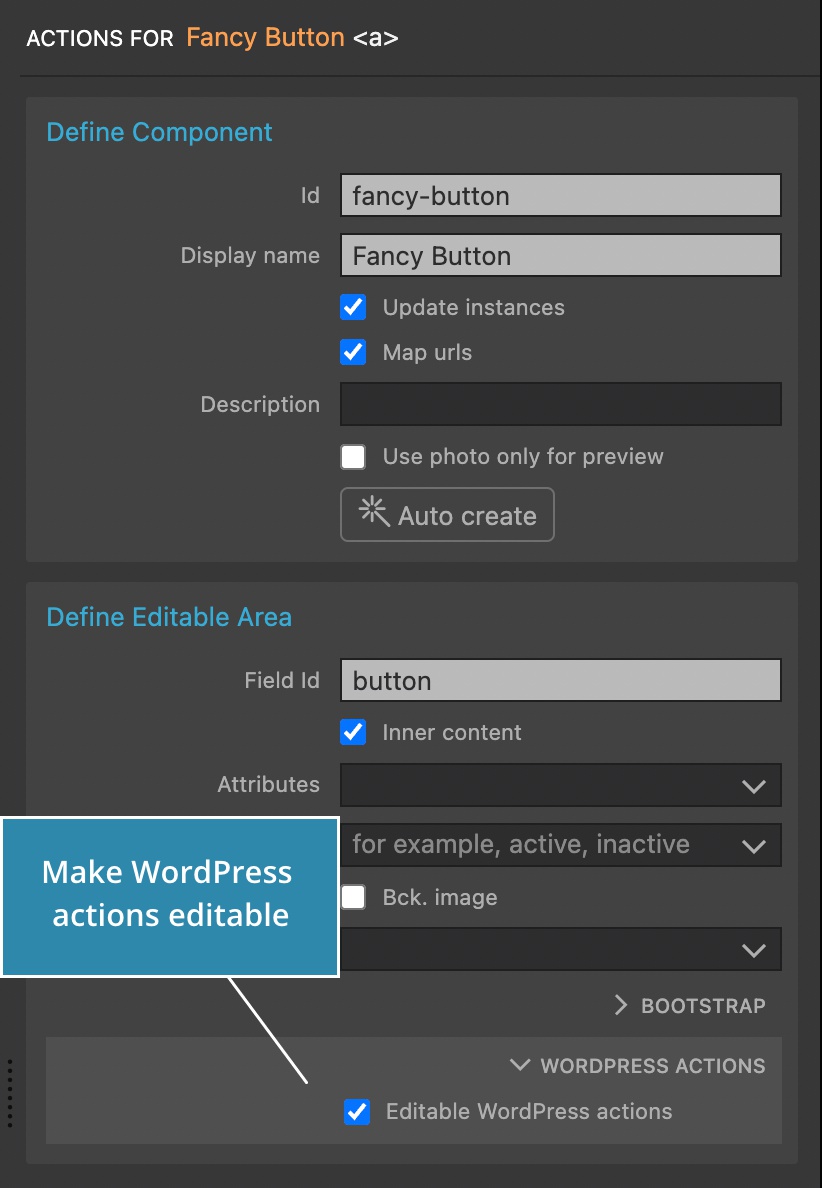
The solution is to go back to the component definition and on the Editable area, turn on editable WordPress actions. This allows us to add WordPress actions directly to component instances.
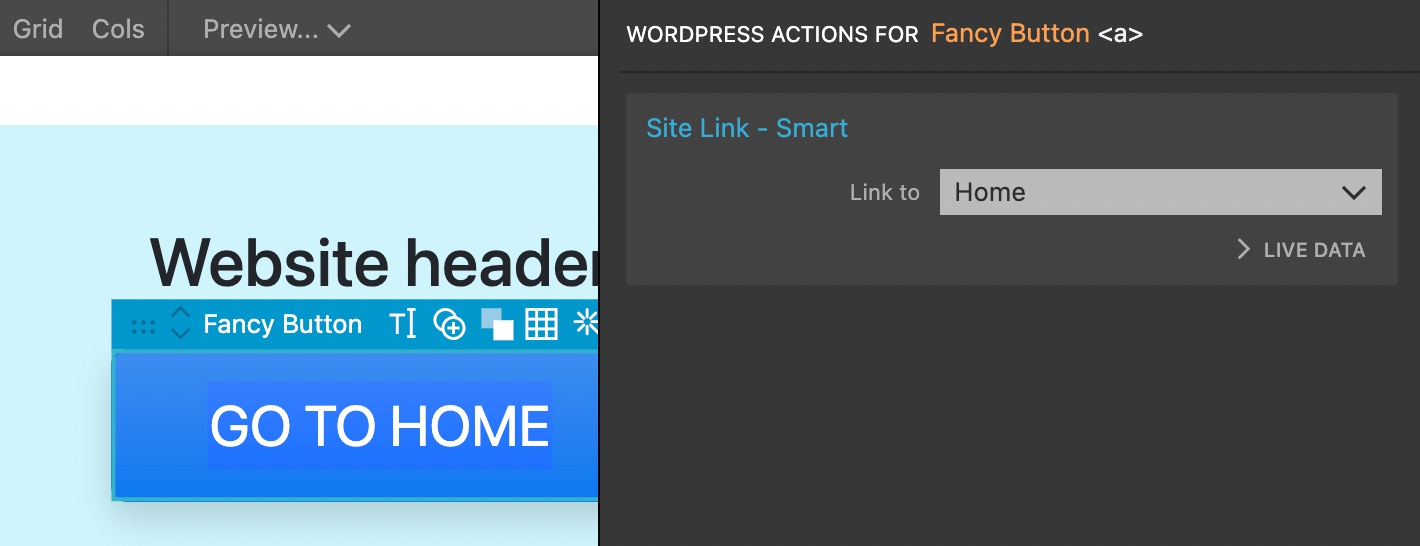
So, in the header, we select the instance of the Fancy Button and add Site Link action:
In the Team member custom block we use the same component, but there we add Block Attributes action to make the link editable in the block editor:
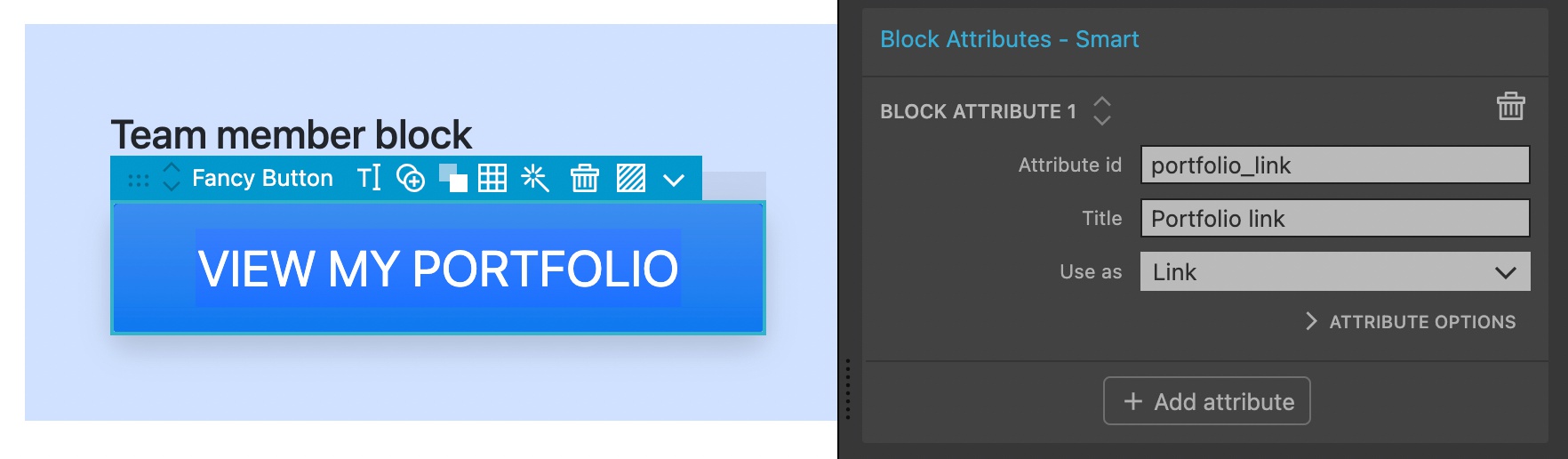
And finally, in the footer we use another Site Link action but this time pointing to the contact-us page:
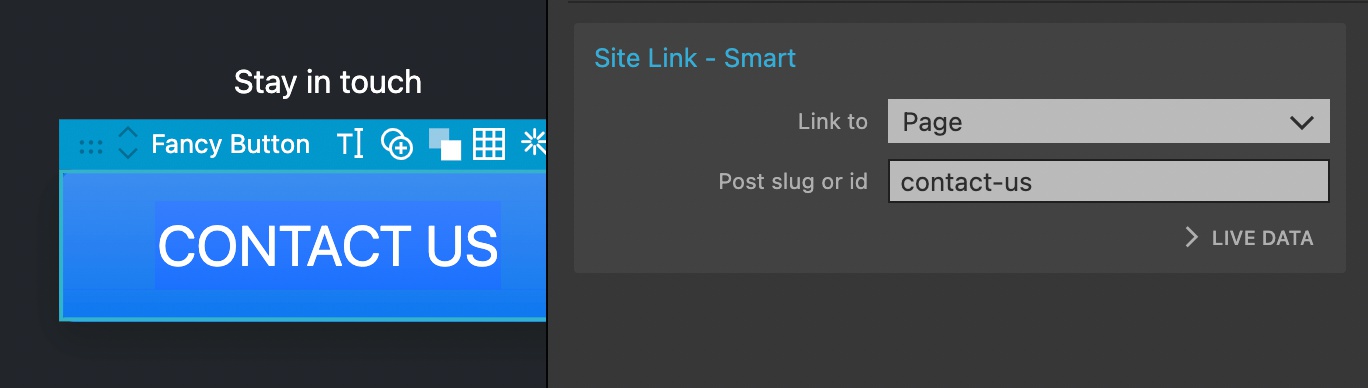
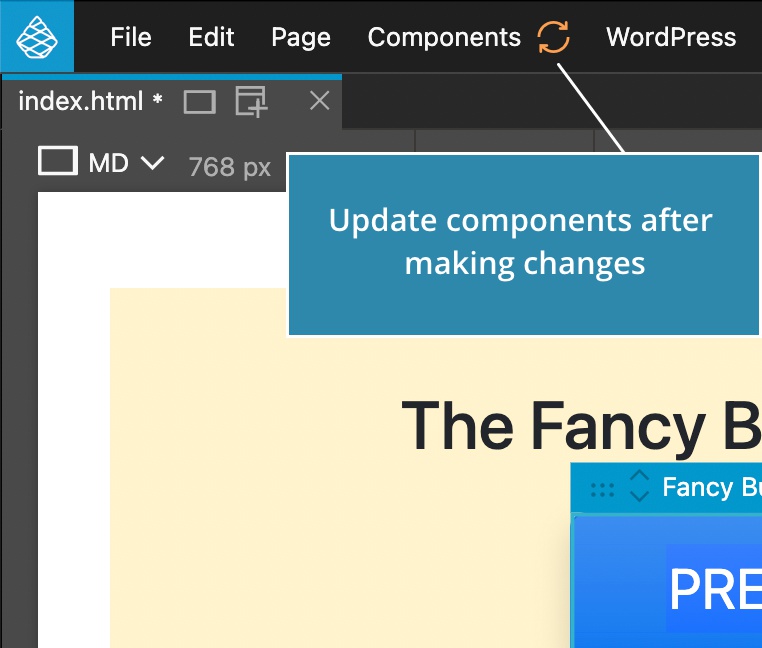
If we now go back to the component definition and make a design change, followed by the update components command, all button instances will be updated while keeping their labels and WordPress actions.
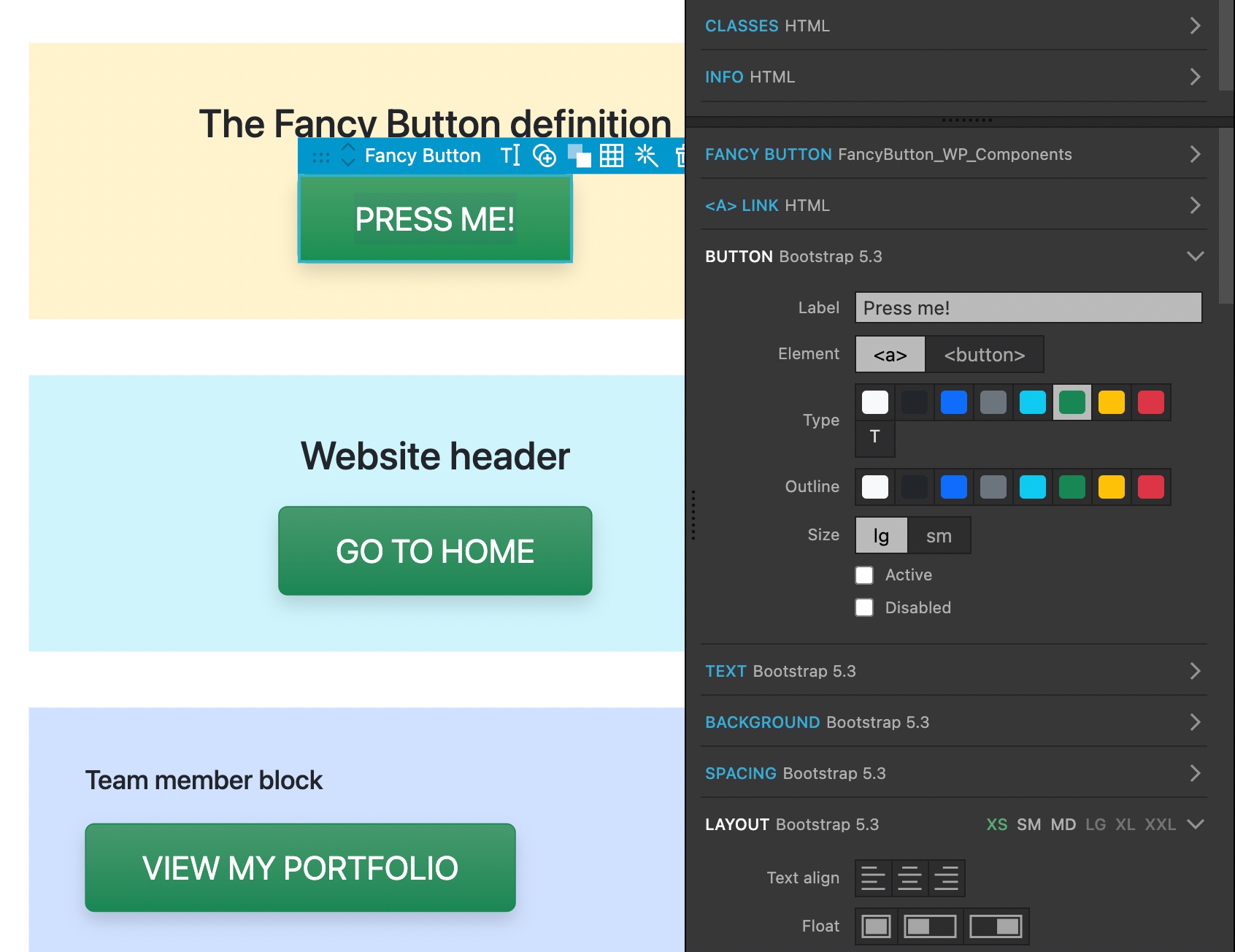
Download the Fancy Buttons project for reference.
Should you add WordPress actions to component definition or instances?
Any WordPress action that you add to the component definition will be inherited by all component instances. Settings of such actions will be editable on instances (you can overwrite a particular setting on the instance), but you will not be able to clear a setting that is defined on the definition.
For example if Show Posts action on the component definition sets 5 posts per page, you will be able to change this number on instances, but you will not be able to remove this setting entirely.
If that works for you, it is ok to add the action directly to the component definition.
That said, if you wish to use different actions on different instances (like we did in the Fancy Button example) it is best to avoid adding WordPress actions to component definition and instead add them to instances.
Editable areas can be anywhere
In the Fancy Button example we added Editable area action to the top element of the component.
This does not have to be the case. Editable areas (with or without editable WordPress actions) can be placed on any element in the component. For example, h2 in the Team member can be editable and you can add Post Field action there to display a dynamic field.
Use the components.html page
Similarly how we use blocks.html as a home for blocks in our tutorials, you can use a dedicated components.html page (or more if needed) as a home for all you component definitions. Disable the WordPress export of the page in Page settings action.
Conclusion
Component with editable WordPress actions are a very powerful combination. Start small and keep things simple to avoid landing in messy situations.