
How to create a Recent blog posts block?
DocsWordPressDocsWordPress2021-11-08
Displaying up-to-date information with dynamic blocks
The content of a Regular JavaScript block gets set when we save the post in the Block editor.
Dynamic PHP Blocks, on the other hand, are rendered every time they are displayed. And because they are run on the server-side and coded in PHP they can use any WordPress function to query posts, site information, current user and more.
Create a dynamic block
Let’s create a dynamic block that will display the three most recent blog posts.
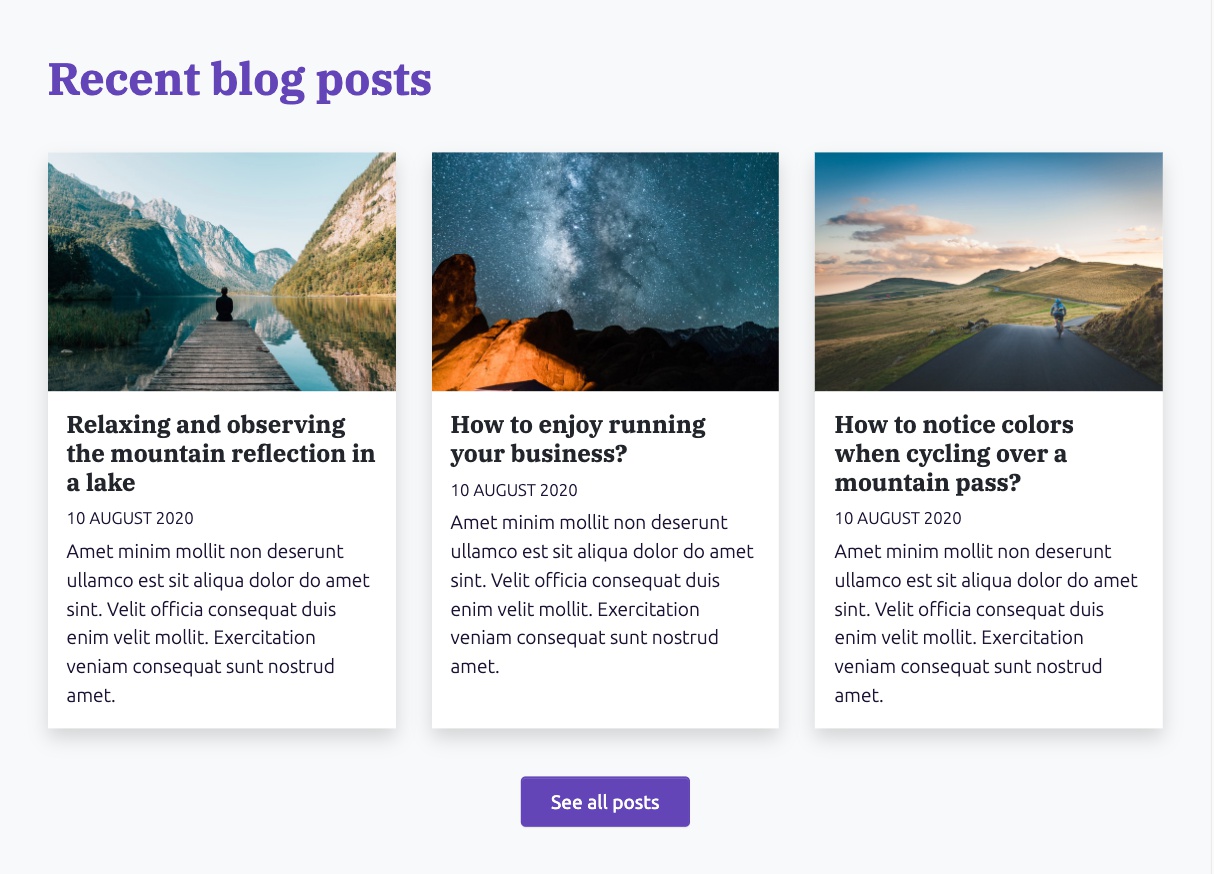
We will start with the HTML layout for the section:
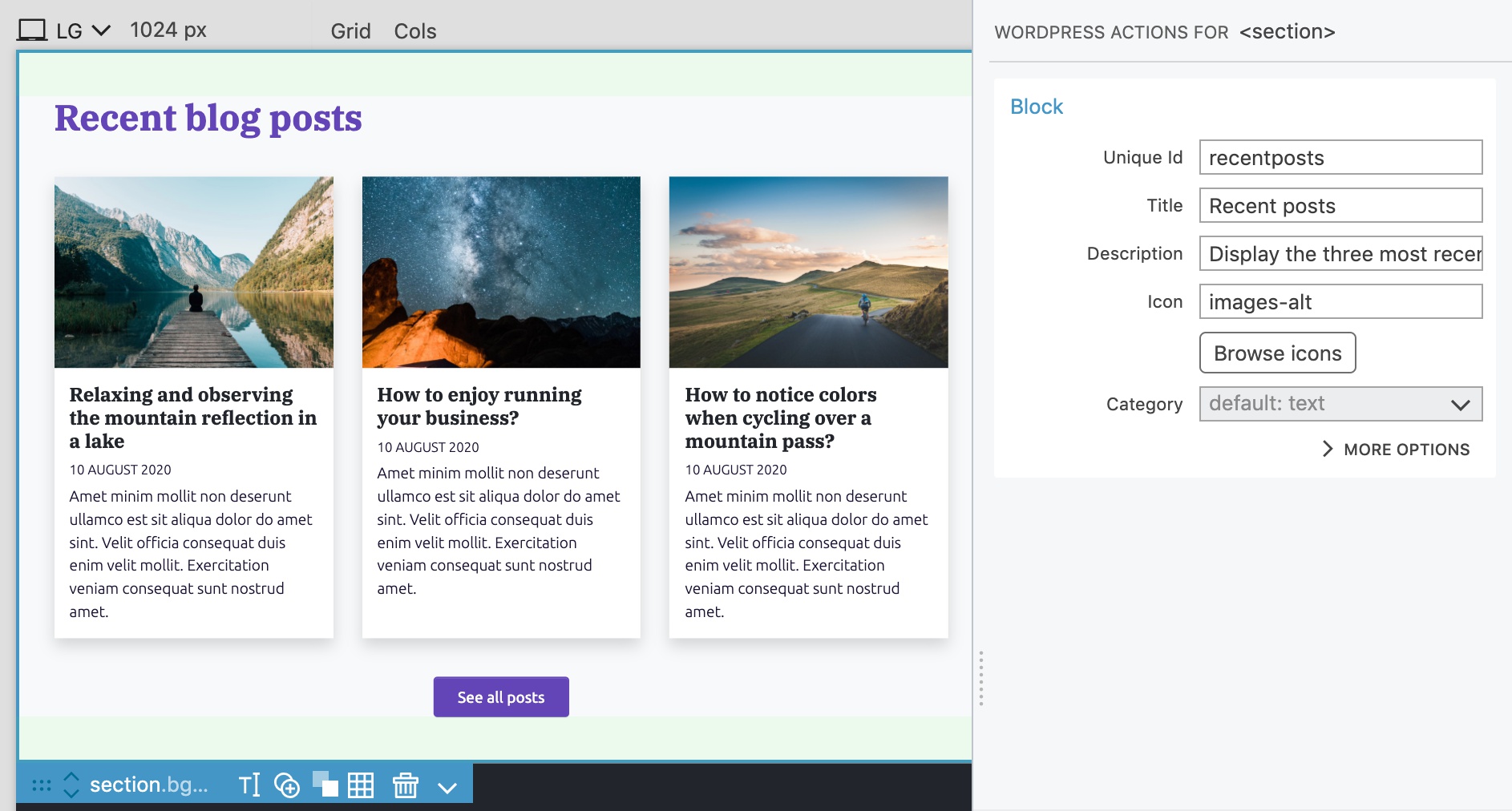
We define the block by adding Block action to the <section> element and set the id to recentposts, title to Recent posts and icon to images-alt.
Show posts with custom query
Select the first post column div and in the WordPress panel add Show Posts action with Loop type “Custom query”, Order by “Created date - Down”, Posts per page “3” and Paginate results “No”.
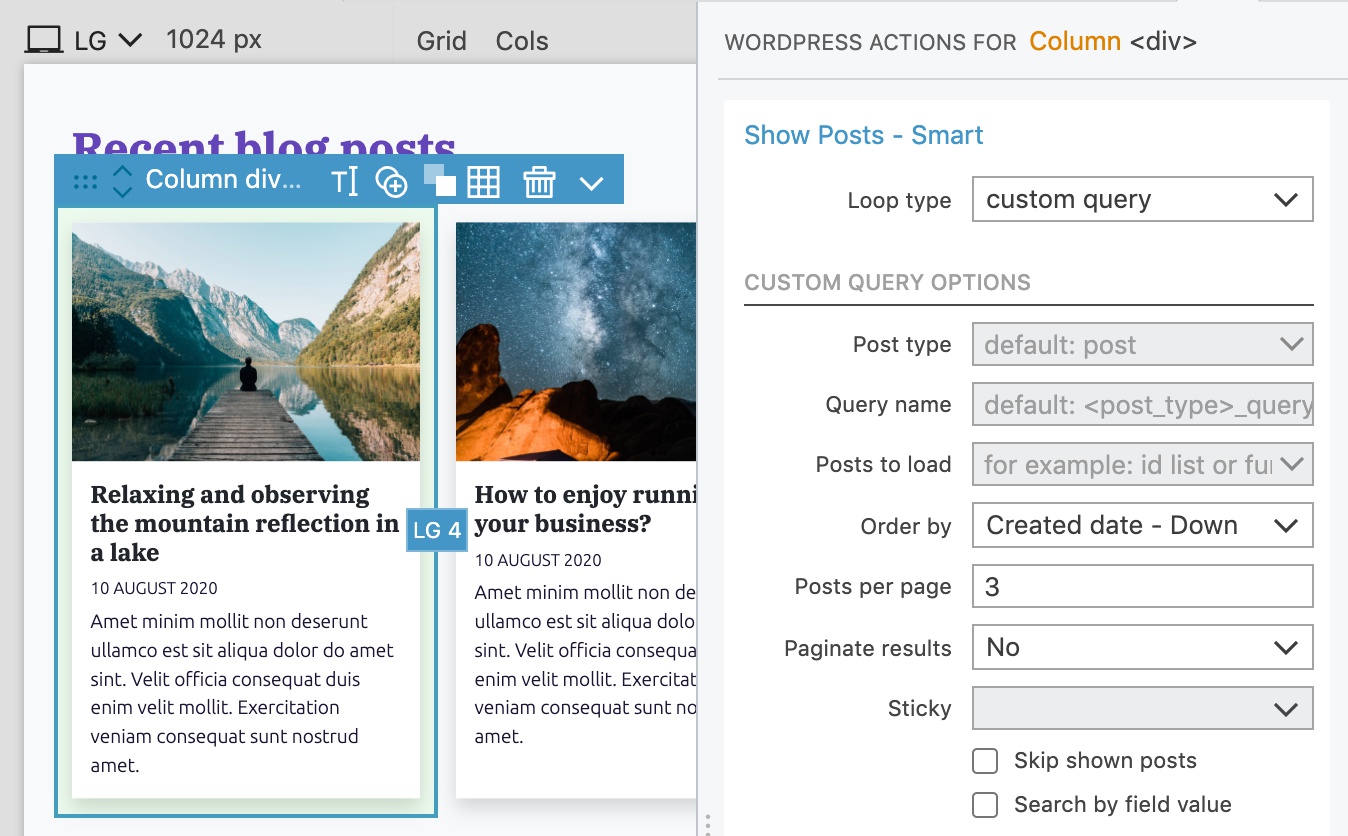
Show Posts action will read the posts from the WordPress database and repeat the element for each post.
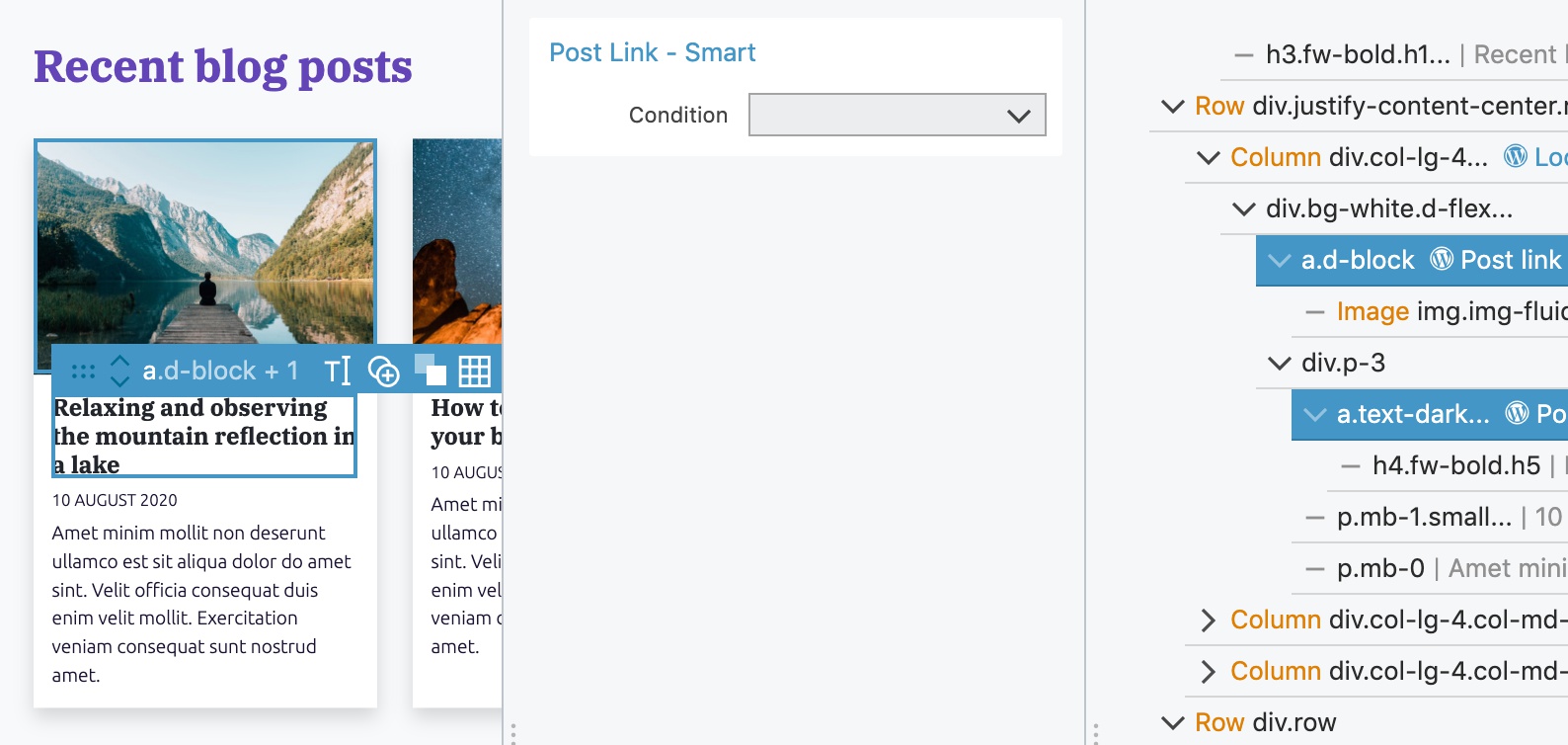
Select both <a> elements and add the Post link action:
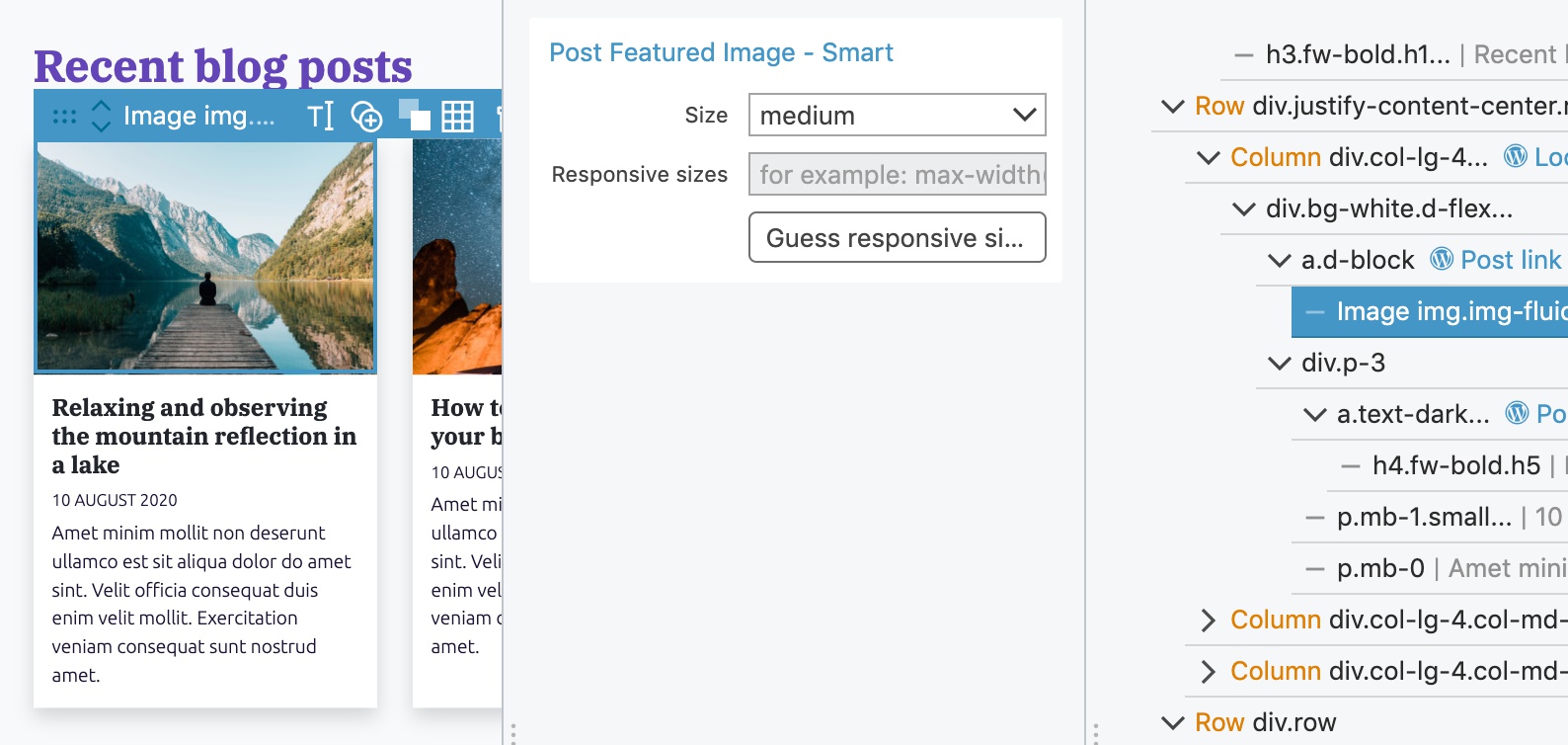
On the <img> element we add the Post Featured Image action and set the image size to “medium”:
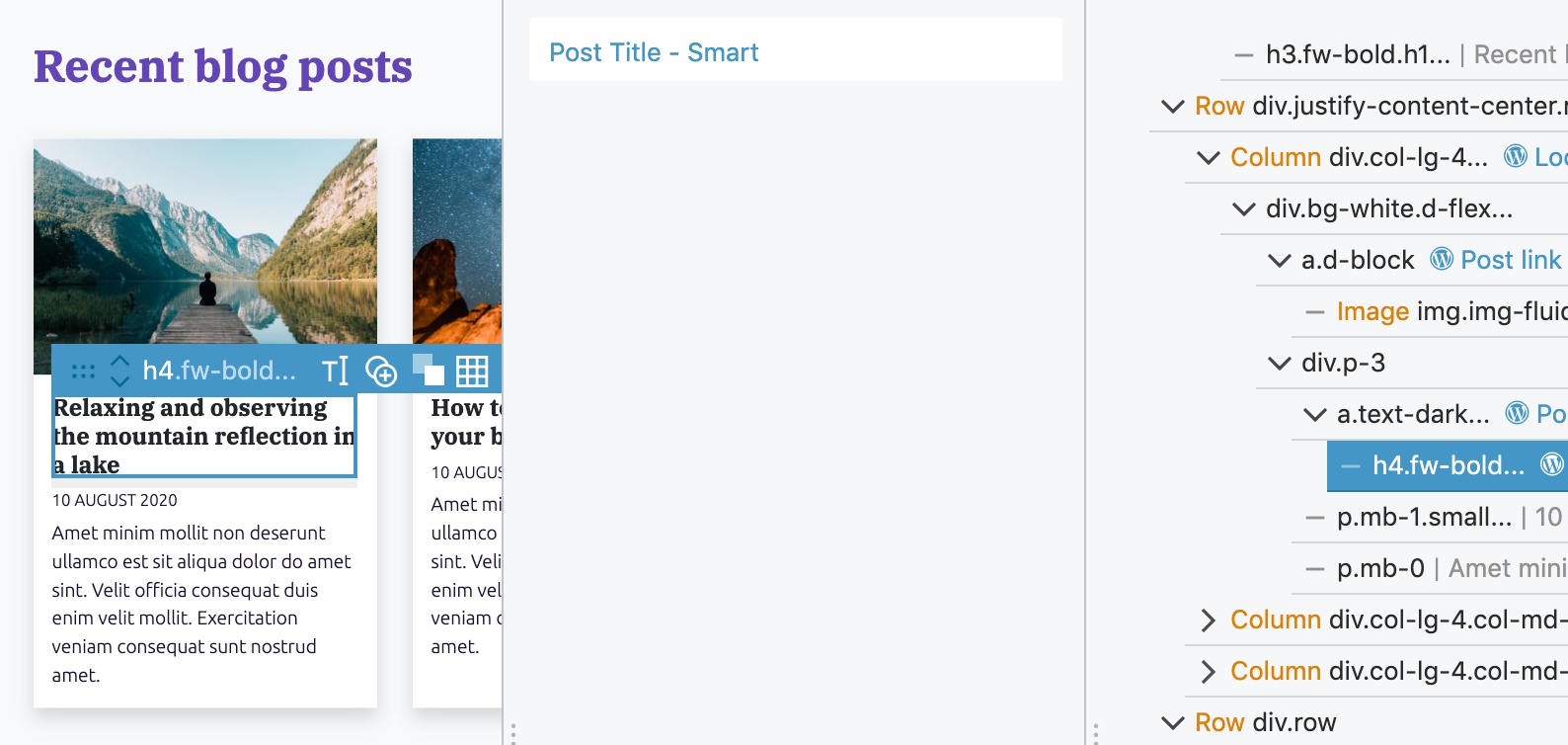
Post Title action goes to the <h4> element:
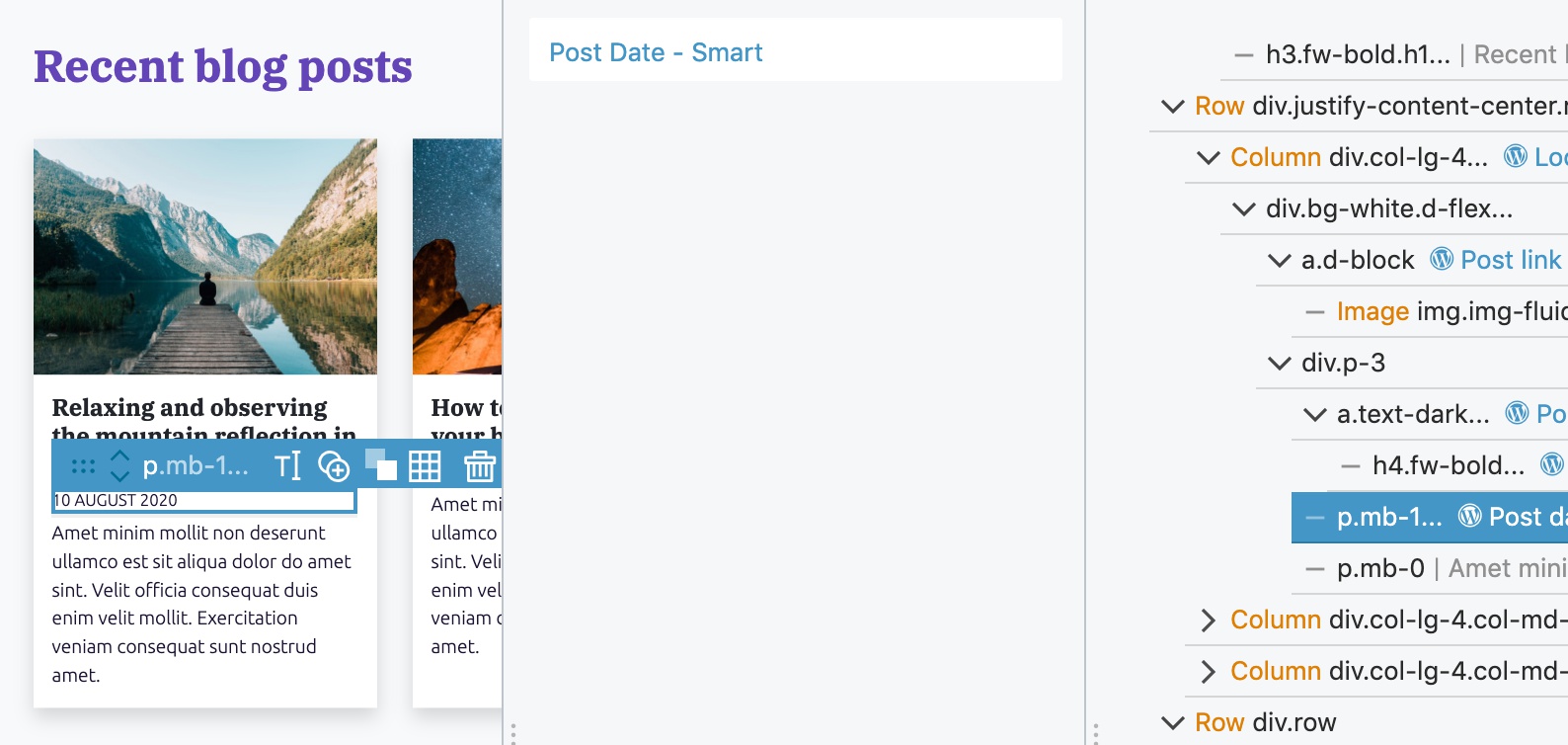
Next, we add Post Date action to the <p> element with the date:
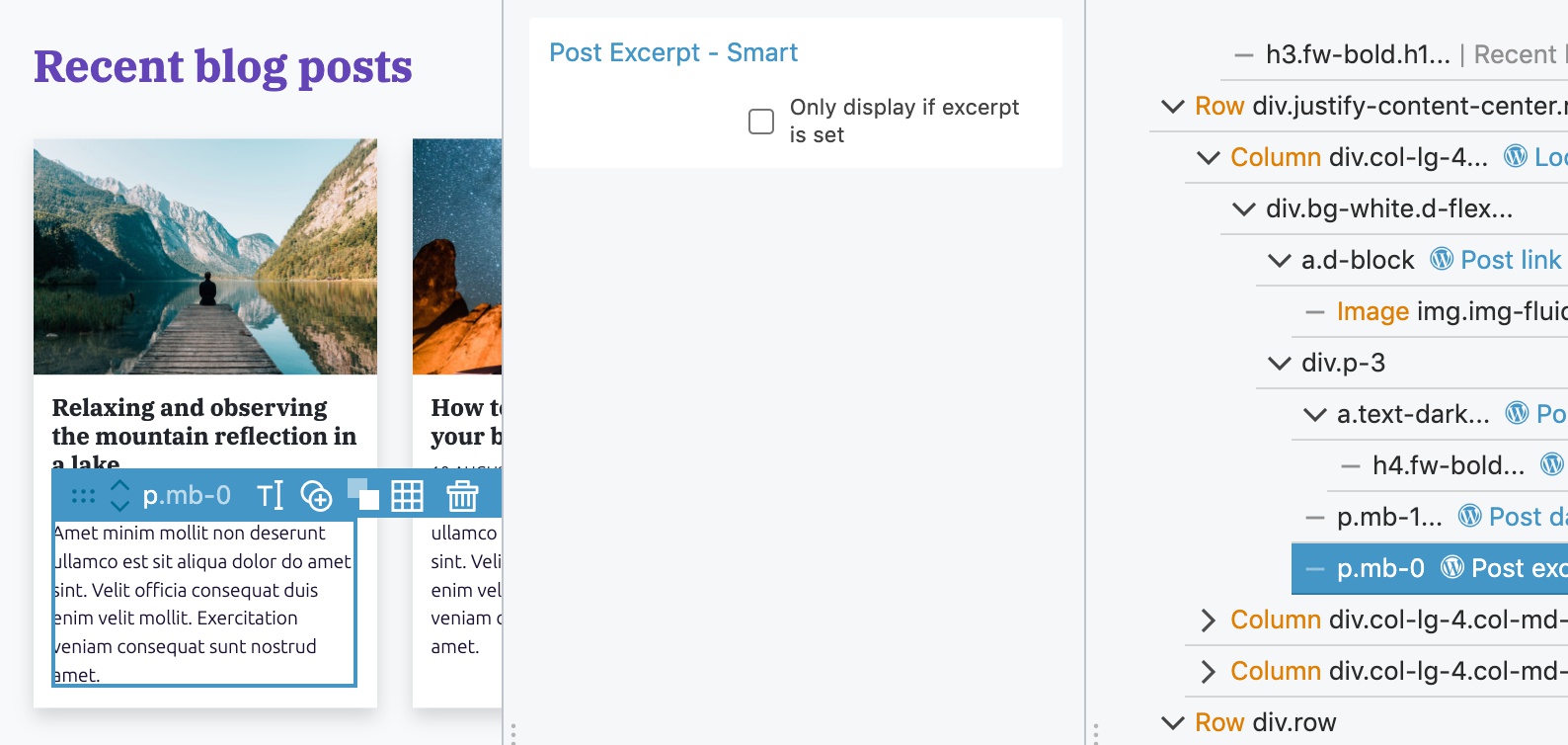
And the Post Excerpt action to the <p> with the post excerpt:
What to do with the other placeholder posts in our HTML project?
The Show posts is already set up on the first post and we don’t want to export the other two placeholder posts to the theme. To do that we add Don’t Export action from the Global Smart Actions section of the WordPress panel to both posts:
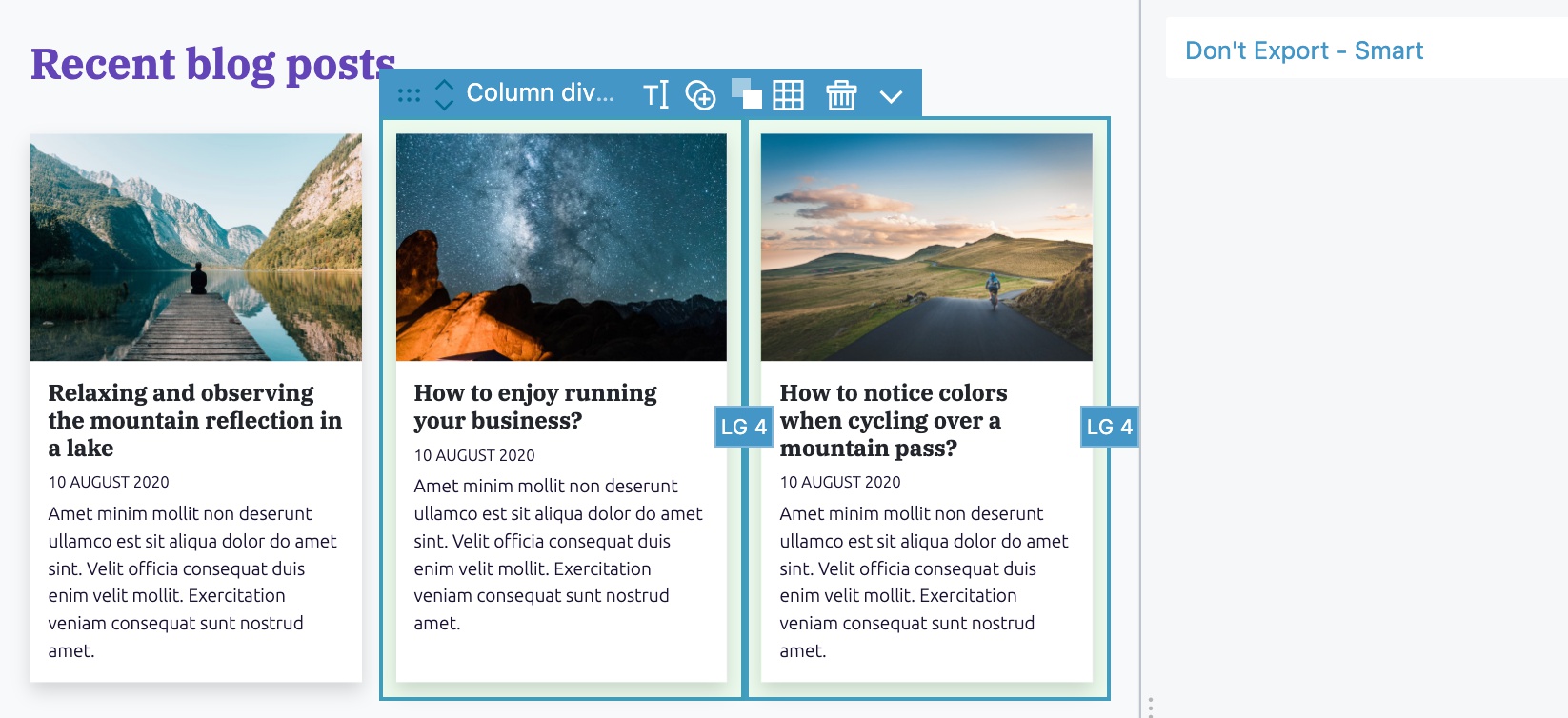
Editable title and button
Let’s make the section title and button editable as well.
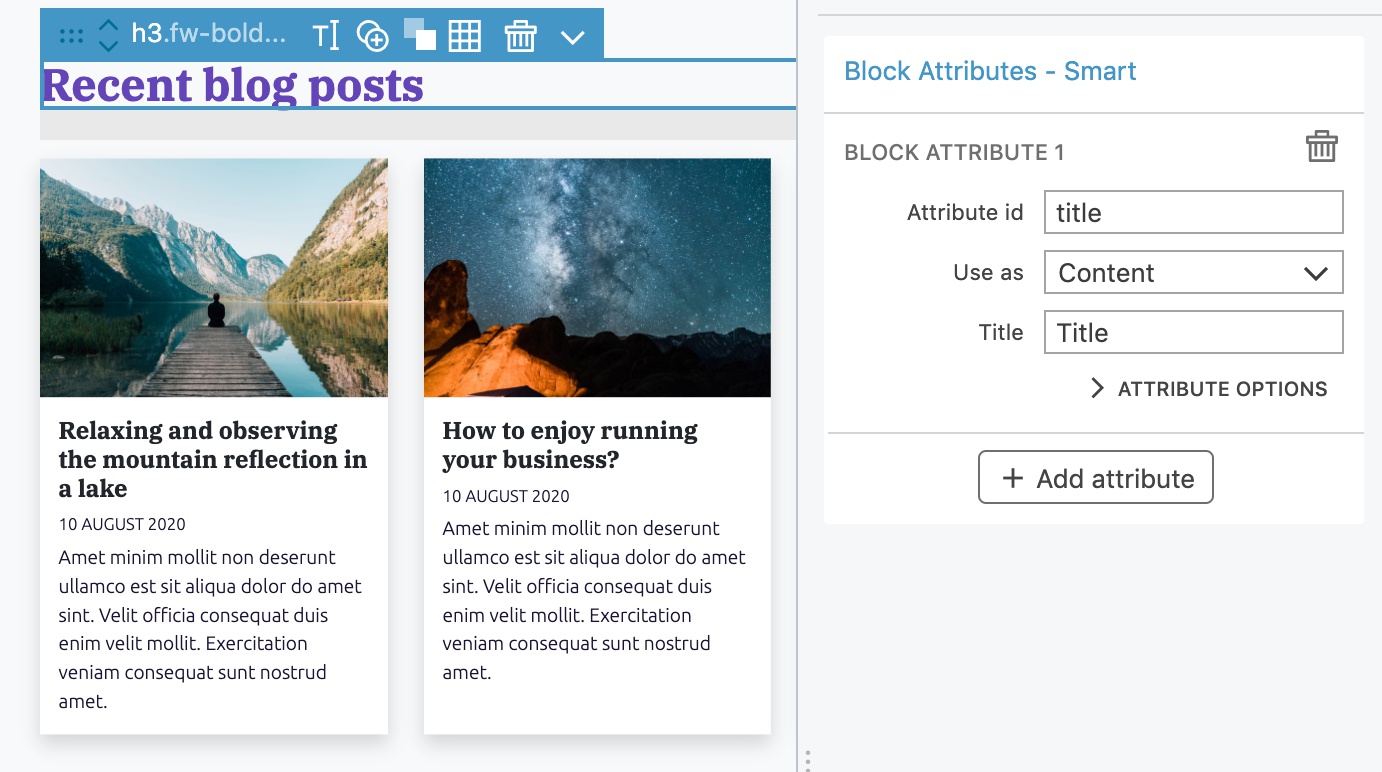
Select the Recent blog posts <h3> and add Block Attributes action:
On the button, add Block Attributes action and make both the link and the label editable:
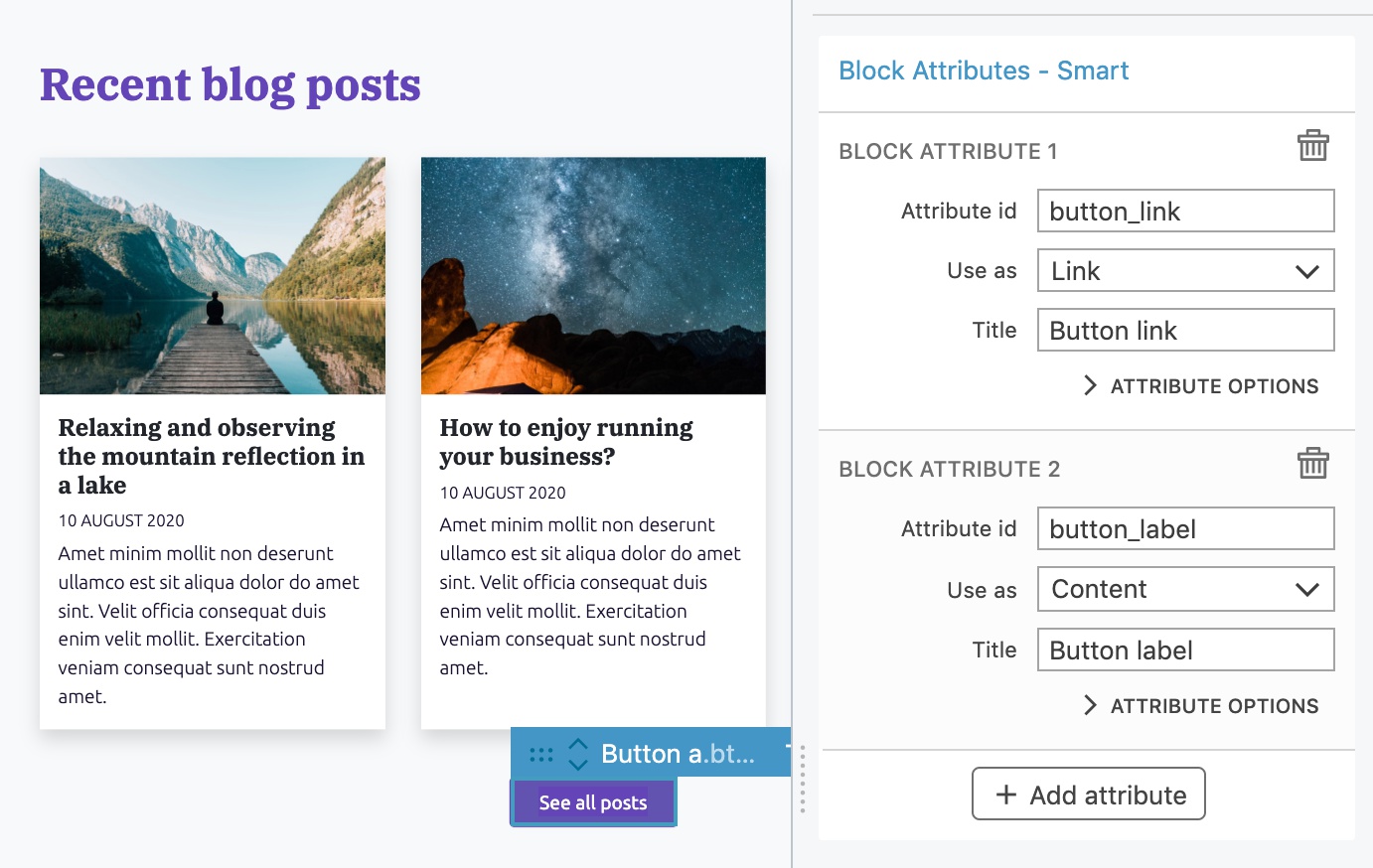
One advantage of dynamic blocks is that we can freely mix block attributes and WordPress actions.
See it in action
Export the project. Because the block contains actions such as Show Posts that runs on the server-side, Pinegrow automatically exported the block as Dynamic PHP block.
Reload the Block editor and add the Recent posts block to the page.
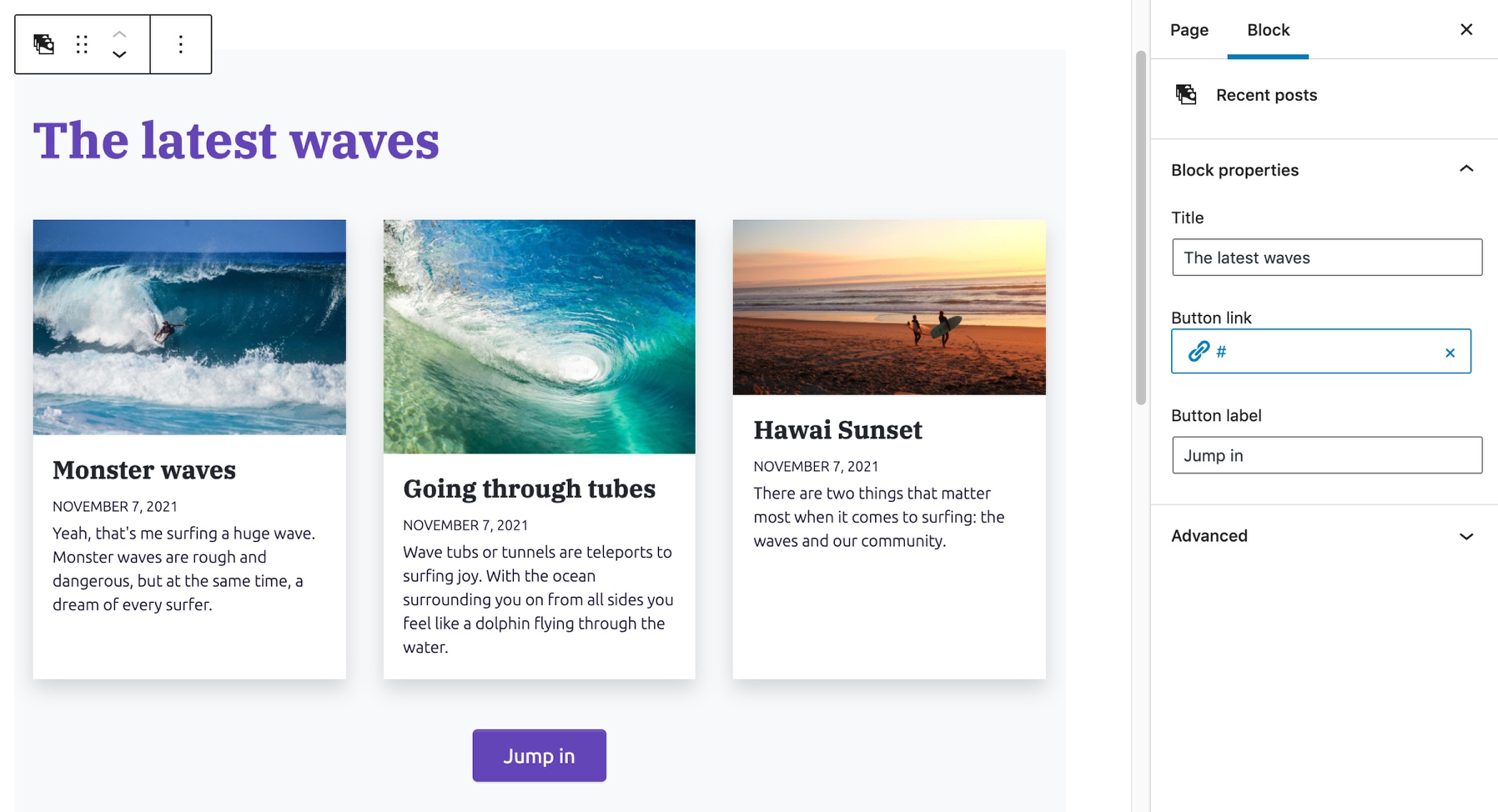
We can notice a slight delay when displaying the block, due to its content being rendered on the server.
Dynamic blocks are rendered each time they are displayed, so our block will always show the most recent posts.
The post selector control
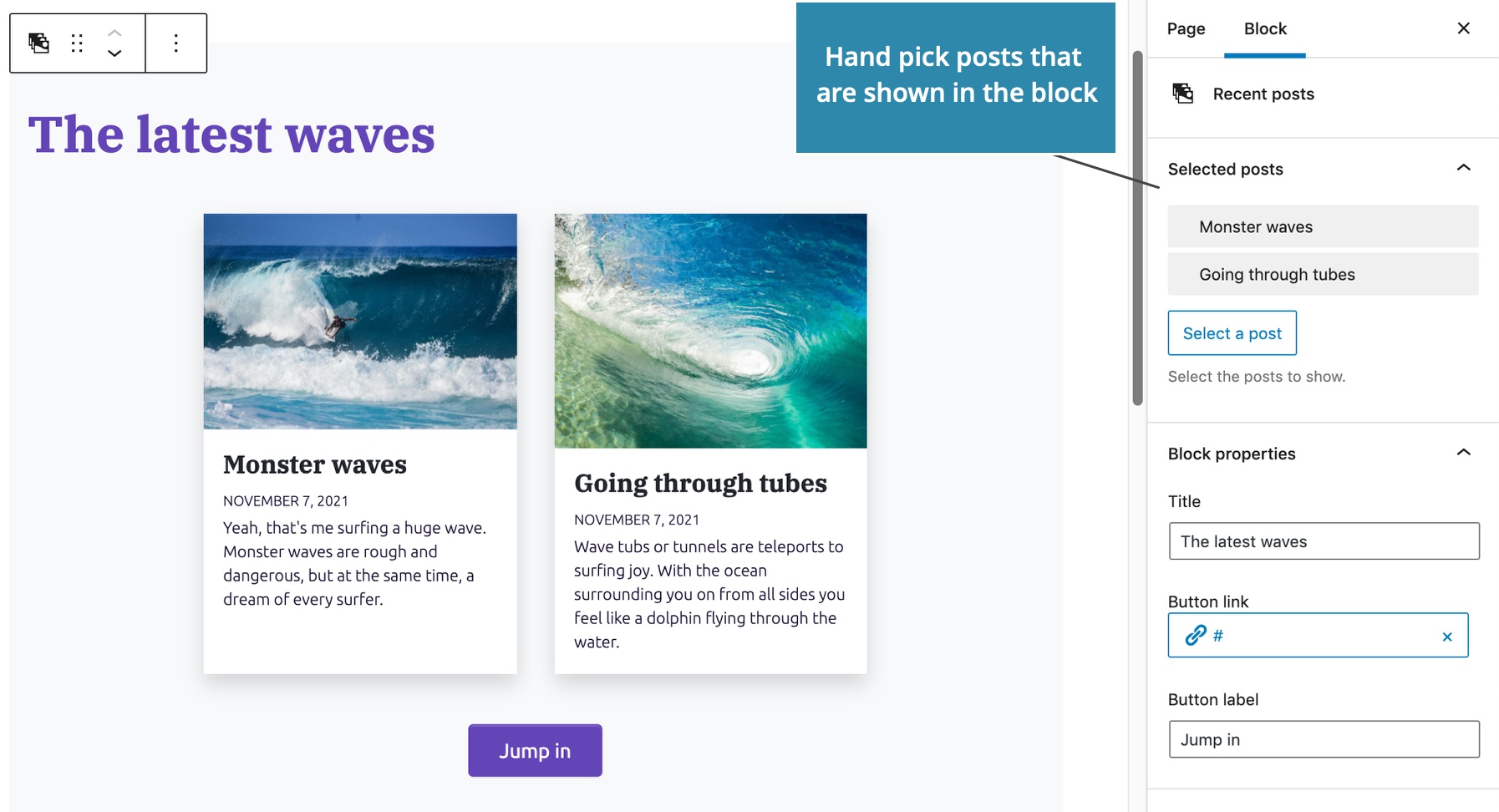
How about if we want to hand pick the list of posts that is displayed in the block?
That’s easy! We just need to change the Loop type to “block” on the Show Posts action, and fill in the Attribute id, title and description:
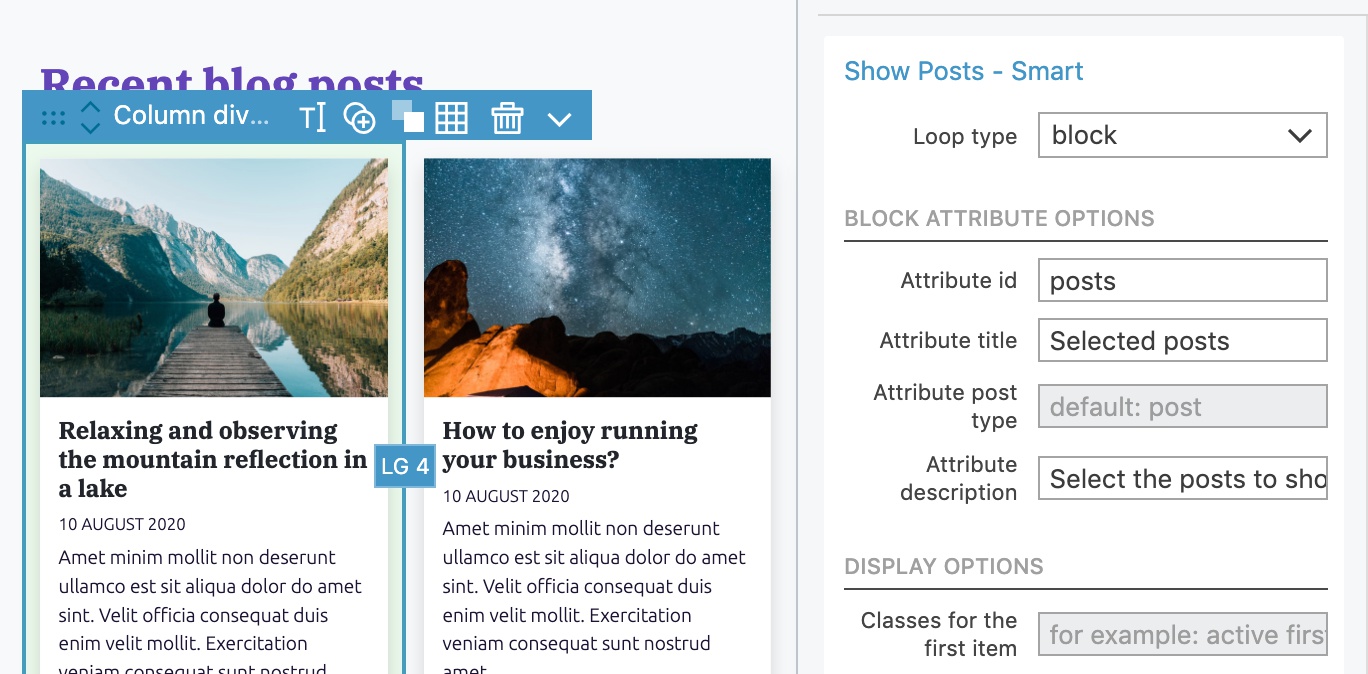
Using the block query type adds the Post selector control to the sidebar. It lets us hand pick the posts we want to display.
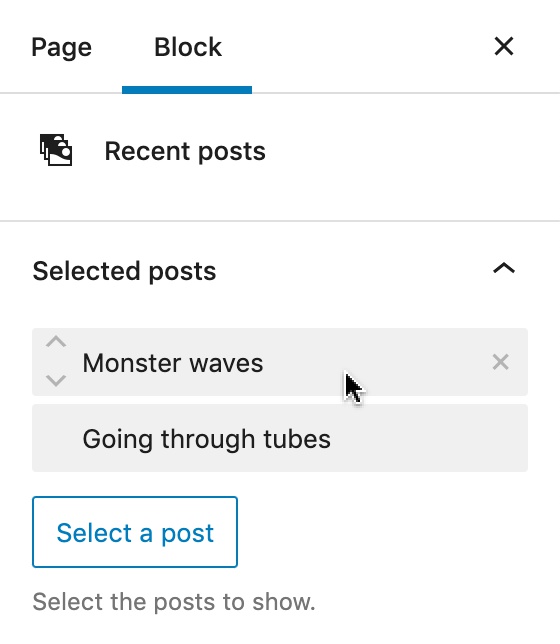
Use the up, down and remove controls to manipulate the list of selected posts:
When to use dynamic blocks?
Dynamic blocks are very powerful because we can use any of the 200+ WordPress actions and include custom PHP code. So, why not just use dynamic blocks all the time?
Dynamic blocks have three drawbacks though:
- The delay during editing due to server side rendering.
- They can slow down the page display, if we use too many of them on the page.
- Text attributes can not be edited on the block, only in the sidebar.
So, we should use Dynamic blocks only when needed and stick to regular JavaScript blocks in other cases.
Note, most non-native block solutions such as ACF PRO Block support only dynamic blocks because they are easier to implement. Pinegrow is unique in supporting easy creation of both JavaScript and PHP blocks.
Next step
Next, we will learn how to add custom CSS styling to our blocks.