
How to add custom styling to our blocks?
DocsWordPressDocsWordPress2024-03-16
Custom block styling and scripts
Sometimes our custom blocks need special CSS styling that is not covered by the framework styling or by the global theme stylesheet.
The best approach is to create a special CSS stylesheet that contains the block styling and to instruct WordPress to load it only if the block is displayed on the current page.
Create a new CSS file
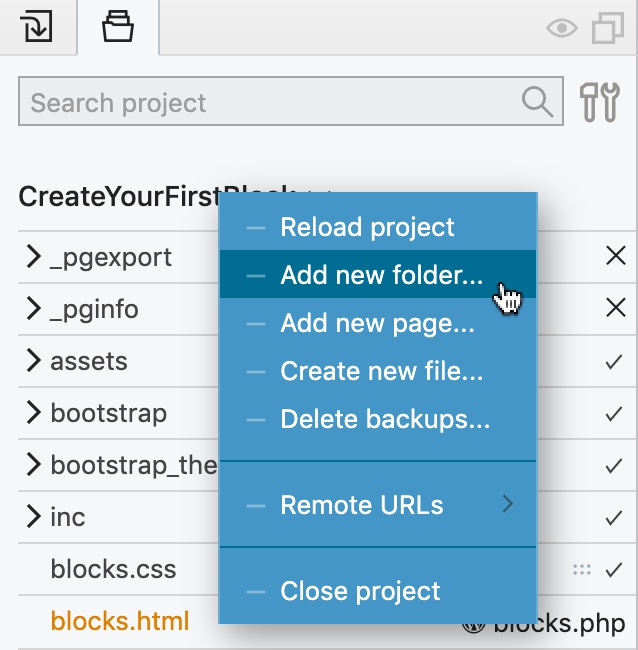
To do that, create a new CSS file with all the required CSS styling. First, we create the folder blocks that will contain our block assets. The name doesn’t have to be blocks, of course.
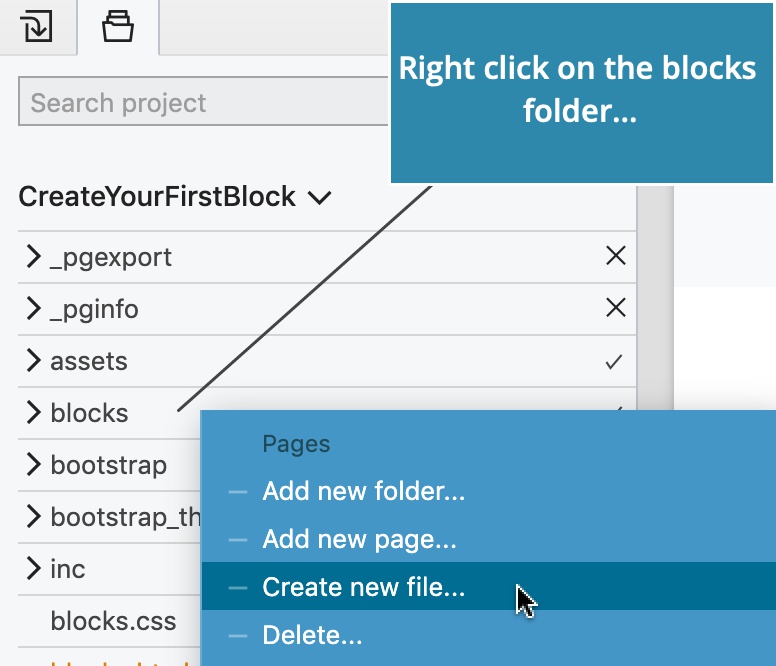
Next, we create a new file in the Project panel by right-clicking on the blocks folder:
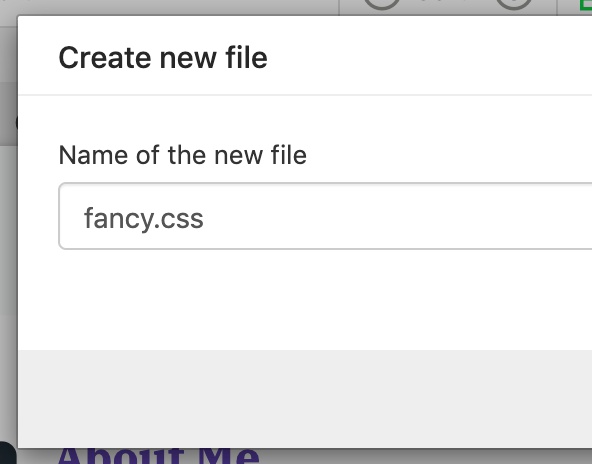
We will name the file fancy.css:
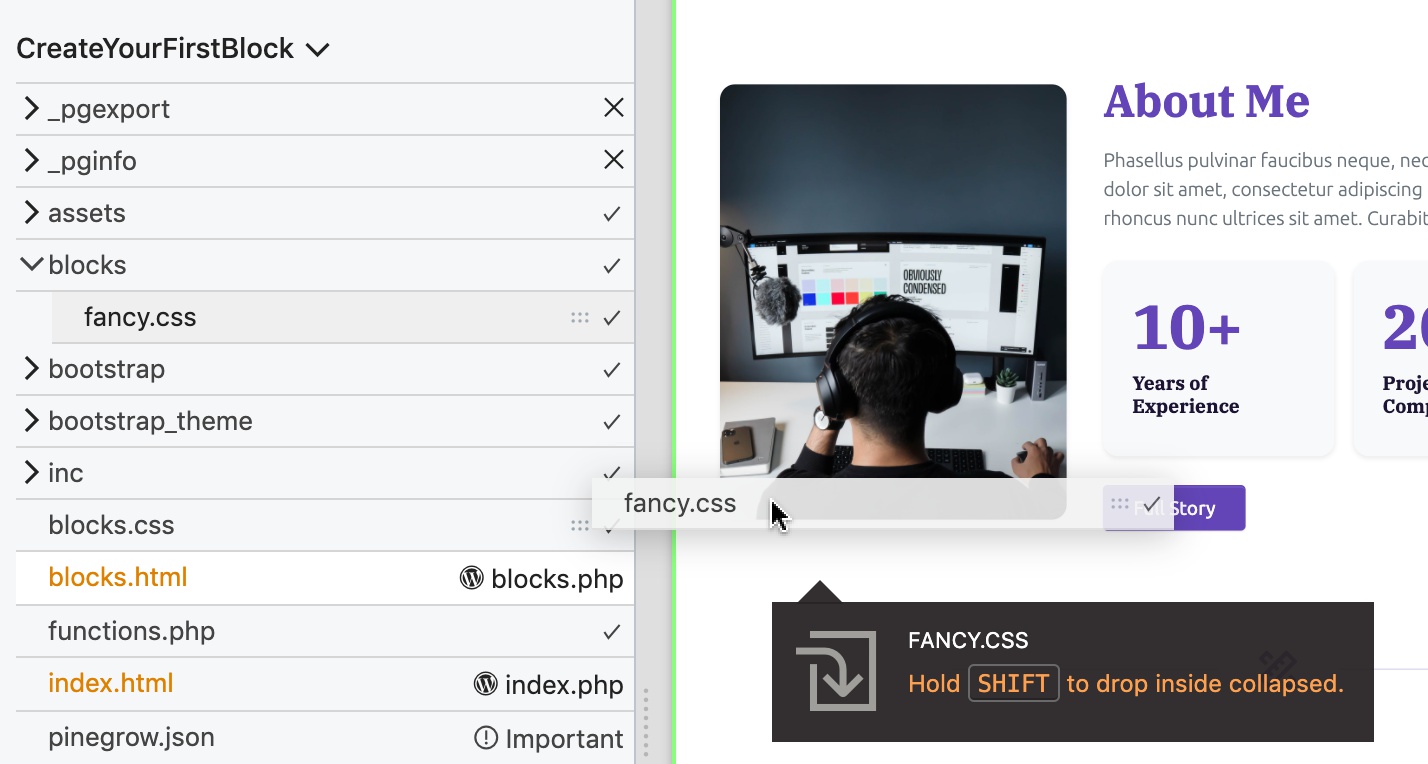
Then, drag fancy.css to the page.
Let’s go back to our About me block and add the class fancy-block to its main <section> element.
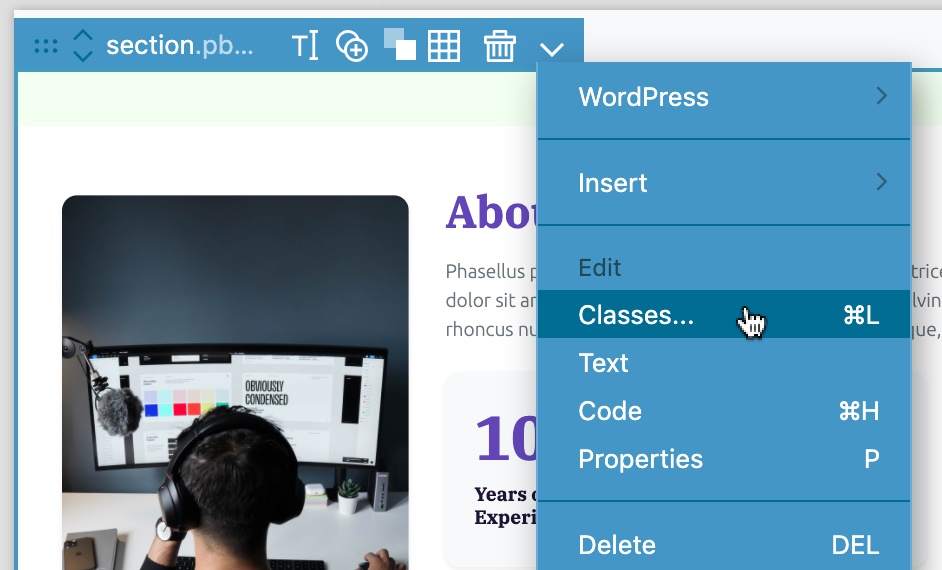
The right-click context menu or the CMD + L open up the Assign class dialog:
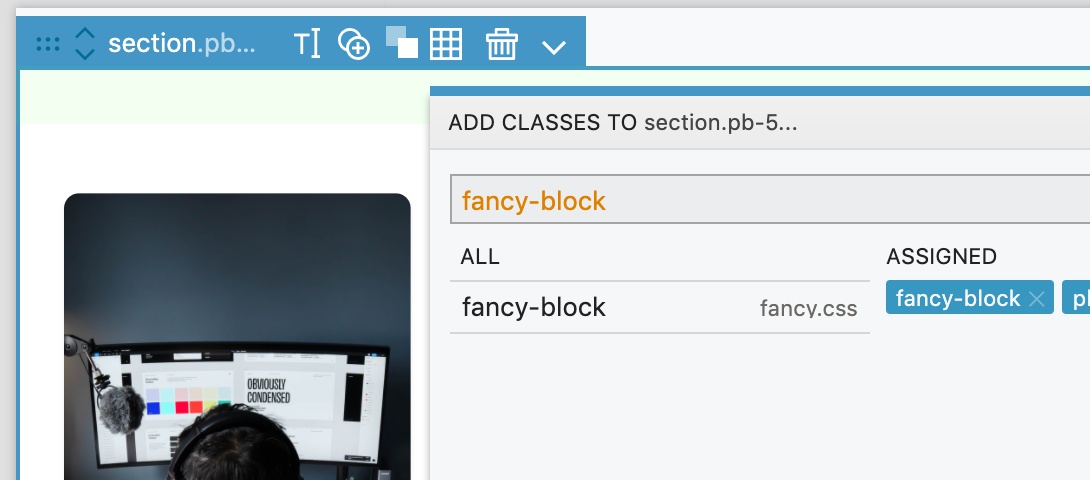
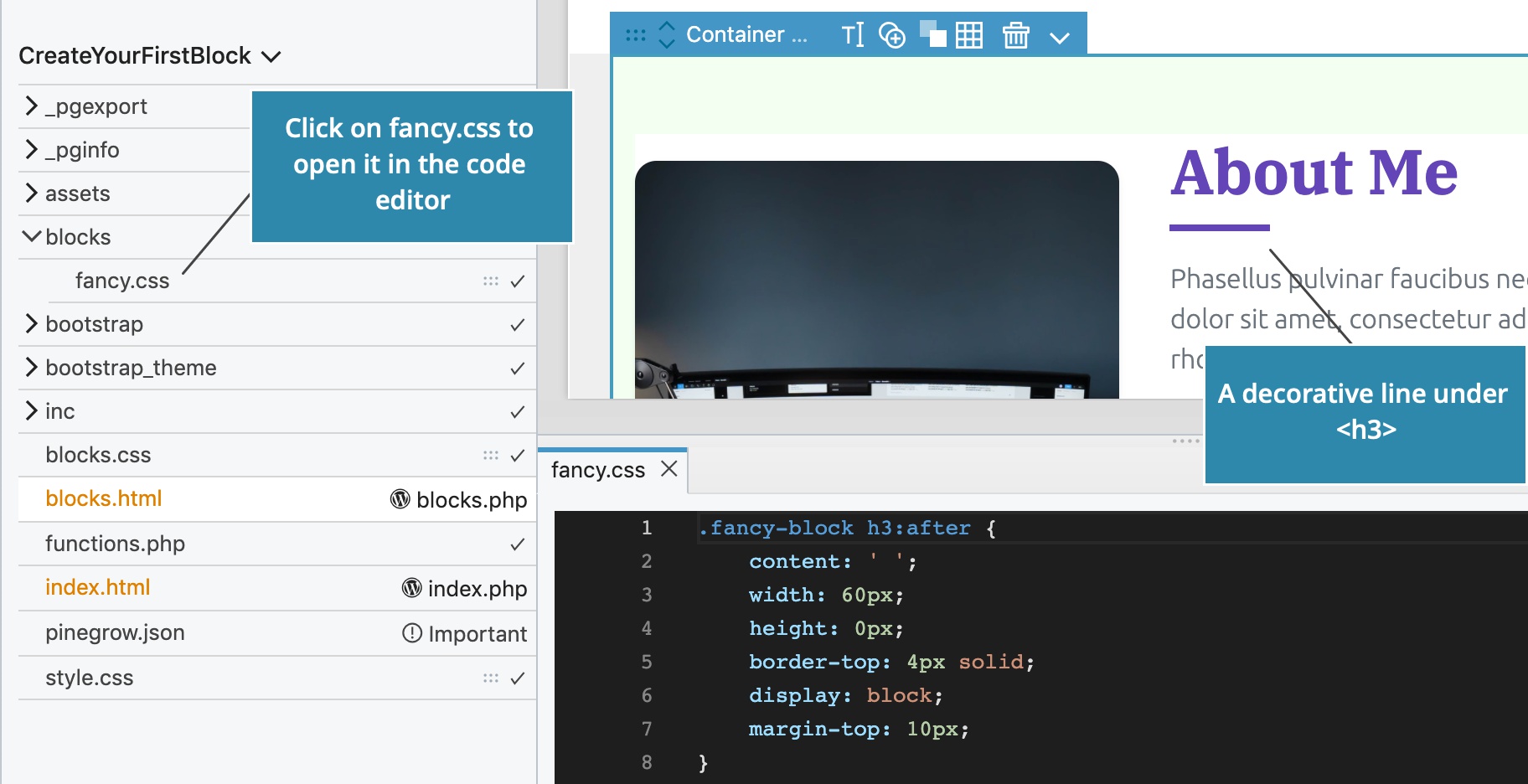
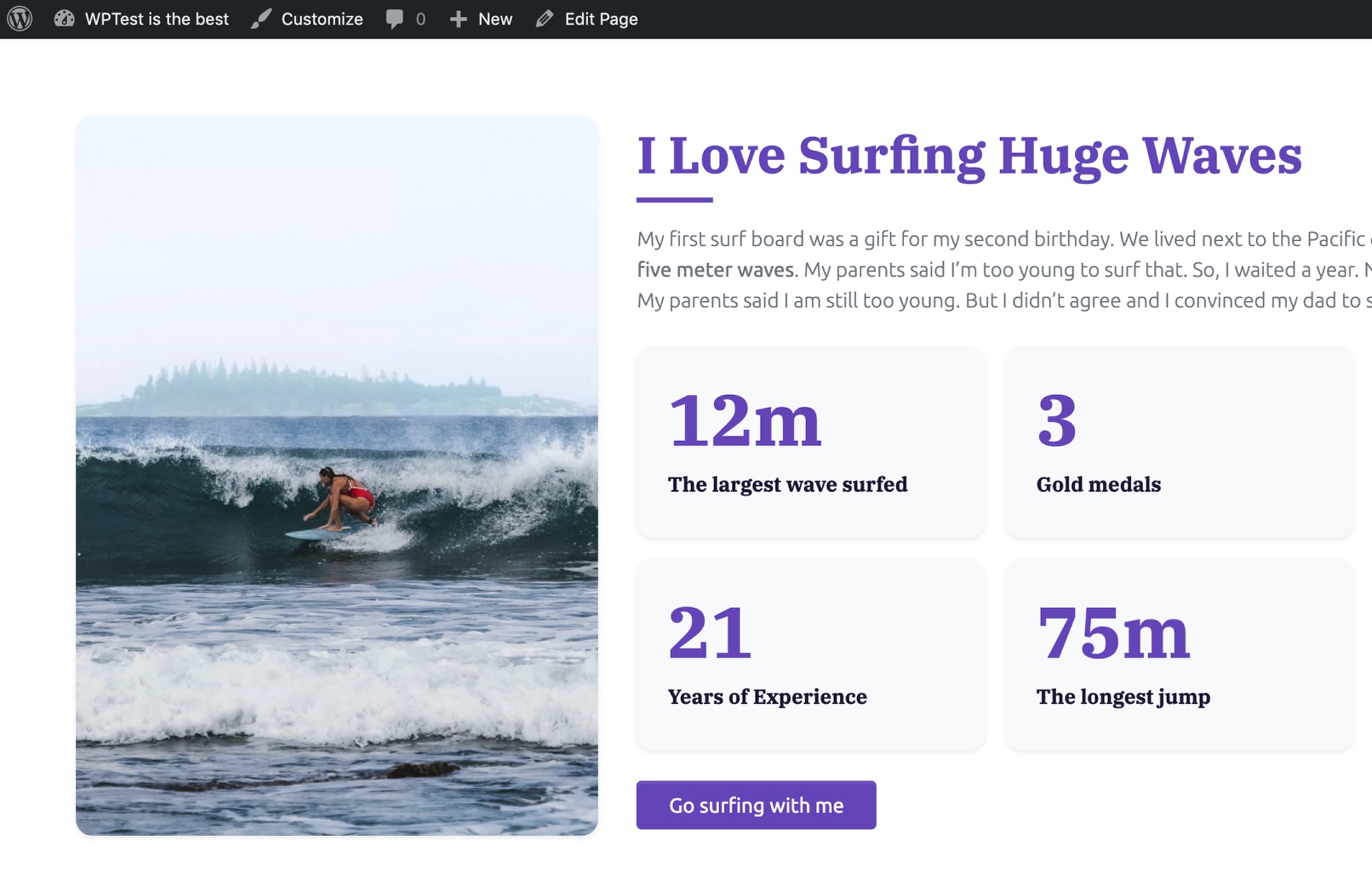
CSS rules use the class to scope the styling to the block. Here we will add a short decorative line below <h3>:
Click on fancy.css in the Project panel to open the file in the code editor:
We then include the CSS file with the Style setting on the Block action. The value is the relative url of the stylesheet, in relation to the project folder. In our case, blocks/fancy.css.
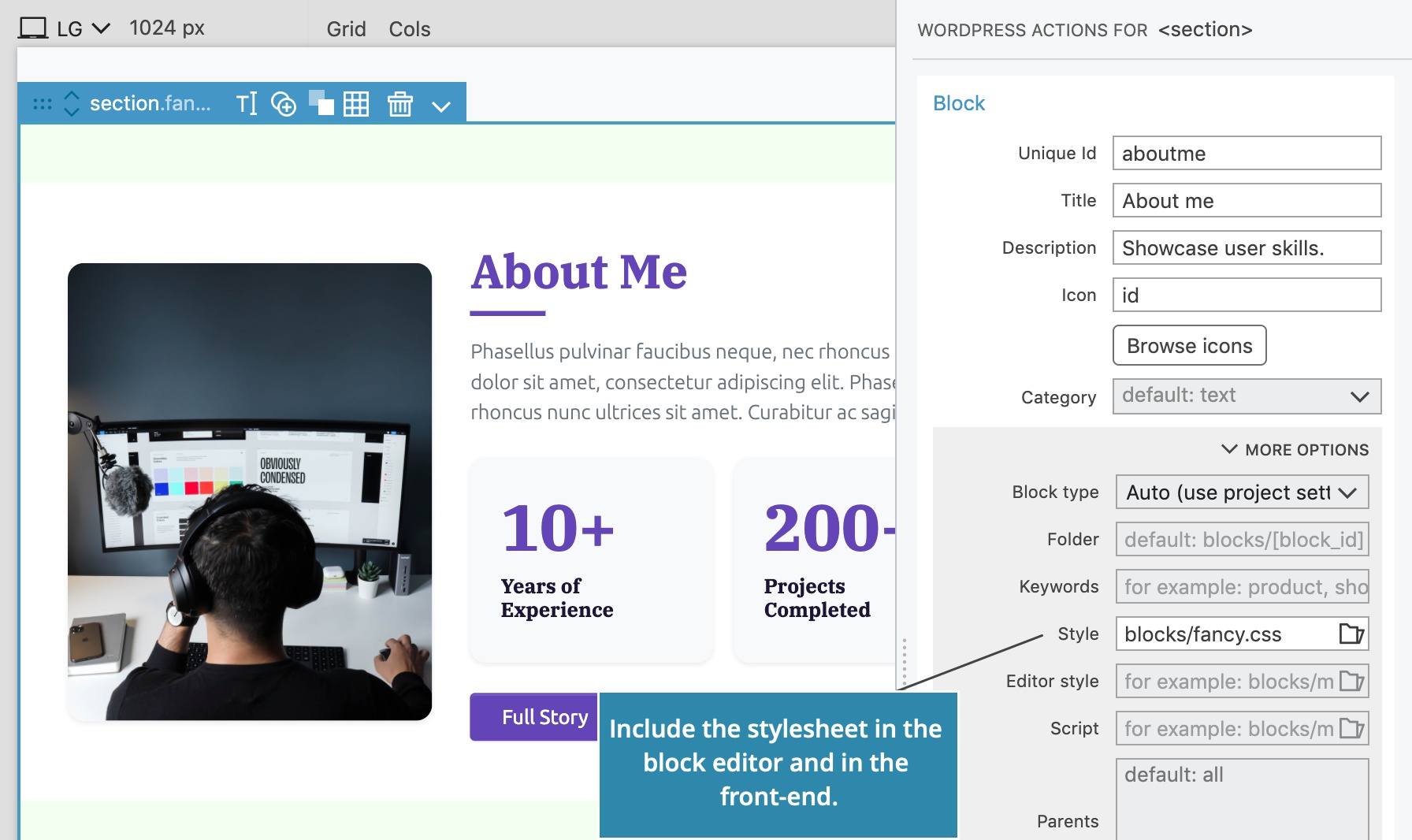
The stylesheet will be included both in the editor and on the front-end.
Including a stylesheet only in the editor
Use Editor style setting to add a stylesheet that should be included only in the editor.
Both Style setting and Editor style setting can be defined.
Sharing the same CSS stylesheets between more blocks
A group of blocks can share the same stylesheet. Just add it to each block with the Style setting on their Block actions.
Pinegrow generates resource handles based on the stylesheet name, so that the stylesheet will be included only once, even if more blocks are using it.
Sharing the same Javascript files between multiple blocks
A group of blocks can share the same Javascript file. Just add it to each block with the Script setting in their Block actions.
Pinegrow generates resource handles based on the Javascript file name, so that the file will be included only once, even if multiple blocks are using it.
Including the framework stylesheet in the Block editor
Our blocks usually rely on styling provided by the global theme stylesheet or framework stylesheet such as Bootstrap and Tailwind CSS. Without these styles block don’t show up correctly in the block editor. Use Theme settings to include theme stylesheets in the block editor.
Loading only resources of blocks that are used on the page
By default, WordPress loads styles and scripts of all registered blocks on the front-end, regardless if blocks are used on the page or not.
To load only assets of blocks that are used on the page, add the following code to inc/custom.php:
add_filter( 'should_load_separate_core_block_assets', '__return_true' );
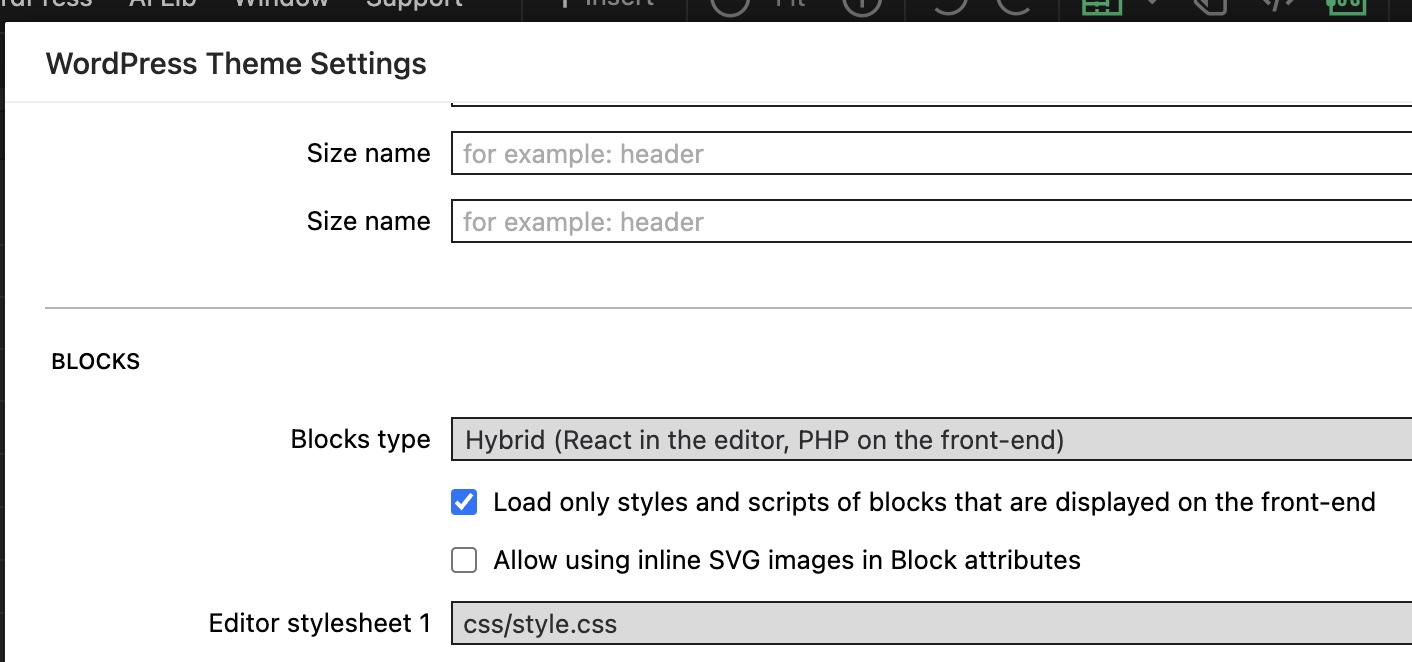
Starting from Pinegrow Web Editor 7.8, WordPress plugin 1.0.15 and Theme Converter 2.2 the WordPress builder can do this for you if you enable the Load only styles and scripts of blocks that are displayed on the front-end checkbox in project settings:
Summary
If a JS script or a CSS file needs to be loaded at the template level, it will be loaded every time the template is used, unless you use conditionals. See our documentation here.
If a script or CSS needs to be loaded at the block level, when two blocks use the exact same JS or CSS, it will only be loaded once.
On top of that, from the project settings, you can setup your blocks so only styles and scripts that are displayed on the frontend are loaded.
Next steps
This completes the Create Your First Block guide.
Explore the rest of Blocks documentation and tutorials to learn more.