
Create custom Gutenberg blocks visually, without coding and without plugins.
DocsWordPressDocsWordPress2022-04-07
Build custom Gutenberg blocks for WordPress
New in Pinegrow 6.2 - Create native React and PHP WordPress blocks without coding.
Creating native custom WordPress blocks requires significant skills and effort.
Pinegrow lets you visually create custom native WordPress blocks that don’t require any plugins. (Pinegrow is not a WordPress plugin. It is a desktop app that works with files on your computer.)
There is no compilation and no build process. No development environment, no need to write a single line of JavaScript or PHP code. No need to manually create a theme or a plugin.
Creating WordPress blocks doesn’t get easier than this:
Step 1 - Open or create a HTML project in Pinegrow Web Editor
Open your existing HTML project in Pinegrow, or use Pinegrow’s powerful editing tools to create a static HTML design for your blocks or the whole theme.
Step 2 - Define the block
Select the HTML element that represents the block and add the Block action from the WordPress panel.
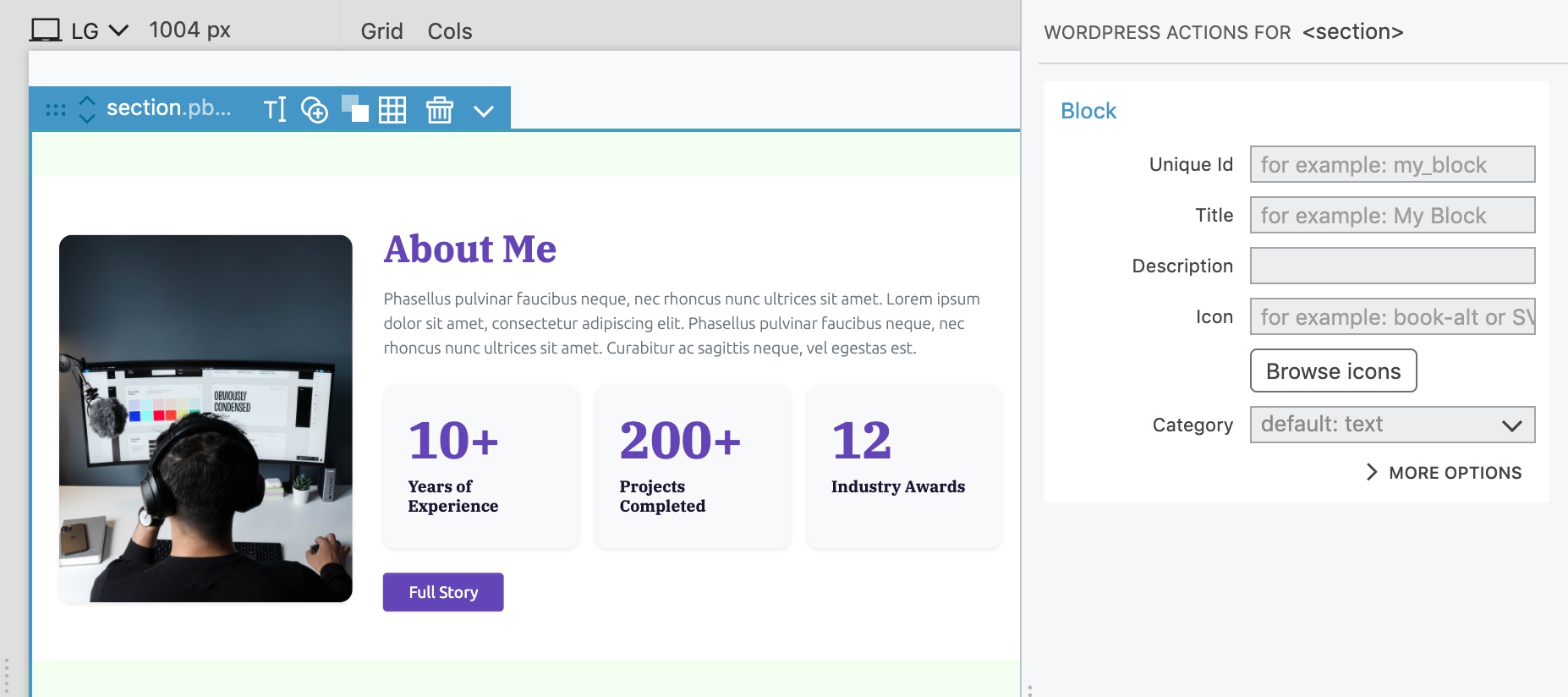
Step 3 - Make the block editable
Add the Block Attributes action to elements and select what parts of the element should be editable, including content, links, classes, attributes and more.
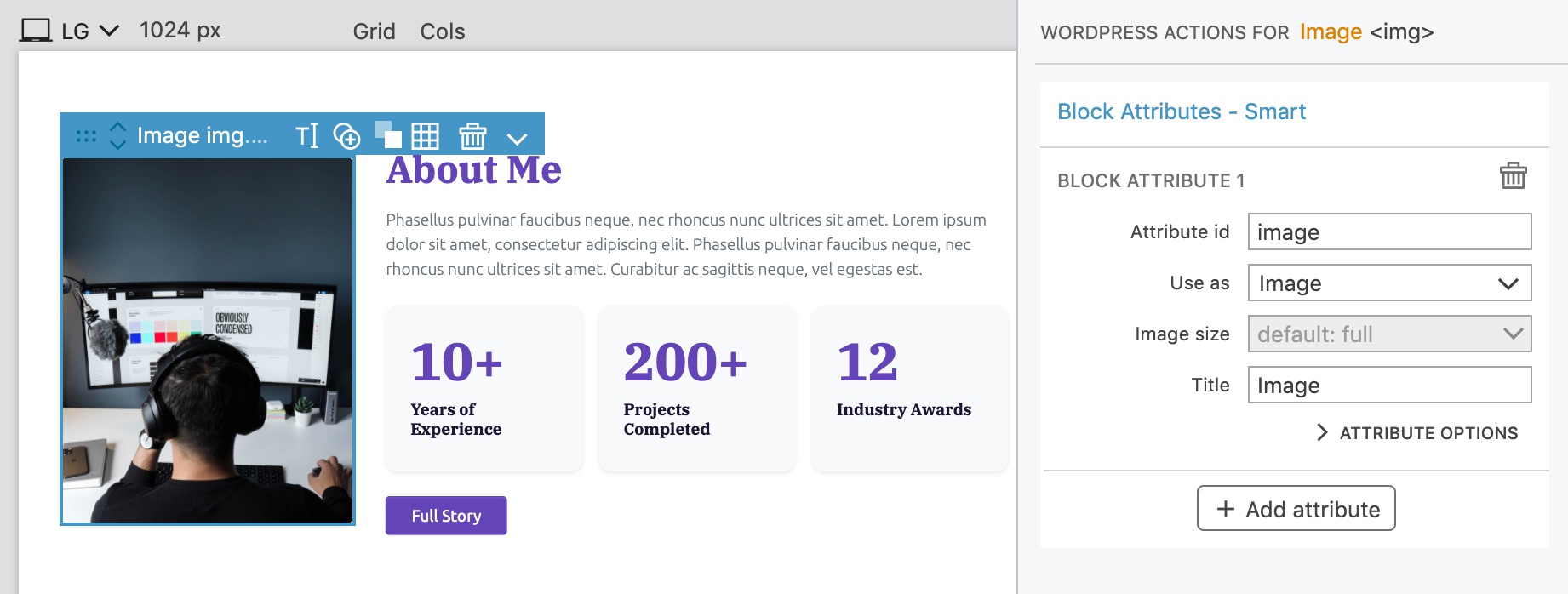
Step 4 - Add or define nested blocks
If needed, add the Block Inner Content action to create an area where other blocks can be inserted. Use the Block action to define sub-blocks that perfectly fit into your custom block.
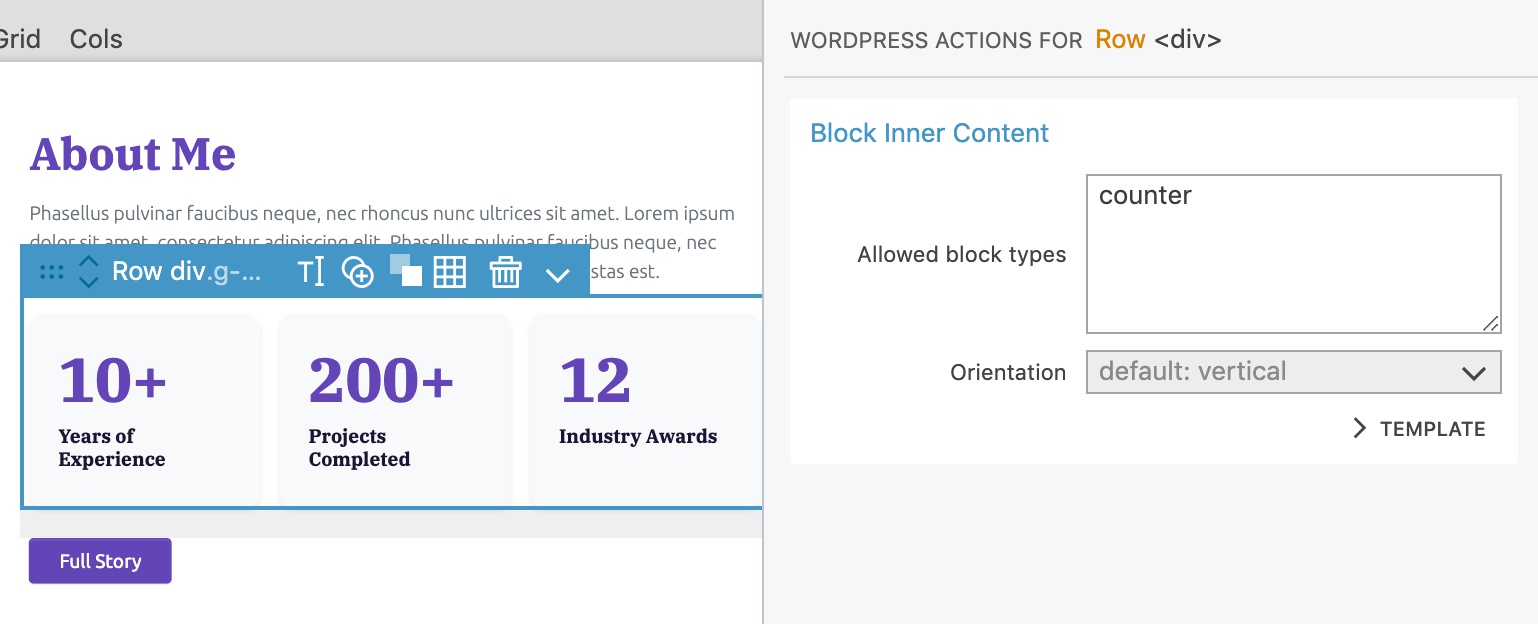
Step 5 - Export and use the block
Export the project as a theme or a plugin, directly into your local WordPress site, and use the block in the block editor. Once you are happy with the result, upload the theme or plugin to your production site.
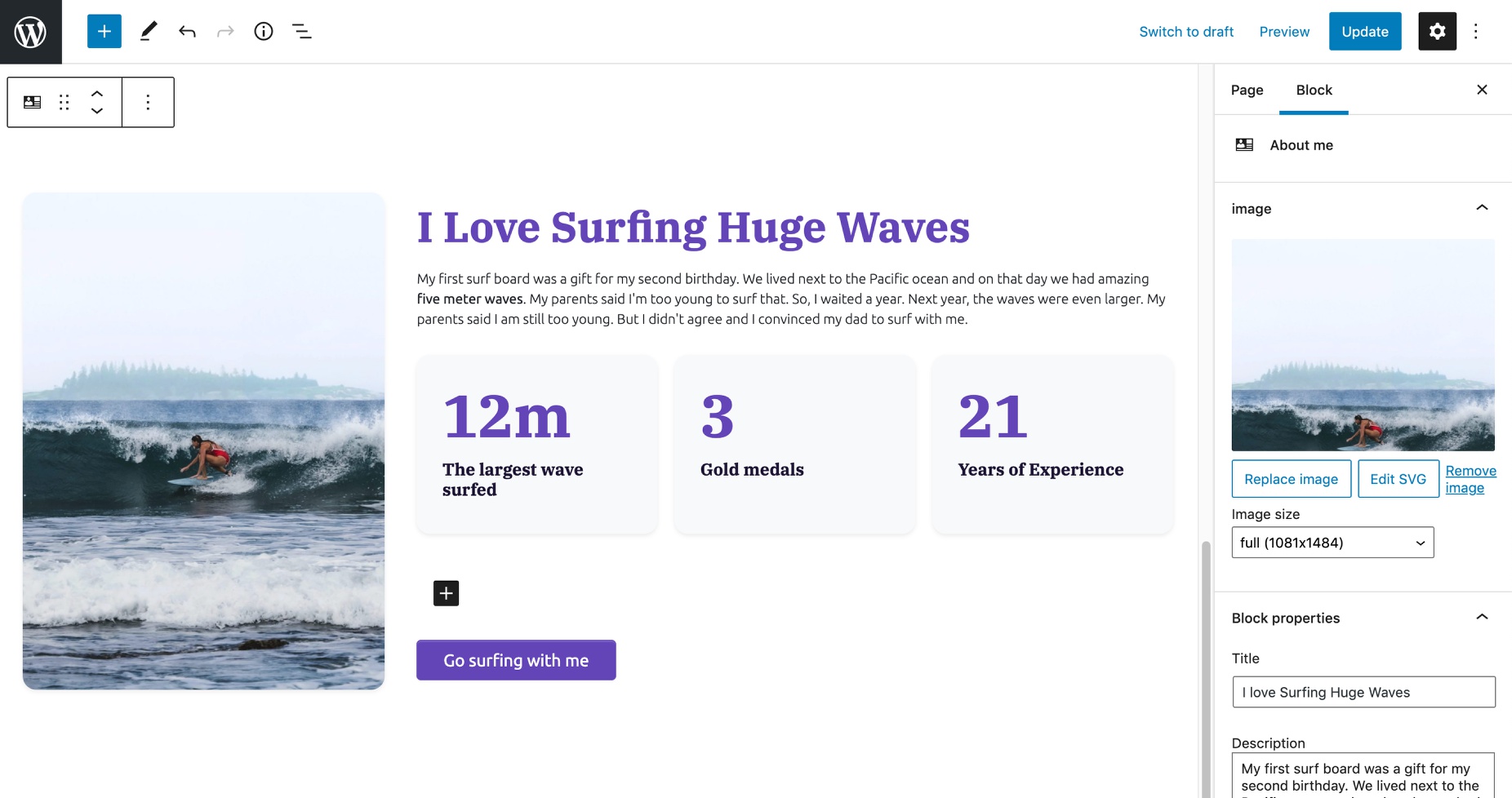
Create regular, dynamic and ACF blocks
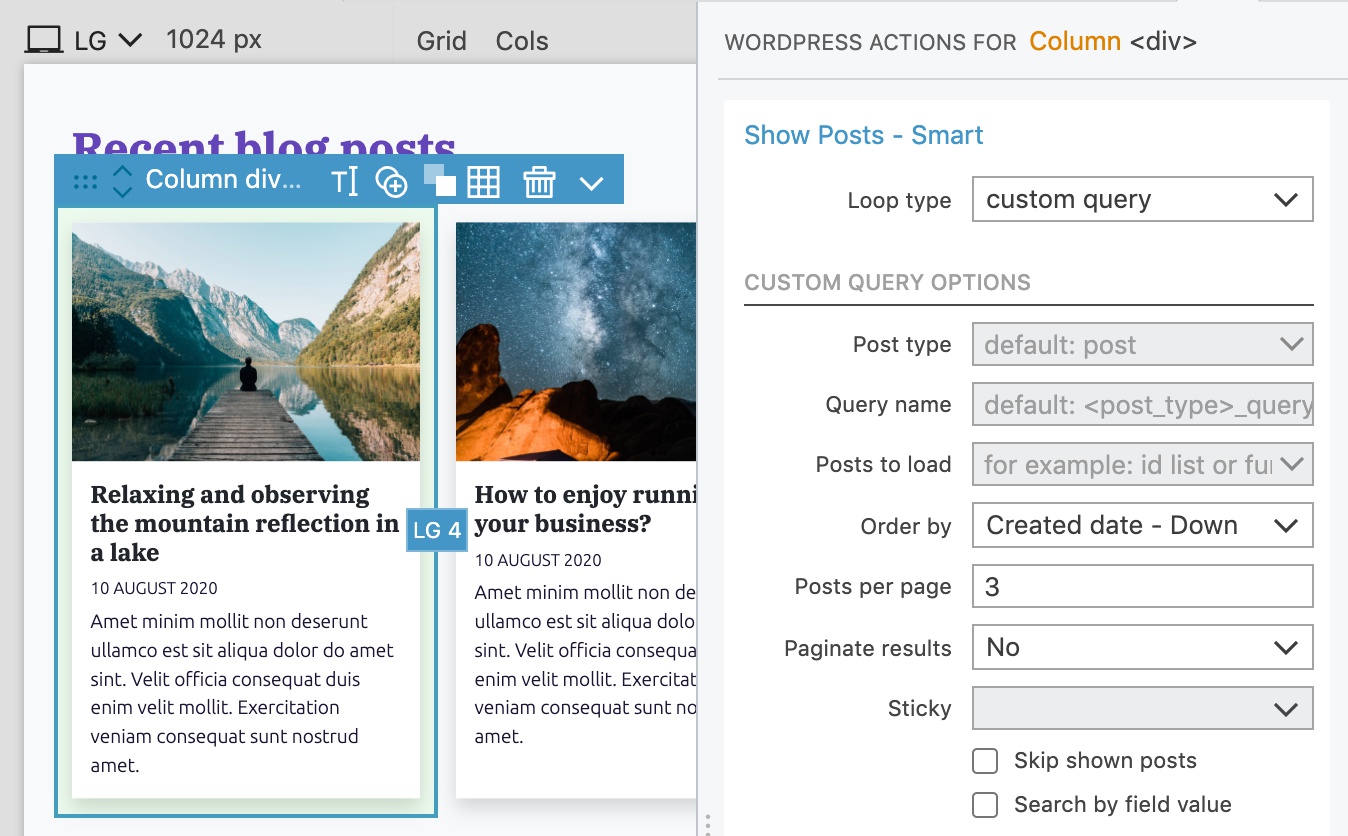
Both regular JavaScript (React) blocks and dynamic PHP blocks are supported. With dynamic blocks you can use more than 200 WordPress actions to show posts, run custom queries, define custom post types and more. You can also create Advanced Custom Fields PRO blocks.
Getting started
Follow the step by step guide on creating custom WordPress blocks with Pinegrow.
What are Regular, Dynamic and ACF blocks? When to use what?
Explore examples and tutorials.
Implement simple full site editing with custom blocks.
Check out the reference for Block, Block Attributes and Block Inner Content actions.
Don’t have Pinegrow yet? Download Pinegrow Web Editor. Free trial is included.
If you are running into any compatibility issues with other plugins, see the Plugin compatibility issues.
In this section
Creating your first block
Let’s build a custom block together.
Adding attributes and controls
Attributes are editable properties of a block. Editable attributes make blocks much more useful, because we can use the same block type with different content.
Inner blocks: blocks within blocks
Create an area where sub-blocks can be inserted into the block.
Displaying up-to-date information with dynamic blocks
How to create a Recent blog posts block?
Dynamic, regular and ACF blocks: the differences and when to use each
What are dynamic and regular blocks? Which one is better?
Displaying the site styling in the block editor
How to include the website stylesheet in the Block editor so that block display correctly during editing.
Creating ACF Pro blocks
Use Block Smart action to turn any HTML element into a WordPress visual editor block.
Generated code and files
The code and files that Pinegrow generates when it exports custom WordPress blocks.
Custom block styling and scripts
How to add custom styling to our blocks?
Adding front-end JavaScript code
Our block might require some JavaScript code when displayed on the front end (on the website, not in the block editor). To add a front-end script to the…
Common block controls
WordPress block editor supports a bunch of common block attributes such as background color, text color, font size, alignment and so on. Use the Supports field on the…
Theme or plugin: where to define custom blocks
Where to define our custom blocks? In a theme or plugin?
Inline SVG images
Blocks created with Pinegrow come with a powerful support for using inline SVG images.
Custom block examples and tutorials
Become an expert block creator with the help of our step by step tutorials and examples.
Download and set up the demo project
Follow these steps to set up the project so that you can perform the steps described in the Create Your First Block guide.
The complete guide to creating custom WordPress blocks
A step by step tutorial on the easiest way to create custom Gutenberg blocks. No prior knowledge of React, PHP or WordPress blocks is required.
Plugin compatibility issues
A discussion of compatibility issues with various WordPress plugins.
Hybrid Blocks
The missing piece to making custom Gutenberg blocks useful in real-world projects.