
Post Featured Image action shows the featured image of the current post, or the post itself if the post is an image attachment.
DocsWordPressDocsWordPress2019-06-06
Post Featured Image
PGLOOP
Like all other Smart actions, Post Featured Image determines how it should behave based on where it is placed.
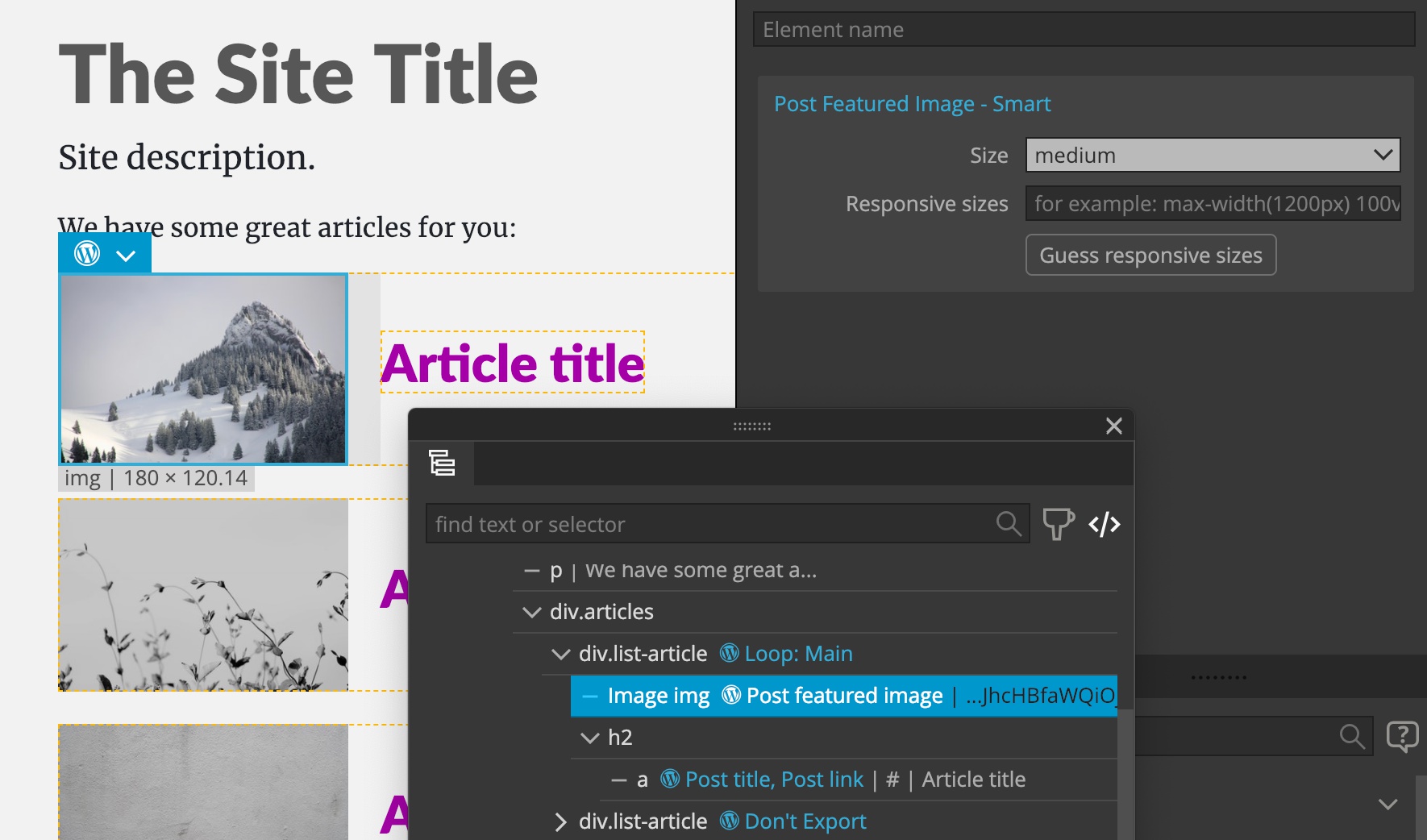
On an <img> image element
When placed on an <img> image element it will display the image with the <img> element, using the same classes and attributes as found on the image element.
For example, when placed on a image element:
It will output the image:
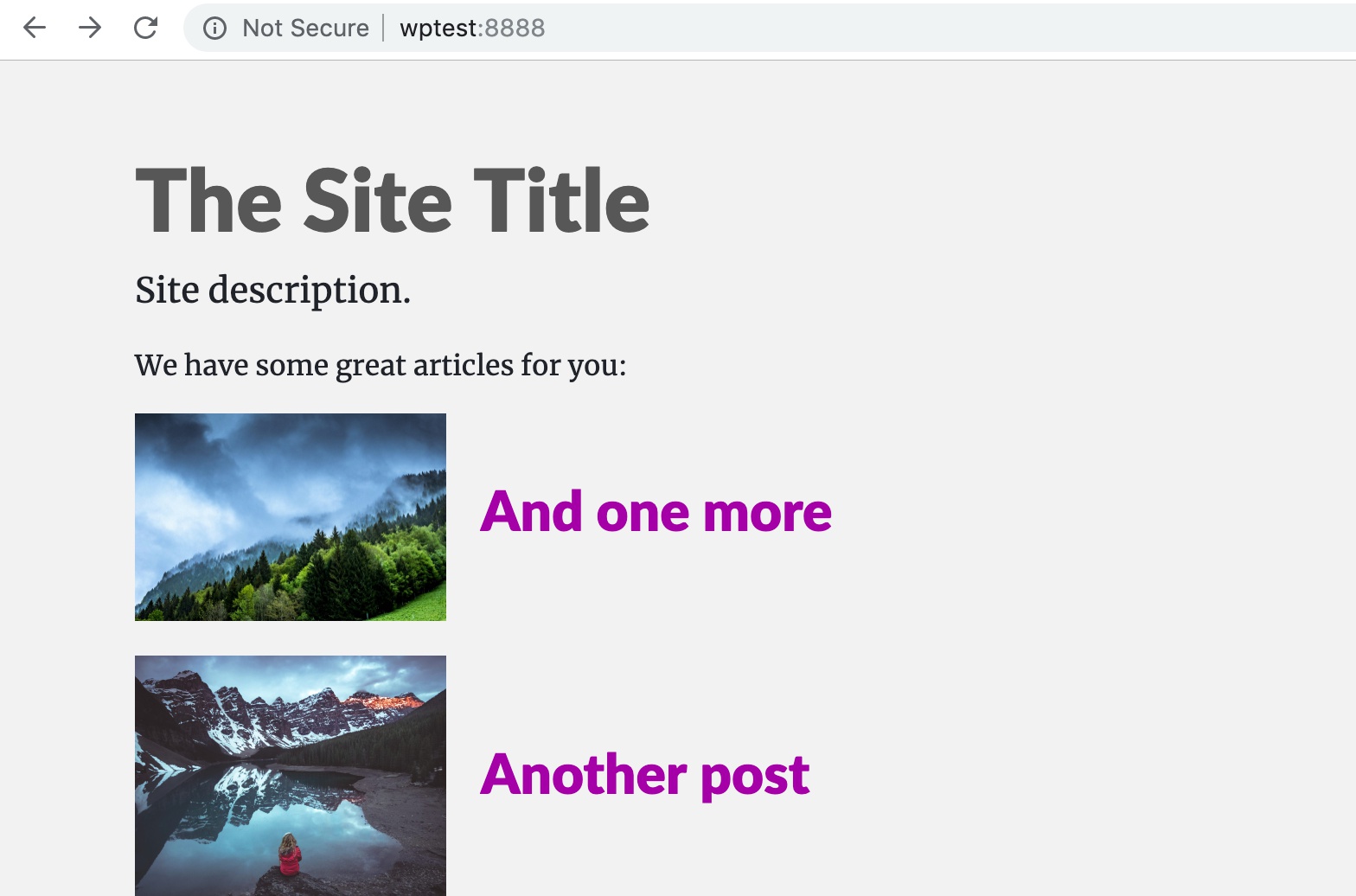
Using the PHP code:
<?php echo PG_Image::getPostImage( null, 'medium', null, 'both', null ) ?>PG_Image::getPostImage() is a helper function provided by Pinegrow that takes a lot of complexity away from the template code. If you’re curious you can check the function in inc/wp_pg_helpers.php in the exported theme.
On any other element
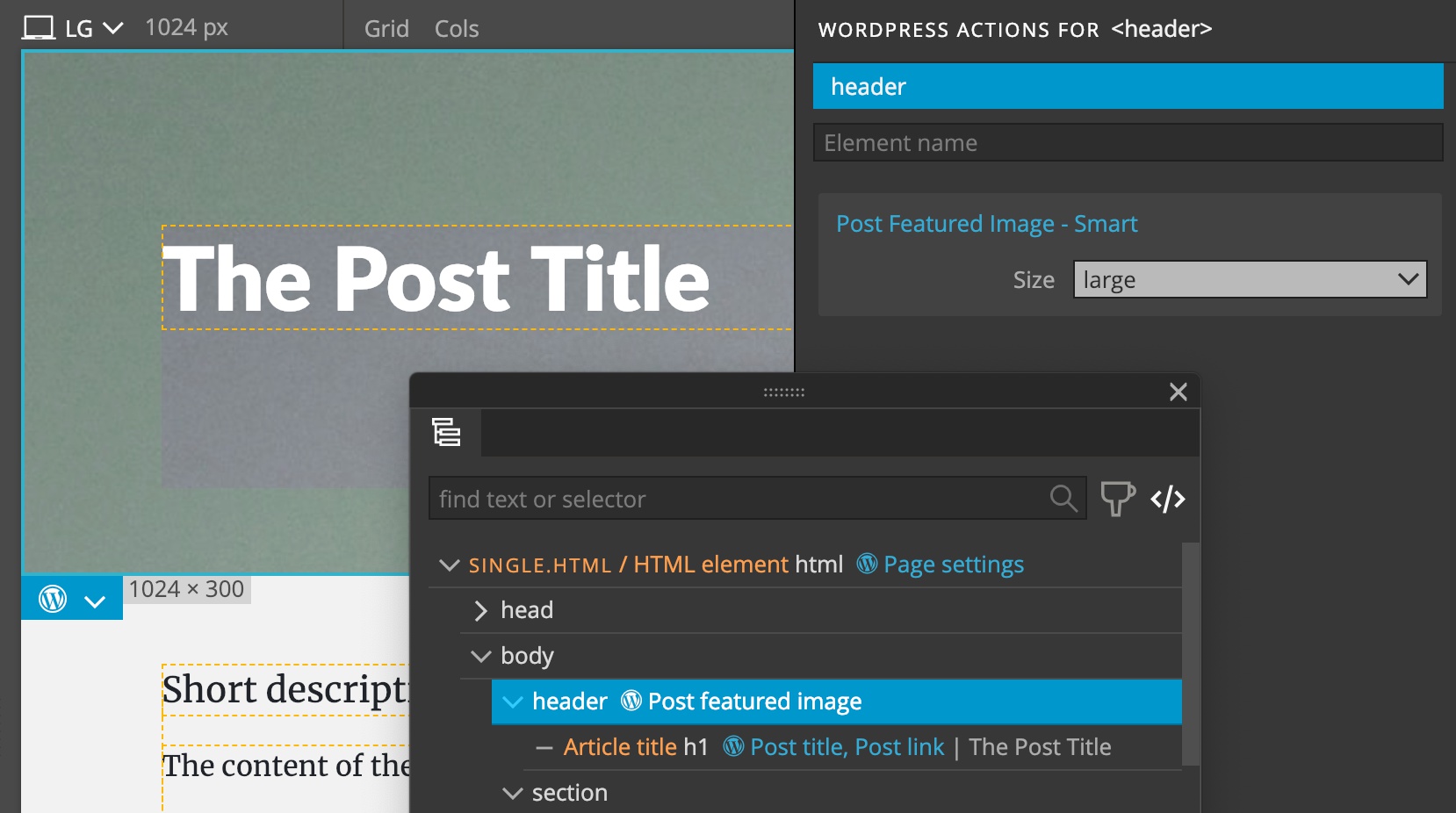
When placed on any other element (not <img> and not <a>) the action will set the image as the background of the element using the inline style attribute.
For example, adding the Post Featured Image action on the <header> element:
Will set the image as its background:
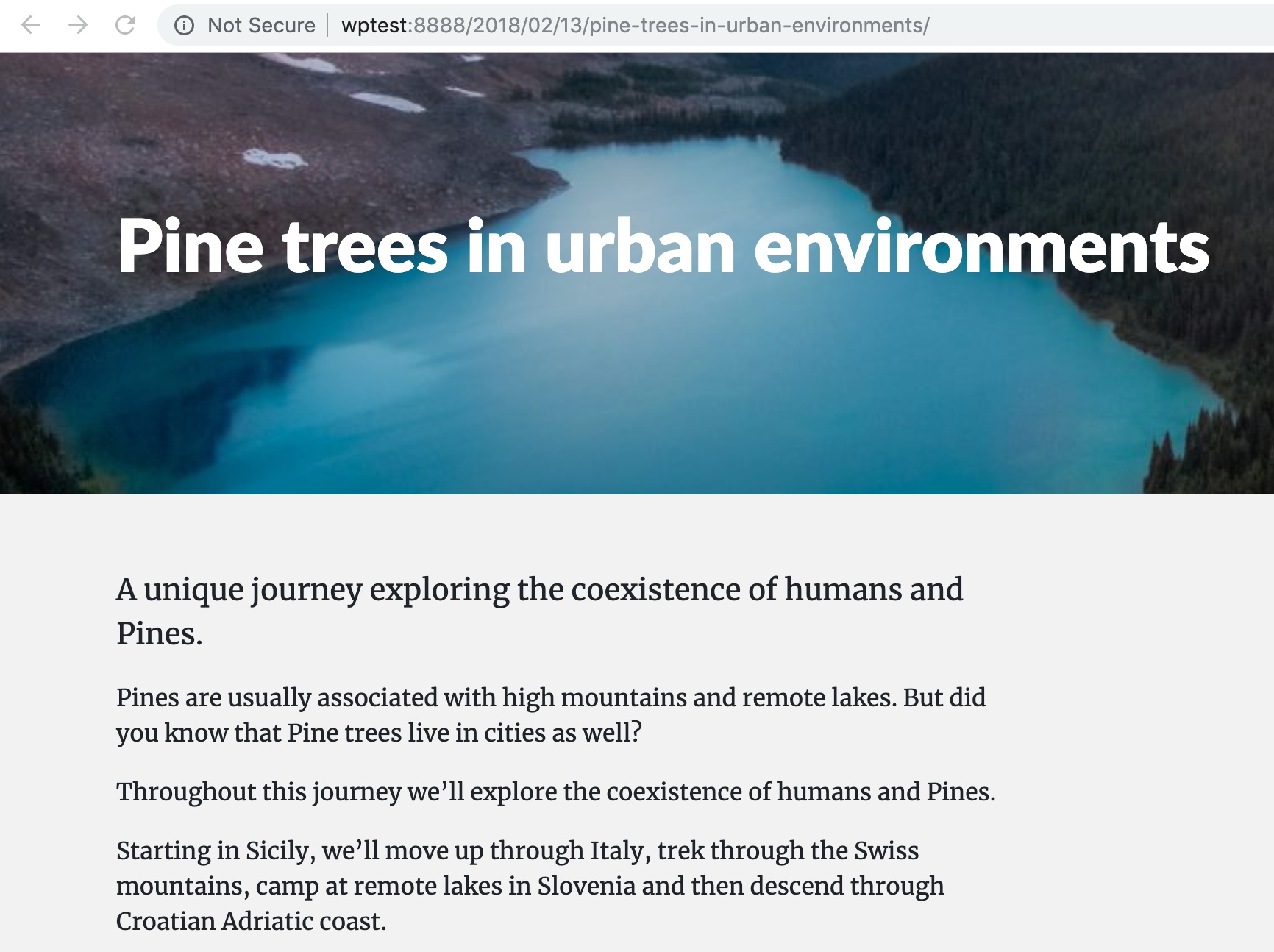
Using the PHP code:
<?php
$image_attributes = !empty( get_the_ID() ) ? wp_get_attachment_image_src( PG_Image::isPostImage() ? get_the_ID() : get_post_thumbnail_id( get_the_ID() ), 'large' ) : null; ?>

<header style="<?php if($image_attributes) echo 'background-image:url(\''.$image_attributes[0].'\')' ?>">
</header>
Note, that we are responsible for styling the element with CSS properties required to display the background correctly.
Working with image sizes
Post Featured Image action lets us choose the image size that is the most suited for the task at hand.
Choosing larger images than needed can lead to performance issues with our website.
WordPress supports responsive images, that give the browser the list of available image sizes and information about how big will the image display be at different device sizes.
This information is provided in the Sizes setting.
By default, Pinegrow will use the sizes attribute from the placeholder image. If that is not available, it lets WordPress set the sizes attribute which by default means just displaying the selected image size.
Another option is that we specify the sizes. Use the “Guess responsive sizes” button to let Pinegrow come up with the sizes. If needed, tweak these values further.
Using the action when showing attachments
In WordPress, images are just a special kind of posts (Attachments with image mime type). That means that we can display them with regular Show Posts action, either through the main loop (for example, when displaying the attachment template) or with Custom query or Relationship.
In such cases, when the post is the image, this action will display the post/image itself, not its featured image (it doesn’t make much sense that an image would have another image as its featured image).
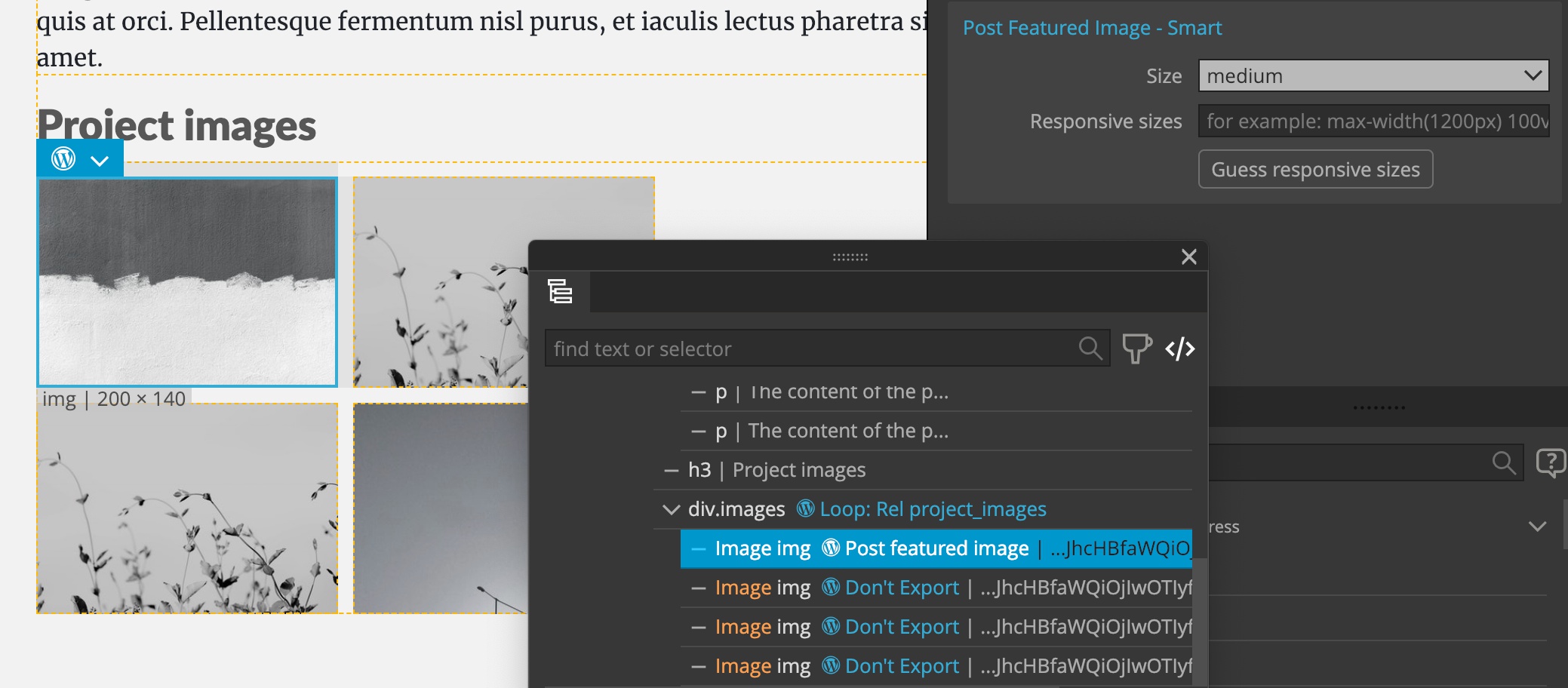
In this example, we display images from “project_images” relationship by placing Show Posts with Relationship and Post Featured Image actions:
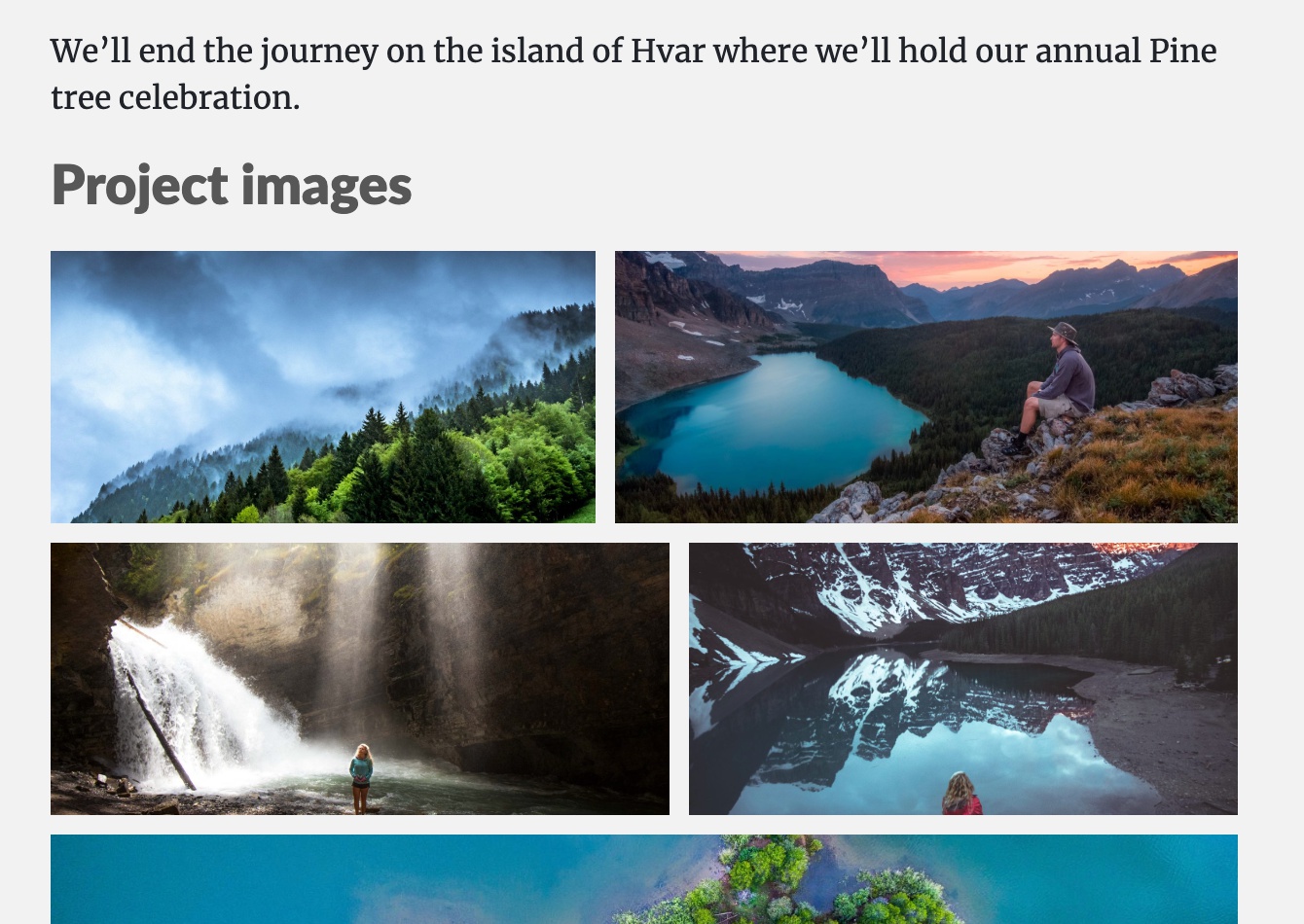
This outputs the images:
Using the PHP code:
<?php
    $project_images_query_args = array(
        'post__in' => PG_Helper::getRelationshipFieldValue( 'project_images' ) ?: array(-1),
        'post_type' => 'any',
        'post_status' => 'any',
        'posts_per_page' => -1,
        'orderby' => 'post__in'
    )
?>
<?php $project_images_query = new WP_Query( $project_images_query_args ); ?>
<?php if ( $project_images_query->have_posts() ) : ?>
    <div class="images">
        <?php while ( $project_images_query->have_posts() ) : $project_images_query->the_post(); ?>
            <?php echo PG_Image::getPostImage( null, 'medium', null, 'both', null ) ?>
        <?php endwhile; ?>
        <?php wp_reset_postdata(); ?>
    </div>
<?php endif; ?>
PGACTIONCONFIG