
Let’s add a link with the website name, pointing to the home page of our website.
DocsWordPress examplesDocsWordPress examples2018-05-08
Site NameExample
Display the Site name with a link to the home page
The Starting Point
We have an A (link) element in the navigation bar.
<a class="navbar-brand" href="/">Travel Agency</a>Steps
In Pinegrow - Select the link and add the Site Name - Smart action from the WordPress panel.
Because we are adding the Site Name - Smart action on the link <a> element, the action will also set the link’s href attribute to the home url of the website.
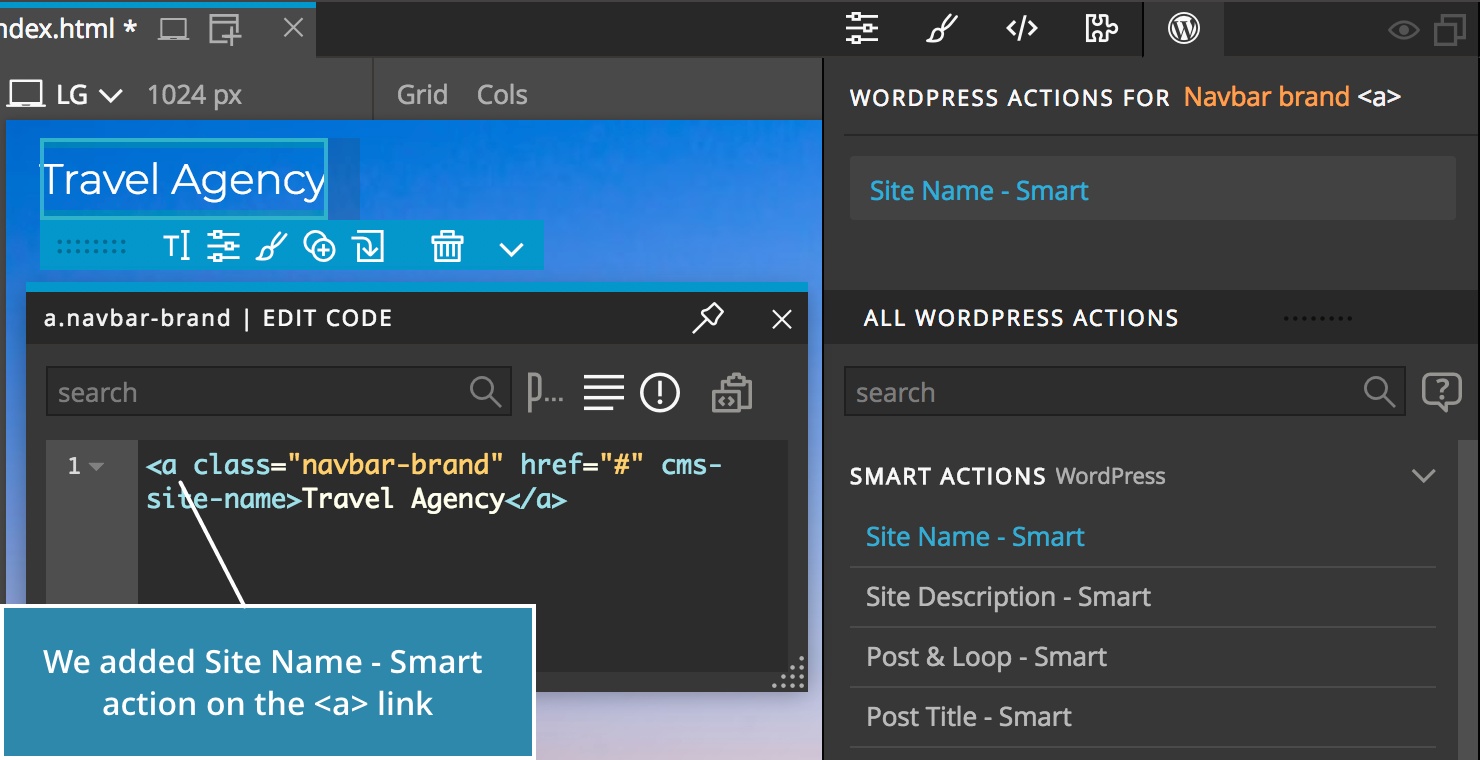
The HTML code with WordPress actions:
<a class="navbar-brand" href="/" cms-site-name>Travel Agency</a>Export the Theme
Quick Export the page by saving it or do the Whole Theme Export with CTRL (CMD on Mac) + W.
The Result
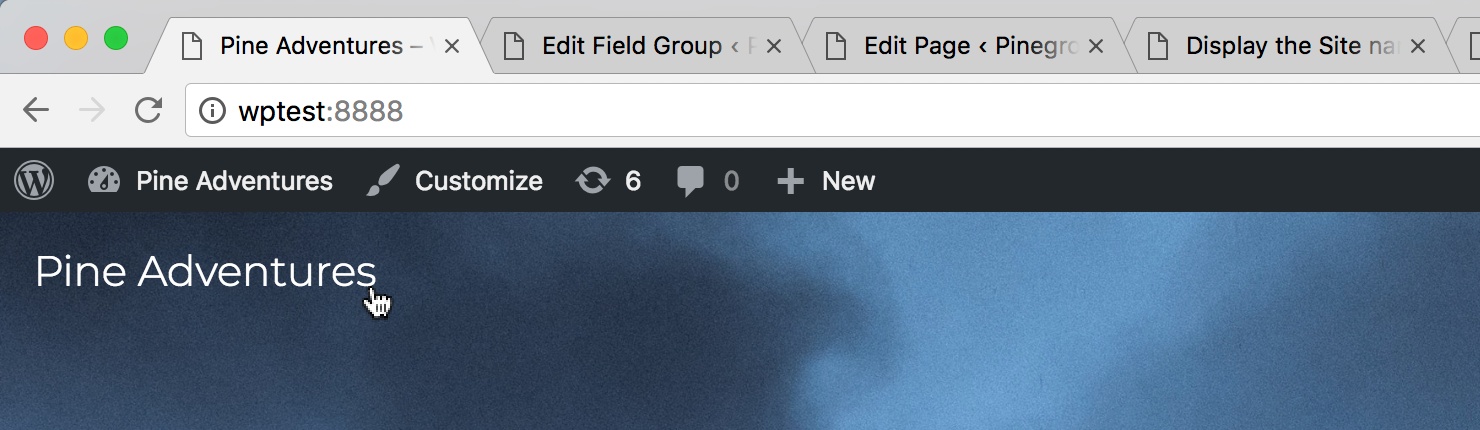
On the website - The link now shows the website name and points to the home page:
The generated PHP code:
<a class="navbar-brand" href="<?php echo esc_url( home_url() ); ?>" rel="home"><?php bloginfo( 'name' ); ?></a>Tips & Tricks
We can then use the Import from WordPress to import the actual site name to our HTML page.
To set just the link without displaying the website name, click on Customize Smart Action on the Site Name - Smart action and then delete the Site Name action from the element so that only the Href action remains on the element.
If we don’t have a link yet, we can create it by going into the Text editing mode, selecting the text and clicking on the Link button:

WordPress actions in this example
- Site NameSite Name action displays the website name and optionally, adds a link to the home page.