
“Focus on…” mode, Handling inline styles and other styling improvements, Drag files from the Project panel and more.
Release notesRelease notesRelease notesRelease notes2018-11-19
Pinegrow Web Editor 5, November 20, 2018
First, a quick look back. In the year since Pinegrow Web Editor 4 was released, we had 10 strong updates with features like Smart WordPress Actions and powerful Visual CSS Grid Editor.
A note about upgrades to Pinegrow 5: if your license is eligible for free updates (one year after the license purchase and renewal, or as long as subscription is active) you get all Pinegrow Web Editor updates for free, including Pinegrow 5.
With Pinegrow 5 we focus on improving the workflow of dealing with HTML layout and CSS styling. We even created a feature called “Focus on”.
So, let’s start with that.
Focus on…
“Focus on…” lets us isolate an element on the page and deal with just this element instead of the whole page. That’s very useful on complex HTML layouts.
“Focus on…” command is available in the top toolbar, on the element context menu or with the shortcut CMD+F (CTRL+F on Windows/Linux).
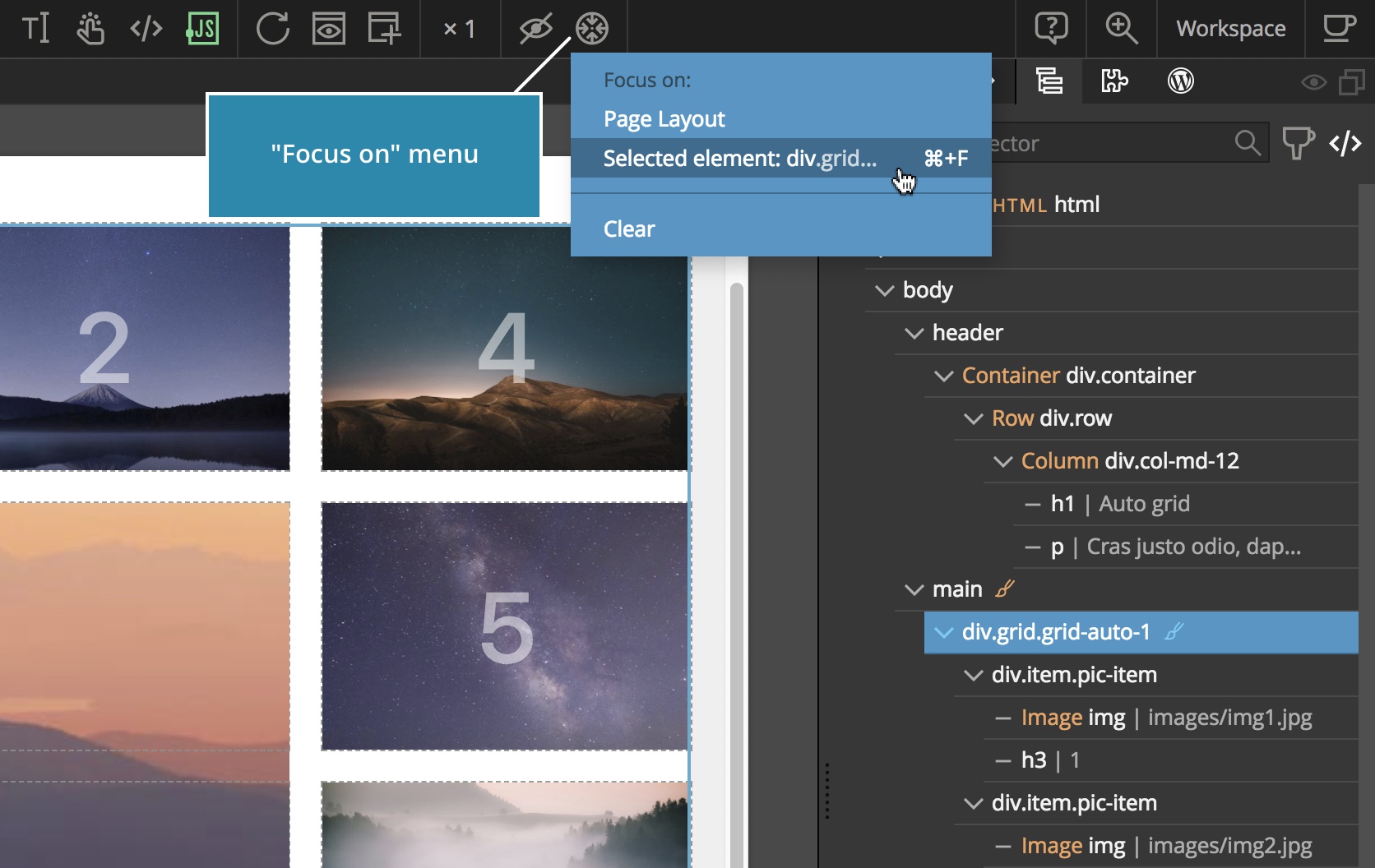
A couple of things happen when we Focus on an element:
The Tree panel displays the structure of the focused element, with all its children nodes collapsed (only the top most level is expanded):
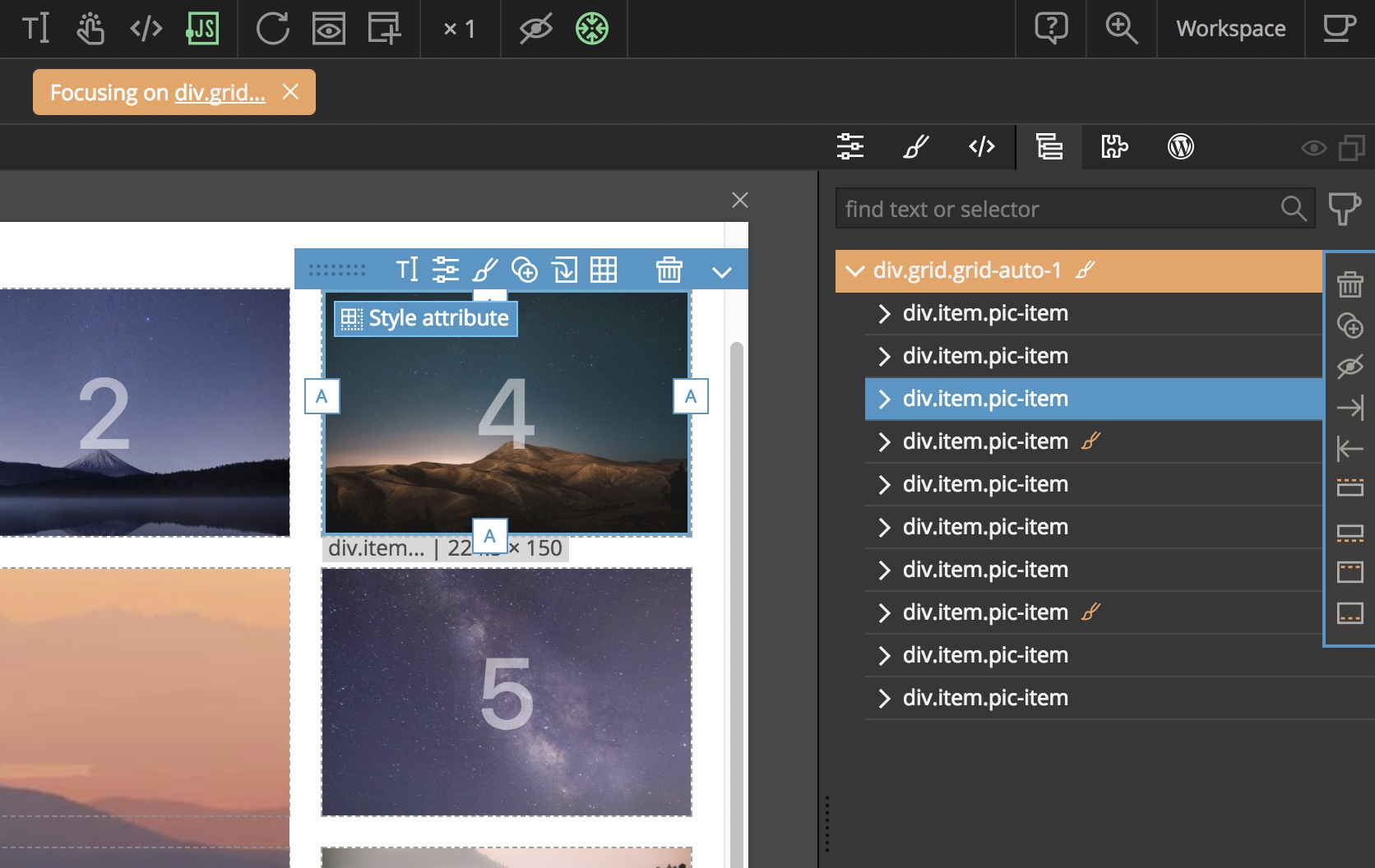
Drag & drop on the page deals only with top level children of the element. For example, grabbing anything within the element will grab the top level child:
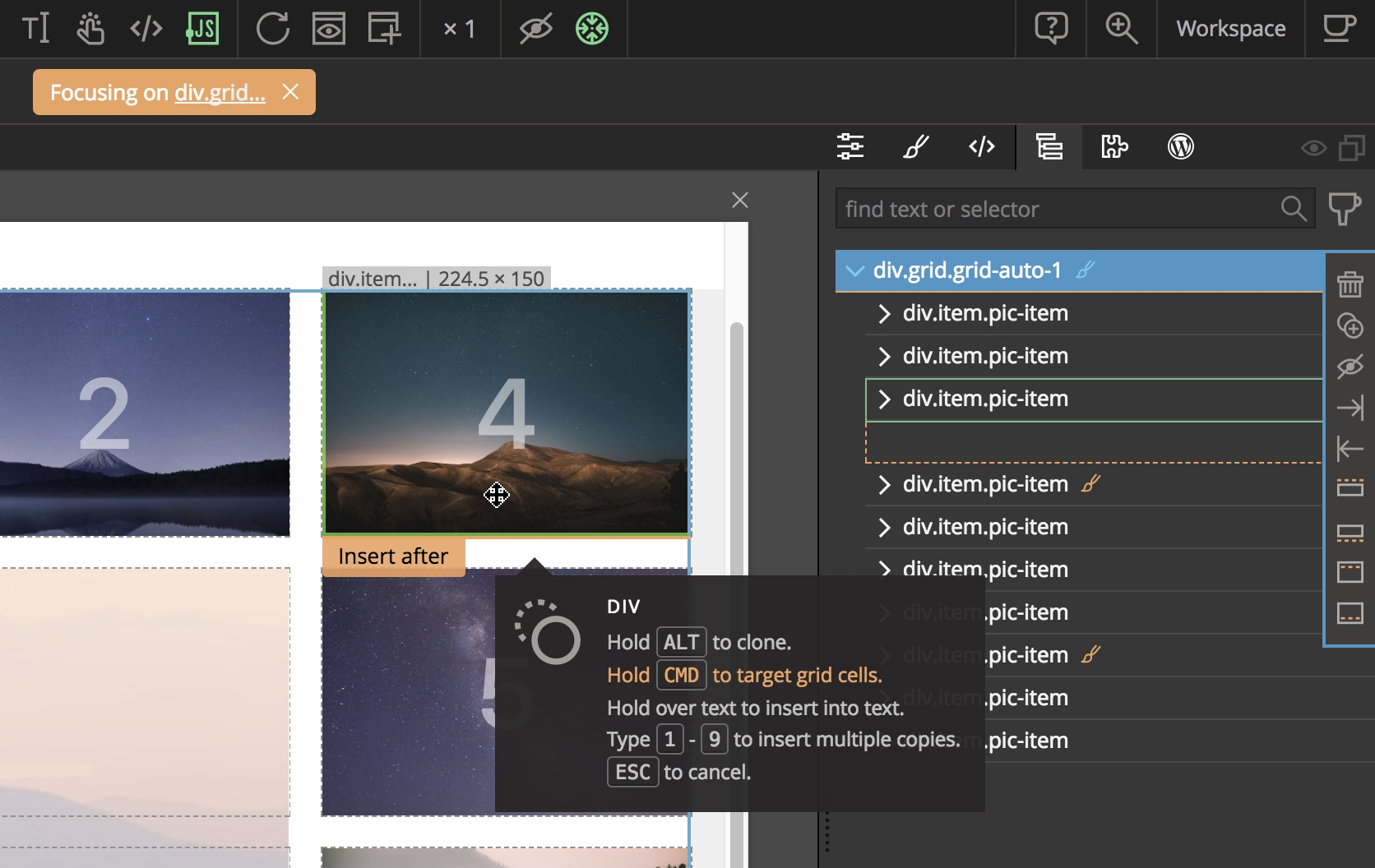
Similarly, dropping an element from the Library panel will place the element on the top level of the focused element.
That’s very handy for dealing with the top level structure of the focused element without worrying that we’ll drop something in the wrong place.
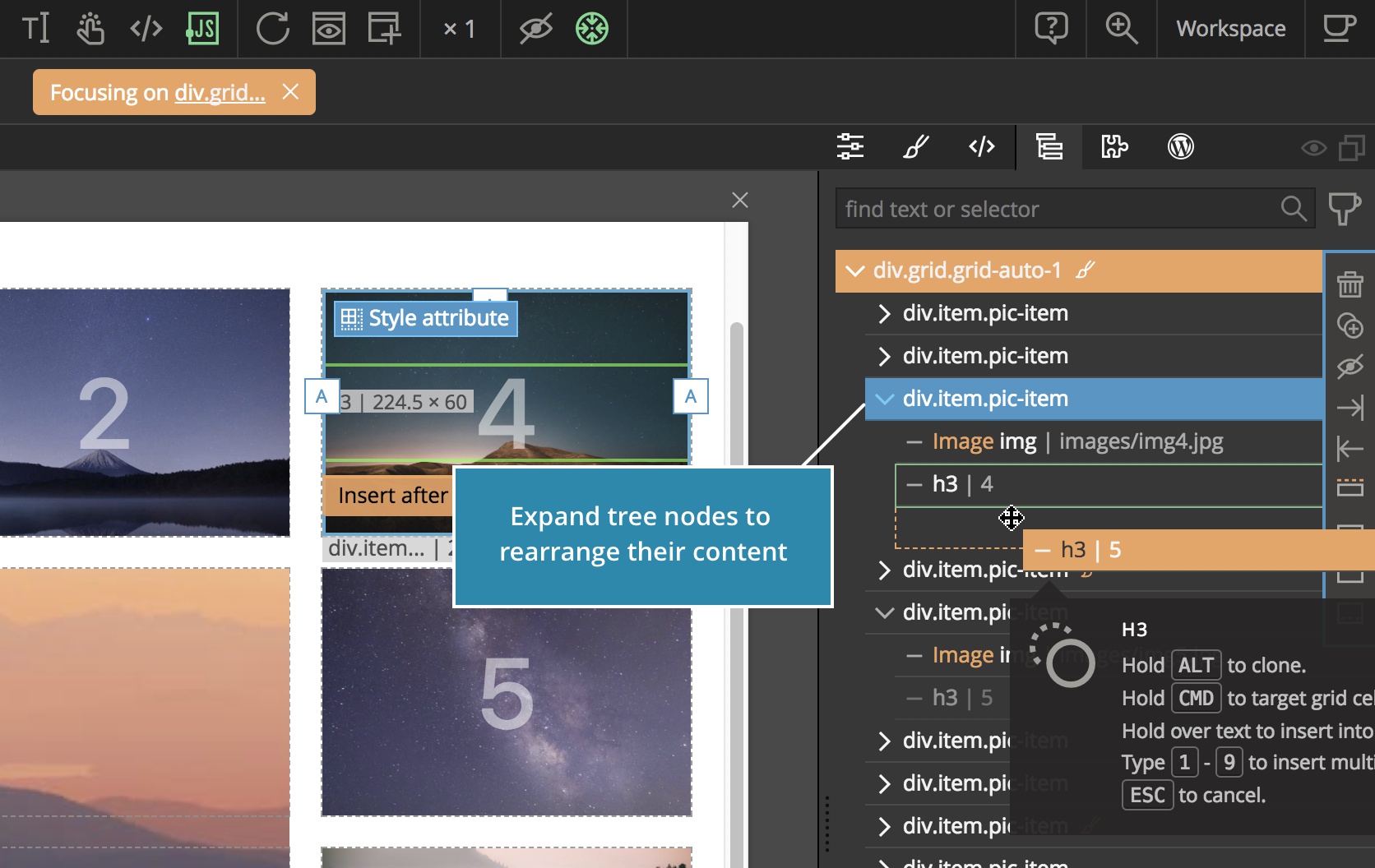
If we want more control over drag & drop placement, we can expand relevant nodes in the Tree panel and use it for dropping or rearranging elements:
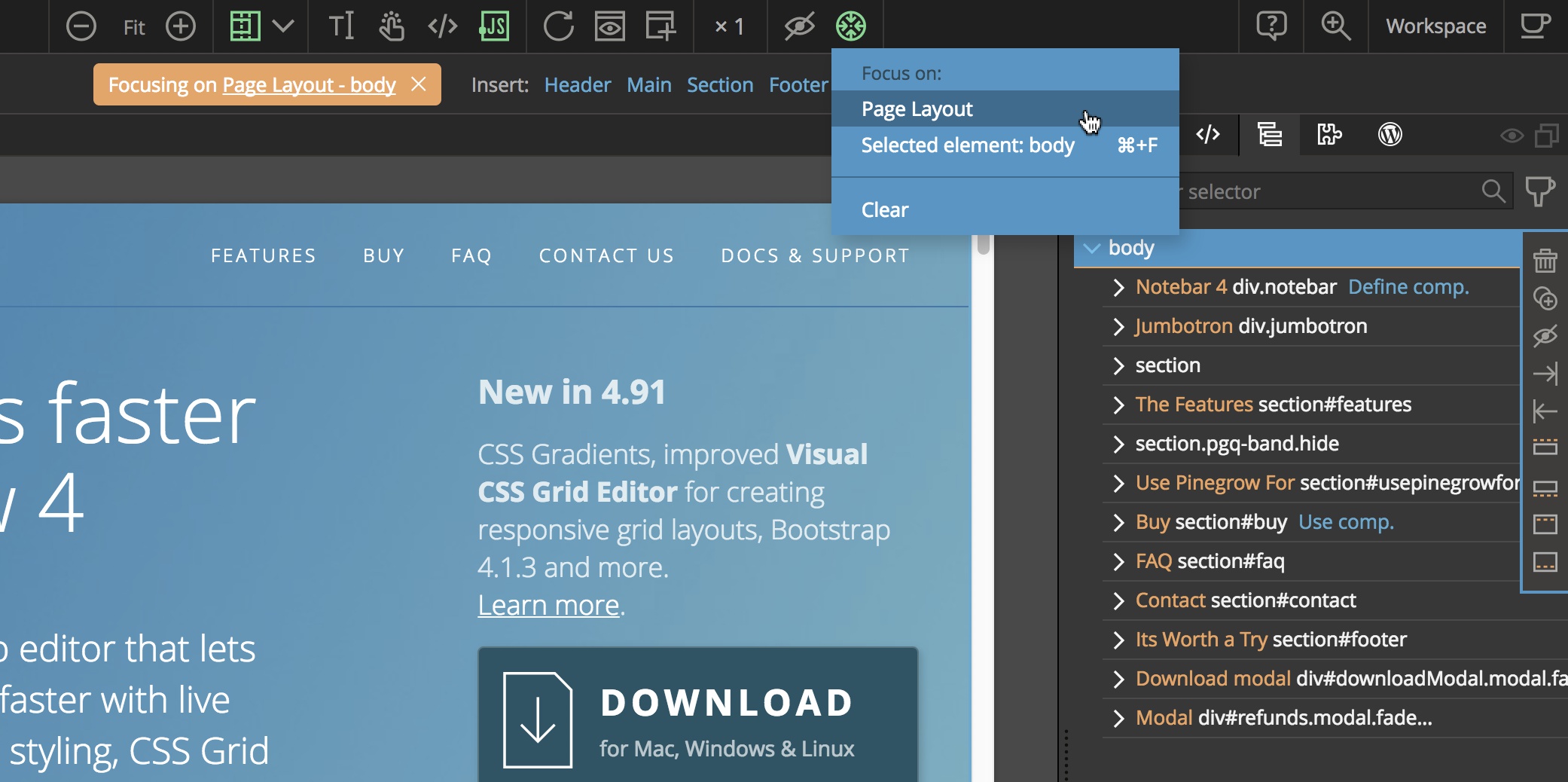
The “Focus on” menu also contains a shortcut to focusing on the Page layout of the Body element:
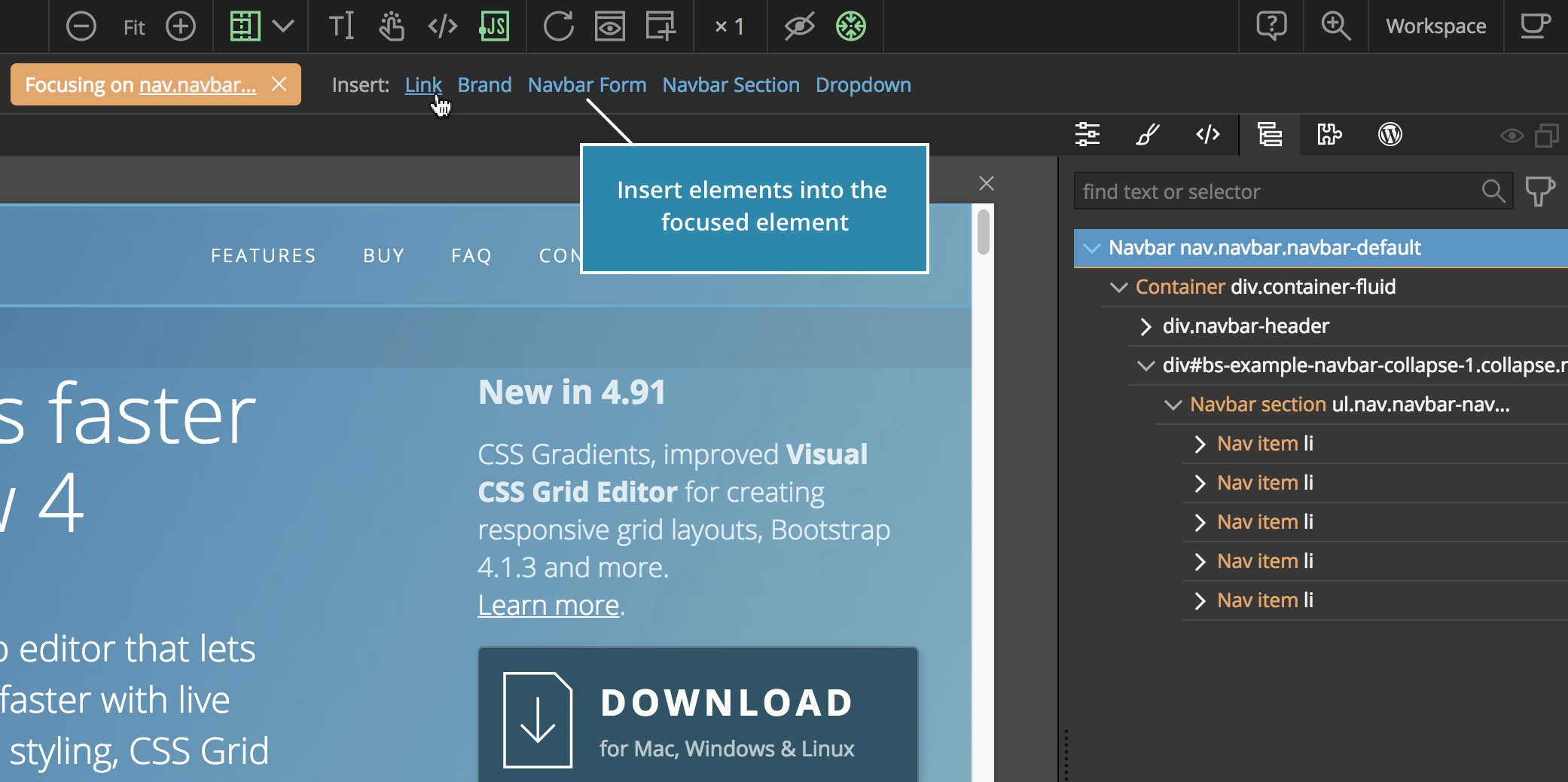
The Focus bar also lists the elements that can be inserted into the focused element, if available:
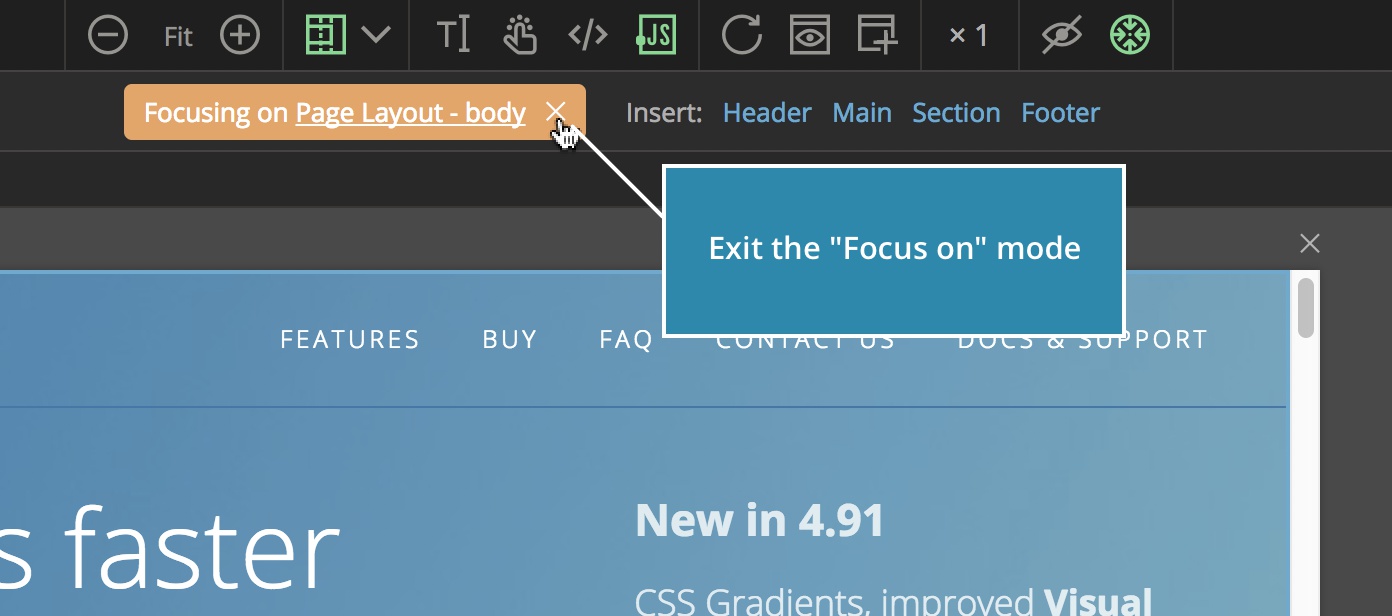
To exit the “Focus on” mode click on the close icon in the Focus bar or select Clear from the Focus menu.
Improved CSS Styling
Starting from Pinegrow 3 it has been possible to style elements with inline styles (with HTML element style attribute).
The benefit of inline styles is that we can jump straight into styling an element, without thinking about classes, ids and CSS rules.
But eventually, all inline styles should be transferred into proper CSS rules. That’s hard to do if inline styles are scattered around the page.
Pinegrow 5 has a solution for that.
Working with inline styles
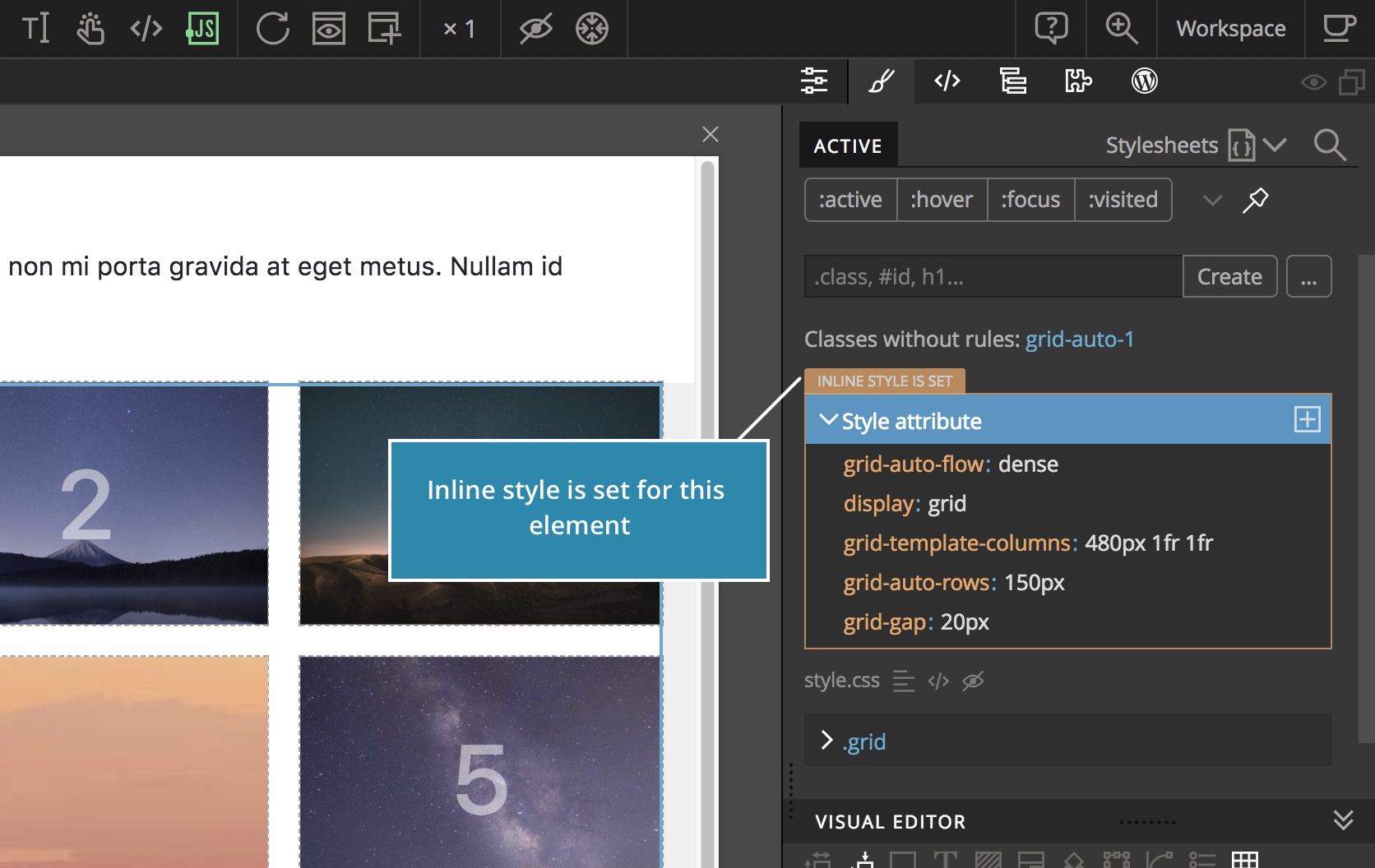
First, the Style panel now clearly indicates when inline styles are used:
Second, the Quick Create CSS Rule tool offers to transfer the inline styles into a newly created CSS rule:
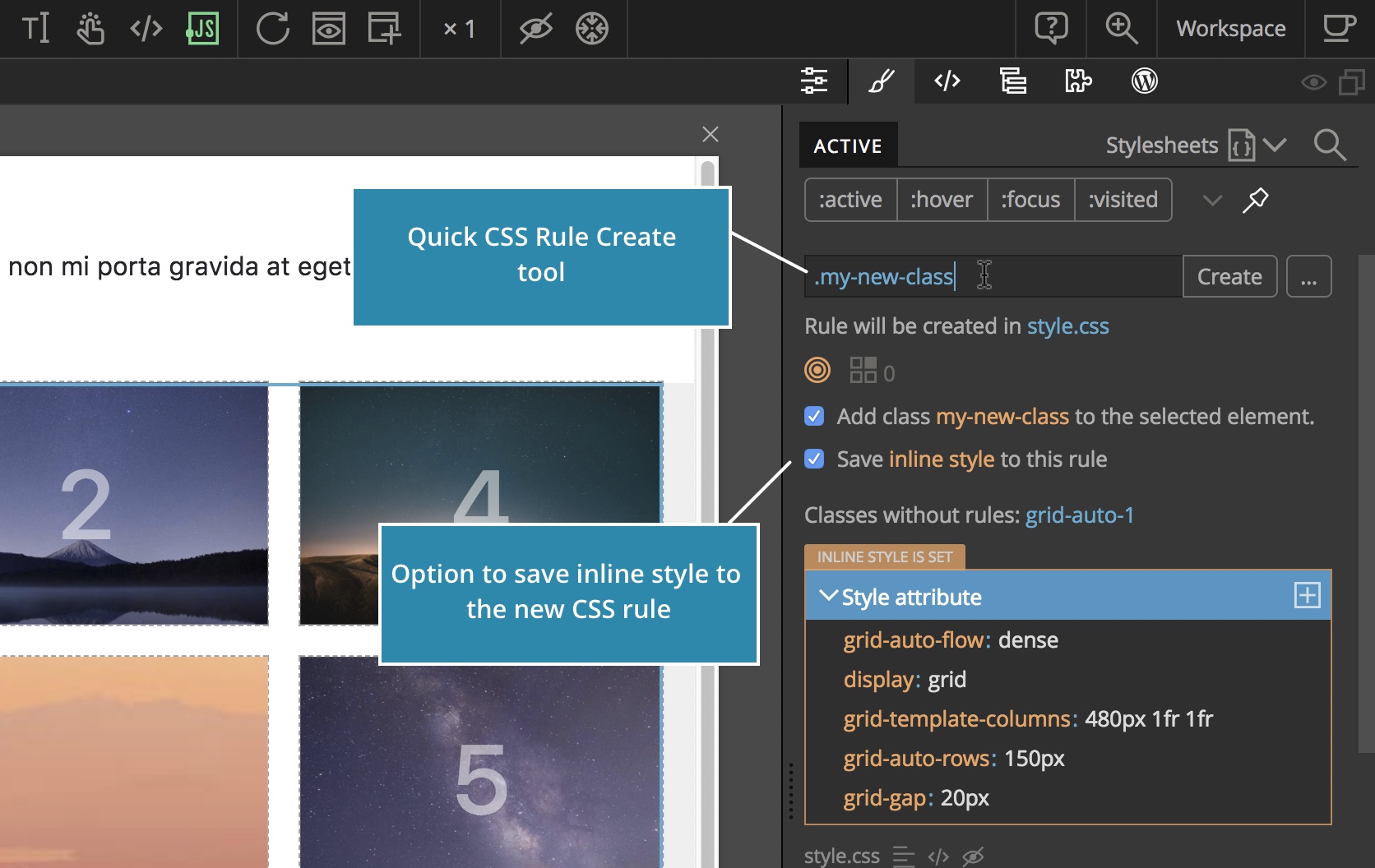
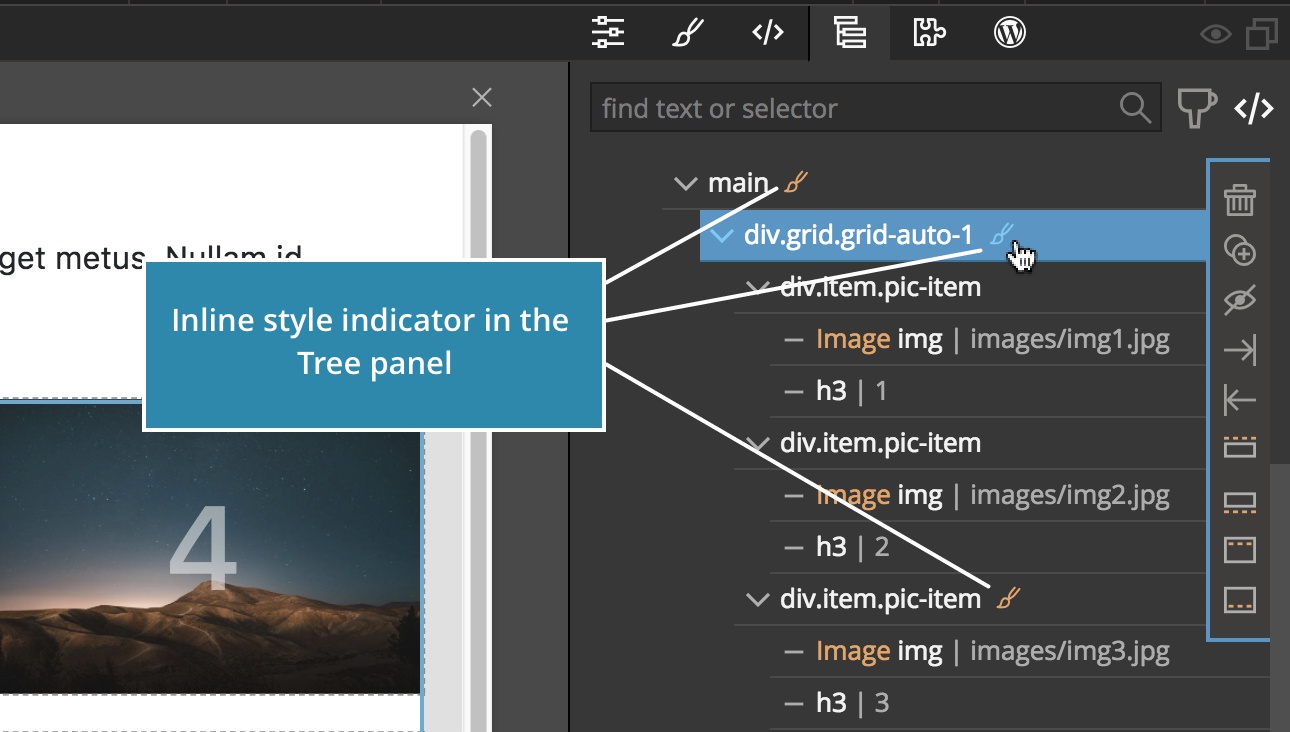
And the Tree panel shows the style icon next to elements with inline styles. Clicking on the style icon in the Tree jumps straight into Style editor for that element:
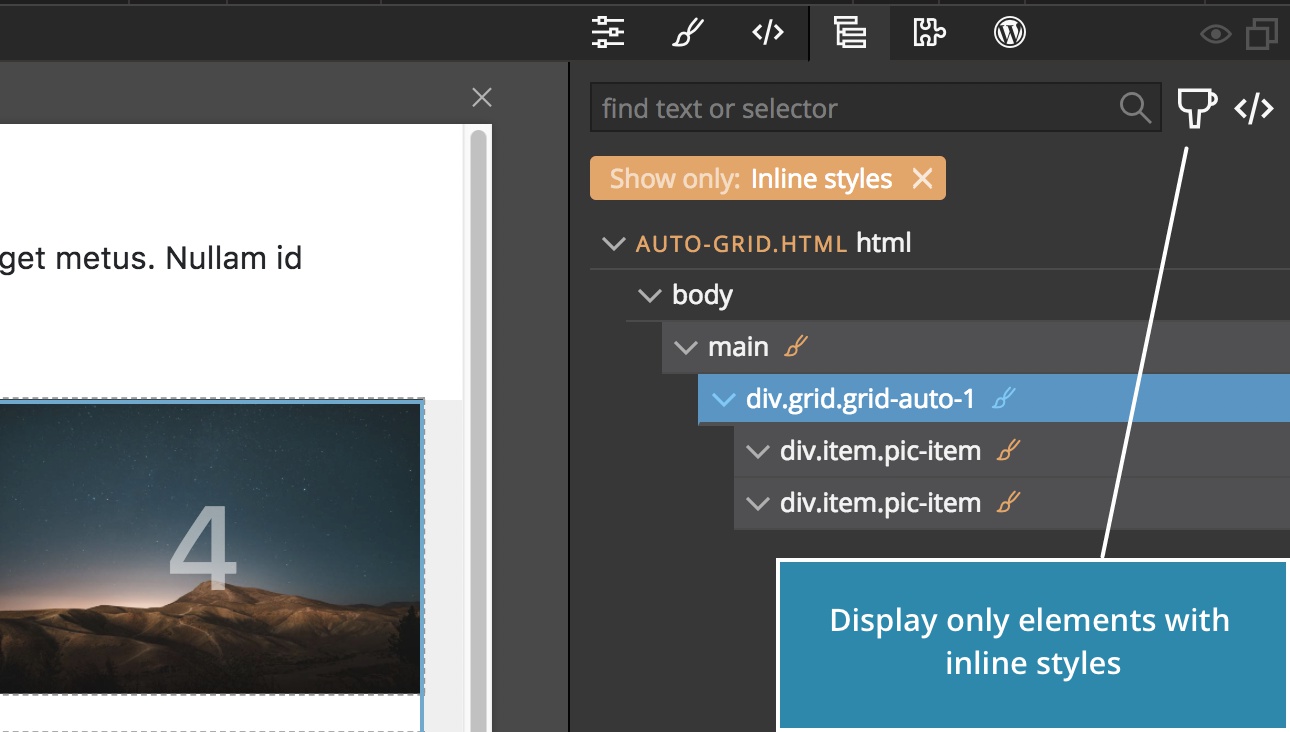
The Tree panel filter can be used to only display elements with inline styles:
With these tools we have the best of both worlds: the freedom to directly style with inline styles and the systematic process for creating CSS rules for those styles.
And some might ask: Why not have a feature that would automatically save all inline styles on the page as CSS rules?
It would be easy for Pinegrow to go through the page and store all inline styles into CSS classes like .rule1, .rule2…
Although it sounds useful, such feature would lead to messy CSS code. Creating maintainable CSS structure requires strategic thinking about properly naming and organizing CSS rules. That’s not something that an app can do for you.
Creating clean and maintainable code is the top goal and quality of Pinegrow Web Editor. We don’t want to introduce any feature that would go against this.
Other styling improvements
There are more styling improvements worth mentioning:
Stylesheets and their CSS rules can be hidden in the Active Style panel by clicking on the Hide stylesheet icon next to the stylesheet name:
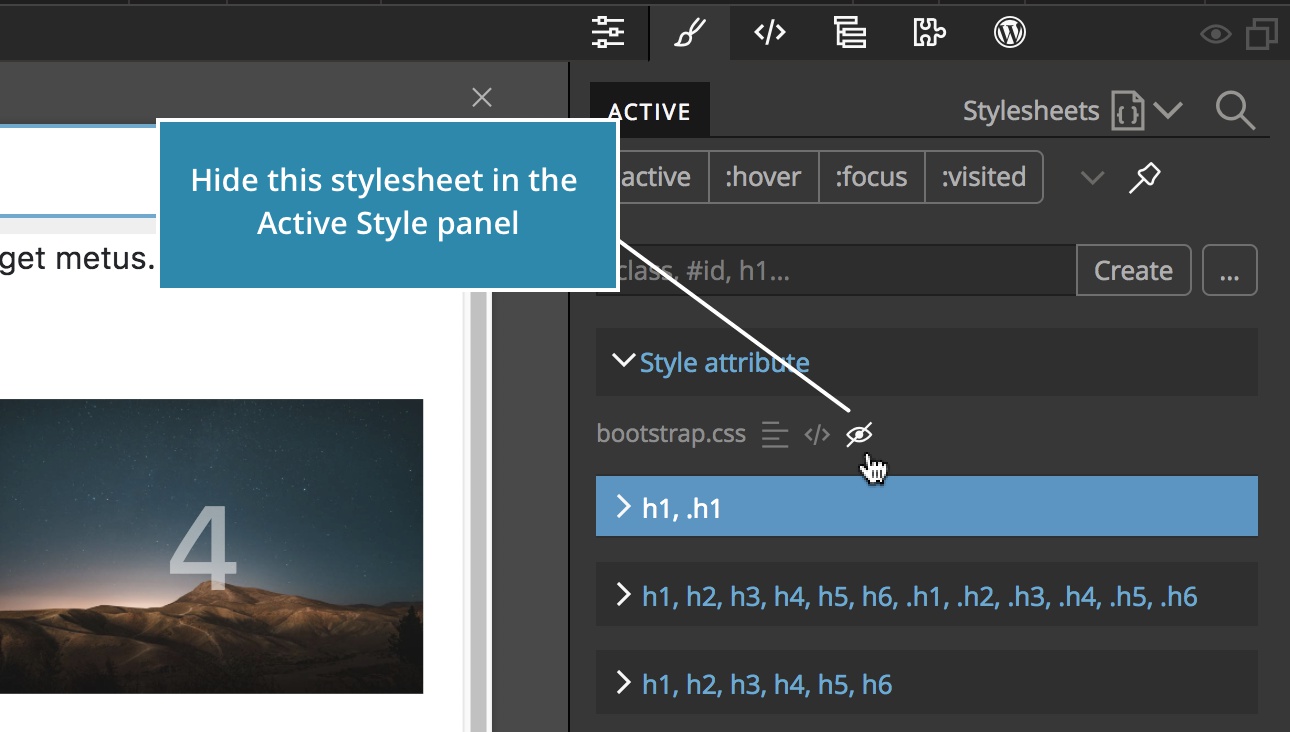
Before, the “Ignore in Active” function was only available from the Stylesheets menu.
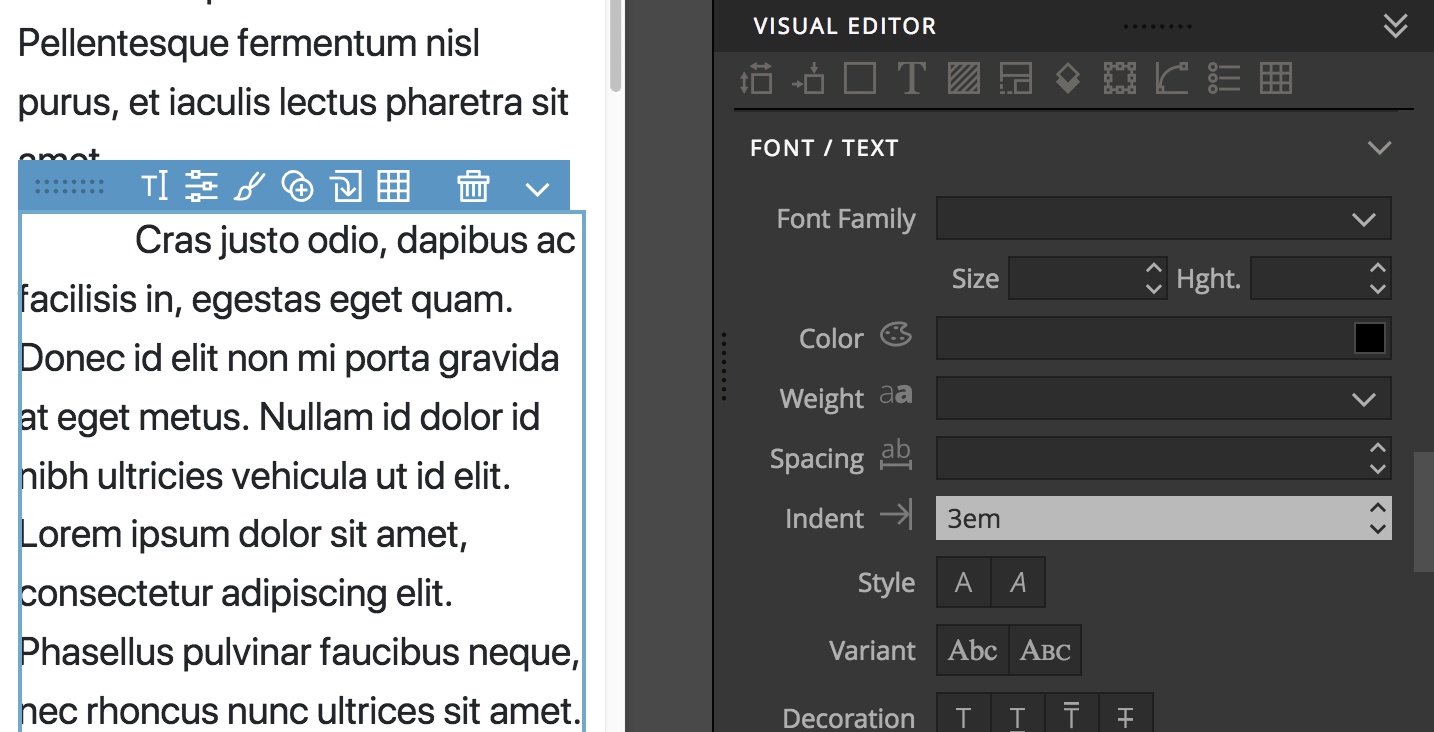
Text indent control was added to the Text section of the CSS Visual Editor:
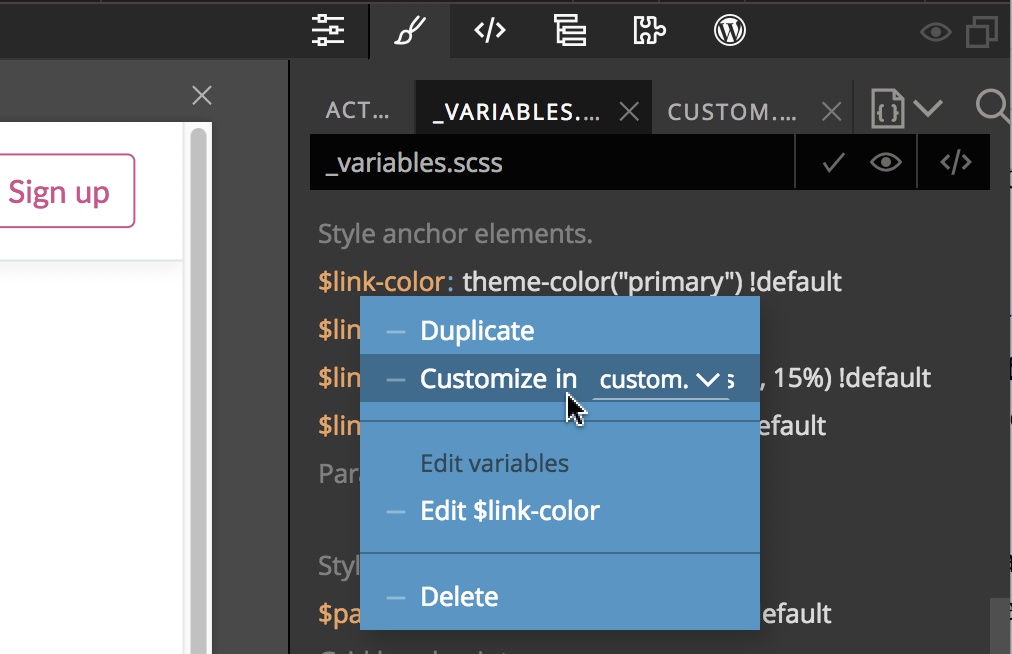
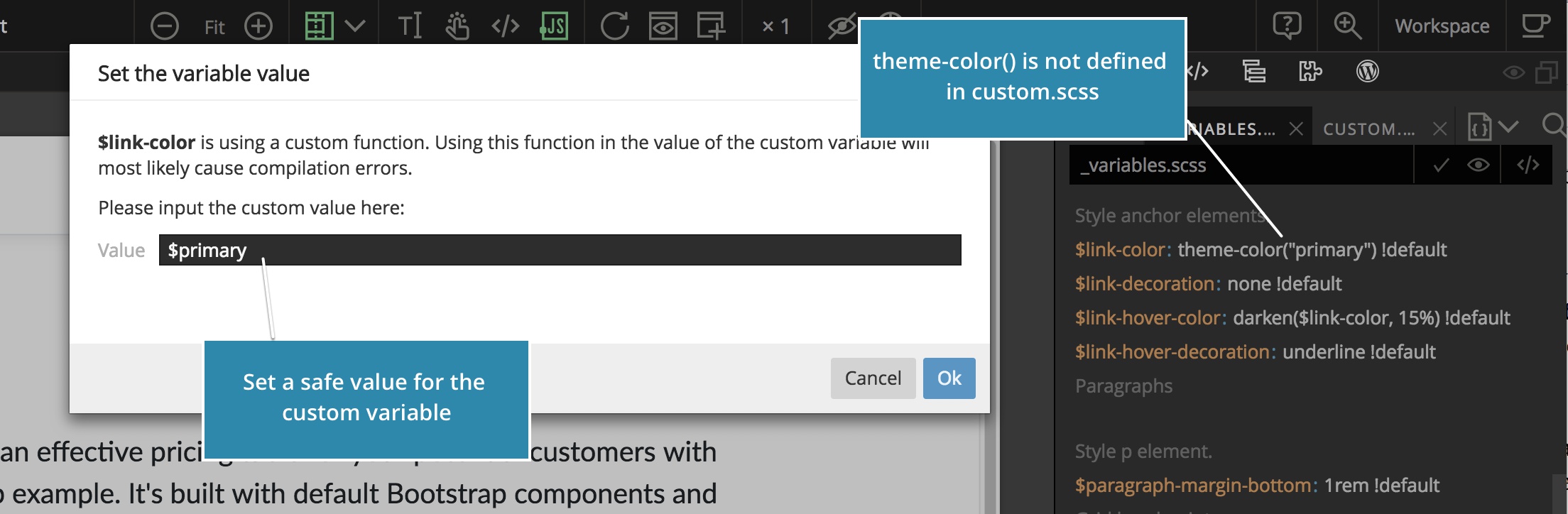
“Customize variable” command (for SASS and LESS files) will ask for the new value if the default value uses a custom function:
This avoids breaking SASS/LESS files with functions that are not yet defined in the section where custom variables are defined:
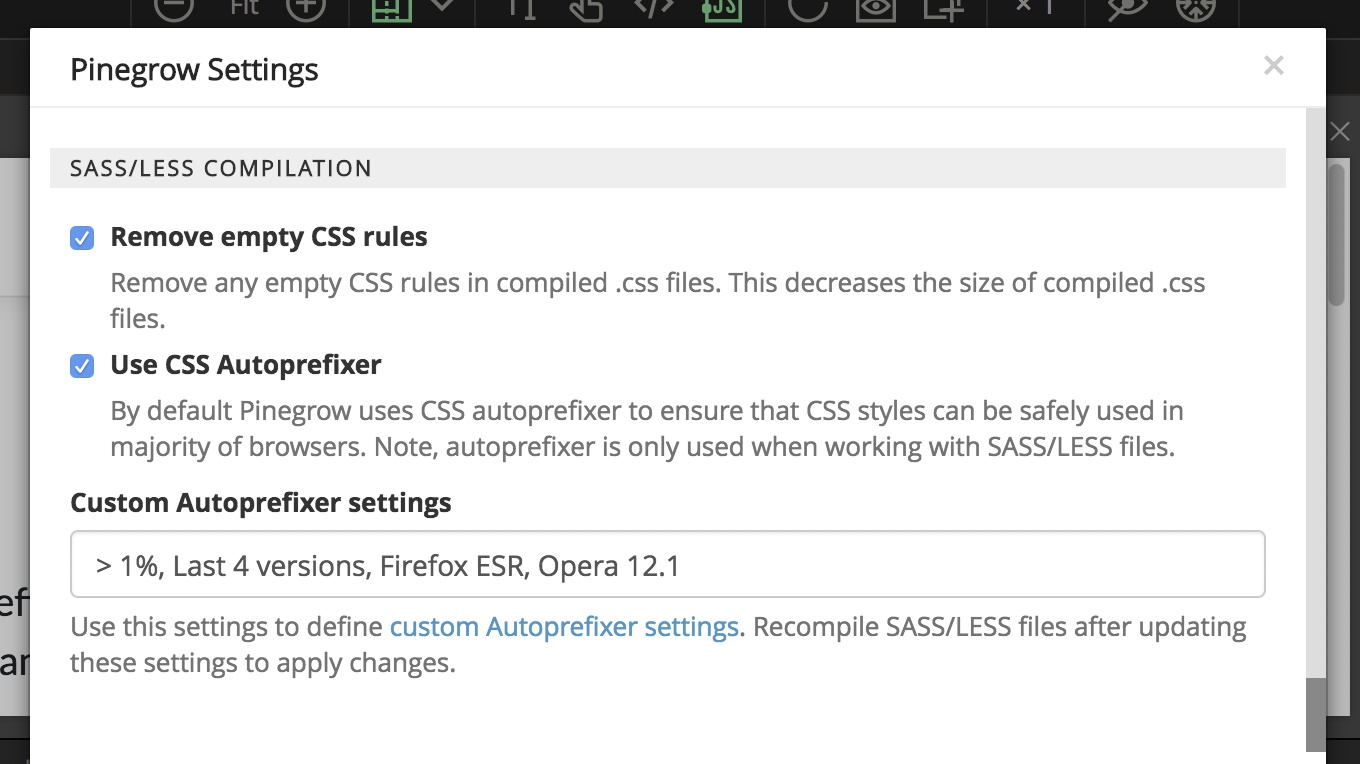
Pinegrow uses CSS Autoprefixer when compiling SASS and LESS files. Now you can control the Autoprefixer configuration in the Settings dialog. This feature is for advanced users, most users can just leave the autoprefixer settings as they are.
The Project panel
Note, the Project panel is a Pinegrow PRO feature.
Now, we can drag images, stylesheets and scripts from the Project panel to the page. Draggable files have a Drag icon displayed next to their names:
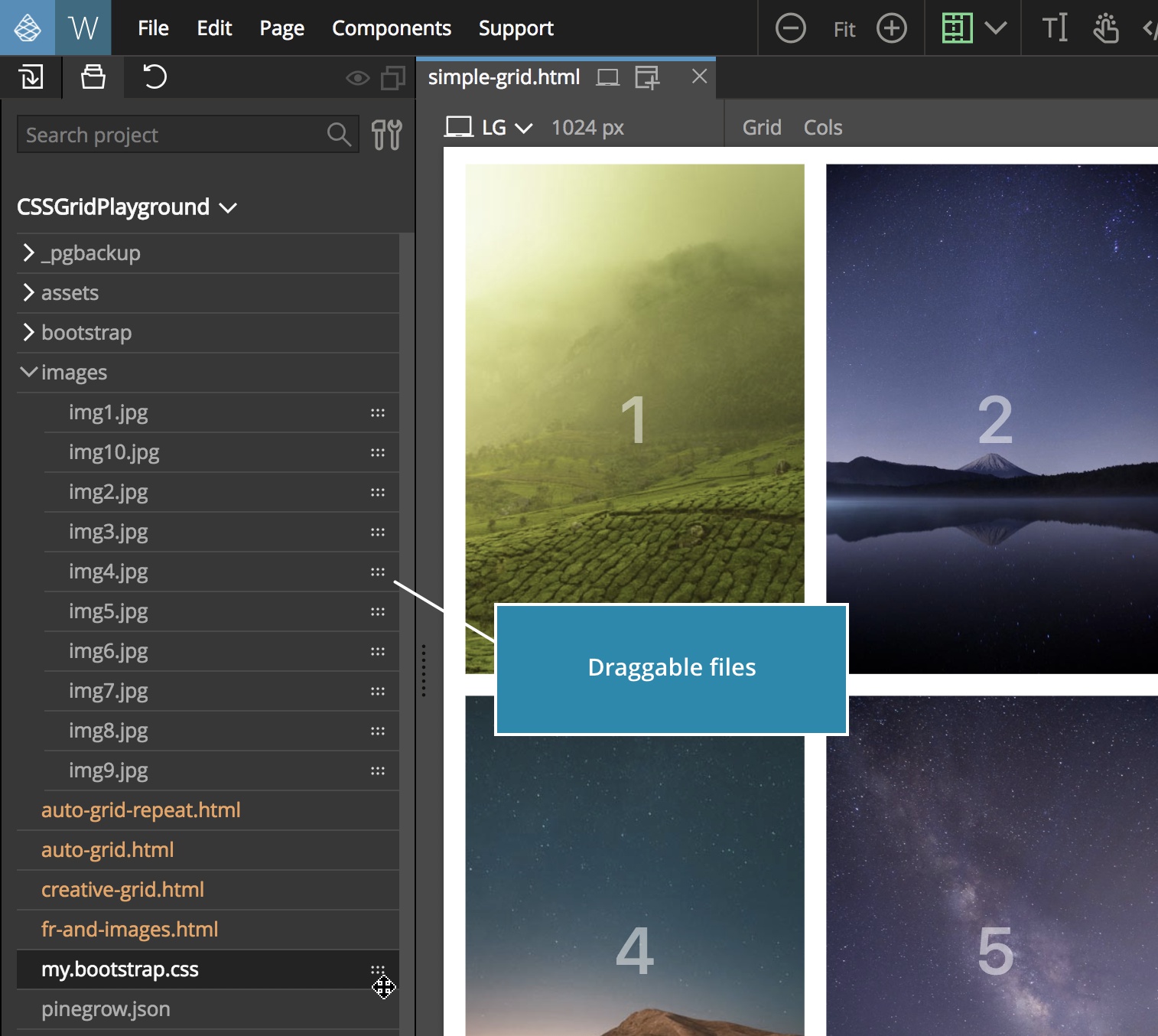
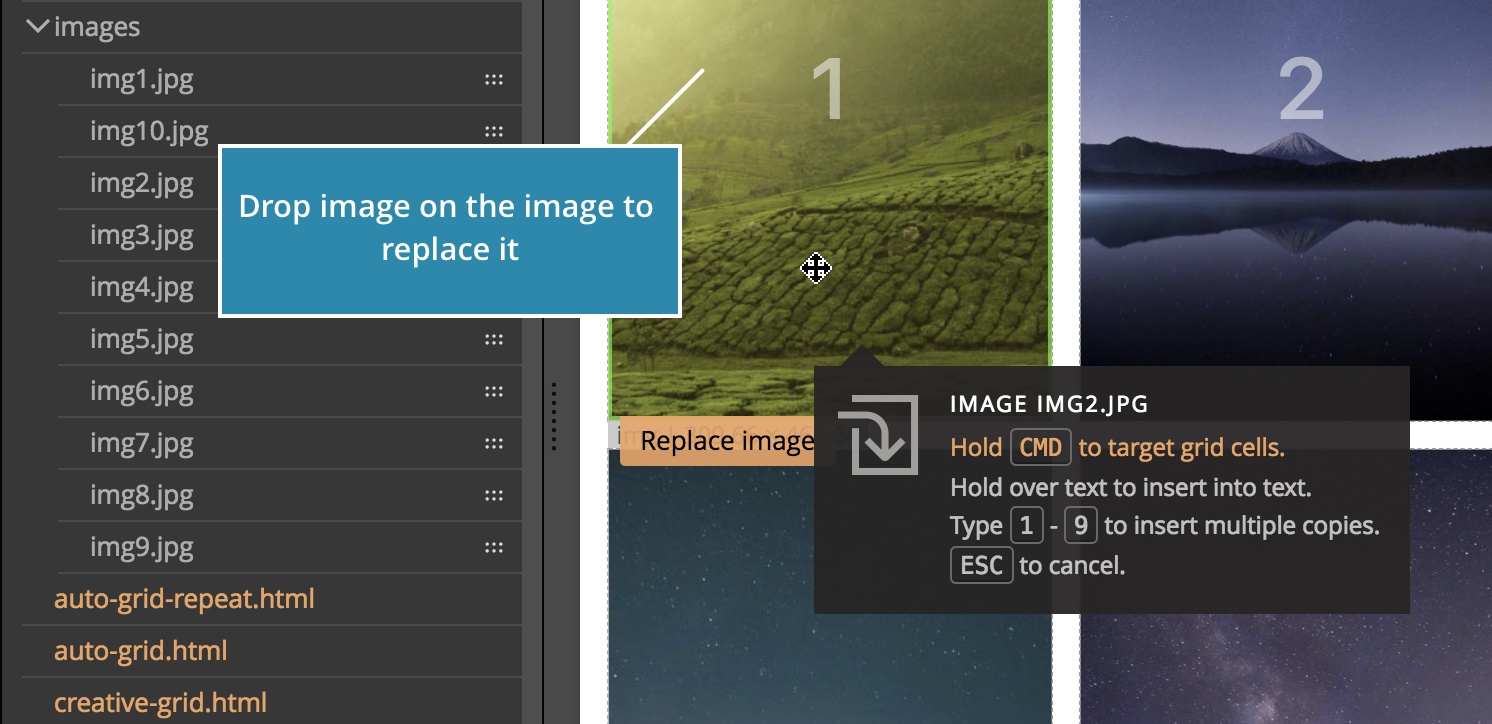
Dragging an image inserts the image to the selected place on the page or in the Tree
Dropping an image on an existing image on the page replaces that image:
Dragging a stylesheet (.css file) to the page appends the stylesheet to the page.
Doing that with a Javascript (.js) script file will insert the script to the footer of the page.
Image previews in the Project panel now also display the dimensions and size of images:
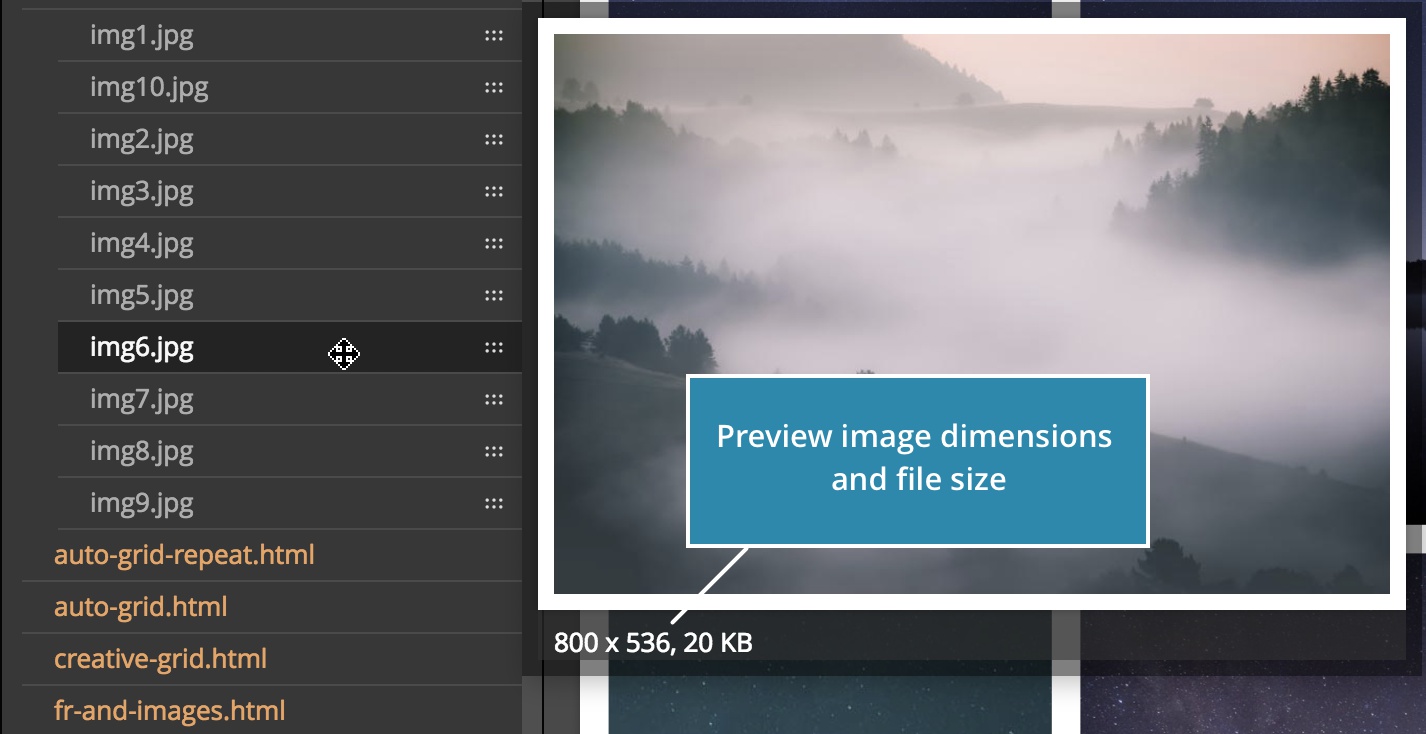
And using the search in the Project panel expands all folders with matched files.
The Tree panel
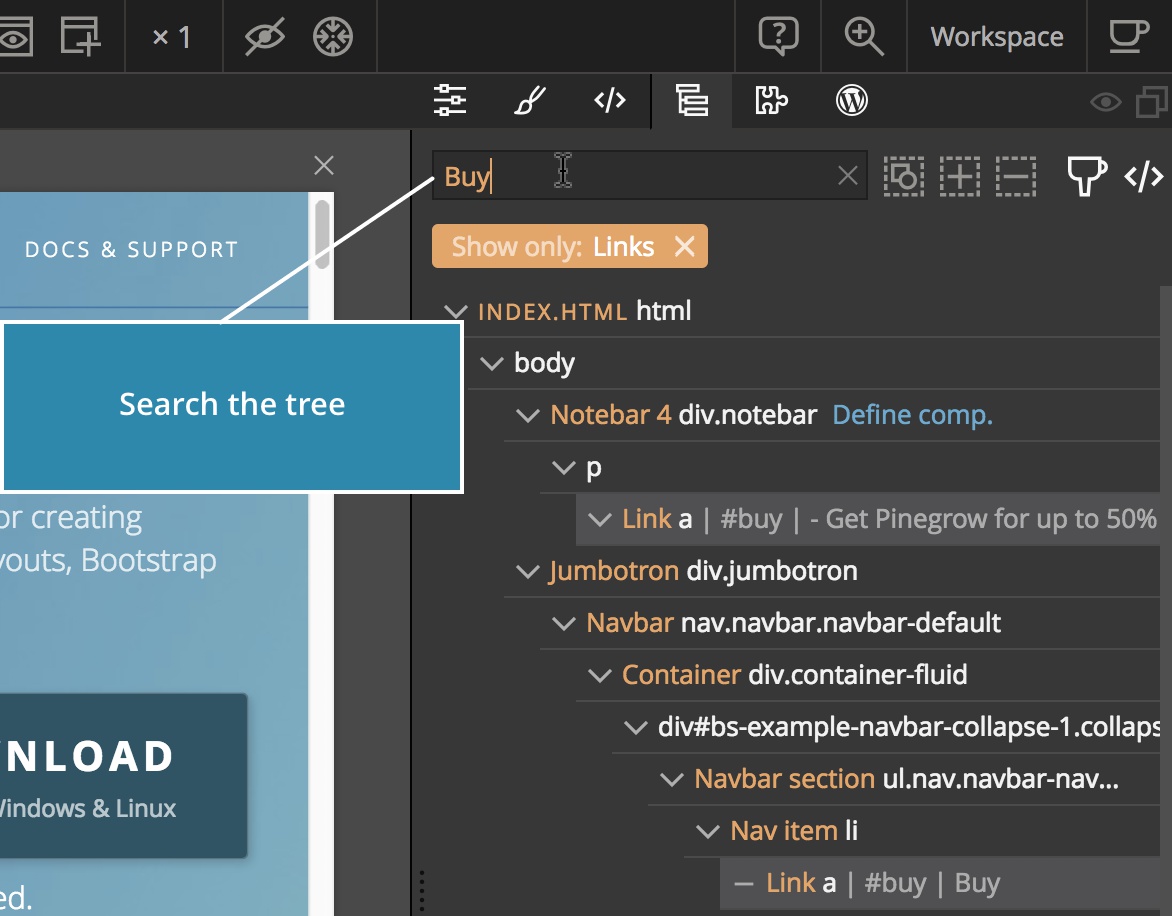
The Tree panel got a “Filter” function that lets us display only elements with inline styles, images, texts, links, components or WordPress actions:
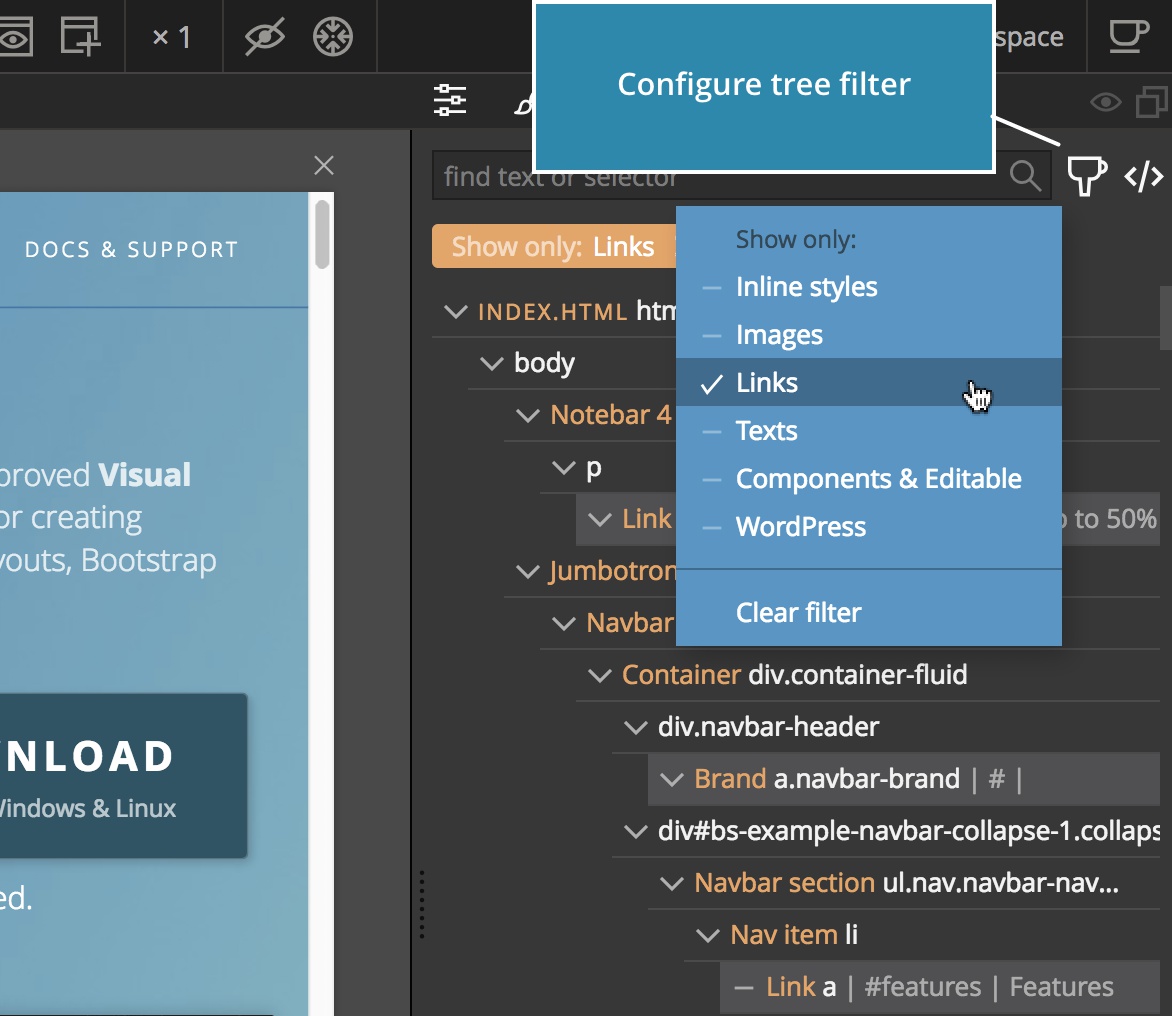
The filter works alongside the existing search function that lets us search with strings and CSS selectors:
Other improvements
Use arrow keys to select elements
- UP selects the parent element
- DOWN selects the first child element
- LEFT selects the previous element
- RIGHT selects the next element
Use SHIFT with LEFT and RIGHT keys to select a range of elements.
Selecting a duplicated element
A duplicated element is now automatically selected, if the Duplicate command was run on a selected element.
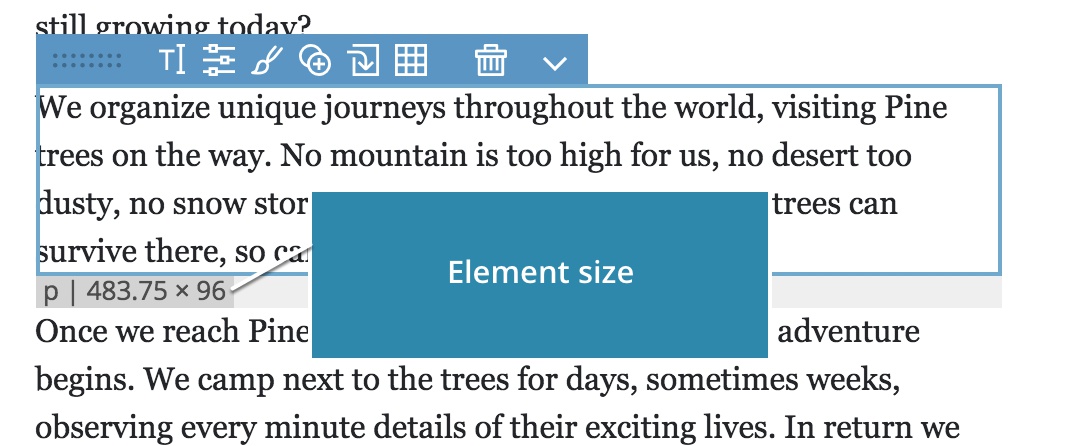
Element dimensions in pixels are shown when an element is selected or hovered with the mouse pointer:
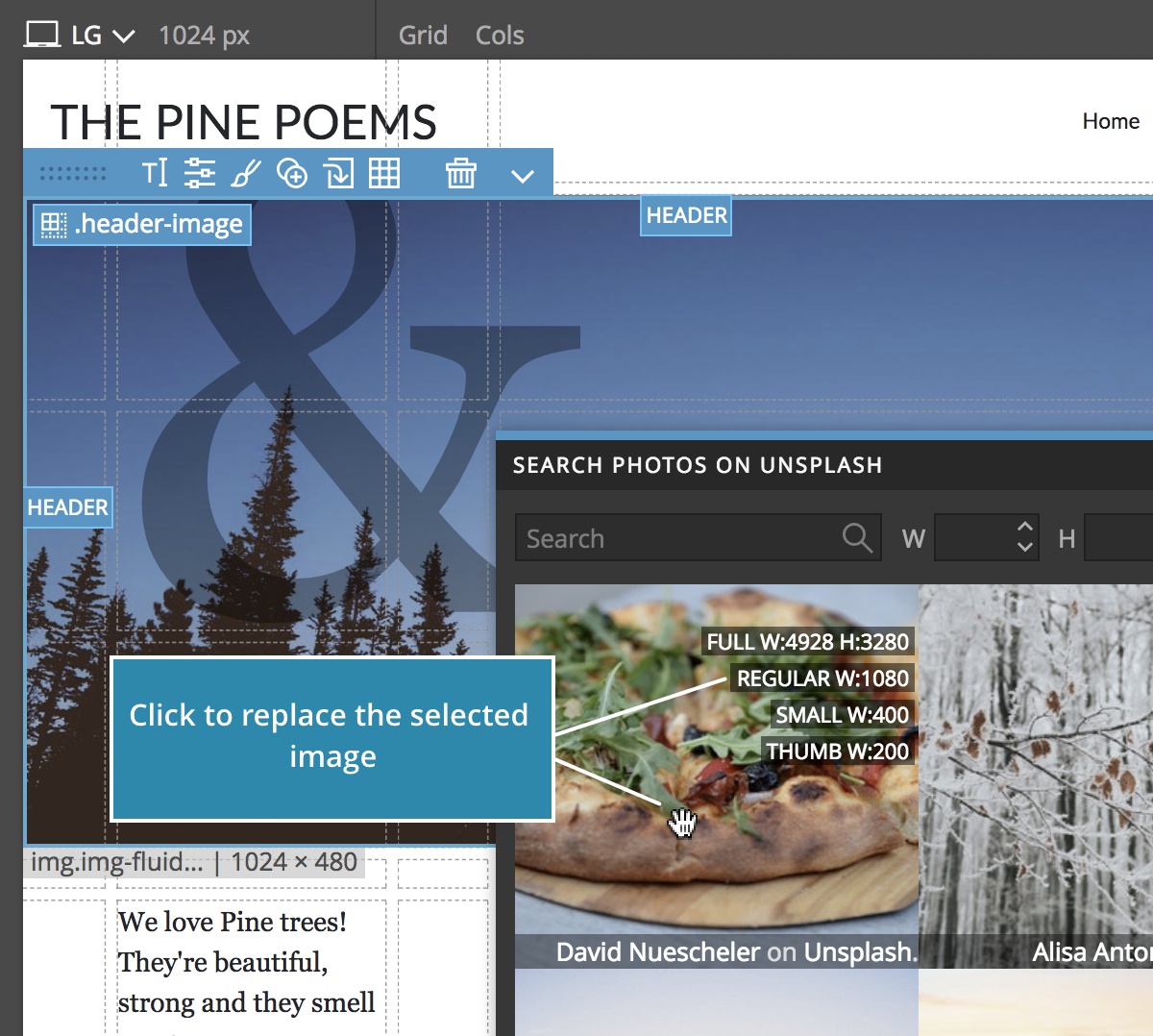
Clicking on a image in the Unsplash photo browser replaces the currently selected image:
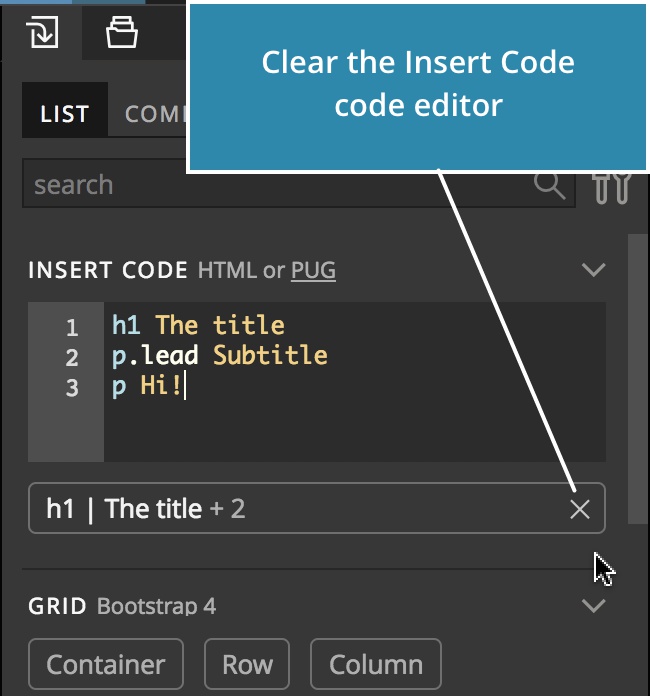
Use “Clear code” icon in Insert code in the Library panel to clear the code from the editor:
Page and project thumbnails are now turned off by default on Linux because on Linux, generating thumbnails requires briefly showing a second window. You can turn them on in the Options menu on the Start screen:
-
This was an overview of noteworthy Pinegrow 5 features.
To take Pinegrow 5 for a spin, download it from [pinegrow.com](https://pinegrow.com). If your Pinegrow trial already expired, you’ll get a fresh trial period.
Have fun.