
Find & replace – Filter projects on dashboard – Custom Tailwind controls with external build – Class Tree Inspector improvements – Flowbite components and more.
Release notesRelease notesRelease notesRelease notes2024-10-23
Pinegrow Web Editor 8.1, October 24, 2024
Download Pinegrow 8.1
The package includes Pinegrow PRO, WordPress, WooCommerce, Interactions and Tailwind editor.
Pinegrow for Mac (Intel) Antivírus checkedMac: b967551e46bad81bcfc0c8b1f4618b40535b98bd
Pinegrow for Mac (Apple Silicon) Antivírus checkedMac: 19c51f1f073b1f53723ed390a33ac9ccbaf52733
Pinegrow for Windows 64 (Installer) Antivírus checkedWindows: 8bc8d3fe79709ec30c63de9151cae4c25d6ad49f
Pinegrow for Linux (Zip, 64bit) Antivírus checked Linux: ec7e5602e76028c9e729dc0437155d5ad1678d25
Pinegrow WordPress Plugin 1.0.20
Pinegrow WordPress Plugin (Zip)
Find and replace
The new Find & Replace tool lets you search elements across the selected elements, page or whole project. To open it, select it from the Edit menu, from the toolbar or with CMD/CTRL+F shortcut.
CMD/CTRL+F was previously assigned to “Focus on selected element” command. The shortcut for that is now SHIFT+CMD/CTRL+F.
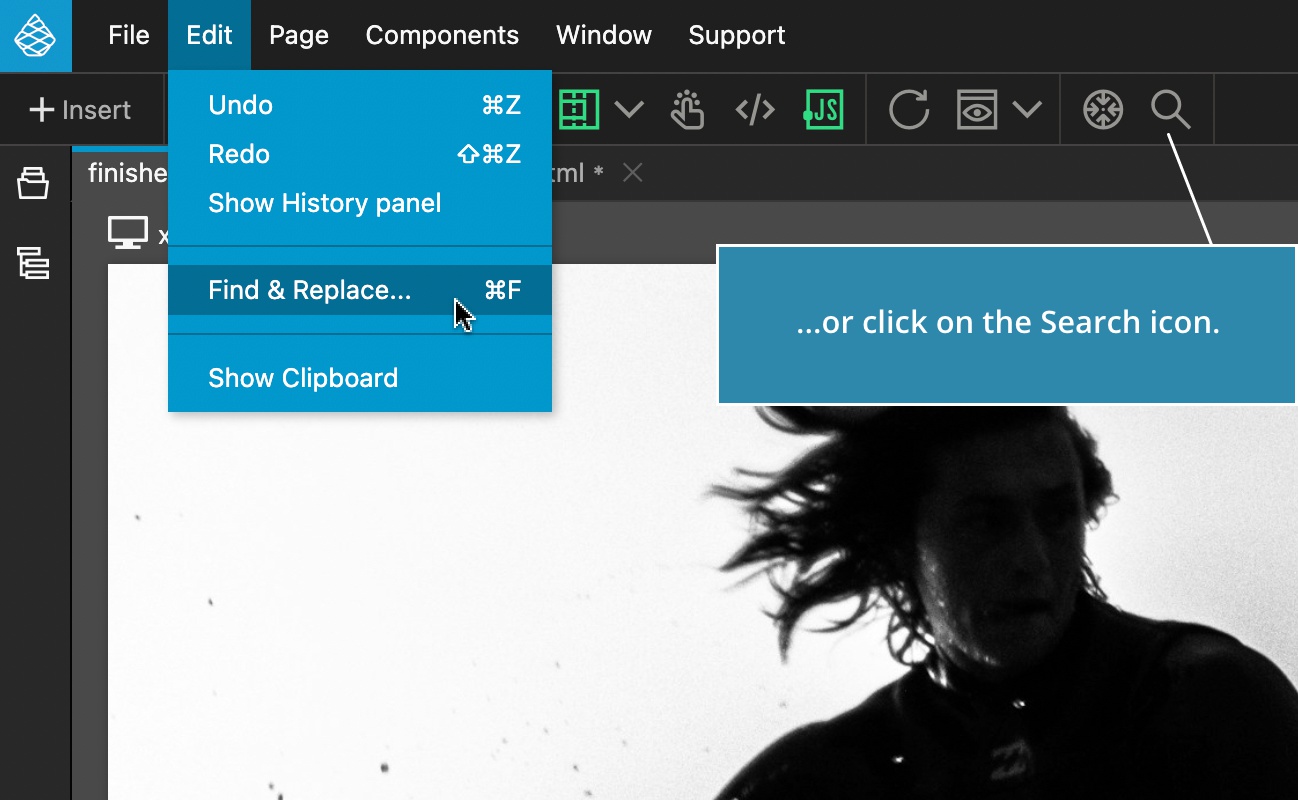
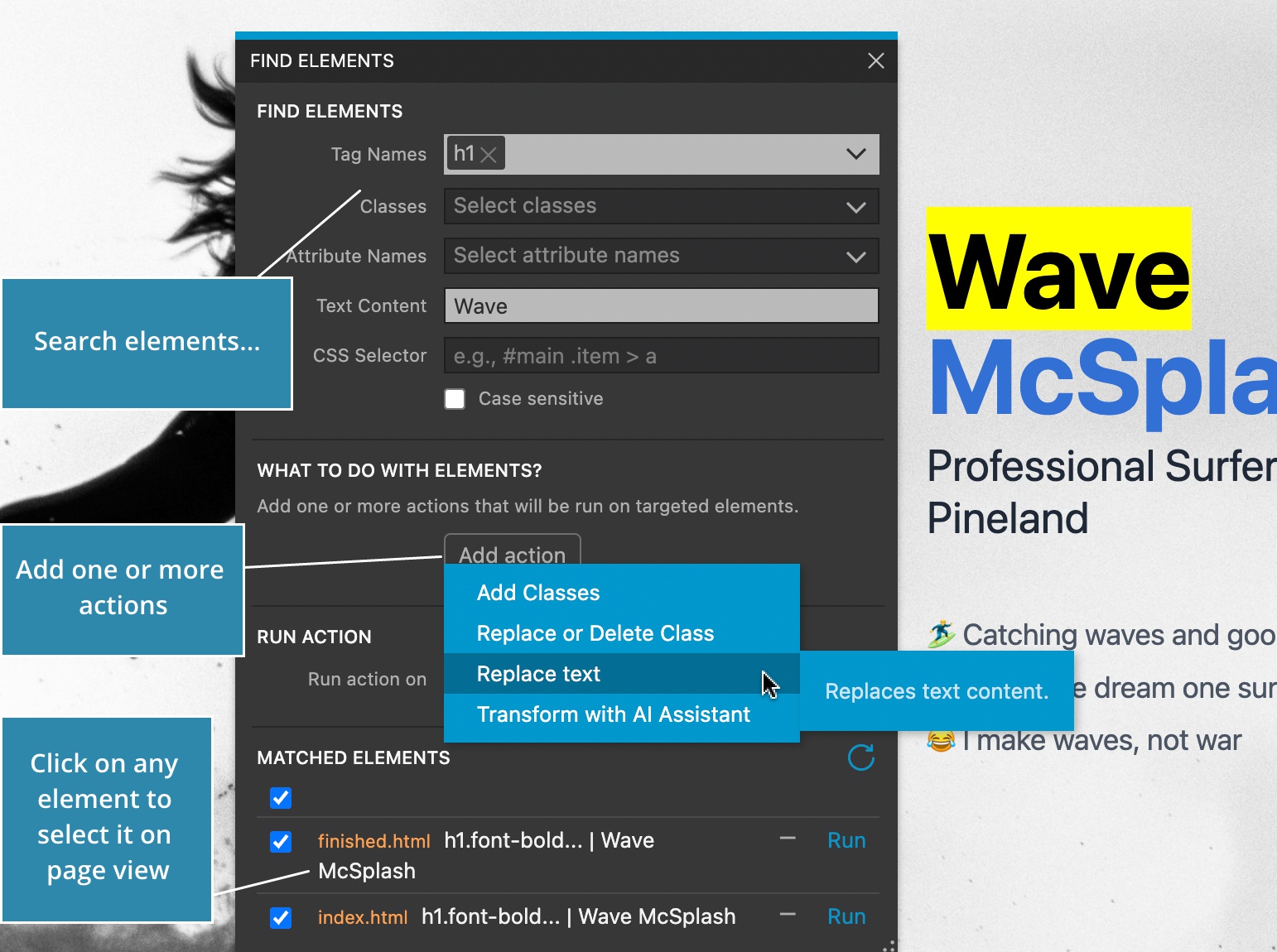
Search elements by tags, classes, attributes, text and selectors. If multiple criteria is set, the element must match all criteria.
Then, you can add one or more actions on matched elements.
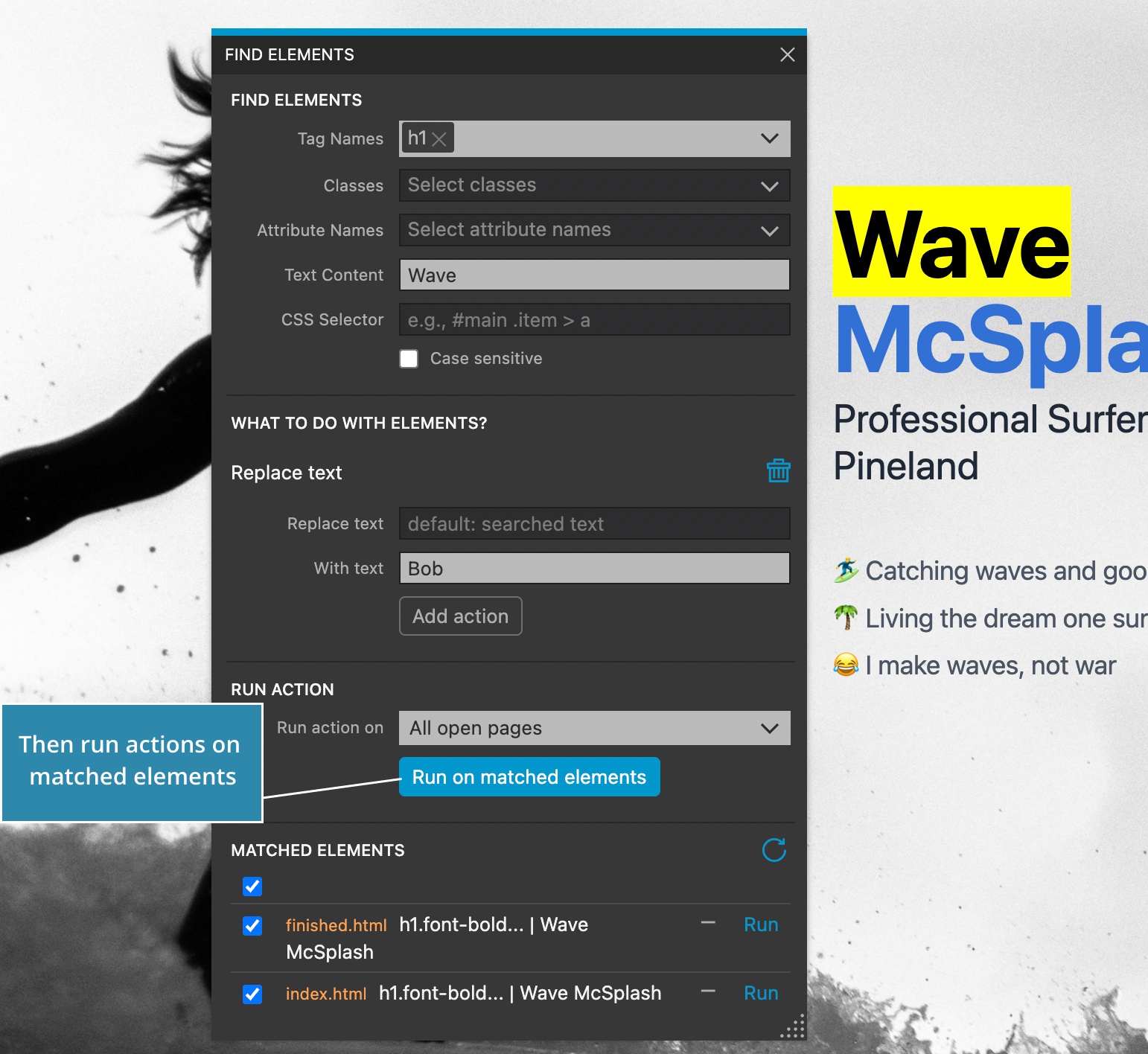
Available actions include adding and replacing classes, replacing text and transforming elements with AI Assistant.
Then, run the actions on matched elements. Click on any matched element to select it in the page view.
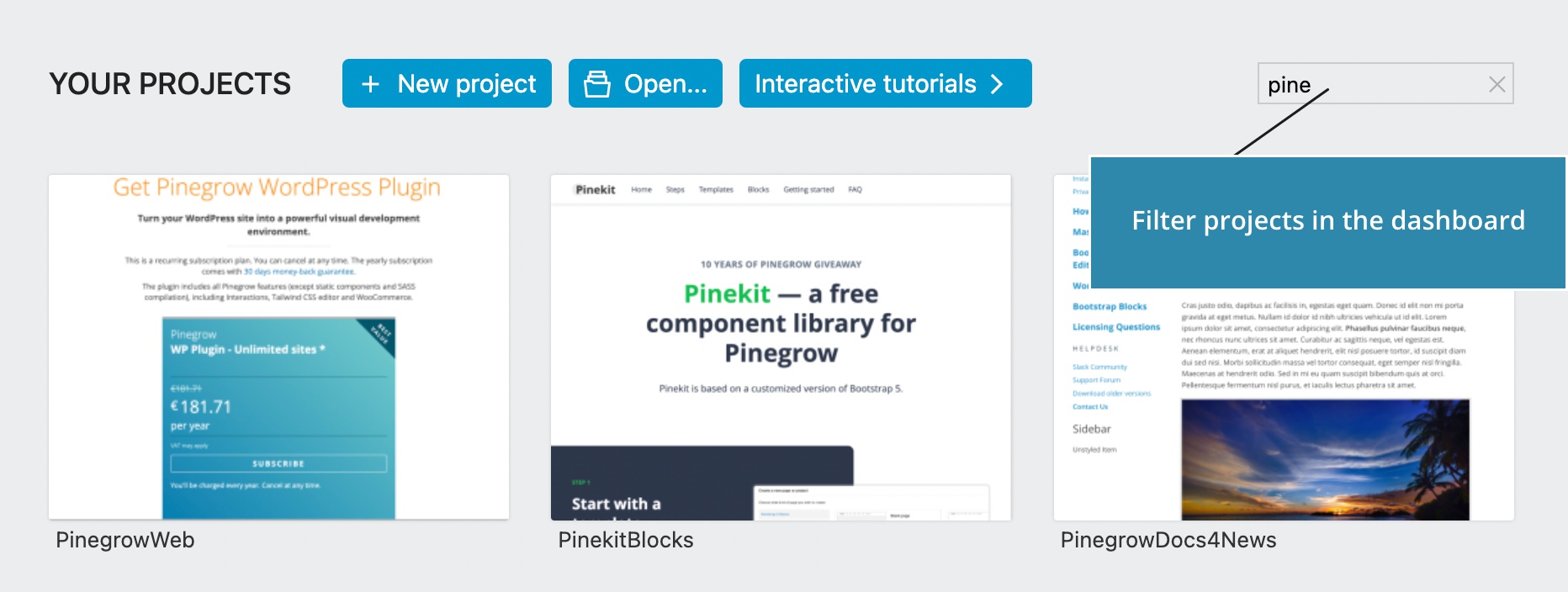
Filter projects
Use project filter to filter projects on the dashboard.
Use o1 models with AI Assistant
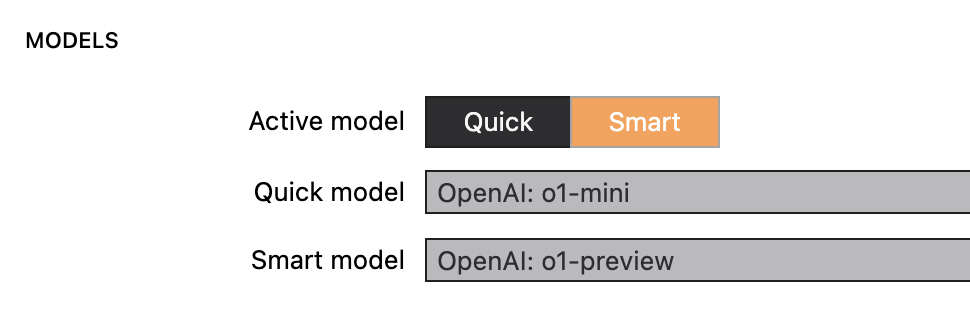
The latest OpenAI o1 models can now be used with AI Assistant. Note that at the moment, vision, streaming and function calling is not supported for o1.
The rest of new features are connected with Tailwind Visual Editor:
Customized controls with external Tailwind CSS build
Pinegrow can now use your custom Tailwind colors, fonts, spacings and other utilities in visual controls and Class tree inspector - even if you are using external Tailwind CSS build process. Until now, this was only possible for projects that use Pinegrow’s internal Tailwind compiler.
This feature works with
npmbased build process. It is not available with standalone Tailwind executable.
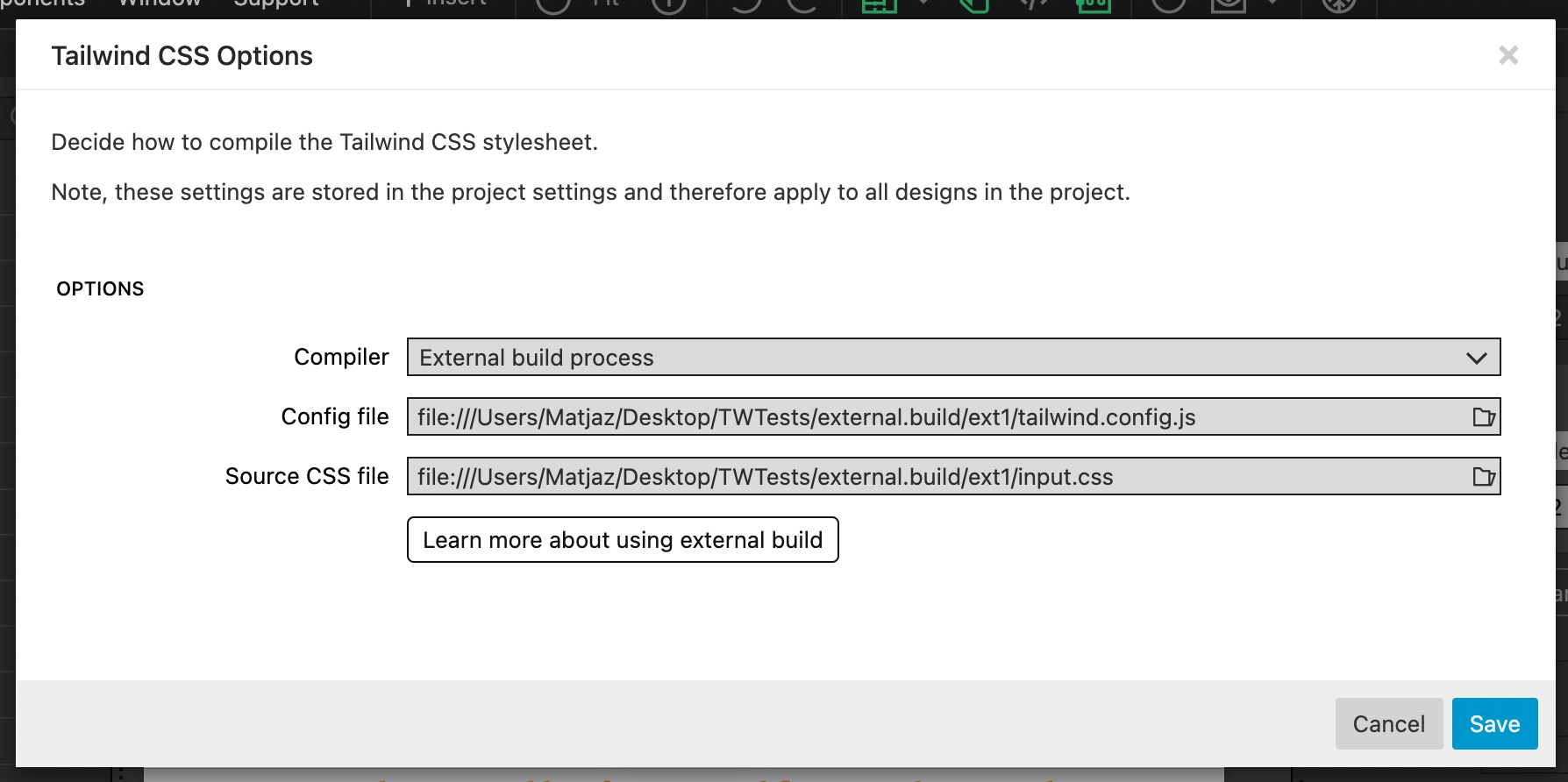
To get started, just point Pinegrow to your Tailwind config file and the source stylesheet:
For projects that use Design Panel, do that in Tailwind CSS Options in Design Panel:
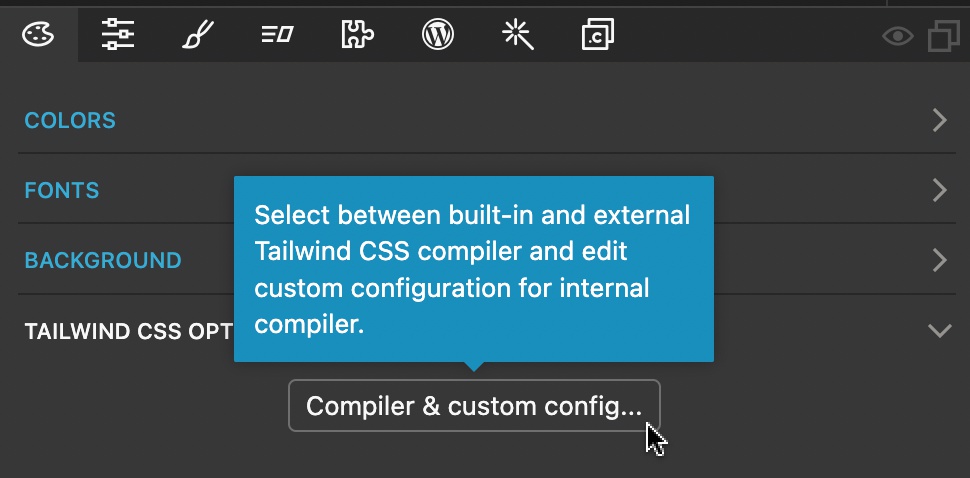
Select external compiler and select config and source CSS files:
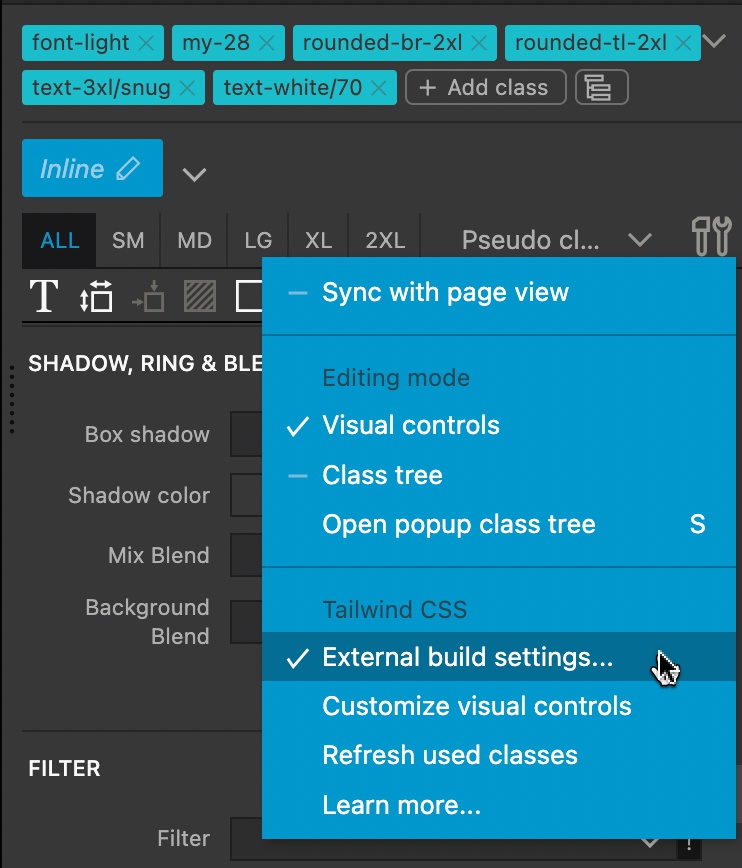
For projects that do not use Design Panel, use “External build settings” in settings menu of the Properties panel:
Next, follow the instructions to install Pinegrow Tailwind npm module. This module is only required during development and is not deployed in production.
Visual controls will be automatically updated when the project is opened and every time these two files are modified through Pinegrow.
You can manually update the controls at any time by running Customize visual controls from the menu in the Properties panel.
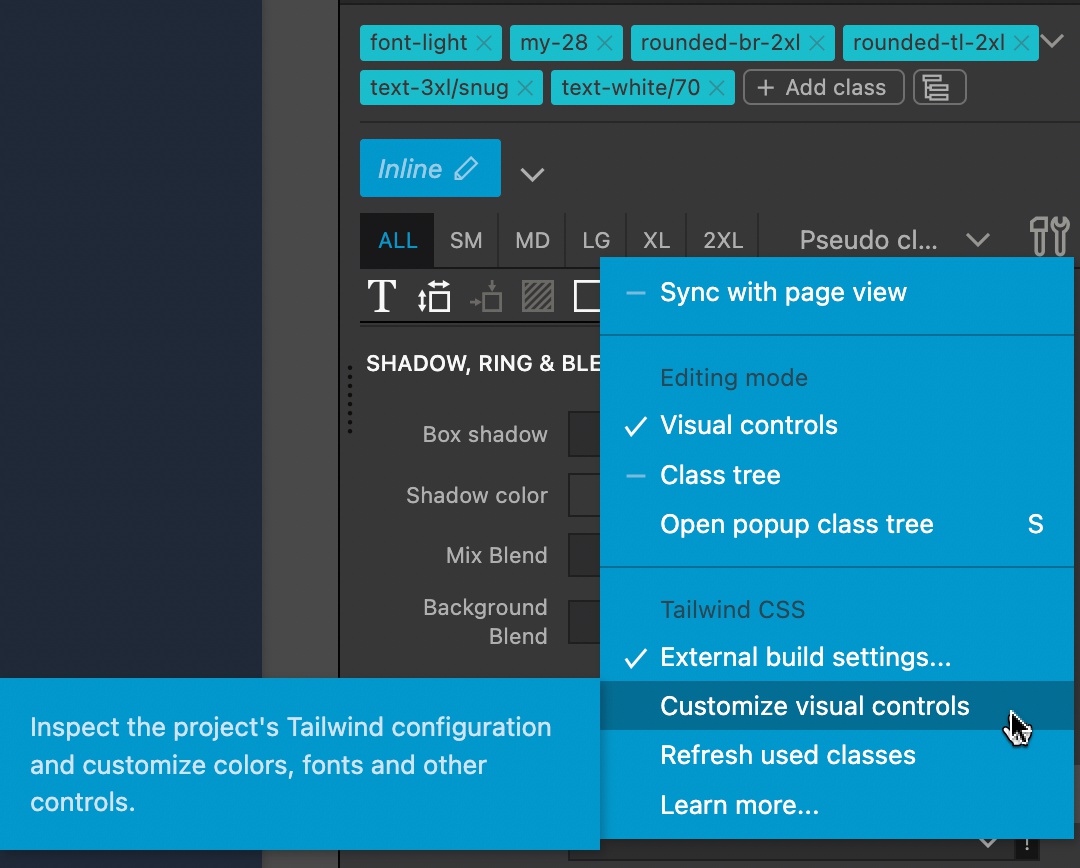
Class Tree Inspector improvements
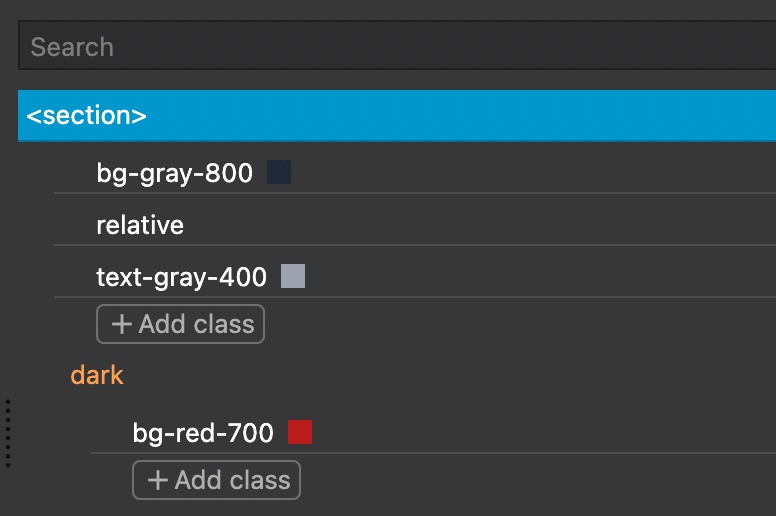
Class Tree Inspector is very helpful for managing complex Tailwind styling.
Color swatches are now displayed next to all color values.
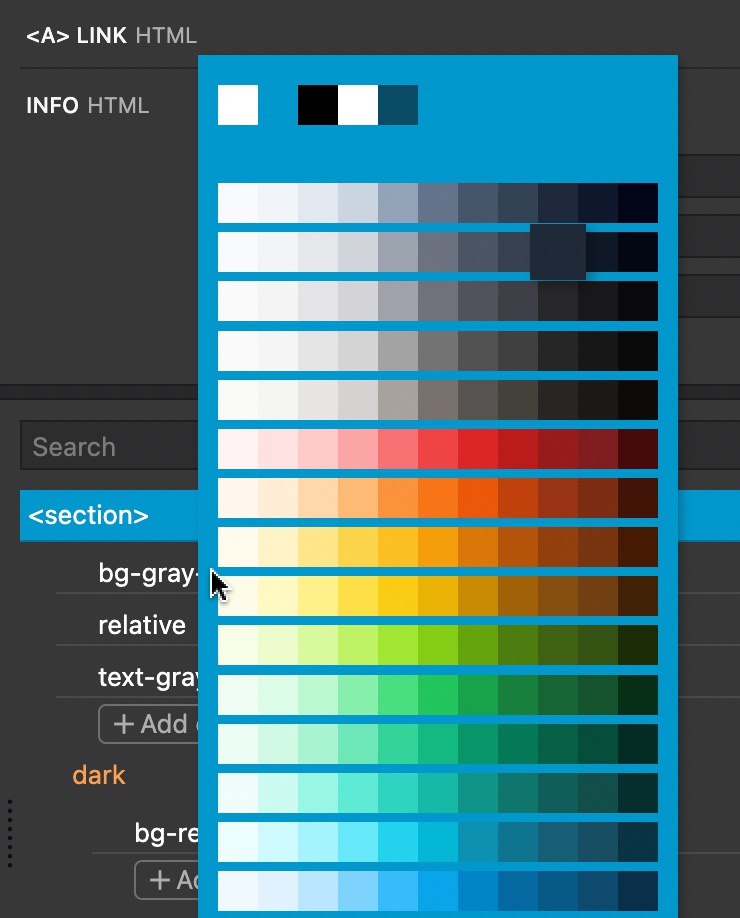
Colors are selected with the color picker and not through nested menu.
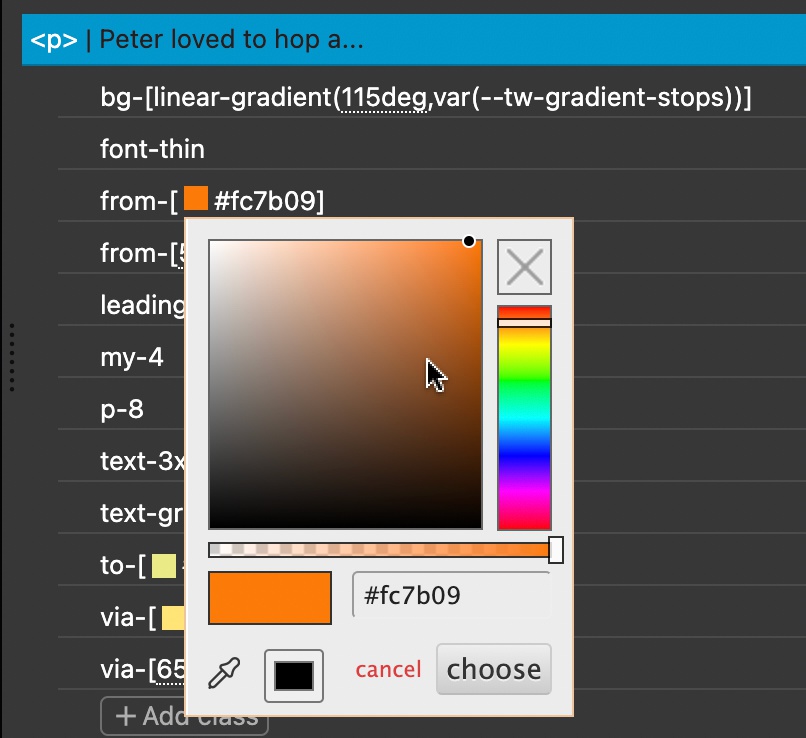
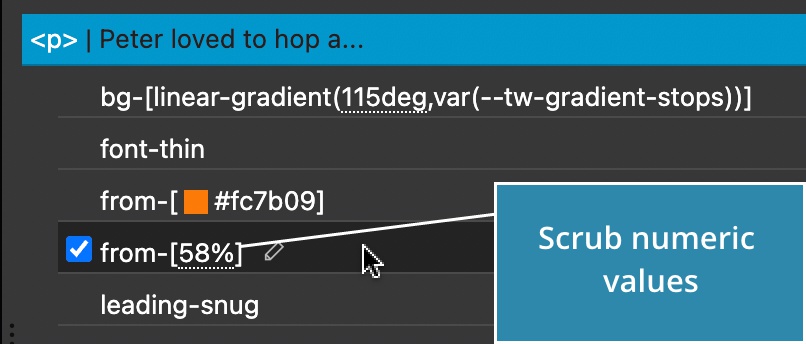
Numerical and color custom values can be adjusted inline. Simply click on a color swatch to change the color.
For numerical values, press down the mouse key over the value and then scrub the value by moving the mouse up and down, while keeping the button pressed.
Class combinations
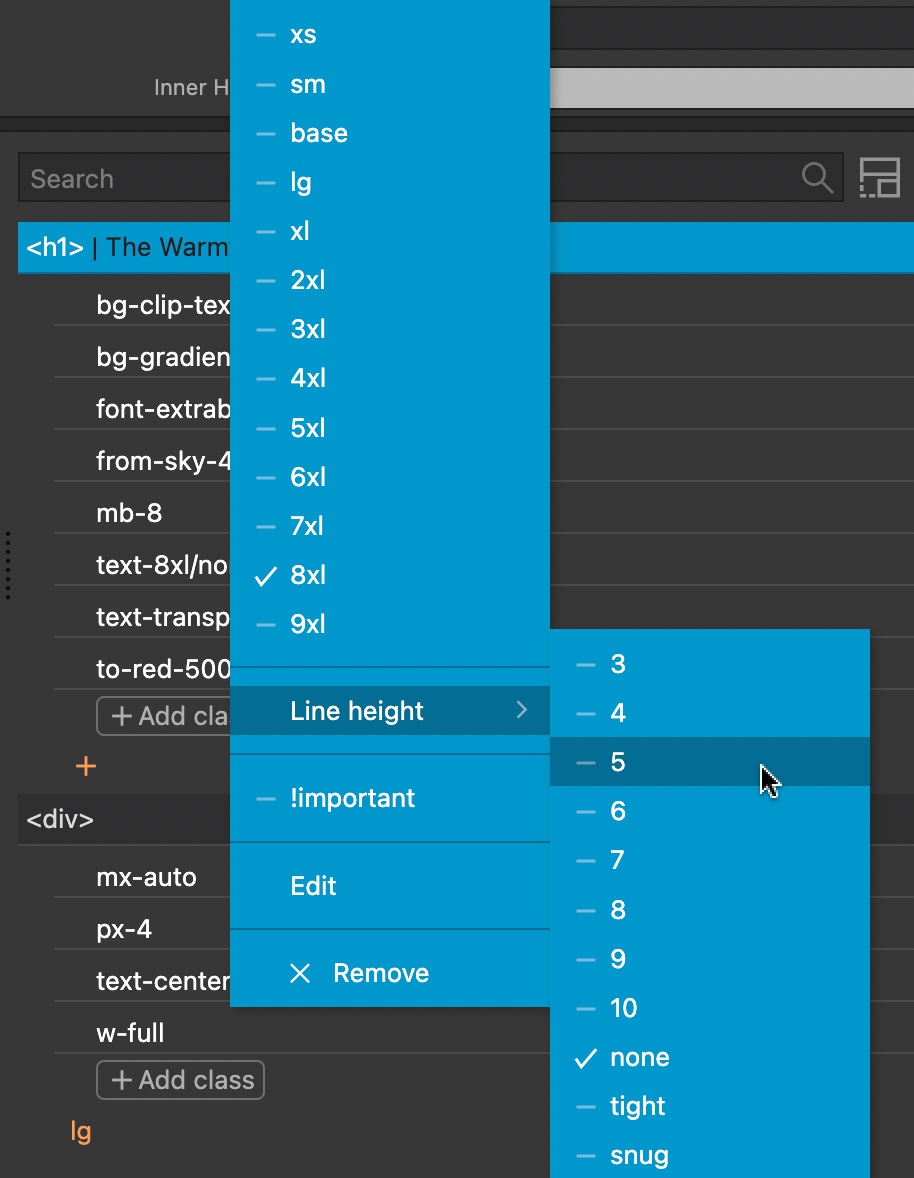
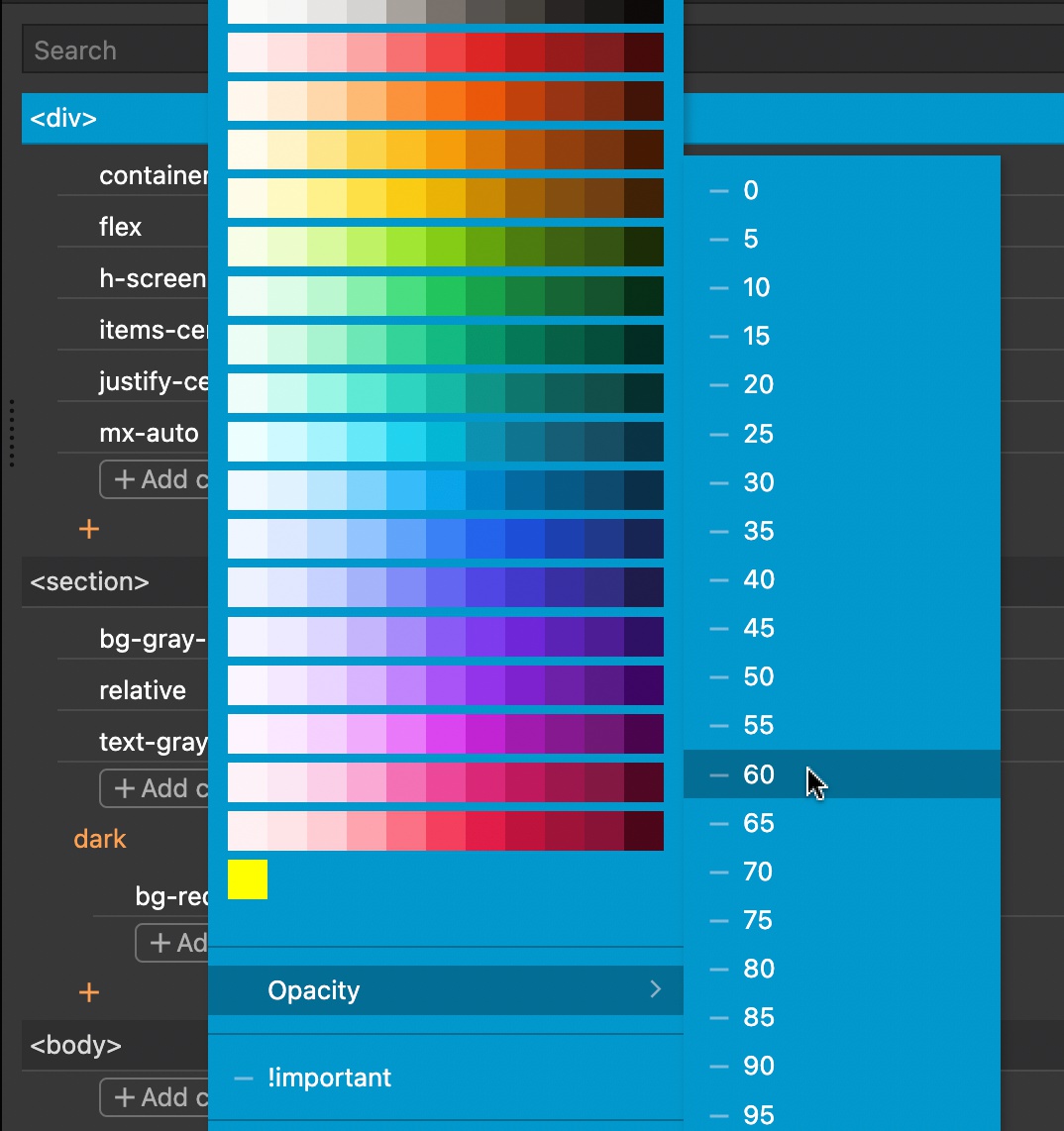
Certain utilities can be combined with / in a single class. For example, text size / line height (text-2x/normal) and color / opacity (text-red-100/50).
To edit such combinations, click on the class and then select the secondary value from the Line height or Opacity submenu.
For text size and line height:
For colors and opacity:
Variants in Add class dialog
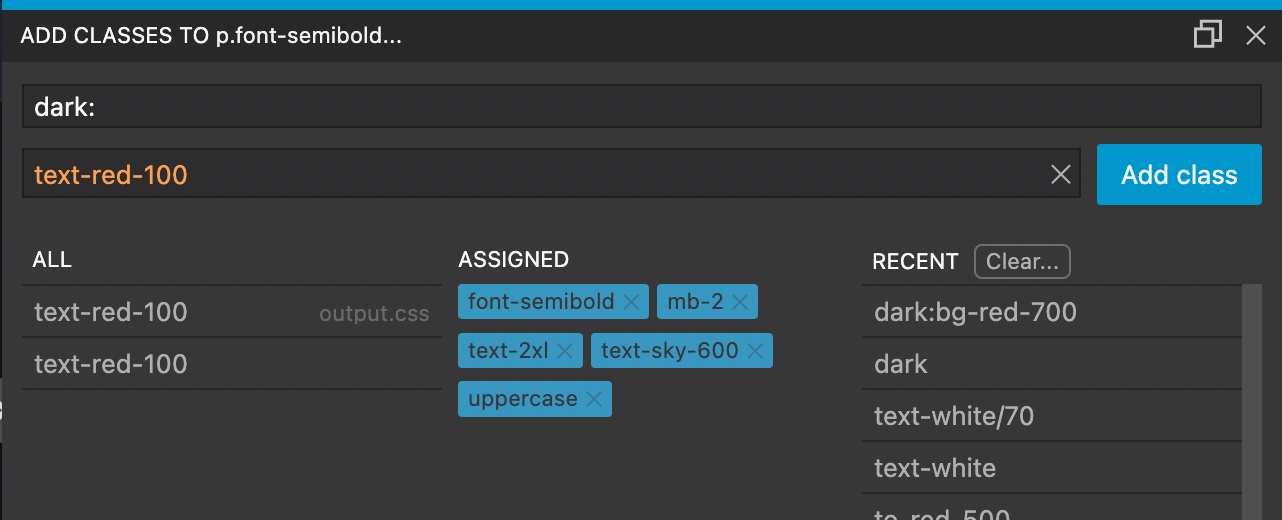
Add class dialog now shows a separate field for variants. This makes it easy to add multiple classes for the selected variant.
Custom configurations helpers in Design panel
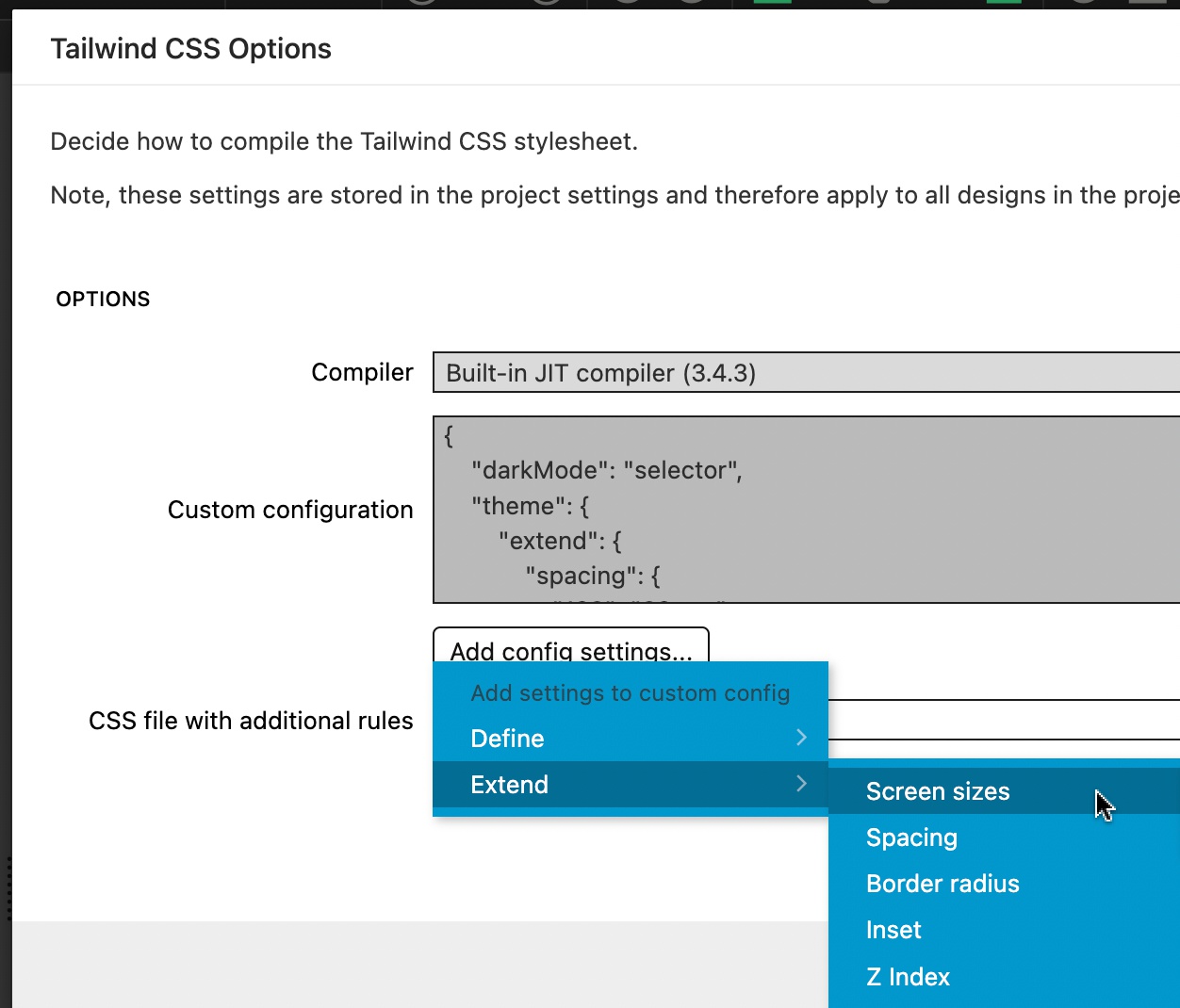
Compiler options let you define custom Tailwind configuration settings.
Use Add config settings… button to add declarations for dark mode, screen sizes and other settings.
Flowbite Tailwind CSS components
Use a large collection of Flowbite Tailwind CSS components directly from the Insert panel.
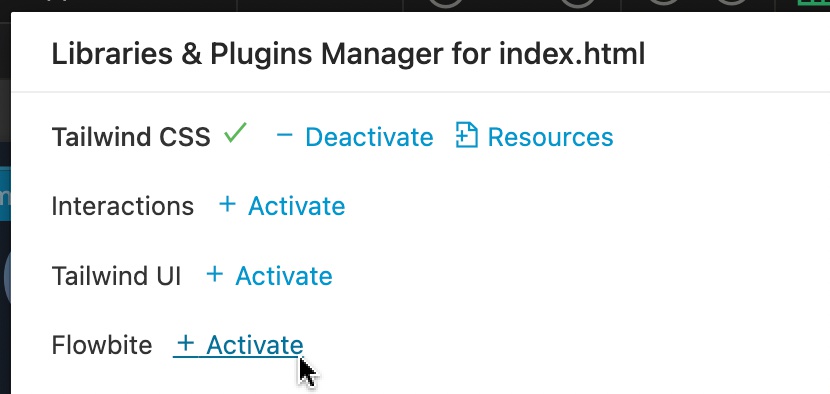
First, activate Flowbite in File › Manage libraries and plugins:
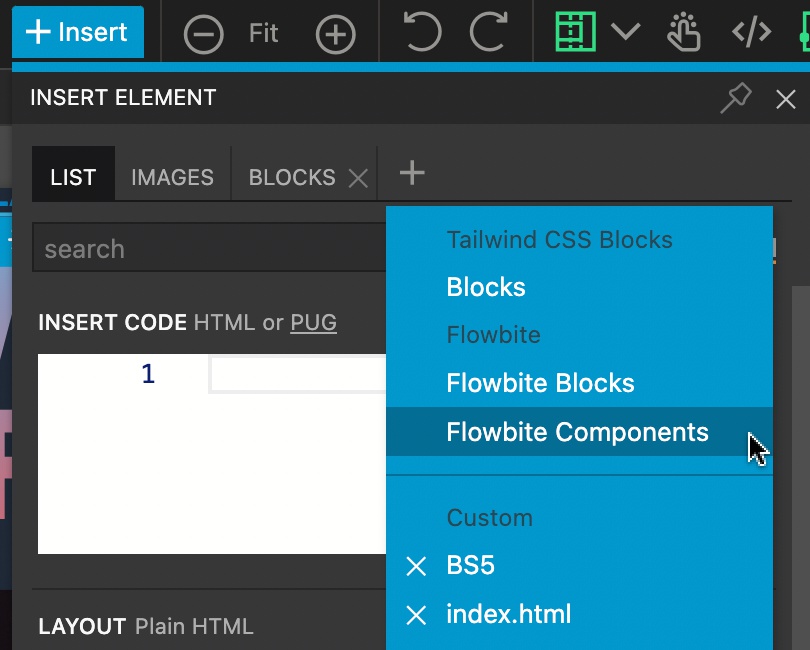
Then, open Flowbite components page library in the Insert / Library panel:
Use the menu to navigate sections and drag components to the page:
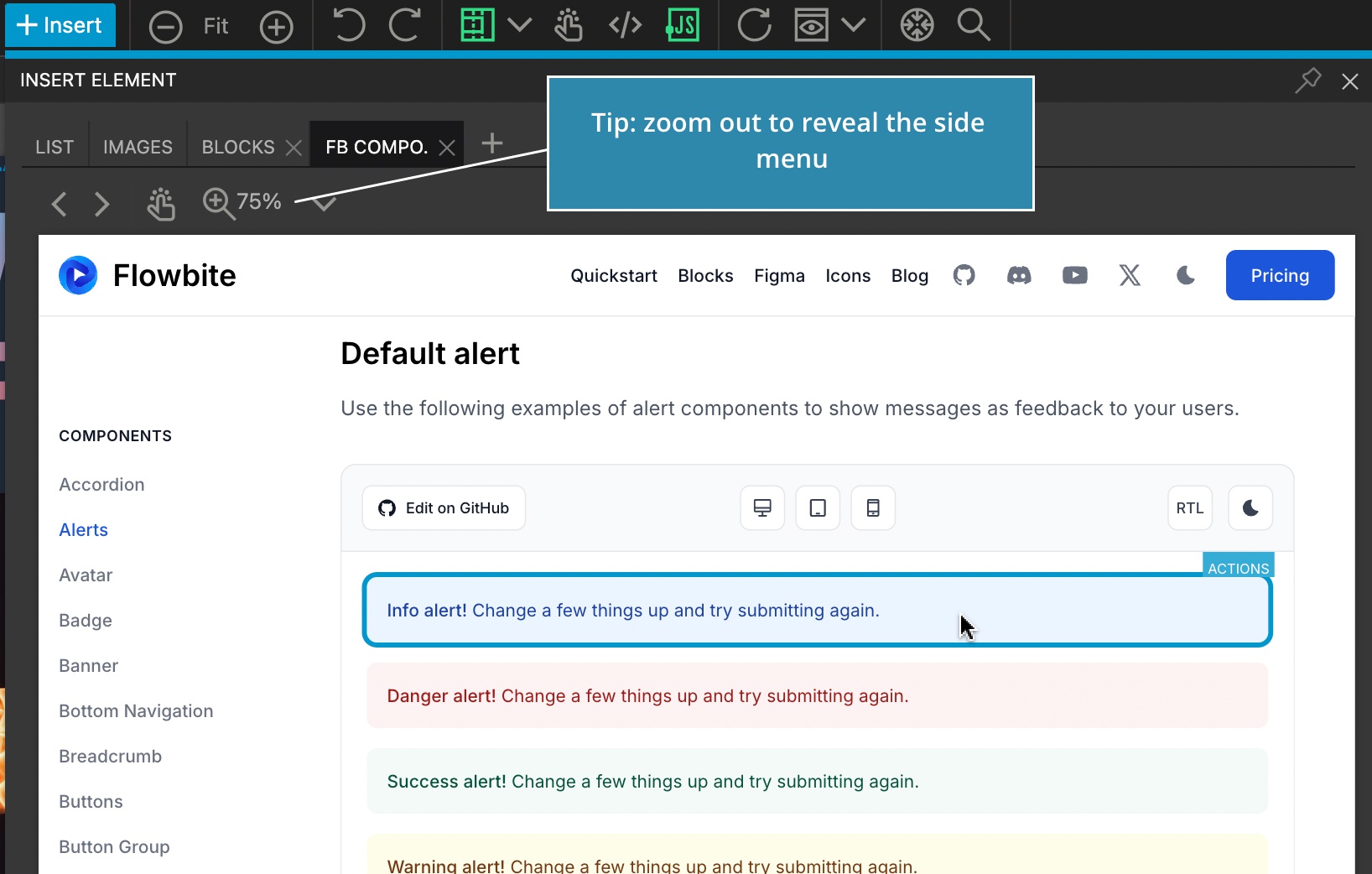
Flowbite Blocks are also available in the desktop Pinegrow Web Editor.
Download Pinegrow 8.1
The package includes Pinegrow PRO, WordPress, WooCommerce, Interactions and Tailwind editor.
Pinegrow for Mac (Intel) Antivírus checkedMac: b967551e46bad81bcfc0c8b1f4618b40535b98bd
Pinegrow for Mac (Apple Silicon) Antivírus checkedMac: 19c51f1f073b1f53723ed390a33ac9ccbaf52733
Pinegrow for Windows 64 (Installer) Antivírus checkedWindows: 8bc8d3fe79709ec30c63de9151cae4c25d6ad49f
Pinegrow for Linux (Zip, 64bit) Antivírus checked Linux: ec7e5602e76028c9e729dc0437155d5ad1678d25