
New Pinegrow Web Designer 1.107 is available for download on pinegrow.com with many improvements that will make your work with Pinegrow quicker and more reliable.
Release notesRelease notesRelease notesRelease notes2014-04-23
Pinegrow Web Editor 1.107, April 23, 2014
New ways of adding elements to the page
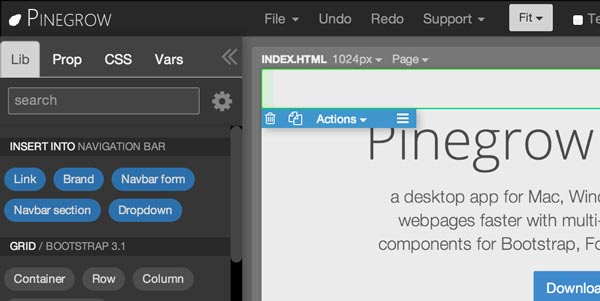
When complex elements like forms, nav bars, dropdowns and jumbotrons are selected, blue buttons for inserting their children elements are shown at the top of the LIB panel. Just click on any of them to quickly insert a children element into the selected element. Use right click to decide between inserting the element at the beginning or at the end of the parent.
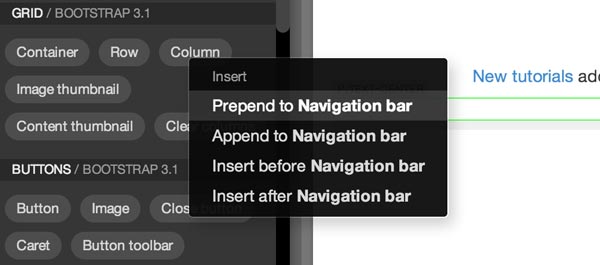
All other LIB buttons also got a right click menu that lets you choose the position of the newly added element in relation to the currently selected element.
Watch a 3 minute tutorial to see both of these new features in action.
Improved CSS workflow
Until now it was difficult to assign a class that was not defined in the one of the loaded stylesheets. For example, classes are sometimes used for semantic purposes without having corresponding CSS rules. This is now the thing of the past.
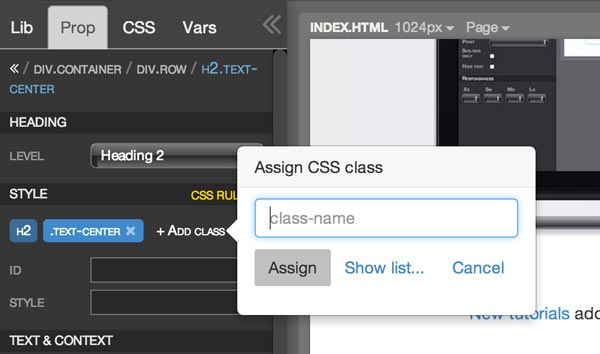
+ Add class link was added to the class list in Style section of PROP panel. Click on it and type in the name of the class you want to assign to the selected element. As before classes can also be assigned from the CSS panel, as described bellow.
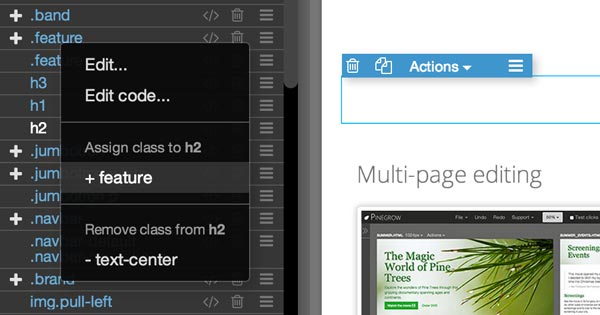
In CSS panel, classes now have + (assign class to the selected element) and - (remove from the selected elements) icons in front of them.
Plus, CSS rules now have a right-click menu that also lets you assign / remove classes that are just mentioned in the rules’ selectors. For example, right-clicking on the rule .blue h1, .orange h1, will give you the option to assign / remove classes blue and orange.
Adding new or existing stylesheets to a page is now easier than before. Go to Manage stylesheets for the selected page and:
- create a new stylesheet (just select the location for the file or simply type in a relative name, like ccc/newstyle.css).
- open an existing stylesheet
- open a remote stylesheet
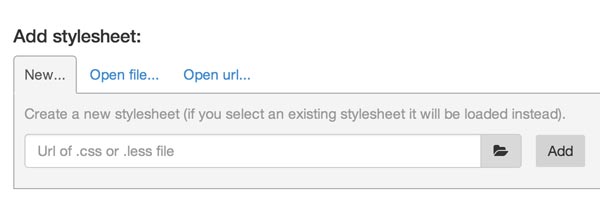
Note, after you load a stylesheet you need to assign it to one or more pages. If you assign stylesheet to multiple open pages, any changes to it will be reflected in all the pages.
Pinegrow will not save stylesheets with syntax errors. You’ll get a warning message when trying to save such stylesheets. In the past that could cause that the stylesheet content was lost when saved.
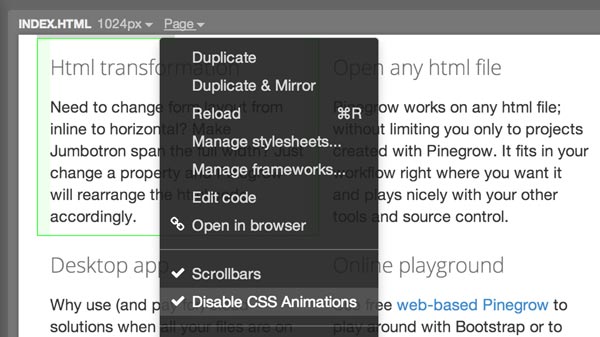
We’re using node-webkit to package Pinegrow as a standalone desktop app. In node-webkit CSS animations can cause high CPU loads. That’s why CSS animations are now disabled by default. Also it is difficult to edit the page if things are moving around. Disable CSS animations checkbox was added to the Page menu to manually disable or enable CSS animations.
Bootstrap improvements
Bootstrap for starter pages was updated to 3.1.1.
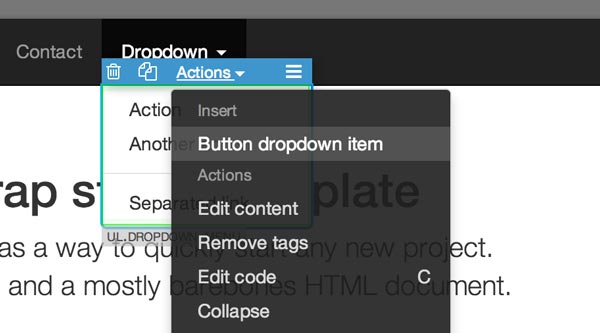
Dropdown menu element got an option to insert a menu item through Actions menu and blue buttons in LIB. Use menu item properties to choose the type of the menu item (link, header or divider).
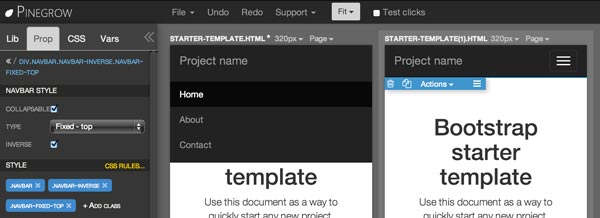
Navigation bar Collapsible checkbox is now working as it should - alternating between making the selected navbar collapsible or not.
Bootstrap 2.3.1 was added to Pinegrow frameworks. This is a backport of Bootstrap 3.1 Pinegrow plugin and it is provided as a convenience for those who still work with Bootstrap 2.3. Basic things like grids should work ok.
Other changes
Plain HTML starter page was added in File › New page selection.
Project related menu items were removed from File menu. They were causing confusion because they worked in an unconventional way. Remember project stored the content of the currently opened pages in browser storage and Load project loaded it back. That is useful for the Pinegrow web playground where we still have these features. Let me know if you truly miss them in the app. In the future Pinegrow will get proper projects.