
Design panel with improved backgrounds, filters, harmonic colors and local web fonts – New templates and blocks – SVG icons for every project – Code editor with intelisense, new color themes and better performance – Bootstrap and Tailwind CSS updates – and more!
Release notesRelease notesRelease notesRelease notes2021-07-28
Pinegrow Web Editor 6.1, July 28, 2021
Download
The package includes Pinegrow PRO, WordPress theme builder, Interactions and Tailwind editor.
Pinegrow for Mac (Disk image) Antivírus checkedMac: a9f2885a4c3d35117f418f7b1573614981d1bdee
Pinegrow for Windows 64 (Installer) Antivírus checkedWindows: f55ceb09717f99922f48d4894bc1a25aa8a38ed6
Pinegrow for Windows 32 (Installer) Antivírus checkedWindows: b6de7cd9fd84e5e92d6646bbb3150de48de8c7e9
Pinegrow for Linux (Zip, 64bit) Antivírus checked Linux: 8368f19573c17488dfe7c04ae499aa17aa824558
Design panel
Design panel is used for visually customizing Bootstrap and Tailwind CSS themes.
A new way of implementing fixed background images
Previous Pinegrow versions use background-attachment: fixed to fix the background image in place (the image is not moving during scrolling) when it is displayed on the body element.
Surprisingly, background-attachment: fixed is not supported in mobile Safari on iPhones and iPads.
To work around this limitation, Design panel now supports setting the background image on a pseudo element (a HTML element that is generated by CSS code) that is prepended to the target element with the selector <target selector>:before. The pseudo element is held in place during scrolling with position: fixed.
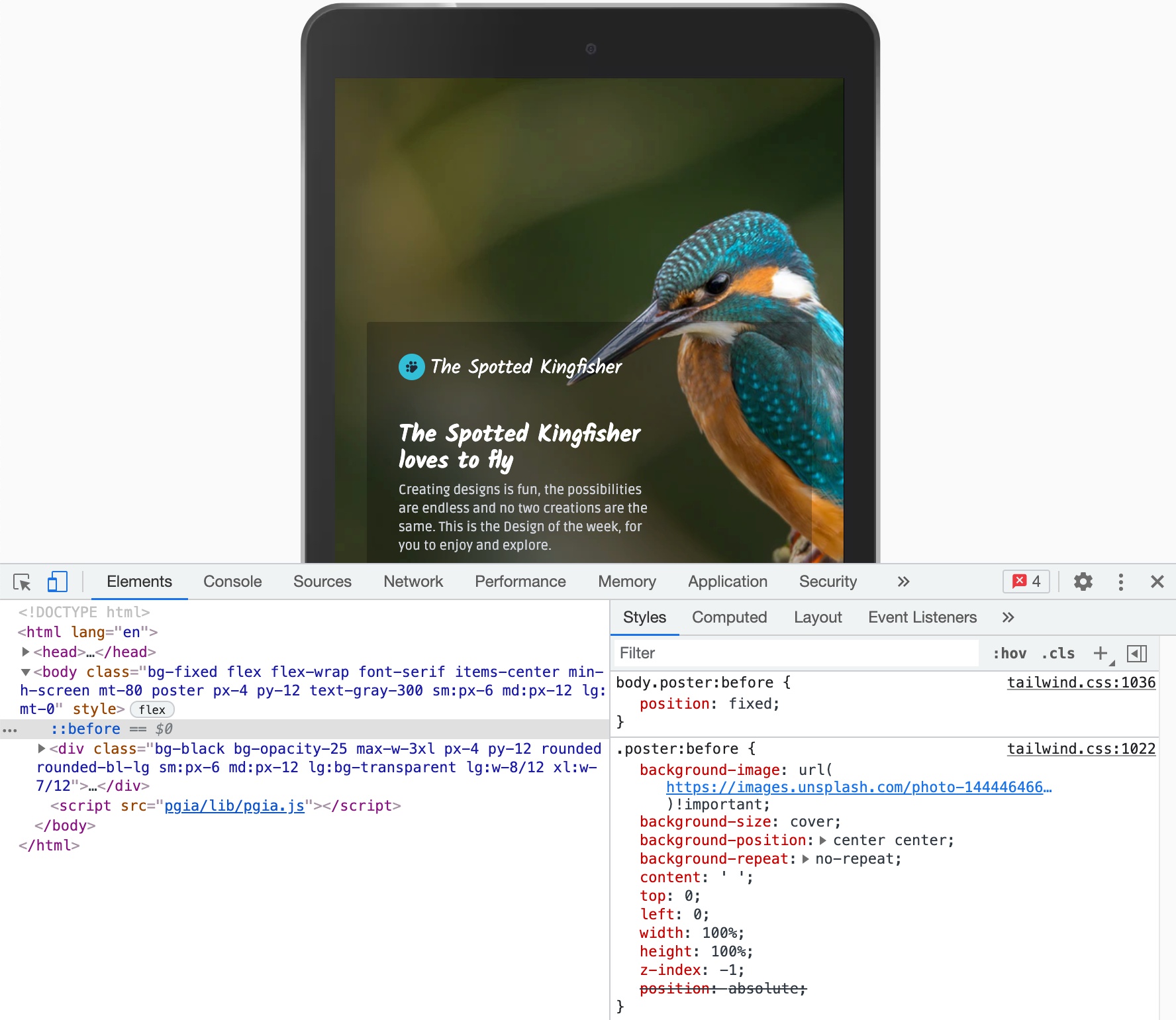
For this to work, the main target element must not be statically positioned, otherwise the pseudo element would be fixed in relation to its first non-static parent. On the body element this is not an issue because the body is the default container for elements with absolute and fixed position.
But on other target elements, such as the hero section, we need to make sure that the element has position relative or absolute. Usually, the easiest approach is to set position: relative.
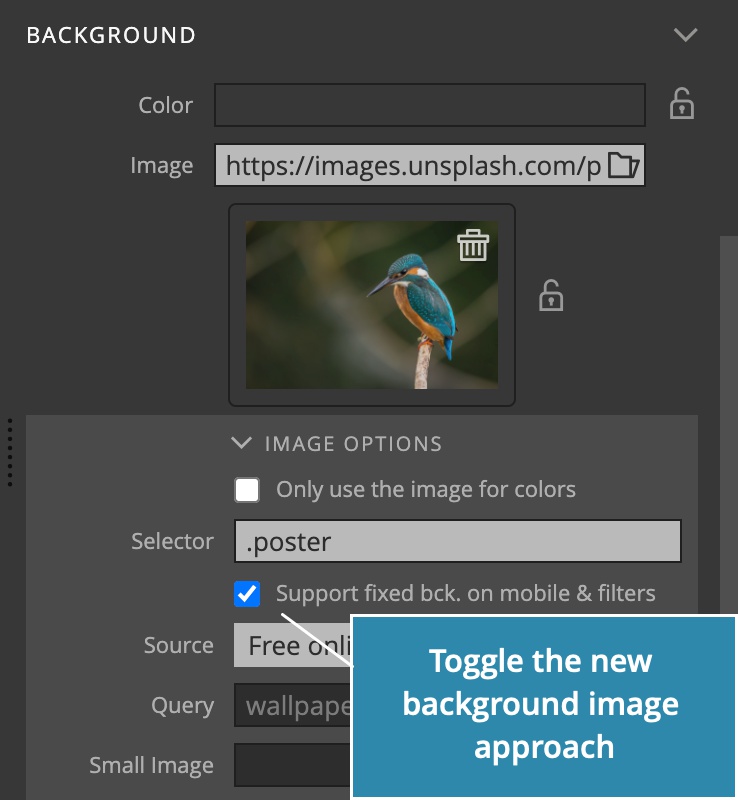
This approach works nicely in all modern browsers. For body backgrounds it will most likely work out-of-the box, and for other elements you have to set their position to relative. Still, in some combinations, the generated code might cause conflicts with your layouts and CSS rules. In such cases, disable the “Support fixed bck. on mobile & filters” checkbox in Image options. The feature is on by default.
Using filters on the background image
Another benefit of this new approach is that we can use CSS filters on the background image element.
CSS filter property lets us apply filters like blur and brightness on any HTML element. Usually, we can’t use the filters to change only the background image of an element, because the filter property affects the whole element, not just its background.
But because we now have the background image set in a separate pseudo HTML element, we can also use CSS filters on this element to manipulate just the background image.
Filters section includes sliders for many useful filters. Drag the sliders left and right to enable and configure filters. Multiple filters can be combined together. Note, don’t use too many filters at the same time, as that would negatively affect the performance of your project, especially on mobile devices.
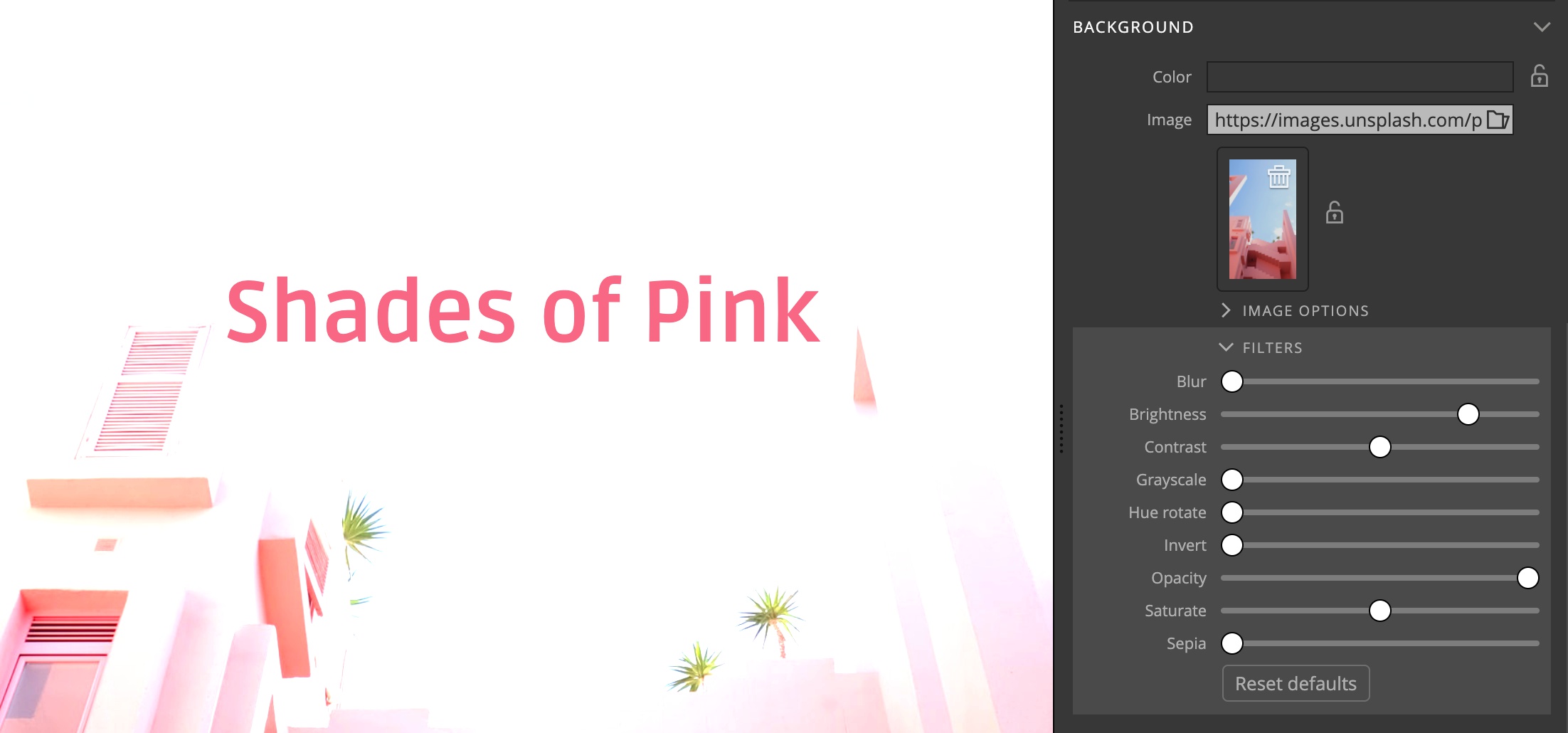
Use the Reset defaults button to switch off all filters.
Color strategies
One of the most useful features of the Design panel is to pick colors from the selected background image.
Now you can select a strategy for combining colors from the image with their harmonic colors, for example with the complimentary color.
These strategies will get a number of colors from the image, and then add additional colors based on the primary color.
The colors are set to unlocked color swatches, in the order specified by the selected strategy.
In the Colors section, click on the Options button to display a dropdown and select a strategy:
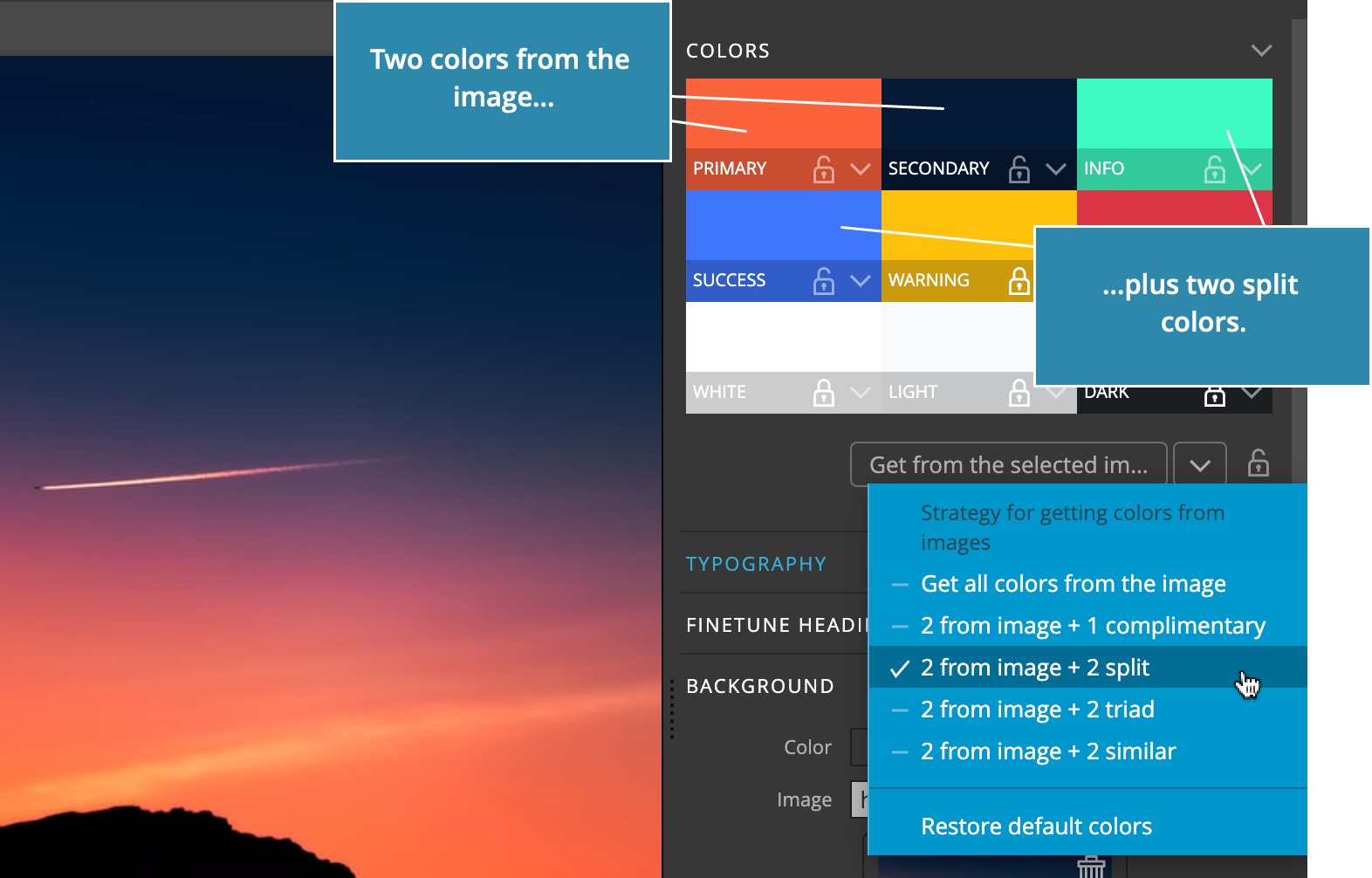
- Get all colors from the image will set all unlocked color swatches from colors picked from the image.
- 2 from image + 1 complimentary will set the first three unlocked colors to the primary and secondary image colors, and a complimentary color of the primary color.
- 2 from image + 2 split will set the first four unlocked colors to two image colors and the two colors with hue 150deg and 210deg of the first color.
- 2 from image + 2 triad will generate two colors with hue +-120deg.
- 2 from image + 2 similar will generate two two colors with hue +-30deg of the first color.
Use the background image as HTML images
The background image can now be set directly to an <img> HTML element.
If the selector explicitly targets an image element with the selector img, plus a class, id or similar - and the selected page contains such image element, its src attribute will be set to the url of the background image.
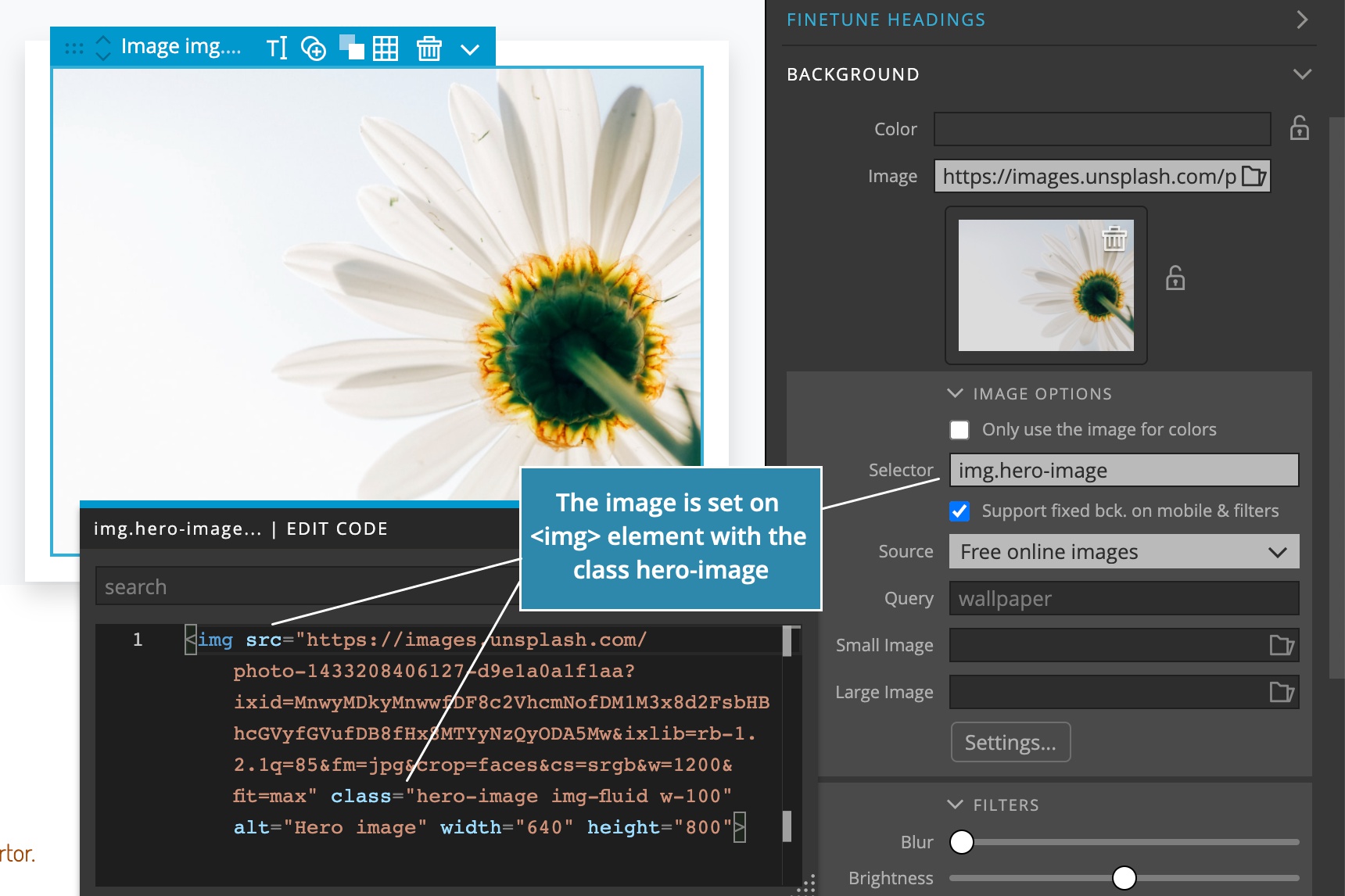
For this to work, the following conditions must be met:
- The selector is in the form
img<something>for example,img.poster. Just using.posteris not enough. - A page must be open.
- The selected page has to contain the image element matching the selector.
If you are creating a versatile theme that is supposed to set the background image on element backgrounds with CSS and as src of HTML images, you can specify multiple selectors, separated by commas.
For example, .hero, img.poster will set the CSS background image on elements with the class hero and set the image src on image element with the class poster.
Note, if the <img> mode is used, each Design panel operation generates two Undo history entries: one for the design change itself and one for the src attribute change in the HTML code. This means that you have to do the Undo command twice to move to the previous theme state.
Managing local web fonts
Font manager in the Design panel is now easier to use with local fonts. Local fonts are web fonts, but unlike Google Fonts or similar, local web fonts are stored in your project and hosted on your website.
Fonts need to be first packaged into a web font bundle with a tool such as https://www.fontsquirrel.com/. The bundle contains font files and a stylesheet that includes the fonts.
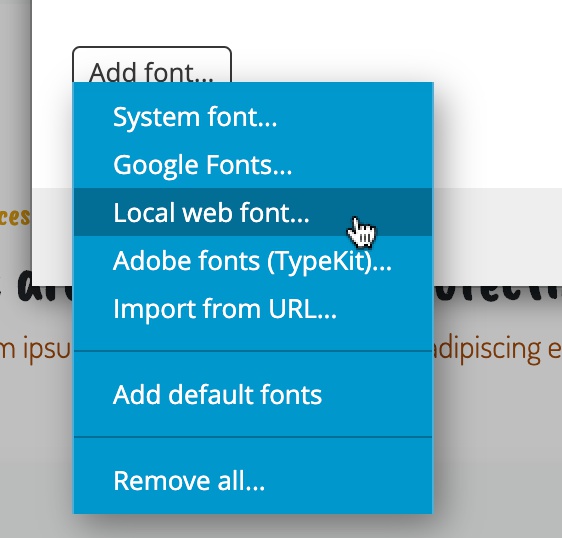
To add the font to the list in the Font Manager, choose Add font › Local web font:
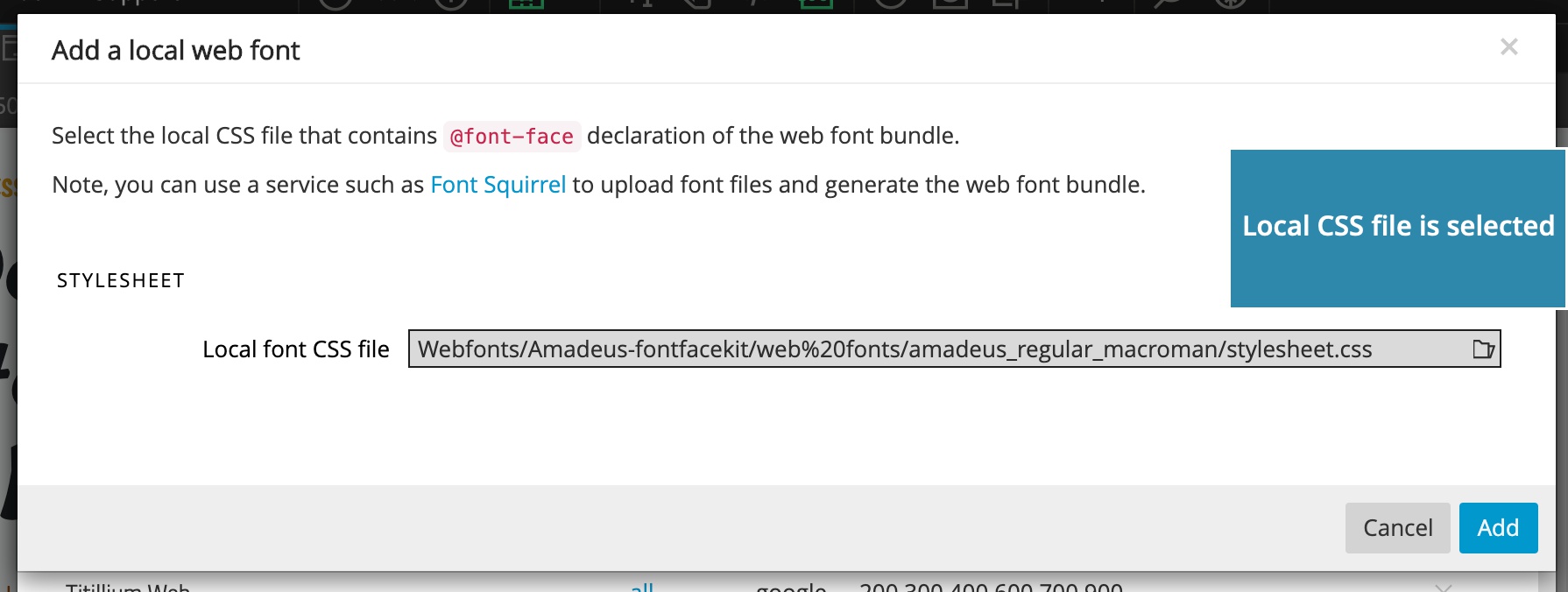
Then select the stylesheet file, from any location on your computer:
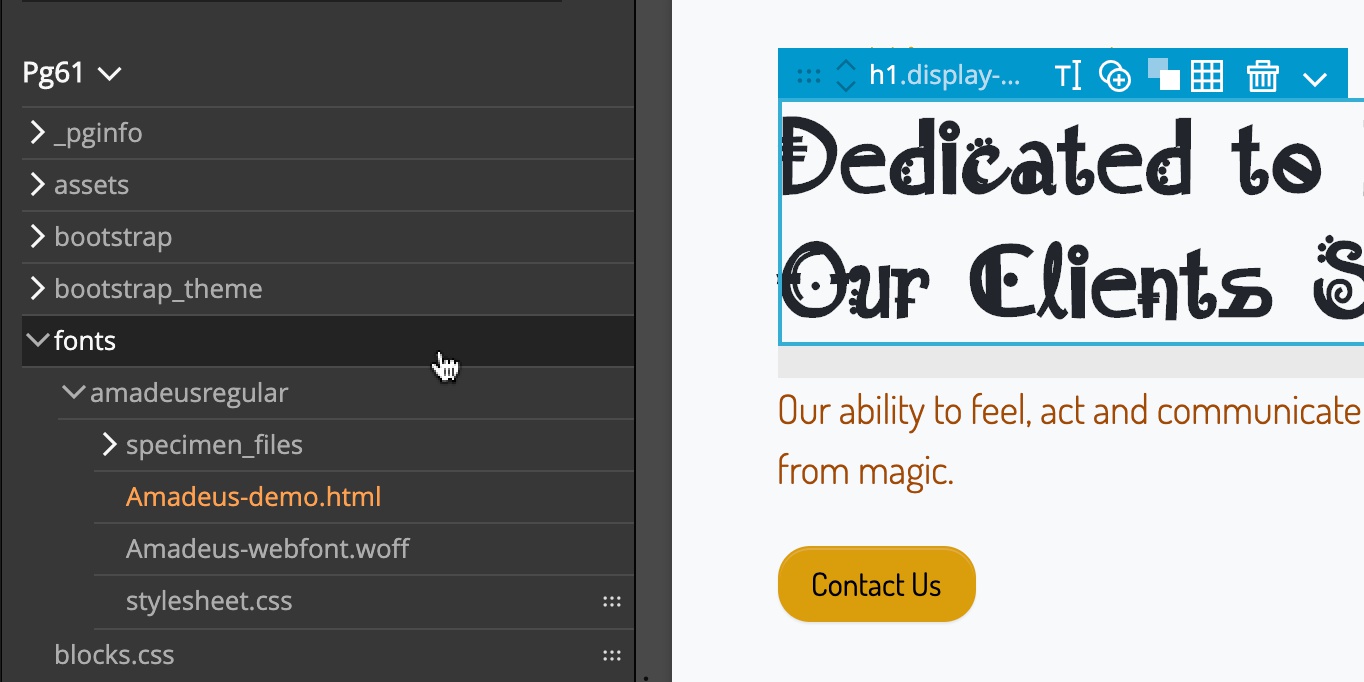
If the font is actually used in the project, it will be copied to the fonts folder inside the project folder:
Blocks & templates
Pinegrow Library with Bootstrap and Tailwind CSS blocks and templates was updated with new content.
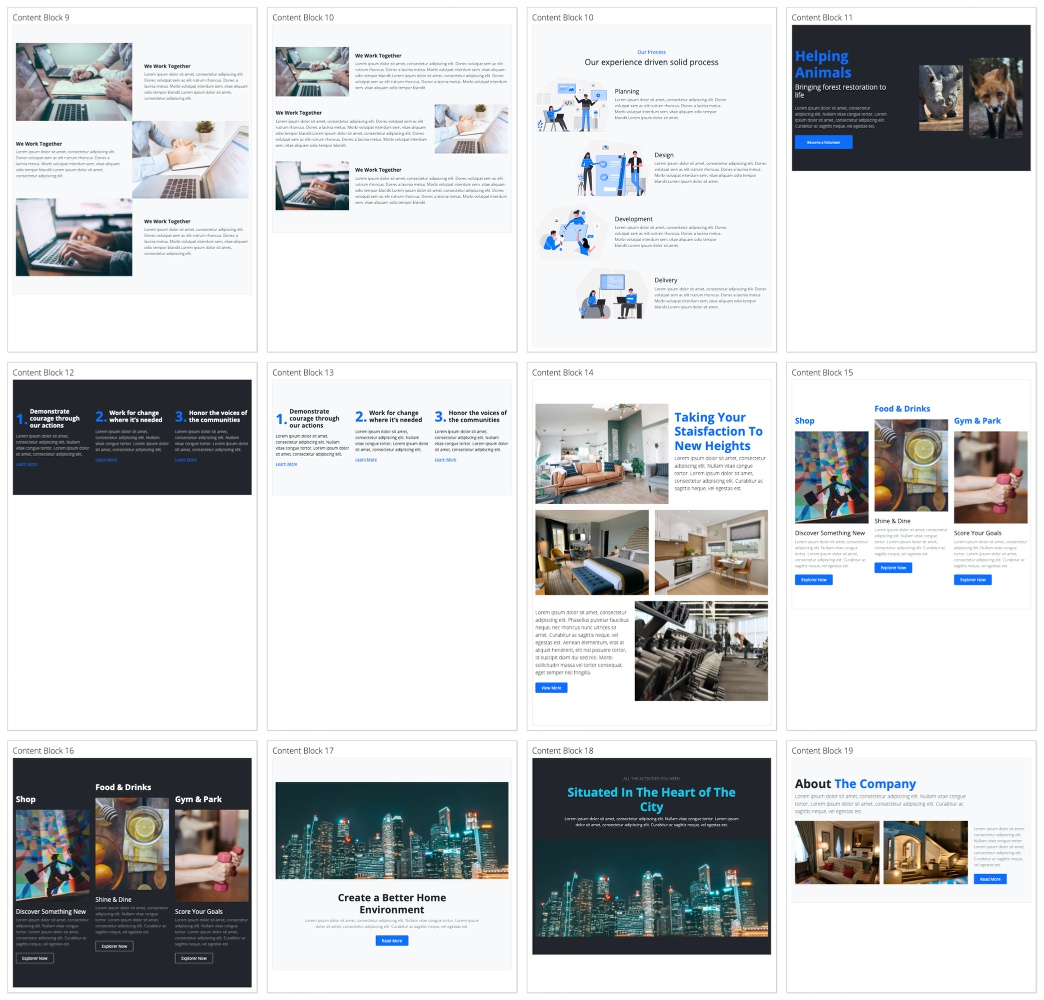
New blocks
New blocks in the Hero, Content and Counters sections.
Design of the Week templates
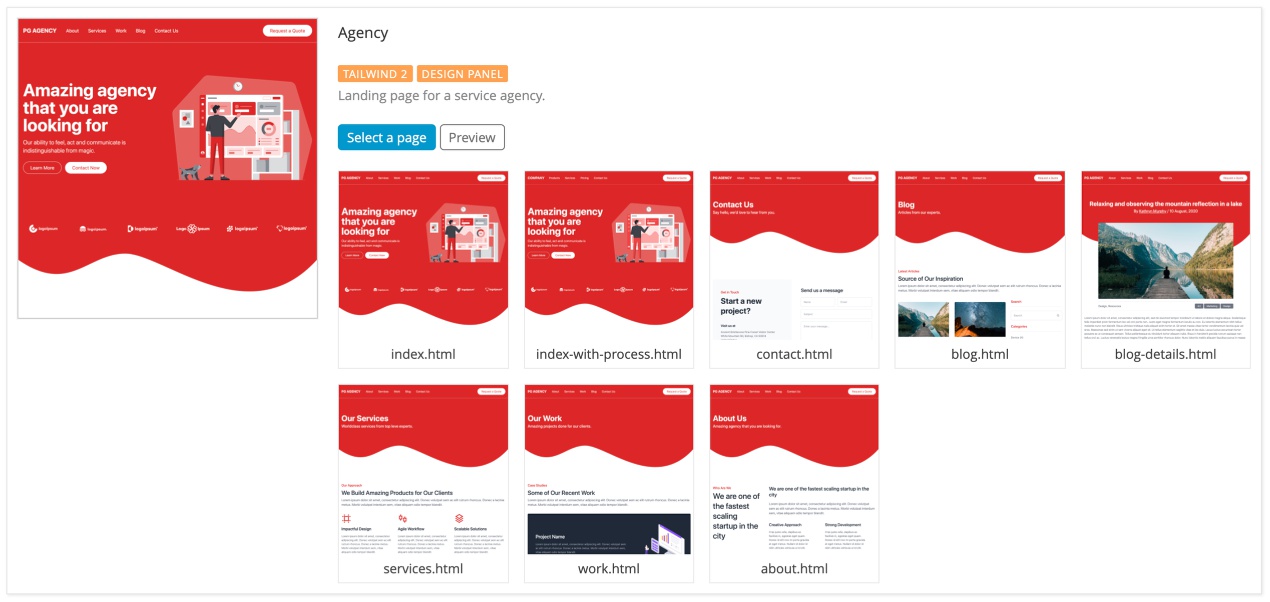
Design of the Week projects are now directly accessible in New page dialog, for both Bootstrap 5 and Tailwind CSS.

Multi-page Agency template
Agency template now has a collection of sub-page templates, for both frameworks.
SVG icons
The library of Bootstrap and Remix SVG icons can now be used in any project (before, it was only available in Bootstrap and Tailwind CSS projects).
To use it, go to the Library panel and click on the Add page library button.
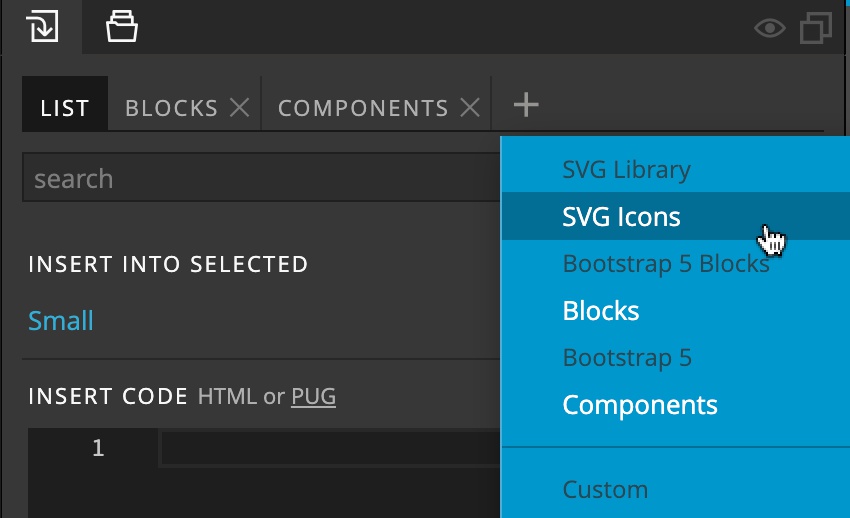
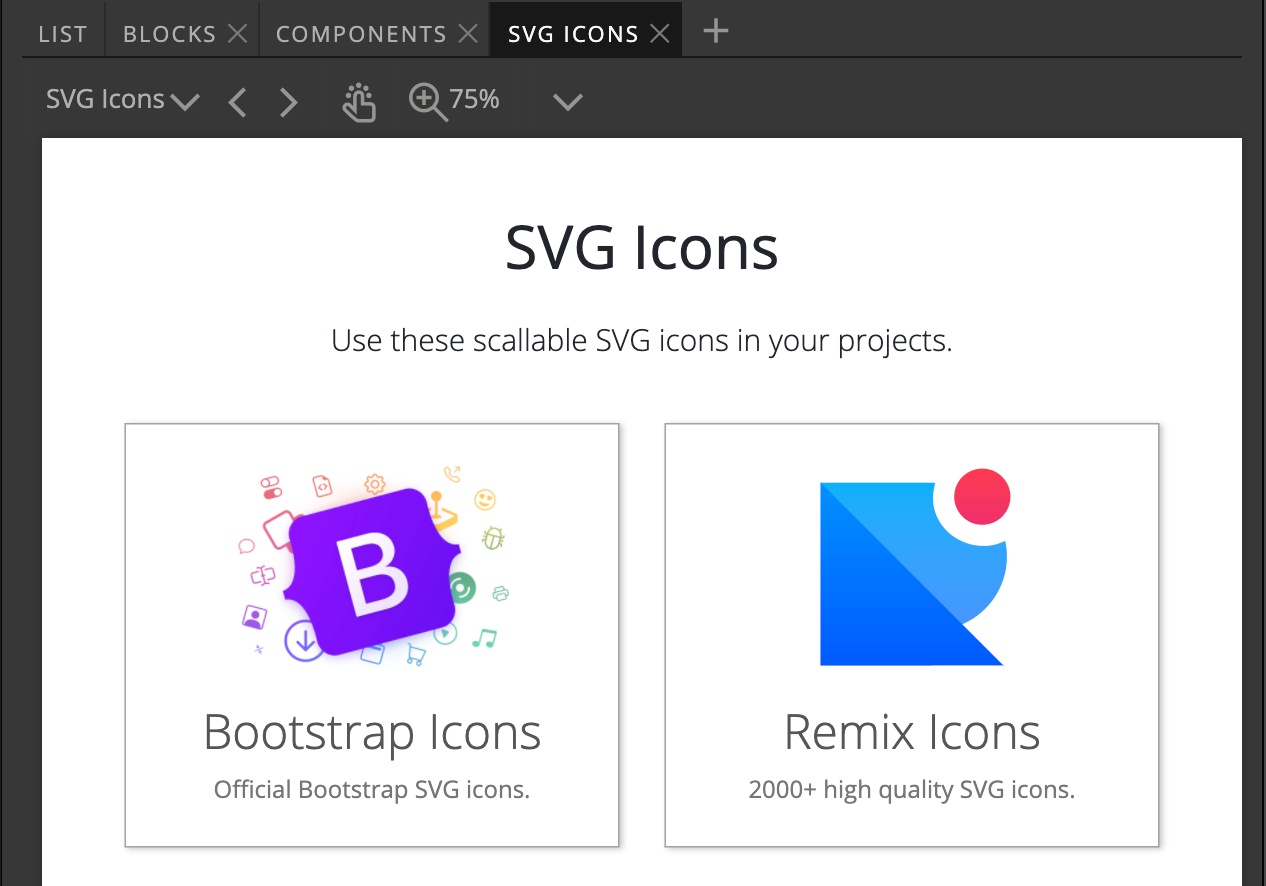
There, select SVG Icons to open the icons in the new Library tab.
Bootstrap 4 library
Going forward we will keep the Bootstrap 4 library as it is and only update the Bootstrap 5 version, alongside Tailwind CSS.
The code editor
In Pinegrow 6, Monaco (the code editor that powers Visual Studio Code) became the Pinegrow’s built in code editor.
With the latest release we continue to improve the code editing experience:
- Code completion with ids and all available classes, including those from Bootstrap and Tailwind stylesheets.
- Additional color themes for the editor, available in Support › Settings › Code editor theme.
- Performance improvements.
- Fixing glitches with auto closing tags and colorizing JavaScript files.
Other improvements
Create link
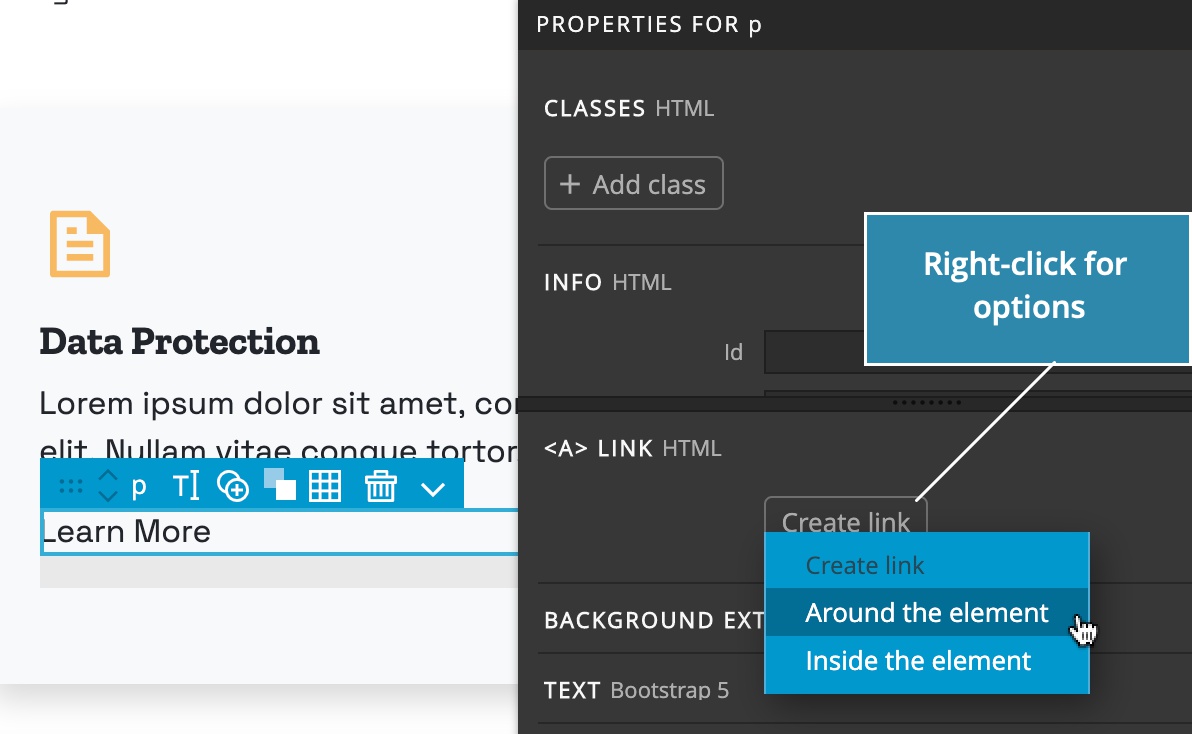
Create link command can now create the link outside or inside the element.
For headings and paragraphs the A element is inserted on the inside, around their content.
For example, creating a link on <p>My text</p> will result in <p><a href=“…”>My text</a></p>.
For all other elements the A element is created on the outside, for example, creating a link on <div>My text</div> will result in <a href=“…”><div>My text</div></a>.
To bypass this logic, right click on the Create link button and choose how you want the link to be created.
CSS Grid helper
The setting for CSS Grid visual helper now also controls the visibility of the CSS Grid info and draggable grid points on the selected element.
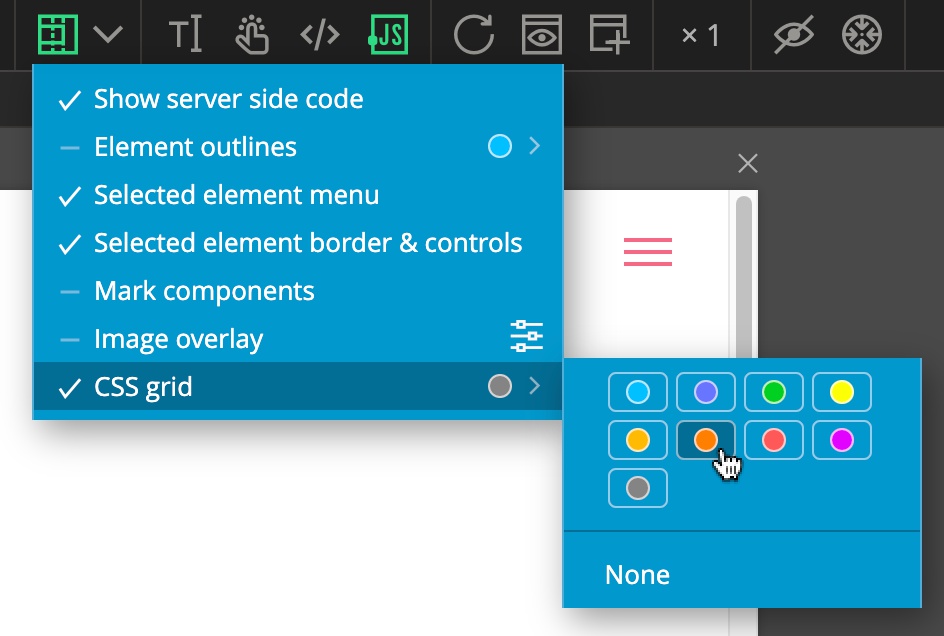
The color of the CSS Grid visual helper can now be customized.
Disable code validation
Automatically running the code validator every time a page is opened in Pinegrow can be deactivated. Doing that is not recommended, unless you have issues with false positives, because visual tools in Pinegrow rely on the valid code.
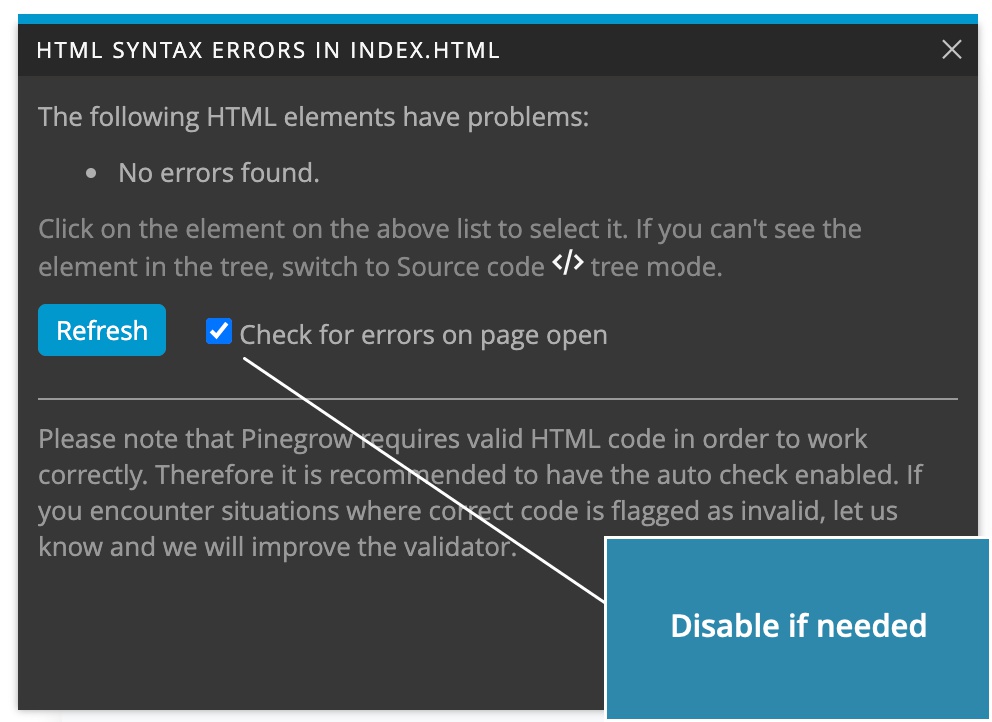
Use Page › Check for HTML errors to validate the code at any time.
Bootstrap 5
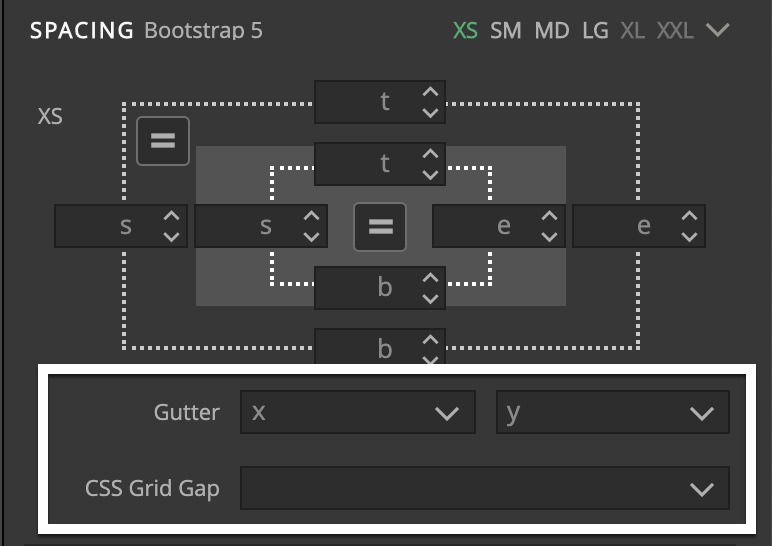
Bootstrap 5 Gap control was renamed to Gutter and Grid gap control was added, both are in the Spacing section of the Properties panel.
Tailwind CSS
Visual controls in the Properties panel were updated to the version 2.2 and now include controls for filters.
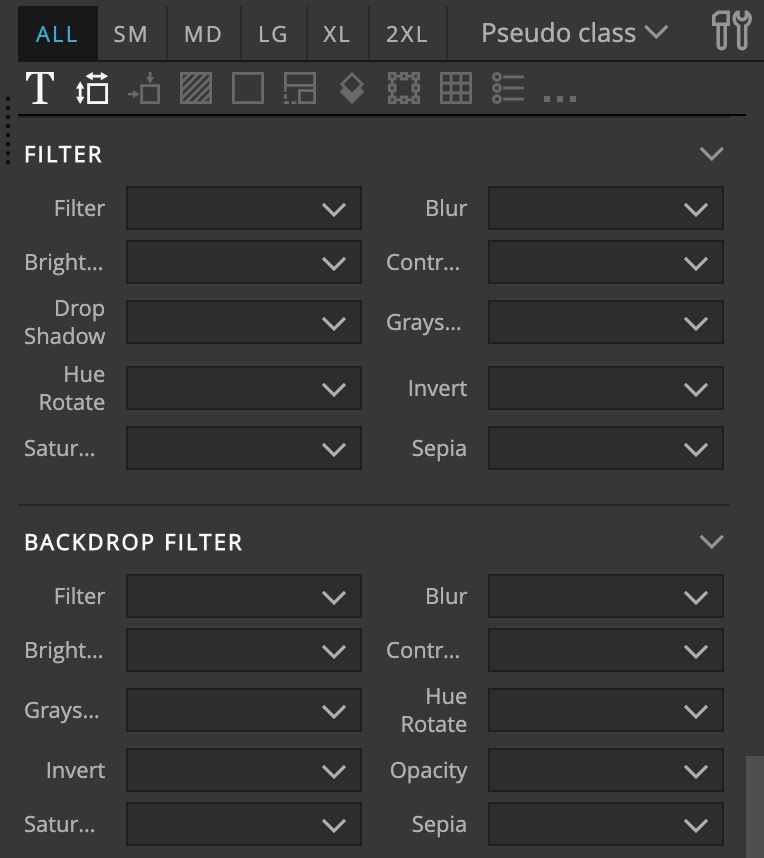
Tailwind CSS compiler in the Design Panel was updated to 2.2.6.
CSS gradients
Gradient CSS code can now be copied with the right click on the gradient in the Gradient library.
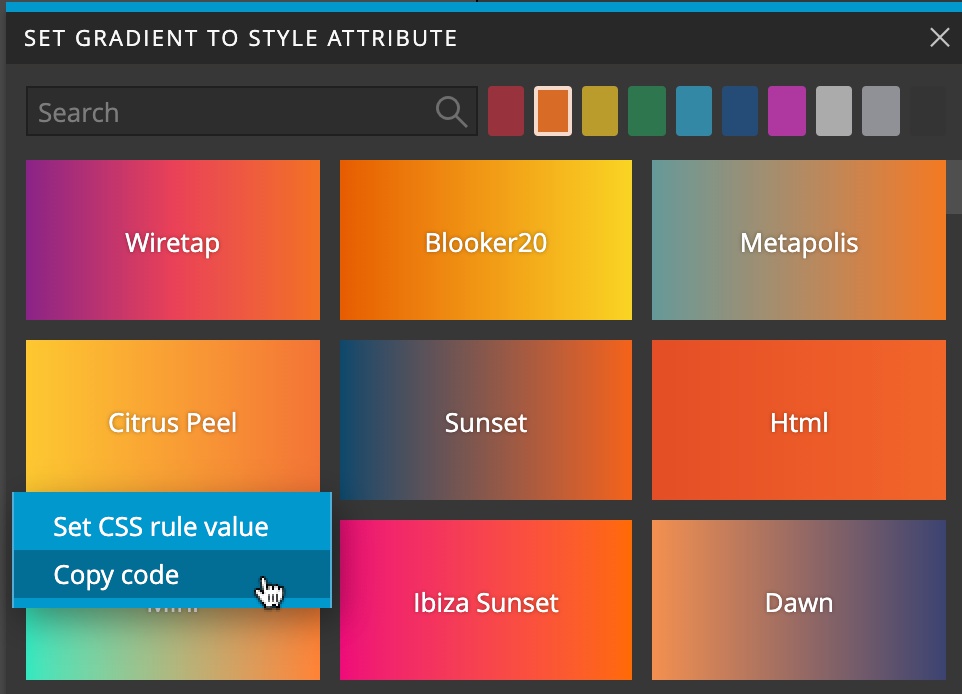
And the -webkit prefix is no longer used in generated CSS code.
Bug fixes
As always, a bunch of bugs was fixed in this release, most notably:
- PHP files can be correctly included with iframe.
- Pinegrow Interactions had issues with cloning elements on page load.
- WordPress Show Posts action correctly handles the Post ids parameter.
- Images are inserted with relative urls when dragged from the Project panel to the page.
Download
The package includes Pinegrow PRO, WordPress theme builder, Interactions and Tailwind editor.
Pinegrow for Mac (Disk image) Antivírus checkedMac: a9f2885a4c3d35117f418f7b1573614981d1bdee
Pinegrow for Windows 64 (Installer) Antivírus checkedWindows: f55ceb09717f99922f48d4894bc1a25aa8a38ed6
Pinegrow for Windows 32 (Installer) Antivírus checkedWindows: b6de7cd9fd84e5e92d6646bbb3150de48de8c7e9
Pinegrow for Linux (Zip, 64bit) Antivírus checked Linux: 8368f19573c17488dfe7c04ae499aa17aa824558