
Open panels in floating windows and arrange them on multiple screens. Easily update Bootstrap, fixed Master pages, WordPress improvements, Starter Theme 2 update and more.
Release notesRelease notesRelease notesRelease notes2019-01-24
Pinegrow Web Editor 5.1, January 24, 2019
Update
UPDATE: On 29. Jan, 2019 we released Pinegrow 5.11 with bug fixes for issues related to floating windows.
Download
Floating Panels and Multiple Screens
Note: Pinegrow 5.1 has a bug where floating windows remain hidden after using minimize / restore on the main window. The fix will be out soon. Until then use “Workspace › Refresh current layout” to show the windows.
Supporting multiple screens has been the top feature request for a while now.
That’s understandable.
Pinegrow’s UI - with multiple page views, code editor, component libraries, panels for properties, styling, CMS and more - takes up a lot of screen real estate.
Until now the whole UI had to be contained in a single window, so things quickly got crowded.
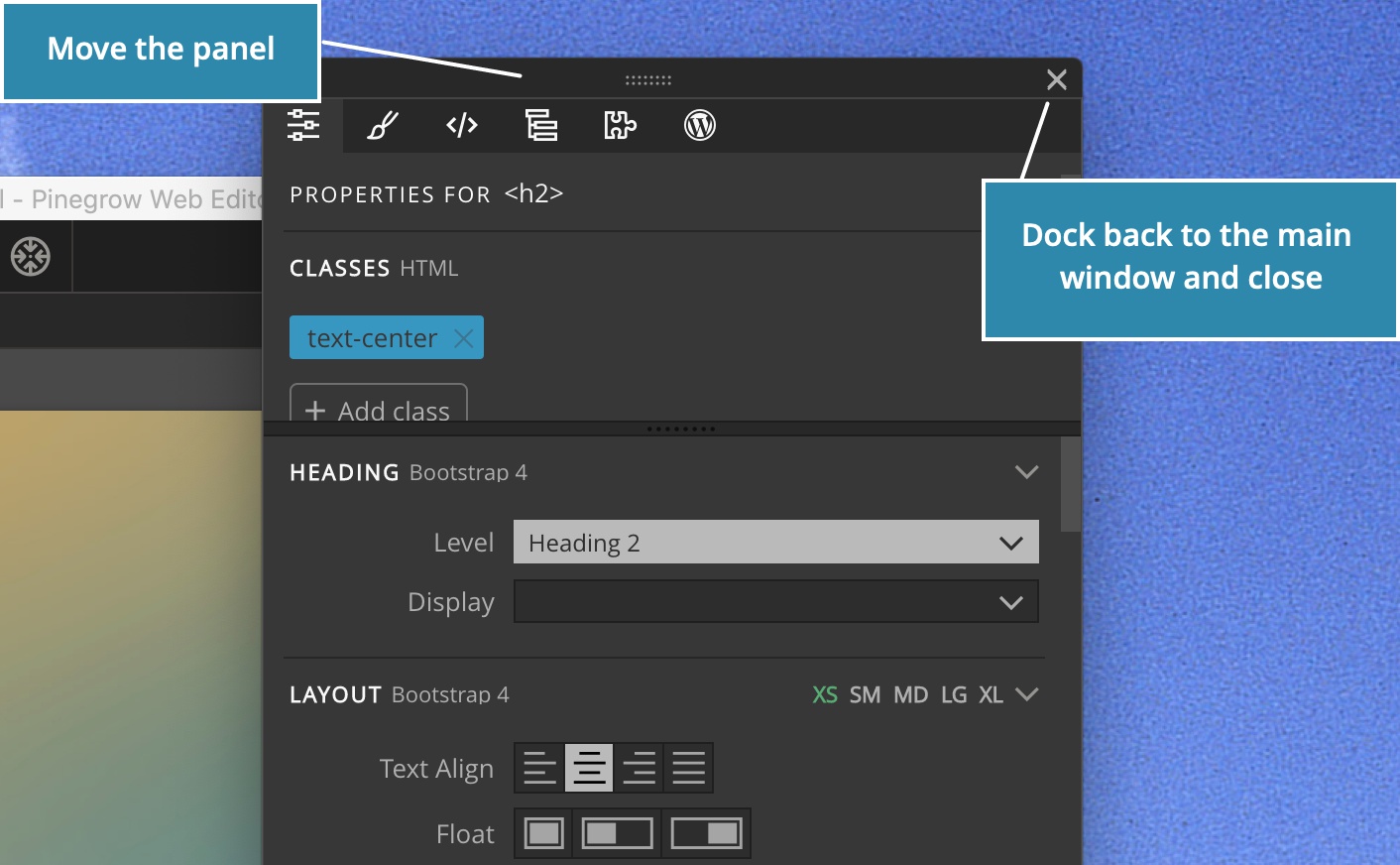
In Pinegrow 5.1 you can float panels - and groups of panels - in separate windows. Panels can be freely dragged between windows and rearranged within a window.
Watch the video introducing the feature:
To float a panel or panel group click on the Window icon.
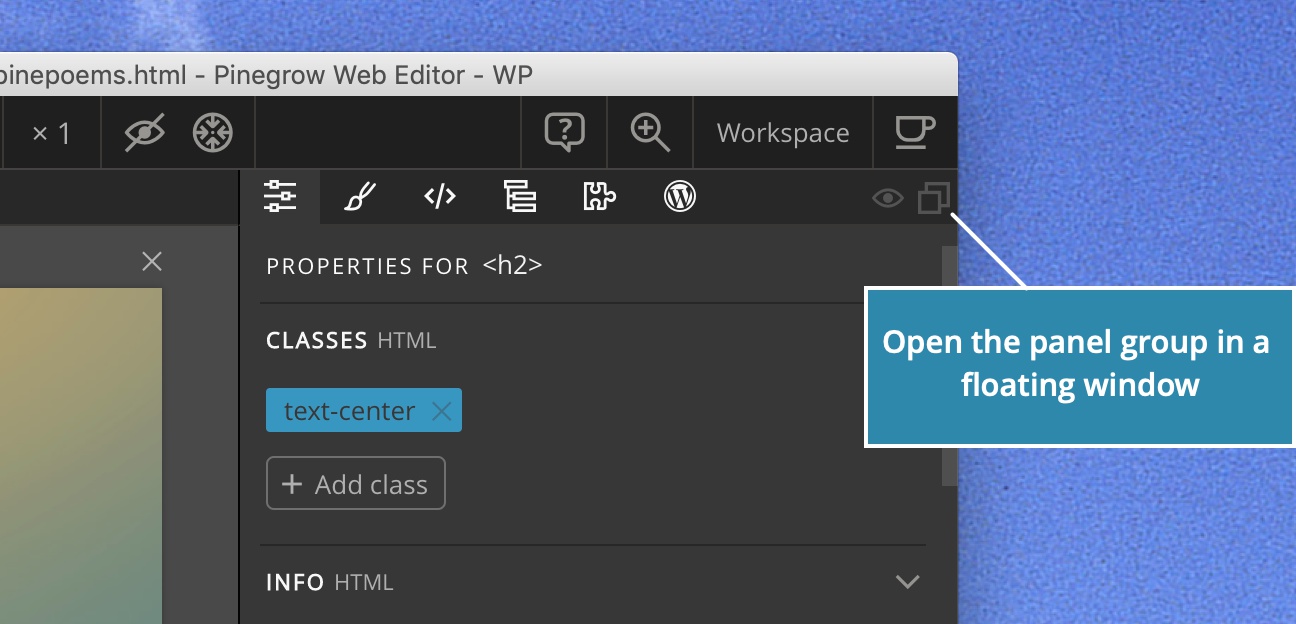
This will open the panels in a separate window that can be dragged everywhere on your screens.
Individual panels or panel groups can be dragged between windows.
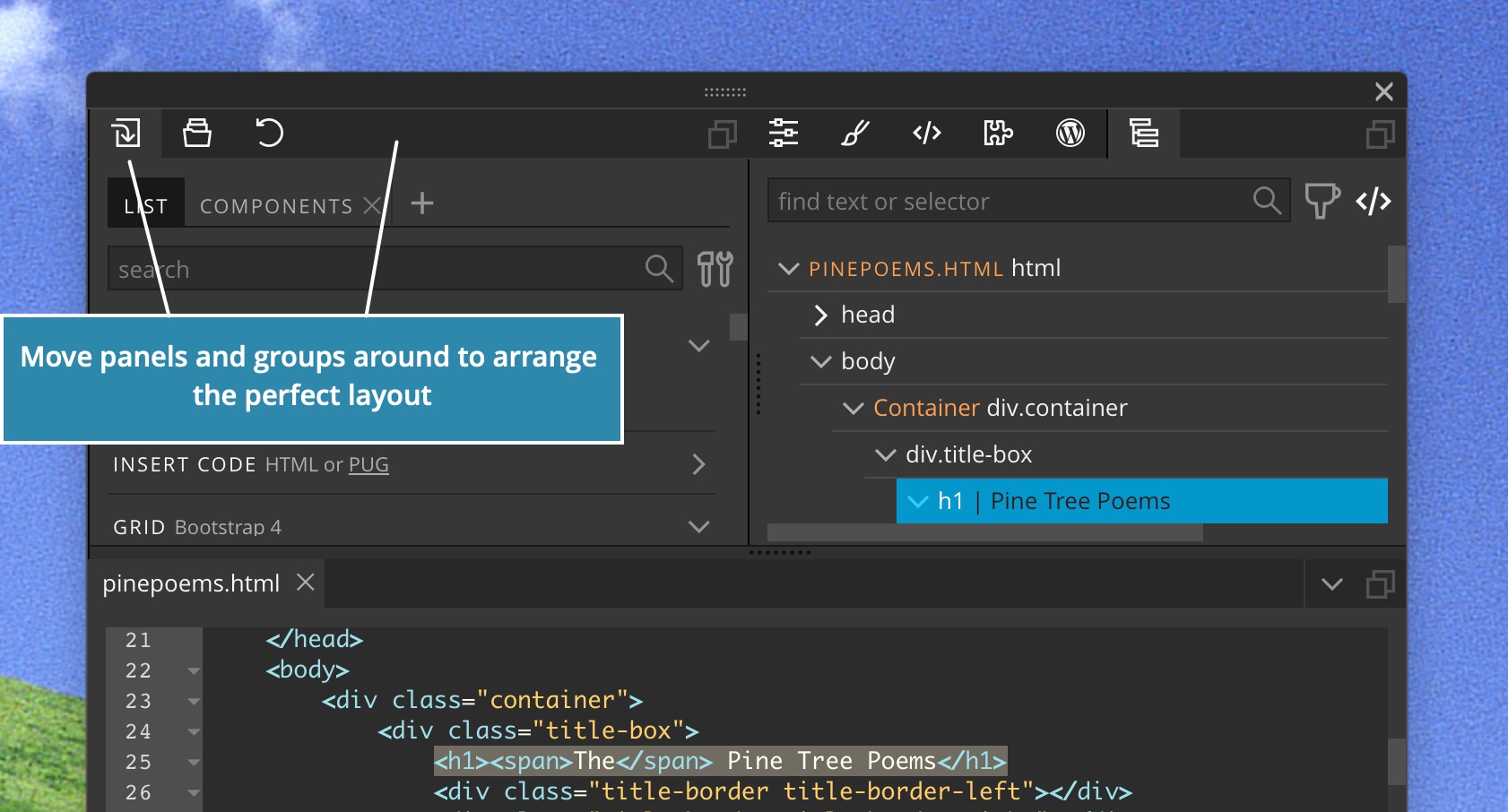
To dock panels back to the main window simply close the floating window.
In this way you can come up with a workspace layout that works best for your screen configuration.
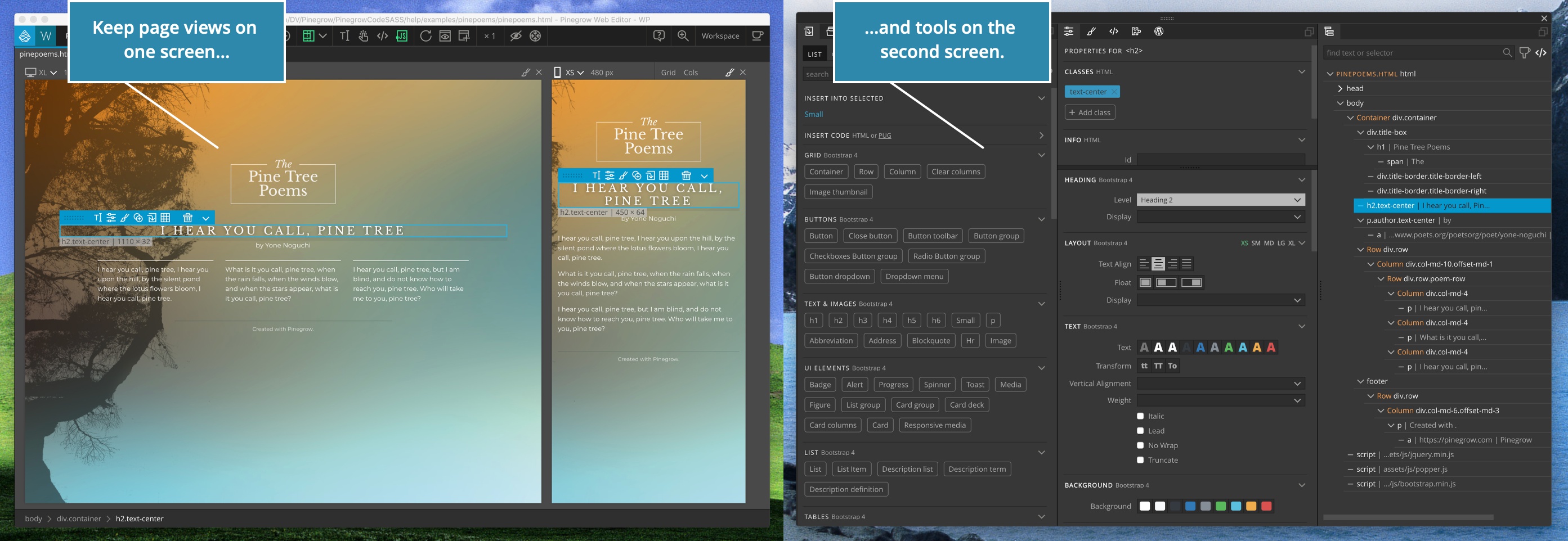
Some examples:
- Keep everything organized in one window
- Float panels in separate windows to have more flexibility with arranging them
- Put a second window on another desktop (for example, on Mac) even if you have just one screen.
- Have page views on the first screen and put groups of panels in floating windows on the second or third screen.
- These are just few ideas. The Pinegrow UI is very flexible and if you spend a bit of time fiddling around with it, you will be able to find the best layout for you.
The only limitation is that page views themselves can’t be moved outside of the main Pinegrow window.
Use the Workspace menu to save and restore layouts.
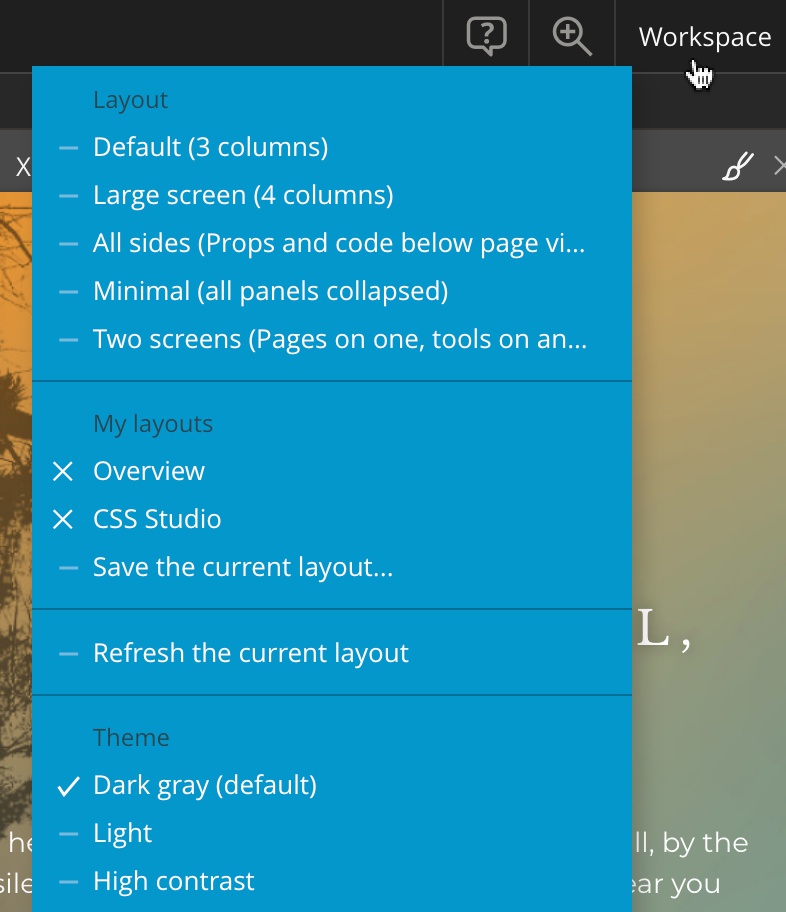
There, we also added a predefined layout for two screens, with page views in one window and all the tools in another.
With great power also comes the possibility that something goes wrong and the layout becomes an unusable mess. If that happens do the following, in this order:
- Use the Workspace › “Refresh current layout” feature. This will clear any temporary issues with the layout.
- Restart Pinegrow. Pinegrow only remembers valid workspaces, so there is a good chance this will restore the last good workspace.
- Restore a saved or predefined layout, if everything else fails.
The point is, don’t worry about messing things up. Any problems are easy to fix.
Easily upgrade Bootstrap
Bootstrap starter pages, library components and properties have been updated to the latest versions, 4.2.1 and 3.4.0 respectively.
Pinegrow can also easily update your existing Bootstrap projects to the latest Bootstrap version (Bootstrap 3.x to the latest Bootstrap 3 and Bootstrap 4.x to the latest Bootstrap 4).
Read the complete guide on how to upgrade Bootstrap to the latest version.
Fixed Master Pages and WordPress Site actions on plain HTML projects
Pinegrow had a bug that prevented using Master Page actions and WordPress Site actions correctly on projects that didn’t use Bootstrap or Foundation.
In those cases both actions didn’t remember their parameters.
That has now been fixed.
WordPress Theme builder changes
Post image - Smart action
Until now, the action added the ( is_singular() || in_the_loop() ) when displaying a post image in the background of the element. This created problems with custom queries and non-singular templates.
Now, the action only checks for the presence of the current post ID, if post ID is not specified as a parameter of the action.
Another change is that this action doesn’t automatically add with-image class to the element with the background, as it did before.
Action parameters
Some WordPress actions had checkbox parameters that were on by default. Unchecking them actually set the non-default, negative. action parameter value.
That made it difficult to spot such checkbox that were set off, and distinguish them from checkboxes that were simply off by default.
That’s why all such checked-by-default checkboxes are changed into select boxes with default value “Yes”. This makes the controls set to “No” very easy to notice.
Starter Theme 2 update
Starter Theme 2 has been updated to Bootstrap 4.2.1 and optimizations have been applied to some HTML templates. Similarly, some WooCommerce templates have been updated to adapt to the latest versions of the plugin.
Save partials
Save partial action (in Actions panel) can now correctly save content of script and style elements.
Attribute editor in the Properties panel
Until now editing attributes that contained HTML tags, stripped the tags from the value.
To prevent this, the Attribute editor now skips such attributes and displays the notice that you can edit them with Element code.
Controlling visibility of CSS Grid buttons and resize points
CSS Grid buttons can get in a way, especially when elements are small.
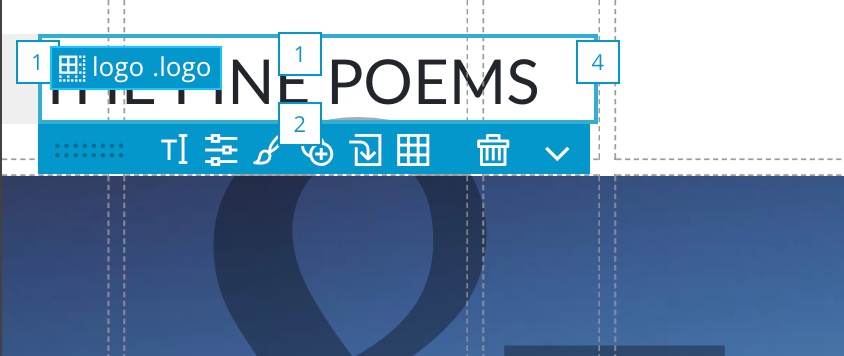
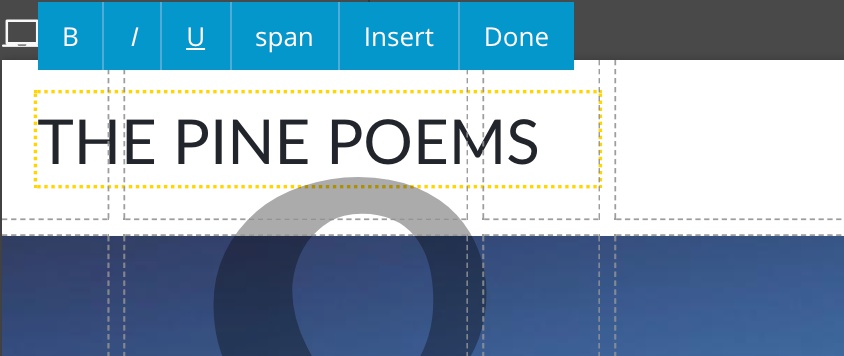
Text editing mode now hides these buttons, so that you can see the complete element while editing it.
CSS Grid buttons are also now correctly controlled by the Selected element menu display helper settings.
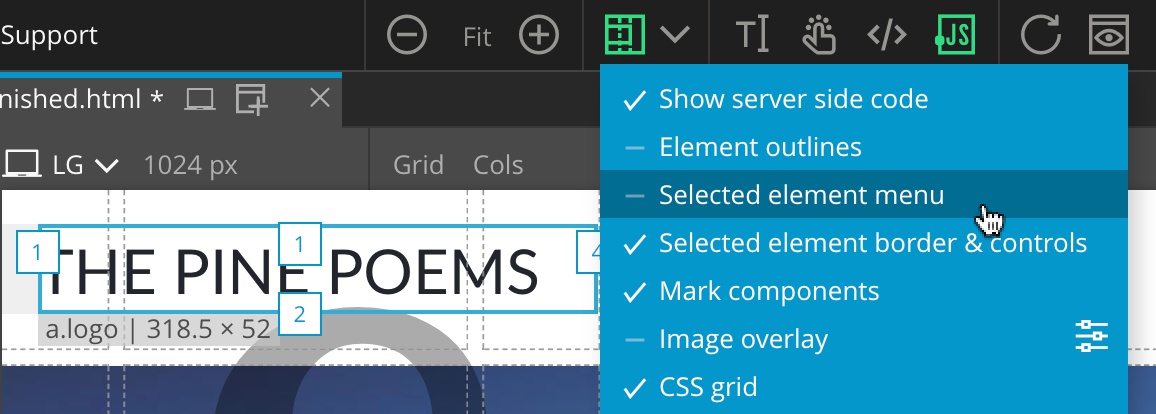
Visibility of Resize points (for both CSS Grid and Bootstrap / Foundation columns) is now controlled by the Element border display helper setting.
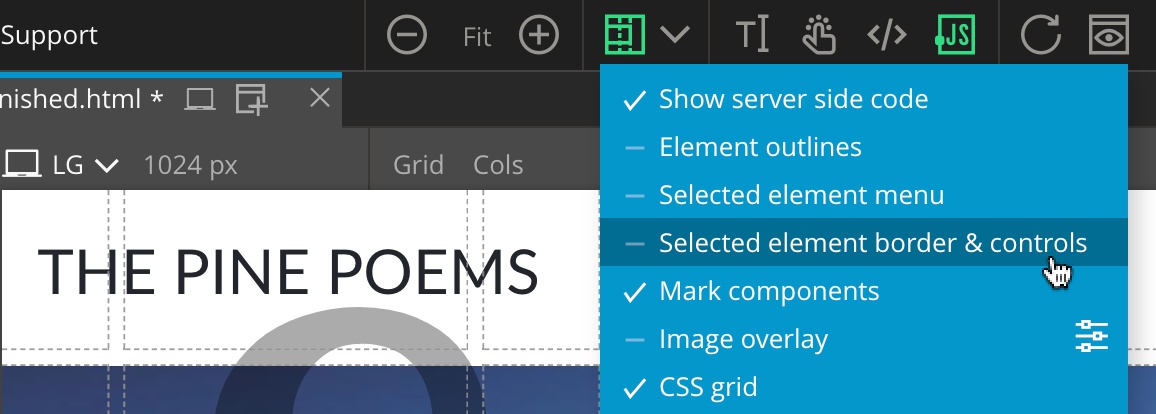
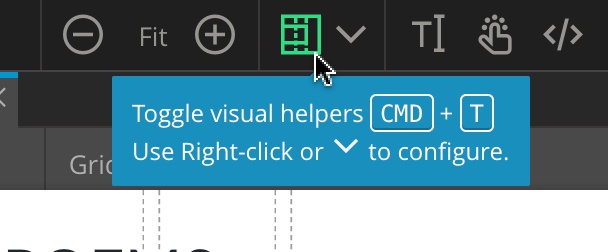
Of course, you can quickly toggle all enabled visual helpers with CMD_T or by clicking on the helpers icon in the top toolbar.
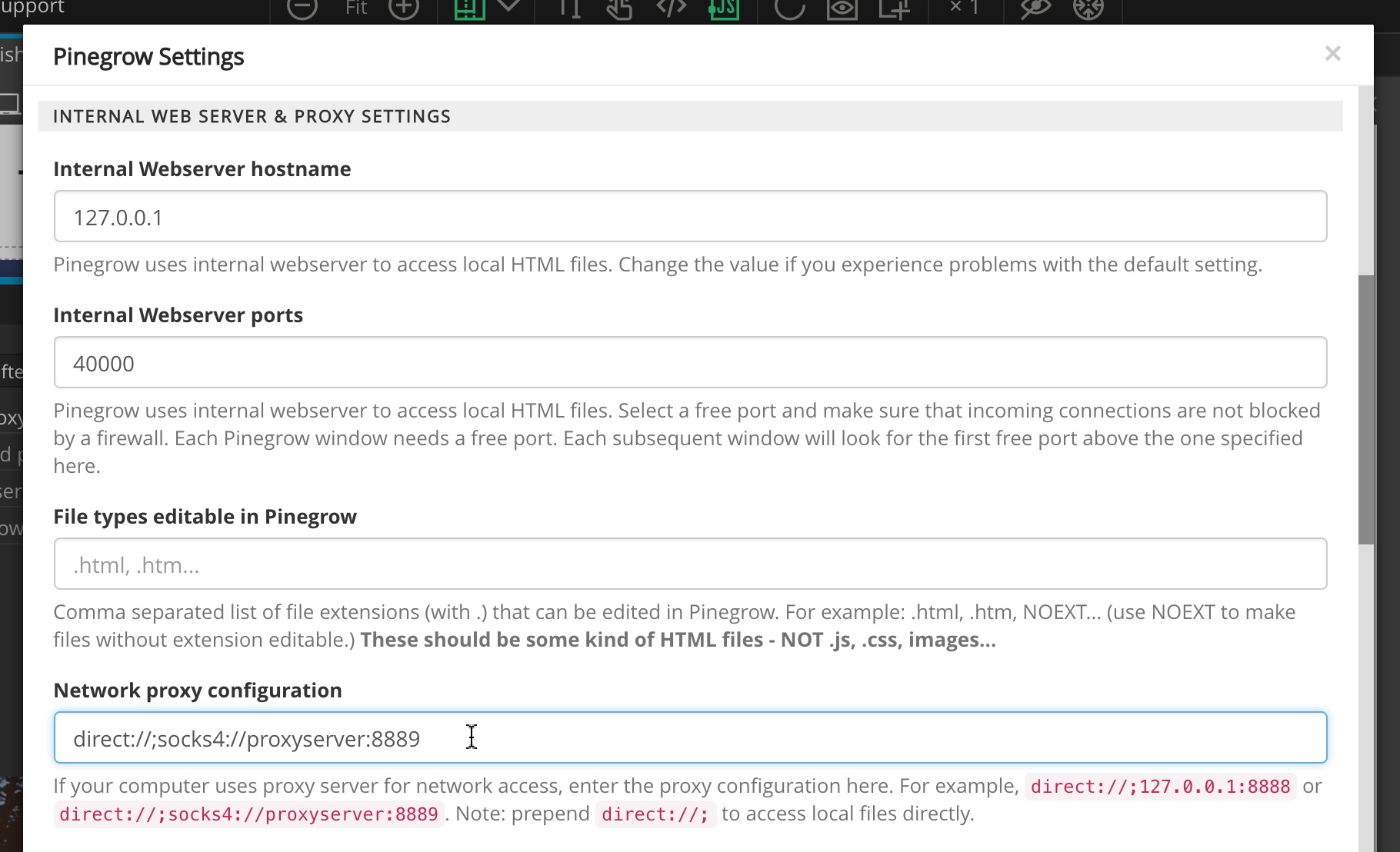
Network proxy settings
It is now possible to let Pinegrow know to use a proxy server for accessing the network by specifying the configuration string in Settings:
Font Awesome update
Font Awesome has been updated to the latest version.