
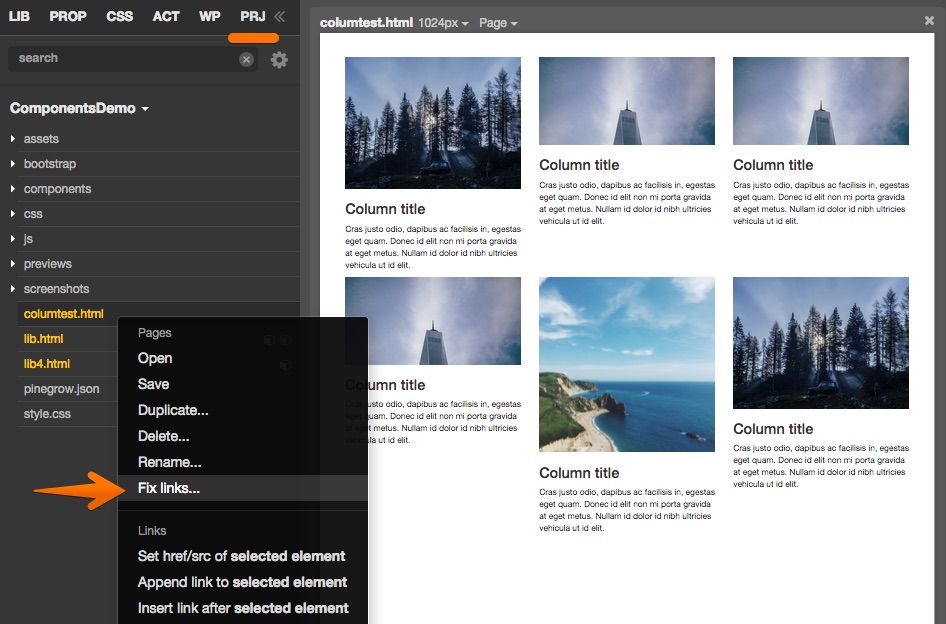
Download Pinegrow 2.31 Did you miss the launch of Pinegrow PRO? We discovered a bug that prevented exporting WordPress themes in trial mode. We also added a bunch of useful goodies that will make your web development life easier: Auto fixing broken links in project Use Fix links in PRJ context menu to fix broken
Release notesRelease notesRelease notesRelease notes2015-11-18
Pinegrow Web Editor 2.31, November 18, 2015
Did you miss the launch of Pinegrow PRO?
We discovered a bug that prevented exporting WordPress themes in trial mode.
We also added a bunch of useful goodies that will make your web development life easier:
Auto fixing broken links in project
Use Fix links in PRJ context menu to fix broken links within the project, for example after moving the page or its resources to a different subfolder. Fix links will look for missing files and search for them within the project. If more files with the same name are found, Fix links will ask you to pick the right one.
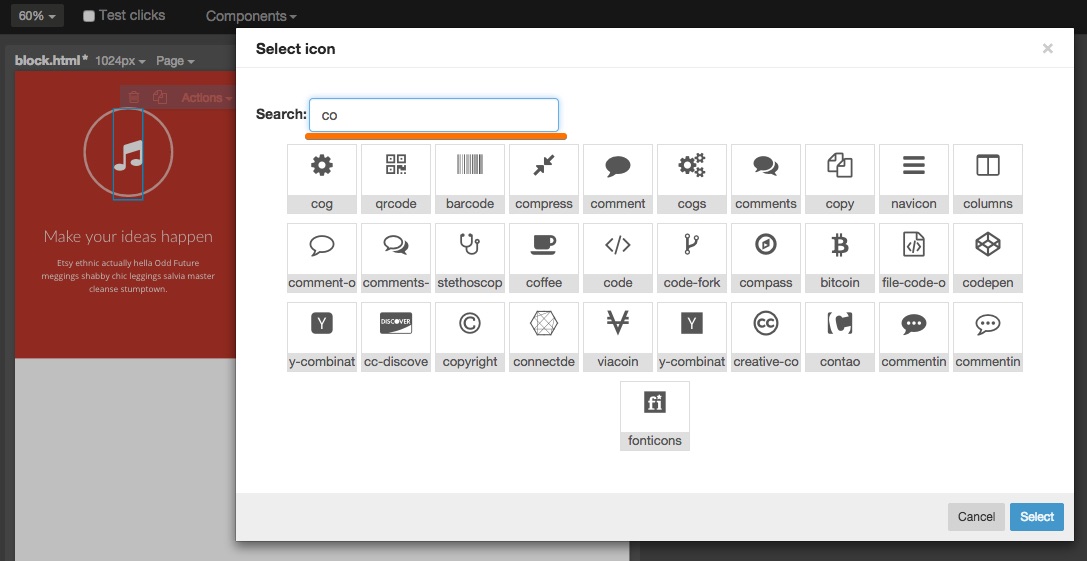
Search box for icons
All of us wasted enough time scrolling through hundreds of icons, searching for the right one. Finally, we have a search box! This works with the [Font Awesome plugin](), Bootstrap Glyphicons and Materialize CSS icons.
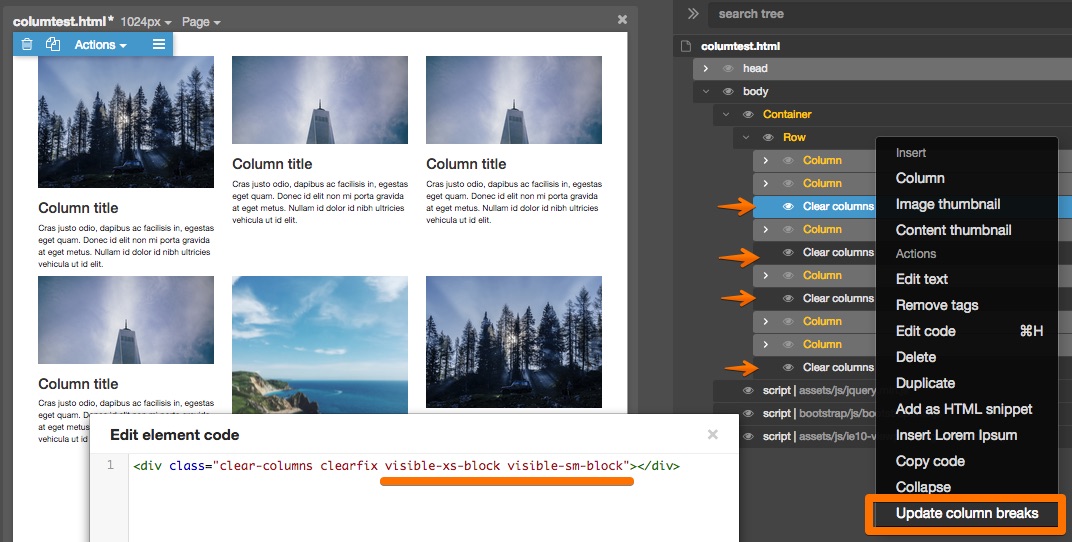
Clearing Bootstrap columns
Bootstrap column grid becomes messed up if columns have different heights. The official solution is to insert column breaks at line breaks between columns. But doing this manually, especially for responsive column spans, is boring and error-prone. Not any more! Just right-click on any element that contains columns and select *Update column breaks*. Pinegrow will analyse the layout and insert column breaks at the right places. Remember to re-update column breaks after changing the column grid.
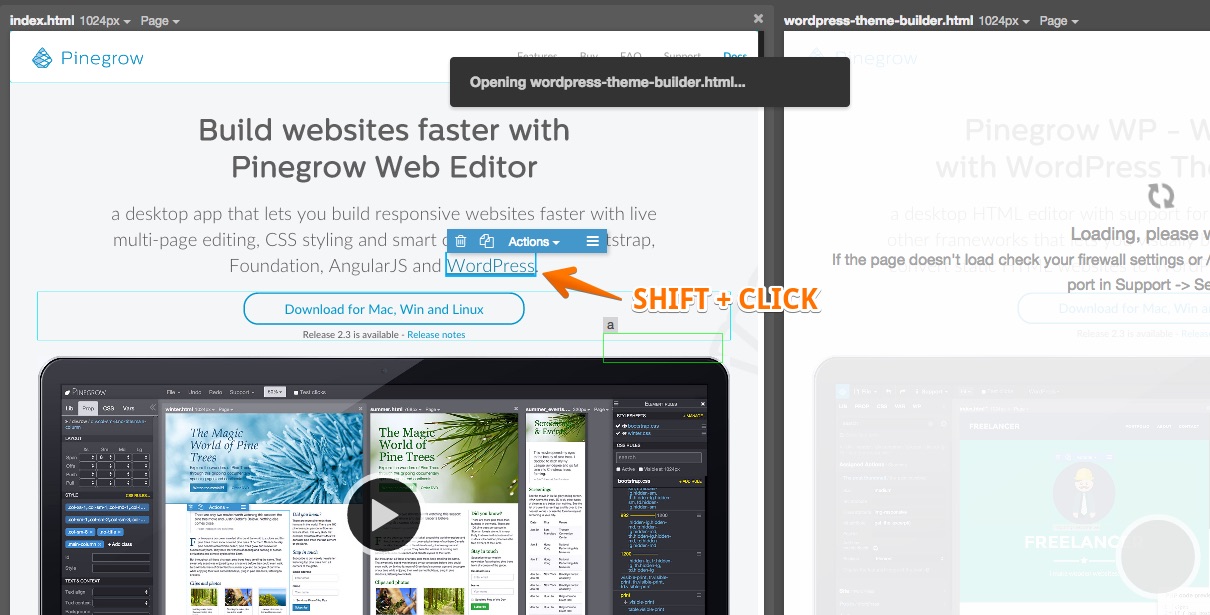
Test clicks
In the past using test clicks (SHIFT + Click or Test clicks mode, that lets the page handle the click so that you can interact with menus, modals…) often lead to confusing “Are you sure you want to leave this page” messages. Now, test-clicking on a link will open the link in Pinegrow, or show the page if it is open already. That’s a nice way to navigate & edit around your multipage website.
Hiding elements during editing
We changed the way how elements can be hidden during editing in Pinegrow. Instead of using inline styles that in some cases leaked back into the source code, Pinegrow uses data-pg-hidden attribute to mark hidden elements. You can even tell Pinegrow to remember hidden (and collapsed) elements in saved files.
File pickers for links
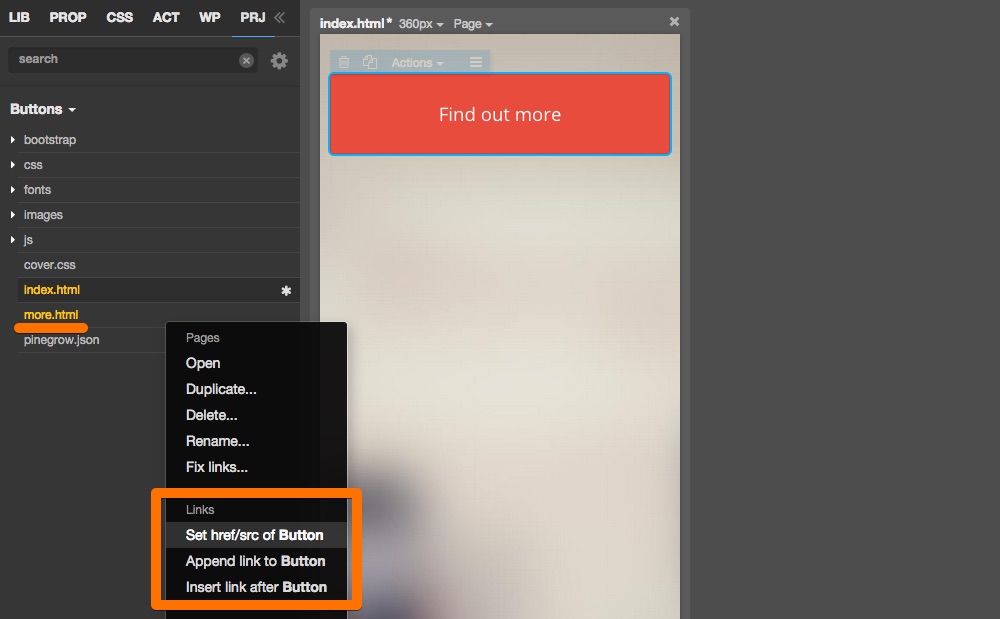
Link fields have a file picker now. Also, you can use the project view to insert links. Just select an element that need an href or src attribute, right-click on the file you want to link to and select “Set href/src”.
Set which files are editable in Pinegrow
Use Support › Settings › File types editable in Pinegrow to specify file extensions that Pinegrow should open in HTML editing mode.