
Reveal CSS rule in source code, control CSS code formatting, WordPress Post Breadcrumbs and bug fixes.
Release notesRelease notesRelease notesRelease notes2019-10-28
Pinegrow Web Editor 5.8, October 29, 2019
Download
Reveal CSS rule in source code
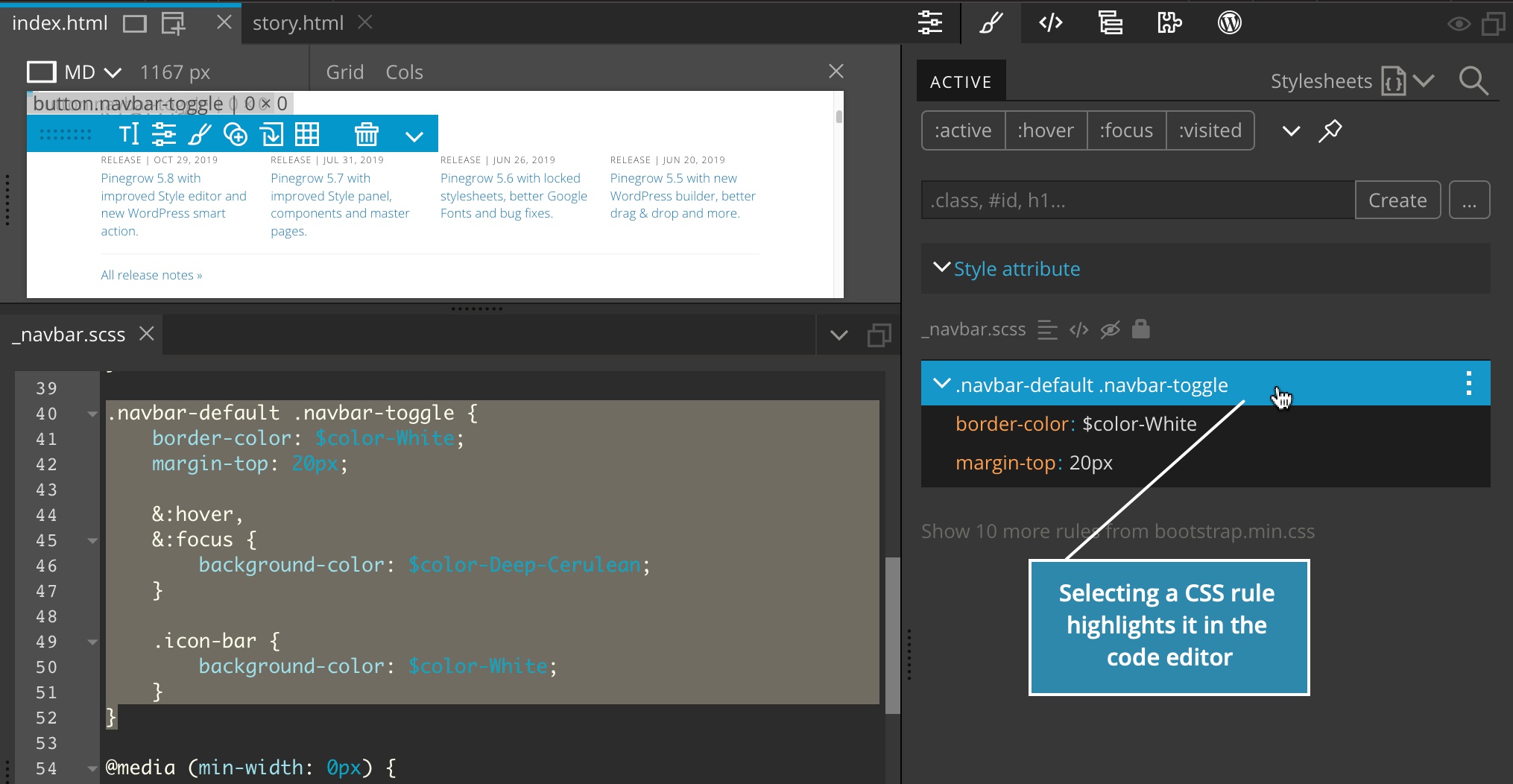
Selecting a CSS rule in the Style panel will highlight the rule in the code editor - if the stylesheet is open in the code editor:
“Search for the selected CSS rule” option must be enabled in the code editor:
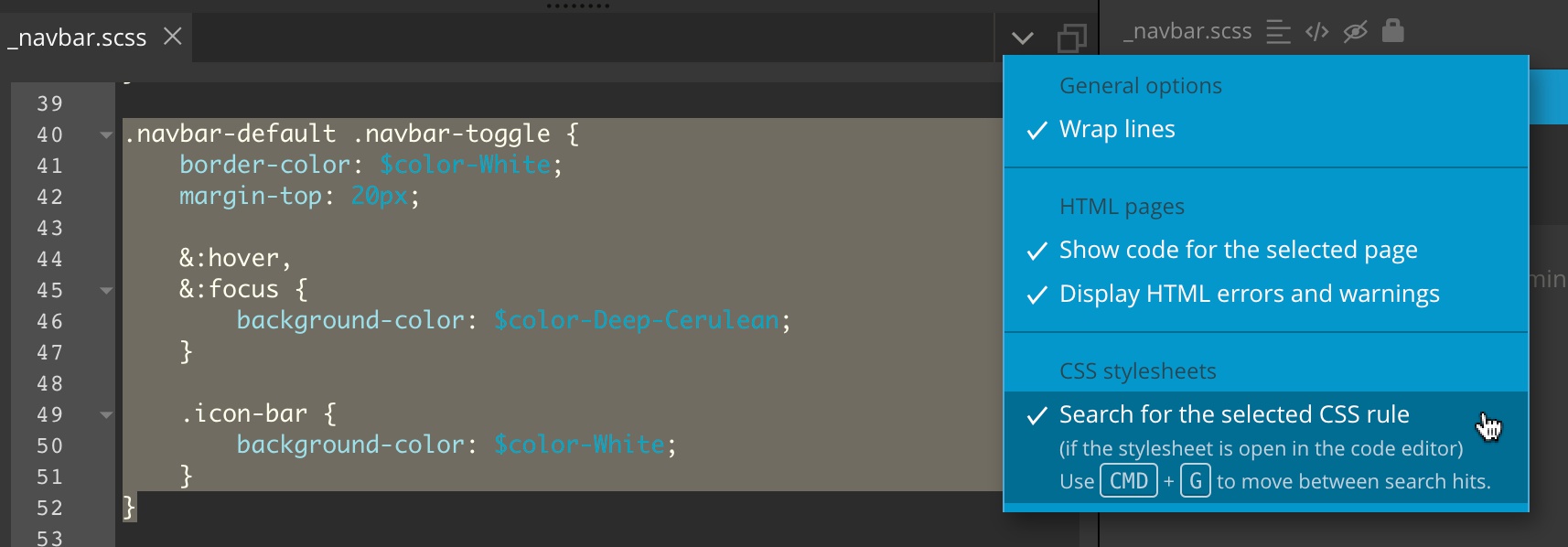
In previous Pinegrow versions, all matching selectors were highlighted, not the exact CSS rule.
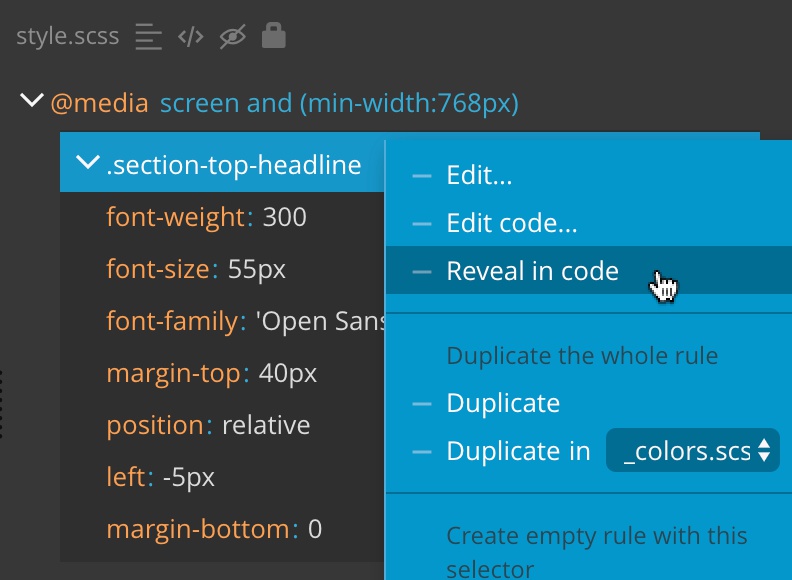
“Reveal in code” command was added to the CSS rule context menu. Right click on the CSS rule and chose “Reveal in code” to open the stylesheet in the code editor and highlight the rule in the code.
Control CSS code formatting
Until now Pinegrow reformatted the CSS code each time it was saved or displayed in the code editor. For some users, this was not compatible with the way they were formatting the CSS code.
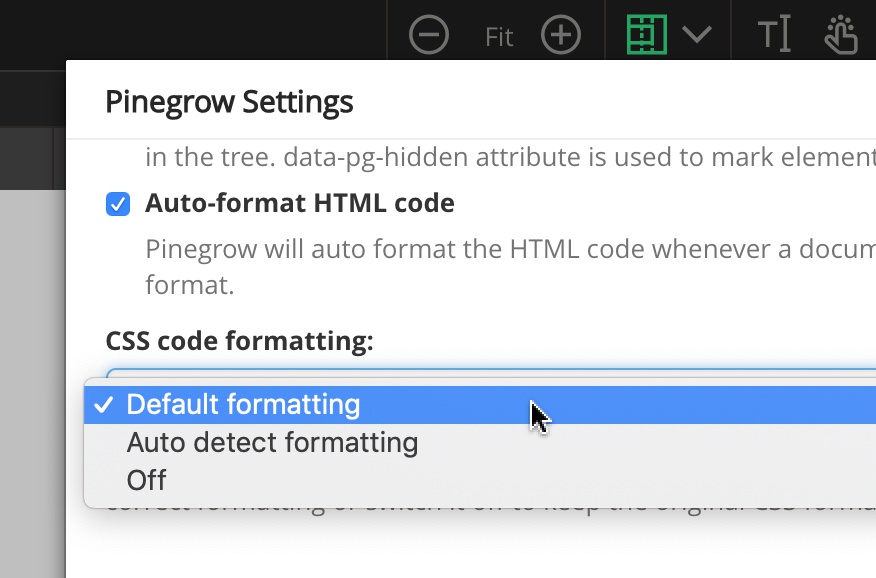
We added the setting that controls the formatting of the CSS code:
Auto detecting the correct format
In addition to using the default formatting (like we had it until now) and switching the formatting off, we also have the option to let Pinegrow figure out the correct formatting based on how the first rule in the stylesheet is formatted.
For example, here the first rule is listing the selector and all declaration in the same line. When auto detecting the format is enabled, the rest of CSS rules in the stylesheet will be formatted in the same way:
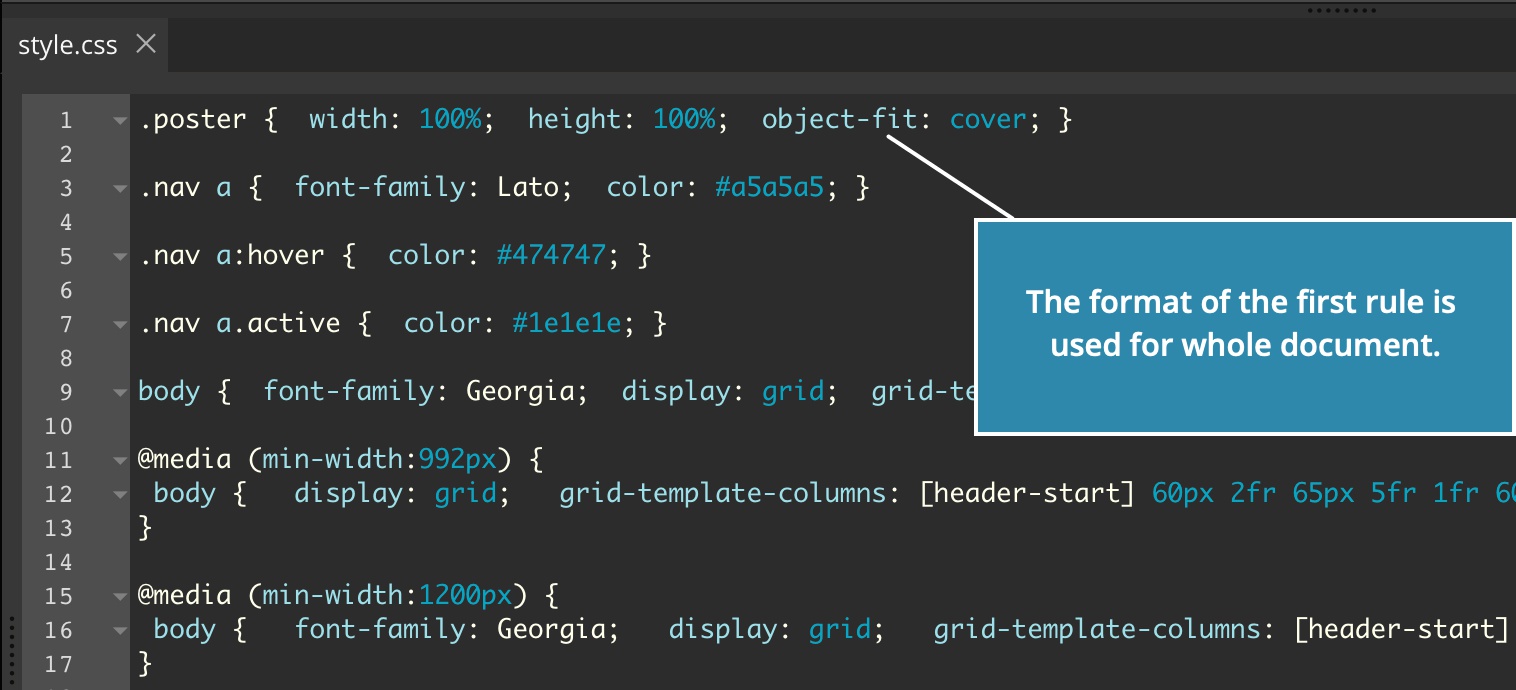
Auto formatting tries to be smart, but it can’t be as smart as you, so it might fail in some cases.
As a general advice, it is often best to leave formatting the code to tools like Prettier that automatically enforce the correct formatting for the whole code base.
Use !important in Visual CSS Editor
Right-click on the input fields in the Visual CSS Editor to easily toggle the !important declaration.
This feature fell out in the last moment, will be added back in the next release.
WordPress Theme Builder
The Smart actions family got a new member: Post Breadcrumbs.
Breadcrumbs are a very effective navigation control for showing how the current post fits into the content structure of the site. They let visitors quickly navigate between the site and they help search engines discover the content structure.
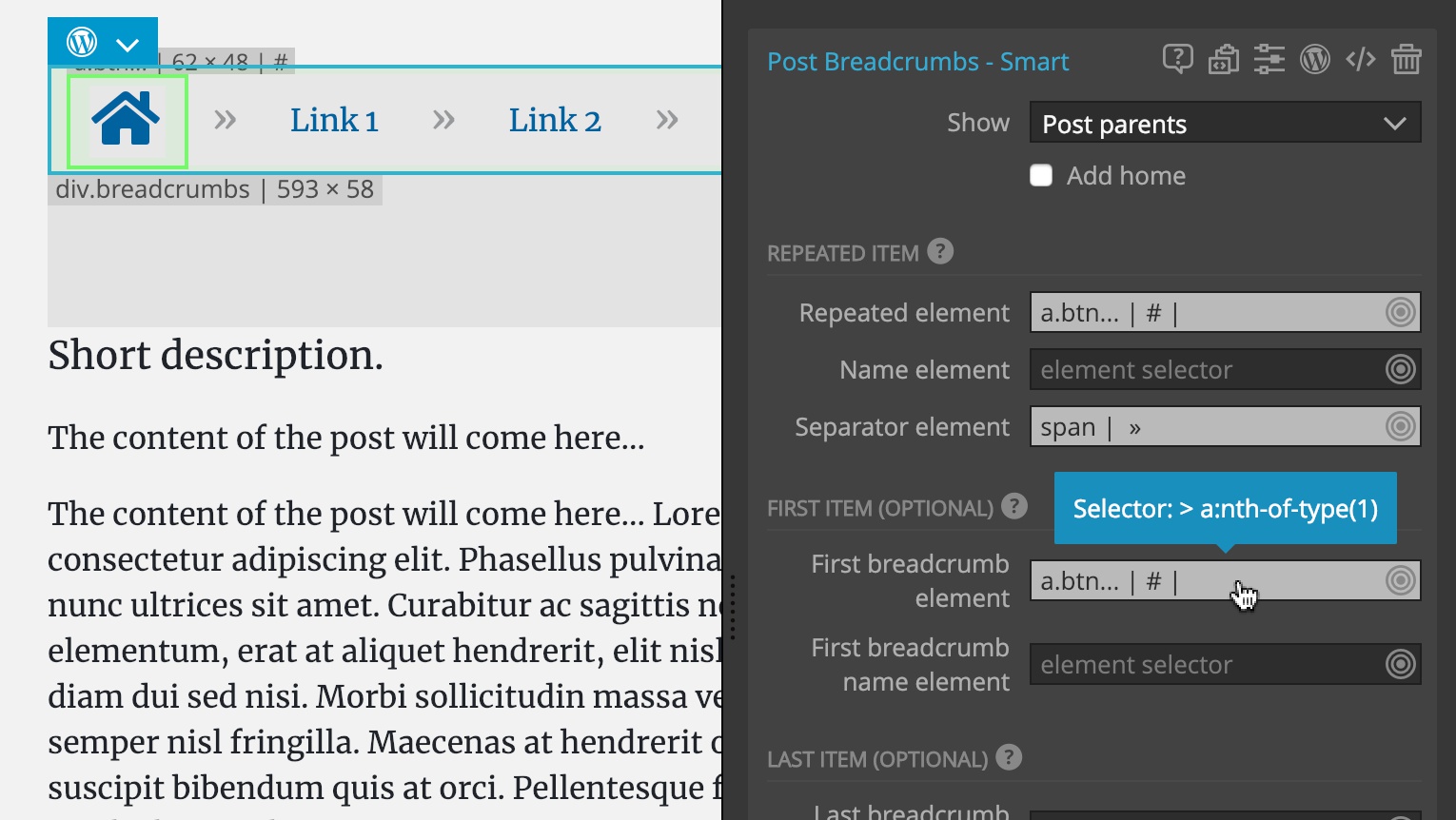
Post Breadcrumbs action provides simple yet flexible way for displays breadcrumbs without relying on any WordPress plugins.
Read the Post Breadcrumbs documentation and examples.
Bug fixes
This release also includes a bunch of bug fixes, including correctly handling url mapping for master pages and components.