
Atom integration is back, alongside new handy features like Split and merge elements. Download Pinegrow 3.07.
Release notesRelease notesRelease notesRelease notes2017-08-24
Pinegrow Web Editor 3.07, August 24, 2017
Atom + Pinegrow

Atom is back! Live-sync Pinegrow and Atom code editor to create the perfect web development IDE. All edits are synced between the two apps, without having to save files first. Follow this guide to set it up.
Split and Merge HTML elements
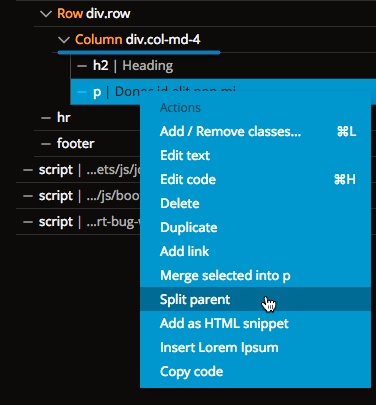
“Split parent” splits the parent of the selected element into two elements, at the point of the selected element.
In this example, “Split parent” will split the Column into two Columns, with H2 in the first column and P in the second column:
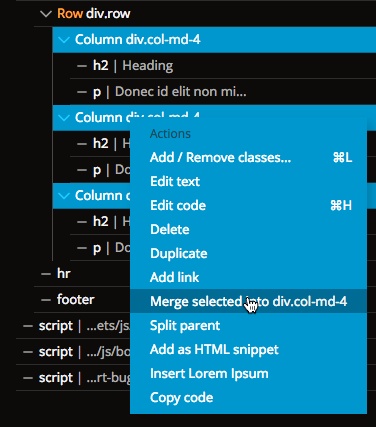
“Merge” combines selected elements into the element on which you run the “Merge” command. Content of merged element is prepended or appended to the destination element, according to its position in relation to the destination element. Empty merged elements are discarded.
In this example, content of all three selected columns will be merged into the middle column (because we’re doing “Merge” on the middle column):
Compile & Save command for SASS/LESS stylesheets
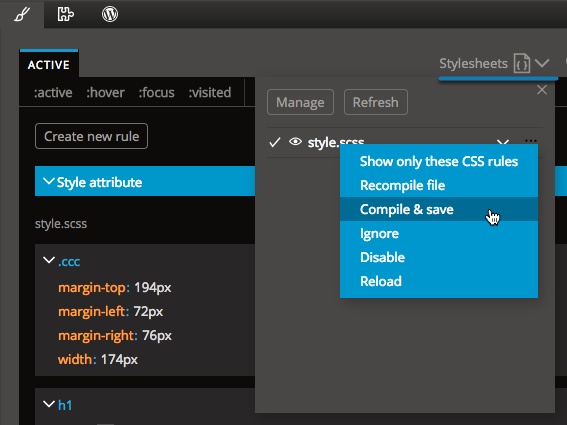
Normally, changed SASS/LESS stylesheets are compiled into corresponding .css files when you save the page. Use “Compile & Save” command to force compiling .css files even if the source SASS/LESS file is not changed. For example, if you open a project in Pinegrow after editing the source file with another app without compiling .css files.
Hide selected element border
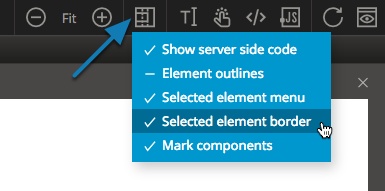
Blue borders of the selected elements sometimes get in the way. Use “Display helpers” tool to switch them on and off. There you can also hide menus of the selected elements and other visual helpers.
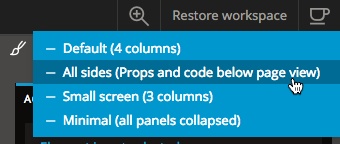
More predefined workspaces
Restore workspace menu has better descriptions and a new layout: All sides, a 4 column layout with Element properties and Element code just below page view area.
Bug fixes
Just when we think that we fixed everything, new bugs come out - thanks to out amazing user community. Btw. if you haven’t yet checked out our Slack and forum, give them a visit. They are full of friendly and helpful Pinegrowers.