
Pinegrow 4 is available for download.
Release notesRelease notesRelease notesRelease notes2017-11-22
Pinegrow Web Editor 4, November 22, 2017
There are many big and small new features, including:
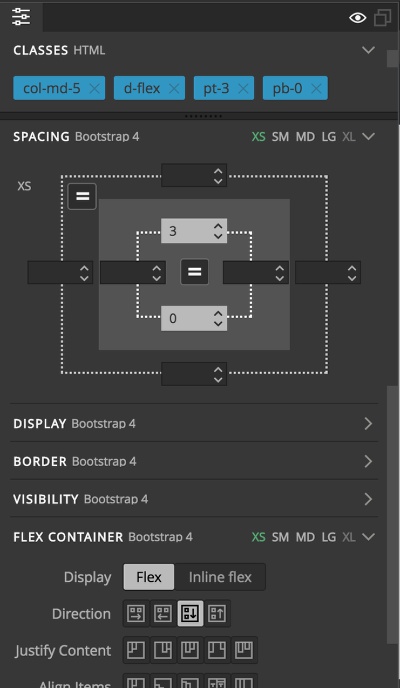
Bootstrap 4 with new visual tools
Visual controls for responsive layouts, text, visibility, Flex helpers and more:
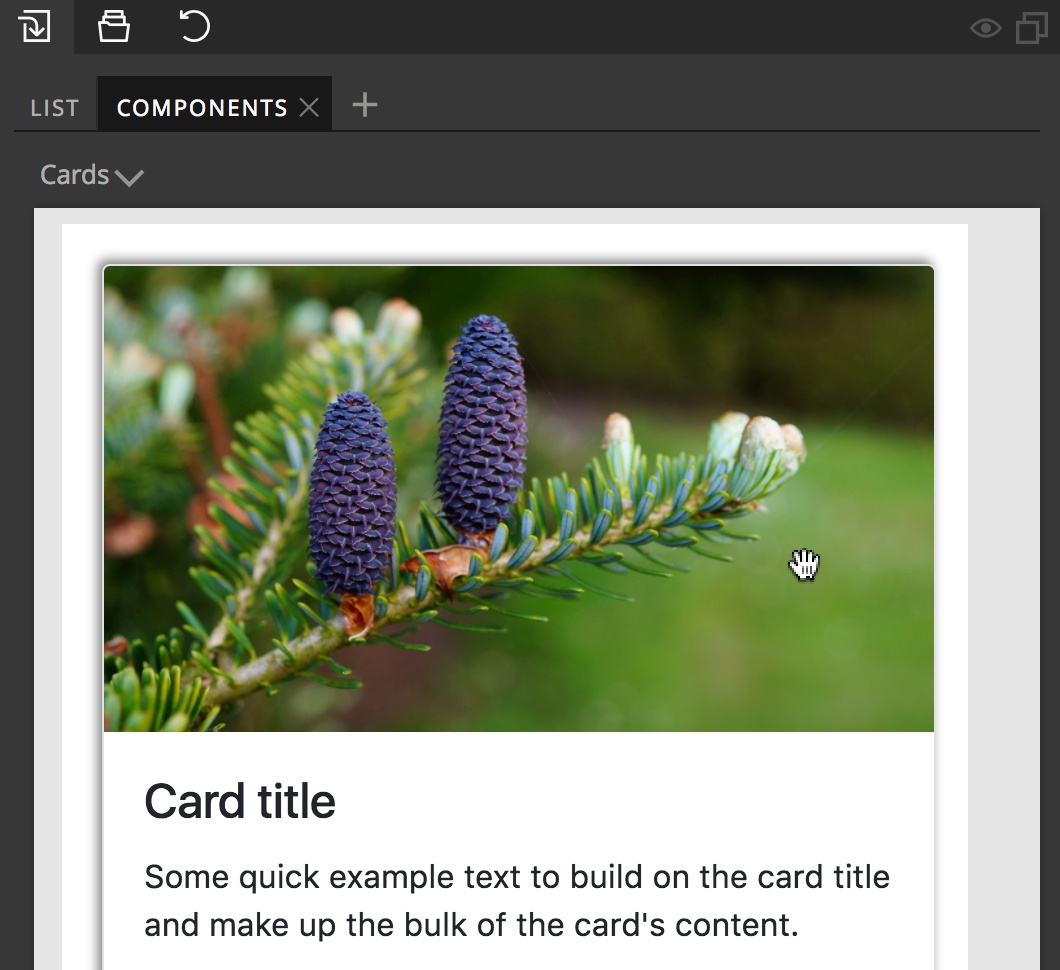
Rich component library with 100s of ready-to-use Bootstrap elements. Use + icon to load custom Page libraries.
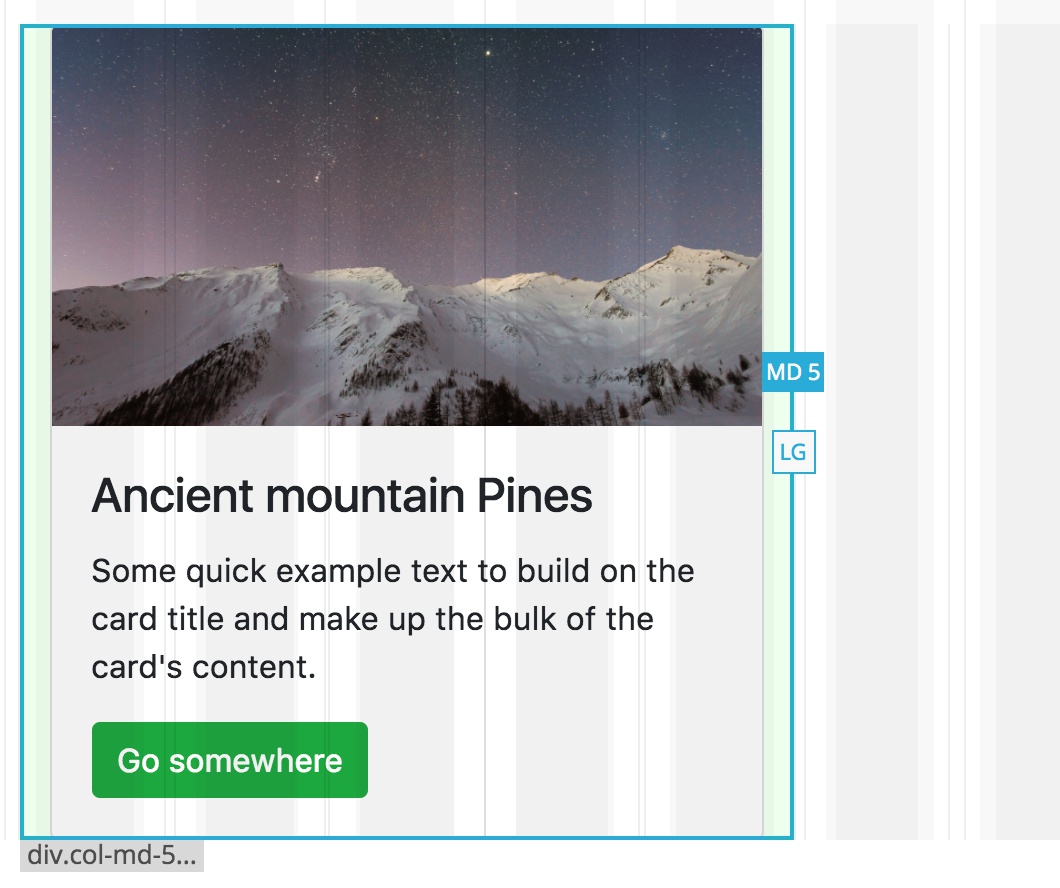
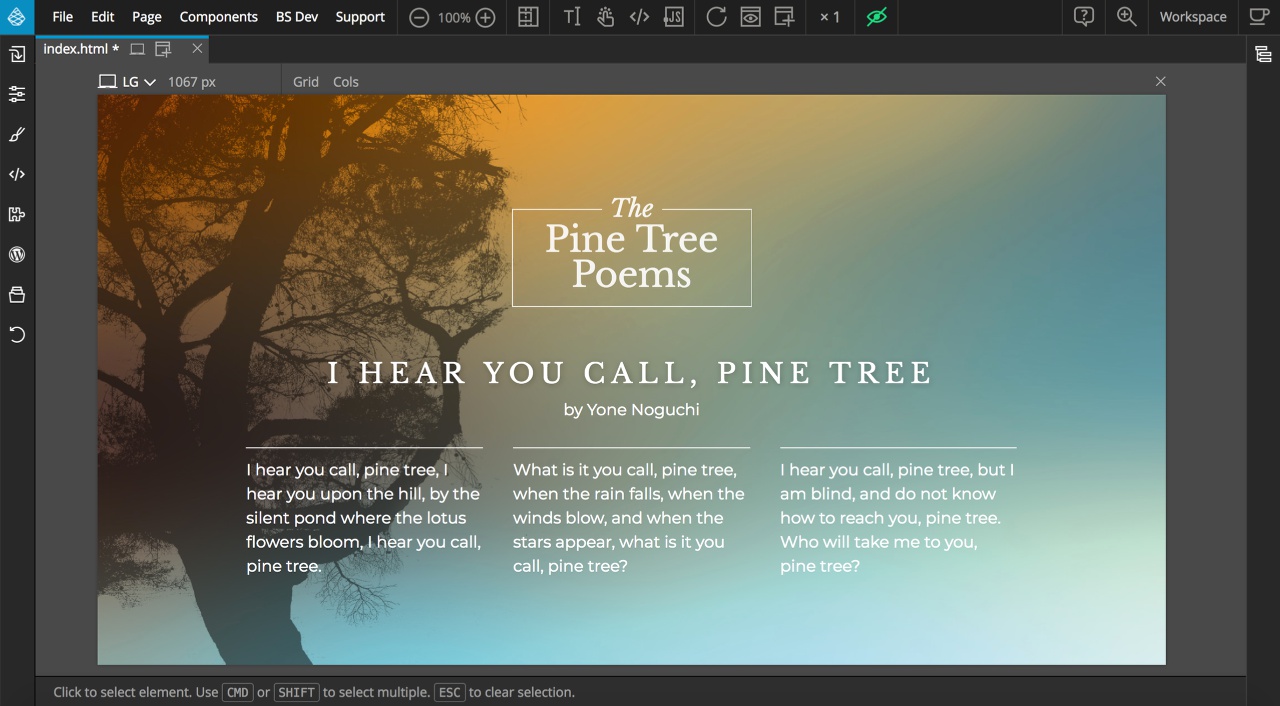
Grid and column overlay helpers. Toggle them above every page view or globally with View helpers icon in the top bar.
Bootstrap 3 got all these goodies as well.
The User interface
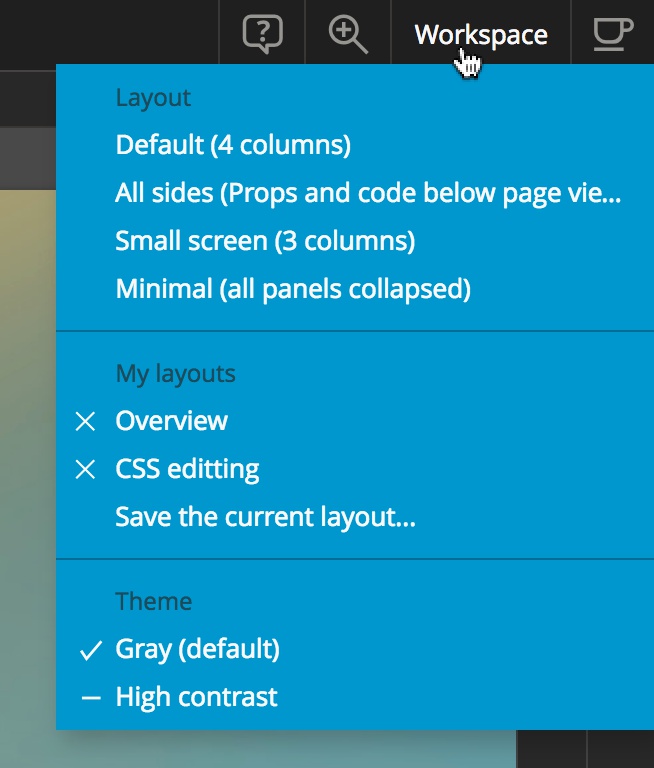
You’ll notice a new default grey theme. Use “Workspaces” to switch to the Pinegrow 3 High contrast theme if you like it more. Save your own workspace layouts.
Get UI out of the way. Just press TAB and all the panels are gone. With your page front and center, you can then use a bunch of quick tools to bring up the feature you need without opening the main panels. Toggle eye icon in panel headers to make that panel always visible.
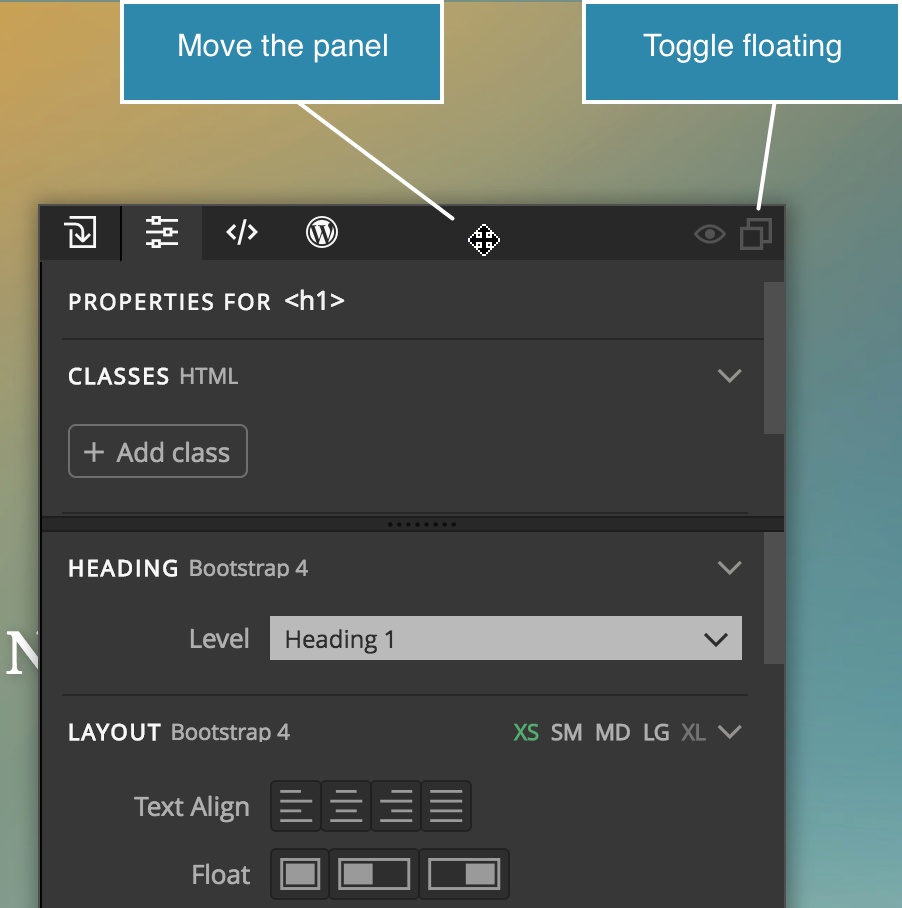
Floating panels.
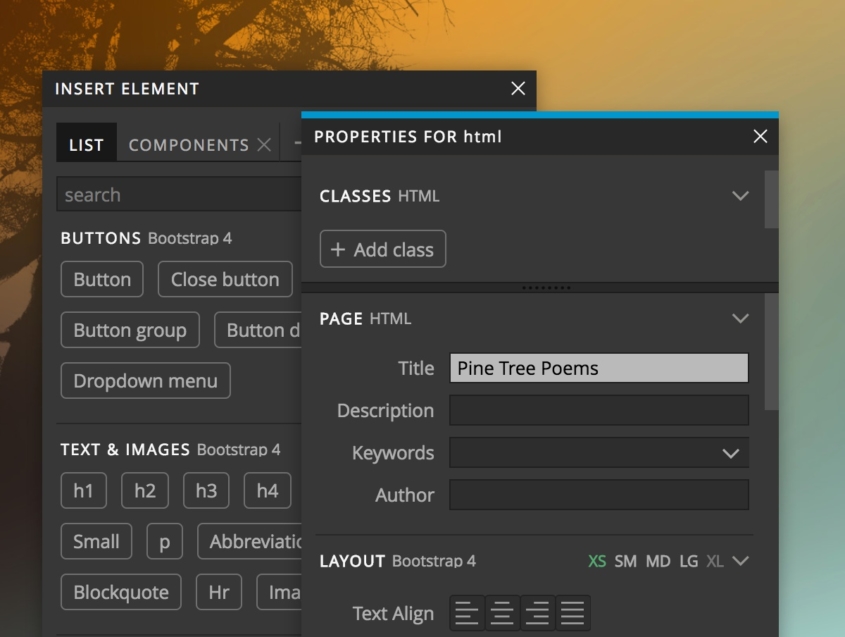
Press P to display quick Element properties in a floating quick window. Press + to display quick Library with page libraries.
The start screen has thumbnails images.
CSS editing
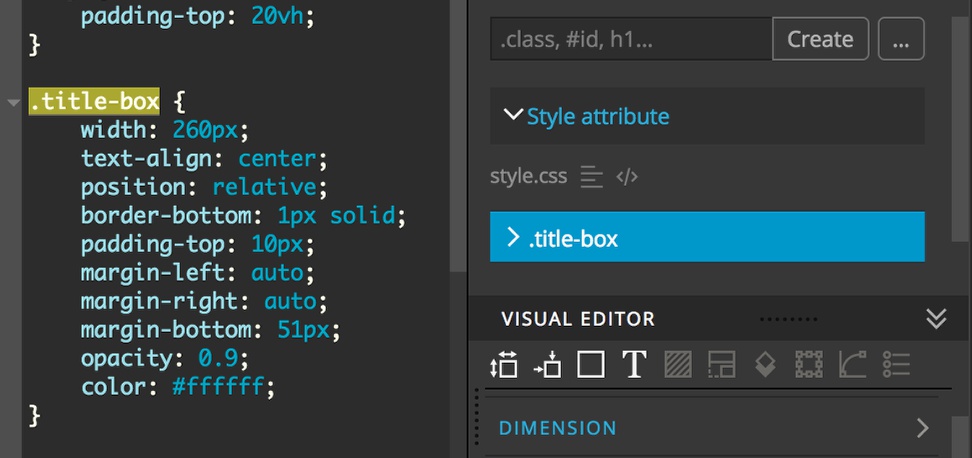
Edit CSS code in the main code editor. Rules selected in the Style panel get highlighted in the code editor. CSS code is properly formatted now.
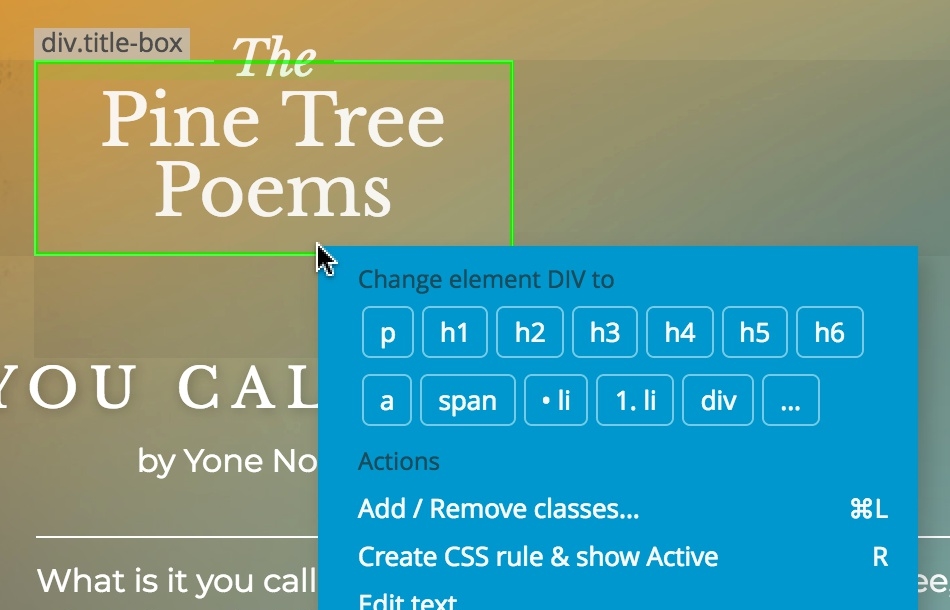
Change element tag
Right-click on any element to change it into a different tag. For example P to DIV.
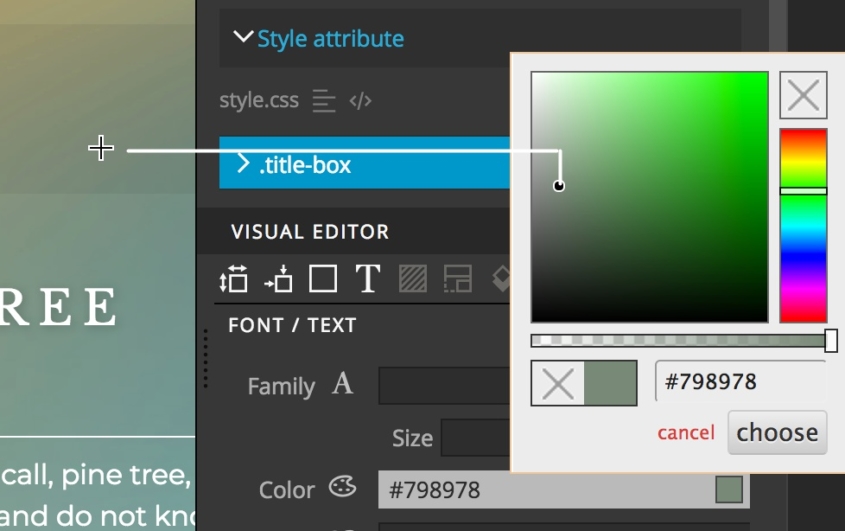
Pick colors from the screen
Use color pickers to pick colors from anywhere in the Pinegrow UI, including pages. Great for getting colors from photos that are used on the page.
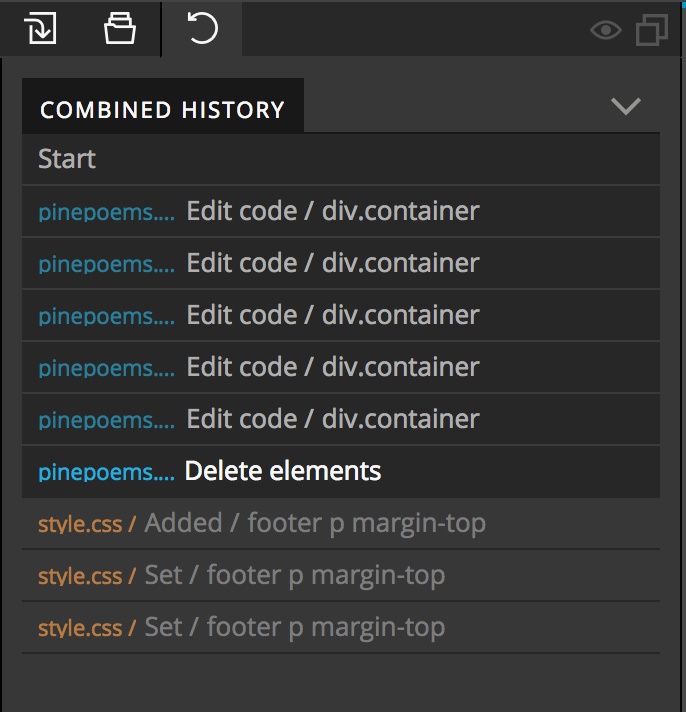
Simpler Undo and Redo
By default, the editing history is now combined for all pages and all stylesheets.
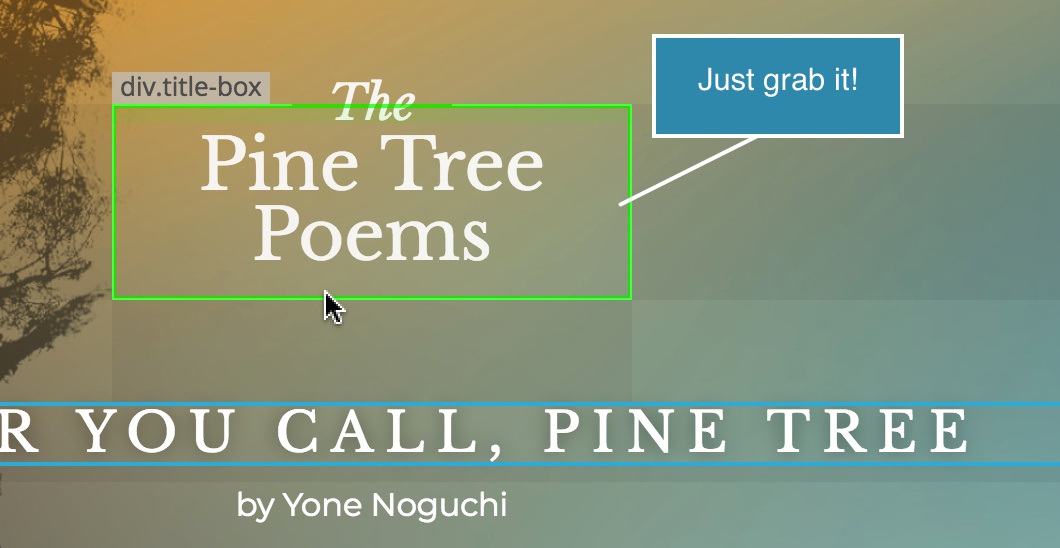
Grab & Drag
No need to select the element on the page before moving it. Just grab any element, hold the mouse down for half a second and then move it.
Duplicate as group
Press ALT when duplicating multiple selected elements to duplicate them as a group. Bt default, duplicating elements A B C will create A A B B C C. When using the group option, you’ll get A B C A B C.
Performance and bug fixes
- The number of files in Pinegrow package was brought down from 10000+ to about 1000. This brings faster installs and faster startup.
- Numerous bug fixes and small tweaks.