
Light UI Theme, keep custom HTML formatting, Font Awesome 5, better support for Google Fonts and WordPress improvements.
Release notesRelease notesRelease notesRelease notes2018-05-30
Pinegrow Web Editor 4.8, May 31, 2018
To update your installation of Pinegrow download Pinegrow 4.8 from pinegrow.com and install it over your current version.
This update brings significant new features on the surface and deep under the hood.
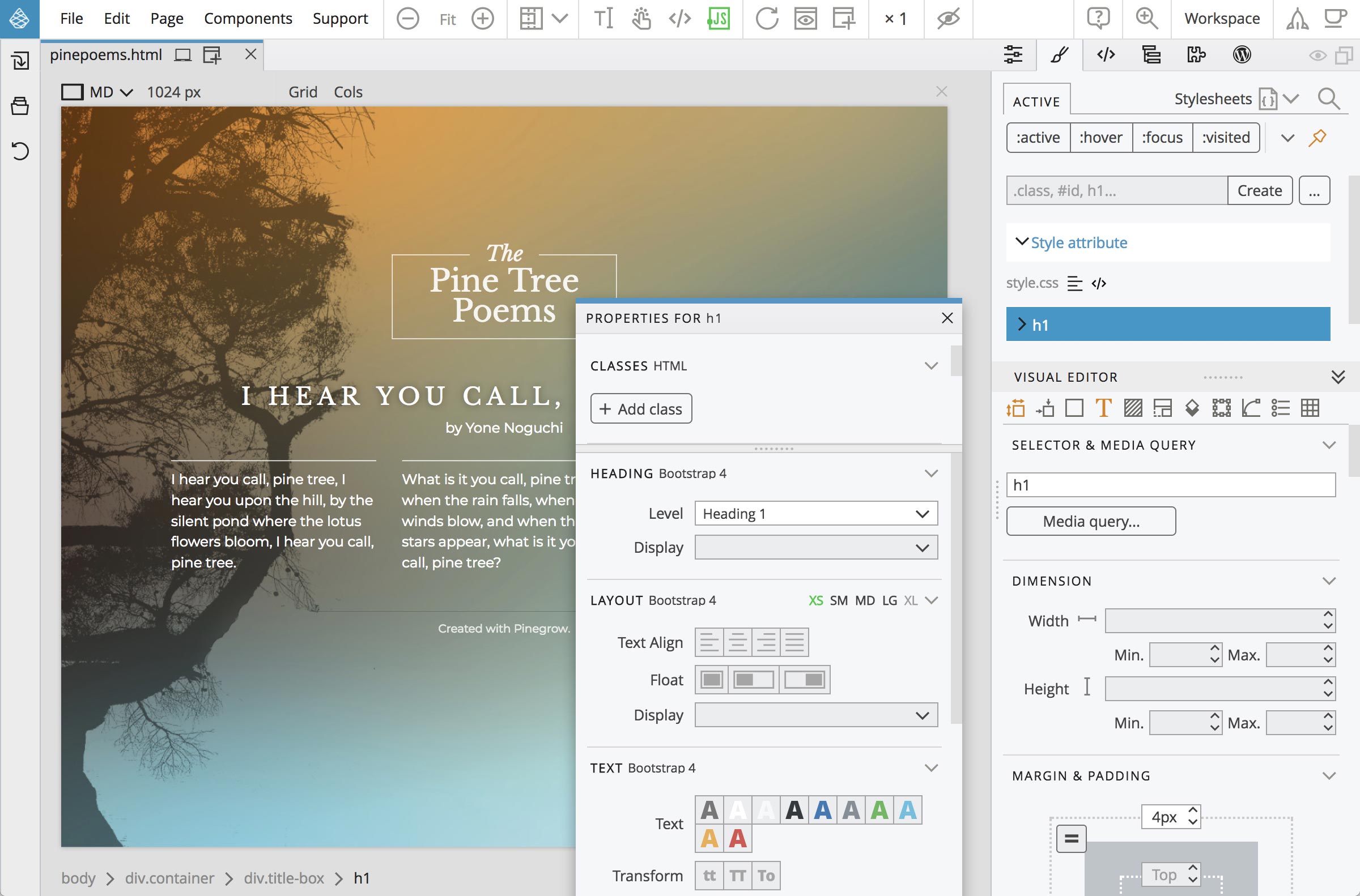
The Light Theme
Many users asked for it and we finally have it. The light theme often feels easier on the eyes.
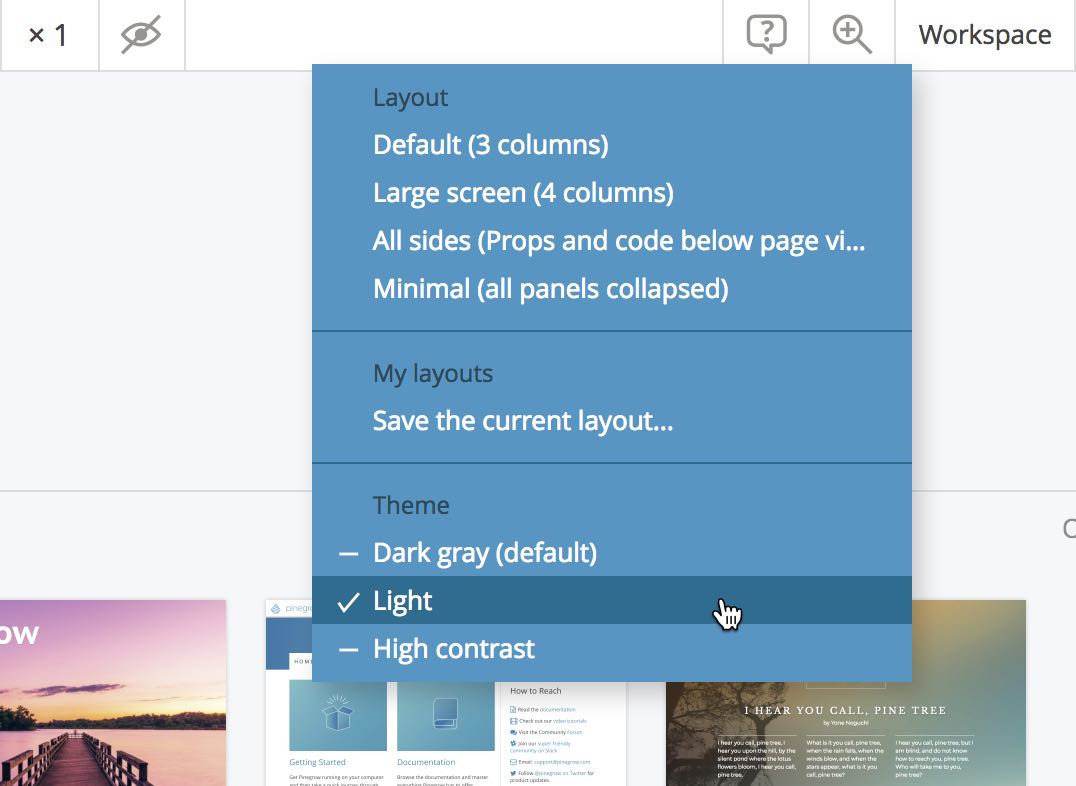
Use the “Workspace” menu in the top toolbar to switch between UI themes:
Preserving the HTML formatting
By default, Pinegrow auto-formats the HTML code using common-sense formatting options. That is an issue for users that prefer to keep their own HTML formatting when editing documents in Pinegrow.
Now, the auto-formatting can be disabled in Settings.
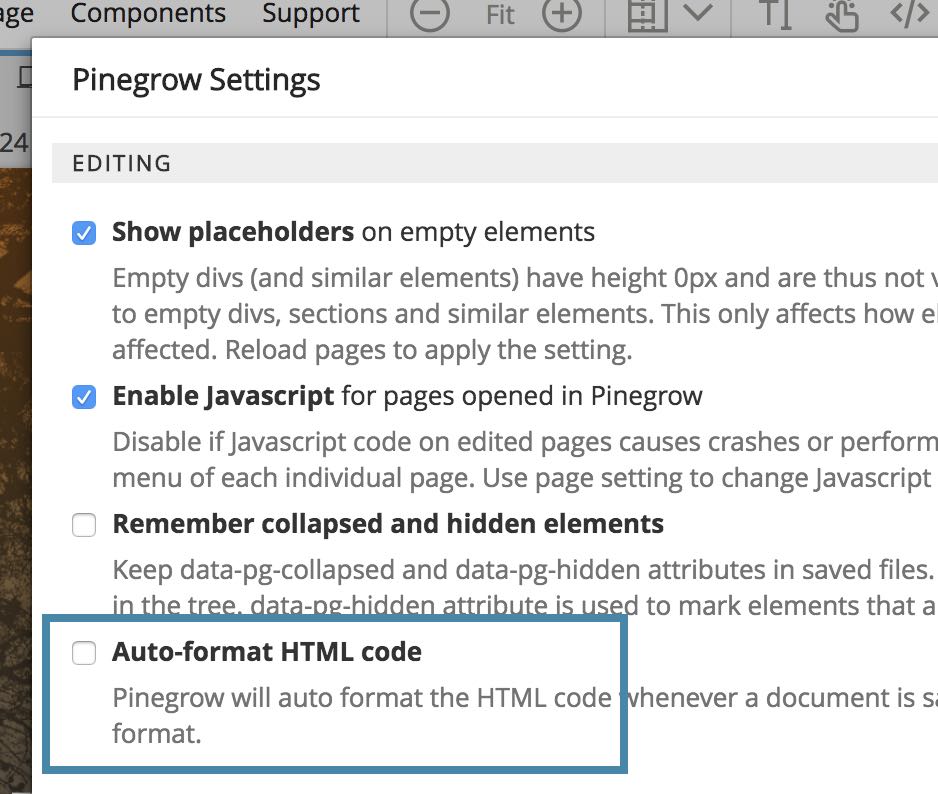
With this setting, Pinegrow only auto-formats the elements that are added to the page visually, for example dragged from the Library panel. Of course this also means that you’ll have to take responsibility for formatting the HTML code after manipulating the layout in Pinegrow.
Simplified Google Fonts
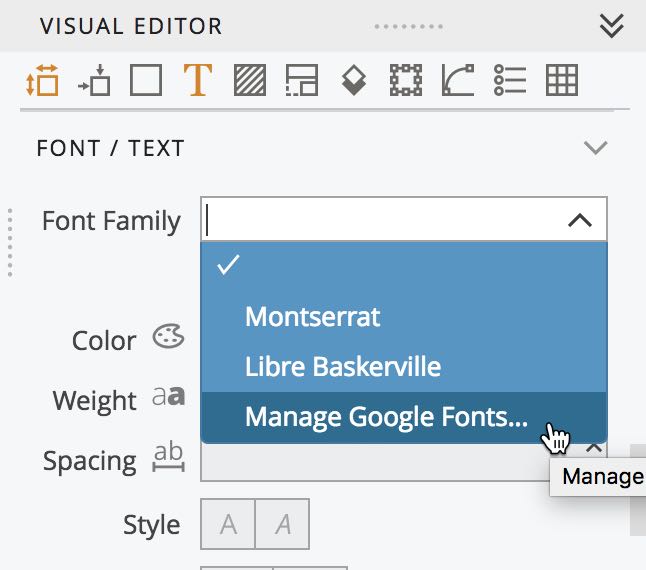
The Google Fonts Manager is now integrated directly into the Font Family CSS control. There, you can choose any font family that is loaded on the page or open the Google Fonts Manager to add or remove fonts.
Font Awesome 5
Font Awesome, with all its icon settings is now available in Pinegrow, alongside legacy Font Awesome 4.
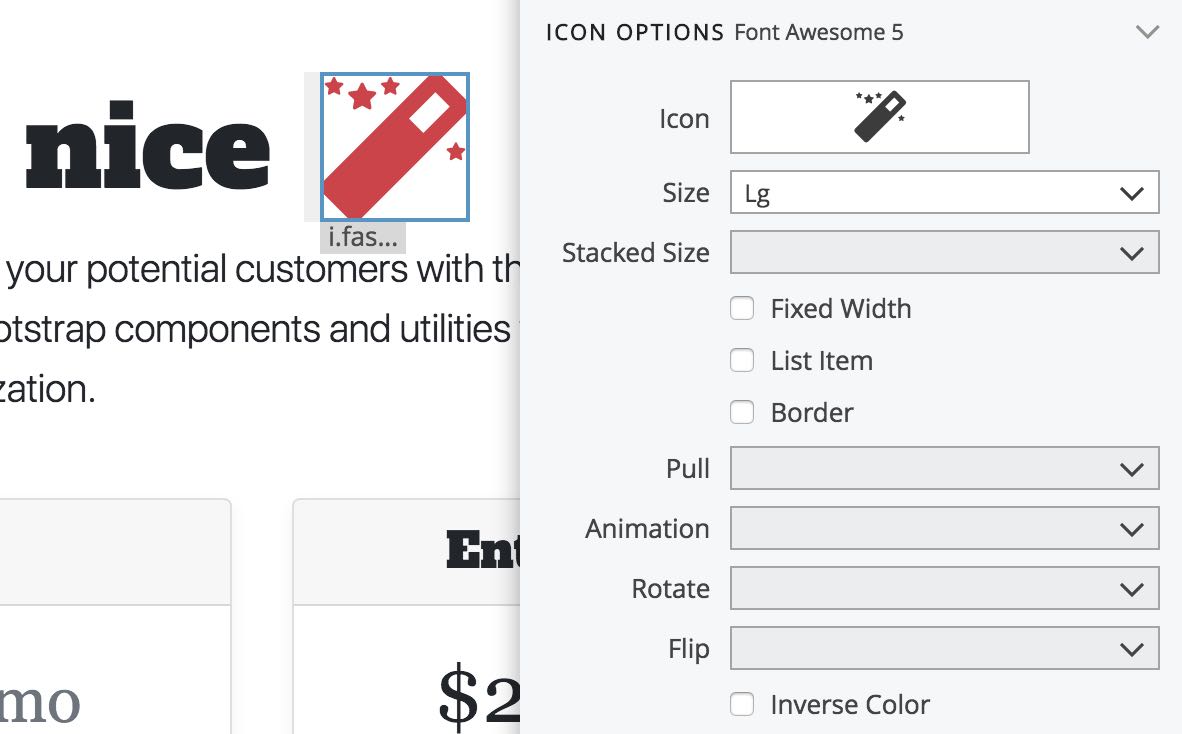
Just activate the right plugin.
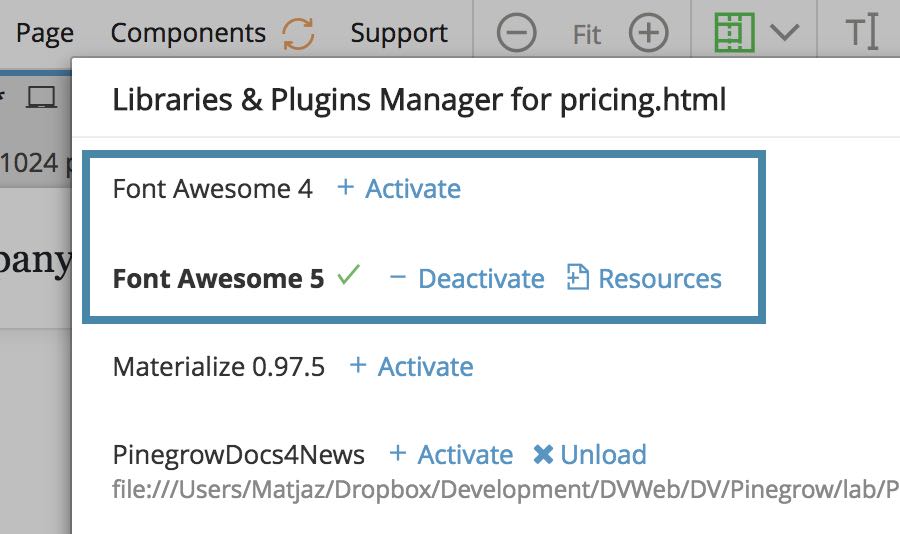
Font Awesome 5 can be included on the page with plain CSS or with Javascript that dynamically replaces icon elements with SVG images. The Javascript way is recommended by the Font Awesome team. While I can’t see a good reason for that (without Javascript the icons won’t even show up on the page), Pinegrow fully supports both approaches.
WordPress Theme Builder improvements
We also have a couple of additions and fixes for the WordPress theme builder.
Avoiding multiple registrations
Pinegrow now tries to avoid multiple registrations of Custom Post Types, Sidebars and other stuff that goes into functions.php, by first checking if identical item is already defined.
Note, if you define multiple Custom Post Types with the same post type id, but with different settings, all these registrations will still be added to the code.
In addition to this, on non-master pages, Pinegrow now ignores registration actions that are placed outside of the Site content area. The thinking is that Apply Master Page command would overwrite these actions anyway.
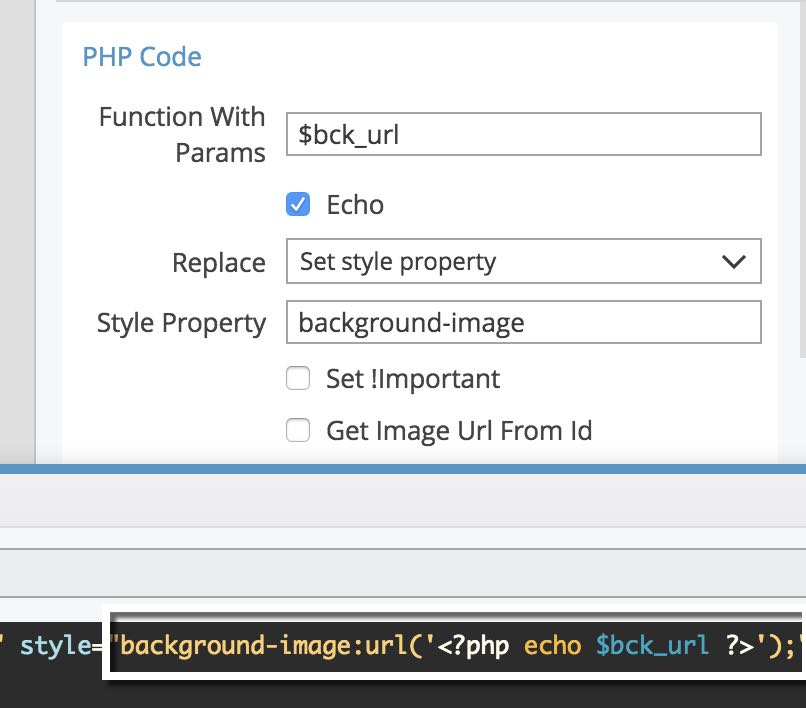
Add url() when setting the background image inline style
If “url(…)” is not present yet, Pinegrow adds it to the code that sets the background-image inline style property.
Output Navigation menu to a variable
Sometimes it is useful to first put the Nav menu output into a PHP variable, do some processing and then output the result.
The Nav Menu action now has a handy way to do that.
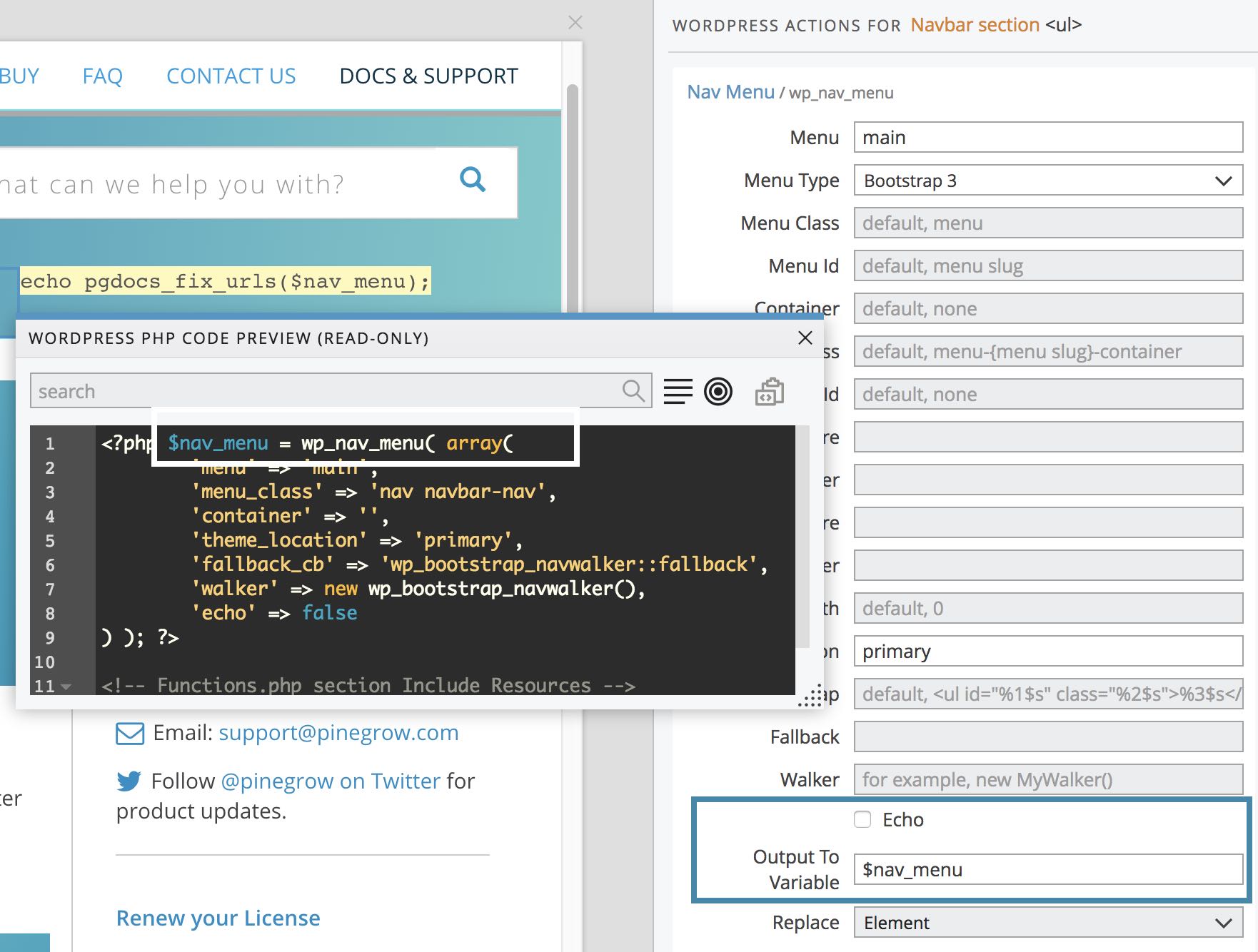
Processing and outputting can than be achieved with PHP code block or PHP Code action.