
CSS improvements CSS vs LESS Until now Pinegrow always used LESS parser to work with CSS files, even when no LESS features were used. LESS and SASS versions of stylesheet were always saved alongside the CSS file. This had some undesirable side-effects: adding unnecessary .less and .scss files in your project; if .css file was
Release notesRelease notesRelease notesRelease notes2014-06-05
Pinegrow Web Editor 1.12, June 5, 2014
CSS improvements
CSS vs LESS
Until now Pinegrow always used LESS parser to work with CSS files, even when no LESS features were used. LESS and SASS versions of stylesheet were always saved alongside the CSS file.
This had some undesirable side-effects:
- adding unnecessary .less and .scss files in your project;
- if .css file was edited in the external code editor Pinegrow still loaded .less file which was not up-to-date;
- LESS parser is more strict than CSS parser and many CSS hacks raised syntax errors.
Pinegrow 1.12 handles CSS and LESS differently.
LESS parser is used only when:
- Variables are used or
- LESS file is present alongside the CSS file when the document is opened.
LESS icon next to the stylesheet name indicates that the LESS parser is used. LESS file (and SCSS version) are saved only when LESS parser is used:
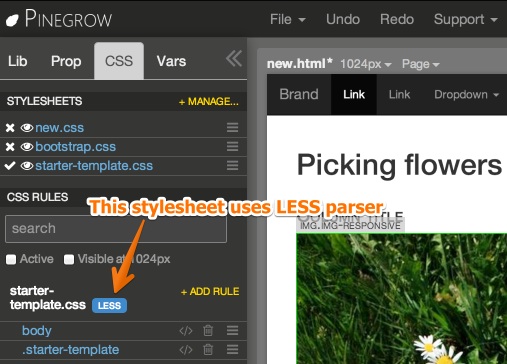
In all other cases more flexible CSS parser is used.
Stylesheets right-click menu
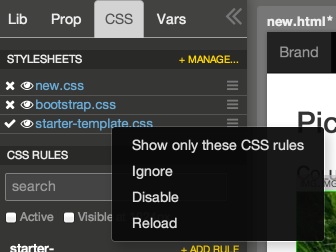
Stylesheets in CSS panel got the context menu:
- Show only these CSS rules will hide all other stylesheets from the rule list
- Ignore will hide the stylesheet (use to Load & Show to show it again)
- Disable / Enable the stylesheet on the current page
- Reload the stylesheet. Useful when you make a change to the CSS file outside of Pinegrow.
Syncing code and page view
Code view and page view are now synced.
When you select an element on the page its html code gets highlighted in the code editor. Any change you do in page view (move, delete, duplicate elements, type text…) is also reflected in the code view.
Any changes you do in the code view are immediately visible in the page view.
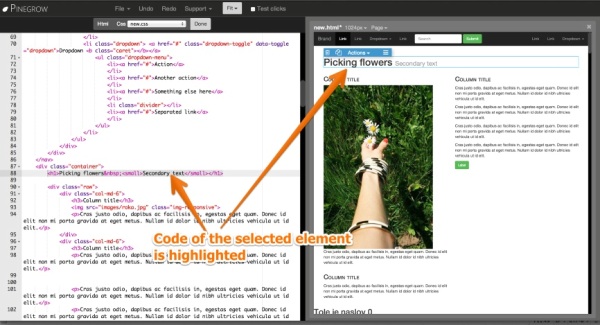
Sync can get a bit slow on complex pages. We’ll develop this feature further.
Pinegrow loves the code!
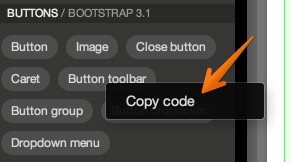
Preview of LIB and component elements also shows the html code. That’s useful when graphical preview doesn’t have enough information. Also it lets you easily see the code behind the element.
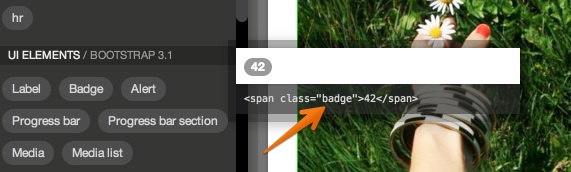
LIB components right-click menu got a Copy code option that will copy the html code of the element to the clipboard. From there you can paste it into the code view or use it in another app.
Settings
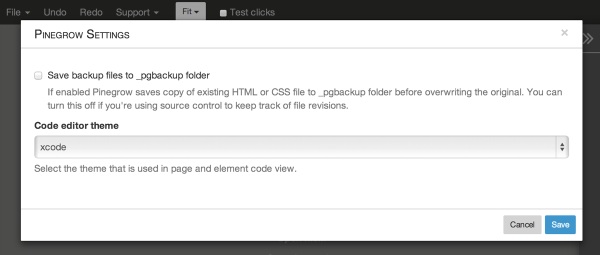
Pinegrow finally got its own Settings screen (Support › Settings). Every serious app needs one, right 🙂
It lets you turn off automatic file backup that saves file copy to _pgbackup folder before overwriting the file.
And you can choose your favorite theme for the code editor.
Windows installer
Windows version is now distributed with a proper installer. It installs Pinegrow to Program Files and adds a program group to the Start menu. Pinegrow runs much better on Windows now.