
Pinegrow Web Editor 2.8 is available for download.
Release notesRelease notesRelease notesRelease notes2016-04-20
Pinegrow Web Editor 2.8, April 20, 2016
Pinegrow 2.8 has lots of useful improvements that will let you work with web documents faster and smarter:
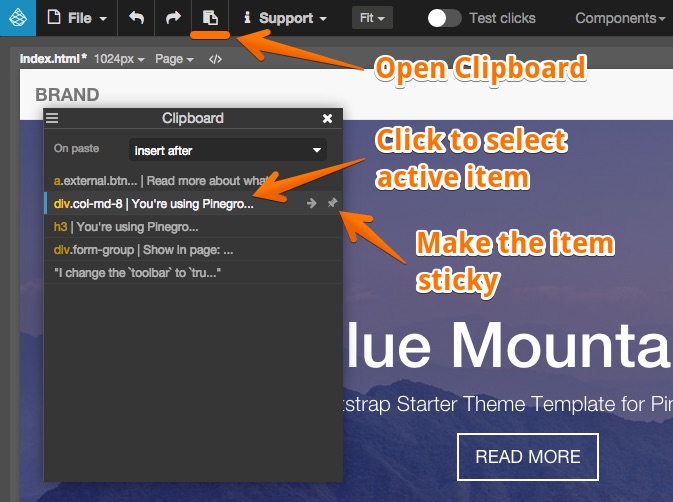
Copy & paste - Finally!
Pinegrow came far without it. But now proper copy, cut and paste with clipboard manager is here:
Auto-complete in PROP and ACT panels
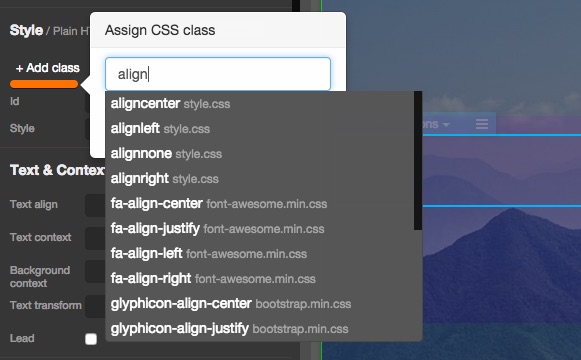
Pinegrow scans the whole project (or all open pages in case of Pinegrow standard) and offers auto-complete suggestions for attributes…
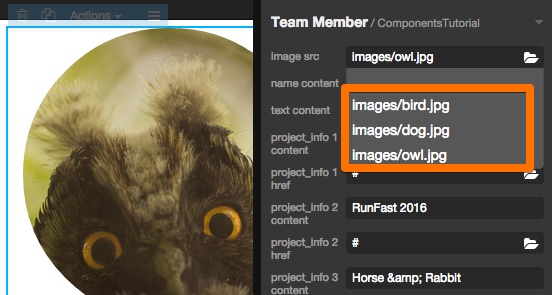
…component definitions and instances…
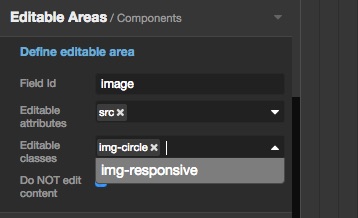
…classes and more:
Edit Javascript and other non-HTML files
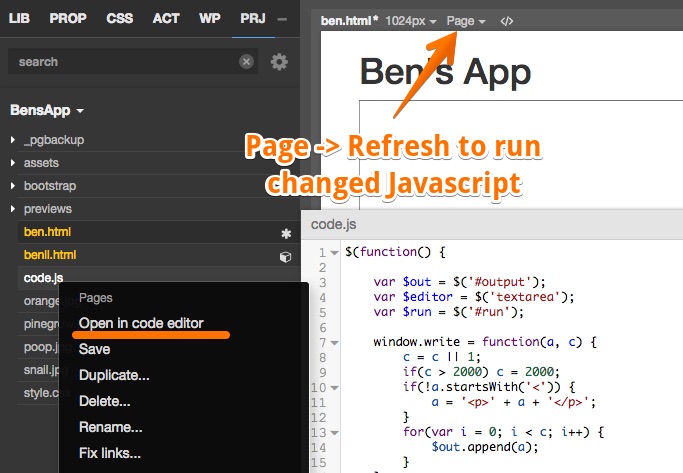
These files can now be edited directly in Pinegrow. Use “Open in code editor” command in PRJ panel. To re-run the Javascript code after changing it use Page › Refresh (CTRL/CMD + R).
Search document tree by selector
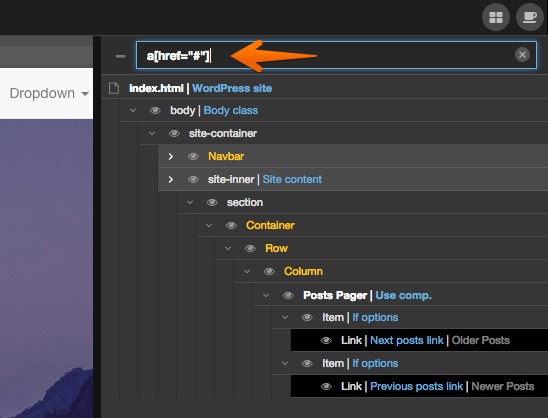
Use selectors like div.active, [href=”#”] or any other CSS selector to search the page. By default Pinegrow searches by text and selector (for example, searching for “p” will find all elements with the text “p” and all <p> elements). To force the selector search prepend the selector with $ (for example, “$p” will find only <p> elements);
Page properties
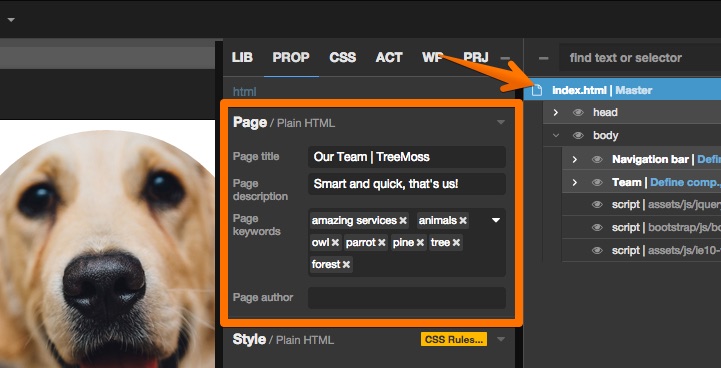
Select the top page element in the tree and use PROP panel to edit page title, keywords, description and author fields. Meta field is also available in LIB panel from where you can place it to the <head> element.
Removing ACT and WP actions
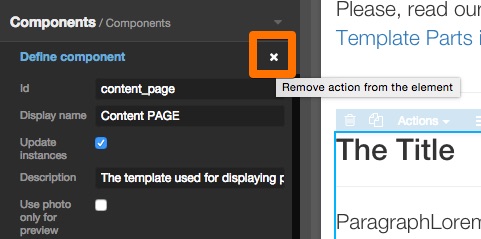
ACT and WP actions are now removed from elements by clicking on the x icon. In previous versions actions were removed by clicking on the action name.
And:
- Detect problems with the internal webserver and offer solutions.
- WordPress quick export can be turned off (WordPress › Quick export on save). The export happens also when HTML and CSS files are modified outside of Pinegrow.
- Bug fixes and probably a couple of new bugs 🙂