
Search in CSS Tree panel – WordPress Tailwind starter project – Editing multiple files with AI – Use ChatGPT and similar services with Pinegrow
Release notesRelease notesRelease notesRelease notes2024-12-10
Pinegrow Web Editor 8.3, December 11, 2024
Download Pinegrow 8.3
The package includes Pinegrow PRO, WordPress, WooCommerce, Interactions and Tailwind editor.
Pinegrow for Mac (Intel) Antivírus checkedMac: 4a66b5dfa9ea6f56d5d489b1ba062ad302050952
Pinegrow for Mac (Apple Silicon) Antivírus checkedMac: 0b2281cb257d12fbcbea85b7d3d1c1c71e2e330a
Pinegrow for Windows 64 (Installer) Antivírus checkedWindows: 97ed125ecc8b0c34f271198bd3148c538690783b
Pinegrow for Linux (Zip, 64bit) Antivírus checked Linux: 01a0a8102534f1e4137ee34982b84256c6f3b405
Pinegrow WordPress Plugin 1.0.22
Pinegrow WordPress Plugin (Zip)
Search in CSS Tree Panel
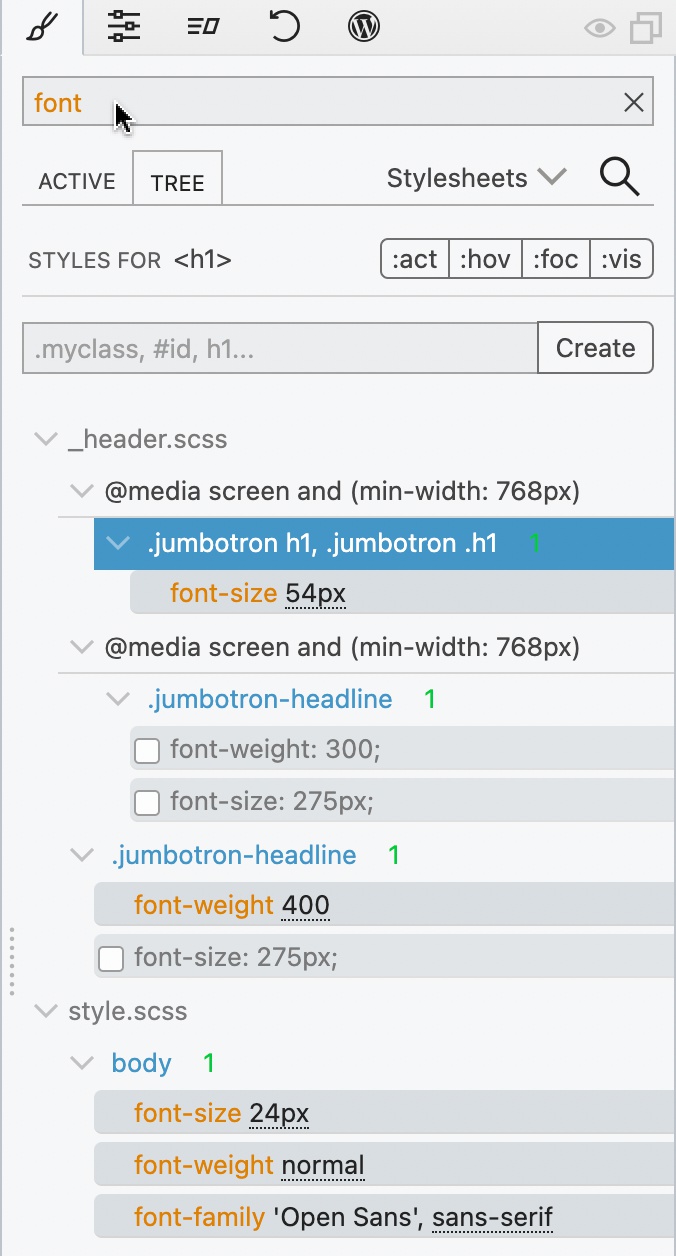
We’ve added a new search function in the style panel’s tree view. Now, you can search for specific CSS properties or values, like ‘font’ or ‘red’. This means you can quickly find and tweak the exact rules you’re interested in, saving time and making CSS styling a breeze.
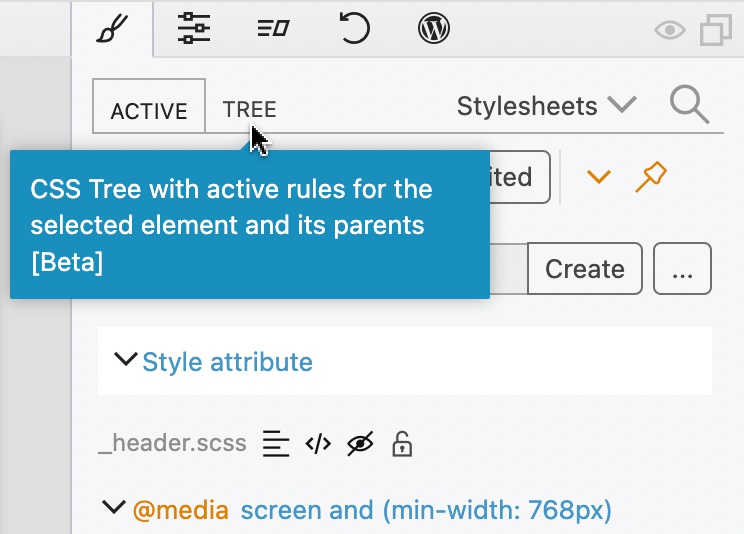
To use it, switch to the Tree tab in the Style panel:
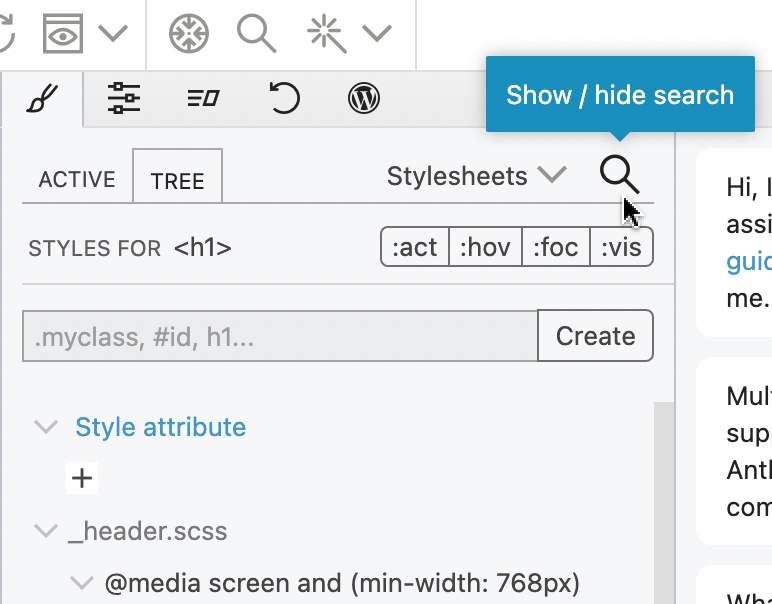
Use the Search icon to activate the search mode:
Then, search for properties and values:
Tailwind WordPress Starter Project
Launching a new Tailwind-based WordPress theme? Our new starter project is here to help! Available in the New Project dialog, it comes pre-configured with all the boilerplate you need. This means correct Tailwind styling on the front end and in the block editor, plus a video guide and a mini-course to help you get started.
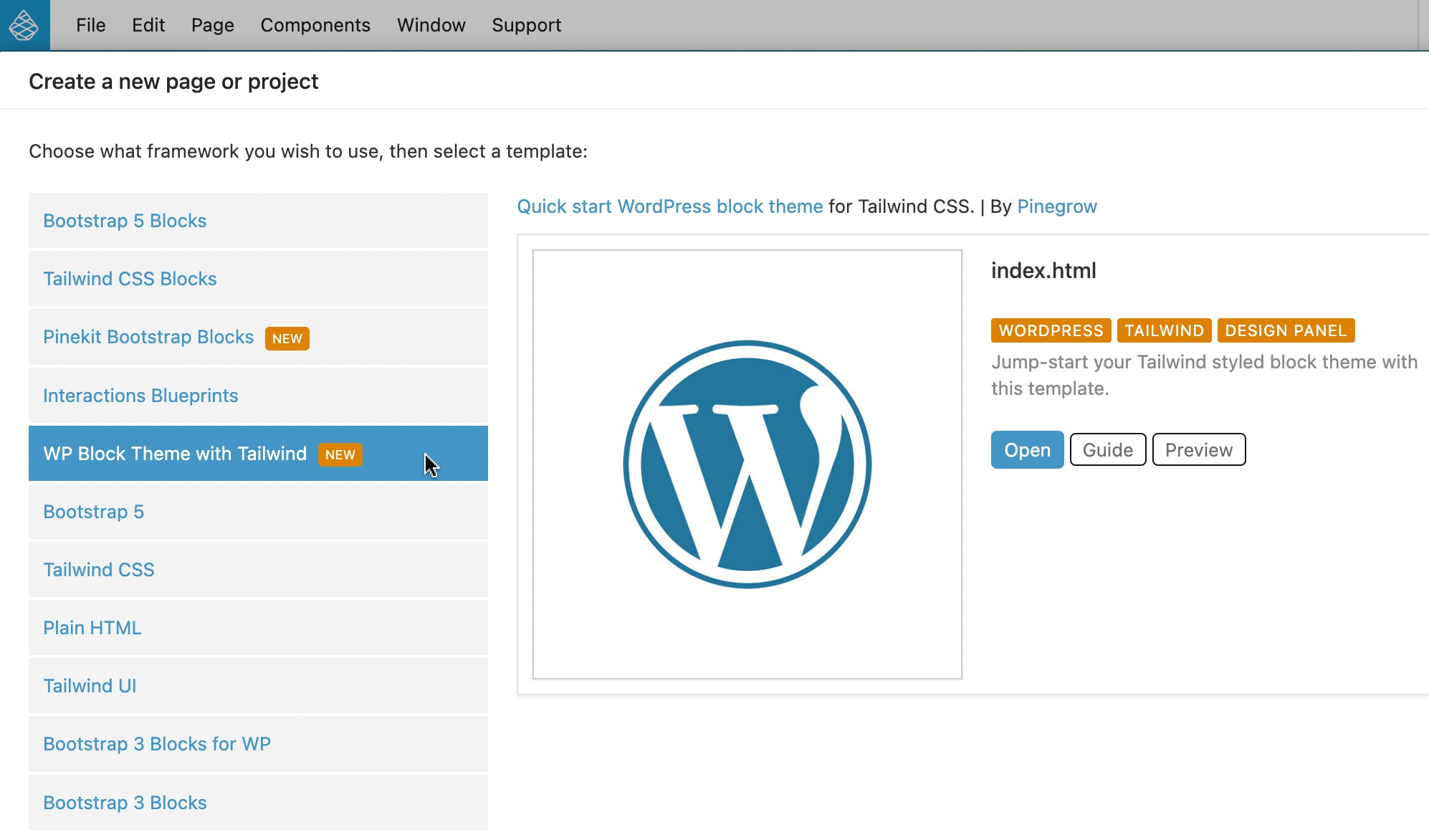
The starter project is also available in Pinegrow WordPress plugin.
Watch the video guide:
Multi-File Editing with AI Assistant
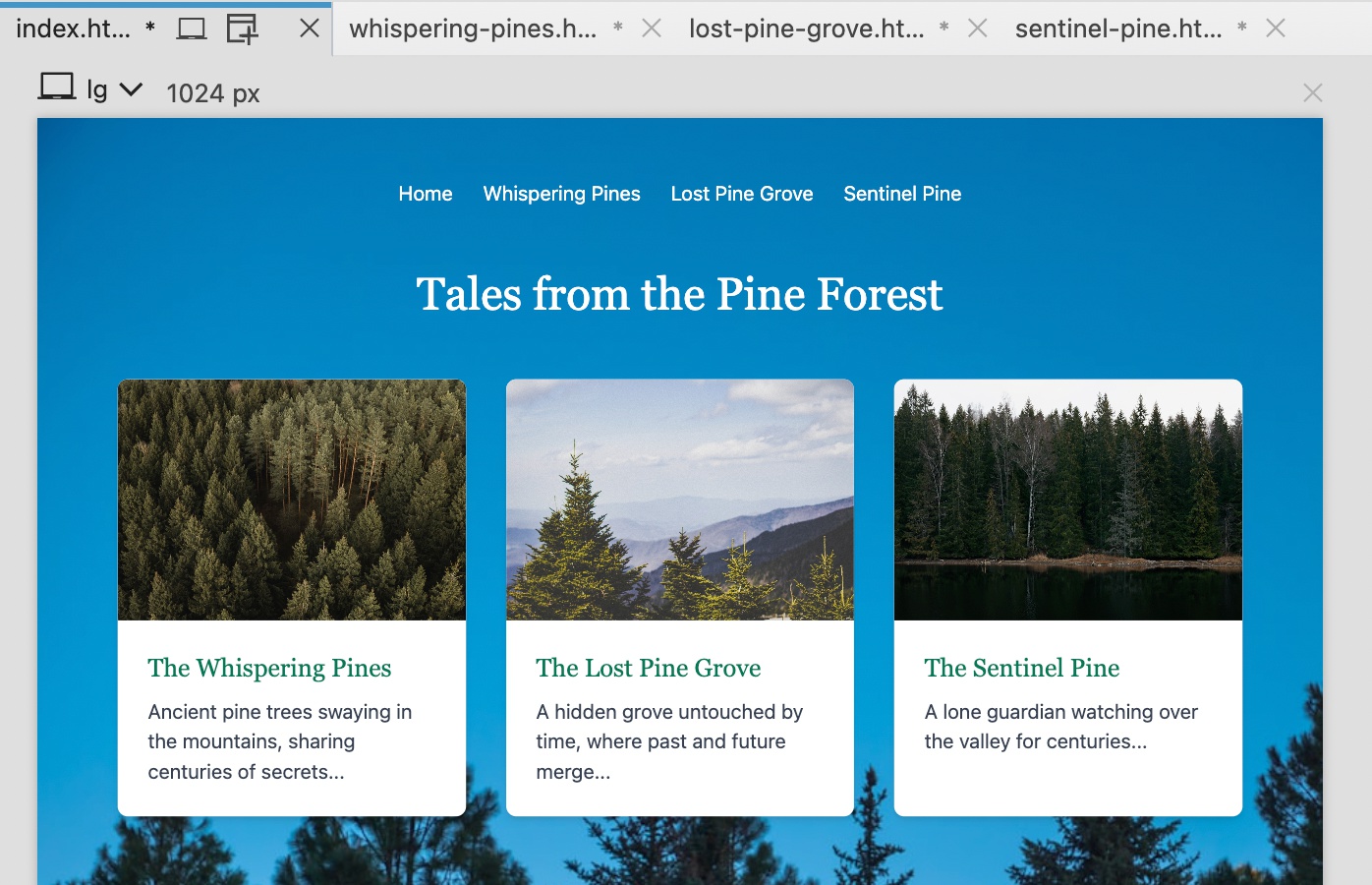
Our AI Assistant just got a major upgrade! It can now edit multiple files, making it easier than ever to create multi-page websites or split a single-page site into sub-pages. It doesn’t just stop at HTML; it can edit CSS, JSON, and any other files in your project. This new feature is perfect for ensuring consistent navigation and updating multiple pages at once.
Watch the vide guide:
Step by step guide:
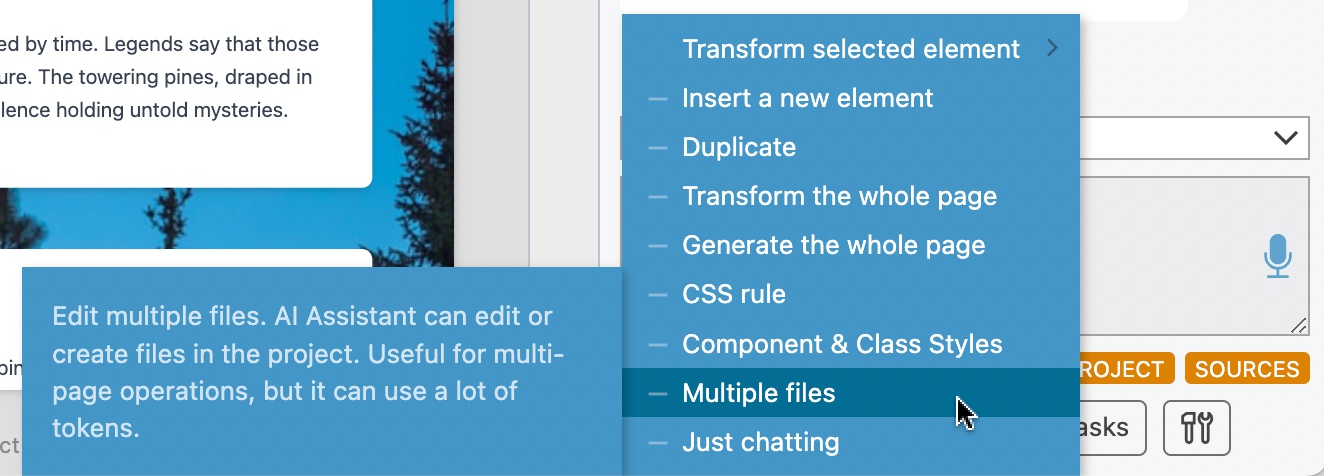
Select Multiple files action in the AI panel:
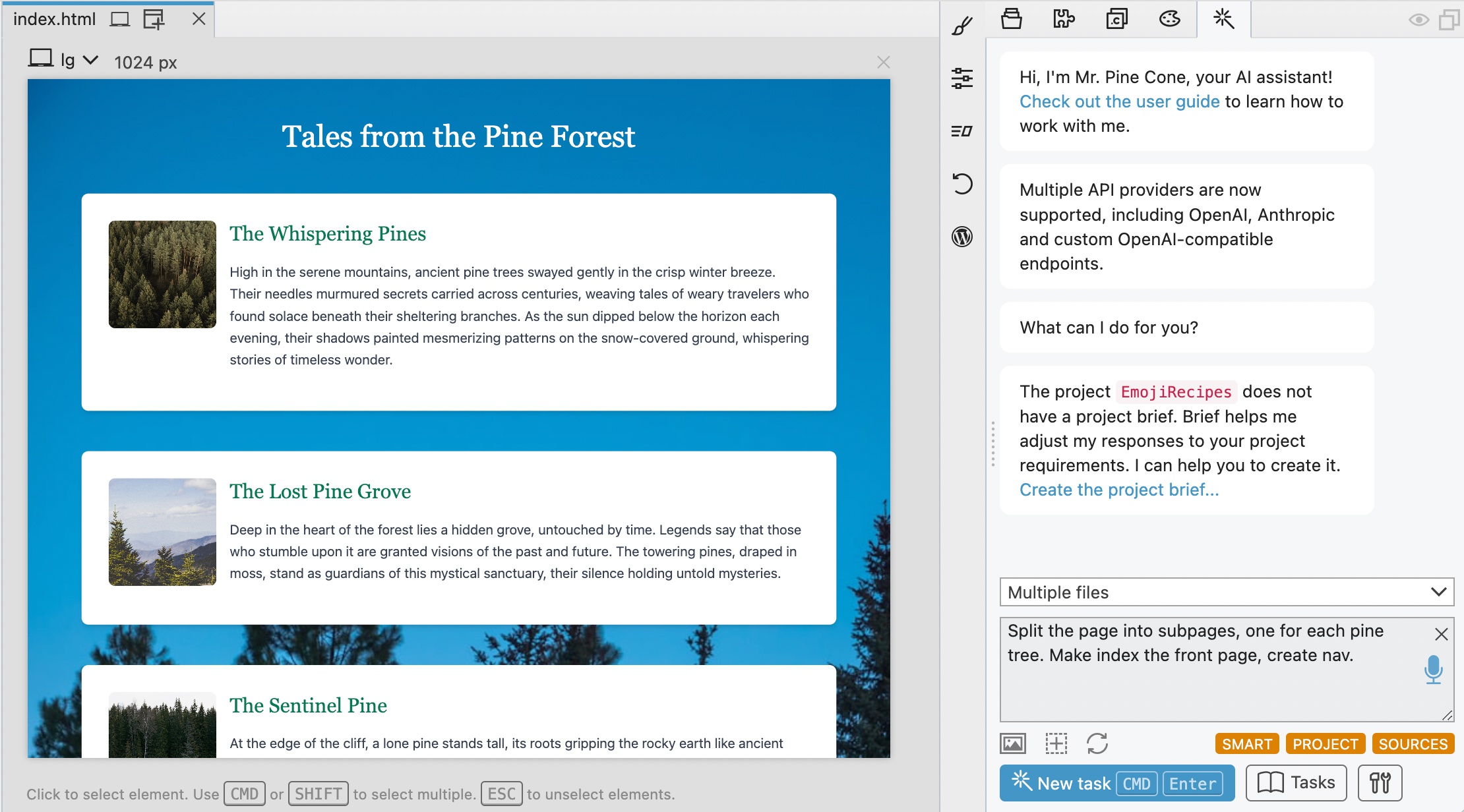
Enter the instructions in the prompt field:
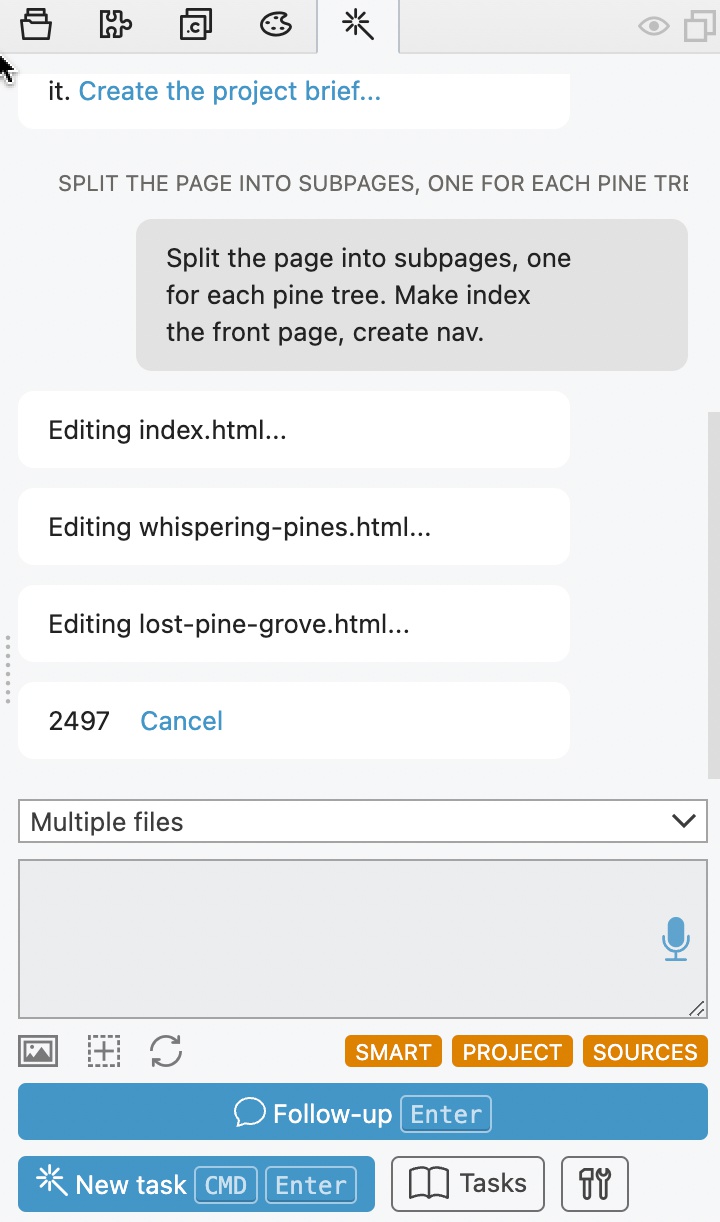
Pinegrow will output which files the AI Assistant is editing:
In Multiple files mode, AI assistant can edit and create any file in the project:
Use ChatGPT and similar services with Pinegrow’s AI Assistant
Introducing the manual provider for AI services! This new feature lets you interface with external services like ChatGPT or other AI tools. Instead of running the action through API directly, Pinegrow copies the complete prompt to the clipboard. From there you paste it into your preferred chat service, and the paste the response back into Pinegrow for processing.
Manual provider is perfect for users who prefer specific chat services or have subscriptions to advanced AI models.
Watch the video guide:
Step by step guide:
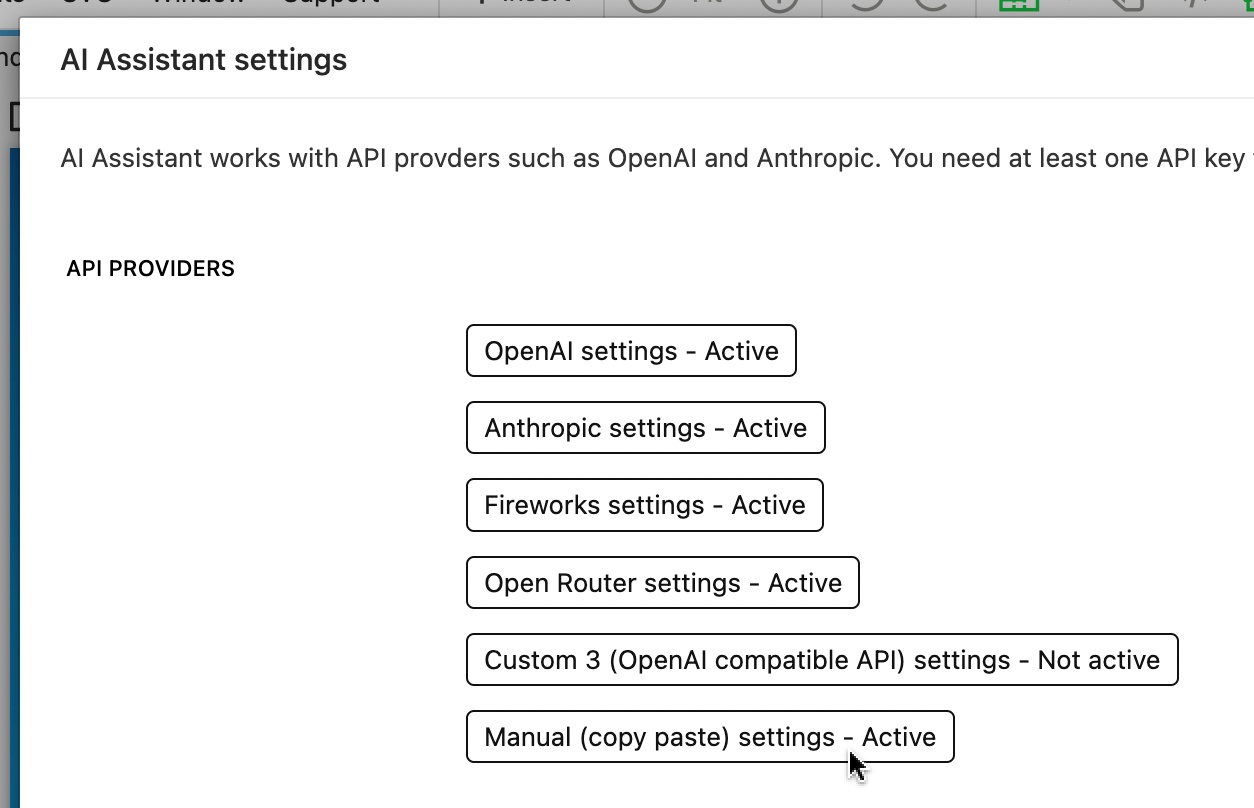
Activate the Manual API provider in AI Assistant settings:
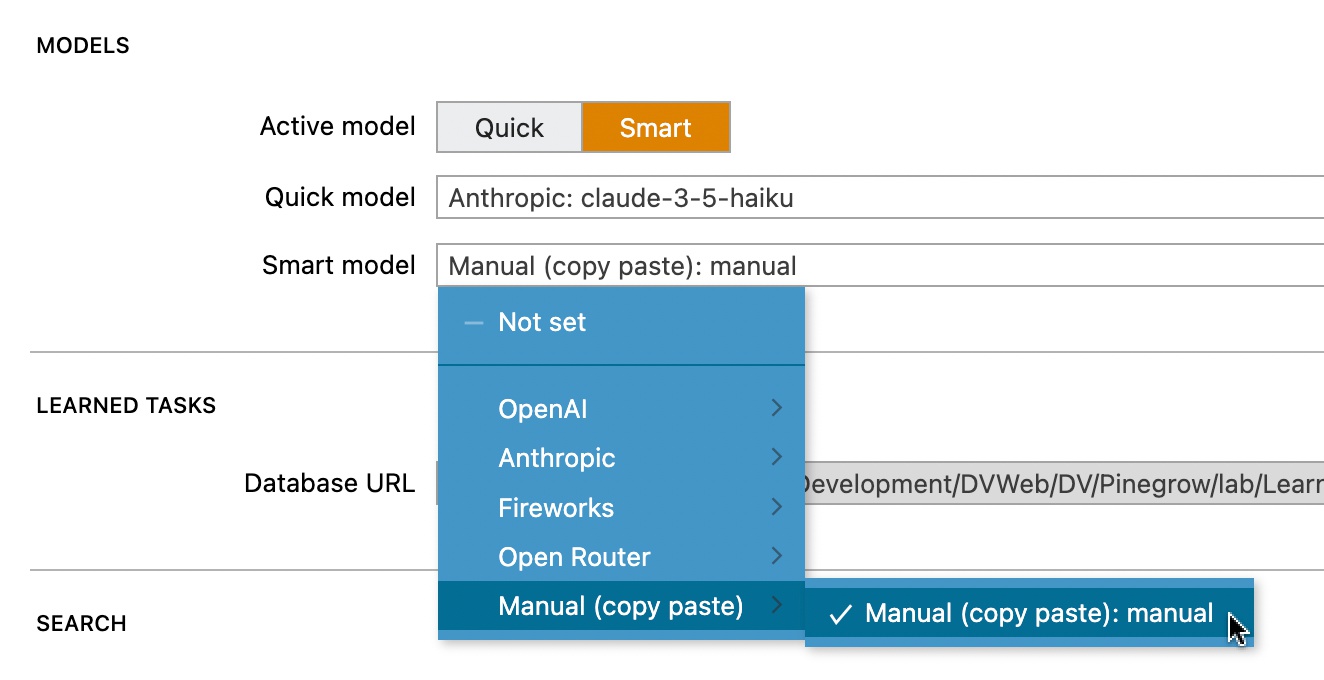
With that, you will be able to select Manual model as either Quick or Smart model:
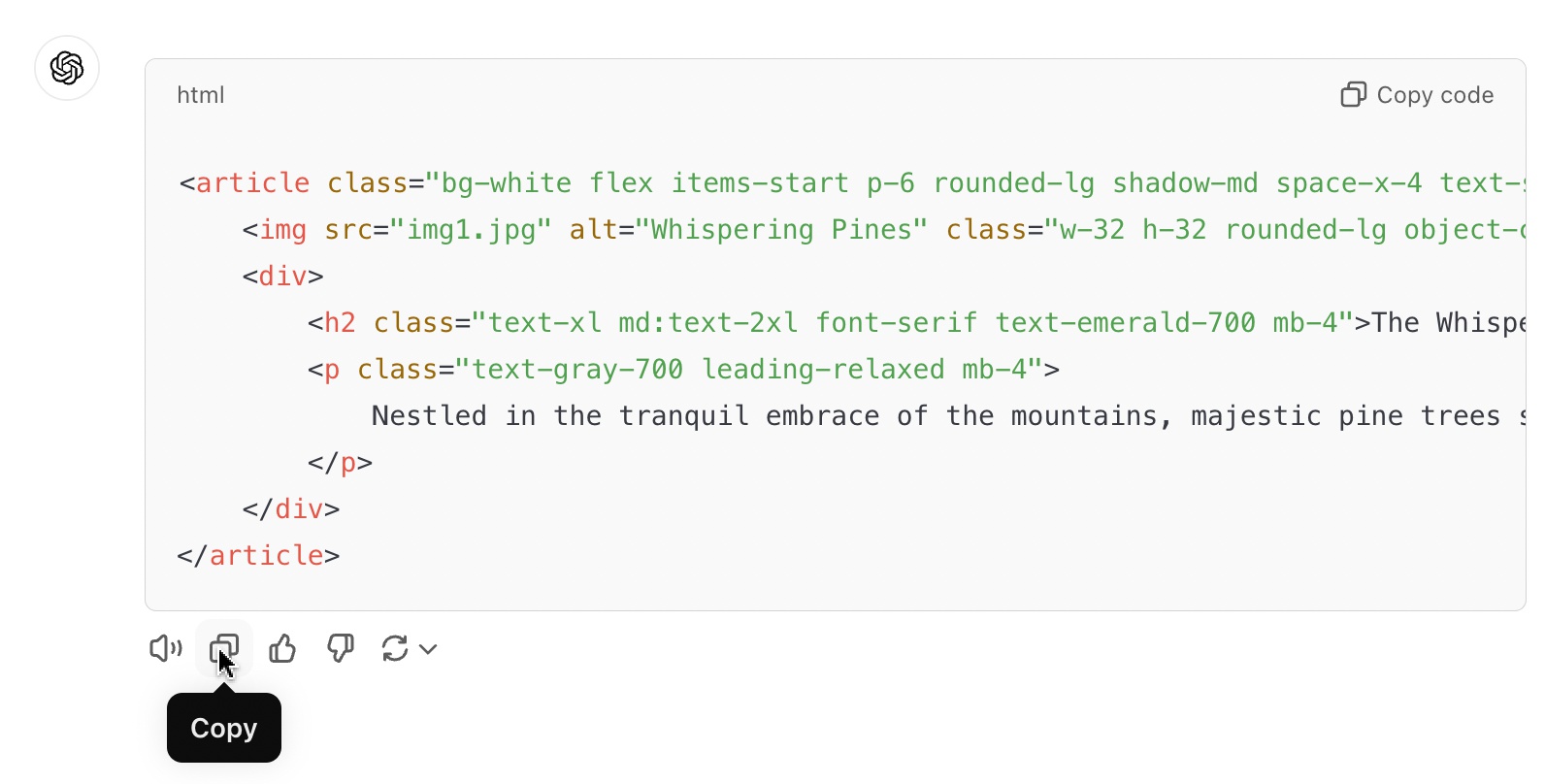
After running the task, the complete prompt is copied to the clipboard. Paste it into your external AI service such as Chat GPT.
Copy the response:
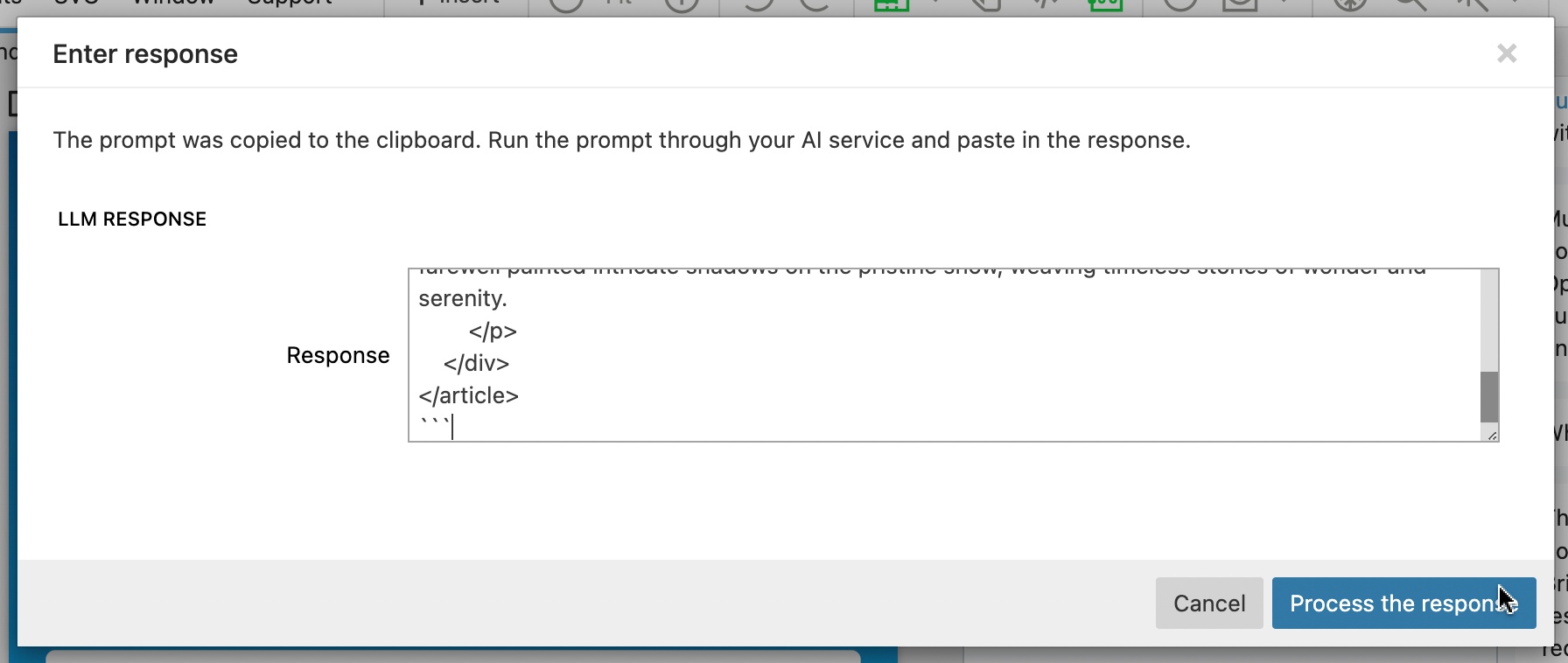
And paste it back into Pinegrow for processing:
Followups are also supported.
Download Pinegrow 8.3
The package includes Pinegrow PRO, WordPress, WooCommerce, Interactions and Tailwind editor.
Pinegrow for Mac (Intel) Antivírus checkedMac: 4a66b5dfa9ea6f56d5d489b1ba062ad302050952
Pinegrow for Mac (Apple Silicon) Antivírus checkedMac: 0b2281cb257d12fbcbea85b7d3d1c1c71e2e330a
Pinegrow for Windows 64 (Installer) Antivírus checkedWindows: 97ed125ecc8b0c34f271198bd3148c538690783b
Pinegrow for Linux (Zip, 64bit) Antivírus checked Linux: 01a0a8102534f1e4137ee34982b84256c6f3b405