
Tailwind Blocks – Tailwind CSS 2 – Tailwind UI works again – Bootstrap templates – Bug fixes
Release notesRelease notesRelease notesRelease notes2021-01-27
Pinegrow Web Editor 5.991, January 28, 2021
5.991
- Windows - Anti-virus checked - SHA1 cd3fcda401509e84dc2ee7c8c4fb0aad2b38d1dd
- Mac - Anti-virus checked - SHA1 0ab8ab984b54c2ad8f63dc5bda76de1e437f7a23
- Linux - Anti-virus checked - SHA1 ee6e717522e2c553923780102c8c1cb431cdeaa7
Tailwind Blocks
Introducing Tailwind Blocks, a library of reusable components and templates for Tailwind CSS 2.
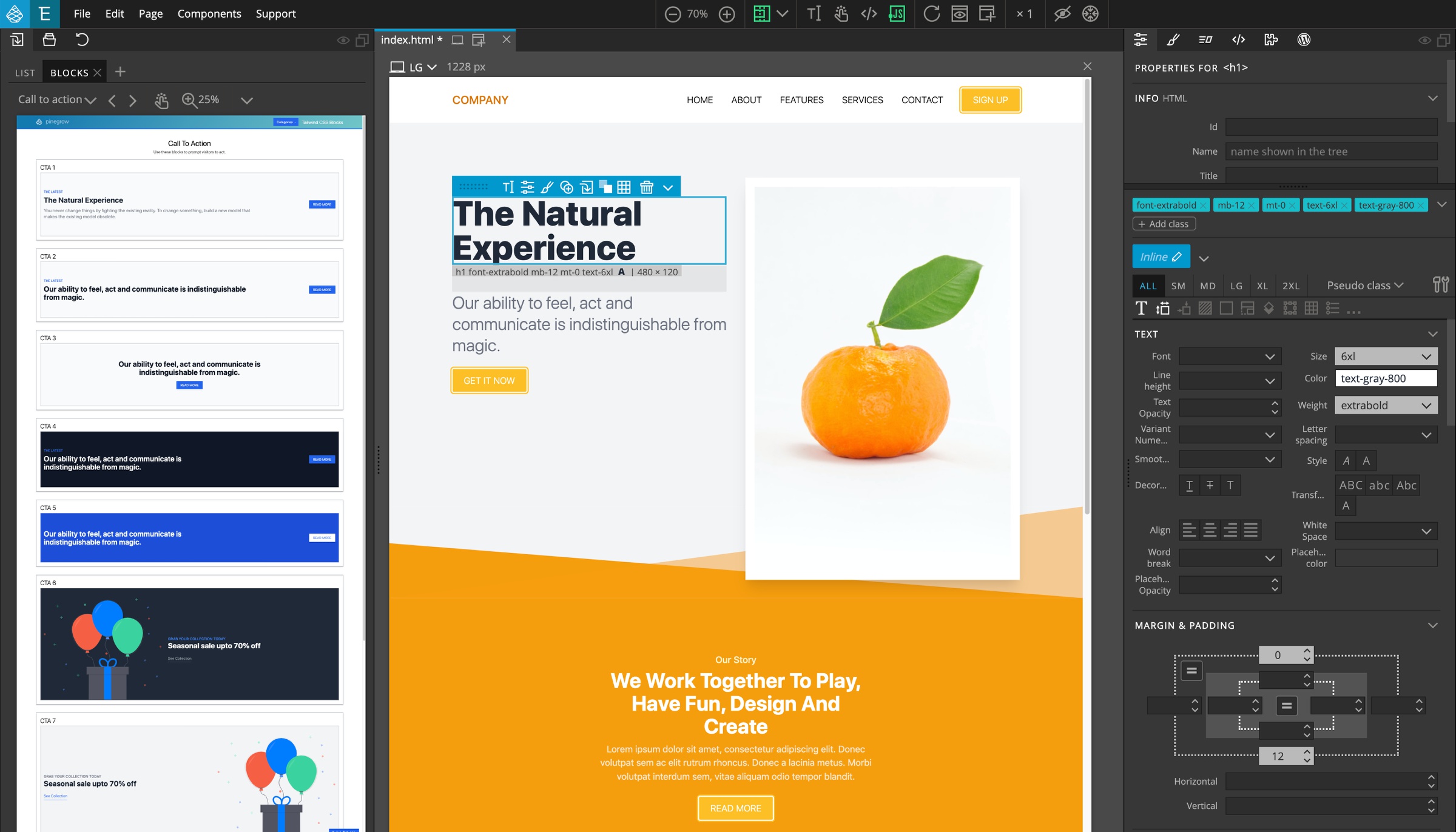
Tailwind CSS 2
Tailwind Visual Editor now supports Tailwind CSS 2:
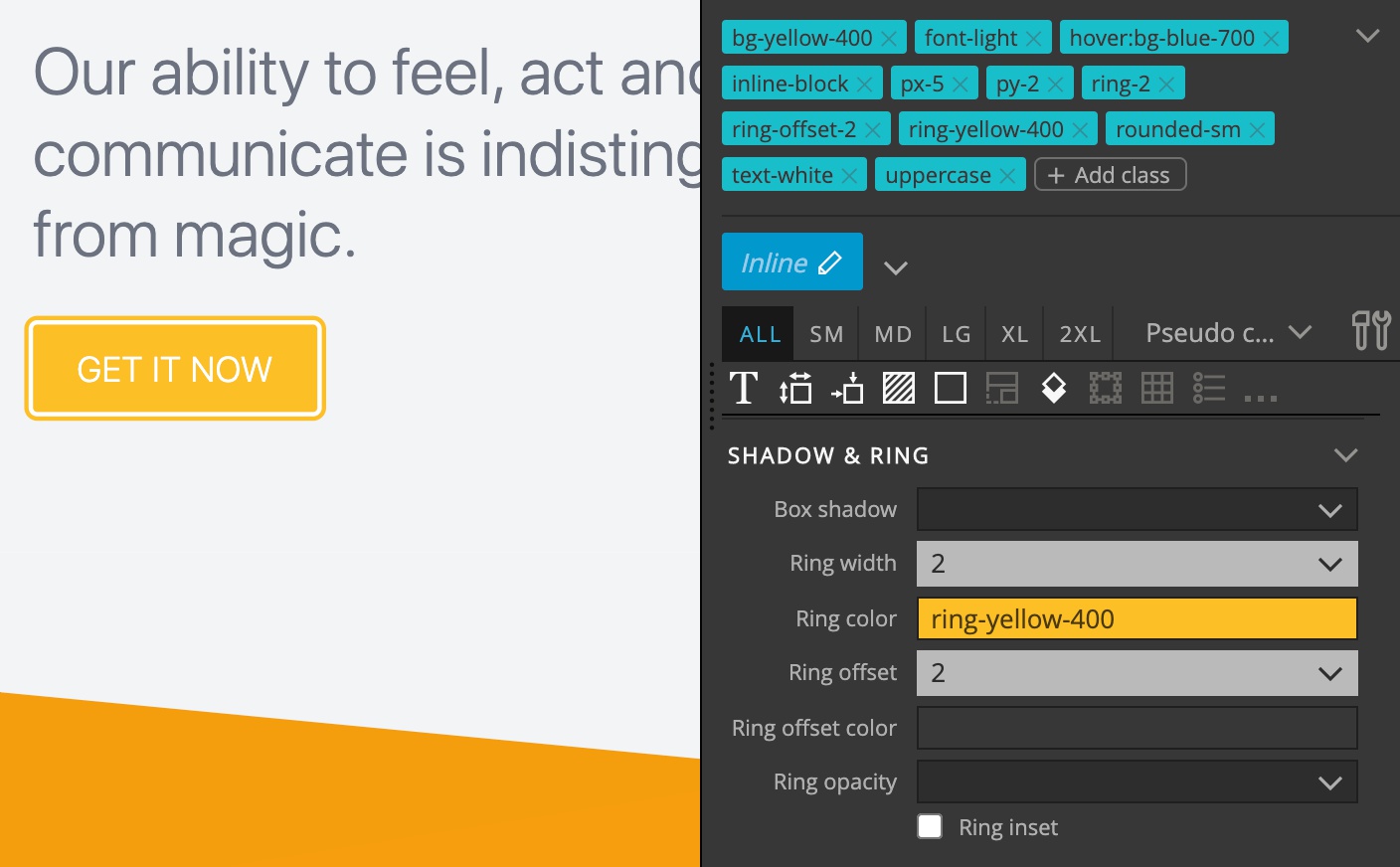
Visual controls in the Properties panel let you work with new utility classes, such as Rings.
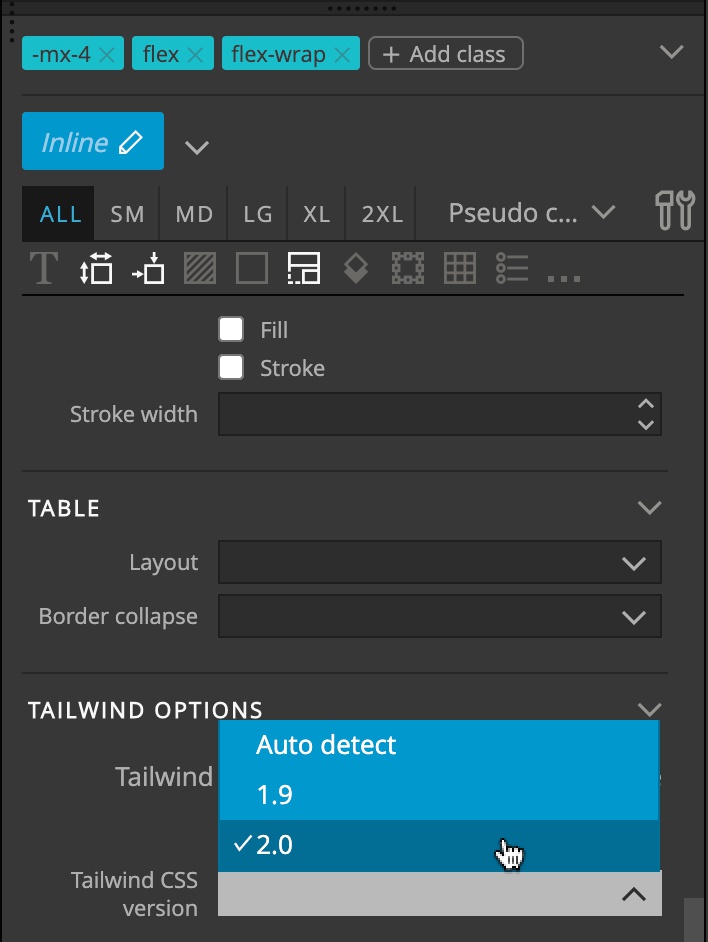
Tailwind CSS 2 is enabled by default. If you need to work with the older version, select the version in the Tailwind options section at the bottom of the Properties panel.
Use Customize Visual Controls to let Pinegrow inspect your custom Tailwind build and adjust visual controls accordingly.
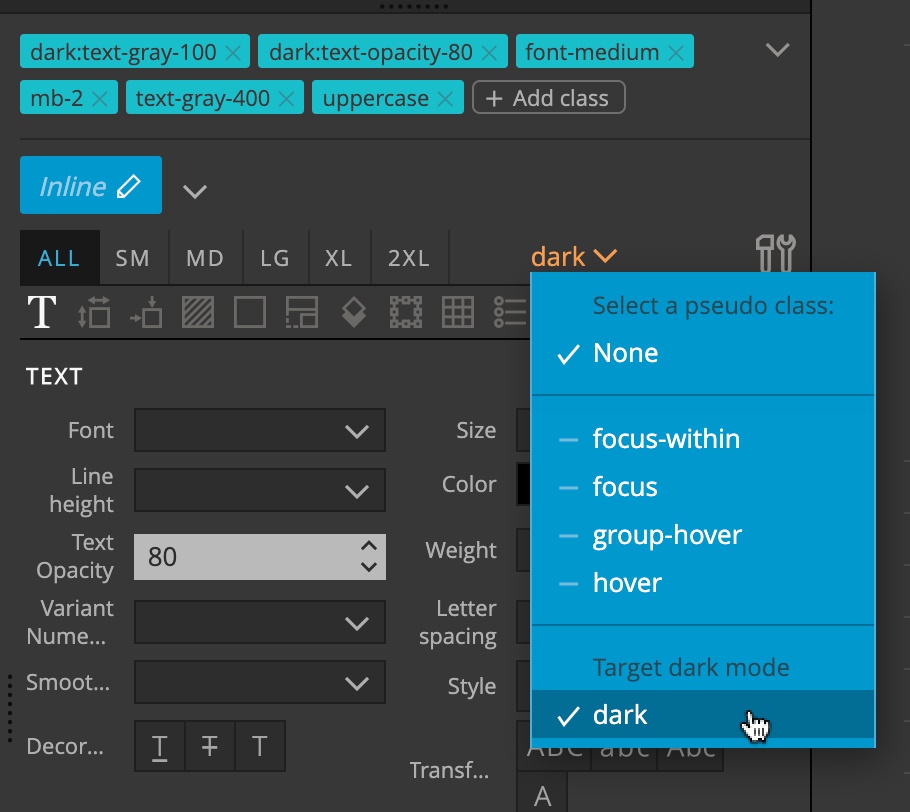
Dark mode selector can be combined with other pseudo states, so that you can style states in the dark mode. Note that dark mode is not enabled in the default Tailwind CSS build.
Starting template for Tailwind CSS uses Tailwind CSS 2.
If you are using customized Tailwind controls, make sure to update the customization if you update Tailwind CSS files in your project.
Handling Tailwind CSS stylesheets
Tailwind CSS stylesheets are huge and that used to lead to freezes and performance issues when working with the Style panel.
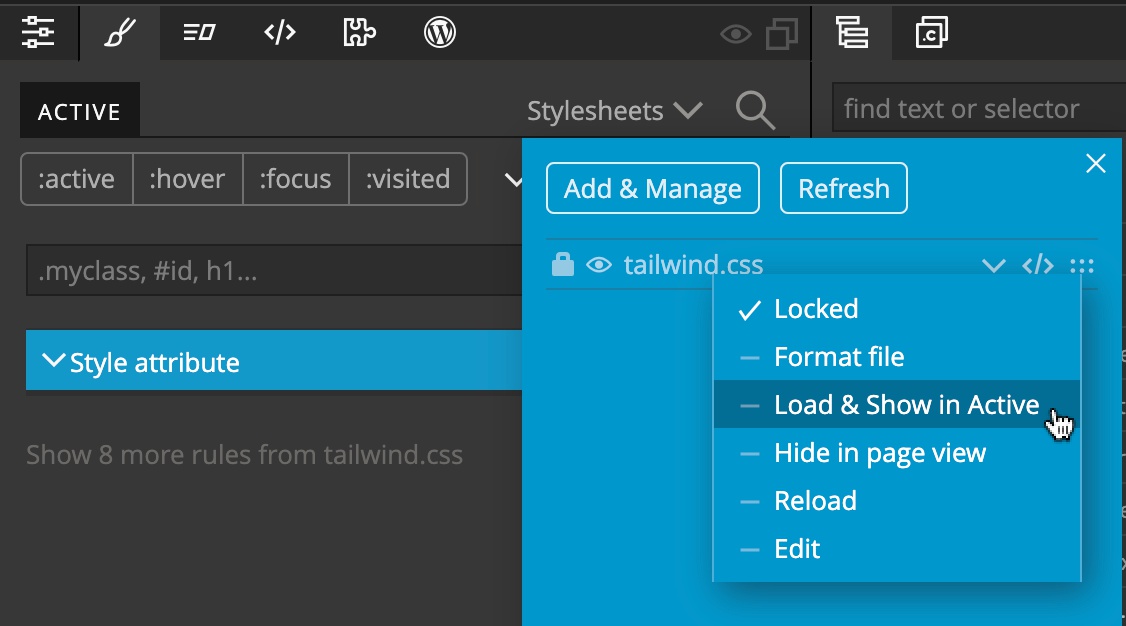
This is now fixed, if the Tailwind CSS is set to be ignored in the Active panel (that is the default setting).
Normally, you would never want to edit Tailwind CSS rules directly, because all customization should happen through theming.
Note that defaults apply if the stylesheet contains tailwind in its name. For other stylesheets you can manually ignore them in the Stylesheets menu:
Tailwind UI works again
We found a solution that makes it again possible to open Tailwind UI library in the Library panel.
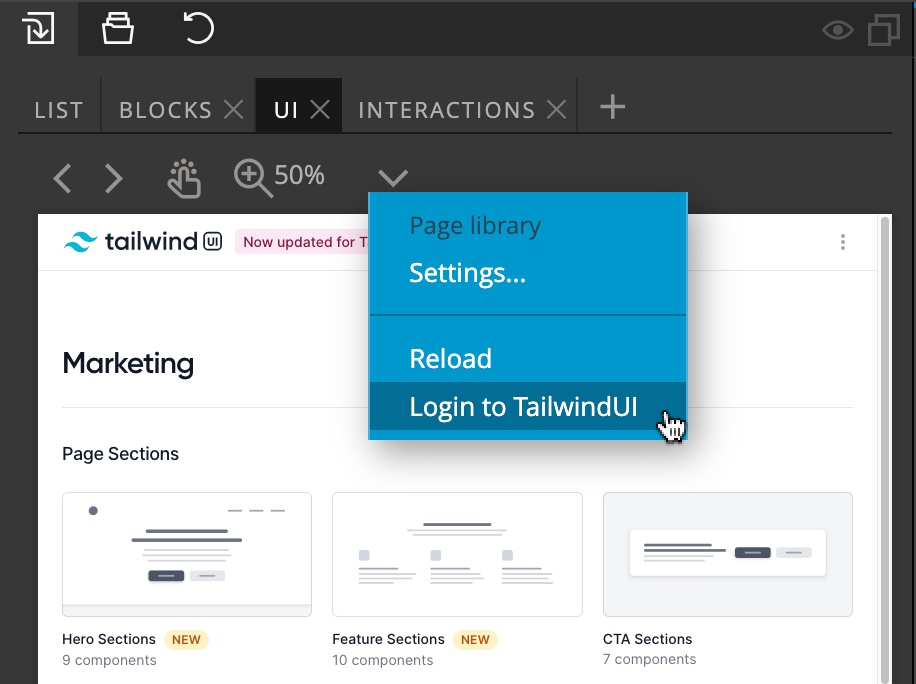
To login, click on the Login link in the Tailwind UI library tab, or select it from the library menu:
Doing the login opens up a popup dialog with the Tailwind UI login page. After you successfully login with your Tailwind UI account click on Done to open the full library in the Library panel.
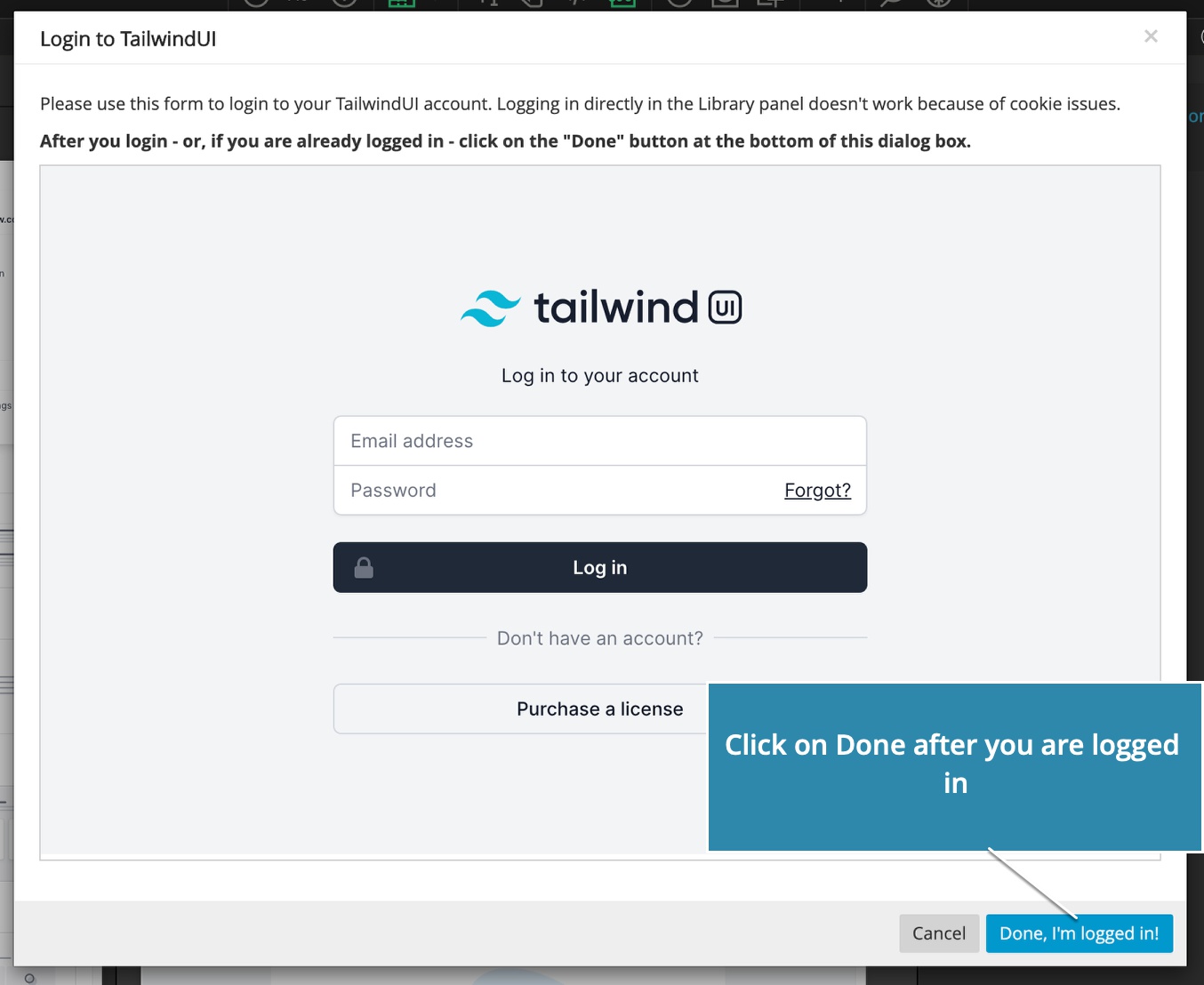
If you are already logged in the popup view, just click on Done.
Bootstrap Blocks templates
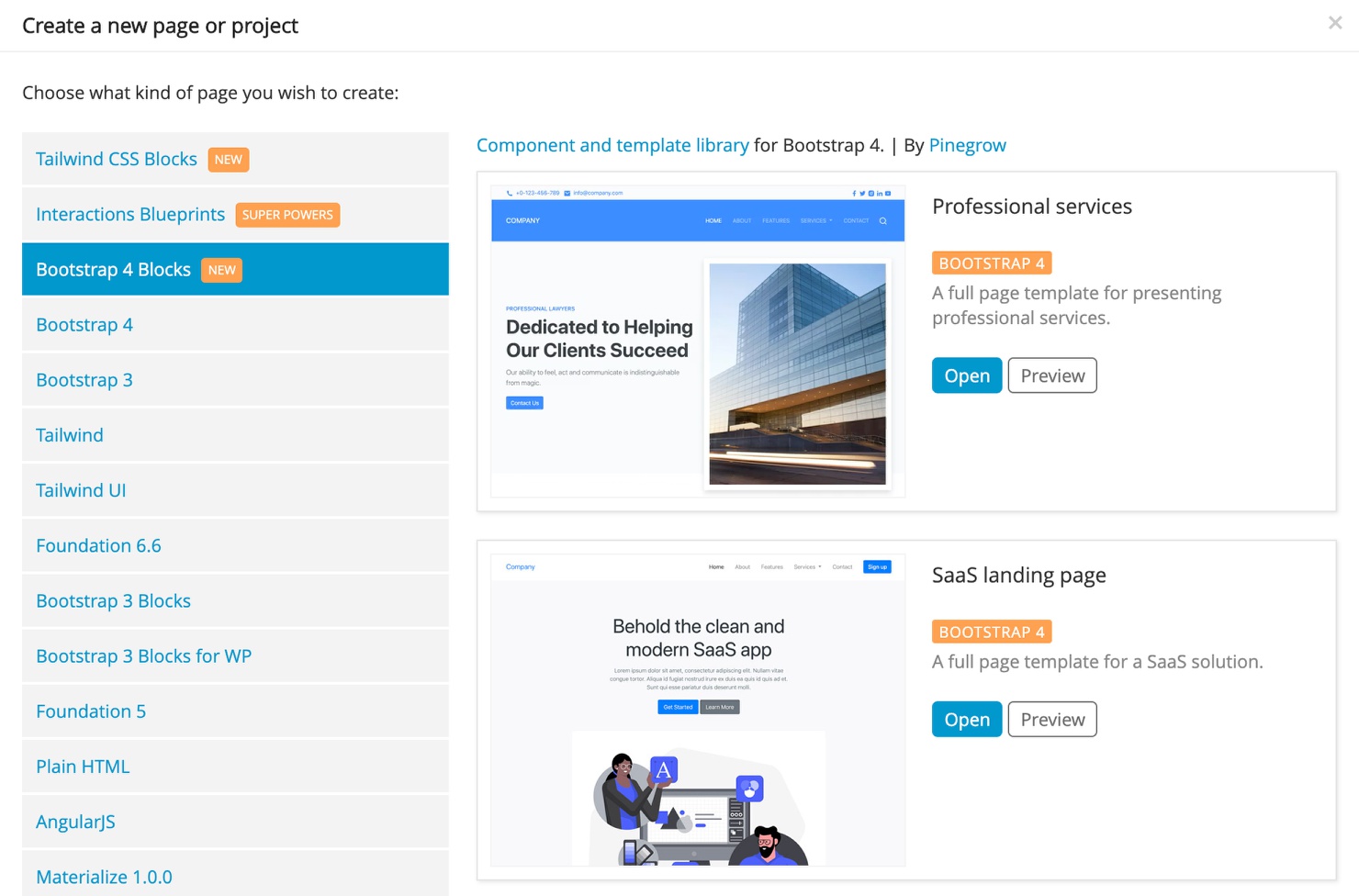
Bootstrap Blocks now has two ready-made templates: SaaS landing and Professional services.
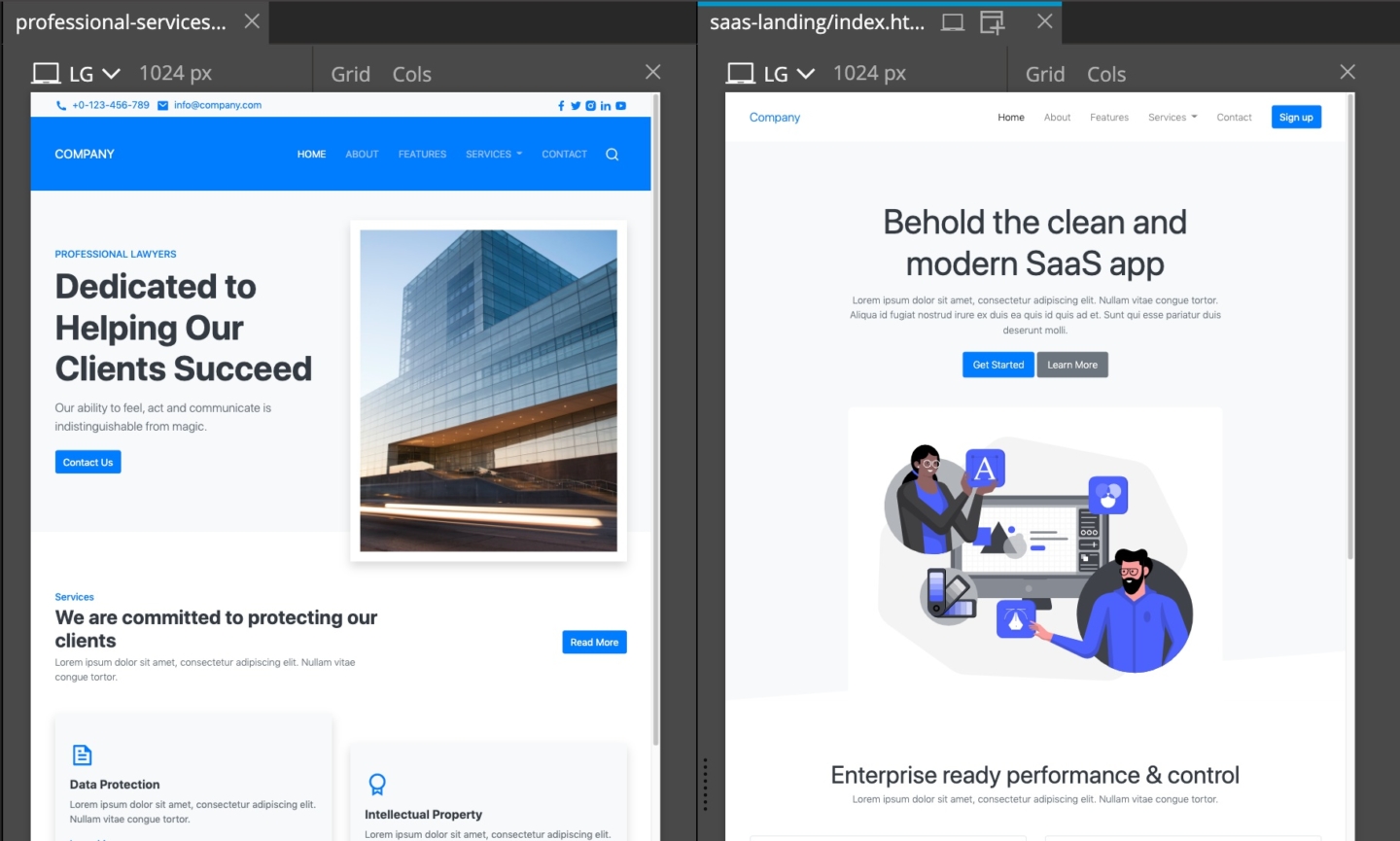
Both templates are accessible in the New Page dialog, under Bootstrap 4 Blocks tab:
Bug fixes
Including:
- Not formatting the content of a
<pre>element. - Saving Class Styles and more.