
Pinegrow Web Editor 2.6 with improved UI, better code editing and more.
Release notesRelease notesRelease notesRelease notes2016-02-03
Pinegrow Web Editor 2.6, February 3, 2016
Pinegrow 2.6 is available for download. Our focus for this release has been making the user interface easier to use, making it more flexible and consistent.
Lots of further UI improvements will happen in the next few months. Instead of releasing one big UI redesign that would be unfamiliar to most users, we’ll implement and release changes in a gradual way.
Let’s take a look at what’s new:
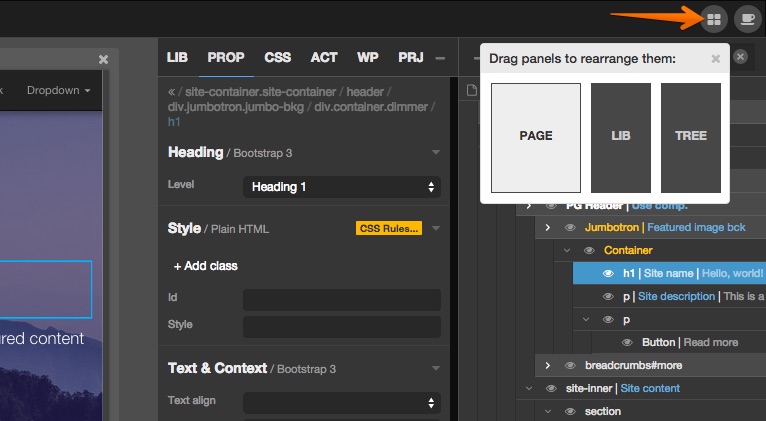
Rearrange UI panels
Select the best position for LIB panel, document outline tree and page views. Tree and pages are also horizontally resizable.
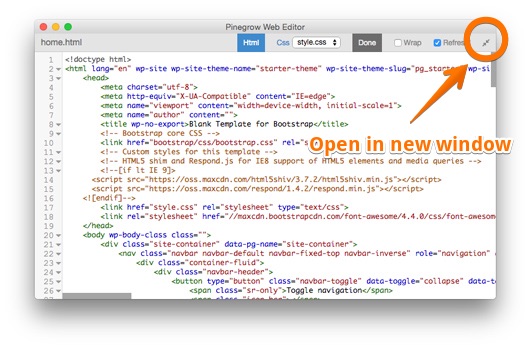
Edit code in a separate window
Open code editor in a separate window. That’s especially handy if you have multiple screens.
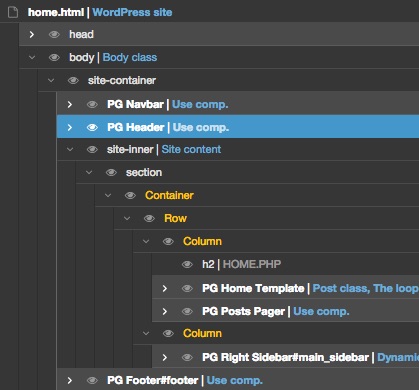
Better tree visibility
The tree displays vertical guides for different nesting levels with a highlighted guide for the current level.
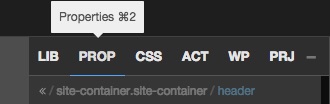
Quickly switch between panels
Keyboard shortcuts (CTRL/CMD + 1..6) will switch between LIB, PROP, CSS, ACT, WP and PRJ panels.
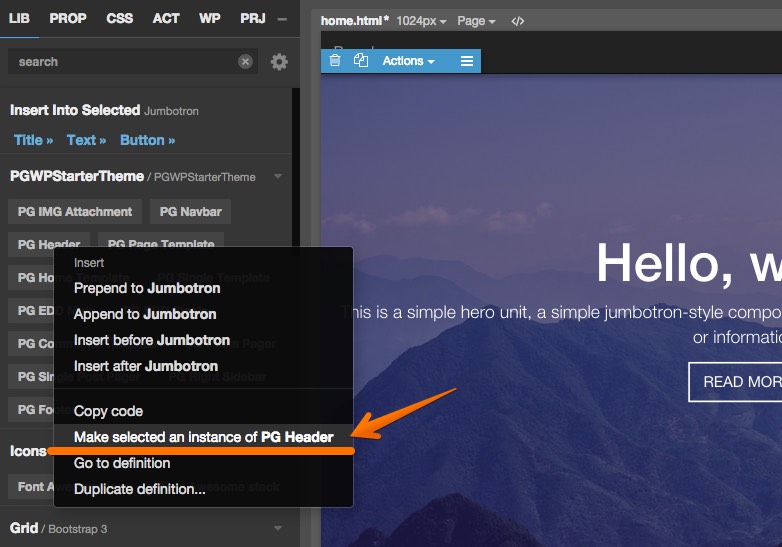
Components: Make the selected element an instance of a chosen component
This is a very useful feature, especially if you’re adding components to an existing page. For example, after creating a component definition for a team member, select team members on the page and use “Make the selected element an instance of” to make them into instances of the team member component. Pinegrow will even take care of editable areas for you.
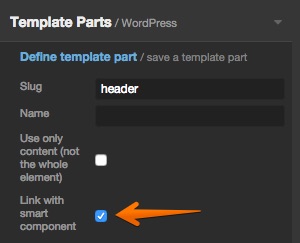
WordPress: Link Template parts with Smart components
WordPress template parts can now be easily linked with Smart components so that they appear in the LIB panel from where they can be easily added to any page in your theme. Learn more »
Better handling of PHP tags in HTML attributes
Pinegrow can now handle HTML attributes that contain PHP code, for example: <img src="<?php echo "images/".$image; ?>" />
-
And as always, we also have a bunch of bug fixes.