
Updates – Mac M1 build – Layout tools – Improved CSS editor – Class previews – Responsive interactions and more.
Release notesRelease notesRelease notesRelease notes2022-11-25
Pinegrow Web Editor 7 and 7.0x, November 28, 2022
Download Pinegrow 7.05
The package includes Pinegrow PRO, WordPress, WooCommerce, Interactions and Tailwind editor.
Pinegrow for Mac (Intel) Antivírus checkedMac: 8b34cc625d8b5bddd4920e2367063140b092b0b4
Pinegrow for Mac (M1 / M2) Antivírus checkedMac: 7435d6290db47e2d50c752e6f53a2ed004a5d74f
Pinegrow for Windows 64 (Installer) Antivírus checkedWindows: c84b15bba3862b0ef7d1d4fdd5a4e114752eed2e
Pinegrow for Linux (Zip, 64bit) Antivírus checked Linux: fadc48014ecce325b4e2b3acc4d26856896a7076
Pinegrow Web Editor 7.05 - December 28, 2022
This release addresses the following Pinegrow issues:
- Fixed “stuck” CSS properties in CSS Visual editor (Display, Gap…)
- Fixed file picker on srcset fields in Properties panel
- Listing CSS variables from imported stylesheets with field helper dropdown in the Style panel
- The Linux build is fixed (updated on December 30)
Pinegrow Web Editor 7.04 - December 20, 2022
This release addresses the following Pinegrow issues:
- Prevent stuck class previews on visual controls in the Properties panel
- Fixed Design panel adding multiple stylesheets
- Fixed Post Breadcrumbs WordPress action breaking HTML in certain situations
- Fixed exporting WordPress React blocks with Pinegrow Interactions
Pinegrow Web Editor 7.03 - December 7, 2022
This release addresses the following Pinegrow 7 issues:
- Fixed VS Code integration
- Fixed crashing on some workspace configurations
- Fixed Interactions issue that required Restart on Play where it before was not needed
- Fixed double class attributes if WordPress Post Class and Post Field are used together
- Fixed Create new file in Project panel
- Fixed Attribute editor in Properties panel
- Fixed version number
- Fixed showing Bootstrap modals during editing
And we also squeezed in two new features for Tailwind CSS:
- Class preview now works with external build process
- ALT + click on a Tailwind CSS class to jump to its control in the Properties panel (a menu option for this is included on click as well)
Known issues
Pinegrow 7 does not start or freezes on start
If you are upgrading Pinegrow from a previous version, and if Pinegrow 7 does not start or it freezes on the dashboard, the solution is to delete the apps profile data.
Ubuntu 20.04 LTS and > and Other Linux Distributions
We discovered that Pinegrow 7.x has a major malfunction with Linux distributions and we recommend that you continue using version 6.8 until it is resolved. Fixed with version 7.05.
Use Pinegrow to learn how to use Pinegrow
The first thing you will notice is the new dashboard. It’s not just prettier. The goal is to help users get up to speed with Pinegrow and its many features. This includes both new users and introducing new features to existing users.
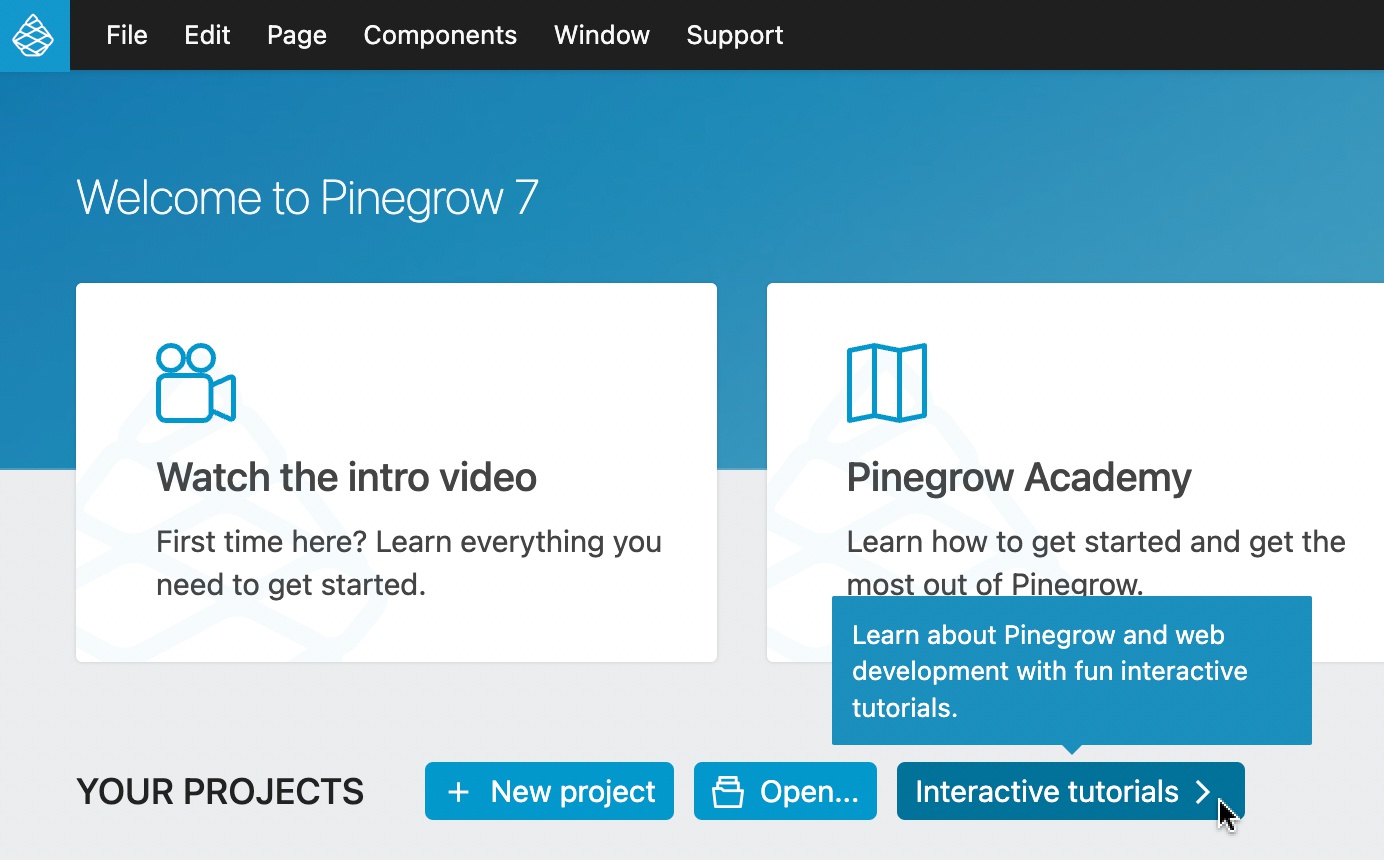
Pinegrow 7 comes with the Interactive tutorials section with short and fun tutorials covering most of the major new features.
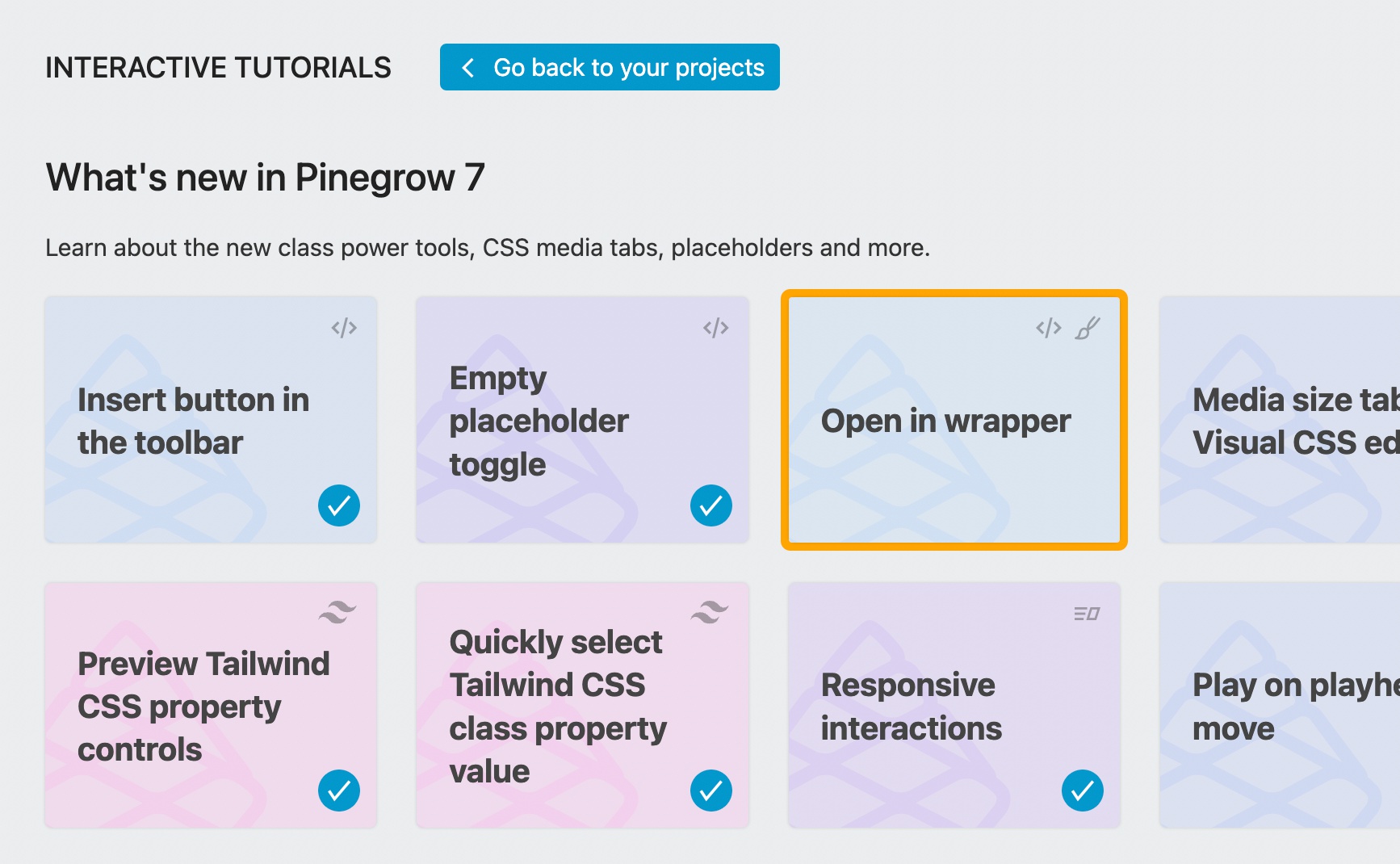
The tutorial projects, videos and step by step instructions are all brought together into fully interactive lessons. Btw, the tutorials platform was first developed for HTML Planet for Kids, and is now a part of the Pinegrow core - minus the aliens.
You can do the tutorials in any order you want.
The first thing you should do after starting a lesson is watch the tutorial video.
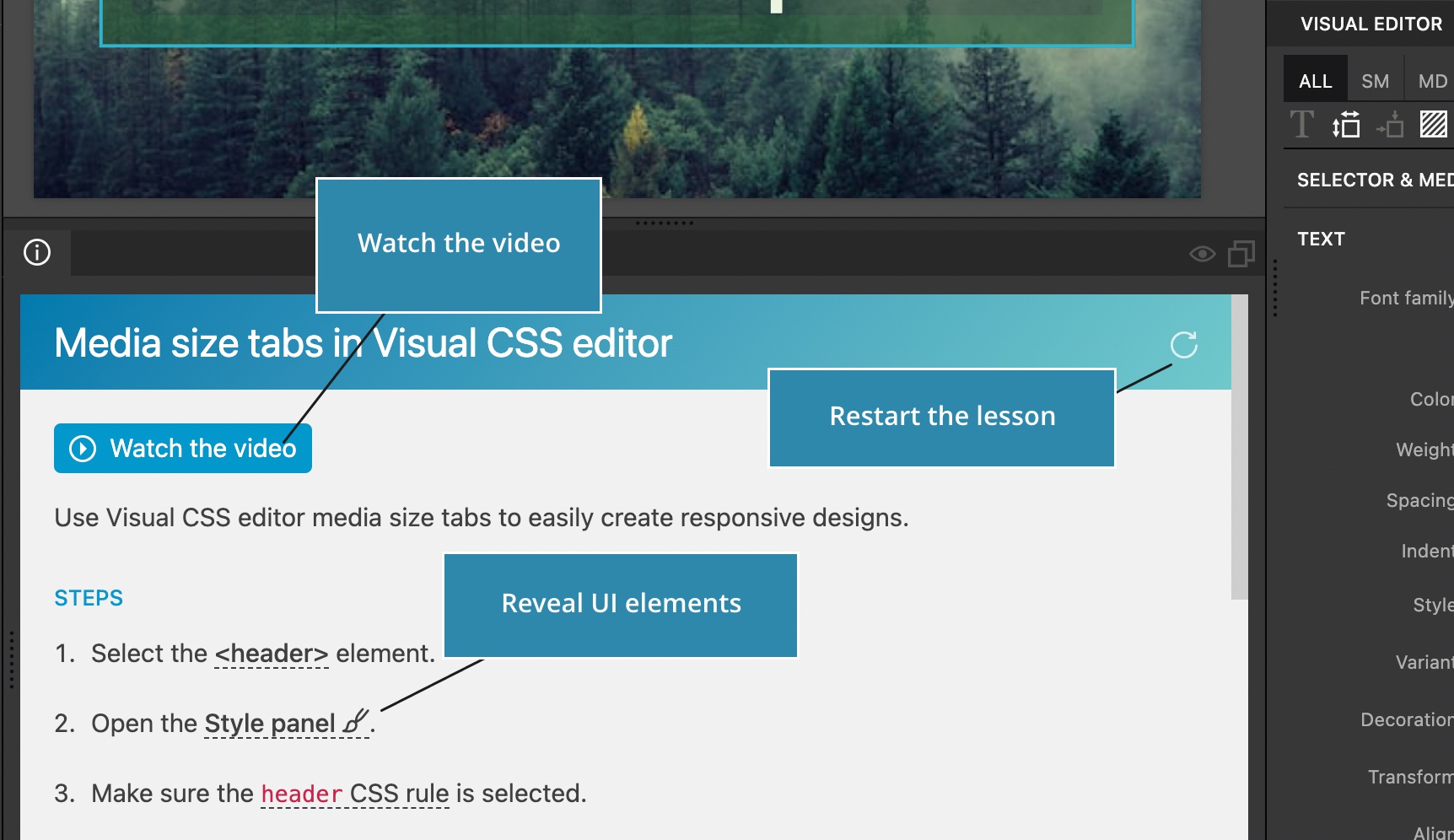
Next, follow the steps to complete the tutorial. Click on the underlined terms to reveal them in the UI.
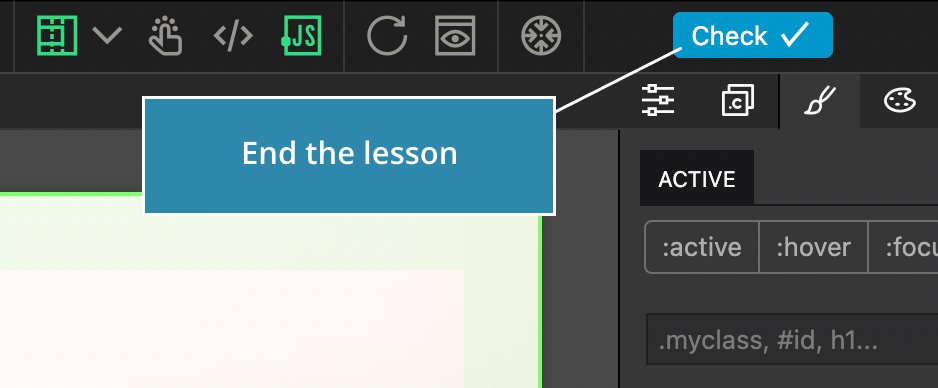
Click on the Check button when you are done with the lesson. Don’t worry if you mess things up. Just use the Restart button to restart the lesson.
More interactive tutorials will be added in the future.
Let Pinegrow fly with native Mac M1 build
We finally have a native install package for Mac arm64 platform. It makes Pinegrow start and run much quicker than the emulated Intel version.
Insert button in the toolbar
Use the new Insert button to easily add elements and components to the page. The button opens the popup Library panel.
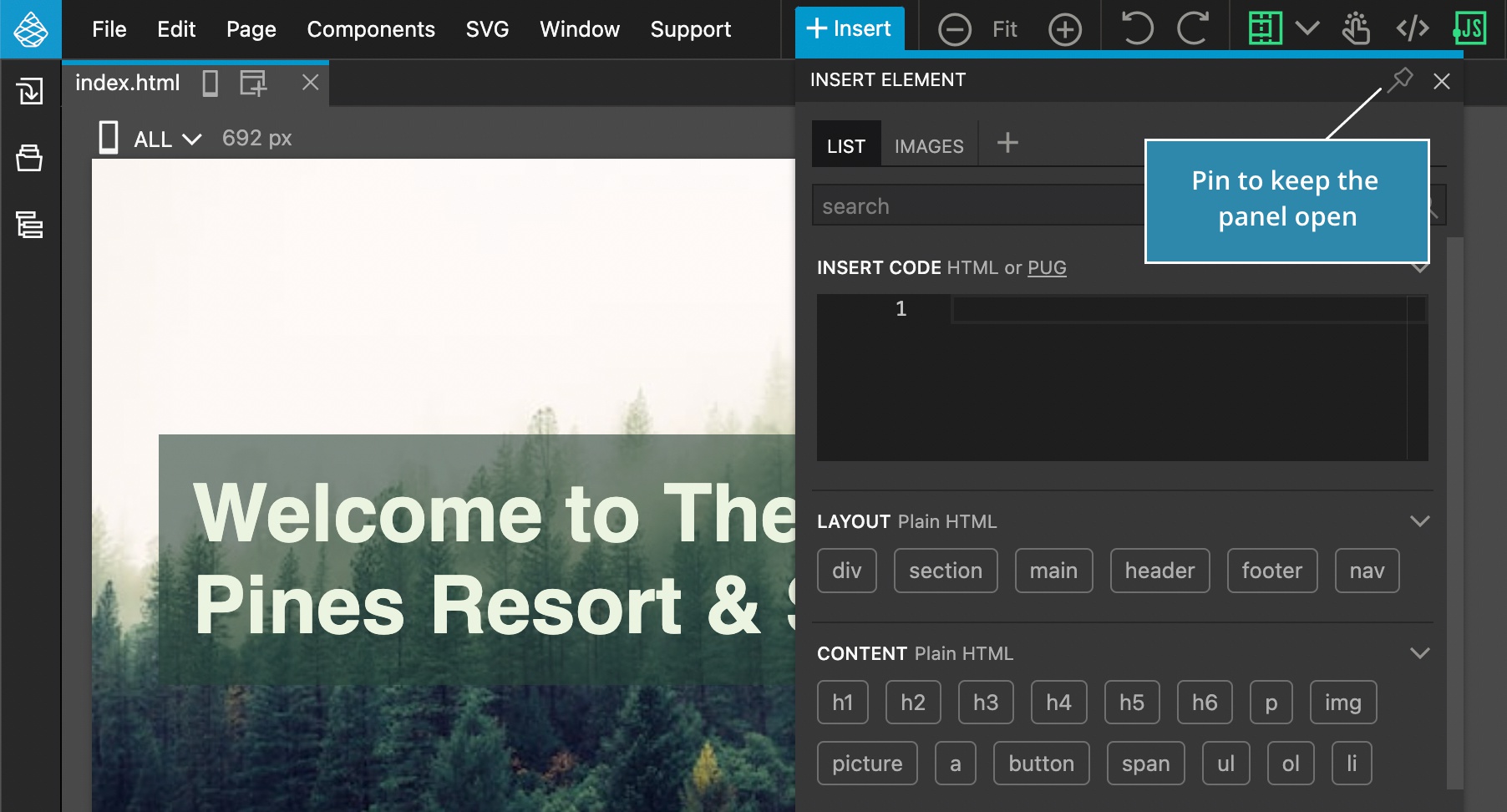
The panel closes itself when you start dragging an element to the page or to the Tree panel. Toggle the Pin icon on the panel if you wish to keep the panel open, so that you can add more elements to the page.
The Insert button makes the Library panel accessible from everywhere and reduces the need to switch to the Library panel in the fixed UI.
Watch the video of the interactive tutorial lesson to learn more, or even better - do the tutorial lesson in Pinegrow:
The new empty placeholder toggle
Pinegrow 7 changes how it handles displaying empty elements.
In previous versions, a special class called pg-empty-placeholder was used to make empty elements visible in the editor. But this class then often showed up in unexpected places.
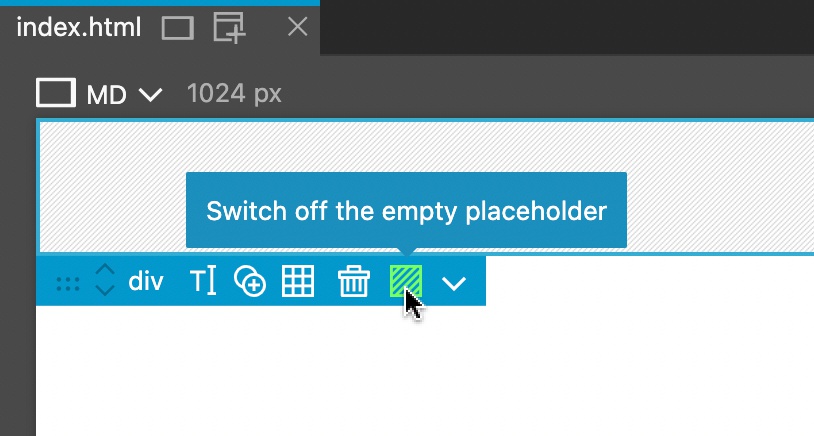
Pinegrow 7 uses a data-empty-placeholder attribute instead and adds a tool for easily toggling the placeholder.
Watch the video of the interactive tutorial lesson to learn more, or even better - do the tutorial lesson in Pinegrow:
Open in Wrapper
Imagine you are building a component that will be displayed on an existing website.
Wouldn’t it be great to be able to visualize how the component will appear on the target website, while you are working on it in Pinegrow?
Now you can - with Open in wrapper feature.
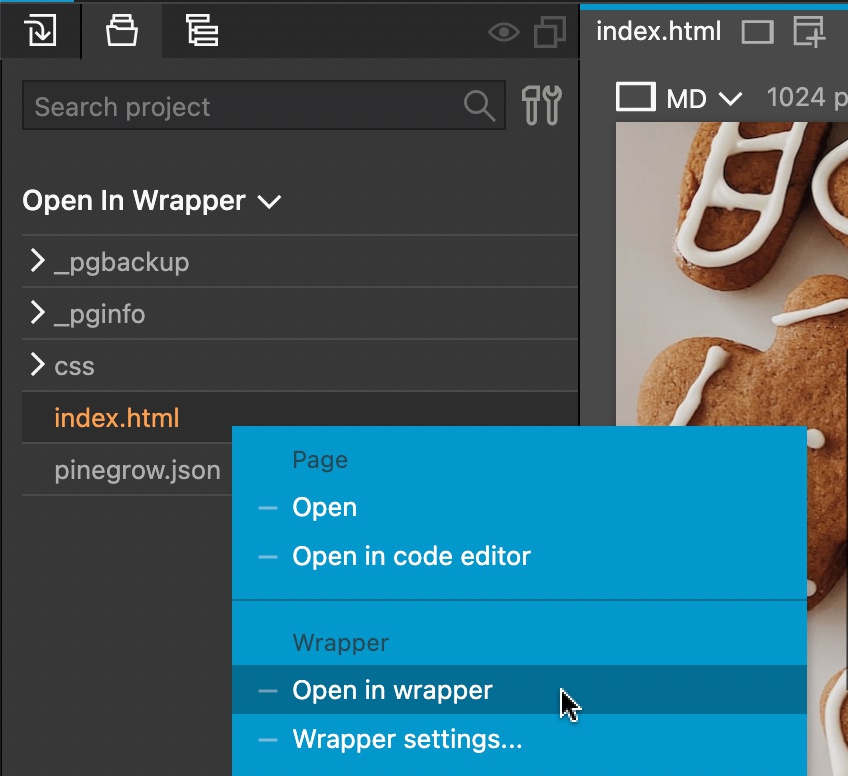
To open the page in the context of any website, go to the Project panel and right-click on the file name. Select the Open in Wrapper command.
Set URL of the target website and optional CSS selector where the content of the edited document will be shown.
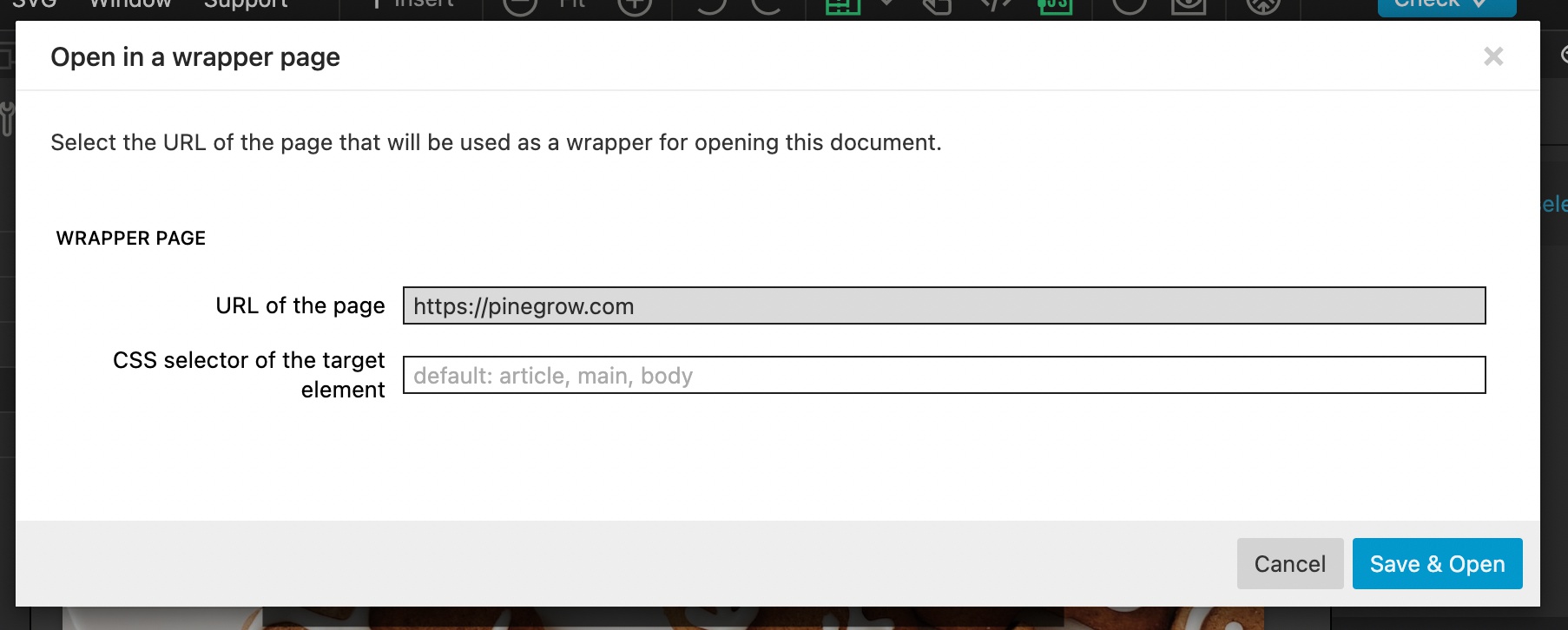
You can use any remote URL. Note that if the website does some fancy stuff to load itself, this might not work. But for normal HTML based website it works ok.
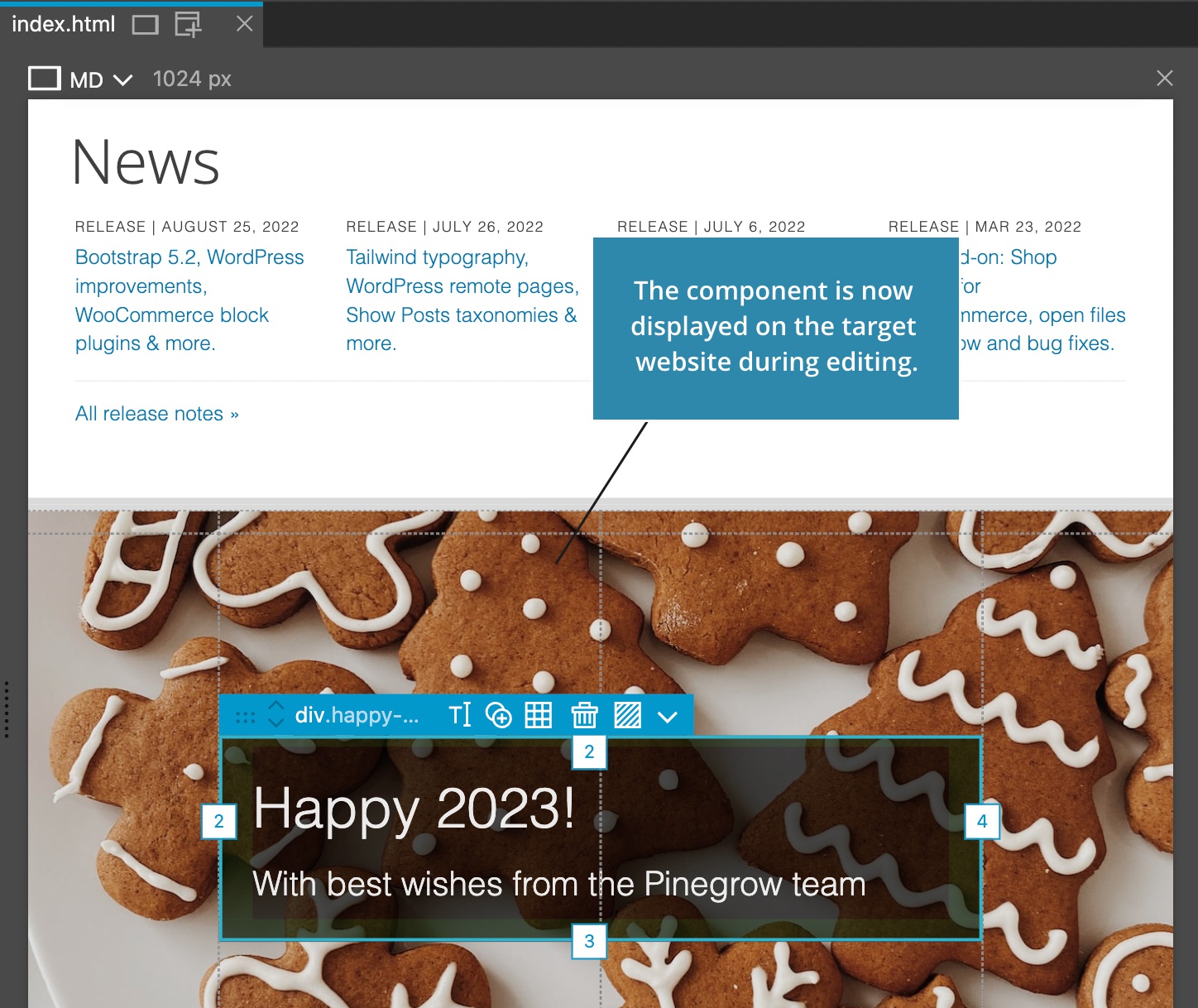
Watch the video of the interactive tutorial lesson to learn more, or even better - do the tutorial lesson in Pinegrow:
Media size tabs in Visual CSS editor
Use Visual CSS editor media size tabs to easily create responsive designs.
Click to the media size tab to switch to editing the selected CSS rule for that size. Right-click to also resize the page view.
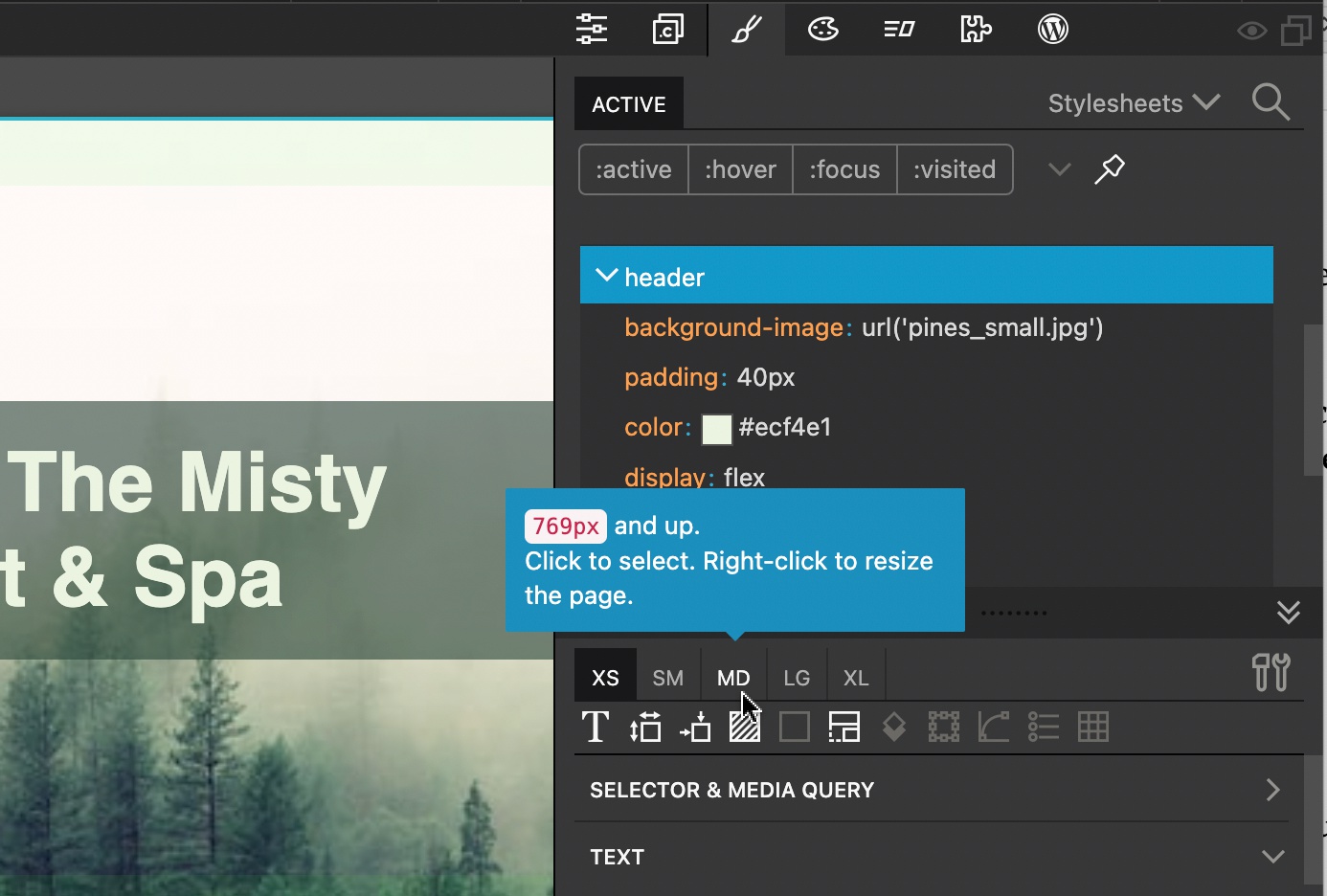
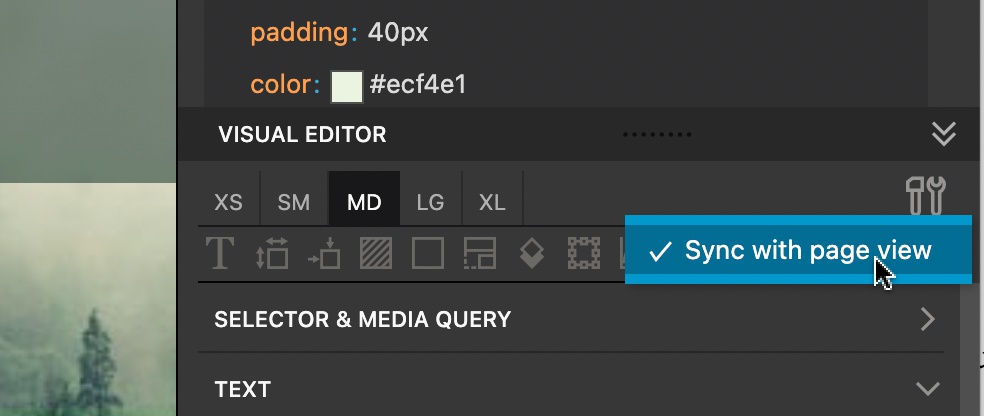
Or enable Sync with the page view setting to keep the tabs and the page view in sync.
Click on the Create the rule to create a CSS rule for the target media size.
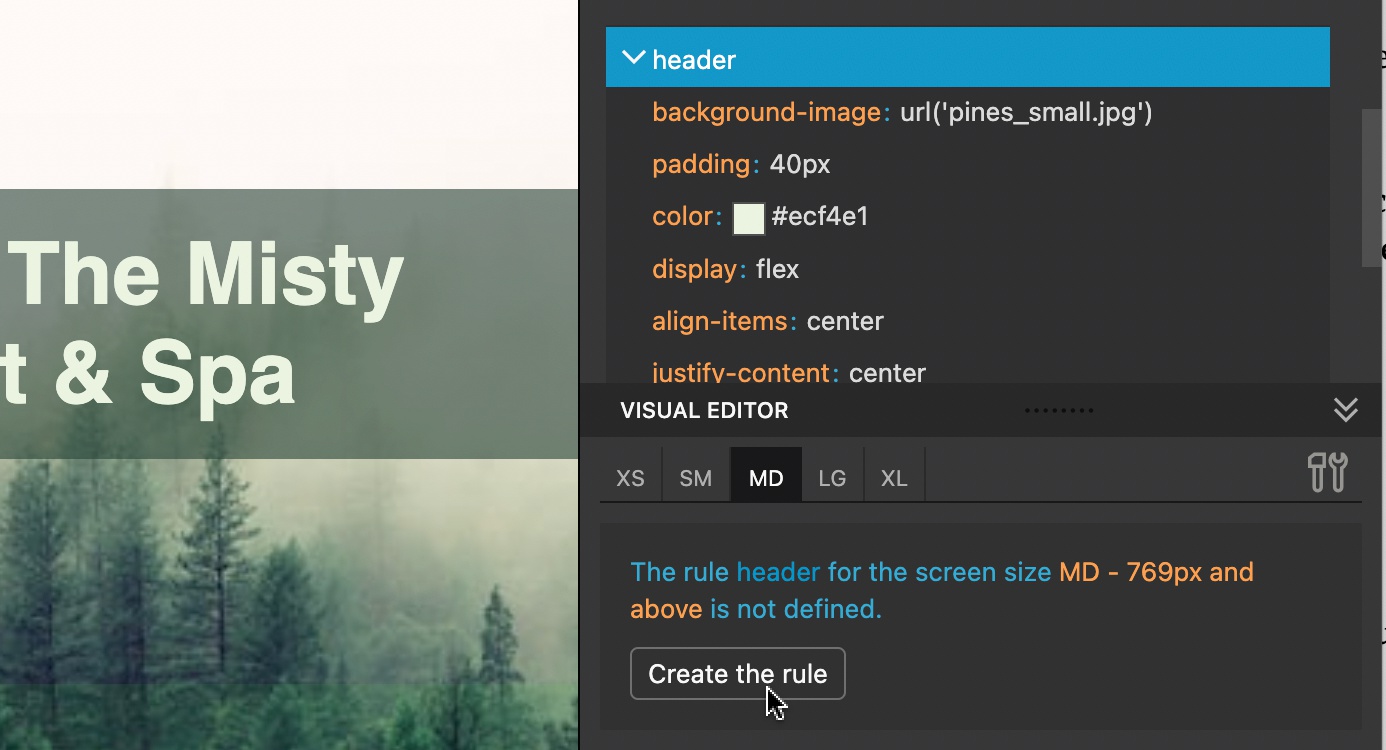
Watch the video of the interactive tutorial lesson to learn more, or even better - do the tutorial lesson in Pinegrow:
Advanced gap controls in CSS Grid editor
Use separate controls for column and row gap to finetune your CSS grid layouts.
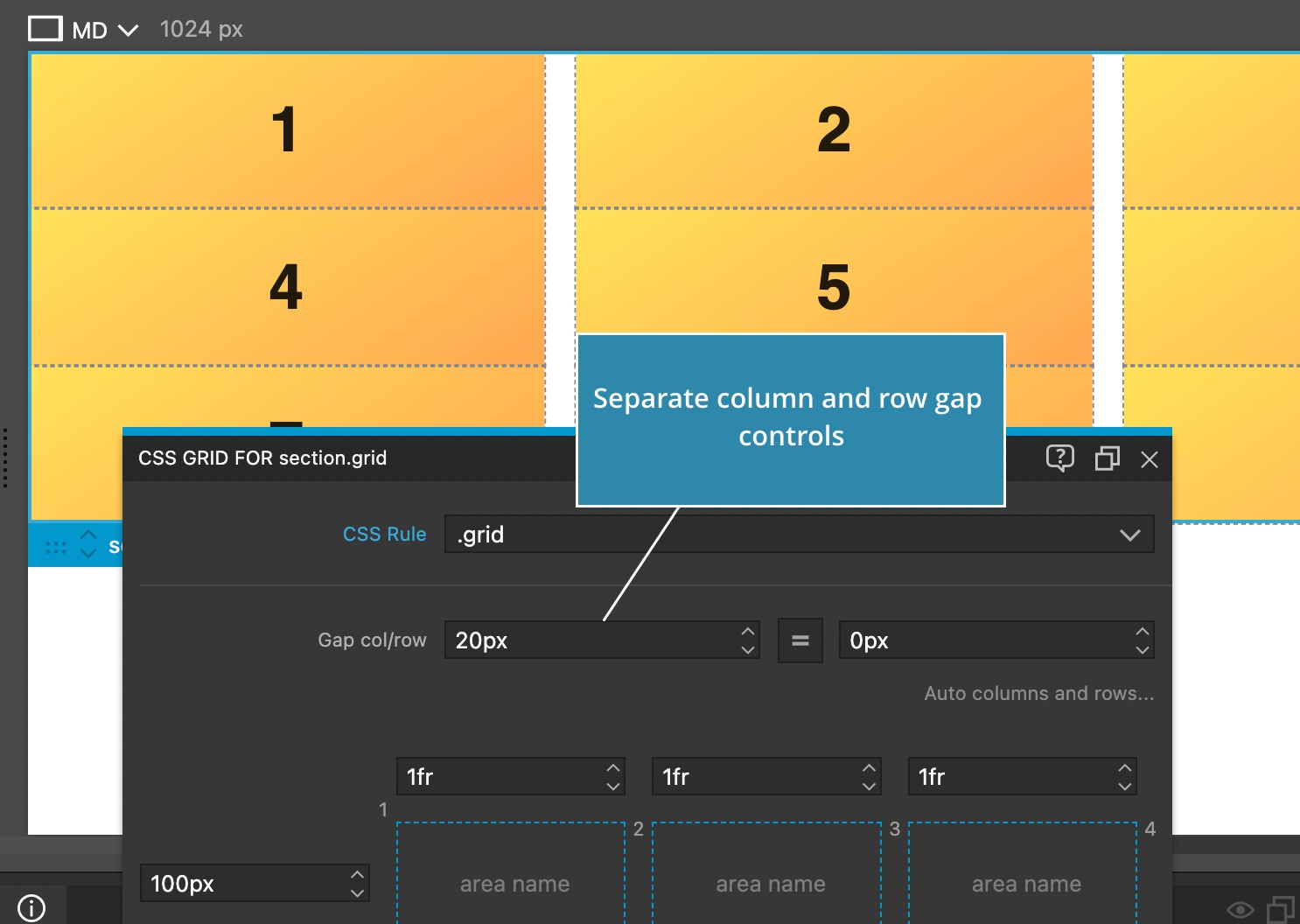
Watch the video of the interactive tutorial lesson to learn more, or even better - do the tutorial lesson in Pinegrow:
Updates all around
The embedded Chromium browser, Bootstrap 5, Tailwind CSS, GreenSock and the SASS engine have all been updated to their latest versions.
Will anybody miss the Windows 32bit version?
In order to support all the above updates, our build process became mere complex and to compensate for that we are dropping the support for 32bit Windows. If you really need to run Pinegrow on 32bit Windows, let us know and we will revisit this decision in case there is enough demand for it.
Bootstrap - Preview property controls
See the effect of property values while hovering over them. No need to set the value in order to preview what effect it would have on the selected element.
This also works with Floating tools, in Set mode.
Note, the preview only works with controls for utility classes, not for controls that change the element tag or attributes.
Watch the video of the interactive tutorial lesson to learn more, or even better - do the tutorial lesson in Pinegrow:
Tailwind CSS - Preview property controls
Previewing class controls works with Tailwind CSS as well, both in the Properties panel and with Floating tools.
Watch the video of the interactive tutorial lesson to learn more, or even better - do the tutorial lesson in Pinegrow:
Tailwind CSS - Quickly select class property value
In the Properties panel, click on a class button to select a different utility class value.
Clicking on a color class opens up the color picker.
Watch the video of the interactive tutorial lesson to learn more, or even better - do the tutorial lesson in Pinegrow:
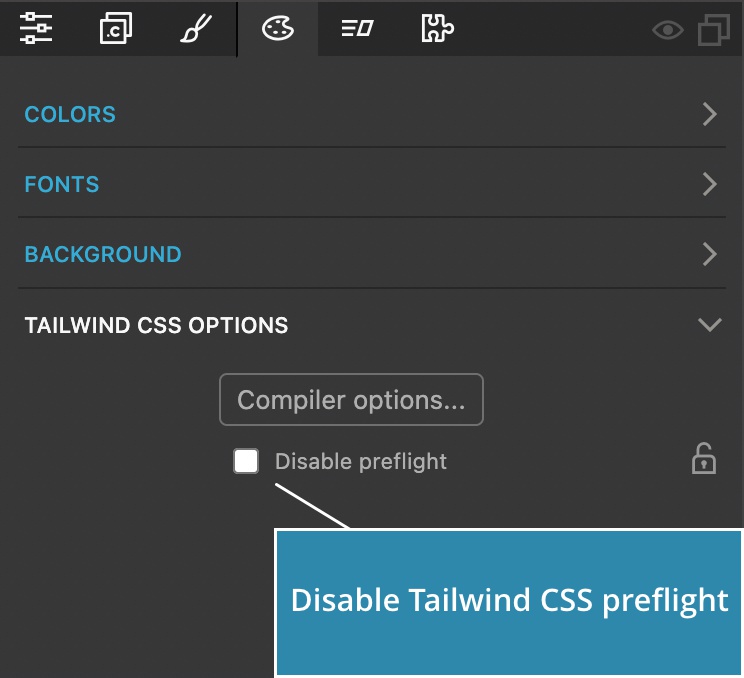
Tailwind CSS - Option to disable preflight
Tailwind CSS Design panel now lets you disable adding preflight CSS rules to the generated stylesheet. Preflight removes all default browser styles, and that can interfere with using Tailwind CSS in combination with other styling, for example in WordPress.
Interactions - Create responsive animations with fluid switching between the small and large screen versions
Pinegrow 7 makes it possible to create responsive animations with fluid switching between the small and large screen versions.
Although it was possible to create interactions that only ran on small or large screens, once the page was loaded, the interactions were fixed. So, if you resized the page from large to small size, the large version of interactions kept running. The only way to switch was by reloading the page.
Not anymore. Interactions are now responsive without having to reload the page.
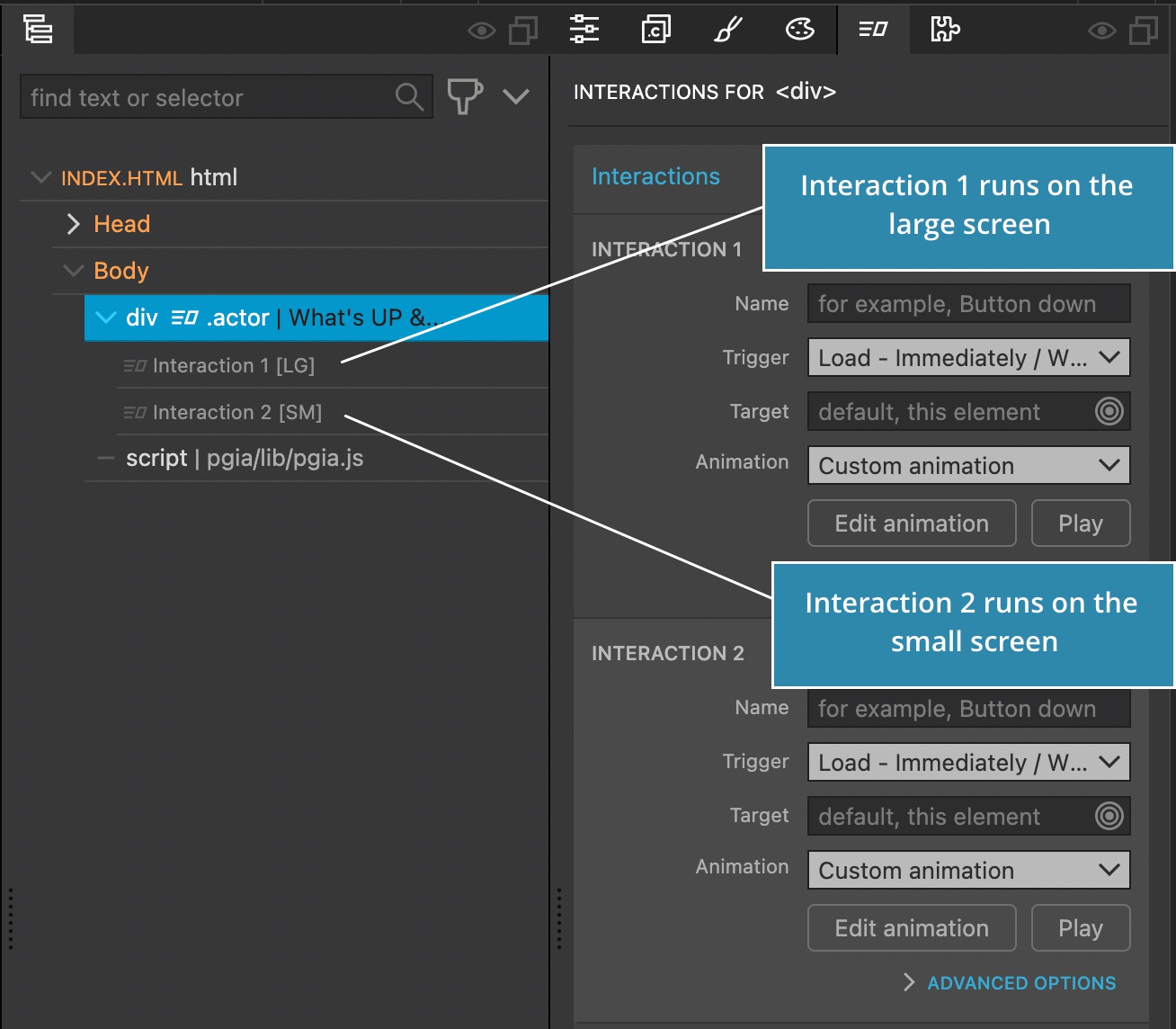
See it in action:
Watch the video of the interactive tutorial lesson to learn more, or even better - do the tutorial lesson in Pinegrow:
Interactions - Simplify scroll interactions by playing the animation whenever the playhead moves
This new Interactions feature lets us simplify scroll interactions by playing the target animation whenever the playhead moves.
By default Play triggers only when the playhead enters the transform. If the playhead stays over the transform the animation is not replayed when the playhead moves.
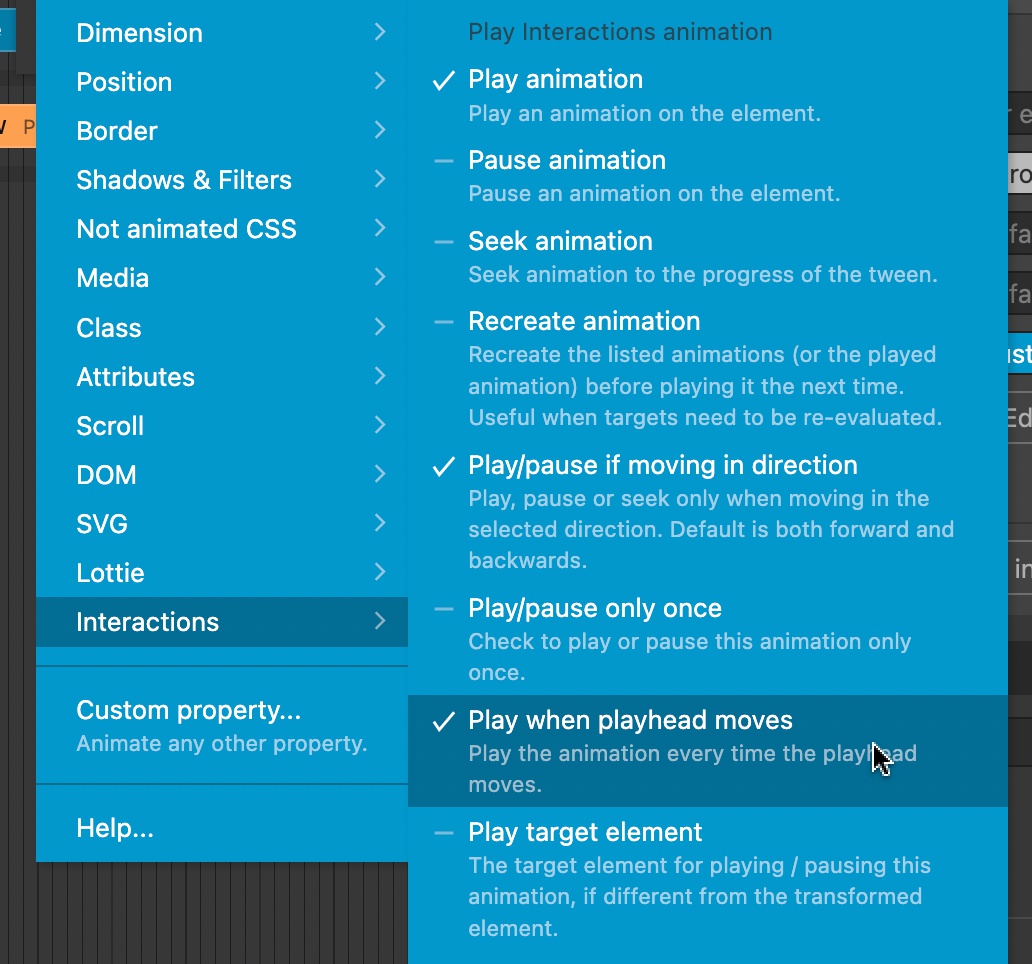
The new “Play when playhead moves” property makes the animation play whenever the playhead moves.
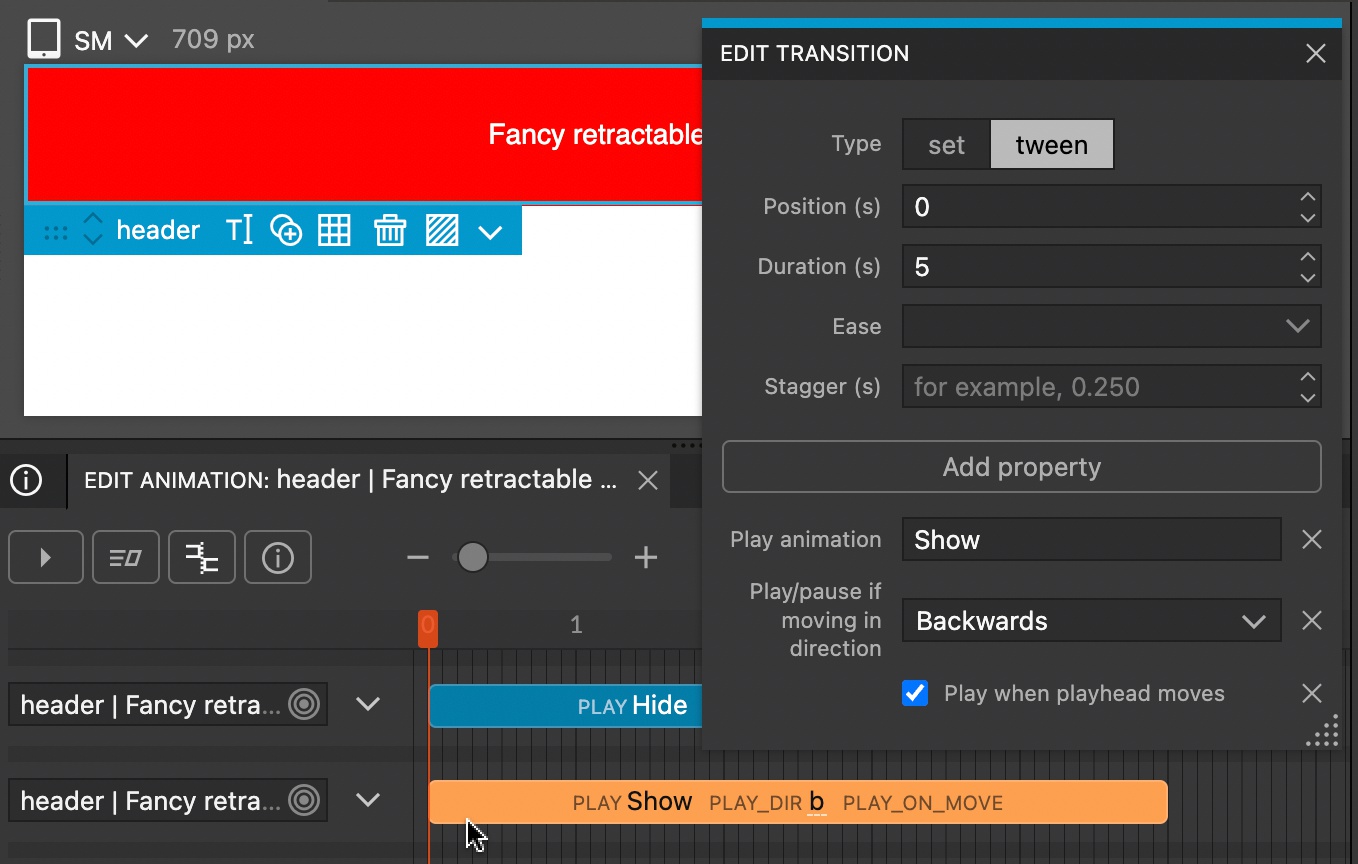
The property is located in the Interactions section of Add property menu:
Watch the video of the interactive tutorial lesson to learn more, or even better - do the tutorial lesson in Pinegrow:
Interactions - Changed behavior of how Scroll Scene detects the scroller element
Note, this is a potential breaking change that can affect your existing interactions.
Scroll Scene scroller element is the element whose content is being scrolled. In most cases that is the browser window itself. For sliders, that is usually the container element that contains the slides.
Scroll Scene used to auto-detect the scroller element by measuring if its parent’s inner content is larger than its outer size. If so, the parent element was the scroller. But in many cases this led to unexpected results.
This logic is changed now: if the parent element has its now Scroll Scene, its scroller element will be used for this Scroll Scene as well.
Based on this rule all Slider blueprints work without any changes, and that will be the case for most situations.
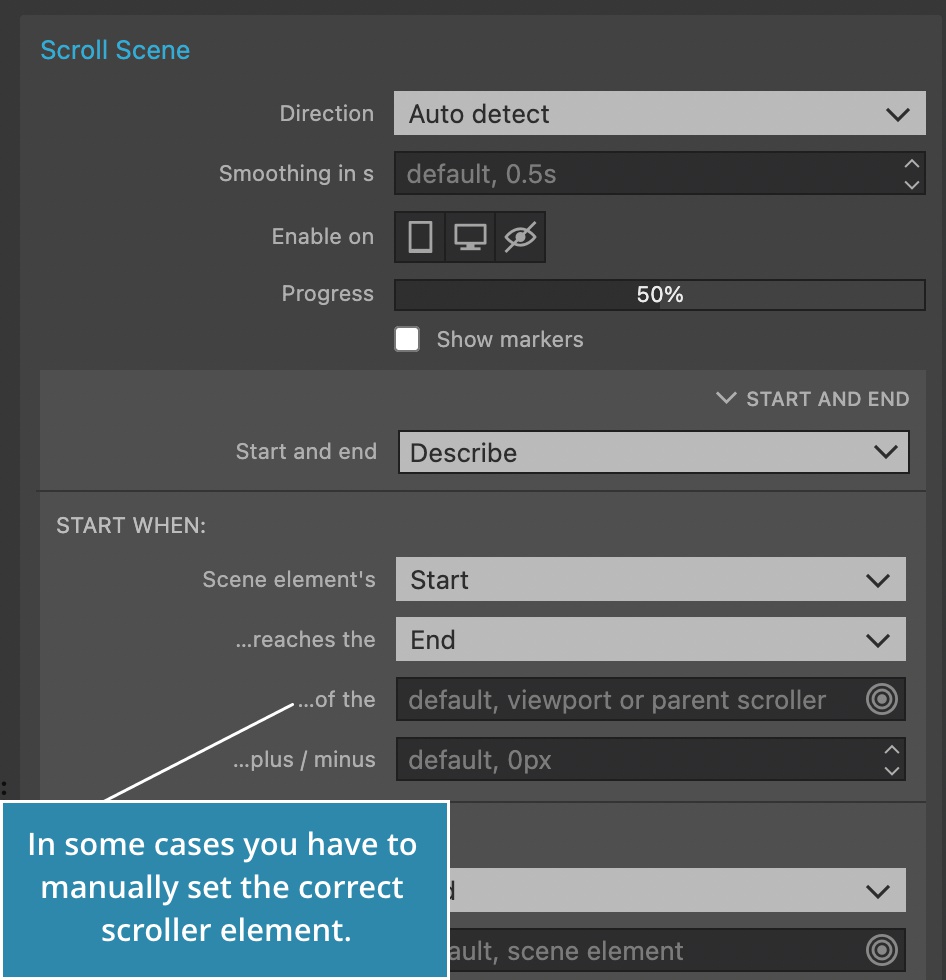
But it is recommended to check your Scroll Scenes after updating to the latest version, and if needed, manually set the scroller element when describing the start and end of the scene.
WordPress - Smart menus with dropdown
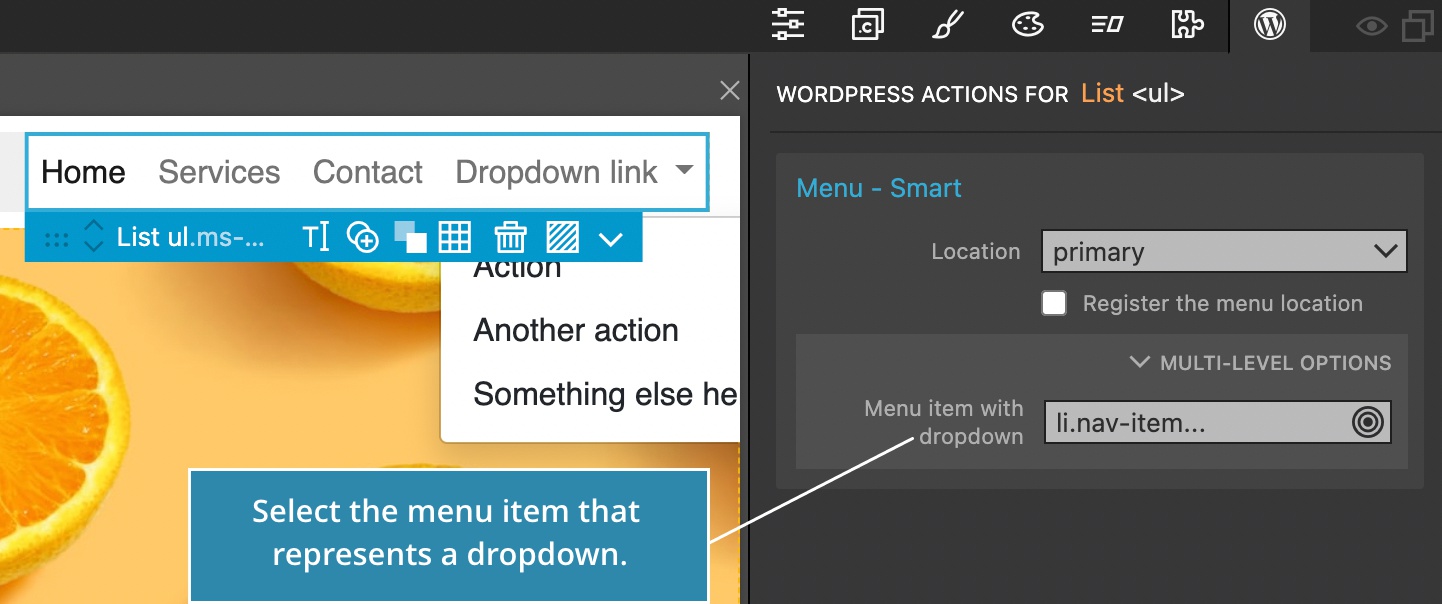
The Menu Smart action can now handle dropdown menus.
Just select the element that represents the dropdown and the Smart menu will figure out the rest.
WordPress - Menu item ids on multiple menus
By default, WordPress removes menu item ids from items that were already displayed with another menu, in order to avoid having duplicated ids on the page.
In practice, mobile menus are often displayed with as a separate menu. But these menu items now lack ids which can cause accessibility issues.
Pinegrow Smart menu walker works around this by assigning unique ids to all menu items.
WordPress - Block view only script setting
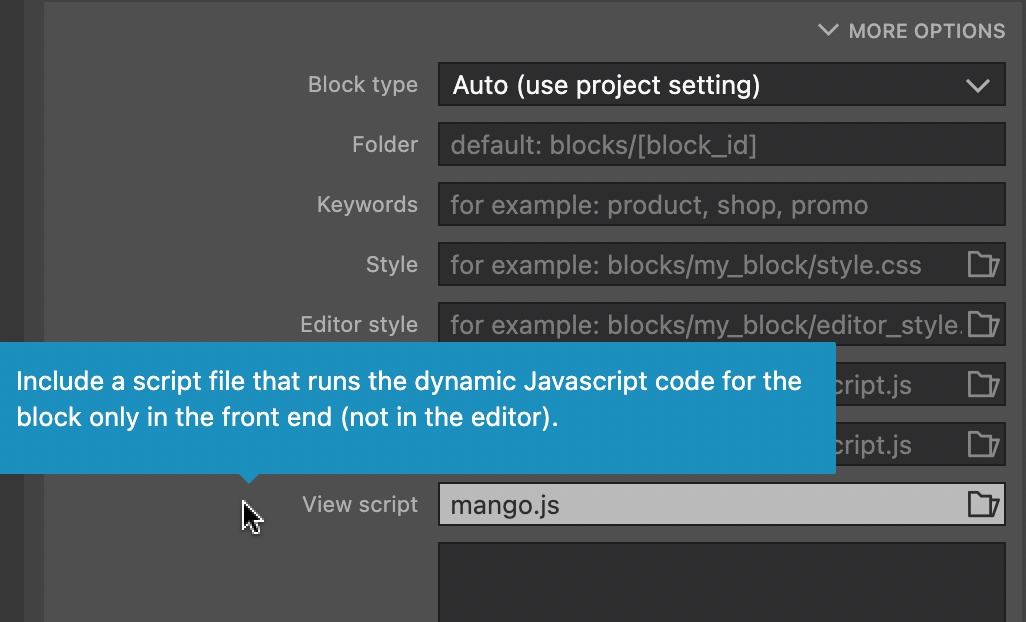
The Block action got a View script setting that lets you specify scripts that should only be included on the front end.
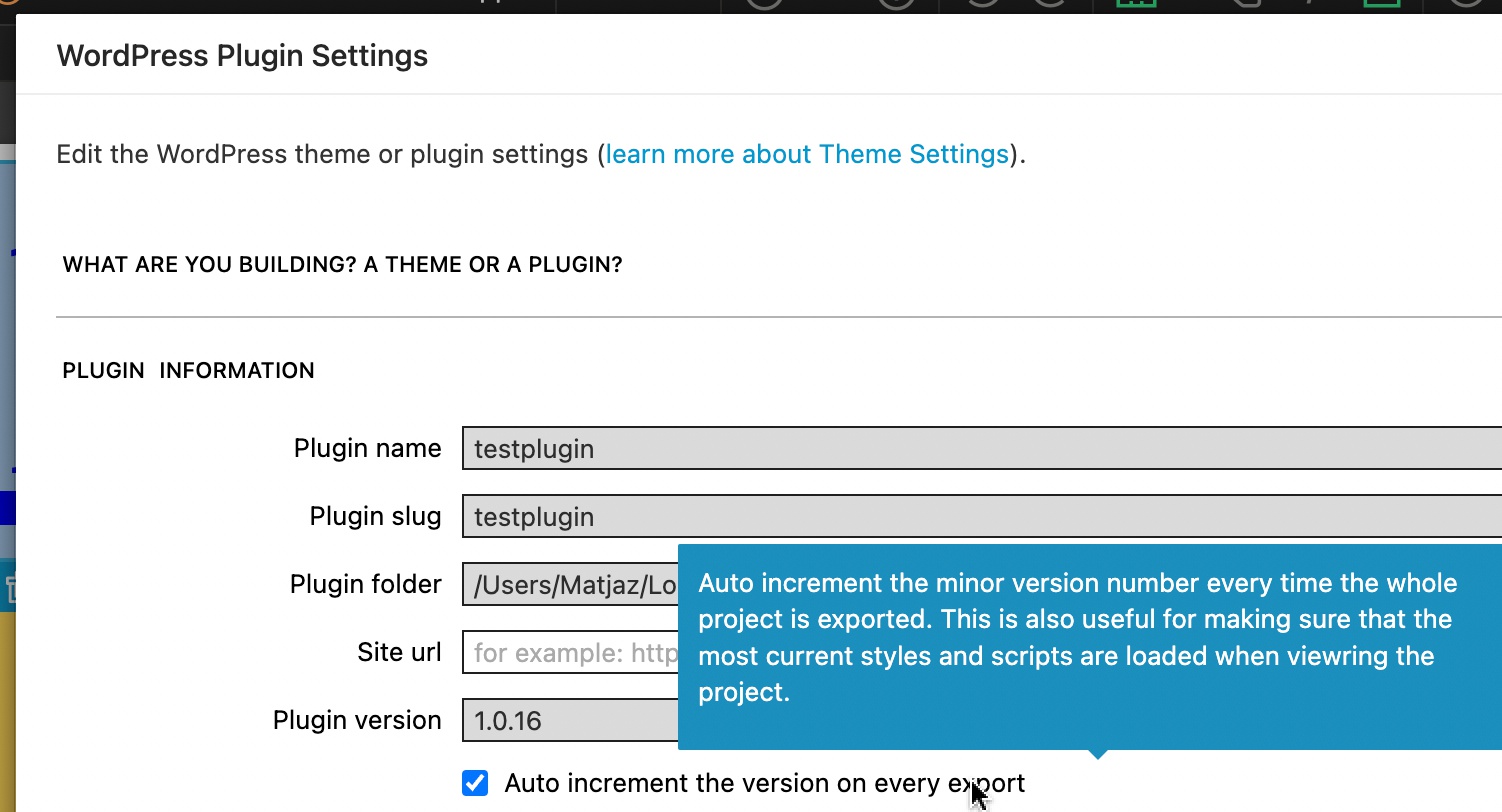
WordPress - Automatic project versioning
The theme and plugin version number can be auto incremented every time you export the project.
Use Theme / Plugin setting to toggle this feature:
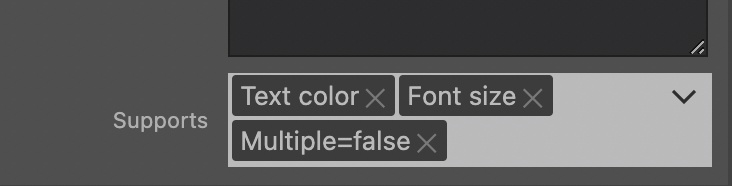
WordPress - Block action with multiple = false
Setting Supports on the Block action to multiple=false instructs the WordPress block editor that only one instance of the block can be added to a post.
WordPress - Block Attributes - Add rel=noopener is target is set
Previously, rel=noopener was automatically added to JavaScript blocks if the target was set to _blank. Now, it gets added whenever the target attribute is set.
This prevents the Recover the block issue in the block editor.
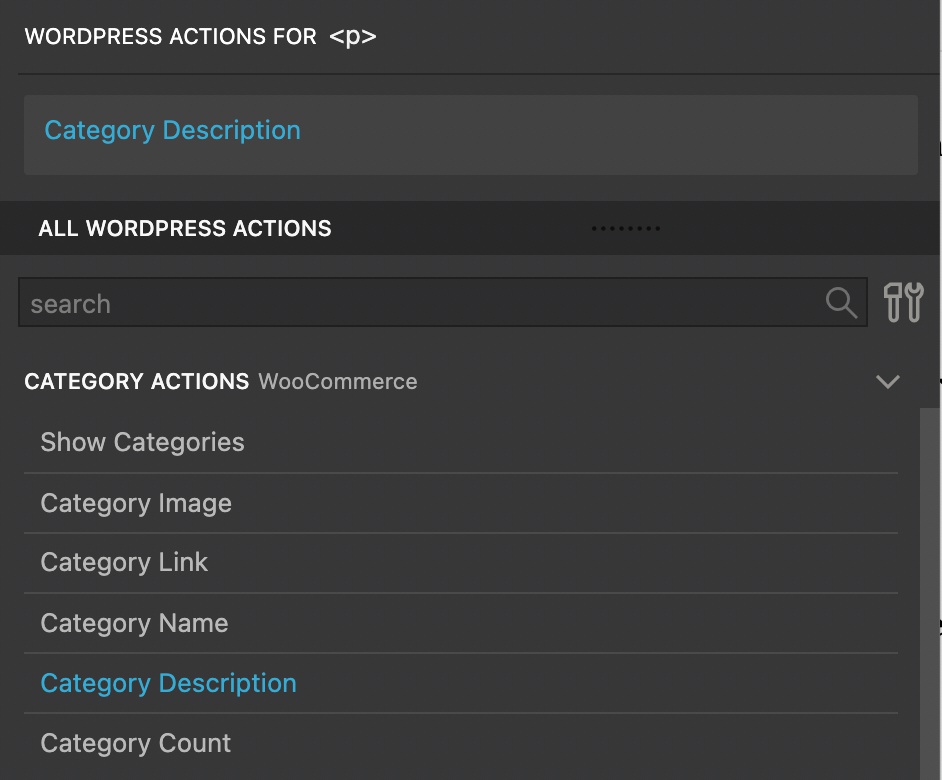
WooCommerce - Category Description action
Category Description action was added. Use it to display description of a category.
Download Pinegrow 7.05
The package includes Pinegrow PRO, WordPress, WooCommerce, Interactions and Tailwind editor.
Pinegrow for Mac (Intel) Antivírus checkedMac: 8b34cc625d8b5bddd4920e2367063140b092b0b4
Pinegrow for Mac (M1 / M2) Antivírus checkedMac: 7435d6290db47e2d50c752e6f53a2ed004a5d74f
Pinegrow for Windows 64 (Installer) Antivírus checkedWindows: c84b15bba3862b0ef7d1d4fdd5a4e114752eed2e
Pinegrow for Linux (Zip, 64bit) Antivírus checked Linux: fadc48014ecce325b4e2b3acc4d26856896a7076